



One of the exciting bits about AI and using it with infrastructure is that you can use what is known as MCP servers that allow you to have an easy way to interface with your various types of infrastructure. There are also advantages to using MCP servers as well instead of just direct calls from your AI agent to APIs and we will look at those. Using the Docker Toolkit MCP catalog, we can essentially add MCP servers and cleanly run these for our AI agents. Let’s see how.
Why run MCP servers?
I have had this question and comment on quite a few of the posts and YouTube video I did on MCP servers. Why do you need to use them with your home lab projects? Isn’t AI today so good that you don’t really need that interface that interfaces with your backend solution? These are good questions. Let me explain why MCP servers are a good thing.
Just like we have other abstraction layers today, MCP servers operate in a lot of the same way. They abstract your AI agent talking “directly” to your backend APIs of whatever system you are working with, whether this is Proxmox, Kubernetes, etc.
The benefit of an MCP server is multi-fold. First and foremost, you get the latest information and tools available from the MCP server for your AI agents to use. Keep in mind, your AI agents are using the knowledge cutoff of your AI models they are working with. So, for instance, if you are working with Amazon AWS and the knowledge cutoff for your model is 6 months ago, Amazon may have come out with dozens of new services that your model doesn’t know about. But, the AWS MCP server does!
This I think is one of the best examples of why they play a key role in our infrastructure management. They are like specialized gateways with all the knowledge about the “specific” product or system you are using, and then the model uses its intelligence to invoke the various tools provided by the MCP server.
Check out my post on the best MCP servers for home labs: My Favorite MCP Servers for the Home Lab in 2026.
Why running a lot of MCP servers in our home labs is messy
If you are like me, when you started experimenting with MCP servers, you just started out with a single MCP server running probably on your local box. But then once you get excited about running MCP servers after you see what they can do, your install of different servers might explode.
Without a unified way to do this, it can get pretty messy running MCP servers in the home lab and it can be a bunch of python processes running, containers that are spread throughout your environment, etc. It seems like they all also have their own installation process to go along with them and integrating these into your AI IDE.
This is how things evolved for me in the home lab once I started exploring MCP functionality and testing various ones out. I found that for myself the problem wasn’t necessarily installing and then running them. It was the problem of keeping them organized, etc.
Also, as mentioned usually they run differently between them. There may be several config entries pointing at different MCP servers. They may run on different architecture like Node.js, Python, etc.
Traditionally, an MCP client may have configuration entries pointing at several individual MCP servers. Some may run with Node.js. Others may use Python. Some run in containers. Others connect to remote MCP endpoints. Then there are API tokens, environment variables, OAuth credentials, and other configuration details.
This works to run them in various ways, but makes it harder to manage. This is where I found the Docker MCP toolkit is kind of a fresh take on this for me, running MCP servers in my home lab environment. So, instead of starting with the AI client and then trying to keep attaching MCPs to it, you can build your profile and then connect it to your IDE.
Docker MCP Toolkit helps with the management aspect of MCP
First, as an overview, Docker MCP Toolkit is integrated with Docker Desktop and it provides a management layer for finding and also installing and running MCP servers. Most of us alrready have Docker Desktop installed on a machine in the home lab network. So, if you already have it, did you know it includes this pretty cool tool for MCP servers?
I didn’t really realize the scope of what it can do. But it kind of “standardizes” the way you run MCP if you will in terms of the process to do that. The thing I like about it is that it feels like you are just running containers in general instead of putting together a bunch of MCP servers.
There are three parts to Docker MCP Toolkit. These are the following:
- Profiles – A cool concept that is a collection you put together that aggregates your servers
- Catalog – this is where you search and find MCP servers for various tasks and use cases
- Clients – These are the AI apps that you use to access your profile
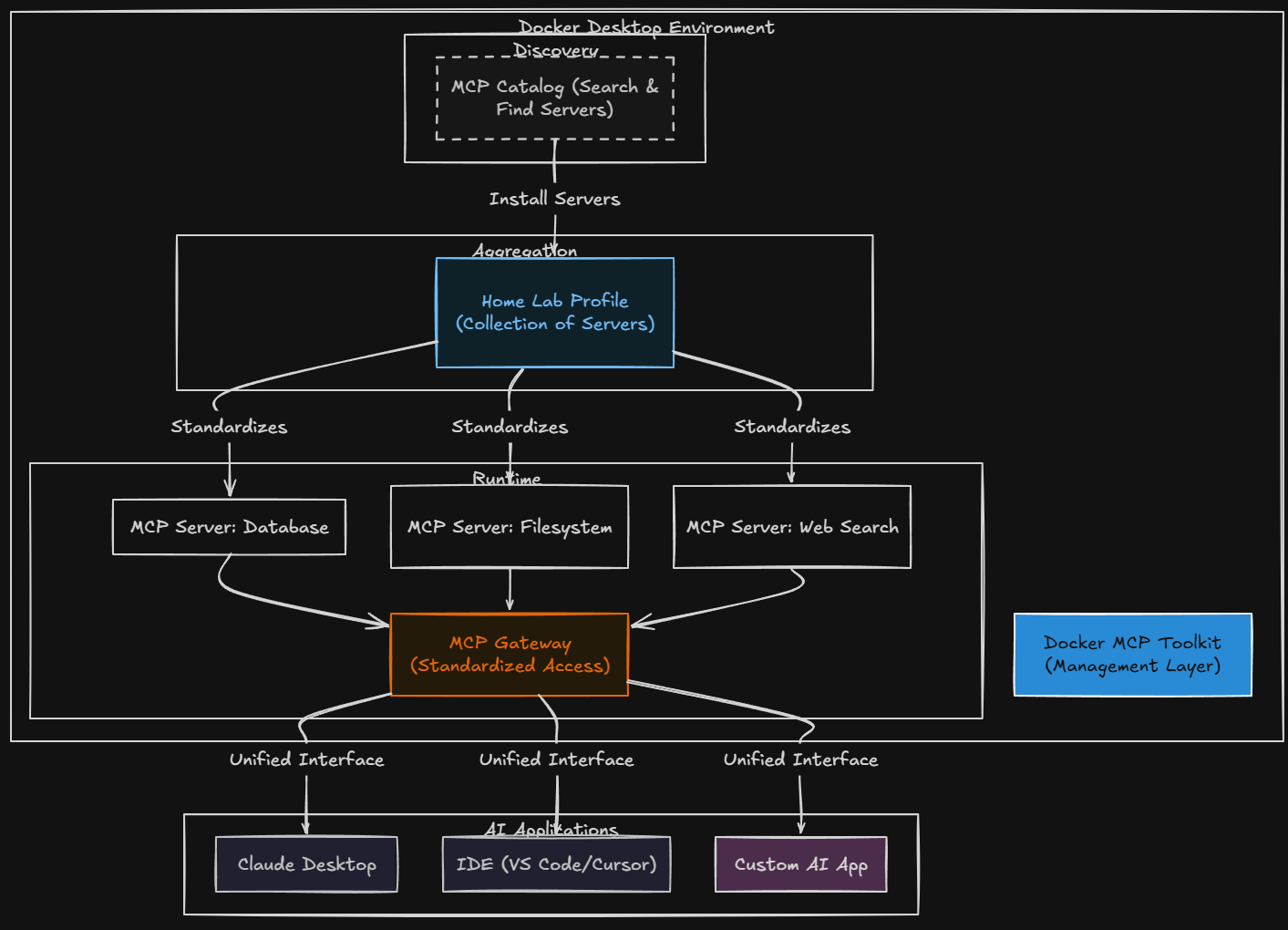
This is a much better approach than just thinking about each server as being its own standalone “thing” that you have to integrate and work with. Then the MCP Gateway exposes the “profile’s” capabilities to the client. So then, you can think of the profile as a logical construct that is a single entity which I think is really neat.
Enabling your Docker MCP Toolkit
Now, let’s look at the process and steps to enable the Docker MCP toolkit. This is fairly easy to do. First, make sure you are running the latest version of Docker Desktop. Then, we have to enable the “beta” feature to add the Toolkit. Go to Settings > Beta Features > Enable Docker MCP Toolkit.
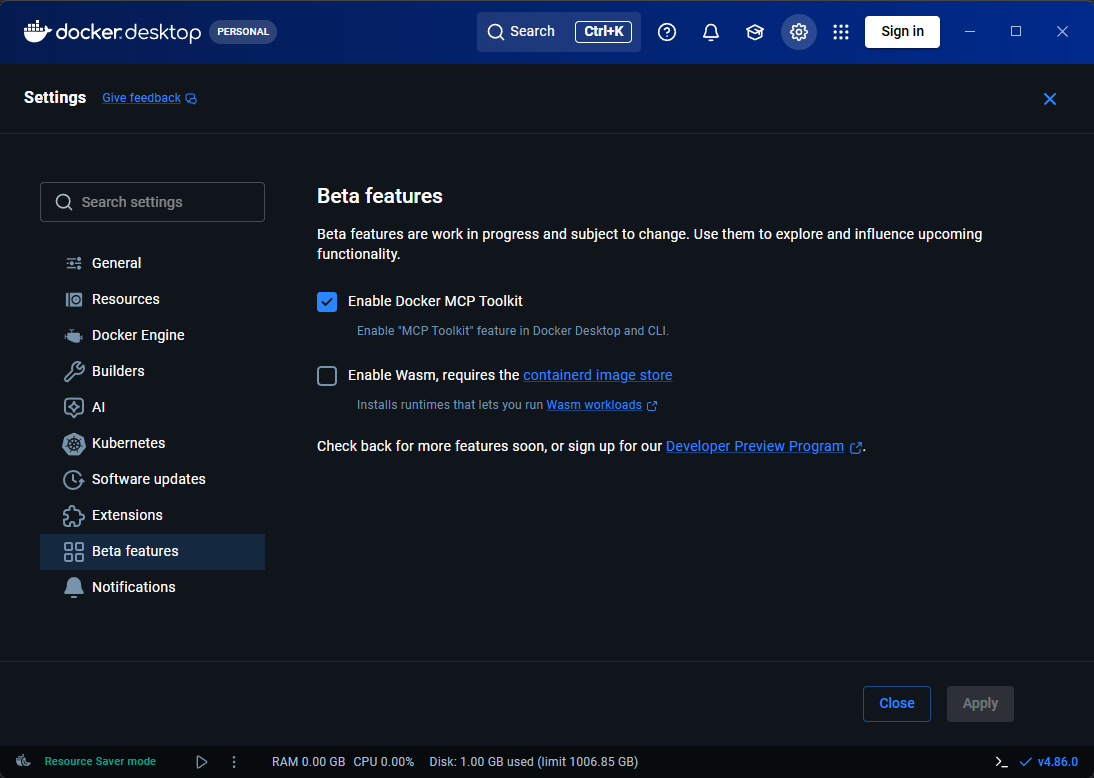
Apply the change, and MCP Toolkit should become available in Docker Desktop. Then, you will see it as a menu on the left, MCP Toolkit. As you notice, they are labeling it as “BETA”.
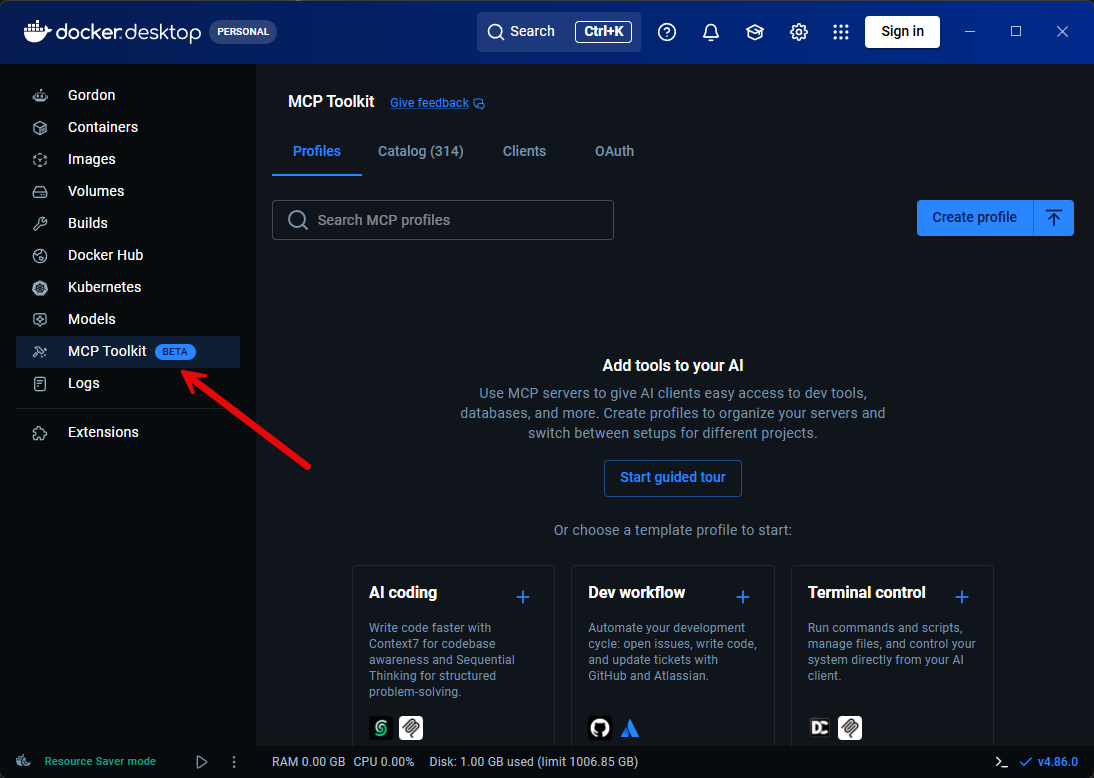
Now we have access to the interface so we can work with the various aspects like catalogs, profiles, servers, tools, and clients. There is also a CLI interface through the docker mcp command. I really like working with it this way as well as most of us use the Docker command line for everything else.
You can see the options it gives you with:
docker mcp --help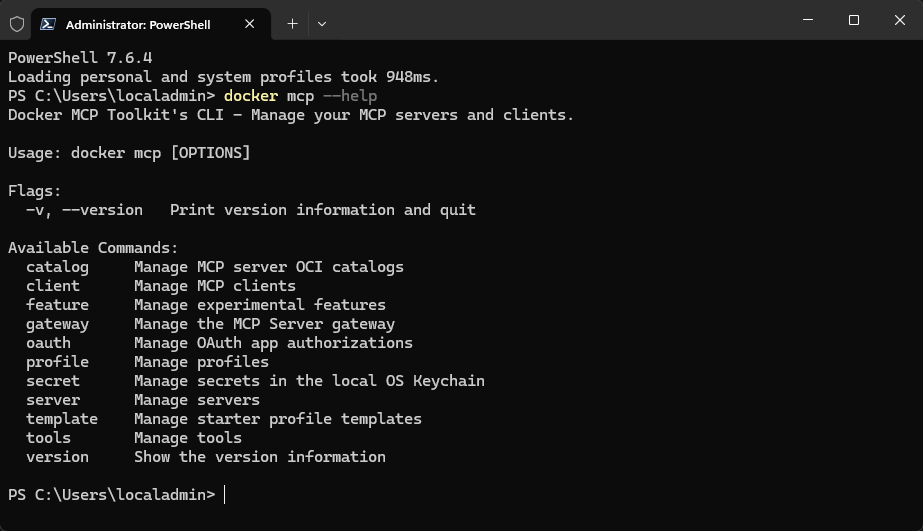
Building your Docker MCP Toolkit profile
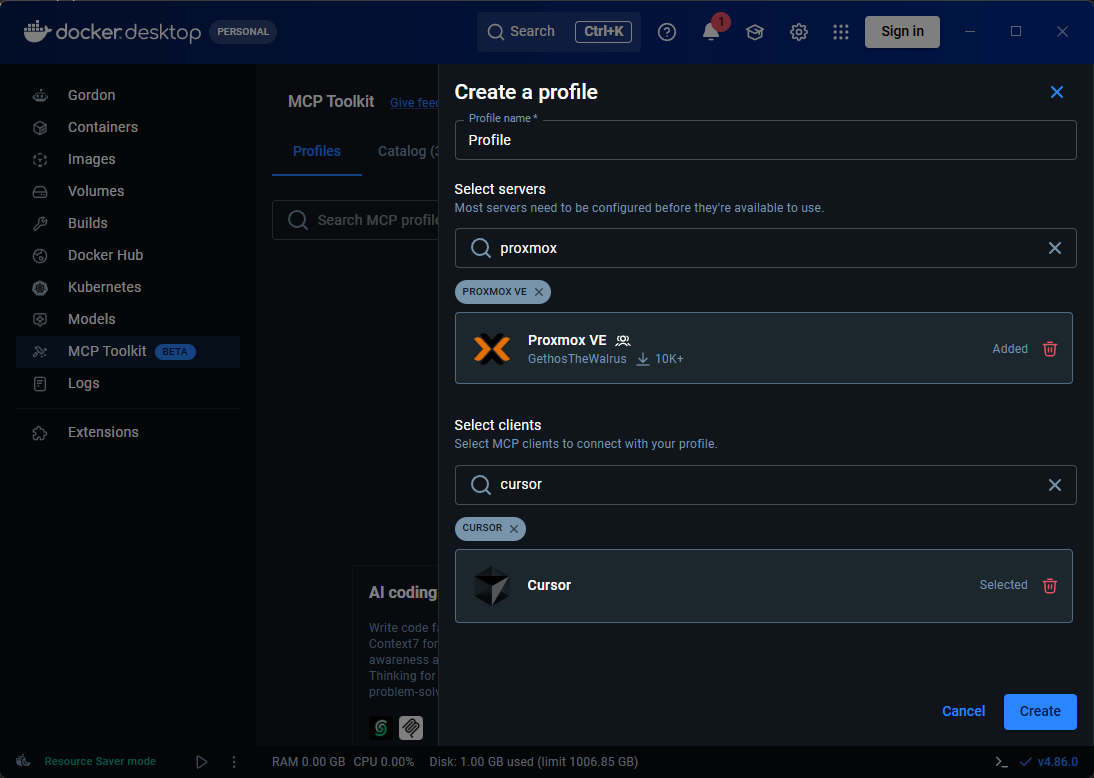
Now that we have access to the Docker MCP Toolkit, we can start building our profile to use with the tool. Click on Create profile and this will open the dialog box below:
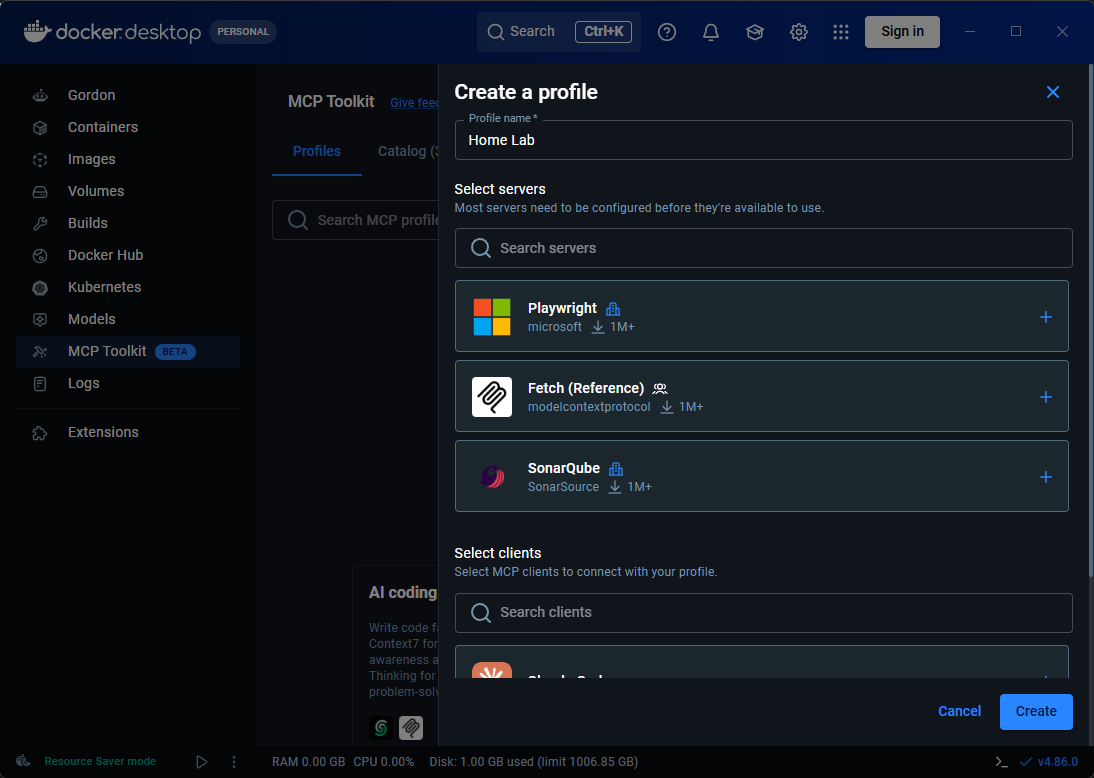
Here we are picking the servers and then the client that we want to use for this profile. Once you pick, then you just click the Create button.
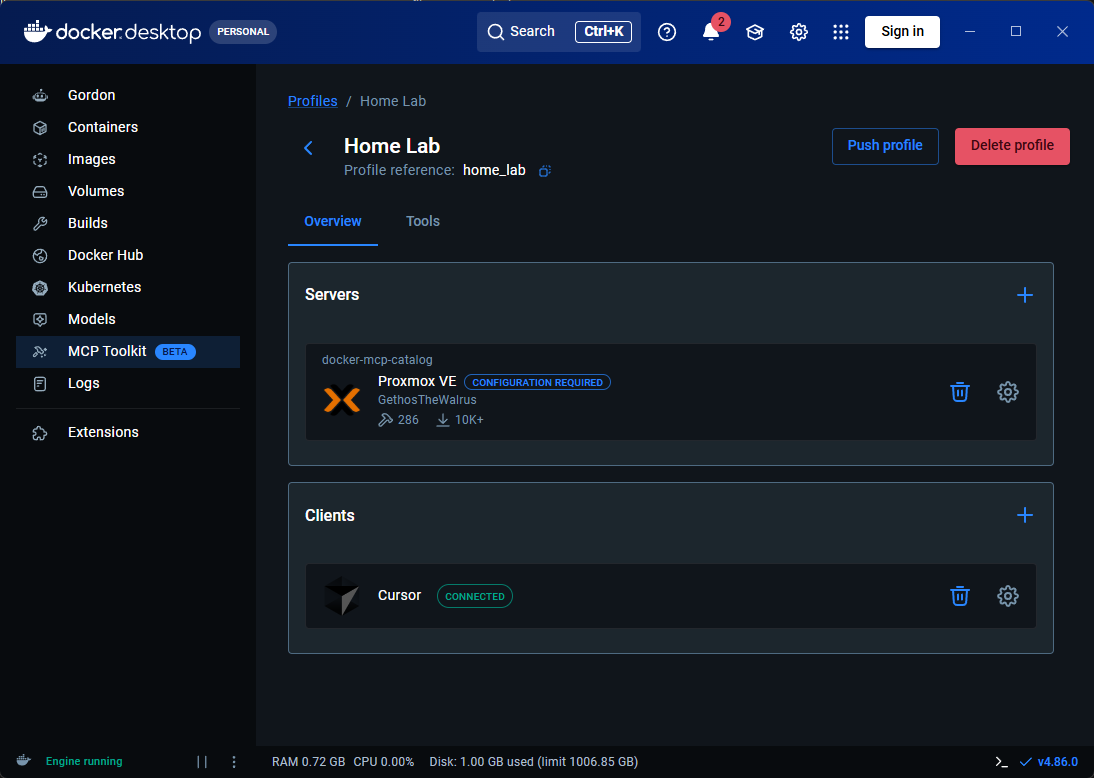
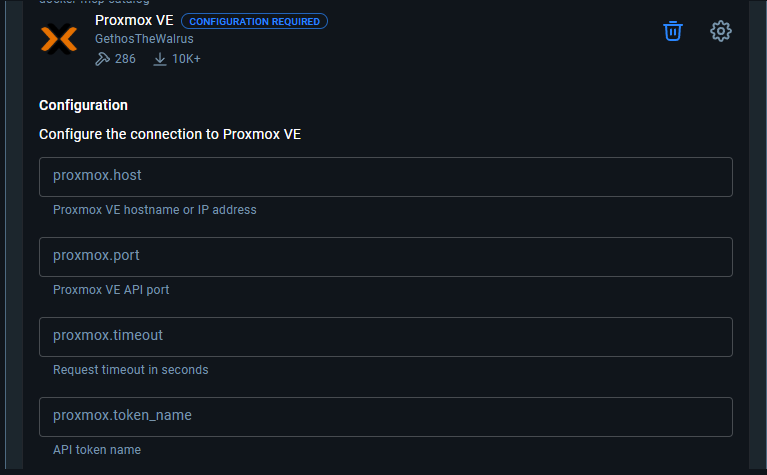
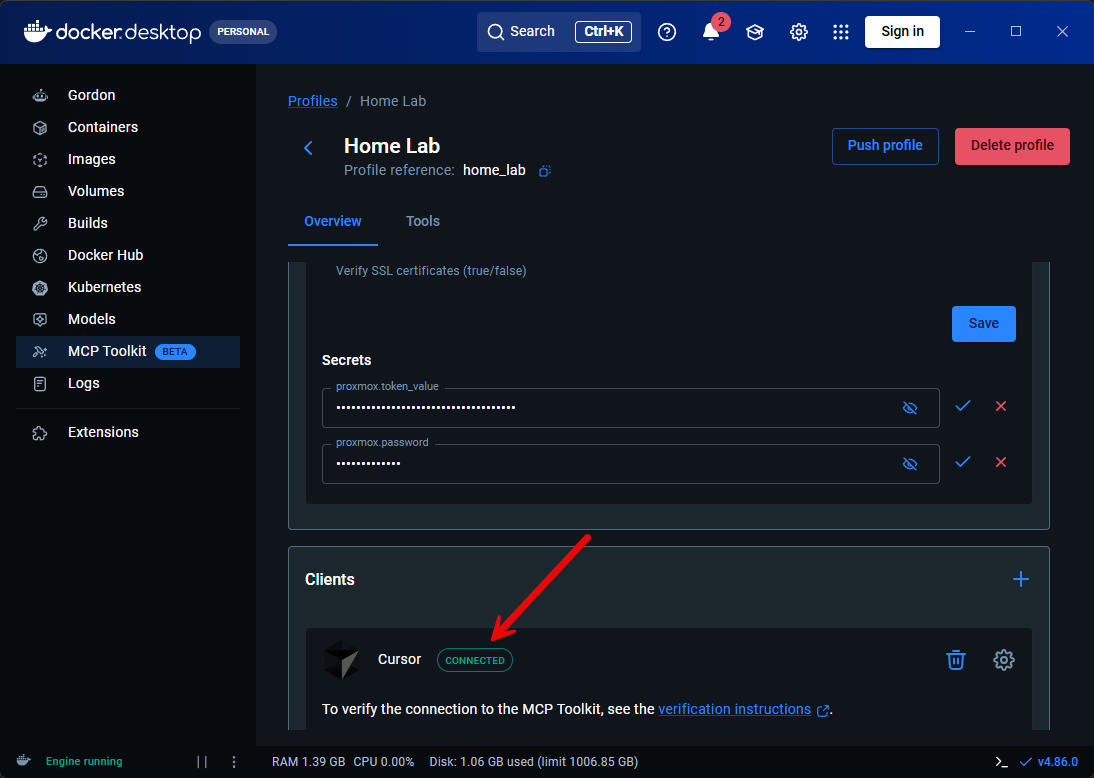
After you have created the profile, you will see the following details about the profile. We will see the “servers” we have configured, the “clients” configured, and you see the Configuration Required on the Proxmox VE Server. It means that we still have to configure authentication for the MCP server as this is still a piece the Toolkit doesn’t do for you.
If I click on the configuration required, it expands the configuration input box so we can see all the fields that need to be populated.
Connecting it to your AI client
You may wonder now. How do we get it connected to the AI client of our choosing? Well, remember that we already selected the client. Take a look at this. It automatically connects to your AI client, very cool!
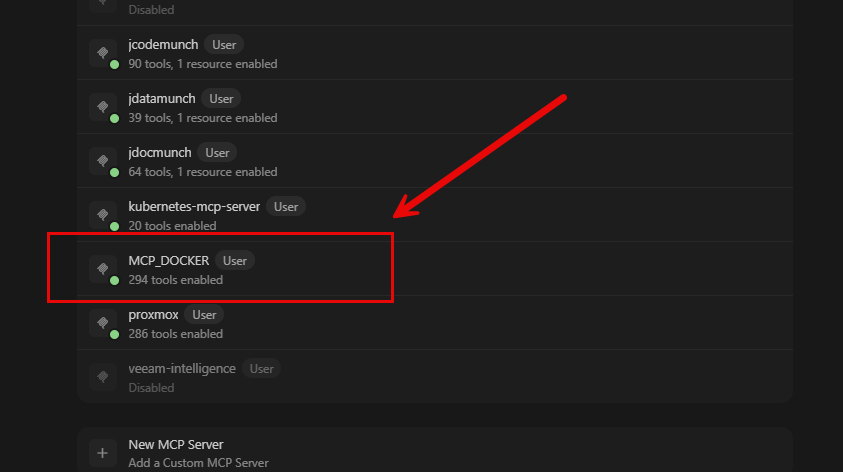
I definitely have some overlap here in testing, but you can see the MCP_DOCKER entry in my MCP servers configuration in Cursor. This is the Docker Desktop MCP Toolkit connection. You can see I have another manual connection to Proxmox MCP server as well, but just shows it can also coexist with other MCP server connections.
Pushing an MCP Toolkit profile to a registry
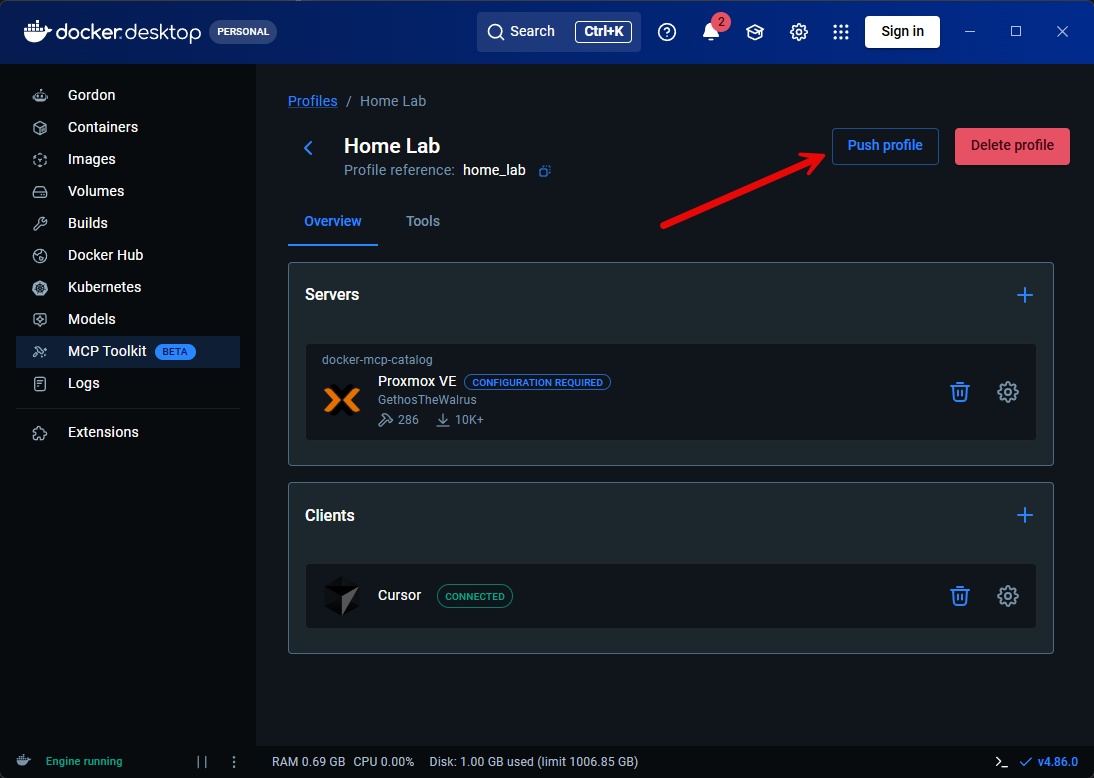
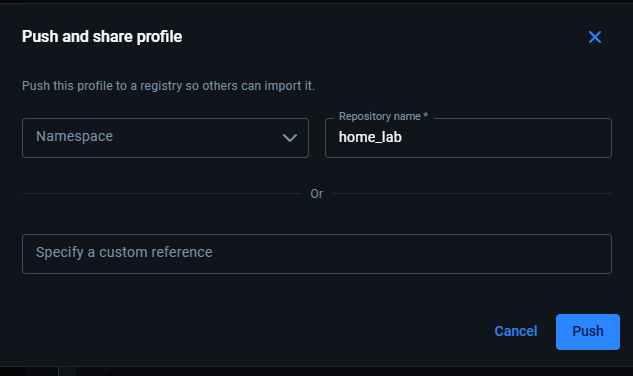
One of the other really cool things that I see you can do is push this to a registry. If you click the Push profile, you will see this:
I can tell you from experience that one of the biggest hurdles that you will find with running MCP servers is #1 finding them, but then #2 figuring out how they are supposed to run and how to integrate them with your AI client. MCP Toolkit takes the heavy lifting out of this process for us.
Also, we mentioned the CLI earlier, you can also use the CLI with the Toolkit profiles. For example we can use the command:
docker mcp catalog server ls mcp/docker-mcp-catalog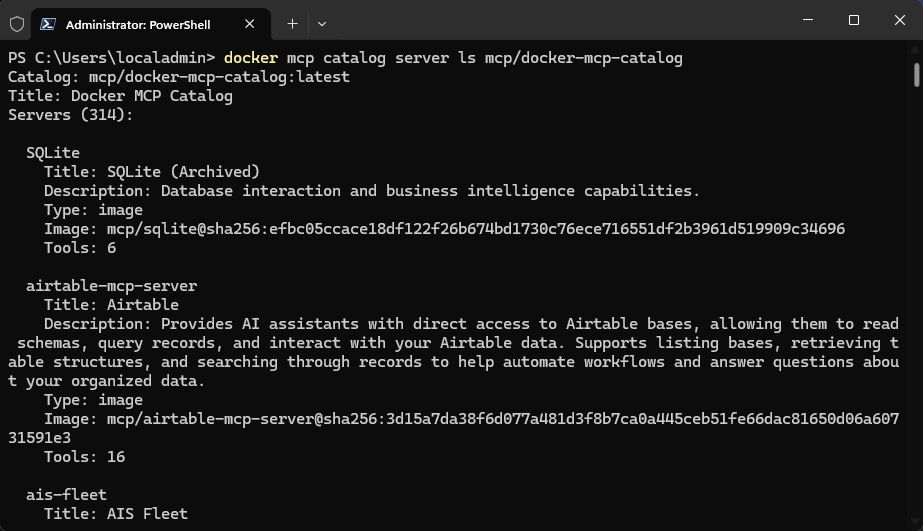
Now, we can list out our mcp server profiles using:
docker mcp profile server ls
Wrapping up
Is this one of the easiest ways to run MCP servers in the home lab? I think so. After you have tinkered with manually running them in the home lab, you will appreciate how easy the Docker toolkit makes it to add MCP servers to your AI client of choice. What about you? Is this something you are already using? I would be curious to know in the comments. Give me your thoughts on this.
More in this topic


Google is updating how articles are shown. Don’t miss our leading home lab and tech content, written by humans, by setting Virtualization Howto as a preferred source.
About The Author