


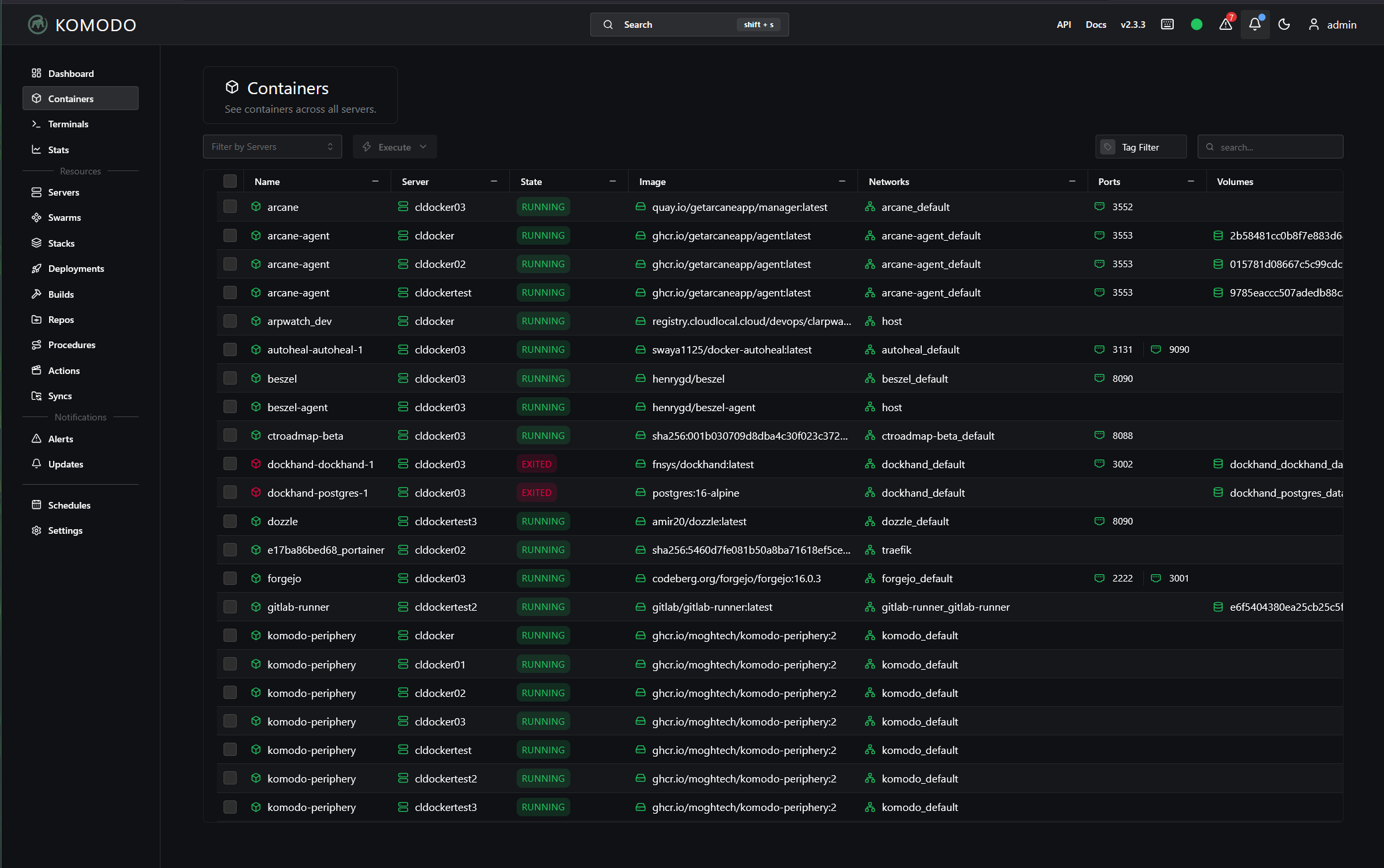
There are so many cool projects now that we have access to in the the realm of home lab, especially when it comes to automation and AI Ops for our servers, containers, etc. I have been using MCP servers quite a bit in the home lab over the past few months. I discovered there is actually an MCP server that works with Komodo, that has quickly become my favorite Docker management tool as it has so many GitOps features built into it, outside of doing the basics that we expect. I wanted to show you what you can do with this and how it can help you manage your Docker infrastructure.
What is Komodo?
If you haven’t heard, think of Portainer, Dockhand, Arcane, Dockge, and other container dashboards. Komodo is my current favorite though right now due to its simple and easy GitOps tooling that is built in. I think it is a bit stronger than some of the others with those features. Read my recent post on using Komodo for automated Docker image updates: I Stopped Manually Updating My Docker Container Stacks. I Use This Instead.
The Komodo MCP server
The Komodo MCP Server is a solution that allows you to interact with your Docker environment via Komodo, but controlled using AI assistants. You can use things like Claude, GitHub Copilot, and so on. This allows you to have a pretty slick solution for managing your container management, server orchestration, and also things like deployments. The MCP server allows you to control Komodo using natural language commands and workflows.
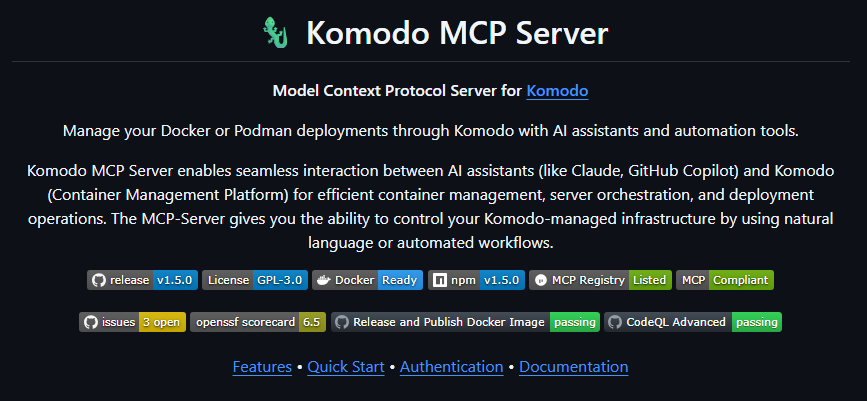
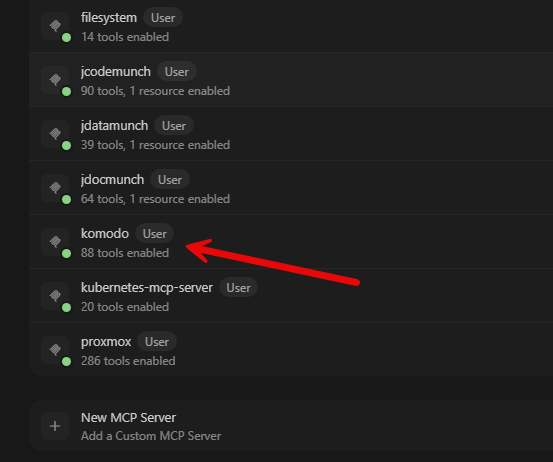
Currently, the MCP server has 88 tools across 20 different categories. These range from tools that can manage many different aspects of the infrastructure. It allows you to interact with containers, stacks, deployments, servers, builds, repos, procedures, actions, alerters, Swarm nodes, and other things.
What the Komodo MCP Server actually does
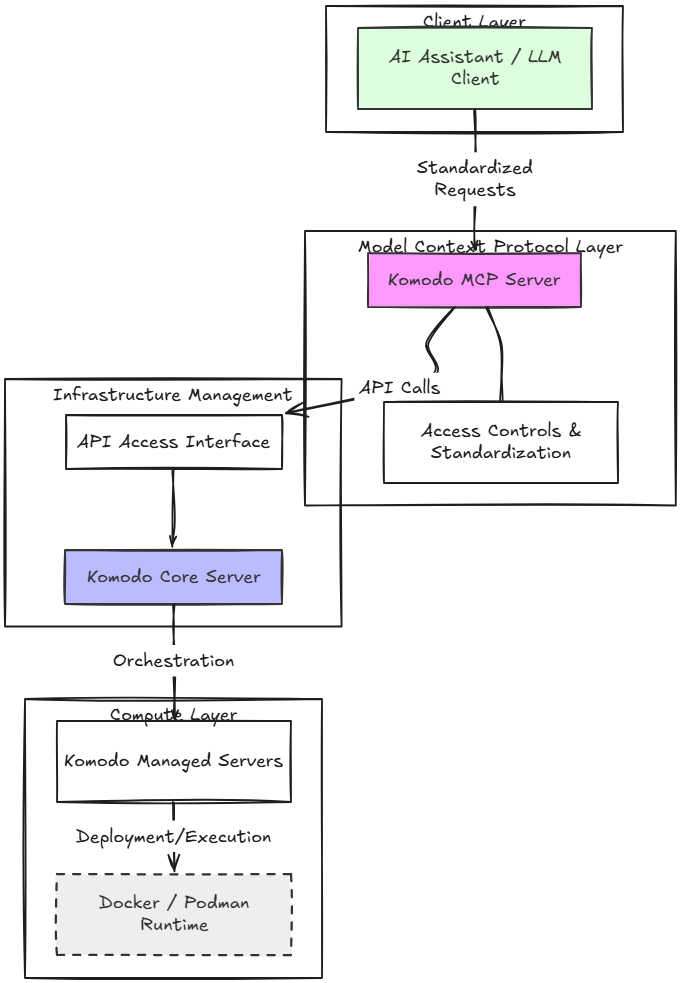
So we are probably familiar with this by now, but MCP stands for Model Context Protocol. It is an abstraction layer that gives your AI agents access to external solutions in a standardized way. MCP servers also allow you to control how AI gets access to your systems. The controls are built into that MCP abstractio layer.
In this case, the external system that we are referring to is Komodo. The Komodo MCP server sits in between your AI client and the Komodo core server. Then it speaks to Komodo using API access.
Installing Komodo MCP server methods
The installation of Komodo MCP server is fairly straightforward, and it really depends on how you want to run the MCP server. The official repository lists three different ways to get the Komodo MCP server up and running. These are:
- Docker stdio (docker run -i –rm ghcr.io/mp-tool/komodo-mcp-server)
- npx komodo-mcp-server
- HTTP if you already run the server as a Compose service (show this in the following section after this one)
If you are using Cursor, the MCP.json config is located here:
C:\Users\<you>\.cursor\mcp.jsonIf you are using VS Code, it is located:
.vscode/mcp.jsonOtherwise the requirements are pretty straightforward:
- You need a working Komodo instance (Core server)
- Credentials to auth to Komodo API
- Node 22+ if you don’t want to use Docker
For the Node installation method, you can use the following. This is the one that I am currently using for testing, but will move this over to my Docker MCP Workspace configuration eventually:
mkdir $HOME\.cursor\mcp-servers\komodo
cd $HOME\.cursor\mcp-servers\komodo
npm init -y
npm install komodo-mcp-server@latest @modelcontextprotocol/sdk
Then, I put the following in my Cursor configuration:
"komodo": {
  "command": "node",
  "args": [
    "C:\\Users\\<you>\\.cursor\\mcp-servers\\komodo\\node_modules\\komodo-mcp-server\\build\\index.js"
  ],
  "env": {
    "KOMODO_URL": "https://komodo.home.lab",
    "KOMODO_USERNAME": "admin",
    "KOMODO_PASSWORD": "replace me",
    "MCP_TRANSPORT": "stdio",
    "MCP_CONFIRM_FALLBACK": "allow"
  }
}
You should see the Komodo MCP server listed and “green” in your list of MCP servers in your AI client. At the time of writing, it has 88 tools that are available.
Installing Komodo MCP Server using docker compose
Even though I am using the node method for temporarily running the Komodo MCP server, let’s see how you can use Docker Compose to run this. For a more permanent solution for running the Komodo MCP server, this is the method that I would use long term.
In my environment, I would create a dedicated directory under the same structure I normally use for home lab services:
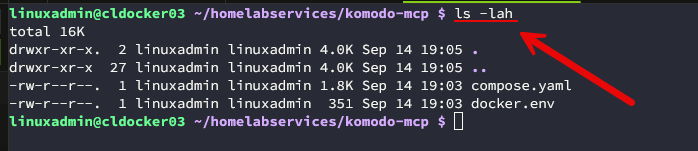
mkdir -p /home/linuxadmin/homelabservices/komodo-mcp
cd /home/linuxadmin/homelabservices/komodo-mcp
Then, the project gives us both a Compose file and an .env file that can be downloaded. You can download that using:
curl -O https://raw.githubusercontent.com/MP-Tool/komodo-mcp-server/main/docker/compose.yaml

curl -O https://raw.githubusercontent.com/MP-Tool/komodo-mcp-server/main/docker/docker.env
Below, I am listing out the contents of the directory for komodo mcp server:
Then copy the example environment configuration:
cp docker.env .envBelow are the default contents of the .env file once you get it in place:
## Image
KOMODO_MCP_IMAGE=ghcr.io/mp-tool/komodo-mcp-server
KOMODO_MCP_IMAGE_TAG=latest
## Server
# KOMODO_MCP_CONFIG_PATH=/app/config.toml
KOMODO_MCP_PORT=8000
KOMODO_MCP_TRANSPORT_MODE=http
## Komodo
KOMODO_URL=https://komodo.home.lab:9120
KOMODO_API_KEY=api-key
KOMODO_API_SECRET=api-secret
# KOMODO_USERNAME=username
# KOMODO_PASSWORD=password
The project has a variety of ways that you can authenticate. These include:
- username and password authentication
- JWT authentication
- API key and secret authentication (my preference of the 3 here)
Once you have this in place and fill in your authentication and server details, just run a docker compose up:
docker compose up -dYou can check your container using:
docker compose psIf you want to follow the container logs which is helpful, you can do that with:
docker compose logs -fThe HTTP service defaults to port 8000.
It also provides health and readiness endpoints:
http://your-komodo-mcp-server:8000/health

http://your-komodo-mcp-server:8000/ready
Here are what each does:
- The health endpoint basically tells me whether the MCP service itself is alive
- The readiness endpoint tells me whether the service is actually connected to Komodo and it is ready for requests
This is useful to know when troubleshooting if things aren’t working right.
This is where MCP server will start to click with most
Once you get the MCP server up and running, this is where you will likely start to get excited once you see what it can do for you in the home lab or even production environments. Let’s say I have several Docker hosts in the home lab. Instead of manually going through them looking for problems, I could ask the following in terms of prompts.
List all of my Docker container servers with Komodo peripheries installed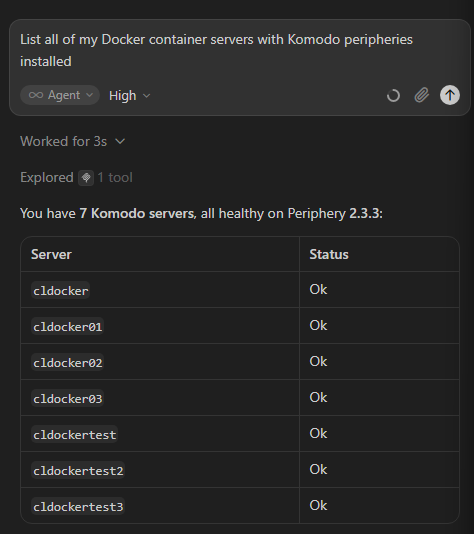
The AI assistant can call the Komodo server listing tool. Then I could ask:
Show me the containers running on cldocker03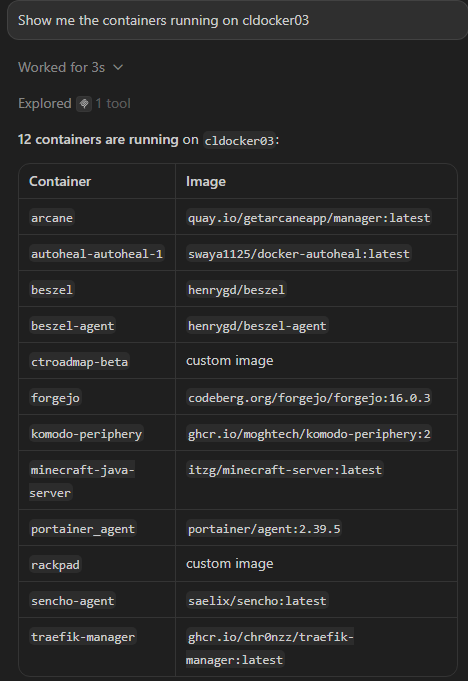
Now it can retrieve the container inventory for that server. From there:
Are any containers that komodo knows about that are stopped or unhealthy?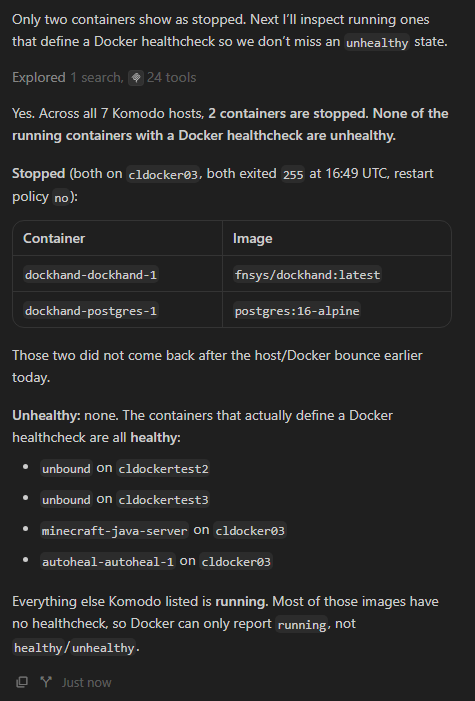
Then:
Show me the recent logs from the problem containerAnd then eventually you can do things like:
Restart that containerThe important difference is that these aren’t just questions where the model is guessing based on general Docker knowledge. The MCP tools querying Komodo allow it to get information from the actual environment and if you authorize it, it can actually perform actions against the environment.
The log tools may be one of the most useful parts
There is one capability of AI that I think is worth its weight in gold to be honest and that is looking for things in logs. Humans are just not that good at scanning logs and long bodies of text. AI is great at that though. So, you can use the Komodo MCP server to scan the logs for a particular container or all containers to see if there are errors or a specific set of words in particular.
For instance:
Search logs for my minecraft-java-server and tell me if there are any errors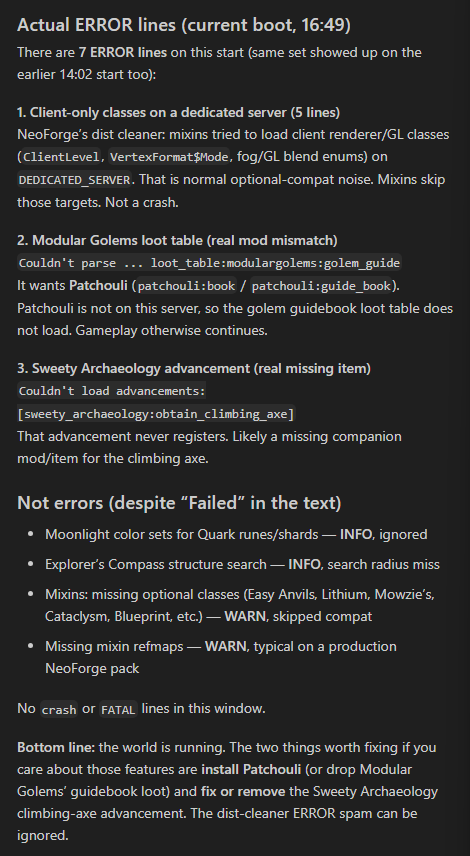
Or:
Look at the recent logs for this container and tell me why it keeps restartingThese are exactly the types of things that I think are really powerful when it comes to connecting AI to your Docker container environment using the Komodo MCP server.
Could this change how you troubleshoot Docker container issues?
I definitely think it could be a change in how we troubleshoot our containerized environments and manage these also, especially at scale. Instead of you doing the manual leg work to look through logs and run lots of Docker commands, AI can do that for you and check to see on underlying issues.
So think about these kinds of prompts for AI:
Check to see if any stopped containers on cldocker are related to this application that is stoppedThen you might ask this:
Check the recent logs and find errors around the time the container stoppedIt can also help to find connections between recent admin work:
Was this container updated any time recently?Then you can have it help you understand events and how they connect with changes:
Summarize what you think might have happened before making any changesYou could even have it do something like:
Restart the containerThese types of workflows and prompts are much more important to me than just “AI runs my home lab.” Instead, what I think is a much better reality is that AI becomes an operations assistant that can gather information across my environment and help me understand what is happening. I am still in charge of making the decisions.
Remote command execution powerful but treat with care
Once we get comfortable with the capabilities of Komodo MCP server, there is a tool in the bag of tools of the MCP server that takes things to the next level where we actually allow AI to “do” things for us. This is the komodo_exec tool. With this tool, you can target a server, container, deployment, or a stack.
Using this tool, it means that an AI assistant can do something like inspect a file, look at a process, query system state, or run a troubleshooting command on your Docker host. This is really powerful, but we need to treat this with care.
There is a huge difference in letting AI see a container inventory and then actually giving it the ability to execute things from the terminal. So, keep this in mind when it comes to the permissions you give to your Komodo MCP server and maybe build a different profile for AI operations that can actually make changes so this is a very intentional activity.
Wrapping up
Hopefully, this gives just a small idea of just how powerful these types of AI tools can be when it comes to managing our infrastructure. I think this is definitely much more fun than manually looking at logs and trying to figure out what is going on with a container that keeps restarting. Instead, if you are using Komodo to manage your containerized environment, the Komodo MCP server gives us the ability to turn our AI agents loose on the environment in a good way to help troubleshoot and configure things. How about you? Have you used this before? Is this something you would be keen to use in your home lab? Let me know in the comments.
More in this topic


Google is updating how articles are shown. Don’t miss our leading home lab and tech content, written by humans, by setting Virtualization Howto as a preferred source.
About The Author