


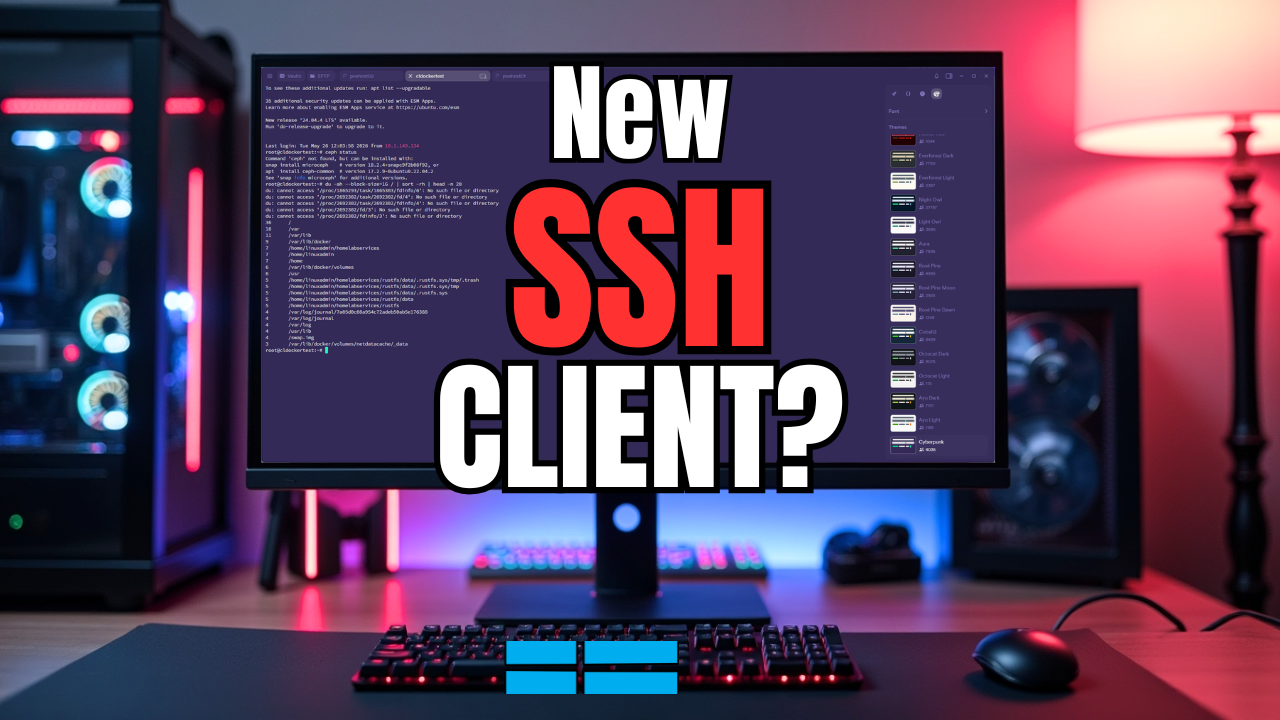
I am always on the lookout for the next tool that makes sense for me to use in my home lab environment or that brings new features or capabilities to what I can do. If you spend enough time in a home lab, you eventually stop thinking of SSH as a protocol and start thinking of it as your main tool. You open a terminal, connect to a host, run a few commands, and so on. Then you do it all again by jumping over to a different host. I have been hearing about a tool called Termius that I hadn’t tried out as of yet. It looked really slick and so I decided to try it out. As a mention, no one engaged me to write about Termius, these are strictly my thoughts in using the product in the home lab. Let’s look at the Termius SSH client and see how things turned out using it as my daily driver for SSH connections.
Why I started looking for something different
Like most of us in the home lab, I have tried a LOT of different terminal emulator tools over the years. On Windows I bounced between different tools, including built-in ones like Windows Terminal, PuTTY, and the RDP built-in app in Windows.
But most recently over the past few years, I have mainly used the Remote Desktop Manager (RDM) from Devolutions. I think this is a great tool in general for all that it can do and the wide range of connectivity protocols it gives to you. Nothing has been broken for me with RDM, but I just wanted to try something new for a chance.
My environment has definitely changed over the past couple of years. I have way fewer Windows hosts now compared to Linux hosts. So primarily, my main connectivity to my home lab happens over SSH connections. Now I have primarily Proxmox nodes, Kubernetes clusters, and Docker hosts.
This is where trying out Termius seemed to make a lot of sense, since it is focused around SSH connectivity and SFTP, it covers what I need to do for the majority of my workflows and sessions.
What is Termius?
If you haven’t heard about Termius as of yet, you are not alone. In all fairness, I have heard about it mentioned from time to time, but just hadn’t tried it out. Termius is self-described as a “modern SSH client” and I think it fits that description fairly well in the features, and the look and feel of the solution.
In reading the Termius documentation, it also lists quite a few other things that I think are worth noting about it, especially when it comes to security. Note the following:
- 2FA for authentication – they provide 2FA on your account to prevent takeover type attacks
- Account monitoring – They protect users against having their accounts brute-forced, etc
- Encryption at rest and in transit – they protect your data at both layers
- SOC 2 Compliance – they are certified as SOC 2 compliant
- Other protections – DDoS protection, network-level security, custom security headers to help protect users from attacks
Also, one of the things that caught my attention is that the “starter” version is totally free. They also use my kind of language and mention “home labs”. They also cater to teams and enterprise customers as well. But great to know you can use it for totally free.
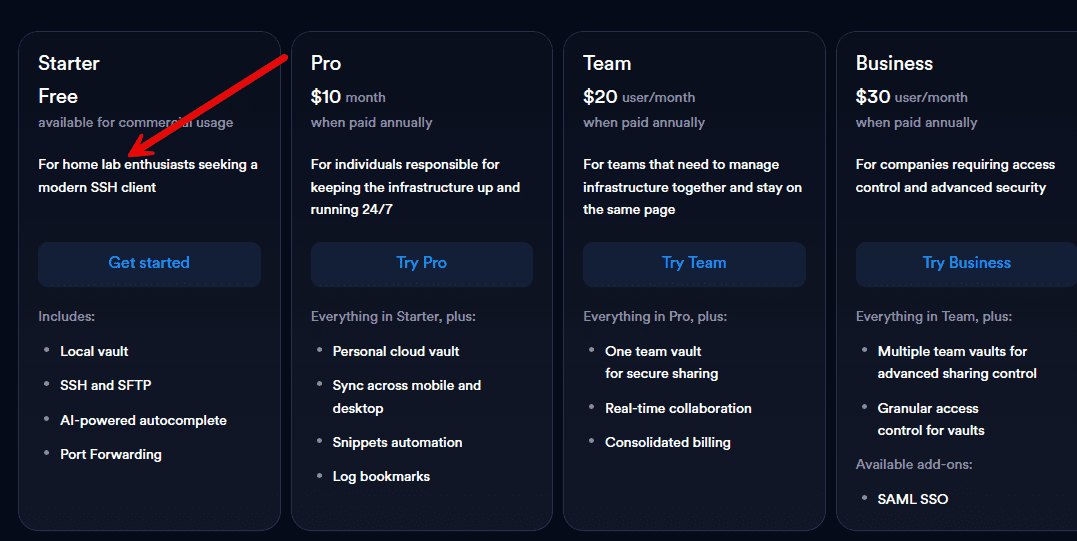
With the Starter version that I have tried now in the home lab, there are some really nice features that I like as well, including just the modern look and feel of the app. But, you also get some neat things like AI-powered autocomplete (I didn’t have to plugin an API key, etc). Also, there is almost an insane amount of themes to choose from, along with a nice history browser that makes seeing your history extremely easy to do. Let’s look into these in more detail.
Using Termius – Adding connections
I am not going to detail the process to install it as it is very straightforward. You just run the installer they provide you with, when you sign up.
After you launch Termius, you will have the ability to then start creating connections. Below, I had already added a couple of hosts to play around with. But to add more I just click the + New host button to begin the process.
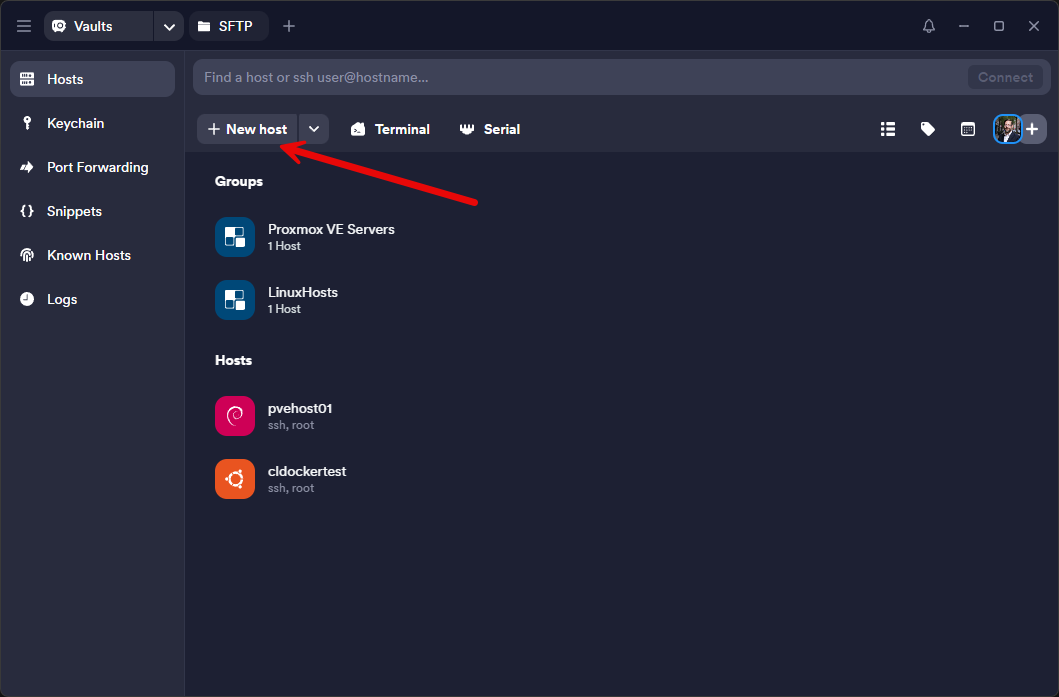
Enter the address of the host you want to target with the connection. Below, you will see the Proxmox VE Servers which is a “group” that I have already added. This allows you to organize your hosts into groups of like connections, which is great for keeping things organized.
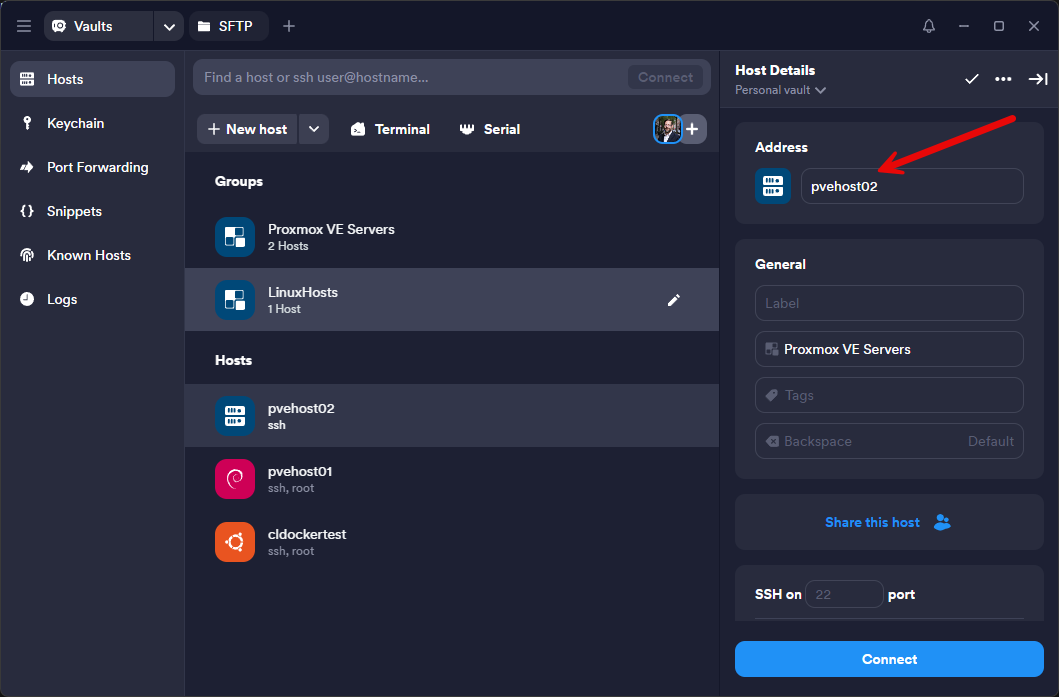
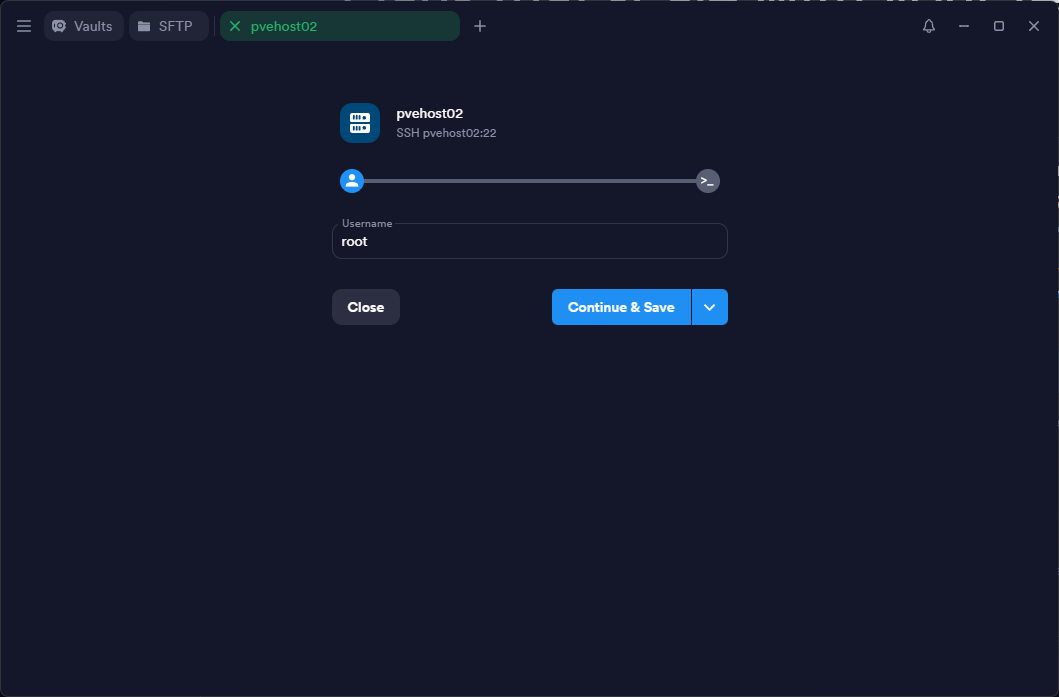
When you click to connect, you will be prompted to enter the username for the connection.
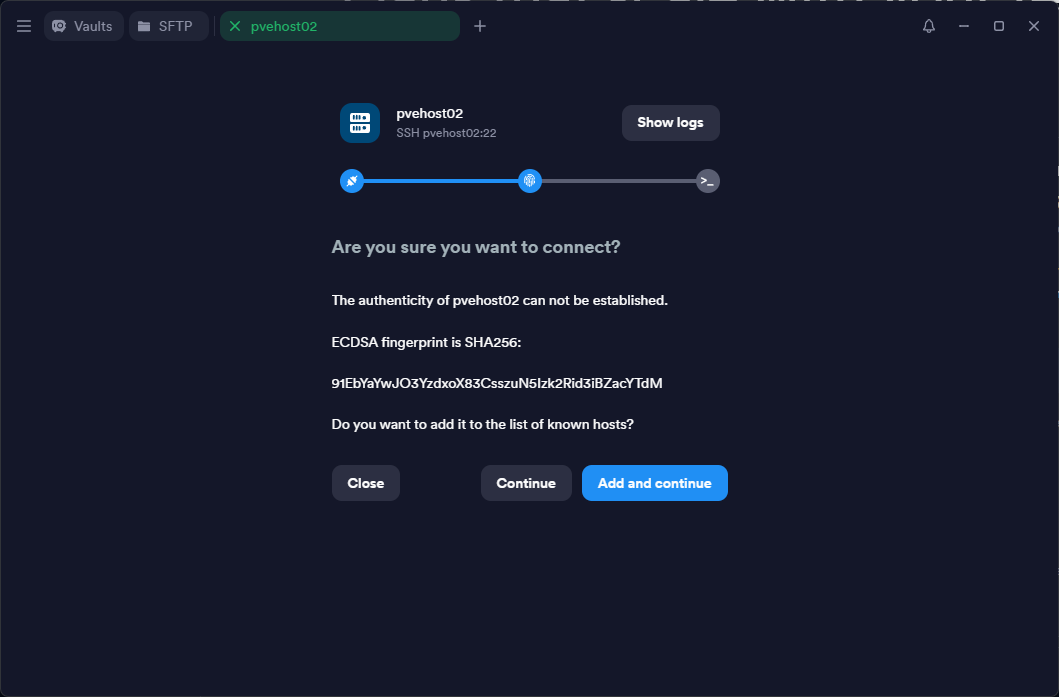
Then you will get the prompt asking if you want to trust the fingerprint of the host. Click the Add and continue button.
Then, you can type in your password.
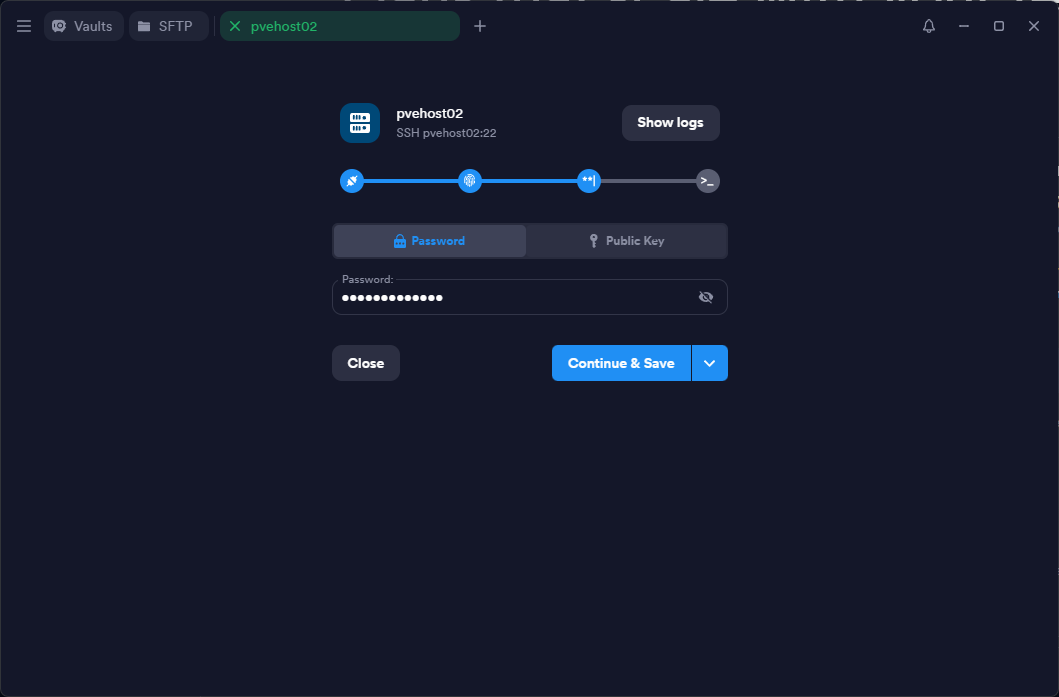
Also though, you can use the public key authentication tab if you want to use that instead of a password to connect to the new host.
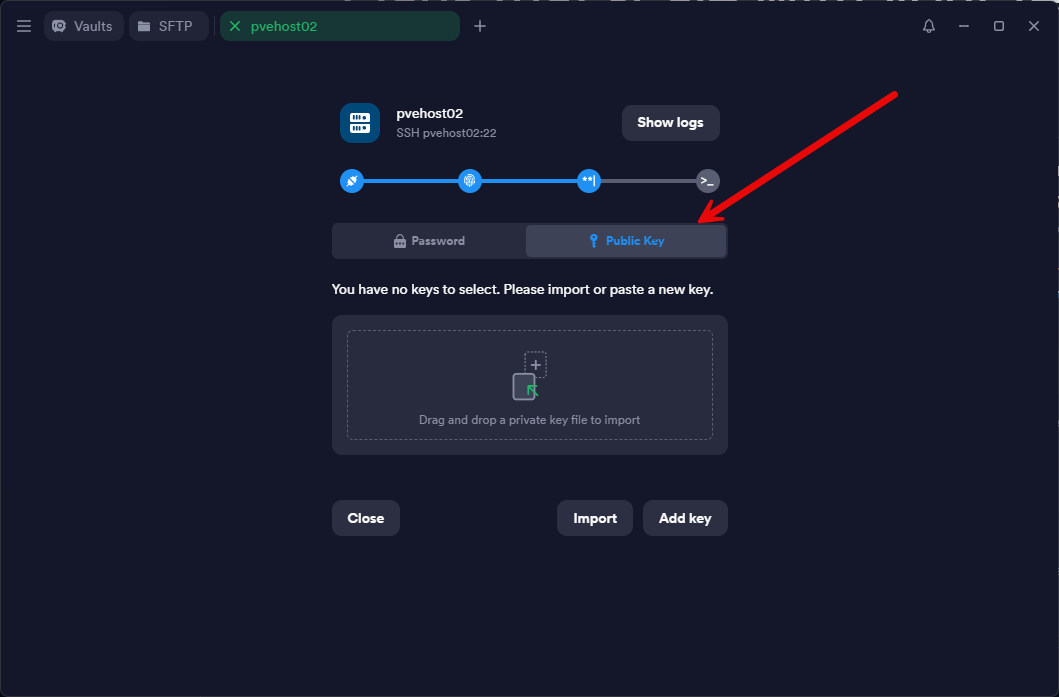
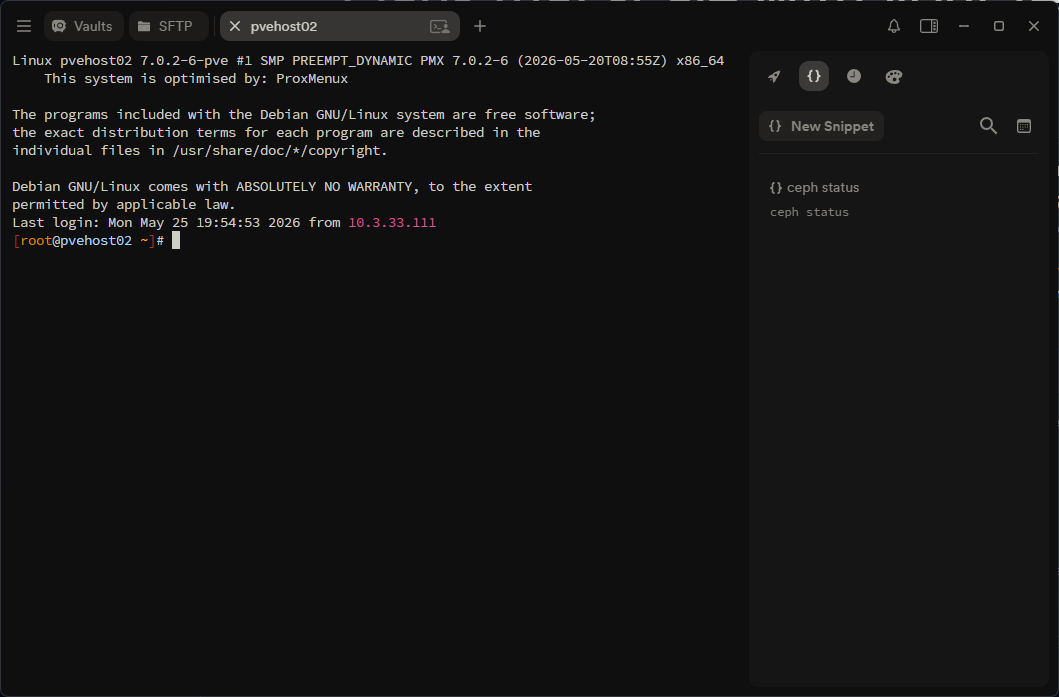
After connecting to the new Proxmox host in Termius.
Customizing the look and feel of Termius
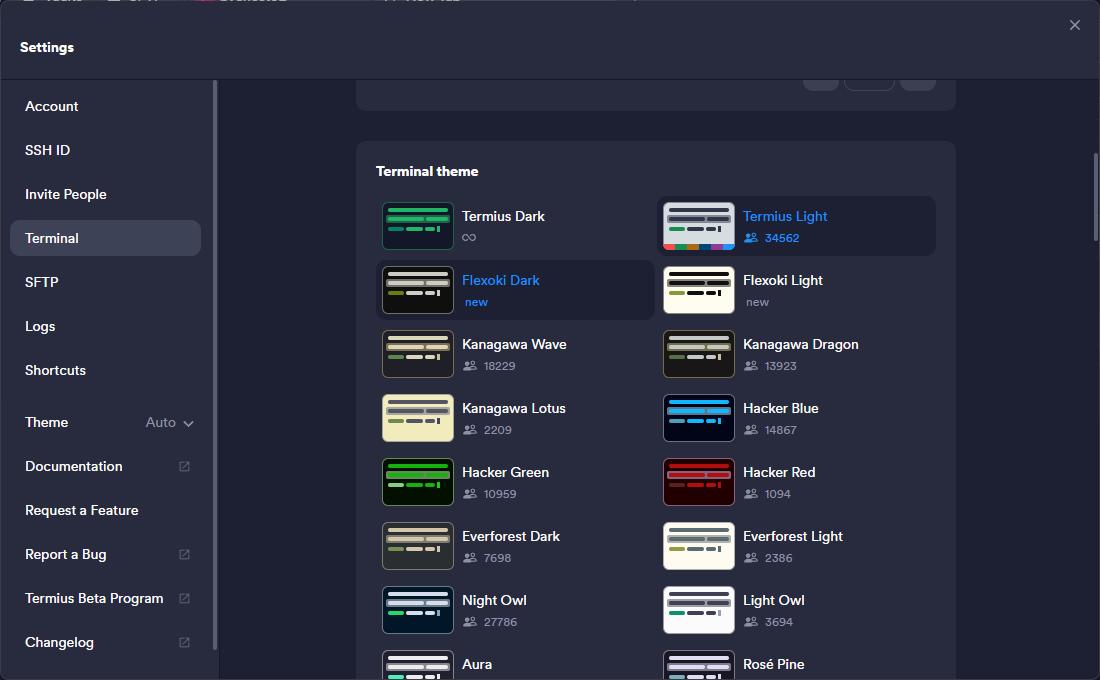
One of the cool things I really like about Termius is the ability you have to easily customize the look and feel. A lot of other apps like Remote Desktop Manager (RDM), the look is highly customizable as well for terminal sessions, but it means you have to customize the RGB values for text, background, and fonts. It is not nearly as easy.
Termius has predefined themes that make this process really easy. Under the settings you just click the one you want. You can also do this in real-time outside of the settings.
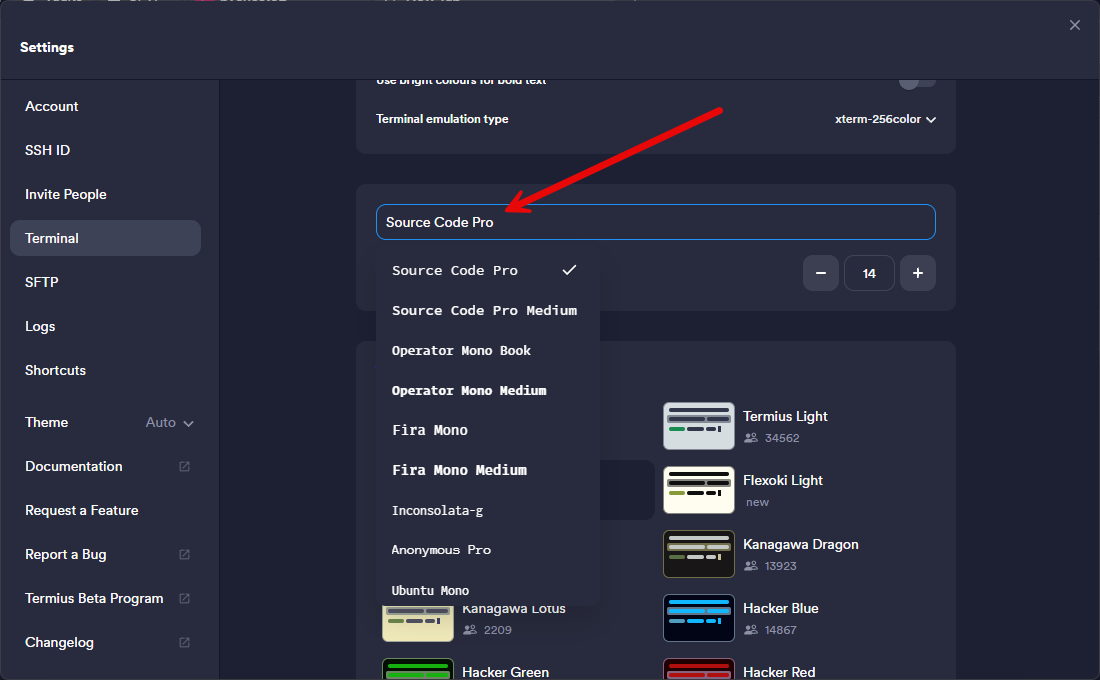
Below, you can see the font customization:
Snippets are one of my favorite features
One of my absolute favorite features of Termius is the Snippets feature. What are snippets? Think of these like little scriptlets that you can save and then literally just click on them to send them to your terminal. So if you run a set of commands a lot in troubleshooting or in day-to-day maintenance, you can save these commands as a Snippet and then use them across all your hosts.
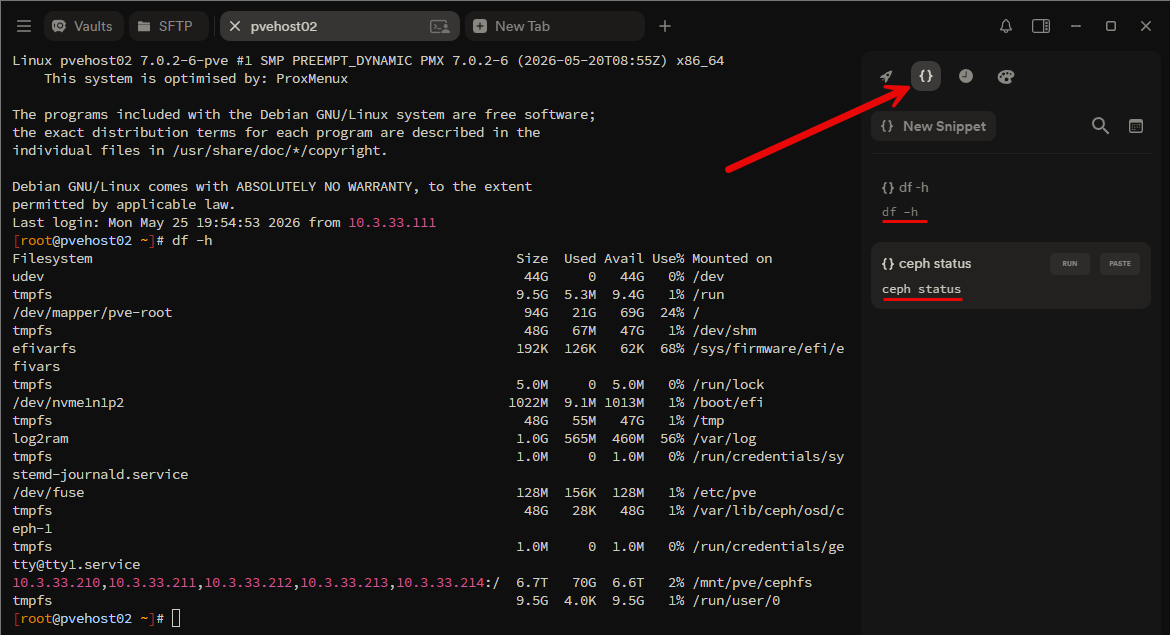
Imagine some of the things that you could store in your Snippets area of Termius. I am thinking about things like the following.
Container troubleshooting:
docker ps -a
docker logs <container>
docker inspect <container>
docker exec -it <container> bash
Kubernetes checks:
kubectl get nodes
kubectl get pods -A
kubectl get pvc -A
kubectl top nodes
Proxmox health checks:
pveversion -v
ceph -s
pvesm status
qm list
pct listip addr
ip route
ss -tulpn
ping <host>
traceroute <host>I think these are great as I have historically saved commands in my “second brain” notes app and then copied and pasted from there. But with the Termius Snippets, you can have those commands already available to you in your saved Snippets. Then all you need to do is click the Snippet and choose either Paste or Run.
Another feature that mattered more than I thought it would
There was another feature that before I worked with it, I didn’t really expect it to be as powerful as it turned out to be. That is the History feature of Termius. Termius takes your command history and presents this to you in a way that I think makes it more powerful than it is from the normal terminal prompt.
When you click the history button in the right-hand pane (looks like a clock), you will see your command history. But, that is not all. It is searchable. This is a game changer. Have you ever been looking for a specific command that you knew you ran at some point, but you just couldn’t find it with the history command? Granted there is grep and other tools you can use. But Termius just makes this brain-dead simple. You can type in the search field for the command history and easily find what you are looking for.
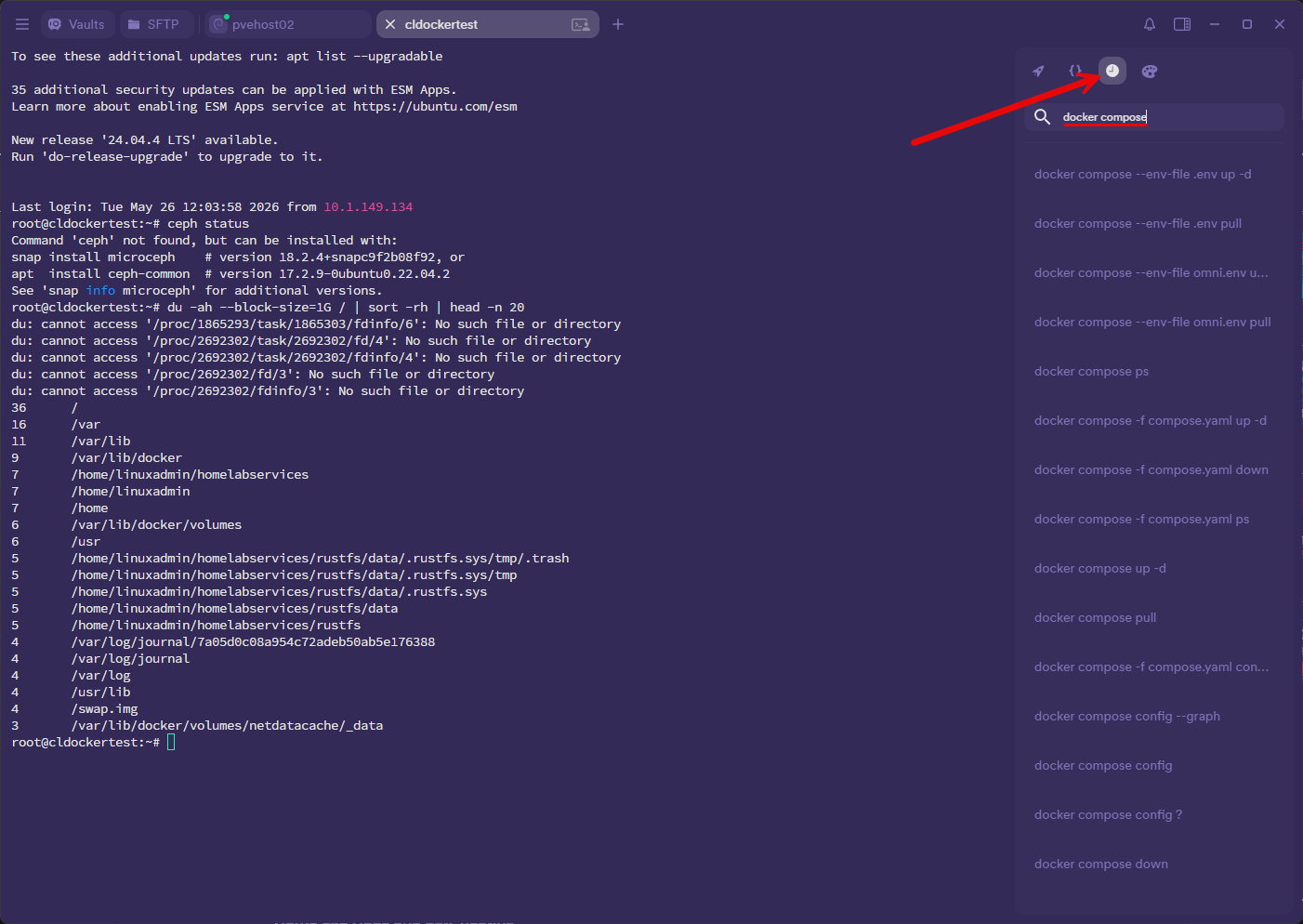
Also, from the history pane, you can also save any of the commands to the Snippets area. This makes it even handier to recall commands that you may have found in history that you want to have closer at hand the next time.
Port forwarding in Termius
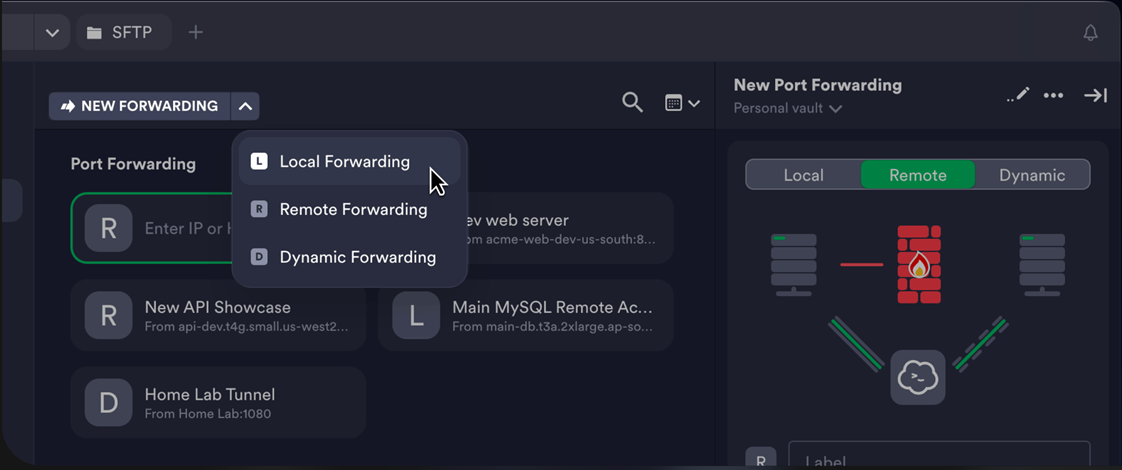
Another neat feature I found in Termius is the Port forwarding feature. This allows you to securely access a service that is behind a firewall on a private network. So, you can access things like web dashboards, databases, Kubernetes, Proxmox web interfaces, etc. Instead of exposing all those ports, Termius lets you create SSH tunnels that can securely forward traffic over the encrypted SSH session.
With local port forwarding, you can securely map a remote service to a local port on your workstation and access it as if it were running locally. For example, if you need to access a remote database or internal web interface, you can find that to localhost without exposing it externally. Termius also supports remote and dynamic forwarding for more advanced scenarios.
Vault allows your connections to follow you
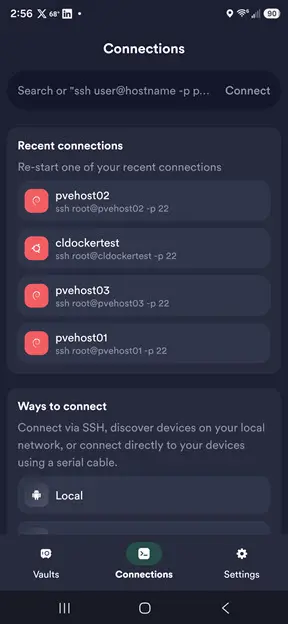
One of the things that I wasn’t sure about in the wording of the different Termius offerings, including Starter, was if the Starter offering actually allowed your connections to be remembered in the cloud vault, instead of just your local device.
In testing, I did find that my Vault was available to me on my mobile app as soon as I logged in, meaning all my connections were there and available without having to do anything extra.
Pros and Cons of Termius
Note what I think are the main pros and cons of the solution to take note of:
| Pros | Cons |
|---|---|
| Clean, modern UI | Collaboration features require Pro plan |
| Syncs across devices | No RDP support yet |
| Command snippets | Some features will take some time to get familiar with coming from other solutions |
| Command history + history search | Trusting a cloud service with encrypted private keys may concern some users |
| Strong security and key management | Reliance on cloud sync for convenience |
| Good tools to organize resources | |
| Fast host/session search |
Wrapping up
Termius SSH client definitely checks a lot of the right boxes for me in what I look for in a terminal app that I use to access resources over SSH connections. I am really impressed with the features of the app like Snippets and the History tab that is searchable. The look and feel of the app is really great too with easy customization so you enjoy your terminal experience. How about you? Have you tried out Termius as of yet? What is your SSH app of choice that you use in your home lab?
More in this topic


Google is updating how articles are shown. Don’t miss our leading home lab and tech content, written by humans, by setting Virtualization Howto as a preferred source.
About The Author

Hi Brandon, I like Termius in my MacBook Pro and I like the features you mentioned. However, for the most part I use Remote Desktop Manager from Devolutions, in case you haven’t tried it. It’s the Swiss Army knife of multiple access tools. They have a free tier, which I use and is more than enough for now. I use Termius as an improvement on the default terminal for my Mac. I recently tried the Linux version and it is pretty good too.
Jorge,
Thank you for the comment and great to hear what others are using for their connectivity needs. I am also using Remote Desktop Manager from Devolutions. I really like it and have struggled to find anything better. I really do like the snippets and history features of Termius though as an upgrade from the SSH connectivity from Devolutions. But comparing the two, i like that RDM from Devolutions can handle all my connection needs in one place. Thanks again Jorge!
Brandon
I tried unsuccessfully to set up the AI assistant in RDM, but I’m using RDM on Mac, so it may just be an unpolished feature for now. If the AI in RDM will provide similar assistance in SSH connections as Termius, it will be something huge.
Hi Brandon
Have you tried Termix?
https://github.com/Termix-SSH/Termix
Hussain,
Thank you for the comment. This is one that I definitely want to try and is on my list of things to try next. So stay tuned! Do you currently use Termix? Any advice you can give me before I try it?
Brandon
Hi Brandon,
I’ve been using it since the very first release, and I’m consistently impressed by the new features and improvements each update brings.
While it’s available on most platforms, what I’d recommend is the Docker version running behind a reverse proxy with OIDC for authentication.
Very cool. It definitely seems fully featured and liking what I see so far. I definitely want to check into a few other things around how they allow exports, etc.
Brandon
Hi Brandon, to round things out, in addition to the suggestions from the commenters, you should also try Tabby.
https://tabby.sh/
Very nice Manius71!
Will have to check this one out further.
Brandon
Nope. Nope. Nope. I was lured by Termius. Paid the monthly. When I wanted to switch clients I discovered that Termius has no way to export your sites. You’ll find that they have shady practices all around. They did have a CLI tool, but archived the repo and changed the encryption so the tool is useless.
So before you build up a bunch of hosts in this, think about what if you need to change clients. They own your data
Joshua,
I have to say I have only been playing around with the tool for what I would say is just testing in the home lab and this is an aspect I haven’t looked into if going all in with Termius. This is a good call out. I will look into this further.
Brandon
I was going to say “Underwhelming article, Termius was probably news like 5 years ago”, but that comment about Termix made it worth to loose 5 min of my life!
Karpulax,
Point taken, but that is what I love about sharing things with the community. The exchange of ideas and bouncing things off one another is super valuable and helps all of us stay ahead of the curve. Glad the comment on Termix helped. Sometimes the value of a post is more in the comments from the community than the post itself.
Brandon
Terminus = trash. I’m sticking with OpenSSH and Tilix.
Vendor lock-in is bad. Don’t hold my data hostage.
RouterJockey,
I have seen a couple of posts on this now with Termius. I want to investigate and see how easily they allow you to move out, if things have changed by now. Also, looking at a few other competing solutions. Stay tuned!
Brandon
My biggest problem with Terminus is that I can’t use keys in my ssh-agent. They want to be the only place you share your keys. But especially in a corporate environment, that doesn’t work.