



Running containers on Linux feels pretty normal and I have a LOT of it running in my home lab, especially for my Docker container hosts. However, Windows Server or workstation as a platform has never felt like a good platform for running containers in general, as the tooling in Windows just has never felt very good. Recently, I came across something called VisualDock Server from Axiorema and one thing immediately caught my attention on the homepage: a small badge that said “Free for commercial use.” That instantly made me curious, since this would by default or should mean free for home lab. Could this actually make running Docker-compatible containers on Windows Server easier? Let’s take a look at this tool and what it can do to find the answer to that question.
What is VisualDock Server?
First of all, what is VisualDock Server? Well, At a high level, VisualDock Server is a tool that provides a Docker-compatible container runtime for Windows Server using the CNCF Moby project. Instead of piecing together container components manually or relying on workflows that feel bolted on, VisualDock Server aims to make Windows container deployment feel a whole lot more user friendly and able to be used in production environments.
The tool is positioned as an enterprise-grade Windows container runtime and Docker server for Windows Server environments. The goal seems fairly straightforward: simplify the process of running containers on Windows Server while maintaining compatibility with Docker tooling and workflows.
If you already understand Docker basics, that dramatically lowers the learning curve here I think and it solves a lot of the problems we have had with containers in Windows running “continuously” and in the way that we want like we can do in Linux.
Why Docker on Windows Server has always felt weird
If you are like me, Windows Server has always felt like a “weird” platform to run containers on. Running containers on Windows Server has never felt as straightforward as Linux. You would think after all these years, Microsoft would make things easier than they are. But the process has waffled and changed over the years. Here is the current guidance on installation: Prepare Windows operating system containers | Microsoft Learn.
On Linux, Docker feels native. Install the package, start the daemon, pull an image, deploy. Done. Windows Server has felt more fragmented over the years with changing processes, components that need to be installed, scripts ran, etc.
You often end up dealing with:
- Windows Containers feature installation
- Hyper-V container isolation decisions
- Manual runtime configuration
- Version compatibility headaches
- Questions around licensing
- Confusion between Docker Desktop and server-side runtimes
So it has been awkward to say the least. That is where VisualDock Server I think greatly helps to just simply get up and running with containers on a Windows host.
Installing VisualDock Server
The part that I really like with this is that getting VisualDock Server installed is super easy and what you would expect from any Windows application you have installed over the past few decades. First, download the installer. The installer is a simple MSI file that you run to get the components installed in your environment.
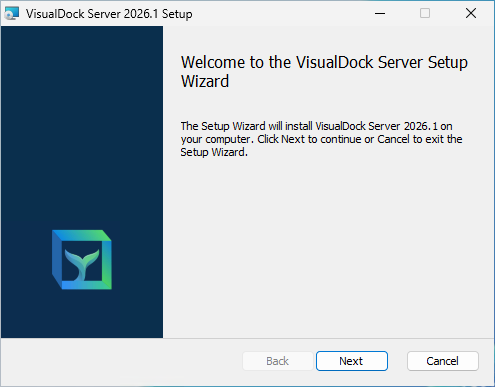
We begin the process to install VisualDock Server:
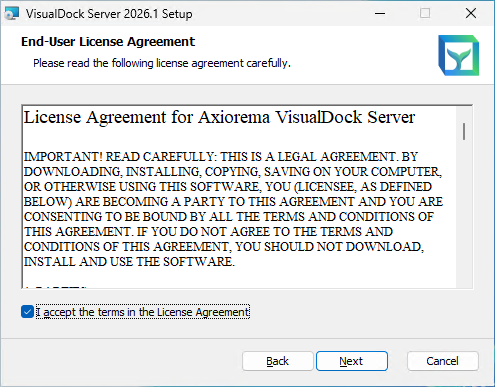
Accept the EULA:
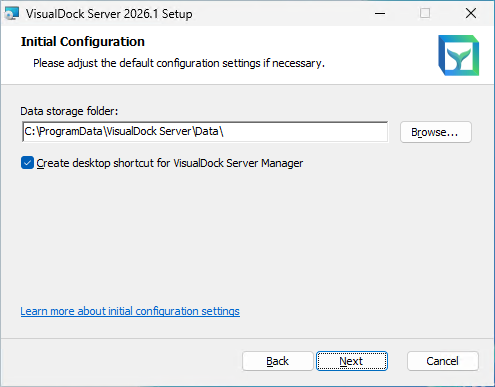
Choose your data storage folder:
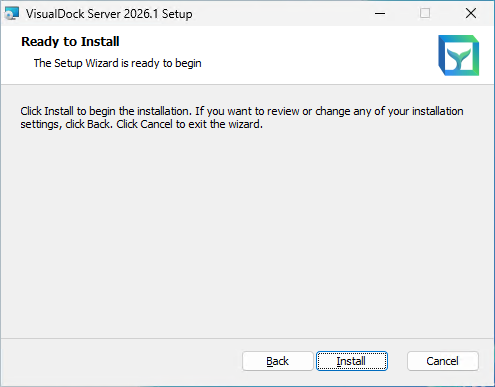
Now we are ready to install VisualDock:
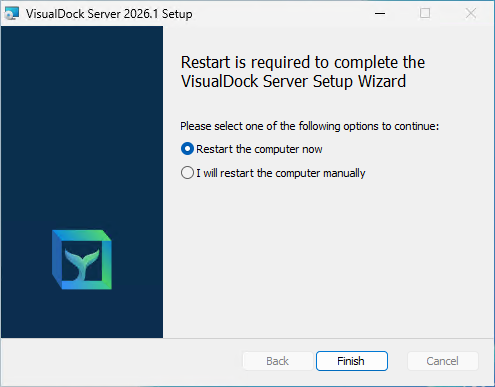
Finally, we need to restart the Windows computer after installing:
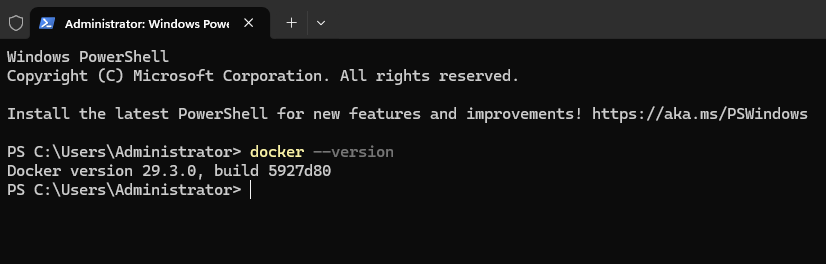
I was curious on whether or not VisualDock Server installed Docker as part of the installation process, and that looks to be the case:
Creating your first container in VisualDock Server
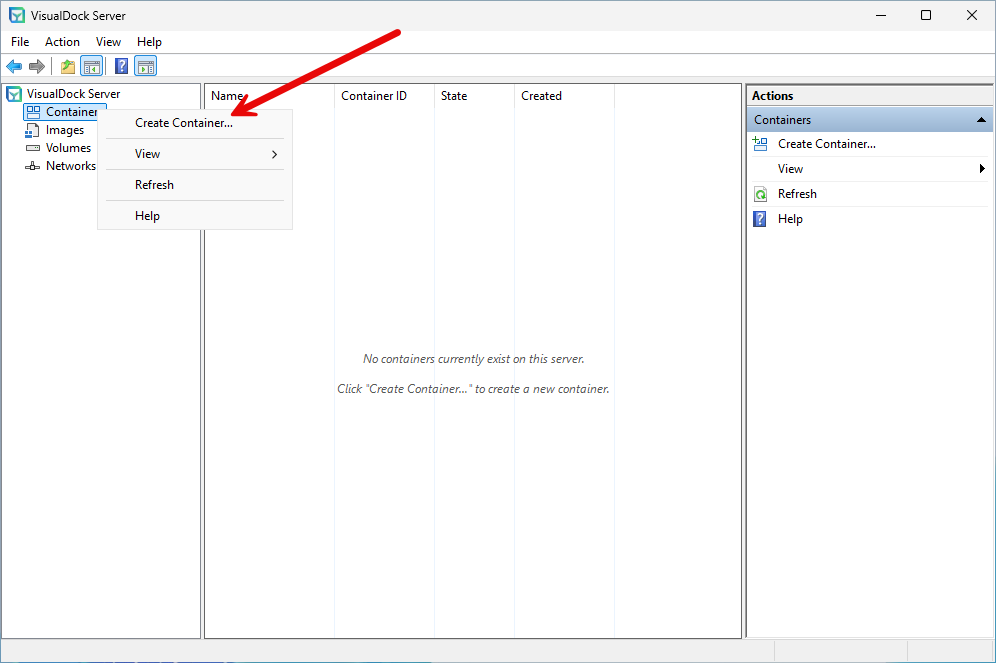
Now that we have it installed, let’s look at creating a container using VisualDock Server. I am running it on a fresh Windows Server 2025 installation that I have in the home lab environment. After installation, just click the desktop icon that is created after your reboot. This launches the VisualDock Server console. Once there, you can right-click on the Containers node in the left hand tree under the “VisualDock Server”.
Then select Create Container.
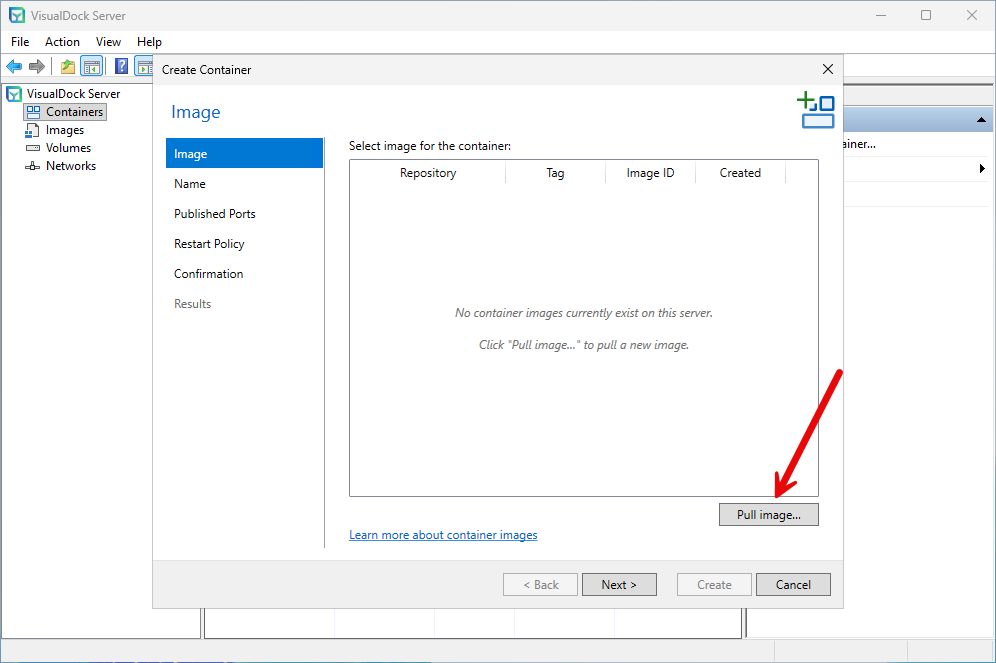
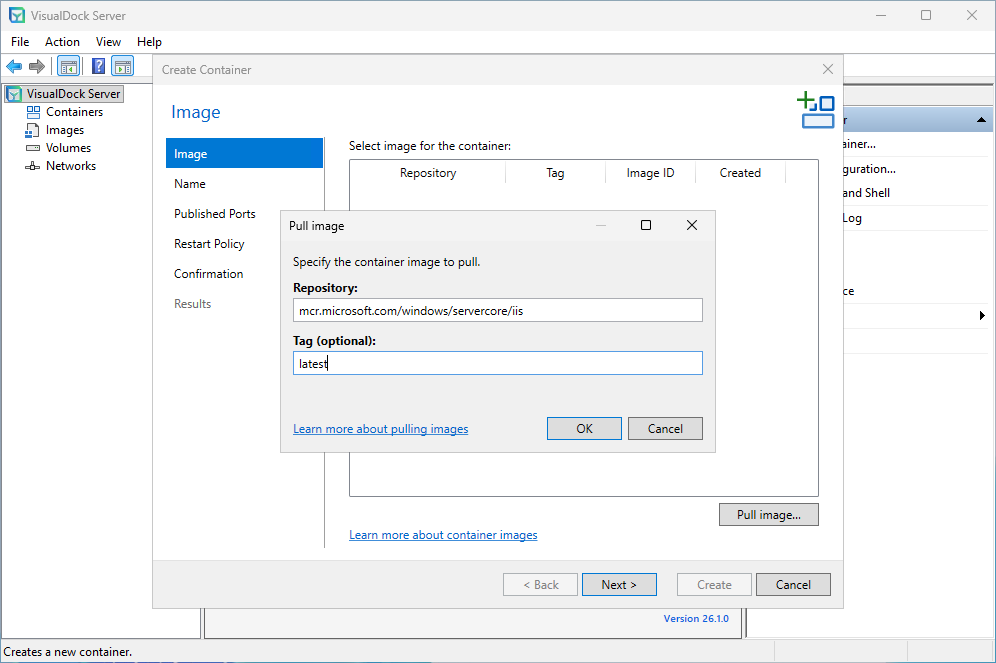
Next, this will launch the Create Container wizard. First up, you need to pull an image. Click the Pull image button.
In the Pull image dialog box, type in the Repository and Tag you want to use for the image. Click OK.
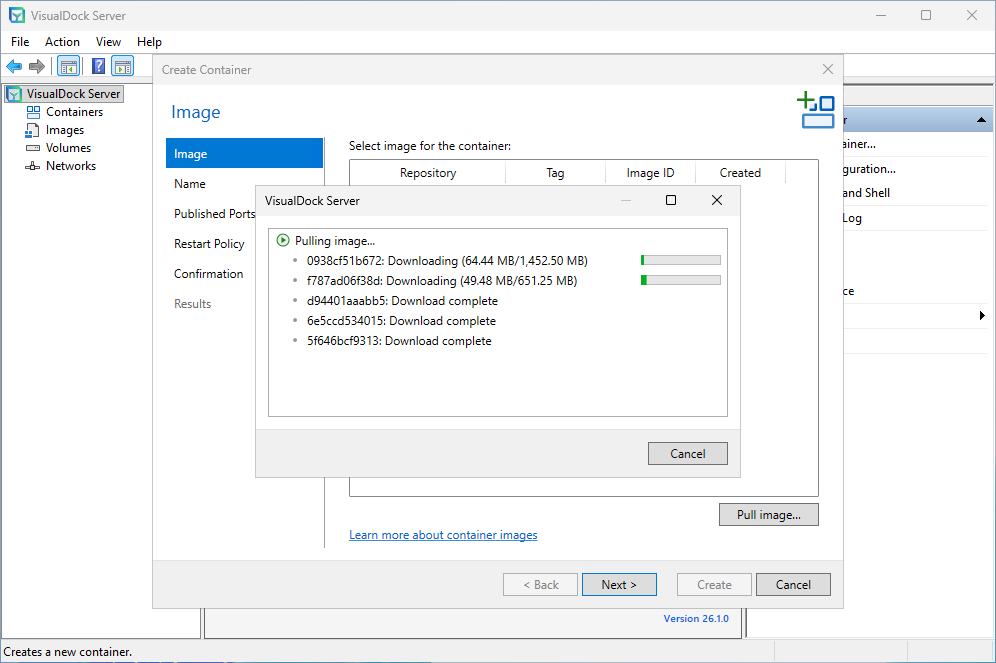
The VisualDock Server wizard will begin to pull the image you want to use.
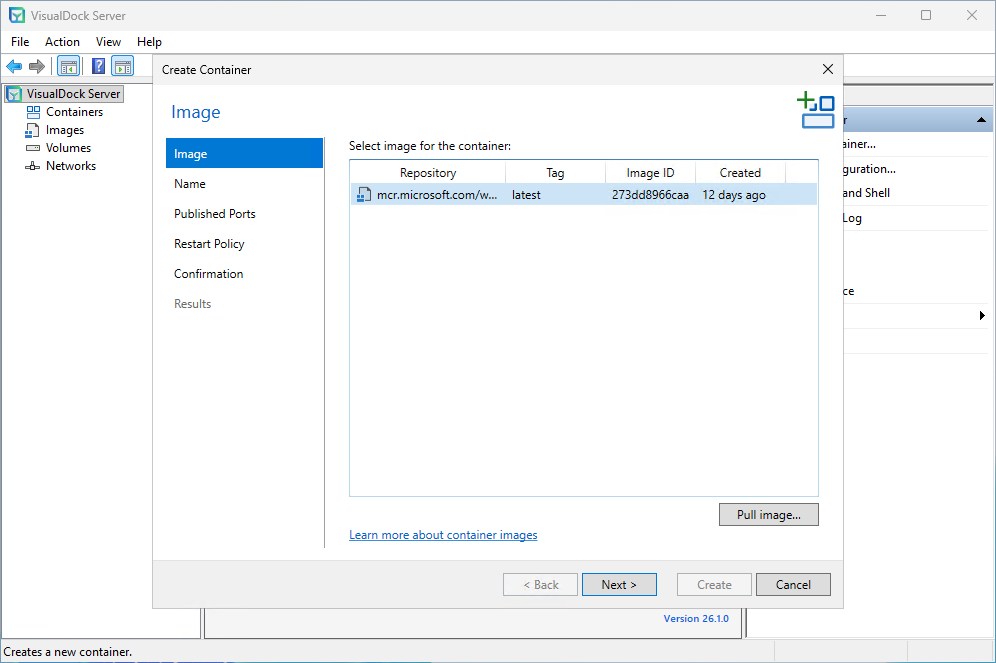
Once the image is pulled, highlight it in the Select image for the container. Then click Next.
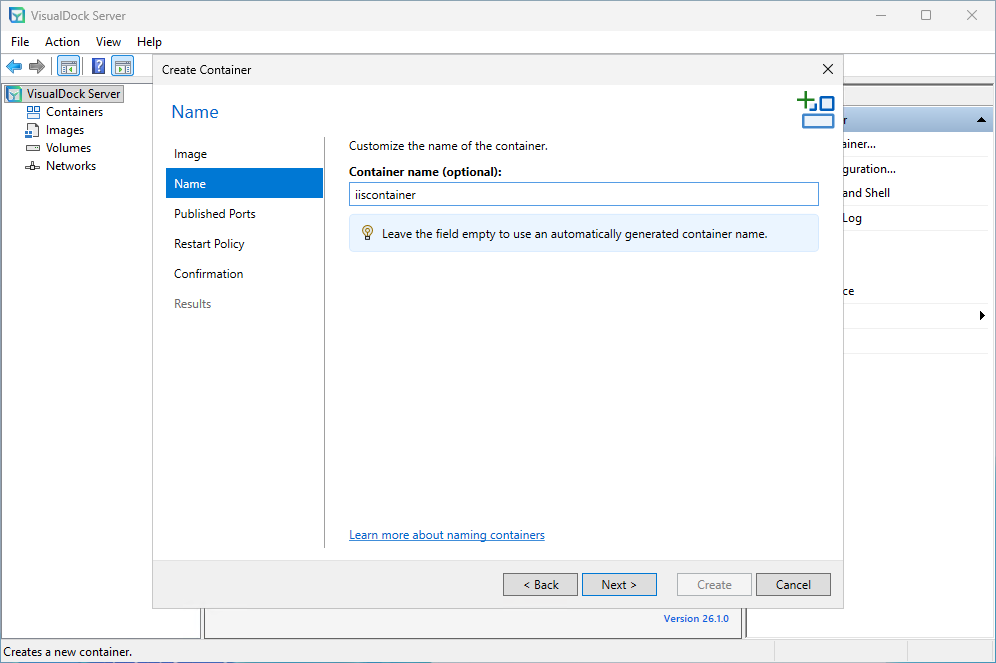
Name the container.
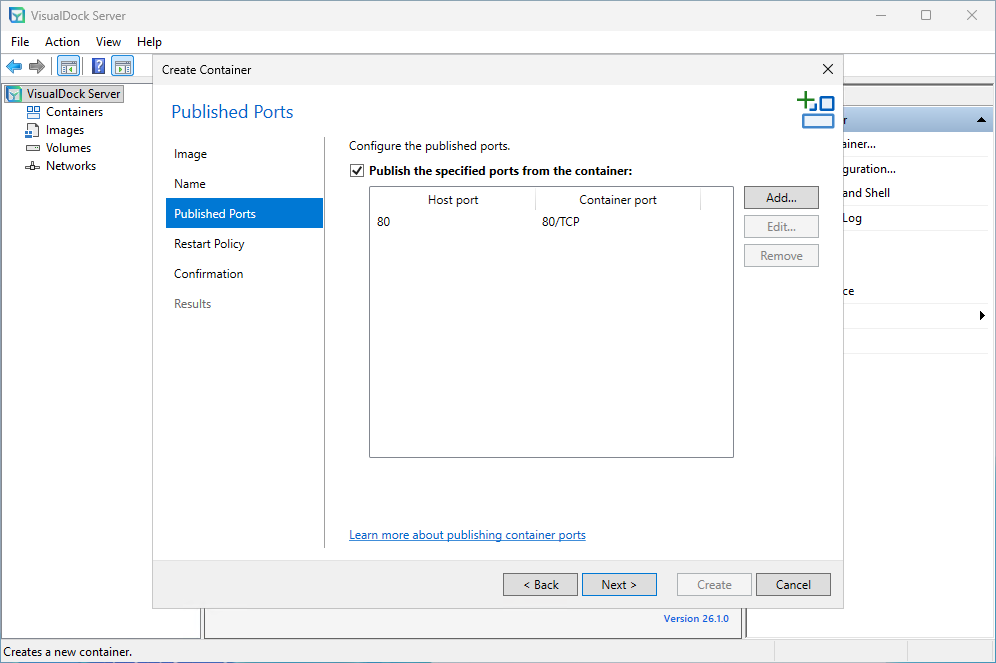
Here I checked the box for Publish the specified ports from the container. You can also add ports here.
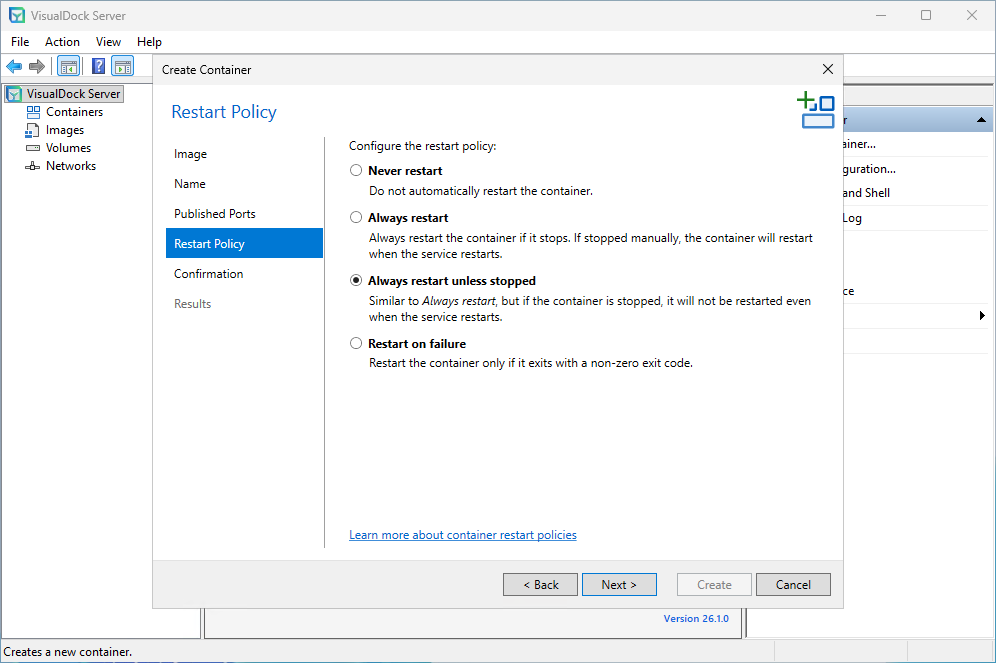
Choose your Restart Policy. Here I am choosing the Always restart unless stopped.
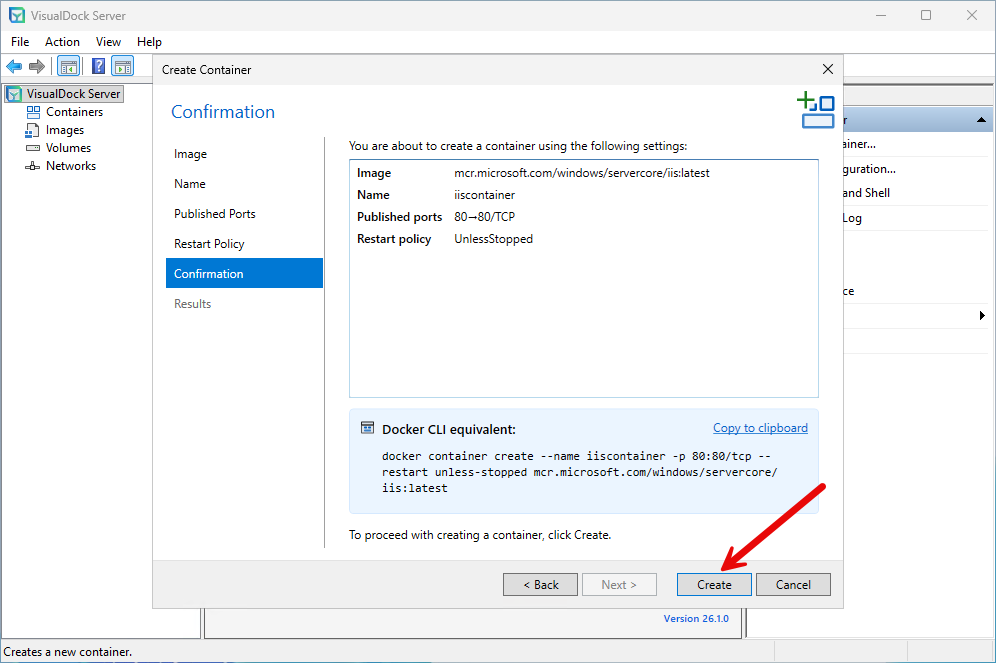
Finally, on the Confirmation page, we get to the Create button. Click this and the container will be created.
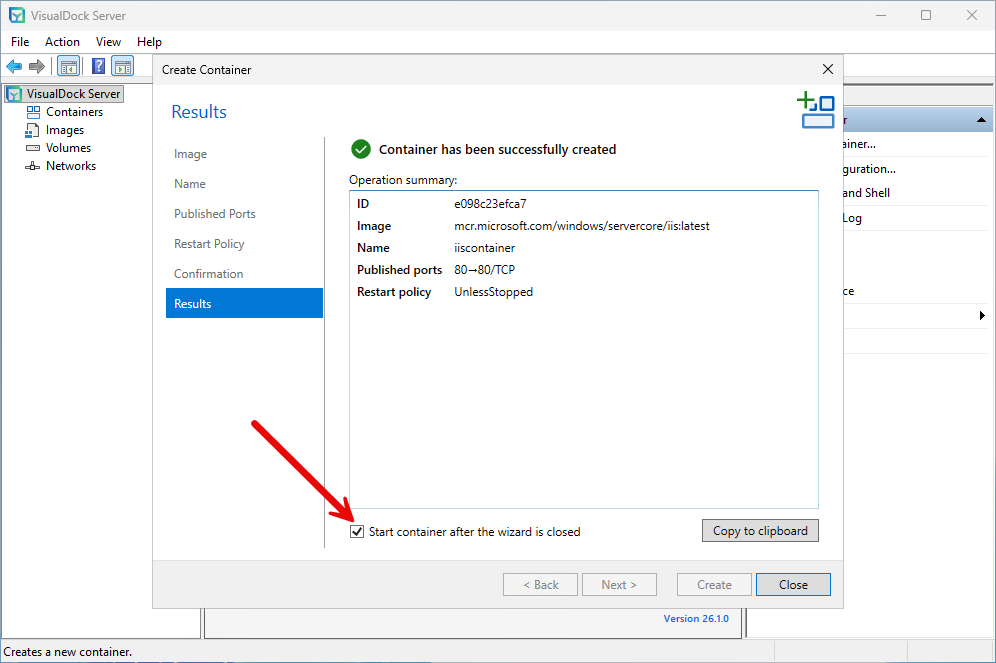
Container is created. Check the Start container after the wizard is closed if you want to start the container after you are finished.
The new IIS container is running.
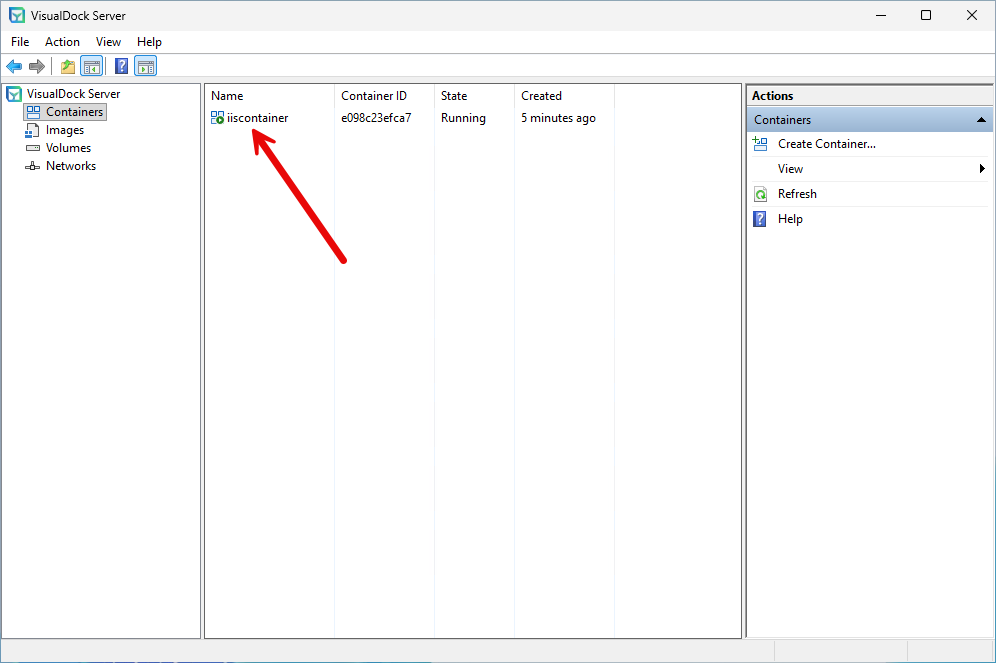
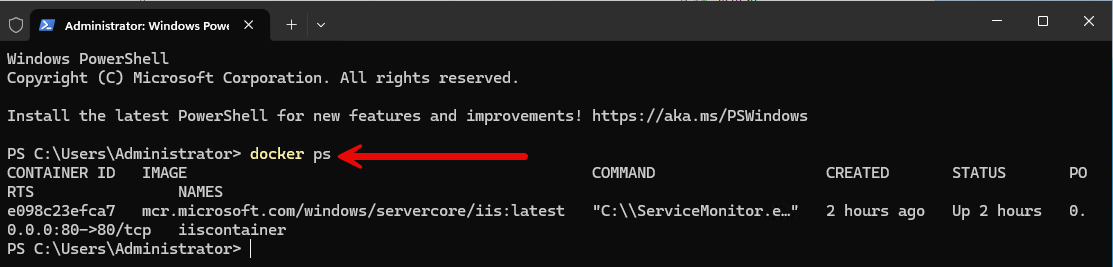
Also, I dropped to the command line and was able to verify the container from the Docker CLI:
VisualDock Server vs Windows Admin Center (WAC)
One question I had while looking at VisualDock Server was whether it has overlapping functionality with Windows Admin Center. The short answer is yes and no. If you already use Windows Admin Center, you know it gives you visibility into containers running on a Windows Server and lets you perform basic operations. You can see containers, work with images, and handle some day-to-day operational tasks.
Windows Admin Center feels more focused on infrastructure management, whereas VisualDock Server feels more focused on containers.
| Container management | VisualDock Server | Windows Admin Center |
|---|---|---|
| Container lifecycle | Better for frequent container management | Good for basic management |
| Image management | More workflow-focused | Basic image management |
| Docker workflow | Strong Docker-style experience | More GUI-driven |
| Container visibility | Container-focused | Good status visibility |
| Logs & troubleshooting | Better for ongoing troubleshooting | Basic troubleshooting |
| Day-to-day management | Better for regular container work | Better for lighter management |
| Overall experience | Container-first | Simpler operational management |
My honest take after digging into VisualDock Server
I think VisualDock Server is a great way to simply “Next, next, finish” and have Docker running on your Windows Server or Windows workstation. It takes the heavy lifting and guesswork out of getting it installed in Windows or wondering which install method is the latest. It does this for you.
Does this just automatically stop people from using Linux containers? Absolutely not. Linux is still the hands down winner in the realm of running containers. It is simpler, has a more mature ecosystem, and community support.
But if you have Windows-native workloads and you want to experiment with Windows containers in a simpler way, you will definitely have a good, straightforward experience using VisualDock Server.
What would take this solution to the next level?
I think if VisualDock Server was able to orchestrate getting WSL installed behind the scenes and actually take care of running Linux containers as part of its offering, that would be hands down the best solution out there for Windows Server environments and running containers in Windows.
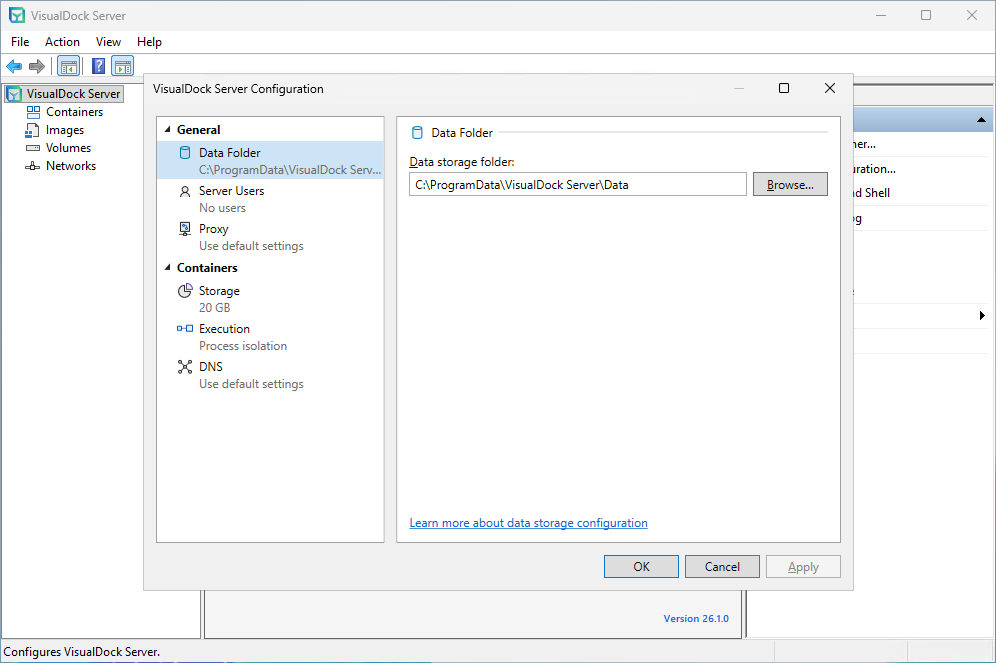
I was honestly hoping to find something in the server configuration possibly that would help with this functionality, but didn’t find anything there. It would be great to see better log visibility given as well as alerts maybe built-in for your Docker containers. By the way, here is a look at the server configuration settings you can tweak in VisualDock Server:
Wrapping up
Running Docker containers on your Windows Servers hasn’t necessarily been the easiest thing to do. Microsoft has changed the instructions on getting Docker installed over the past few years. Now, we still have a script to use to get Docker containers up and running. However, as shown, VisualDock Server is a great solution that allows you to have what I think is the easiest way to get Docker installed and have a simple management console to create and manage your containers. I would love to see this solution grow and keep adding features, hopefully to include orchestrating running Linux containers. How about you? Are you currently running any containers in Windows Server in your home lab? Let me know in the comments.
More in this topic



Google is updating how articles are shown. Don’t miss our leading home lab and tech content, written by humans, by setting Virtualization Howto as a preferred source.
About The Author