



One of the coolest things you can do with Proxmox is spin up LXC Containers (Linux Containers). These are used heavily by those who are self-hosting services in their home labs as they are very lightweight, spin up in just seconds, and they have most of the advantage of VMs in Proxmox. You can back them up, snapshot them, etc. Over time, I have developed a baseline that I work through whenever I create a new Proxmox LXC container. Some of these settings improve security. Some of the other settings make things like backups, troubleshooting, startup, storage, and future maintenance easier. Let’s look at the Proxmox LXC settings I change before every new container.
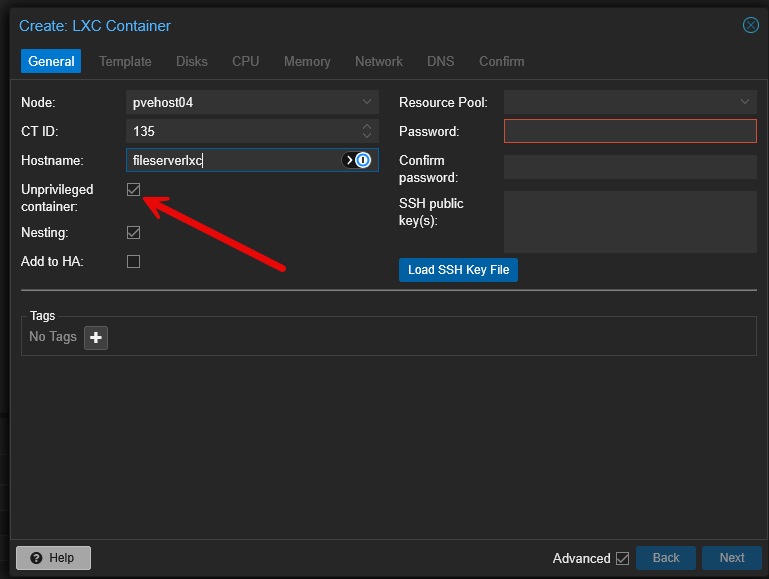
I use unprivileged containers by default
The first decision I make is whether the container should be privileged or unprivileged. For most normal Linux services, I use an unprivileged container. Why? Mainly for security.
The good news is, this is already set as default, but it is part of my checklist to verify:
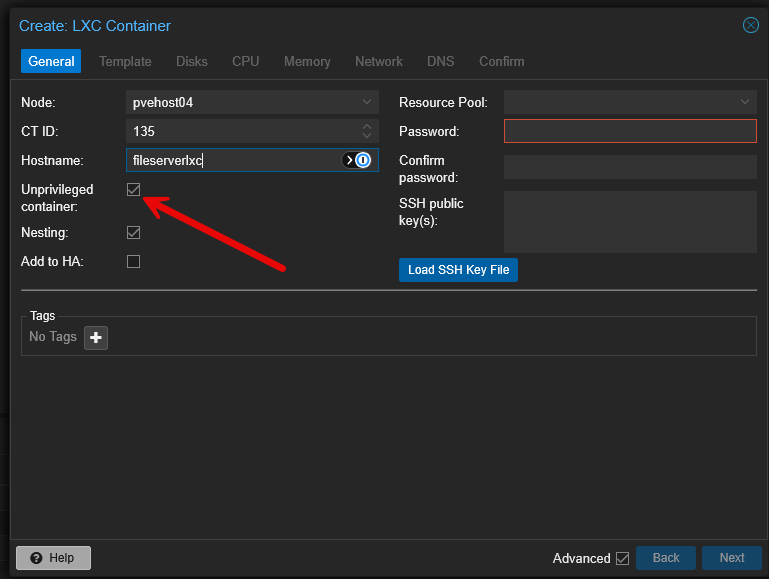
An unprivileged LXC container maps the container’s user and group IDs to a different range of IDs on the Proxmox host. So what this means is root inside the container is not the same as root on the host. Proxmox uses Linux user namespaces to configure this isolation to be enabled.
What this does not mean. It doesn’t mean that your containers are invincible from attack due to this setting. But like everything with security, it is about layers and best practices to minimize your attack surface. And, that is what this does.
When creating a container in the Proxmox wizard, to set this setting, make sure Unprivileged container is selected unless I have a specific technical reason to disable it. What are some technical reasons to run a privileged container?
- Running Docker inside an LXC when it needs access to host devices
- VPN, FUSE, or legacy apps where you need UID/GID mapping
Actually, a note on Docker in an LXC, you don’t have to have it in a privileged container. You can set these features to enabled from the properties of the LXC container > Options > Features.
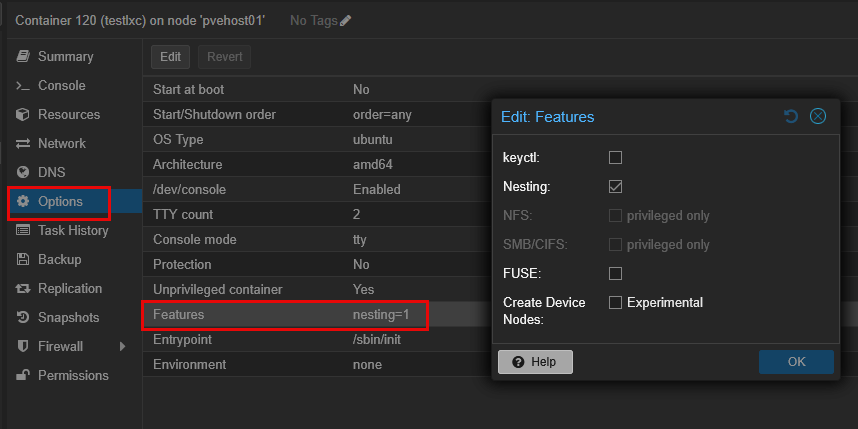
- nesting=1
- keyctl=1
Again, the only reason you might still need it with Docker is device passthrough needs. The above flags usually provide a good balance between compatibility and security.
I choose the hostname intentionally
Like all of my other resources in the home lab, I choose consistent naming for my LXC containers. I love Star Wars and Star Trek names. They are exciting at first, but they aren’t really meaningful later on. I usually use boring names that give me an idea of what I actually have housed inside the LXC.
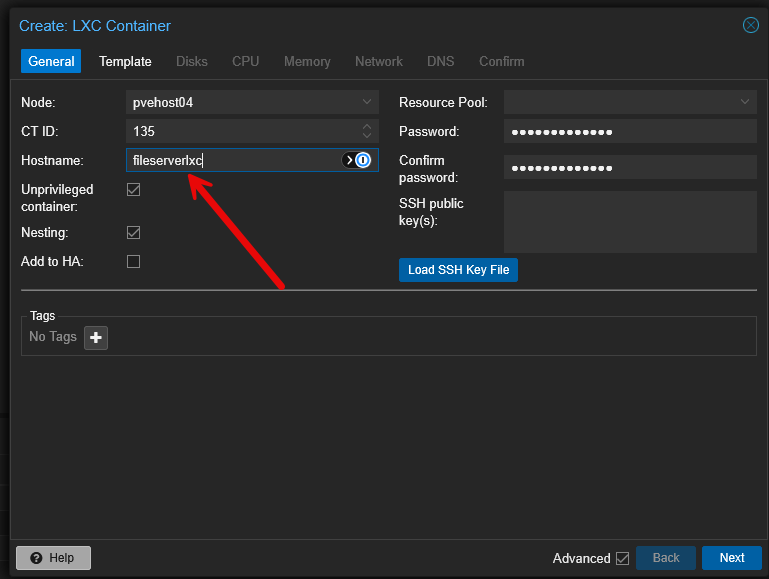
Names I choose look like these:
dns01
mon01
proxy01
docker01
git01
backup01
In larger environments that I might manage in the enterprise for production, I may also include a site, environment, or location tag as part of the name.
lab-dns01
prod-proxy01
uk-docker01
I don’t use names too closely tied to the application unless I know the container will always run that app. Naming a container ubuntu01 tells me almost nothing about its purpose. But naming it something like dns01 keeps it useful even if I later replace the DNS solution inside.
I add tags and notes to my LXCs
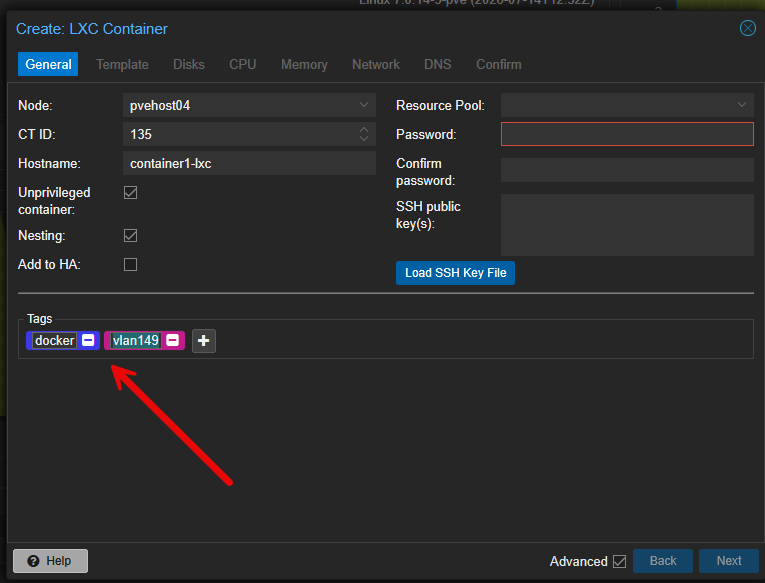
Tags are something that I think aren’t used enough. They are very cool in the fact that they add metadata to your LXCs that allows you to search for things even outside the name of the container itself. You can add these to your virtual machines AND LXC containers just so you know. So if my LXC does have Docker installed, I can add tags to reflect that. I can add any tag that I want that is helpful.
I also use the notes or description field to record details that can be helpful. What are some things that you might consider including in your notes?
Useful notes might include some or all of the following:
- The apps running inside the container
- Its management URL
- Important ports
- Data mount locations
- External dependencies
- Hardware passthrough
- Backup expectations
- The Git repository containing its configuration
I add important LXC containers to HA
Proxmox HA makes sure that your LXC container is able to restart in the event of an outage or failure in your Proxmox cluster. If you have a host die and you have healthy hosts left in the cluster, with shared storage, you can have another healthy host assume ownership of the LXC container and restart it.
If I am just testing things, I usually don’t add the LXC to HA, but again, if it is housing a more critical or important service in my home lab, I add it to HA.
As a side note, with Proxmox VE Server 9.2, Proxmox has introduced dynamic load balancing that allows Proxmox to do a lot better job of deciding which node a VM or LXC container is placed on. This was tech preview in 9.1.8 but GA in version 9.2. Read my relevant blog posts here:
- Proxmox 9.1.8 Finally Rebalances HA Workloads Automatically
- Proxmox VE 9.2 Is Here: 7 New Features That Actually Matter
I set a static IP address for infrastructure services
There are mixed opinions on setting static IP addresses. I have seen newer schools of thought that DHCP is used for everything with reservations setting things that way. However, in my “old school” opinion, when you static critical servers and services, you are eliminating a dependency on other “moving pieces and parts” needing to work so that your addressing is correct.
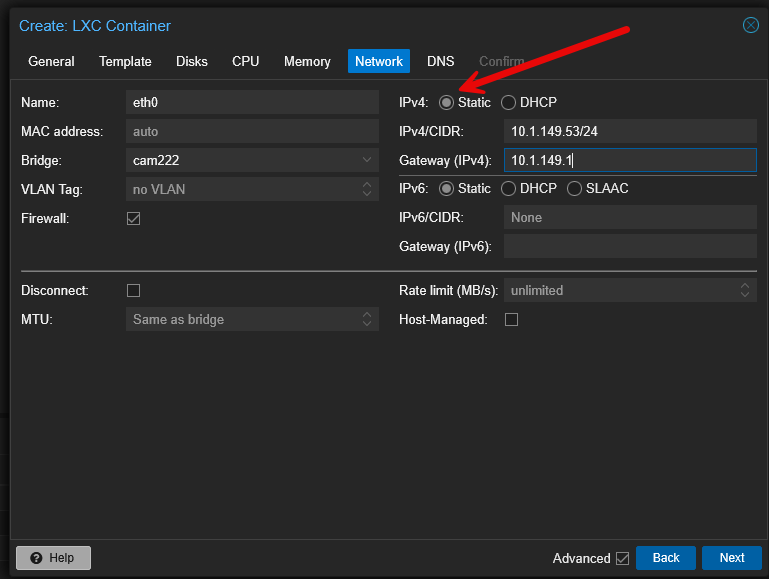
For me, if I am creating a disposable test container, DHCP is fine for that in my opinion. But, if I am creating important infrastructure services, I want to assign a static IP address. The reason for this is that you don’t want your critical infrastructure services like DNS servers, reverse proxies, monitoring, container hosts, etc to unexpectedly show up on a different IP address.
In Proxmox, I configure the container’s network interface with the correct bridge, VLAN tag, IPv4 address, prefix length, and gateway. So, for a typical configuration, you might have something that looks like this (replace with values that are found in your environment):
IPv4: Static
IPv4/CIDR: 10.1.149.53/24
Gateway: 10.1.149.1
Bridge: vmbr0
VLAN tag: 149
I also verify that the chosen address is outside the DHCP pool or is reserved. Duplicate IP addresses can definitely cause confusing intermittent problems that look like DNS, firewall, or application failures. But for me this risk is small. I have ARPwatch running, I meticulously document used IPs in my IPAM, so times when conflicts happen are rare.
After the container starts, I verify the actual route and address:
ip addr
ip route
I also test both local and external connectivity:
ping -c 4 10.1.149.1
ping -c 4 1.1.1.1
If testing any of this connectivity fails, I look at the bridge, VLAN, gateway, and firewall configuration. If the gateway works but the external IP fails, I look at routing and upstream firewall policies and also DNS can be a culprit if a DNS server was fat fingered.
I set my DNS servers
DNS is one of the most common sources of trouble inside new LXC containers, especially in a home lab where I may be testing multiple resolvers.
Proxmox can inherit DNS information from the host, but I normally want infrastructure containers to use known DNS servers. I review the DNS server and search domain settings rather than accepting them blindly.
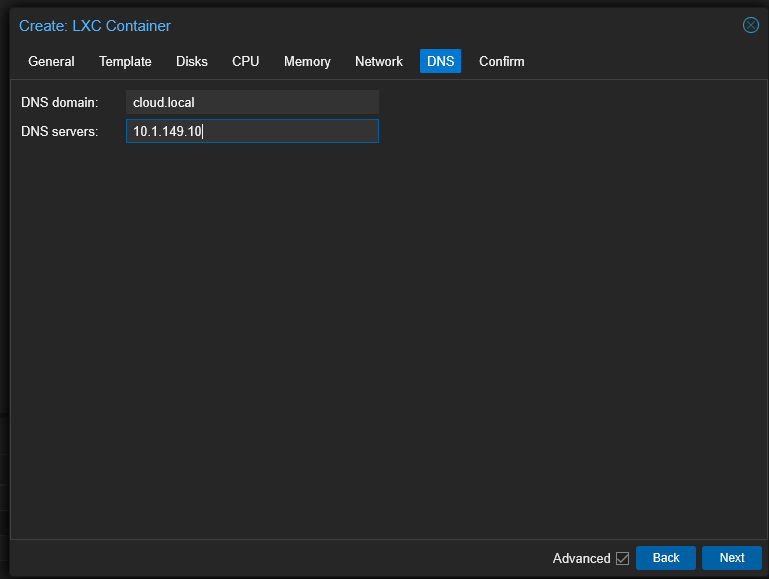
There is an exception for a container that is itself providing DNS. I do not want a DNS server to depend entirely on itself before its service has started. Depending on the solution, I may point it to another internal resolver, use a loopback address only after the service is ready, or you can configure an external fallback.
After deployment, I check:
cat /etc/resolv.confI then test resolution:
nslookup www.google.comI size the root disk for disk space growth
Proxmox LXC containers are super efficient and they are easy to “undersize” due to that fact. By default, if you just click through the new LXC container creation wizard, it will create a disk size for your LXC container that is very small. This may be fine, depending on the workload.
A minimal Debian container may not take up very much space, but then when you add package caches, logs, databases, container images, application updates, and temporary files, that space requirement can grow pretty large quickly.
Don’t just assign a tiny root disk simply because the initial operating system fits inside it. Yes, you can expand your disk later on, but this is a hassle nonetheless. It is a better idea to start with what you might need in a short to longer period of time than having to extend a disk and grow the filesystem inside.
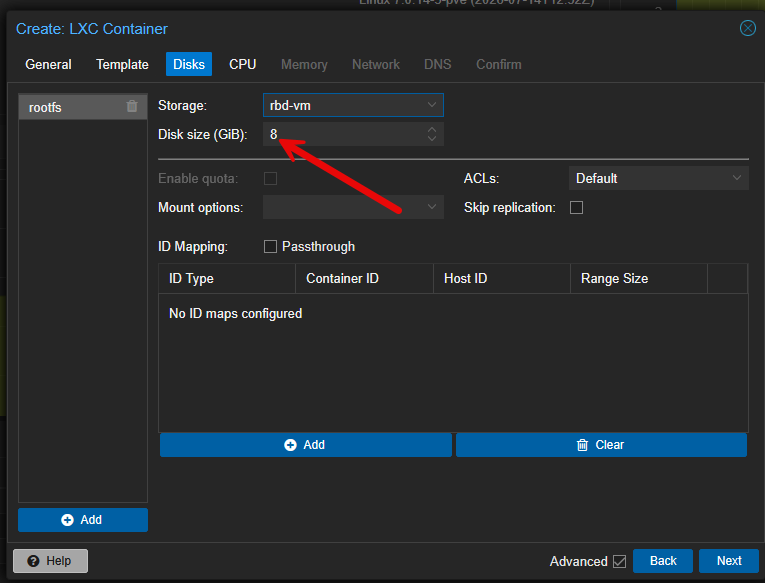
My rough starting points are generally somewhere around the following for the listed LXC container types:
| Type of LXC | Size of root disk when starting |
|---|---|
| Small utility or DNS service | 8 to 16 GB |
| Monitoring or management service | 16 to 32 GB |
| General application server | 24 to 64 GB |
| Docker host | 64 GB or more |
| Log, metrics, or database workload | Based on expected retention |
Keep in mind, these are not hard requirements and you may need to have something different in your environment altogether. The main point of bringing this up is to think about this setting ahead of time, before you create your LXC container.
Periodically, inside the container, you can check your usage with:
df -h
du -xhd1 /var 2>/dev/null | sort -h
If your root disk starts to fill up unexpectedly, /var/log, /var/lib, package caches, and things like app data are the first places I start to investigate.
I enable protection for critical containers
The Protection setting is easy to overlook but it is one that I think has a lot of merit, especially in a production environment. With protection enabled, it helps to prevent being able to accidentally remove an LXC container in the environment. Keep in mind, it isn’t a full security system that prevents every possible admin action. But it adds enough “friction” to the operation I think that it can help you keep from doing something you are not intending to do.
I enable protection for containers that provide critical services or hold data I would not want to lose. I definitely recommend doing this for your important infrastructure LXC containers that might be serving these types of roles:
- DNS servers
- Reverse proxies
- Monitoring databases
- Authentication platforms
- Automation controllers
- Backup services
- Long-term Docker hosts
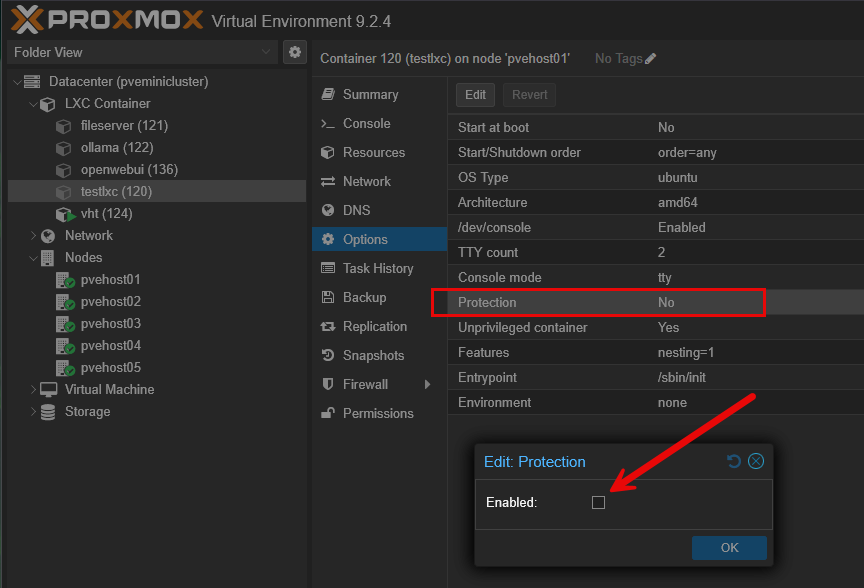
I usually leave this setting disabled for disposable test containers. Also, this is important to keep in mind. Protection does not replace backups of your LXC containers or virtual machines. It protects mainly against a mistake. This by default doesn’t protect you from things like storage failure, corruption, compromise, or a failed Proxmox node.
Configure CPU, memory, and firewall
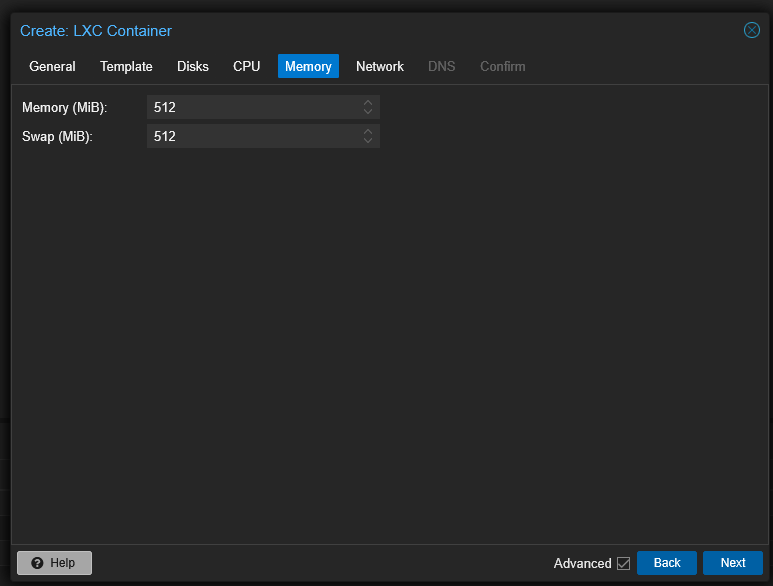
I will collapse these settings together for being shorter. CPU, memory, and firewall. These settings are ones that will vary depending on the workload you are running and the resources the LXC container will need. Containers are super lightweight compared to a full VM, so you can generally go lighter on CPU and memory resources.
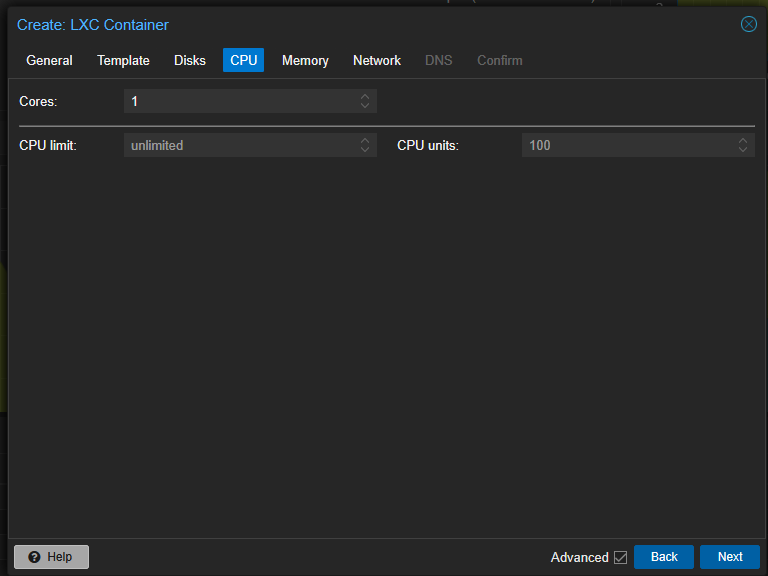
Alson on the memory front, Proxmox LXC containers do not support memory ballooning like VMs do. Since containers share the host kernel, Proxmox has memory limits using Linux cgroups instead of having a balloon driver dynamically adjust memory. I just assign an appropriate memory limit and swap value based on the workload and monitor usage over time.
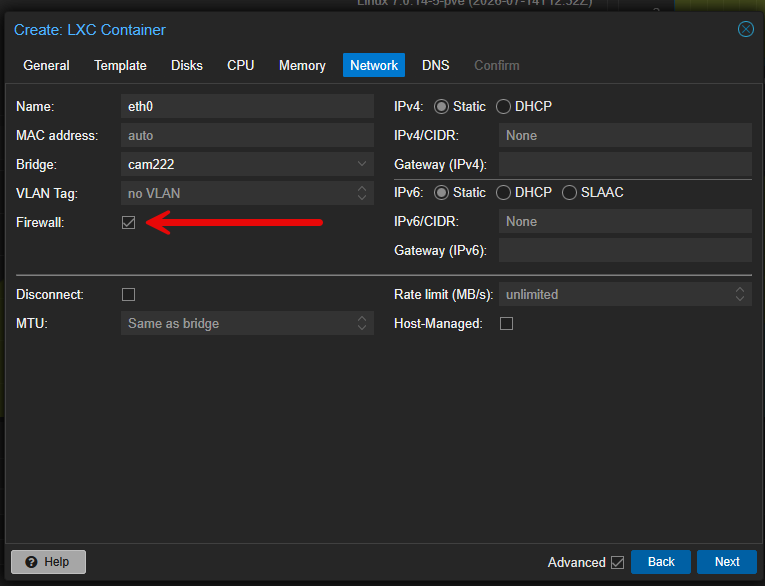
I usually do enable the Proxmox firewall but it depends on where the container lives and what it is doing. All of my services sit behind a dedicated firewall appliance or are isolated on their own VLANs, so I do not always need host-level firewall rules. But if you decide to have something Internet-facing (and I would definitely think twice about doing that) or provide sensitive services, this can allow you to let the Proxmox firewall gives you another layer of protection for your home lab.
I make sure important containers are added to backups
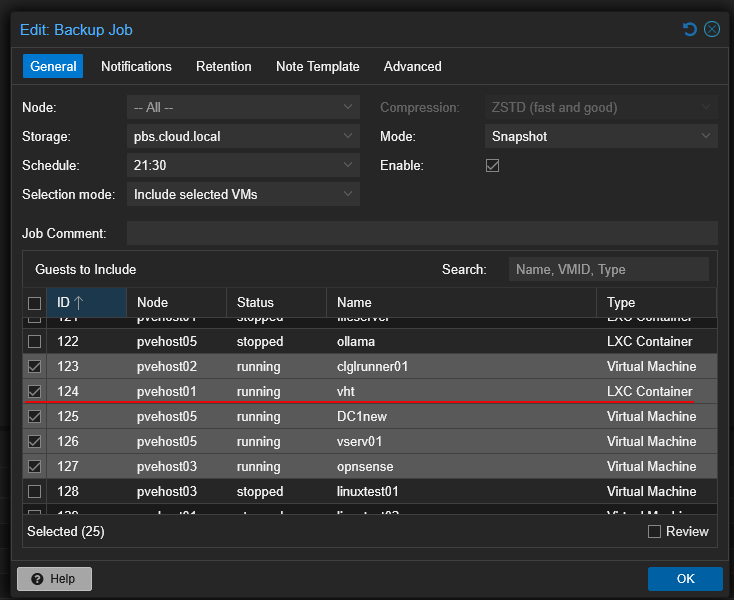
Backups are crucially important to making sure you have your data protected. If you are using Proxmox Backup Server (PBS), you will want to make sure you have your important LXC containers included in your backups of resources from your environment.
Currently, commercial solutions like Veeam Backup & Replication don’t backup LXC containers, only virtual machines. So, the native PBS option is the way to go to make sure you have your LXC environment protected.
Wrapping up
Hopefully, this checklist of Proxmox VE Server LXC container settings will give you an idea of the settings I think are important when setting up your Proxmox LXC containers for self-hosting, homelabbing, and learning. LXC containers are a great way to self-host solutions without all the overhead of running full VMs, which is great in today’s world of the current RAM shortage. Check out over 100+ turnkey appliances you can take advantage of as well on this front. How about you? What settings do you configure for your Proxmox VE LXC containers?
More in this topic




Google is updating how articles are shown. Don’t miss our leading home lab and tech content, written by humans, by setting Virtualization Howto as a preferred source.
About The Author

I only got to the part about the author saying resizing disks was a hassle. I just couldn’t. I was skeptical after he said he used privileged containers for device passthrough in docker which is provably wrong by my immich server. But then he said the thing about resizing disks. It is literally just a couple clicks in the gui. Ct > resources > disk then click volume actions then resize disk. Like, if I need more space I don’t even have to reboot the CT. No settings to change before production deployment so far. I’m bailing on this page
Austin,
It sounds like you’re responding without full experience here. First, resizing a disk in the Proxmox GUI is exactly what you mention, just a few clicks. But have you checked when you do that to see if the guest operating systema automatically recognizes the space? Probably not? The point is that increasing the virtual disk size does not automatically mean the guest OS or filesystem has expanded to use that new capacity. Yes you can click extra space on VM and LXC and boom done, but don’t expect the guest OS to recognize it without some manual intervention. It’s a lot easier to get the space right on the frontend as I state in the post.
Second, I specifically recommend unprivileged LXCs for Docker whenever possible. However, saying privileged containers are “provably wrong” is simply inaccurate. There are legitimate scenarios involving hardware passthrough, USB devices, GPUs, Coral TPUs, FUSE filesystems, VPN interfaces, and other configs where a privileged container is absolutely needed, hence the reason for the checkbox. The goal is to use the least privilege necessary for the workload, not to pretend privileged containers never have a valid use case.
There is rarely a one-size-fits-all answer in Proxmox or any other hypervisor. My recommendations are based on real-world deployments where those edge cases come up regularly. I think you bailed too early 😁