



Cleanup tasks are usually not something that we get overly excited about. However, one thing that I do get excited about is making my lab run better and having fewer problems. It is super easy to have Proxmox environments accumulate clutter over time. This clutter can include things like old ISO images, snapshots, unused templates, orphaned virtual disks, and things like outdated kernels on a host. None of them usually cause immediate issues in a home lab. But, they can sneak up on you. I have put myself into the habit of performing a monthly cleanup routine that usually doesn’t take long and you can script. But it keeps everything organized and makes troubleshooting easier. Let’s take a look at low-hanging fruit that I never skip during cleanup.
Delete old ISO images
This is probably a good place to start with housekeeping activities. If you are like me, you may have every copy of Ubuntu Server released in the past 5 years on your storage without going through and deleting old images. When I download a new Linux distro, Windows Server installation, or appliance image, it usually lands in my local ISO storage. Then several months later, those images are not useful, because they are outdated and new releases have replaced them.
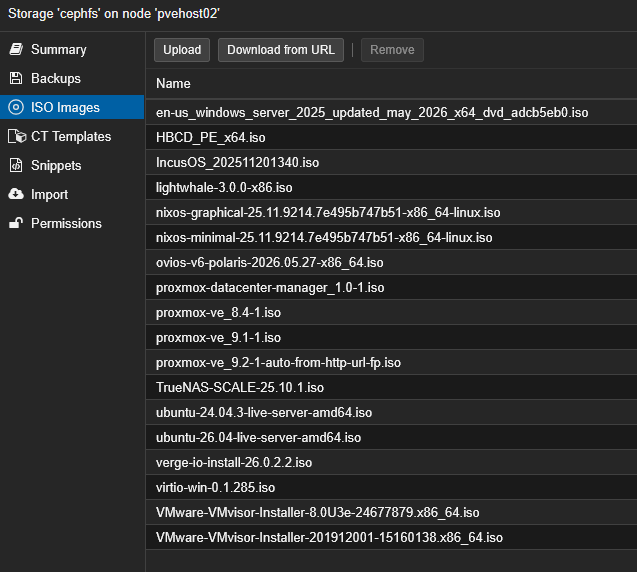
Modern ISO images can take up several gigabytes each. Over time they can add up faster than you might think. I usually browse through local > ISO images if this is where they land or if you are running something like CephFS, you can check your ISO images storage there.
If I go through and ask myself if I would deploy the version that is located on the datastore today and and the answer is no, then I usually delete it.
Remove unused VM templates
Templates are one of my favorite Proxmox features because they make deploying new virtual machines super fast. The downside is that Proxmox templates seem to multiply over time. I might buidl a new Ubuntu template every few months or so or create one with Docker installed, or another one that is cloud-init configured. Many different configs.
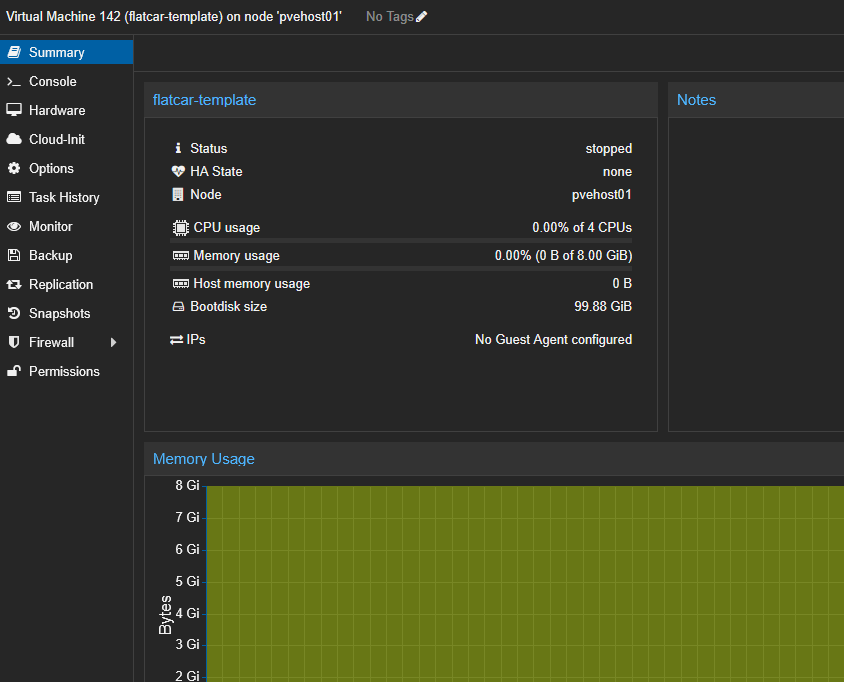
So it is easy to end up with multiple templates on your Proxmox host that might just accomplish the same thing. So my cleanup routine with templates involves asking questions about the templates themselves:
- Is this still my standard deployment image?
- Has it been replaced by something newer?
- Does it contain outdated software?
- Would I actually clone from this today?
If the answers don’t line up with keeping it on hand, then I just delete it. I have found that keeping only a handful of current templates helps me reduce confusion in the lab or production environments and encourages me to keep my templates updated.
Clean up old LXC templates
When we talk about an LXC “template” we are referring to the catalog of templates that Proxmox has available from the repository. And, there are LOTs of templates there, many of which are really good to use in the home lab. One template by itself can be pretty small, but multiple or dozens of templates can add up. When you download LXC templates using the Proxmox template repo, it stays stored on your server even if you never use it again.
You can list all available templates from the commandline with the command:
pveam availableTo see templates you have downloaded:
pveam list local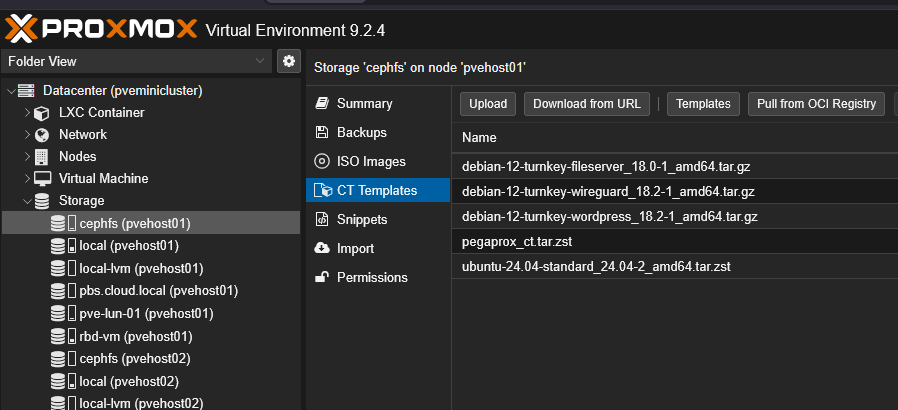
Depending on your storage name, you may need to replace local with your storage identifier. I have added pruning of LXC templates to my monthly pruning and cleanup routine on my Proxmox hosts.
Delete stale VM and LXC snapshots
Snapshots are definitely a handy thing to have in the home lab when we are testing and breaking things on a regular basis. They give you a “safety net” so that you can have a way to easily get back to a known good working state. Snapshots are “not” backups. So make sure you don’t think of them like that. They are though quicker to get back to a known state than restoring a backup if you are just simply trying to roll a server or resource back from a bad config or something else.
However, snapshots are one of those things that can slowly eat away at both storage space and performance. When you have multiple snapshots these continue to grow as there is data churn. Also, one thing that most may not realize is that for each read, all the snapshots must be read to find the data that needs to be read from and this introduces a pretty massive overhead on performance.
During my monthly and even weekly cleanup routines, I look for snapshots that are lingering for a long period of time. A great tool I have found that works for this is the PVEViewer tool. I did a detailed post on the tool here: I Tried This New Proxmox Inventory and Auditing Tool and I Was Impressed.
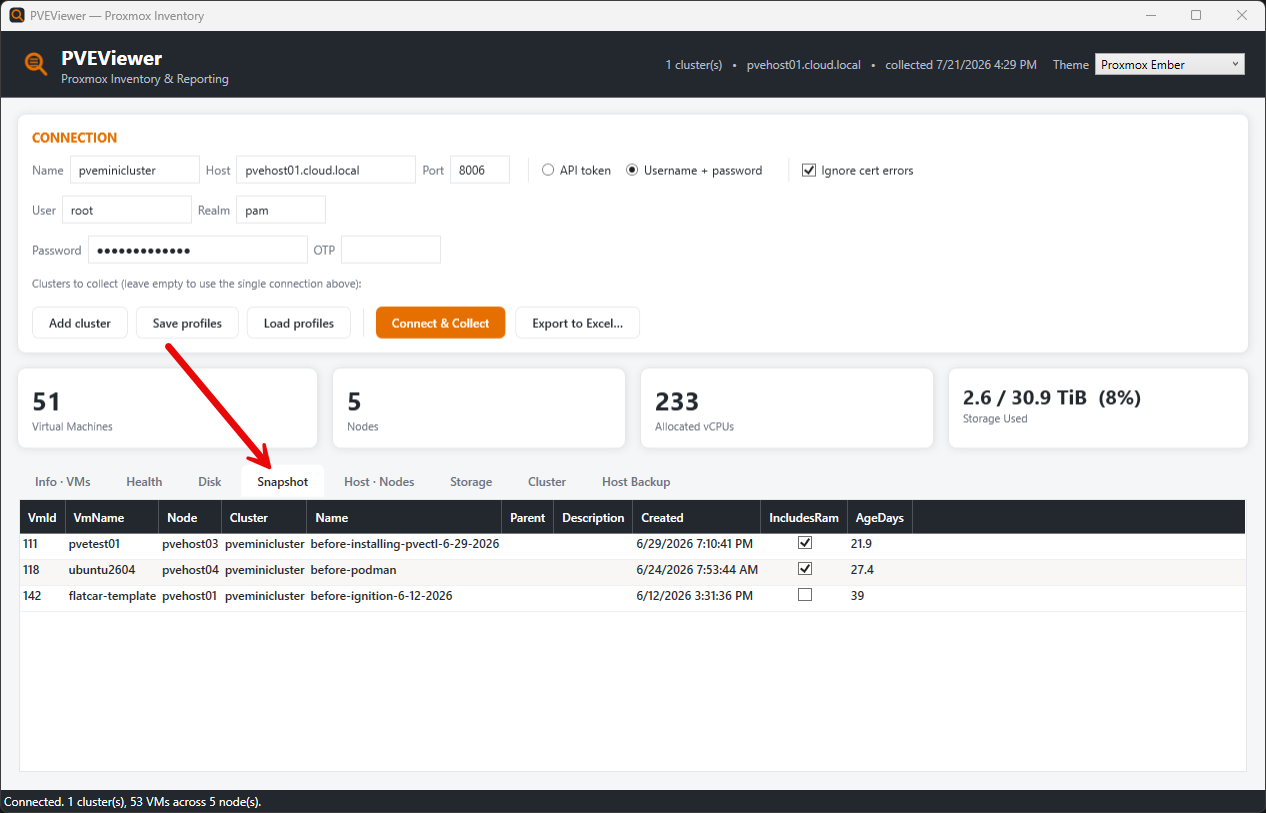
Now, when i am doing my routine cleanup work, I review each virtual machine and LXC container for snapshots that may be in place and that may be lingering for quite some time. If I have already confirmed the upgrade was successful weeks or months ago, I delete the snapshot.
Prune old backup files
Having more backups than you need is never going to get you in trouble most likely. It is usually the other way around. However, pruning off stale or old backup files is good housekeeping and makes sure you have room for all your recent backups or additional backups that you may need to take in an ad-hoc way.
Especially if you are using more expensive SSD storage for backups, you don’t want to just store unneeded years worth of backups out there. Fortunately, Proxmox Backup Server (PBS) has a built-in backup retention and pruning policy that makes this much easier and gets rid of old backups in an automated way.
Pulse is a good solution for monitoring Proxmox VE in the home lab that will alert you when backup files become stale or need to be pruned:
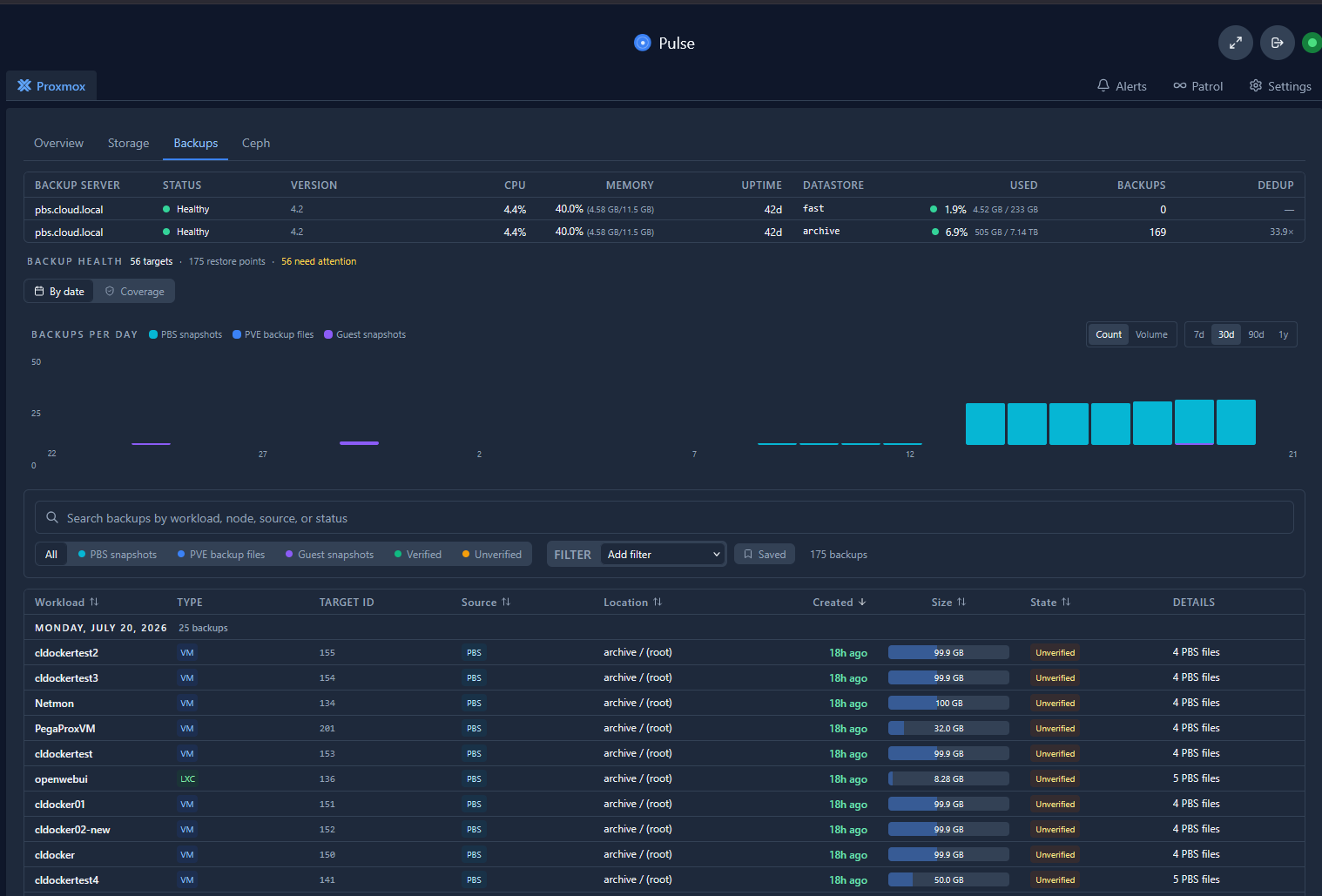
But, even though you may have automated retention configured, it is good to still manually review your backup storage on a monthly or even weekly basis. When I do this review, I look for things like:
- Backups of VMs that no longer exist
- Old test virtual machines
- Temporary lab experiments
- Duplicate backup locations
- Backup jobs that are no longer needed
This is also a good opportunity to make sure that retention policies are still in line with how important each workload actually is in my home lab. My production services will get much longer retention than temporary testing environments.
Delete old Proxmox kernels
Here is another one that we don’t often think about when it comes to housekeeping because these are basically an “out of sight, out of mind” type thing and that is old Proxmox kernels. Each Proxmox update can install additional kernels and leave old versions of the kernel.
Keep in mind that Proxmox will keep a couple of recent kernels on purpose for rollback purposes. And, this is a good thing. If something goes wrong when switching to a new kernel, it gives you a way to get back to a working state. But, it is probably not worth it or necessary to keep 10 old kernels.
A good periodic check I like to make to see which kernel I am currently booted into is running the following command:
uname -r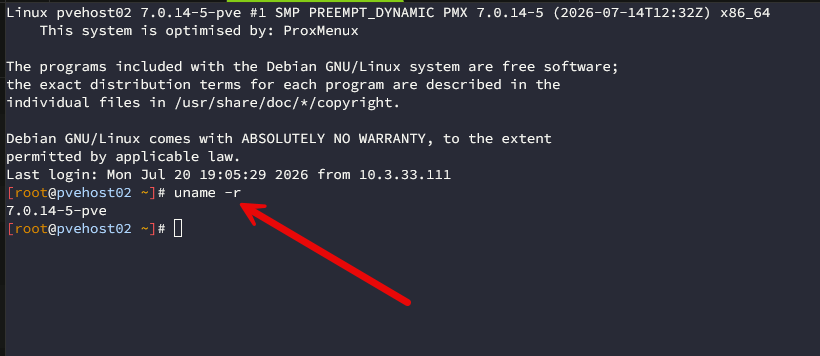
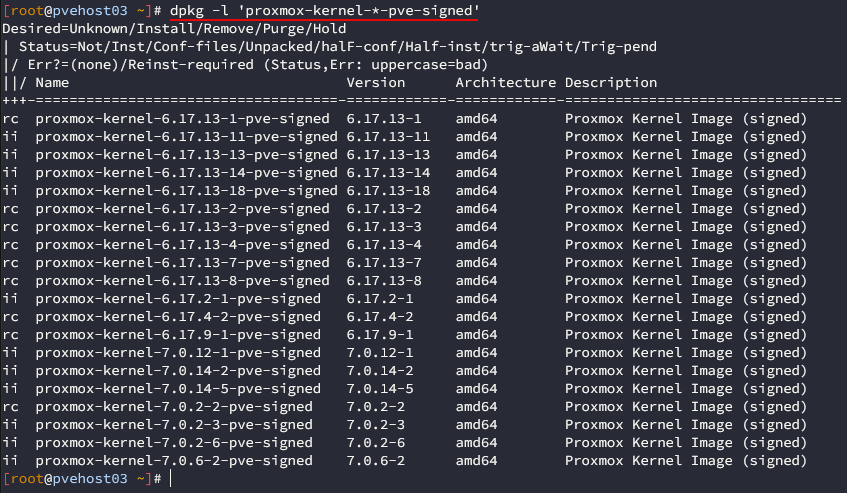
To see the older kernels that you have installed in your Proxmox environment, you can use the command:
dpkg -l 'proxmox-kernel-*-pve-signed'The ones with the “ii” in the left most column are the ones that are actually installed.
Below is an example command to remove old Proxmox VE server kernels:
apt purge -y \
  proxmox-kernel-7.0.12-1-pve-signed \
  proxmox-kernel-7.0.6-2-pve-signed \
  proxmox-kernel-7.0.2-6-pve-signed \
  proxmox-kernel-7.0.2-3-pve-signed \
  proxmox-kernel-6.17.13-18-pve-signed \
  proxmox-kernel-6.17.13-14-pve-signed \
  proxmox-kernel-6.17.13-13-pve-signed \
  proxmox-kernel-6.17.13-11-pve-signed \
  proxmox-kernel-6.17.2-1-pve-signed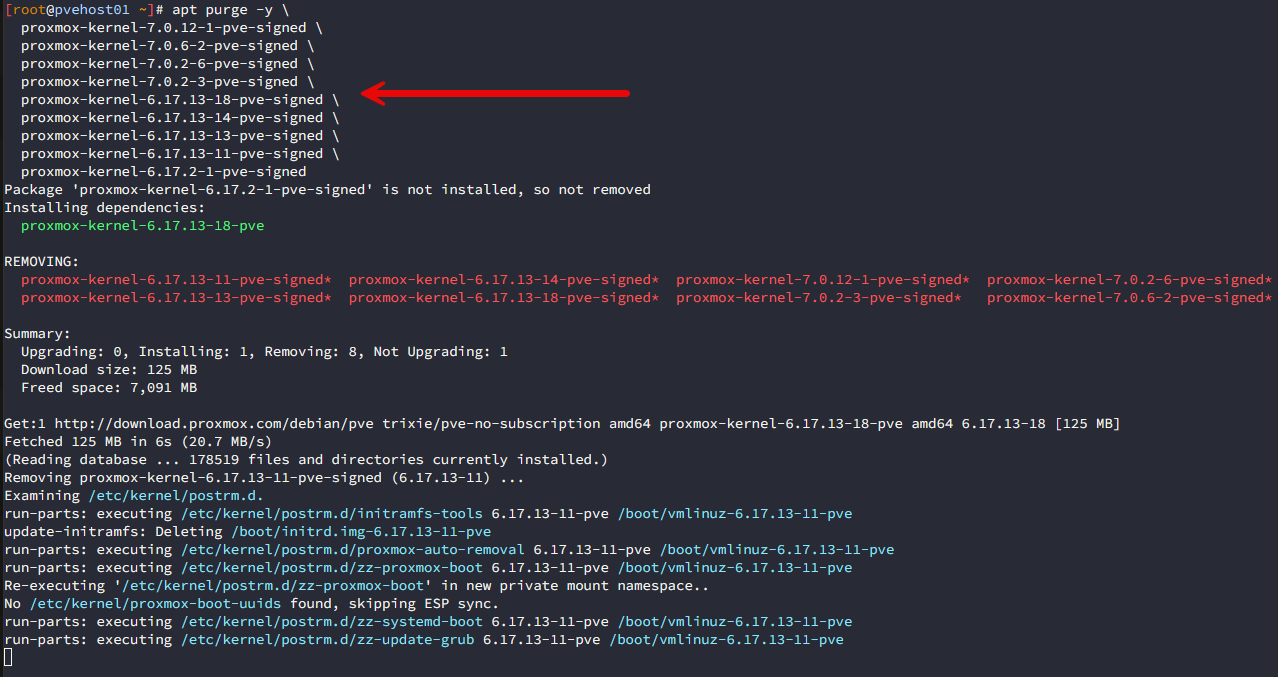
Or, you can also use this command to show what Proxmox views as available/installed kernels:
proxmox-boot-tool kernel listClean up orphaned disks after deleting VMs
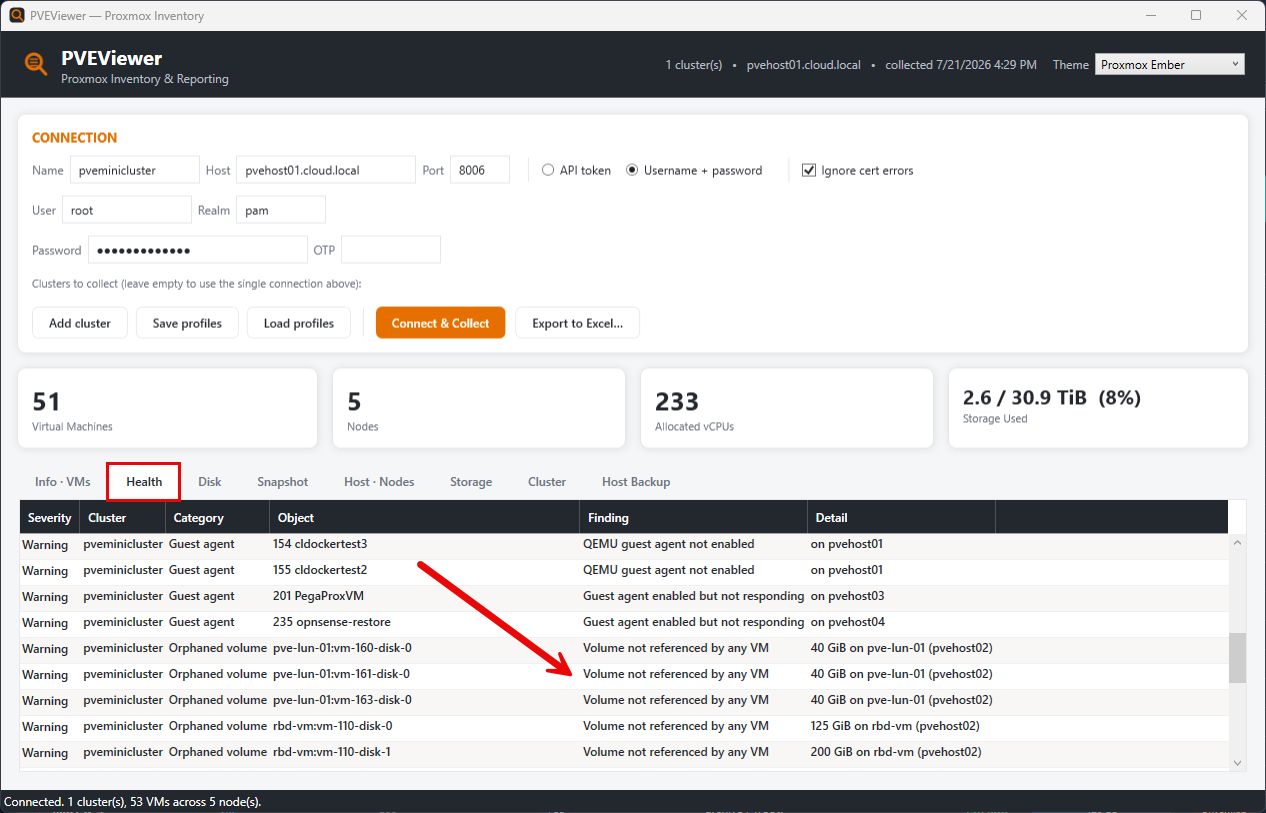
This one has surprised me more than one just how much space may be taken with orphaned disks. Sometimes when a VM gets deleted the associated disk may not disappear depending on the options you choose when you remove the VM.
This may leave you with unused virtual disks, EFI disks, TPM state disks, cloud-init disks and maybe even other storage objects. All of these take up space. Orphaned or “zombie” disks as we used to call them in the VMware world, are a definite storage sink. Over time they quietly consume storage. So, these are definitely on my list to review on a monthly basis. Again PVEViewer is a great tool for this, like an RVTools.
Audit unused VMs and containers
Do you have unused virtual machines and containers? I know after a long session or project in my home lab, I can definitely accumulate many different virtual machines that can wind up using lots of space at the end of the day and creating unnecessary clutter in the home lab.
All of these unused virtual machines can build up and can not only take space on your VM storage, but also your backup storage if you are backing them up. With this, I ask some questions about the VMs and LXCs that I have in my Proxmox VE Server inventory:
- Am I actually using this?
- Could I recreate it from Git or automation?
- Is this still teaching me anything?
- Does it provide ongoing value?
If the answer is no, I delete it. I have learned that deleting unused infrastructure actually makes my home lab more useful with the clutter reduction and just overall management overhead sifting through lots of unused VMs and LXCs.
Get rid of unused storage mount points
One of the things that can be in flux constantly in a home lab is storage. You may add a new NAS device. Old SSDs may get retired. NFS storage shares move. You may spin up Ceph clusters and then take them down. Local disks can also come and go.
Sometimes these storage definitions can stay inside Proxmox configurations even after the hardware has disappeared. With my monthly cleanup routine I review every configured storage location and verify things like the following:
- Every storage definition is still valid
- Old NFS or SMB mounts have been removed
- Local directories still exist
- Backup destinations are reachable
- Storage names still make sense
Cleaning up outdated storage definitions reduces confusion later when creating new virtual machines or if you need to troubleshoot storage problems.
Wrapping up
Proxmox makes spinning up infrastructure resources very easy. But the downside with this is that it becomes very easy also to accumulate years of old resources if you don’t keep an eye on things. Even if you spend just thirty minutes every month cleaning up your environment, this will keep things running smoothly and also helps to keep things organized. Also, when you have a much smaller number of things to troubleshoot and keep in your inventory, it makes your lab easier to manage. What about you? Are there other things that you prune from time to time? Let me know in the comments.
More in this topic




Google is updating how articles are shown. Don’t miss our leading home lab and tech content, written by humans, by setting Virtualization Howto as a preferred source.
About The Author

Great write up Brandon!
Jdodd14,
Thank you!
Brandon