


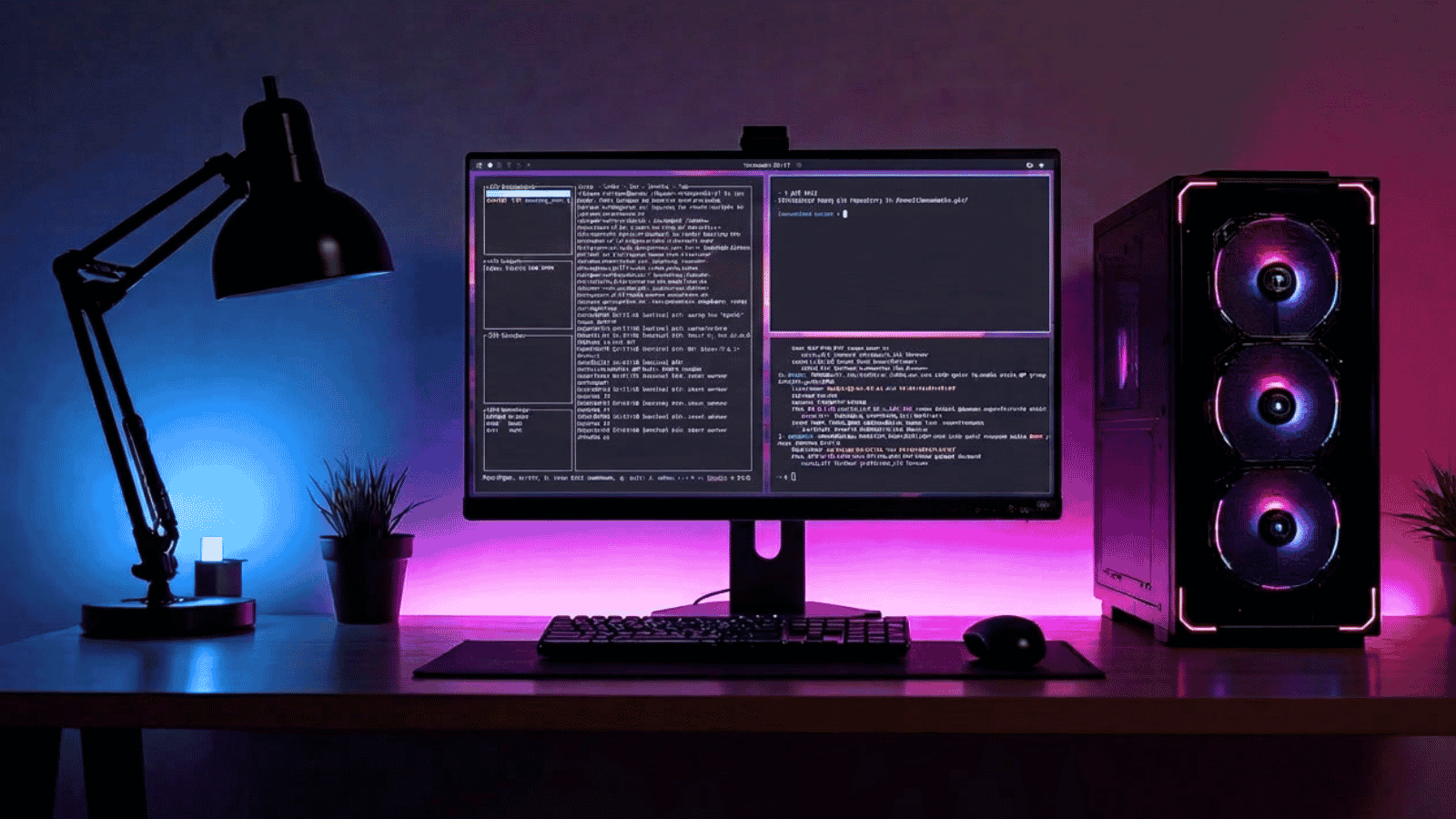
I tend to spend a ridiculous amount of time in the home lab and working with various operating systems. There are so many great OS’s that I love working with and each have their strengths and weaknesses. When I hear about a new Linux OS to try, I always get excited about the prospects of finding my new favorite. When I heard about Omarchy through the normal news and social media accounts I follow, I knew I had to give it a try. I have been looking at various Linux distros as a jumping off point for running Linux as my home lab “workstation” OS. Omarchy has been getting a lot of attention lately and after spending some time with it, I want to give you my thoughts on the experience for those who may want to give this a spin in the home lab environment.
Omarchy is not a home lab server distro
First off, just a note here. Omarchy is not really meant to be a home lab server distro. So, you probably won’t want to installt his directly on a Proxmox host. You could, but it may make more sense for your desktop virtualization platform of choice. This also wouldn’t be a distro that I would pick for a headless Docker server as it wasn’t meant for that.
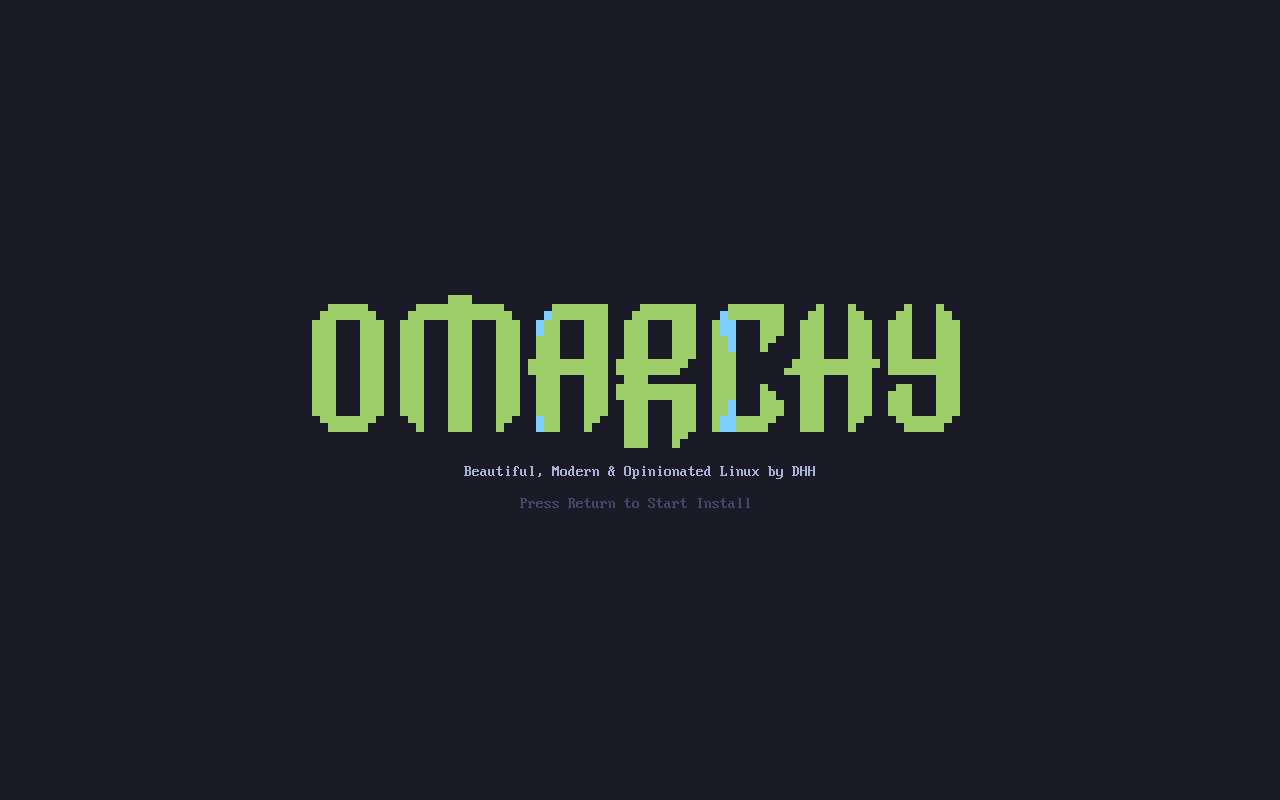
Omarchy is meant to be a Linux workstation environment. It is built with the familiar components of Arch Linux, Hyprland, Quickshell, keyboard shortcuts, terminal apps, development tools and a specific opinionated workflow that you notice right from the start as it is meant for management and DevOps type workflows.
The tiling desktop changes how I manage infrastructure
The biggest adjustment for me has been Hyprland. I haven’t really worked with a Linux Distro that used Hyprland as a desktop environment. I am more familiar with GNOME, KDE Plasma and others. With Hyprland desktop, windows that you open don’t behave like we are used to coming from Windows or one of the more familiar Linux desktops.
There isn’t a maximize and minimize or close button sitting in the upper right corner of the window. Apps automatically tile instead of stacking on top of each other. And, keyboard shortcuts are not just a suggestion, they are a fundamental part of how you “drive” this distro. I will admit, at first, this felt very strange and I wasn’t sure how I would like it.
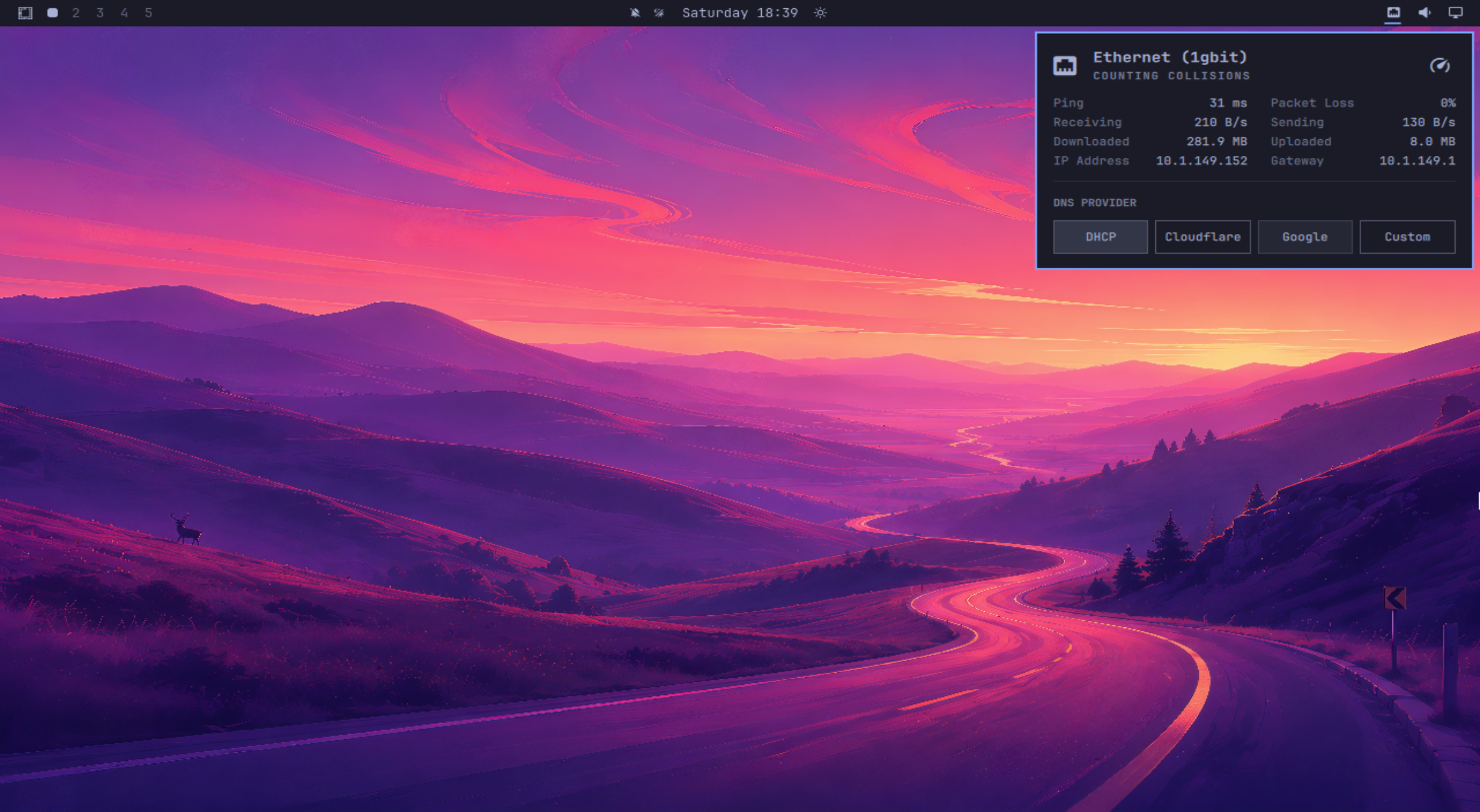
But after working with it for a bit, something interesting happened for me. Once I started understanding how things worked, I actually came to like the tiling window behavior and thought it worked really well for home lab admin work.
If you think about a typical home lab troubleshooting session you may undertake. You might be SSH’ed into a Proxmox host, and have another terminal connected to a Linux VM. You might have a browser session open to the Proxmox admin interface or another open to Netdata or Grafana. On a normal desktop you spend quite a bit of time having to manage your windows.
Dragging them, resizing, minimizing, maximizing and finding things. Hyprland turns that into a workspace problem instead and you can then dedicate one workspace to terminals, another to dashboards or something else, another to documentation, another to Git, and you see the point.
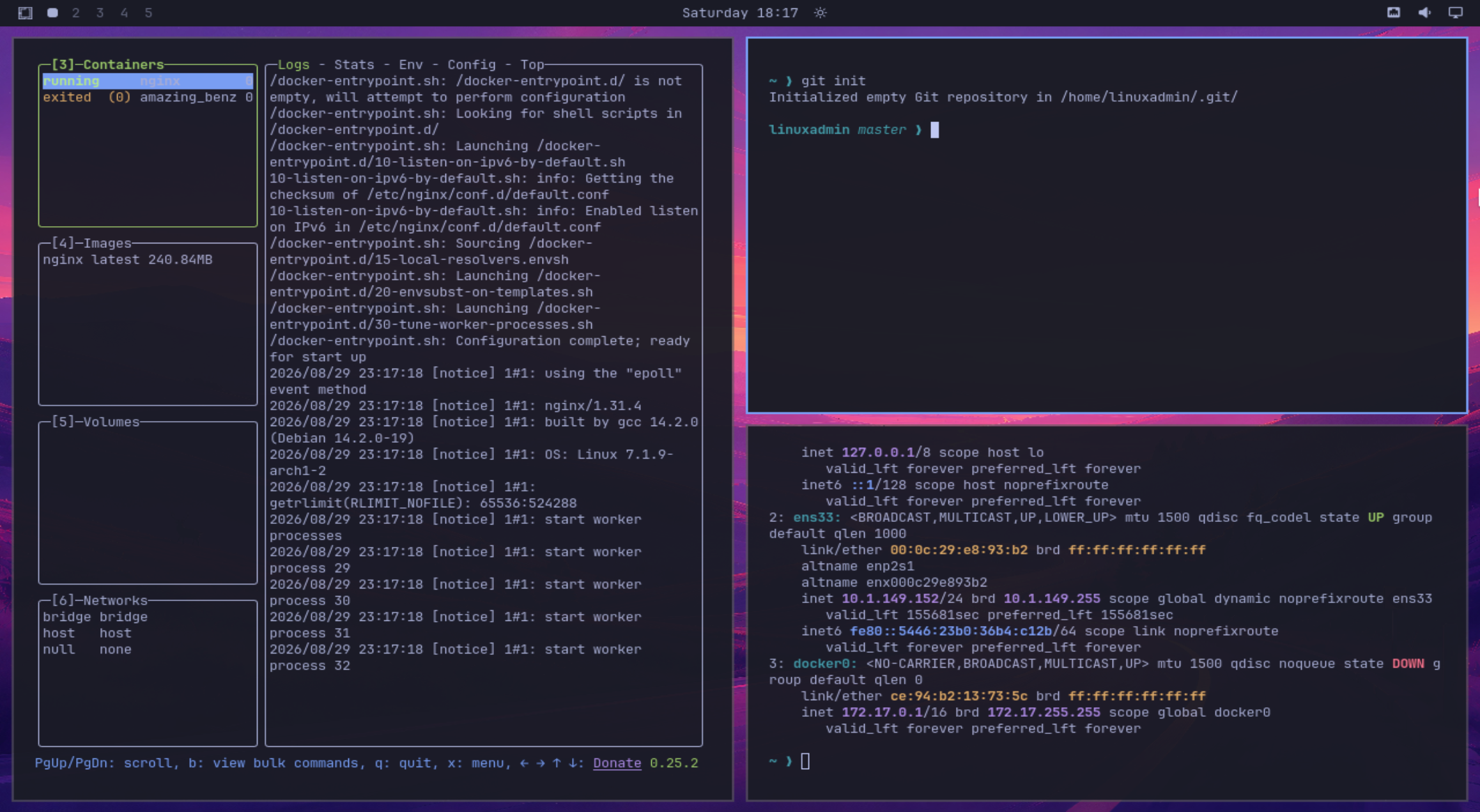
Once I changed my mindset, Omarchy started feeling a lot more comfortable as an infrastructure management interface. One of the cool things about Omarchy is that it uses the Super + keys to do all sorts of things. For instance, Super + Enter launches a terminal. Then Super + Alt + Enter launches a terminal with Tmux. There are also other Super shortcuts for all other types of things.
This is a terminal first operating system
I really like how Omarchy is a serious advocate of the terminal and I think that fits right at home with the home lab and other DevOps work. This is not a Linux desktop where the terminal is only used as an afterthought and hidden behind the GUI. The terminal is one of the primary interfaces here. For me and my home lab work, this is pretty refreshing knowing that it is one of the primary interfaces.
The second thing I immediately liked about Omarchy is how seriously it treats the terminal. A lot of the work that I do in the home lab includes commands like the following in Linux.
ssh
ip
ss
ping
curl
git
docker
rsync
journalctl
systemctl
Omarchy also ships with a lot of the tools in Linux that I am already using. If you checked out my recent post on new Linux tools I have been using in place of the traditional command line tools, this operating system is full of those new commands. These include fzf, zoxide, ripgrep, eza, and bat. Check out my post on those commands here: 8 Modern Linux Commands I Use Instead of the Old-School Alternatives.
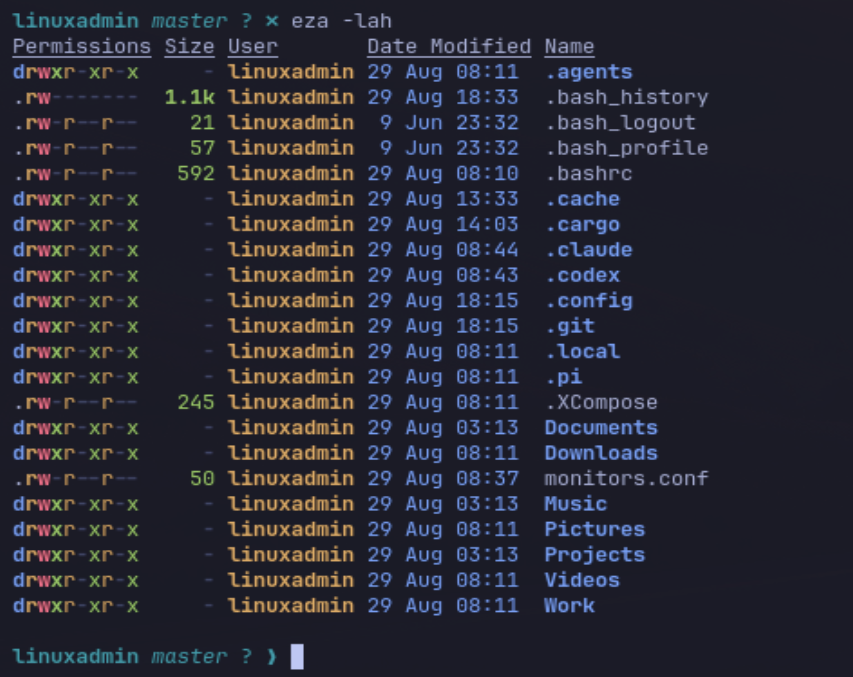
It really feels like Omarchy is designed in a way that if you spend your time in side the terminal, you will feel right at home with the interface.
Tmux feels native to the Omarchy distro
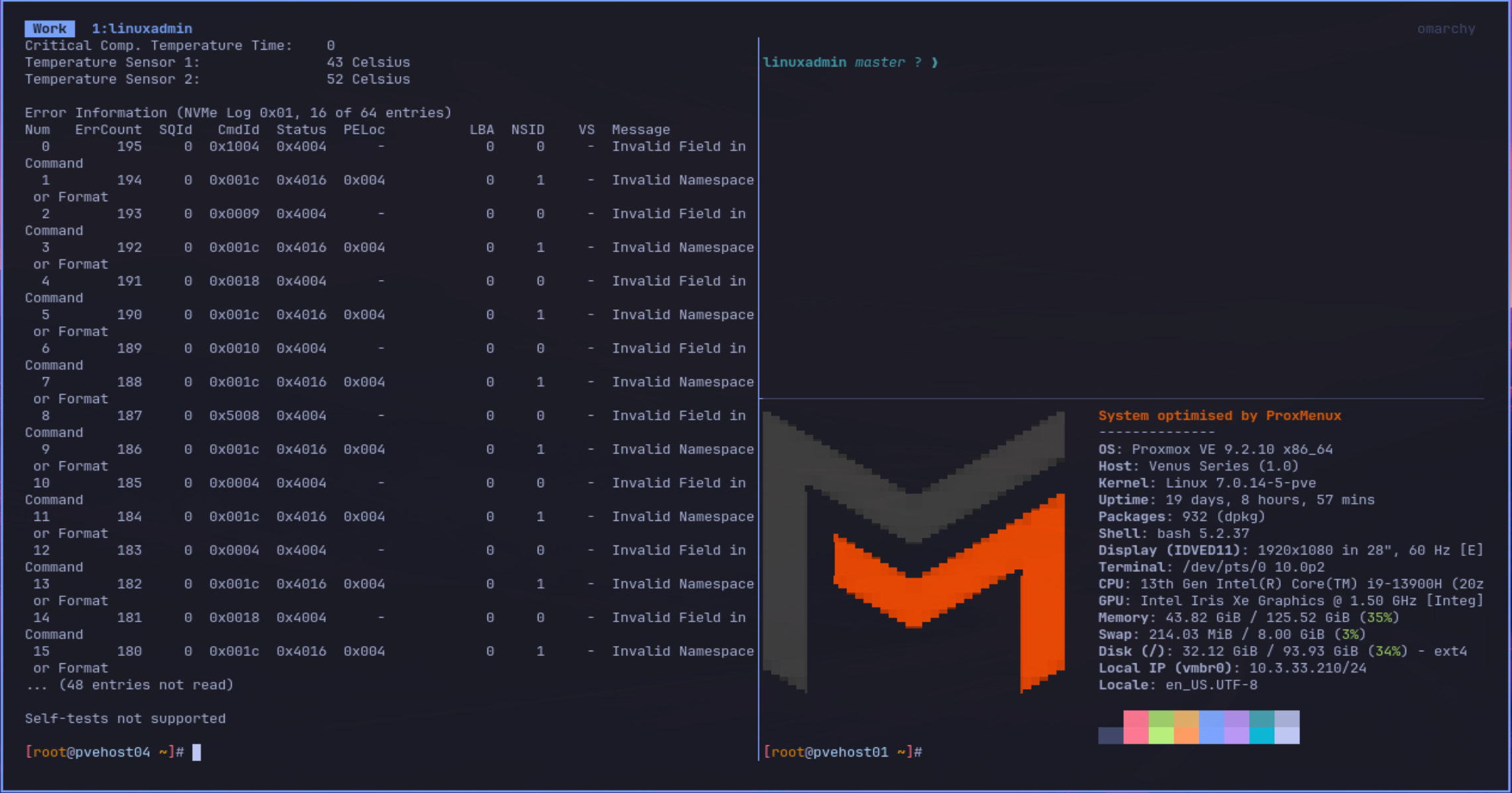
If you haven’t used Tmux in Linux, it feels like a super power for the terminal. Omarchy has Tmux intergrated into the main workflows. It can be super useful for your infrastructure management. It allows you to have terminal sessions continue running even whent he terminal window disappears or you have a drop in your SSH session. This definitely helps when you are doing infrastructure work or maybe something like upgrades:
apt upgradeor something important in the home lab like an upgrade from Proxmox VE Server 8 to 9:
pve8to9 --fullThe last thing I want is for a workstation issue or broken SSH connection to kill something important.
Omarchy’s default terminal is Foot. But it has many other options you can choose from like Ghostty, Kitty, and Alacritty. Tmux provides the persistence layer over the top of your terminal along with the windowing, etc.
Docker support is already included
One of the things that I really like about Omarchy is that it is also Docker centric as well for developoment and running tools like MCP servers. It already includes Docker and Docker compose. Security has been thought of quite a bit here as well since with Docker, the default user is not included in the docker group. So you have to run commands with “sudo”. But, you can enable sudo-less Docker operations if you want.
Another really cool tool that is included by default going along with Docker is the LazyDocker command. It provides a TUI for managing your Docker containers. You can launch it with the following Super key combination:
Super + Shift + D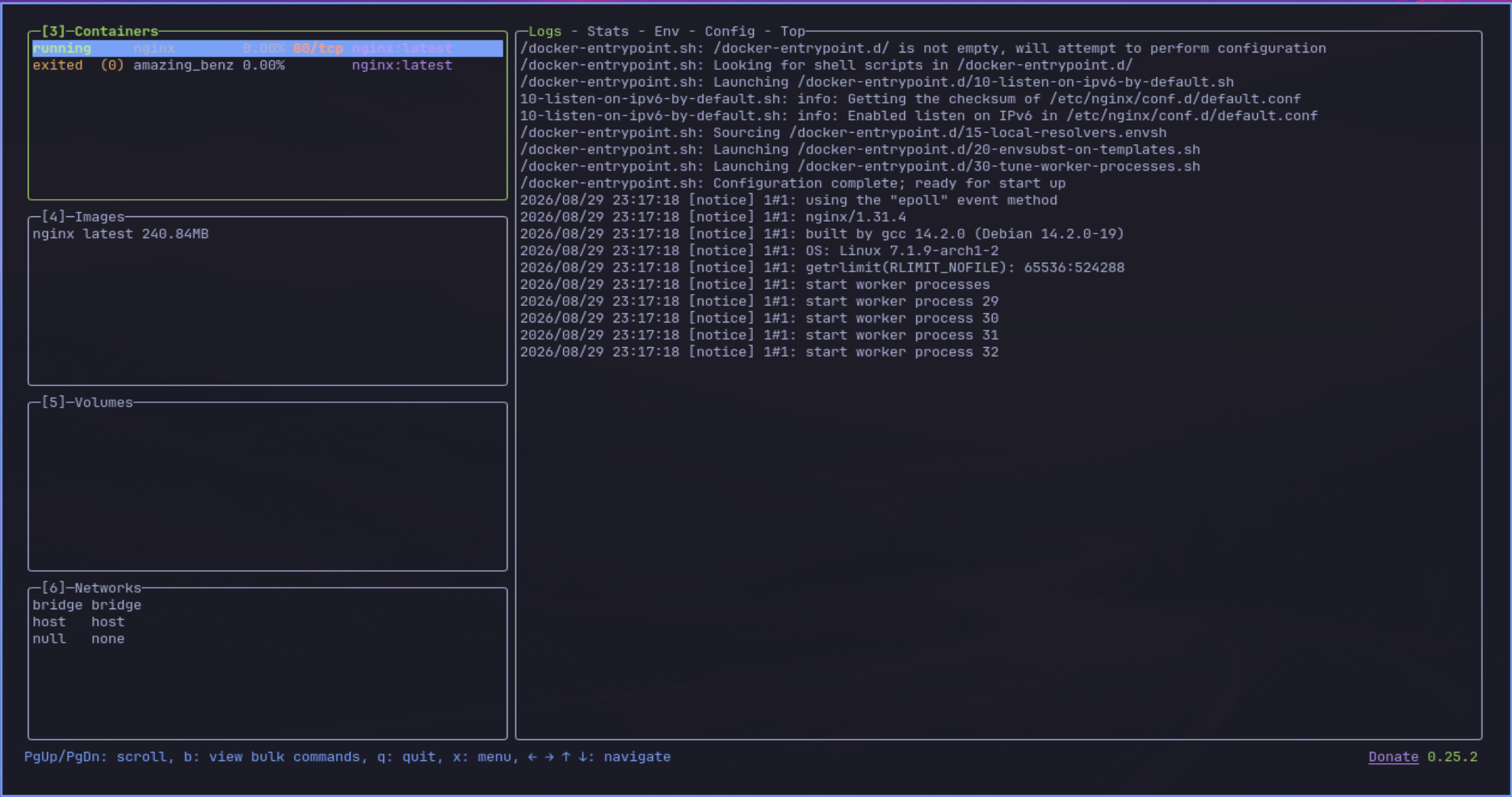
You may have already used LazyDocker before, but it gives you a way toinspect containers, logs, images, and Docker activity without constantly having to type individual Docker commands which is nice and it still allows you to drive things from the keyboard which is nice.
Git workflows and tools are already built in as well
If there is one tool that I use just about as much as SSH in the home lab, it is Git. Git allows us to store infrastructure as code in a code repo so we have versioned changes and a way to easily roll back. This is super important and with the terminal focus of the OS in general and the git tooling built-in it makes git workflows feel easy. What am I storing in Git? Lots of things:
- Docker compose code
- Kubernetes manifest files
- Argo CD watching the repos
- Terraform and Packer code
- Building infrastructure
- Ansible
- Other configuration files
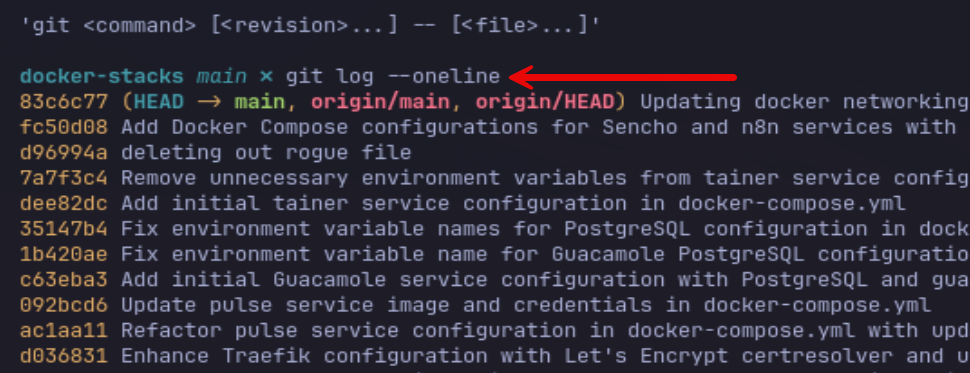
So, needless to say, Git is important with my workflows and I have found that Omarchy definitely supports those. Also cool is that Lazygit is included for terminal-based Git management.
SSH tools and workflows
If I had to pick a single application or tool that I use the most, it would be SSH. Omarchy has some interesting features here. So, it includes the shell environment that wraps SSH behavior so the terminal can recover from dropped sessions. It also has native helper functions that help you with SSH port forwarding as well. Even without the details here with Omarchy, most Linux distros are excellent for managing SSH.
You can use your SSH config file here:
~/.ssh/configAnd include config in it like the following:
Host pve01
    HostName 192.168.10.21
    User root

Host docker01
    HostName 192.168.10.31
    User linuxadmin

Host k8s01
    HostName 192.168.10.41
    User linuxadmin
With that config in your Omarchy SSH config, you can just connect using:
ssh pve01

ssh docker01
When you combine this with the tools we have already talked about like Tmux, the workspaces with Omarchy and Hyprland, it is a pretty powerful workstation for managing things around the home lab.
Configuration is easy to get to
One of the things about Omarchy that I like as well is that the config is not hidden in multiple layers deep in various places. Your user config is kept here:
~/.configOmarchy documentation recommends that you don’t directly edit the Omarchy files under /usr/share/omarchy. But, instead you can use user overrides to have that configuration take precendence.
Here are important files you can edit for various things to customize your settings:
~/.config/hypr/hyprland.lua
~/.config/hypr/bindings.lua
~/.config/hypr/monitors.lua
~/.config/hypr/input.lua
~/.config/hypr/looknfeel.lua
~/.config/hypr/autostart.lua
Omarchy shell config is located here:
~/.config/omarchy/I really like this approach to configuration as it means that we can then put our configuration for our Omarchy setups in git and have this version controlled which fits with the direction I have been moving towards all my infrastructure in the home lab.
AI tooling is definitely baked in as part of the OS
One of the cool things too is that if you are into AI as part of your home lab, Omarchy has most of the tools that you would be interested already built in and if they aren’t built in, it is ready for them. Command-line AI agents are first-class citizen tools and it has launchers for several of the major AI coding environments.
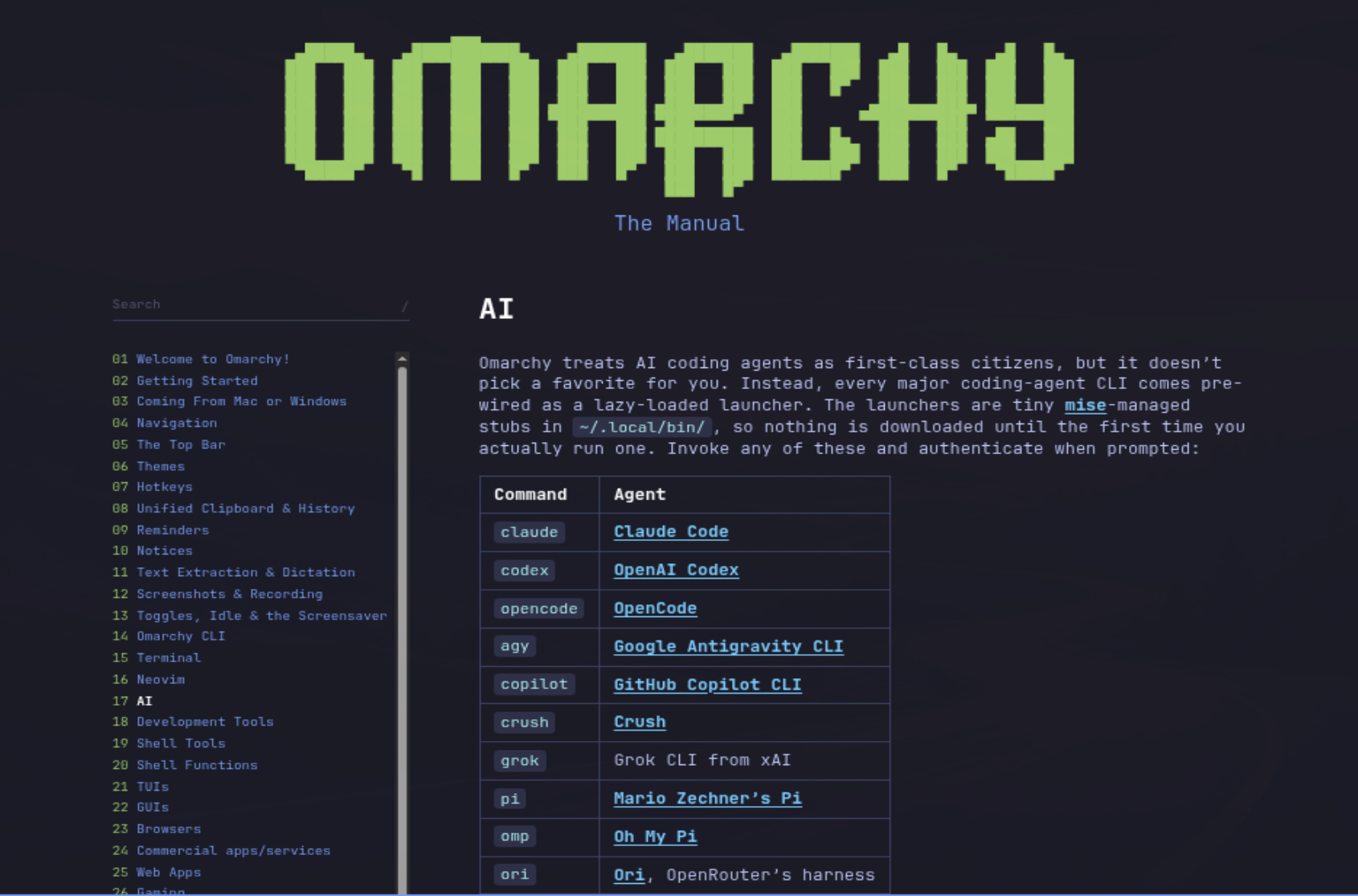
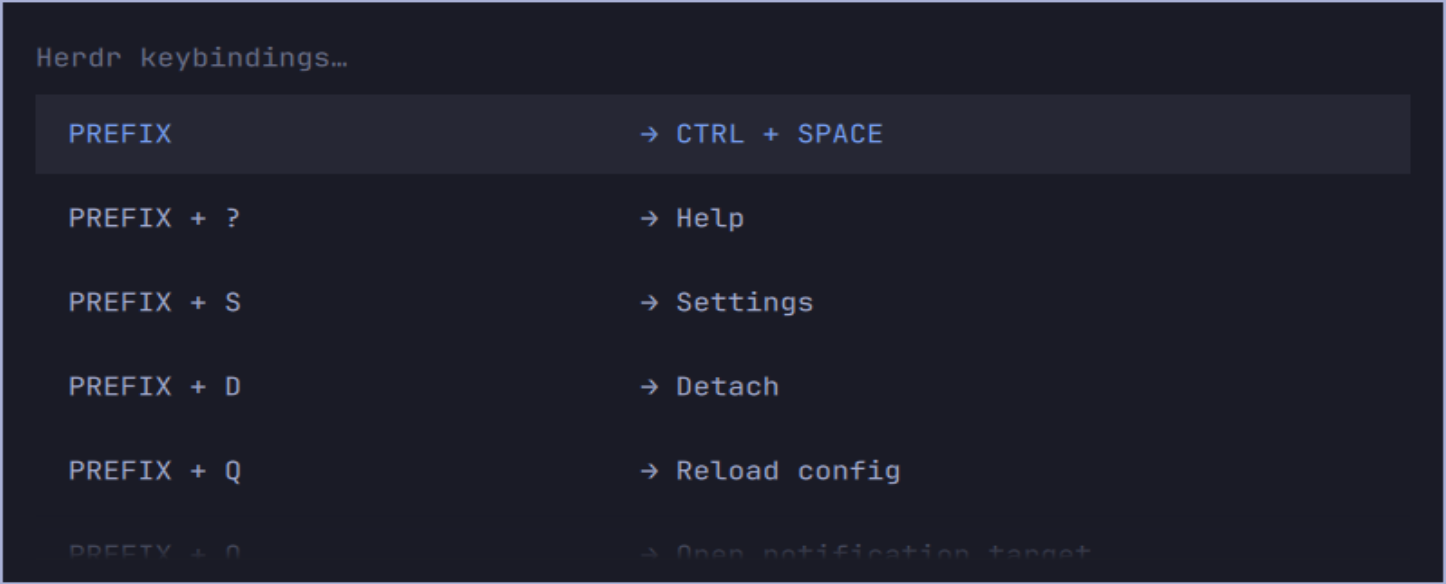
If you are like me, you are probably increasingly relying on AI in the home lab and this is where having access to all of the AI tooling comes into play. Tools like Herdr are already built in as well.
Wrapping up
I definitely think after using Omarchy for a few days that this could be a great option for ones who are looking at adopting a Linux workstation environment for their home lab management and workflows. At first, I was on the fence with Hyprland, but after using it and seeing how much it makes sense when I factor in the workspaces of Omarchy, I no longer have to worry about managing windows like I did before which is a pretty big deal. I think it will grow on you after using it and seeing how it works with the Super keys on Windows or Mac keyboards. I’ve just scratched the surface here with the distro so definitely check it out in your home lab environment and see how you like it. What about you? Have you tried it as of yet? What are your thoughts?
More in this topic

Google is updating how articles are shown. Don’t miss our leading home lab and tech content, written by humans, by setting Virtualization Howto as a preferred source.
About The Author