


RAM is one of those things that can disappear in a home lab VERY quickly, especially if you don’t pay attention to how it is allocated across the board. In today’s world, RAM is such a scarce commodity that costs an arm and a leg to buy. I can’t believe how little I paid just a couple of years ago for RAM modules compared to today. There are several ways I have found to stretch the available RAM in Proxmox even further. Some of these can actually reduce memory consumption. These are seven of the ways I make RAM go further in on my Proxmox Servers.
1. I replace small Proxmox VMs with LXC containers
One of the ways that I have learned to save memory in my Proxmox environment is pretty simple. I don’t create a full virtual machine, unless there is a specific reason to do that. Instead I make use of LXC containers. This might sound simple and small but it is a mindset shift when compared to former days. I think this is true especially for vSphere admins as well who didn’t have the LXC container option available to us until Proxmox.
When you compare an LXC with a full VM. A virtual machine needs to have its own OS and kernel. If I create 5 Ubuntu VMs, each of them have five separate Linux operating systems, with their own kernels, services, memory caches, processes, etc.
Below, you can see that I am running a Debian LXC container on a RAM-starved Raspberry Pi 5 with 8 GB:
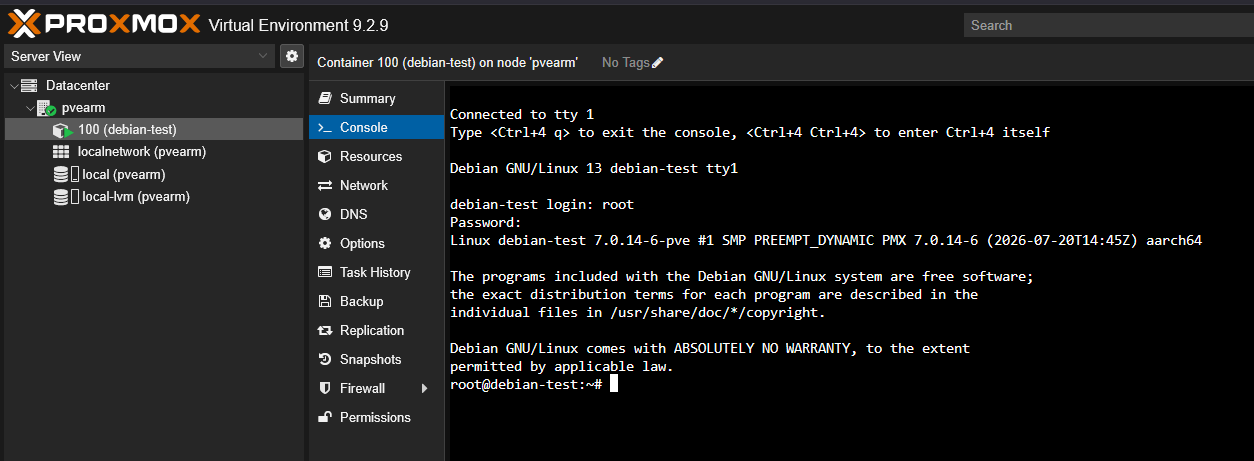
LXCs by comparison work differently. They share the kernel of the Proxmox host while they provide you with isolated user spaces. That gets rid of a LOT of duplicated overhead. For self-hosted services that are lightweight any way, this can add up to a pretty huge amount of memory. A service that I might need 4 GB for inside a VM might run just fine inside an LXC container with 512 MB of RAM, depending on the service.
So, if you multiply this times 15 or 20 LXCs compared to VMs, the savings can be pretty drastic. I really like LXC for things like small web applications, utility servers, monitoring components, management tools, DNS services, and other Linux workloads that don’t need the hardware isolation of a VM.
When it comes to Docker, there is an important note to make. Docker in itself is extremely lightweight. The inefficient part with Docker comes in if you dedicate a fat VM for just 1 or 2 docker containers. I instead try to consolidate these into as few Docker hosts as I can and this reduces the overall memory footprint. By doing these things, LXCs instead of VMs where possible, and consolidating your Docker containers, you will save a pretty large amount of RAM in total.
2. I put Proxmox swap on fast storage
I will say that in general, Swap gets a bad wrap in the minds of most. I think this comes from a lot of the early days where we would see machines start swapping memory to disk after they ran out of physical memory and then everything would come to a grinding halt. However, storage has gotten world’s faster since the old days.
But to this point, No NVMe SSD is going to compete in raw speed with DDR5 memory in terms of latency and bandwidth. But it doesn’t mean that we can’t use it in smart ways to help out when we are short on memory.
Not too long ago I worked an experiment where I tested a dedicated drive for my Proxmox swap. On top of that, I used an older Intel Optane drive that I had lying around. Optane has super low latency when compared to regular NVMe drives. It actually mimics memory in many ways. So, this is what I used for my Proxmox swap space.

Fast storage like the optane drives make swapping much less painful than it was when swap lived on a spindle. If you are tight on physical memory, swap can absorb some of that pressure instead of it forcing the Linux out-of-memory killer into action.
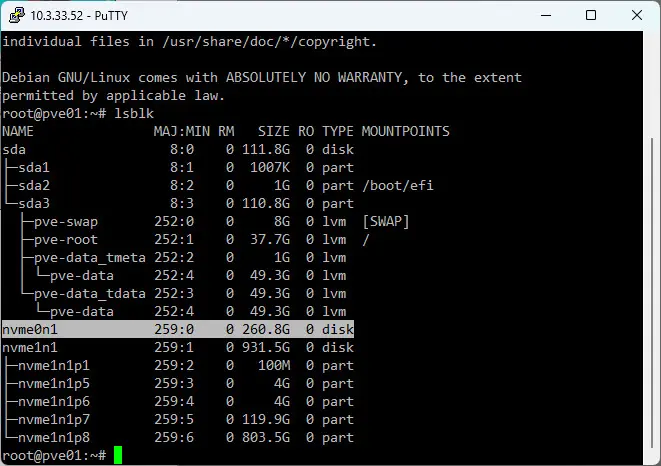
In Linux or Proxmox, you can check your memory and swap with the following command:
free -h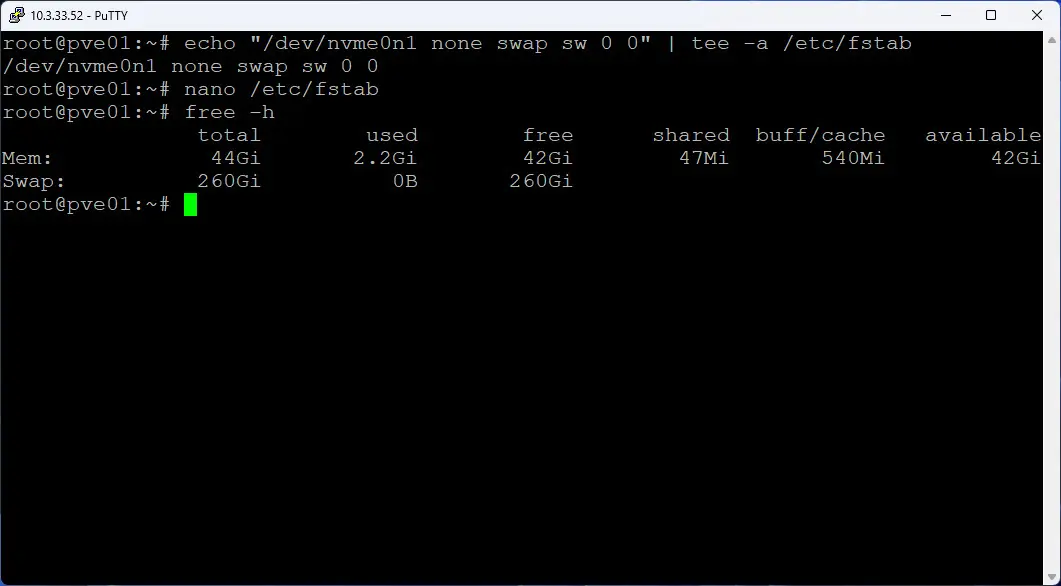
I also like:
swapon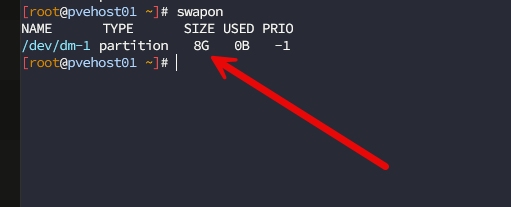
Check out my full post that I think you will find interesting on my experiment here and how it turned out in testing: Proxmox Swap Tweaks Guide! Dedicated drive, Swappiness, Page Cluster.
3. I use Proxmox memory ballooning
If you want to get the absolute most out of the physical memory you have installed in your Proxmox host, you can use the memory ballooning feature. It is one of the most useful for efficient use of your RAM resources.
The idea is basically this. You configure your VM or other resource with the maximum amount of memory you want it to have. Then it allows Proxmox to reclaim some of that memory if the guest isn’t actively using it. So if you configure a virtual machine with 16384 MB of memory, then set the minimum memory: 2048 as an example. Then make sure your ballooning device is enabled.
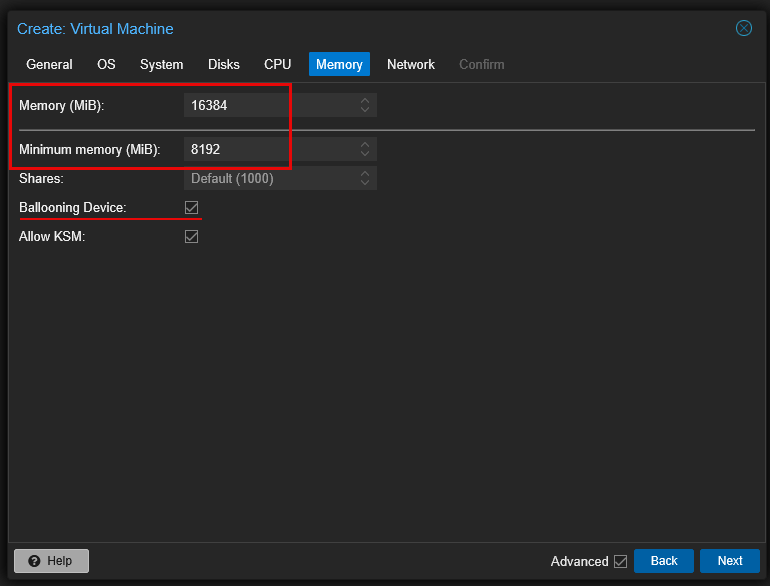
What happens is the VM can grow towards the 16 GB of memory when it needs it. But Proxmox has the ability to take some of that configured memory back when the VM isn’t actively using it for memory pages.
For example, I might configure a VM with:
Memory: 8192 MB
Minimum memory: 2048 MB
Ballooning Device: Enabled
There are a couple of things with this to note. You need to have the balloon driver installed. Linux usually does this on its own but Windows guests can also make use of this with the VirtIO drivers. Also, keep in mind that you may want to steer away from memory ballooning on workloads that might be sensitive to having memory taken away.
A database VM is a good example. It may have a lot of memory configured, but it may need this for caching data. So, keep ballooning in mind as a tool instead of a checkbox that is always something you enable for EVERY VM.
4. I right-size memory on my Proxmox VMs
Let’s all be honest that when we create virtual machines in our home labs most of the time we throw our finger in the air to “guess” about the sizing on the VMs and what feels right for the workload we are spinning up. While this has been pretty successful for me over the years, it can definitely lead to some massive overprovisions and even some under provisioning (way less common I would say).
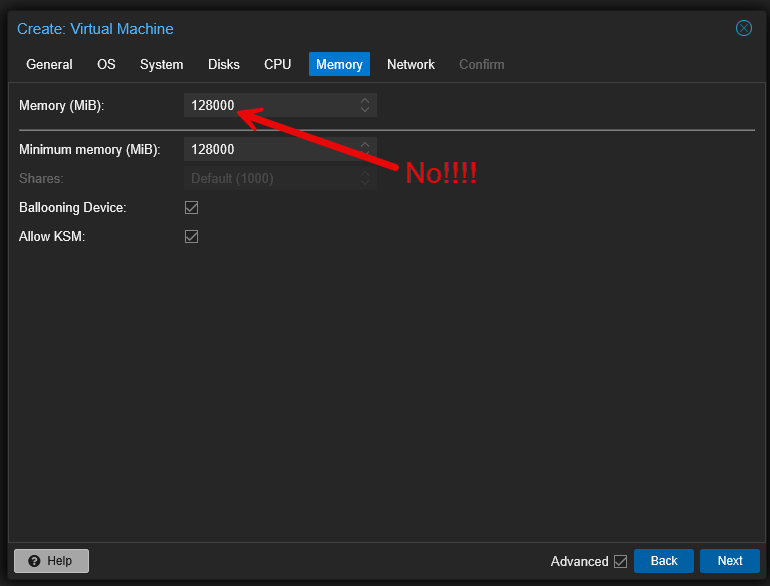
Think about how this can work when we using cloning. We create an Ubuntu VM and give it 8 GB of RAM. Then we transition it to be a template. Then, we clone from that template. The clone will get the same 8 GB of RAM, whether it needs it or not.
For this reason, I like to create the template with a VERY small amount of memory. This way, I will likely notice due to memory pressure on the box when I need to up the RAM assigned to the virtual machine. For home lab this is better than using all of your memory inadvertently with your clones.
5. I check whether KSM is actually deduplicating memory
KSM is the service for Kernel Samepage Merging. This is a Linux memory features that is found in Proxmox also. What is it? KSM looks for memory pages and allows the Linux kernel to consolidate them. This is a good function, especially in a home lab, where I might have several VMs running the same operating system, libraries, and services as these can be deduplicated.
KSM easy to forget about because a lot of the management happens with it in auto mode. But it is one of those things that I like to check from time to time to see what is happening, especially if a host is under memory pressure.
The first counter you can check is found here:
cat /sys/kernel/mm/ksm/pages_sharingThis will tell you how many pages are currently sharing KSM’s deduplicated pages. If there is a lot of duplicate memory, this number here will be pretty large from what I have seen.
You can also see if the KSM scanner is running using this command:
cat /sys/kernel/mm/ksm/runIf you see:
- Value of 1 – KSM is running
- Value of 0 – KSM is stopped
If you see 0 it doesn’t mean that something is wrong as there just may not be enough memory pressure for it to kick in. Proxmox uses the ksmtuned service to manage KSM. So this is one of the next things I check:
systemctl status ksmtunedI ran these checks on one of my own Proxmox hosts for the purposes of writing this article and I found something pretty interesting. The ksmtuned was enabled and running, but both run and pages_sharing were 0.

Then I checked the host:
free -hIt had 128 GiB of physical memory and about 85 GiB available. So this means it didn’t have much of a reason for the host to search for duplicate pages at that point on this particular host.
If you want to, you can run a quick KSM check on a Proxmox host with these simple commands:
systemctl status ksmtuned
cat /sys/kernel/mm/ksm/run
cat /sys/kernel/mm/ksm/pages_sharing
free -h
6. I clean up unnecessary Proxmox resources
It is inevitable from what I have seen in the home lab to accumulate services and resources that you probably won’t ever use again. But they have a way of just sticking around for a long time, since they are out of sight, out of mind. I have a checklist in my home lab every week to take a look at the services that I have running and then prune out anything I mistakenly left running or that I haven’t used in quite a long time. That includes VMs templates, LXC templates, snapshots, unused ISOs, etc.
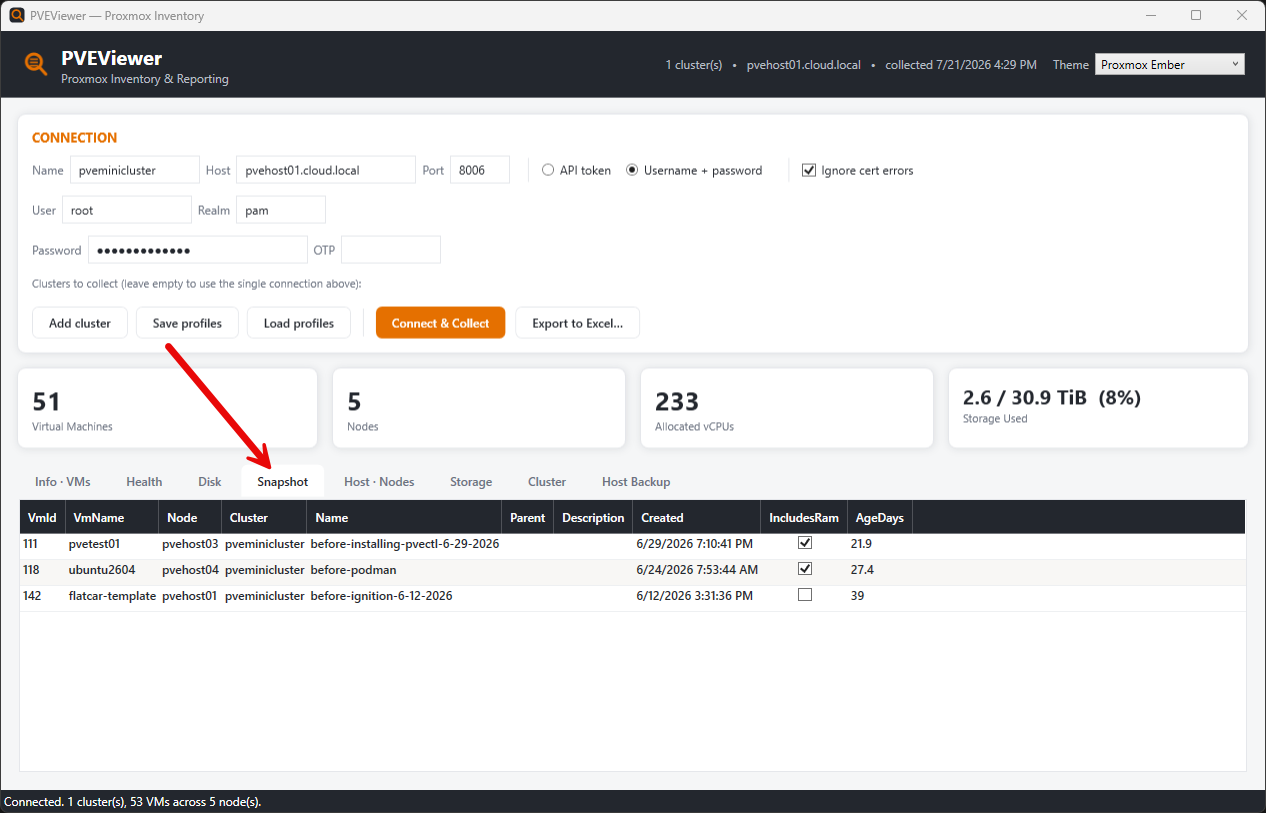
This way I don’t have zombie VMs and LXC containers running out on my Proxmox environment. I also do this for Docker containers as well as you can accumulate tons of containers without even realizing it.
Check out my recent post here on a cleanup checklist I work through: 9 Proxmox Cleanup Tasks You Probably Forgot.
7. I keep ZFS ARC from putting pressure on my VMs
The last one is important if you are running ZFS in your Proxmox cluster or host. ZFS loves RAM. It uses memory for something called Adaptive Replacement Cache and usually you see this abbreviated as ARC. ARC keeps data that is accessed the most often in memory so ZFS doesn’t need to retrieve that data from slower storage repeatedly.
You can take a look at your ARC statstics in Proxmox by using this command:
arc_summaryZFS can also release ARC memory when the system needs it. However, on memory-constrained systems if you are running ZFS (which is very likely in a home lab), you can set the ARC maximum amounts.
To do this, you edit the file here:
nano /etc/modprobe.d/zfs.confAdd as an example:
options zfs zfs_arc_max=17179869184Interestingly, the value you put in the file is specified in bytes, so:
- 8 GiB = 8589934592
- 16 GiB = 17179869184
- 32 GiB = 34359738368
- 64 GiB = 68719476736
Then you will update the initramfs:
update-initramfs -u -k allLast step is to reboot:
rebootWrapping up
There is no single magic bullet to some how have more physical RAM than you have currently. But, there are definitely some tricks like I have mentioned here that can soften some of the pressure that you may have on memory resources in your lab environment and make things perform better without such a constraint on your physical system memory. What about you? Is there a trick that I haven’t listed here that you use? I would love to know and please do share with the community in the comments.
More in this topic




Google is updating how articles are shown. Don’t miss our leading home lab and tech content, written by humans, by setting Virtualization Howto as a preferred source.
About The Author

Do you think the Linux swap storage is basically like VMware’s memory tiering? What are your thoughts on that?