

One of the biggest frustrations with running docker containers in the home lab is not usually the “big” complex problems. It usually comes down to the small tasks that slowly add up over time. Keeping containers updated is one of those tasks. You want to keep your container images updated since you want your services to stay current and patched for things like security or bug fixes. At the same time, you may not want to update “every” container in your environment. You may want those to be more of a hands on approach. I recently came across a tool called Dockcheck that provides a really easy way to meet all these requirements in a way that I think is good for most home labs.
What is Dockcheck?
Dockcheck is a CLI tool that automates your docker image updates and it also notifies you when updates are available. It allows you to be selective about which containers you want to update. It uses several things to make that possible and keep you in the loop, including the following:
- include/exclude containers
- image backups
- custom labels
- notification plugins
- prune options, etc
Recently, also, there have been some improvements added to dockcheck. Before, you had to run Dockcheck as a script that runs on your Docker container hosts. But now, you can run it fully containerized itself, which helps to align it with other solutions out there, like Watchtower (which is now deprecated, although some are keeping it alive).
On the notifications front, it has also recently added Home Assistant event integration to the mix which allows those that are fully using Home Assistant to have what they need for Dockcheck.
One thing I have learned after running Docker in my home lab for years is that the biggest frustrations usually are not the complex problems. They are the small, repetitive tasks that slowly add up over time.
Installing Dockcheck
There are a couple of ways to install Dockcheck. Historically with the project, you had to run it as a script from your PATH.
# basic example with curl:
curl -L https://raw.githubusercontent.com/mag37/dockcheck/main/dockcheck.sh -o ~/.local/bin/dockcheck.sh
chmod +x ~/.local/bin/dockcheck.sh

# or oneliner with wget:
wget -O ~/.local/bin/dockcheck.sh "https://raw.githubusercontent.com/mag37/dockcheck/main/dockcheck.sh" && chmod +x ~/.local/bin/dockcheck.sh

# OSX or macOS version with curl:
 curl -L https://raw.githubusercontent.com/mag37/dockcheck/main/dockcheck.sh -o /usr/local/bin/dockcheck.sh && chmod +x /usr/local/bin/dockcheck.sh
Then, as long as you have it in your PATH, you can call it from anywhere with the simple dockcheck.sh command and notify.sh -template to the same directory.
However, as mentioned earlier, there is a new way to install and run Dockcheck and that is running it as a Docker container itself. Below is an example you can use. Note the following that you need to pay attention to:
- hostname – change this to match what you want to see in your notifications
- CRON_SCHEDULE – make sure this matches when you want the update check to run
- DOCKCHECK_ARGS – The example below only notifies you of updates and even if you have AUTOMODE=true, it will only notify. Change below to -maiI -x 10 -e container1
- container1 is the excluded container names
---
## Main compose file example to use with setting configuration
## with the `dockcheck.config` just as you would non-containerized
services:
  dockcheck:
    container_name: dockcheck
    hostname: dockerHostXYZ # The name that will be used in notifications
    # build: . # To build locally from the cloned/edited repo - good for testing
    image: mag37/dockcheck:latest
    restart: unless-stopped
    environment:
      # Set up cron schedules and corresponding dockcheck options, examples below
      CRON_SCHEDULE: "0 */3 * * *" # Run every three hours
      DOCKCHECK_ARGS: "-mniI -x 10 -e container1" # Send notification + extra options
      CRON_SCHEDULE_1: "30 1 * * *" # Run nightly at 1:30
      DOCKCHECK_ARGS_1: "-milap" # Send notification, update labeled containers, prune
    volumes:
      - /etc/localtime:/etc/localtime:ro
      - /var/run/docker.sock:/var/run/docker.sock # Beware - full access
      - ./dockcheck.config:/app/dockcheck.config # Define your notifications and settings
      # Volume mappings to your Docker project directories, can be multiple paths
      # Has to match 1:1 outside on host and inside the container
      - /path/to/projects/docker:/path/to/projects/docker:ro
      # Optional volume to enable displaying releasenote urls,
      # can alternatively reference the `./notify_templates/urls.list`
      # - ./urls.list/:/app/urls.list
This makes use of the “dockcheck.config” file that configures the various settings for Dockcheck to allow it to perform updates and notifications. Below are a few of those options:
#AutoMode=true              # Automatic updates, without interaction.
#AutoPrune=true             # Auto-Prune dangling images after update.
#AutoSelfUpdate=true        # Allow automatic self updates - caution as this will pull new code and autorun it.
#BackupForDays=7            # Enable backups of images and removes backups older than N days.
#BarWidth=50                # The character width of the progress bar
#CurlConnectTimeout=5       # Time to wait for curl to establish a connection before failing
#CurlRetryCount=3           # Max number of curl retries
#CurlRetryDelay=1           # Time between curl retries
#DaysOld="5"                # Only update to new images that are N+ days old. Lists too recent with +prefix and age. 2xSlower.
#DisplaySourcedFiles=false  # Display what files are being sourced/used
#DontUpdate=true            # No updates; only checking availability without interaction.
#DRunUp=true                # Allow checking/updating images created by `docker run`, containers need to be recreated manually.
#Exclude="one,two"          # Exclude containers, separated by comma.
#ExcludeUpdate="one,two"    # Exclude containers from applying updates but check available, separated by comma.
#ForceRestartStacks=true    # Force stop+start stack after update. Caution: restarts once for every updated container within stack.
#MaxAsync=10                # Set max asynchronous subprocesses, 1 default, 0 to disable.
#MonoMode=true              # Monochrome mode, no printf colour codes and hides progress bar.
#Notify=true                # Inform - send a preconfigured notification.
#OnlyShowUpdateable=true    # Hides the "No updates available" message and only shows updateable images
#OnlyLabel=true             # Only update if label is set. See readme.
#OnlySpecific=true          # Only compose up the specific container, not the whole compose. (useful for master-compose structure).
#PrintMarkdownURL=true      # Prints custom releasenote urls as markdown
#PrintReleaseURL=true       # Prints custom releasenote urls alongside each container with updates (requires urls.list)`
#SkipRecreate               # Skip container recreation after pulling images.
#Stopped="-a"               # Include stopped containers in the check. (Logic: docker ps -a).
#Timeout=10                 # Set a timeout (in seconds) per container for registry checkups.
You can also run Dockcheck once by running the docker command below interactively:
docker run -it \
  -v /etc/localtime:/etc/localtime:ro \
  -v /var/run/docker.sock:/var/run/docker.sock \
  -v /path/to/projects/docker/:/path/to/projects/docker/\
  mag37/dockcheck ./dockcheck.sh -x 10 -b 5
Dockcheck notification templates that are available
One of the things I really like about Dockcheck is the number of modern notification solutions that it interfaces with using the available notification templates:
- Apprise
- Bark
- Discord
- DSM
- Gotify
- Home Assistant
- Matrix-Synapse
- ntfy
- Pushbullet
- Pushover
- Slack
- SMTP Email with mSMTP
- Telegram
- XMPP
My experience with using it
I have to say that dockcheck has a LOT of options and that can be intimidating at first, but not overwhelming once you look over everything. But here are my notes in using it.
- Be sure to adjust the command line arguments in your docker-compose.yml file to allow auto updating if that is what you want. Even if you set AUTOUPDATE true in dockcheck.config, the docker-compose.yml file will override those settings.
- Also, in dockcheck.config, it is easy to miss, there is a NOTIFY_CHANNELS argument you need to uncomment in the dockcheck.config file at the top of the file. If this isn’t uncommented and set to the channel you want, even if you have the config for that notification uncommented, it won’t notify.
These are the big things that I learned just playing around with it in the home lab. Also, your docker logs command is helpful as that is where I saw everything to troubleshoot and see what is going on with the options and tasks.
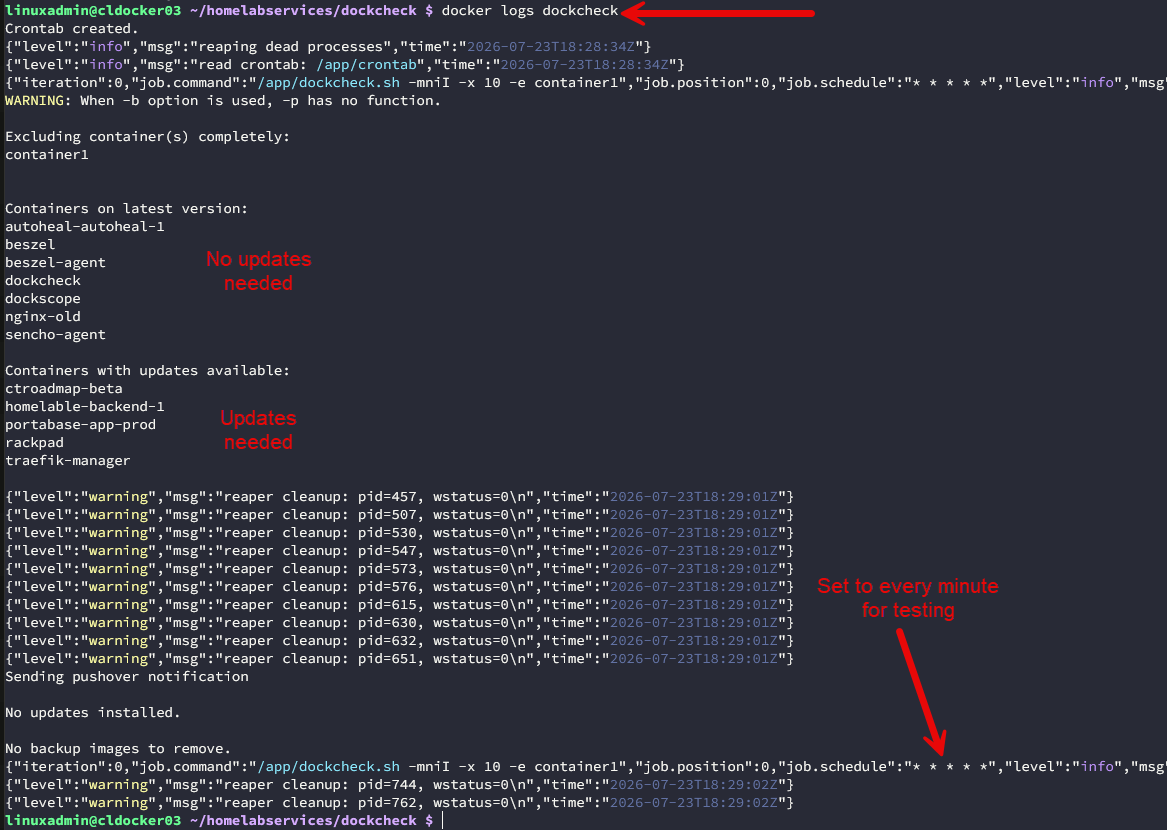
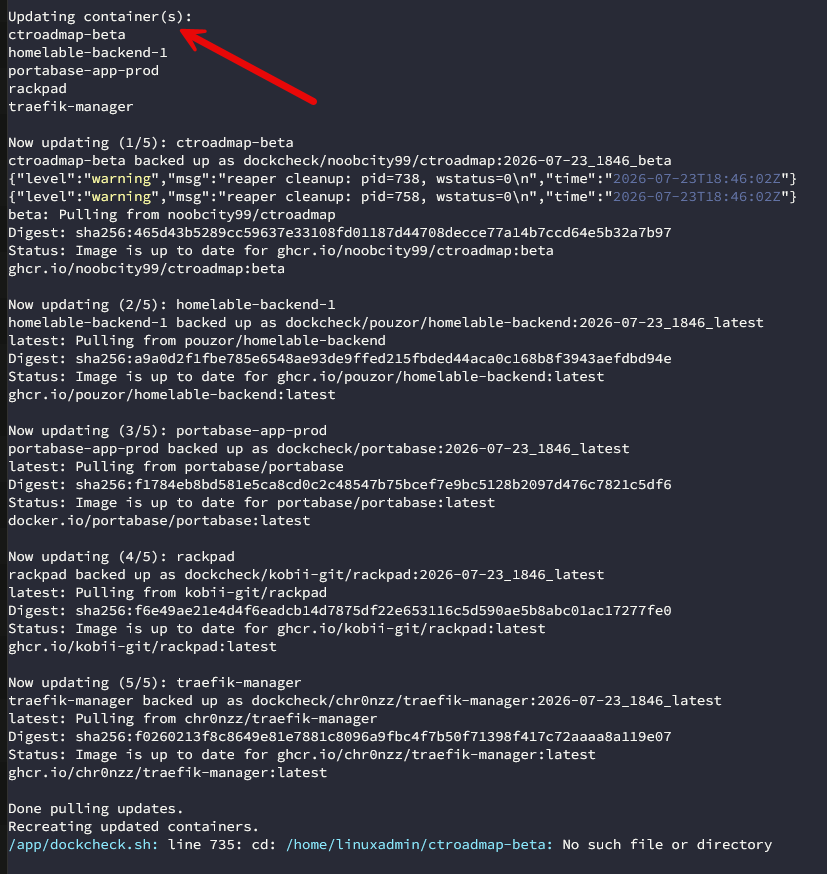
Below is a look at when I got the auto updates working correctly and it cycled through a check and pull of new container images. As you can see here it sees the container images that need to be updated and starts cycling through these.
Docker containers with pinned versions
One point to make here with Dockcheck is that it won’t override versions that you have pinned in your Docker compose code all the way down to the patch version. So for instance, the below code would get checked by Dockcheck and see that there isn’t a new version of 1.25.5 available to pull.
services:
  nginx:
    image: nginx:1.25.5
    container_name: nginx-old
    ports:
      - "8080:80"
    restart: unless-stopped
But if you had nginx:1.25 with “just” the minor version and no “patch version”, it will pull the latest 1.25 release. Keep this in mind if you have versions pinned down to the patch version.
1.25.5
│ │  │
│ │  └── Patch version
│ └───── Minor version
└─────── Major version
Dockcheck Labels
One of the other nice things about Dockcheck is that it has decent options to label containers to affect behavior with Dockcheck.
- mag37.dockcheck.update: true will when used with the -l option only check and update containers with this label set and skip the rest
- mag37.dockcheck.only-specific-container: true works instead of the -F option, setting the updated container when compose up
- mag37.dockcheck.restart-stack: true works instead of the -f option, it forces stop+restart on the whole compose stack and will restart all containers in stack
Example code:
    labels:
      mag37.dockcheck.update: true
      mag37.dockcheck.only-specific-container: true
      mag37.dockcheck.restart-stack: true
Where Dockcheck fits in the modern home lab
I really like this option to update our containers in the home lab. Watchtower was the beloved container update solution for years, but now as it kind of fades into the sunset, I have been looking keenly at solutions that keep images updated.
I like these solutions that are simple but command line driven as this makes them very scripting focused and easy to automate along with our other GitOps tools. I like how Dockcheck also allows us to notify and not do anything else. This allows you to keep visibility on things and then upgrade when you want to upgrade, especially for “production” services.
Wrapping up
After testing and using Dockcheck for a bit, I really like it. I think it has the right combination of features and capabilities that most are looking for in updating their container images in the home lab. I really like the notification features and how it supports modern solutions for notifying. It also has strong command line argument support that allows you to really customize the behavior to what you want it to be. How about you? Are you using Dockcheck in your home lab or something else? Let me know in the comments.
More in this topic

Google is updating how articles are shown. Don’t miss our leading home lab and tech content, written by humans, by setting Virtualization Howto as a preferred source.
About The Author

I made and use this:
https://github.com/liquidguru/docker-updater