


Proxmox has a lot of really great features that make it ideal to run your virtualization stack in the home lab. You can take advantage of either virtual machines or LXC containers. LXCs are a great way to run resources in your home lab with a low resource footprint. You can easily manage LXC containers from the web UI. However, I have found as I have gotten used to managing LXC containers in the home lab, that there are LXC commands that are great to know as they can help change how you manage your LXCs day to day. The PCT utility is the native command that allows you to manage LXC containers in proxmox. Let’s take a look at a few of the PCT commands that can make a huge different managing your containers in the home lab.
A brief comparison of LXCs vs Docker
LXC containers are more akin to virtual machines than to app containers like Docker. They are generally a tad bit larger, but they have the Linux user space like a full virtual machine. Docker containers are focused on “app virtualization” and are smaller. But they have limitations if you need something that behaves more like a virtual machine as opposed to a container. LXCs are often a really good middle ground between running a full virtual machine and a Docker container. Like Docker volumes, they can also have persistent data as well and can be natively backed up by Proxmox Backup Server.
The PCT command is underutilized
When you first start using Proxmox in the home lab, I think all of us underutilize the command line and really only go there if something breaks. Over time though, you realize this might not be the best approach. The command line is really great to use even for normal management tasks.
As we mentioned at the outset, the pct utility gives you direct access to just about every aspect of container management that you need. It is also scriptable. If you are deploying a new service in an LXC or making fast configuration changes, pct allows you to do this easily. Often, you can do things with a single command. As mentioned for scripting or automation, pct is great for bash scripts or using it with Ansible playbooks with repetitive tasks, etc.
1. pct list
The first command I am going to start with is one that is really helpful as all the other commands we will go over below need to have the LXC container ID to work. So using this command you can get the LXC container IDs that you need to work with them.
pct list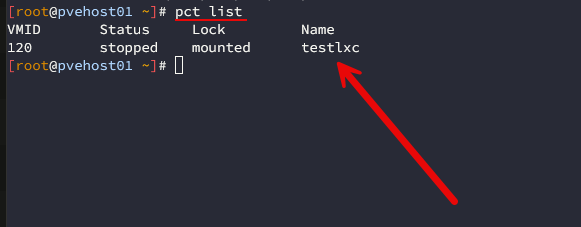
It displays all containers currently known to the Proxmox host itself. Keep in mind this doesn’t list the containers that are on other PVE hosts, even if these are in the same cluster. You will need to run this from the other hosts that are running PVE containers.
The output includes useful information such as:
- Container ID
- Status
- Hostname
- IP address
This command is a really good command for automation and scripting. You can take the output of the pct list command and feed it into other commands.
2. pct enter
This is the first command to get familiar with. It is the pct enter command. You use it in conjunction with the ID of your container:
pct enter 120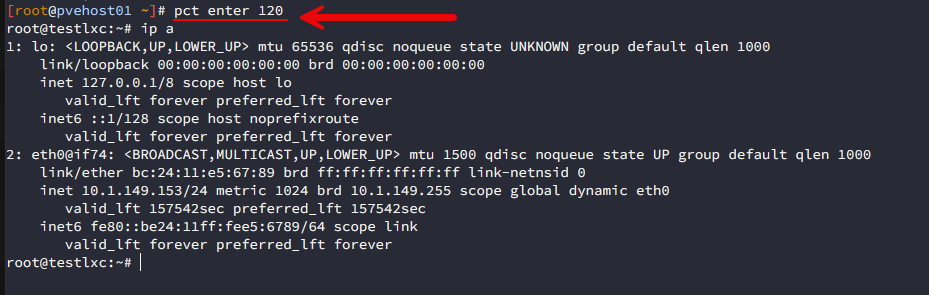
When you use the example command it opens an interactive shell directly inside the container with the ID 120. You may wonder. Why would I use this instead of just opening the console to the LXC container in the web interface. And you are right, it isn’t superior necessarily to doing that. However, if you are already connected to the Proxmox host over SSH, this is where it shines.
If I am already SSH’ed into my Proxmox host, I can enter directly into the LXC container using pct enter and save myself several clicks and Web UI tasks. What are some things that I would use the pct enter command for?
These are some of the following tasks that I use it for:
- Installing packages
- Updating applications
- Editing configuration files
- Restarting services
- General troubleshooting
3. pct exec
This is another cool command that you can use in your home lab environment. You may not want a command shell in your LXC container to be “interactive”. You may just simply want to execute a command in your LXC. If that is the case, there is a PCT command for that.
You would use the following to query updates:
pct exec 120 -- apt update && apt upgrade -y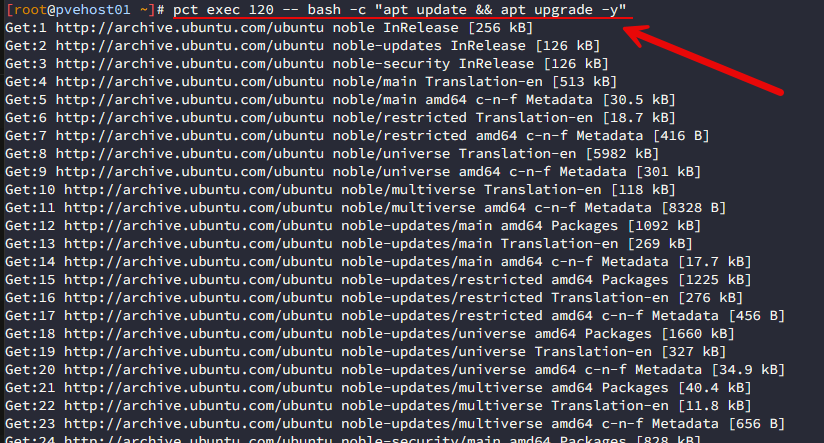
If you needed to do something like restart a service, you could use the following:
pct exec 120 -- systemctl restart nginxIf you want to use a scripted approach to lifecycle management for your LXC containers, you can do that too. For example, if I want to update multiple containers, I can use the following:
for id in 101 102 103; do
    pct exec $id -- bash -c "apt update && apt upgrade -y"
done
Being able to execute commands directly inside a container without logging into it them makes for powerful automation in your home lab and helps to keep a handle on lifecycle management for your LXC containers.
4. pct push
This is arguably one of the most overlooked PCT commands that you can use with the PCT command. This is a command that lets you copy a file from your Proxmox host directly into a container running as a Proxmox LXC. And, the great thing is that it doesn’t need SCP or any other networking hoops to jump through.
So, something like a real world example of copying a driver file into an LXC container:
pct push 102 NVIDIA* /root/NVIDIA*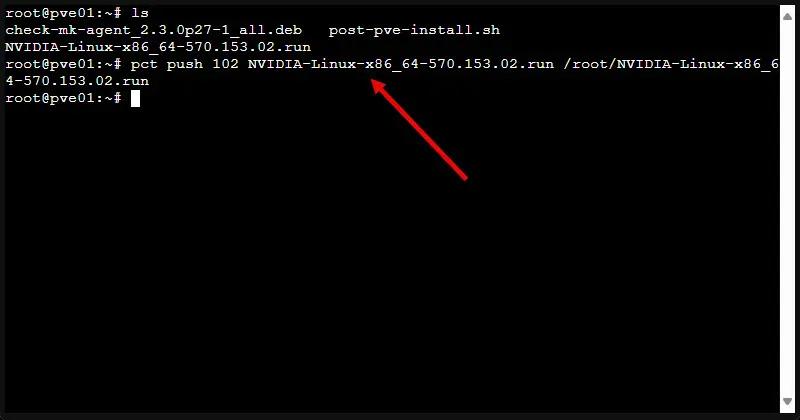
The above was an instance where I needed to push an NVIDIA driver from my Proxmox host into an LXC container when I was doing GPU passthrough into an LXC. You can read my full post here: How to Enable GPU Passthrough to LXC Containers in Proxmox.
It is perfect for copying files around between your host and containers like the following:
- Configuration files
- Scripts
- Docker Compose files
- SSL certificates
- Small application assets
If I’m already working on the Proxmox host, pushing a file directly into the container is pretty quick and painless. Keep in mind though you will ened to have the files you are working with local to your Proxmox host before pct push works.
5. pct pull
This command is the opposite direction of the pct push command. If you “pull” from your LXC container, you can pull files from inside the LXC out to your Proxmox host.
You might do something like the following command to pull logs from your LXC:
pct pull 120 /var/log/syslog ./syslog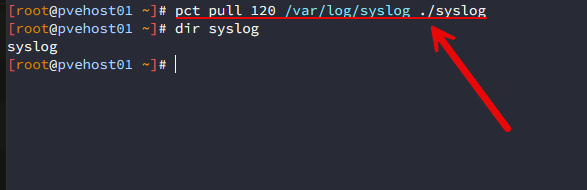
This copies the syslog from the container back to the Proxmox host. This is a really helpful command when you are troubleshooting things. Instead of having to open an SSH session, finding the log, and then manually copying it over, I can simply pull the file directly from the container.
6. pct config
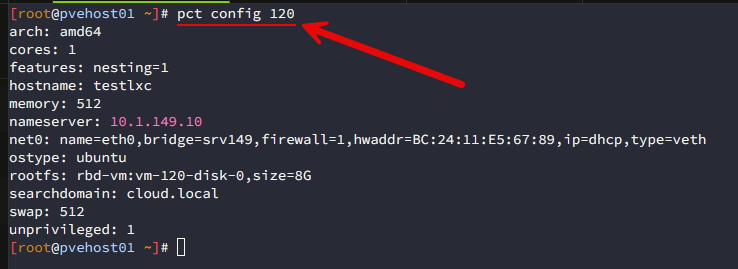
If you want a simple command to view the configuration of a particular LXC container, the pct config command is the command that can make give you this information. For example, if you want to see the config on an LXC container
pct config 120The output includes details such as:
- CPU allocation
- Memory limits
- Network interfaces
- Root filesystem
- Bind mounts
- Startup configuration
- Features enabled for the container
7. pct mount
There is another command that is really helpful in the pct command list and that is the pct mount command. You can use the command easily with the following, with 120 again being the ID of the container:
##Stop the container first
pct stop 120

##Mount the container root filesystem
pct mount 120
There are some instances where this can be really useful. Let’s say that you changed a config file in the LXC container and now the container isn’t booting. You can use the mount option to mount the root filesystem to revert the config back to where it will reboot.
Or maybe you just need to inspect the filesystem without starting the container up.After you’re finished, you can then just unmount it with the command:
pct unmount 120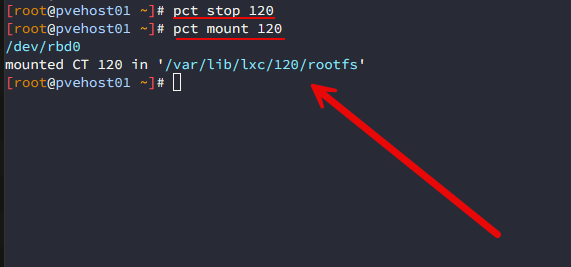
Hopefully, you won’t need this command often. But it definitely comes in handy if you do need it.
Bonus commands working with LXC on Proxmox
While these seven commands are the ones I use most often, there are also other PCT commands that are great to get familiar with, especially if you work a lot with LXCs.
Here is the command to create a snapshot on your LXC:
pct snapshot 120 before-upgradeIf you want to clone one LXC to another LXC:
pct clone 120 205If you just want to view the status of your LXC container:
pct status 120To restart your LXC container, you can use the following:
pct reboot 120Perform a graceful shutdown of an LXC:
pct shutdown 120To migrate an LXC container to another node, you can do the following:
pct migrate 120 pvehost02The more you work with Proxmox and the more you use LXC containers, the more useful these commands are.
When the Proxmox web UI is still better
We all know this, that no one tool is the answer for EVERYTHING. There are certain use cases and tasks that are better suited for one tool over others. So, I don’t want to make it sound like I never use the web UI for LXC management or Proxmox management in general. Far from it.
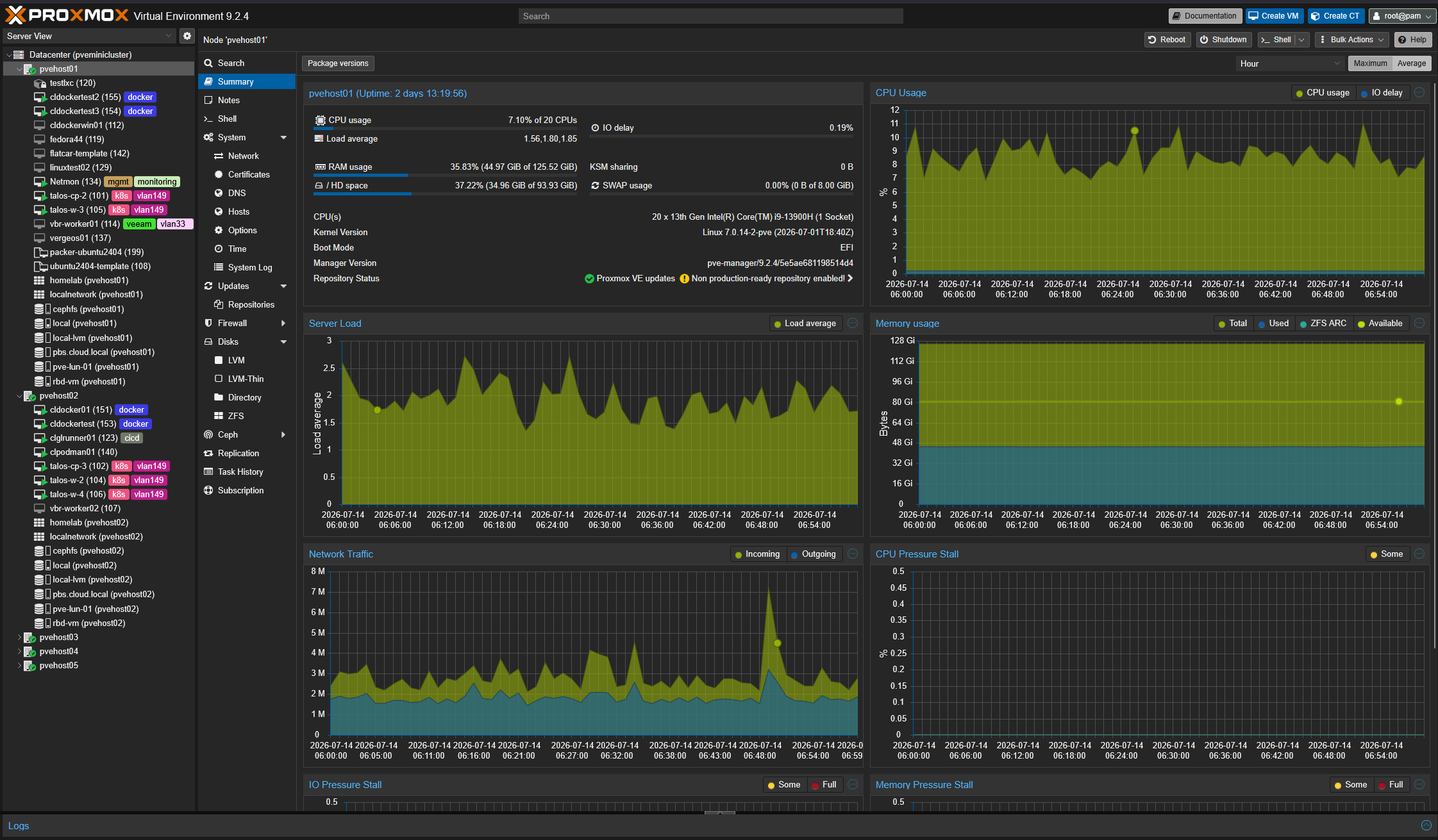
The Proxmox web interface is still one of my favorite management interfaces for any virtualization platform. It does a really good job at monitoring resource utilization, making configuration changes, reviewing backup jobs, and how we manage storage. For me, the command line complements the GUI instead of replacing certain things. If I’m creating a brand new container, I’ll usually start in the web interface. If I update software, copy config files, troubleshoot services, or automate repetitive tasks, this is where commands like PCT come into play.
Wrapping up
Proxmox LXCs are a great way to self-host resources as they are very efficient and small footprint. They also have great tools built into Proxmox VE Server to manage your LXCs. These commands that we have described for LXC container management in Proxmox are fairly simple and easy to remember and they can do a lot, especially if you are like me and like to do things from the command line when you are already SSH’ed into the Proxmox host. How about you? Are you making use of the PCT commands either just typing them manually or using them in a script you are running?
More in this topic


Google is updating how articles are shown. Don’t miss our leading home lab and tech content, written by humans, by setting Virtualization Howto as a preferred source.
About The Author

Brandon, I have been using the pct push for some time. Good to take note of the other ones though too. I don’t use these commands enough, need to commit more of them to memory 😂
jdodd,
Very nice! I am definitely using them more than I used to for sure. Glad you liked the list and let me know if you find other ones helpful.
Brandon