



I have tried out a lot of different volume backups over the years and there are many great tools out there. However, there was a database backup tool that recently added support for backing up Docker volumes and after trying it, I think this is a great tool and project for those that want to have a very modern and seamless way to backup and restore their data running on Docker hosts in their home lab or even production environment. That tool is Portabase and with the last recent update, they have added Docker volume support for the list of “databases” they can back up with the tool. After spending some time testing it in my own home lab, I think this is one of those open source projects that deserves a look as a future project if you are looking for something new to try.
Why do you backup your Docker volumes?
One of the main misconceptions people make with containers is they operate like VMs. If you backup the container itself, you have your data. But that isn’t true. Instead, containers work a lot differently. The container itself is disposable. If you lose the container, Docker simply creates another one from scratch using the image. The important part is your data that lives in a Docker volume.
Check out my recent post here, comparing managing containers and virtual machines and the differences to be aware of: Why I Stopped Treating Docker Containers Like Tiny Virtual Machines.
That usually means named Docker volumes or bind mounts containing things like:
- PostgreSQL databases
- MariaDB or MySQL data
- SQLite databases
- Application configuration
- User uploads
- Media libraries
- SSL certificates
- API keys
- Logs
- Authentication data
Those volumes are the heart or state of your applications. Without them, you lose all of your config and all of what you really find valuable about “your” application that you have your data stored in.
What Portabase is
Portabase is an open source backup platform that is known to backup all kinds of databases, including PostgreSQL, MySQL, MsSQL, MariaDB, Firebird SQL, SQLite, MongoDB, and Redis. But, recently, they announced that they were adding Docker volume backups to the functionality of Portabase which is awesome.
Portabase has done this really well actually in their implementation and in the interface. It is “fairly” easy to get going with backing up your Docker volumes, with a couple of hurdles that I will talk about. But you can backup multiple Docker volumes, and once you have volumes backed up, you can do things like migrate them with the built-in migration wizard that is part of the Portabase interface.
Let’s see how to get up and running with Portabase.
Installing Portabase
Installing Portabase is easy with Docker Compose. I have several Docker hosts running in my Proxmox VE cluster in the home lab. You need to create two files to get started. You will create an .env file and then also a docker-compose.yml file. Let’s look at what I have inside my .env file. Below is mostly taken from the example docs on the Portabase documentation wiki. However, I have populated this below with the secret with is created using the openssl rand -hex 32 command in the commented example:
# --- App Configuration ---
PROJECT_URL=http://10.1.149.20:8887
TRUSTED_DOMAINS=http://10.1.149.20:8887
#GENERATE A STRONG SECRET (e.g., openssl rand -hex 32)
# This secret is used to encrypt communications with agents.
PROJECT_SECRET=3bfde6d53c78a2215c6525756c7317cf0388fec4e4fe451960950a1e346a5aa1
Once you have the .env in place, we just need to create our docker-compose.yml file. Here is what my file looks like. I am using a bind mount on my Docker host, but you can use a Docker volume, etc or change the bind mount to fit your environment.
services:
  portabase:
    image: portabase/portabase:latest
    container_name: portabase-app-prod
    restart: unless-stopped

    ports:
      - "8887:80"

    environment:
      TZ: America/Chicago

    env_file:
      - .env

    volumes:
      - /home/linuxadmin/homelabservices/portabase/portabase-data:/data
Then just bring up the installation:
docker compose up -d
You can verify your docker compose and running container with:
docker compose ps
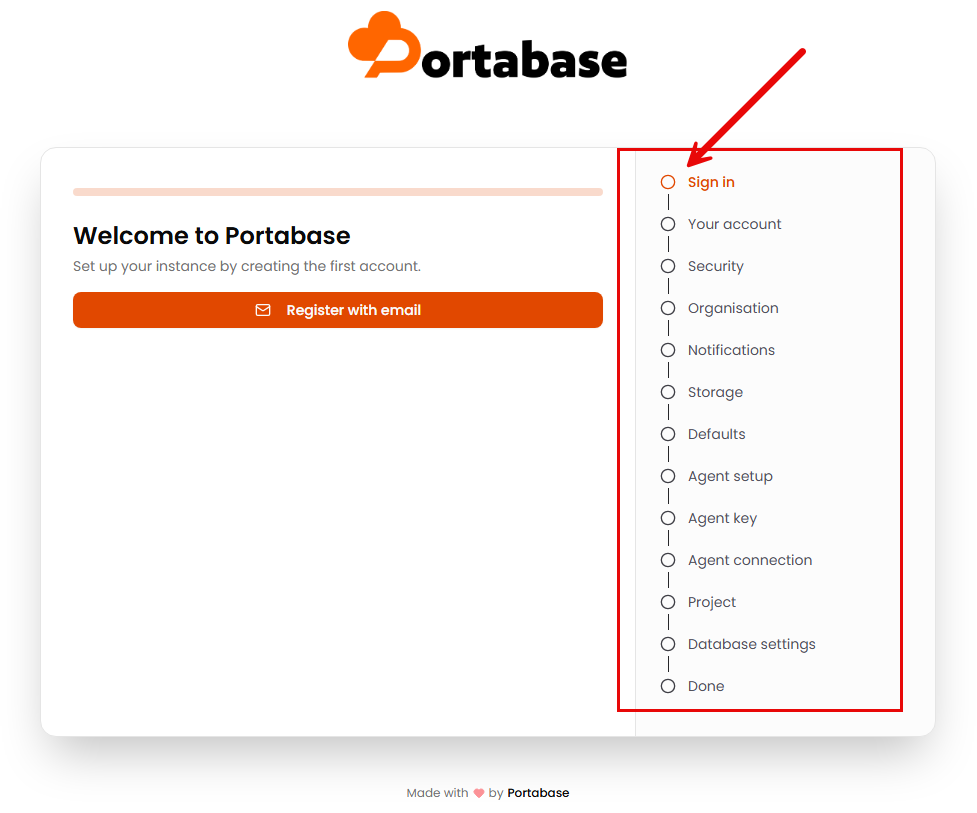
When you browse out to the port for the solution 8887, you will be presented with the wizard below. Step through the wizard and setup the solution to be aligned with your home lab. You can also skip steps as you go along if you want to wait to setup things like storage, notifications, agent connections, etc.
Once you finish the wizard, you can then browse to the dashboard of the solution.
Adding “agents” to Portabase
So “agents” are essentially the Docker host component that you install on your Docker host that does the heavy lifting with backing up your Docker volumes. There are a few steps you need to accomplish from “both” sides, your Portabase server, and the Docker host you want to backup volumes from.
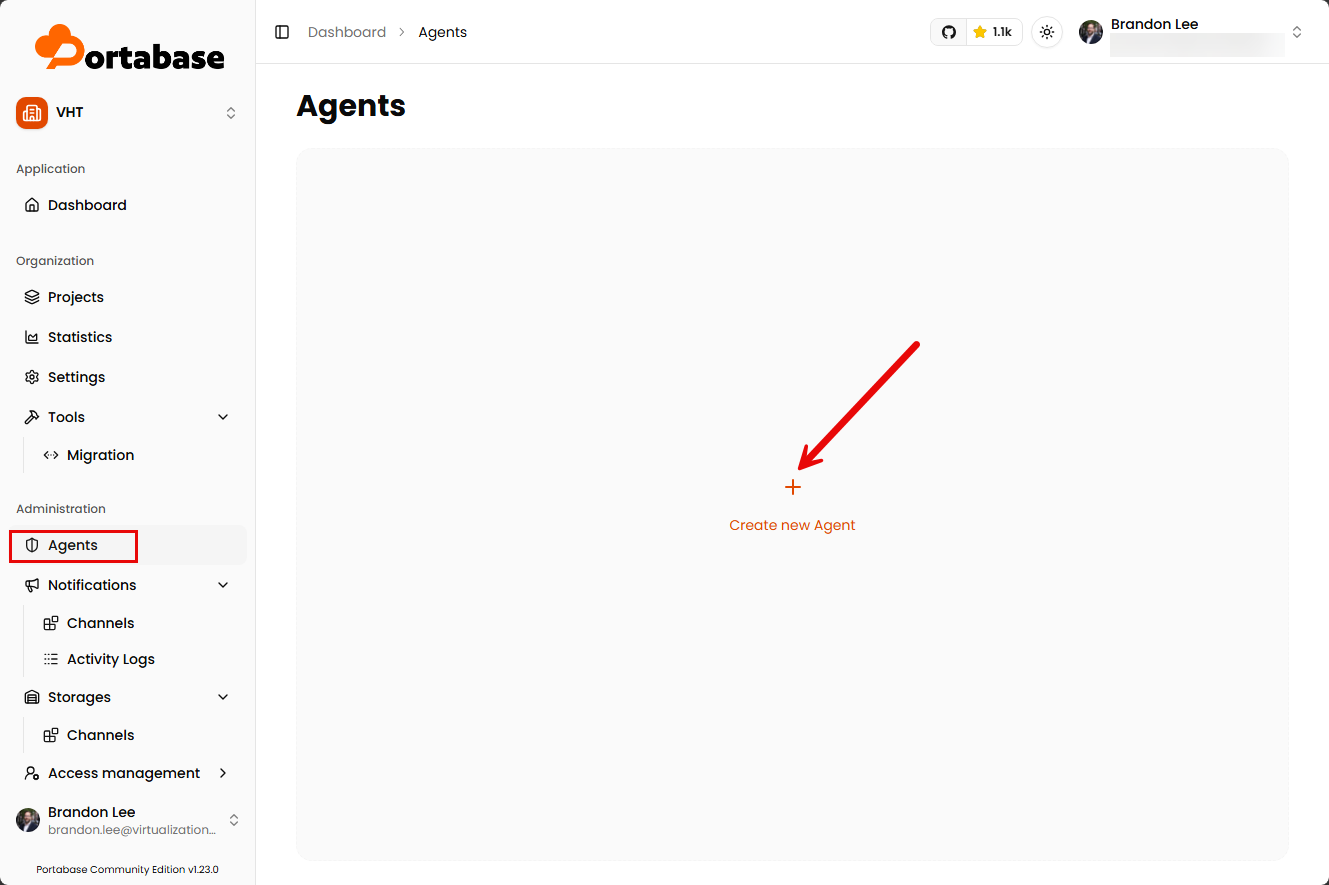
On the Portabase server side, you will navigate to the Agents menu and Add agent.
This will launch the Create new agent dialog box. Name the agent. You can also put in a description as well.
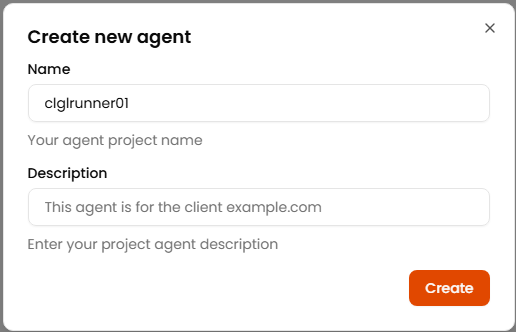
The agent is added on the Portabase side.
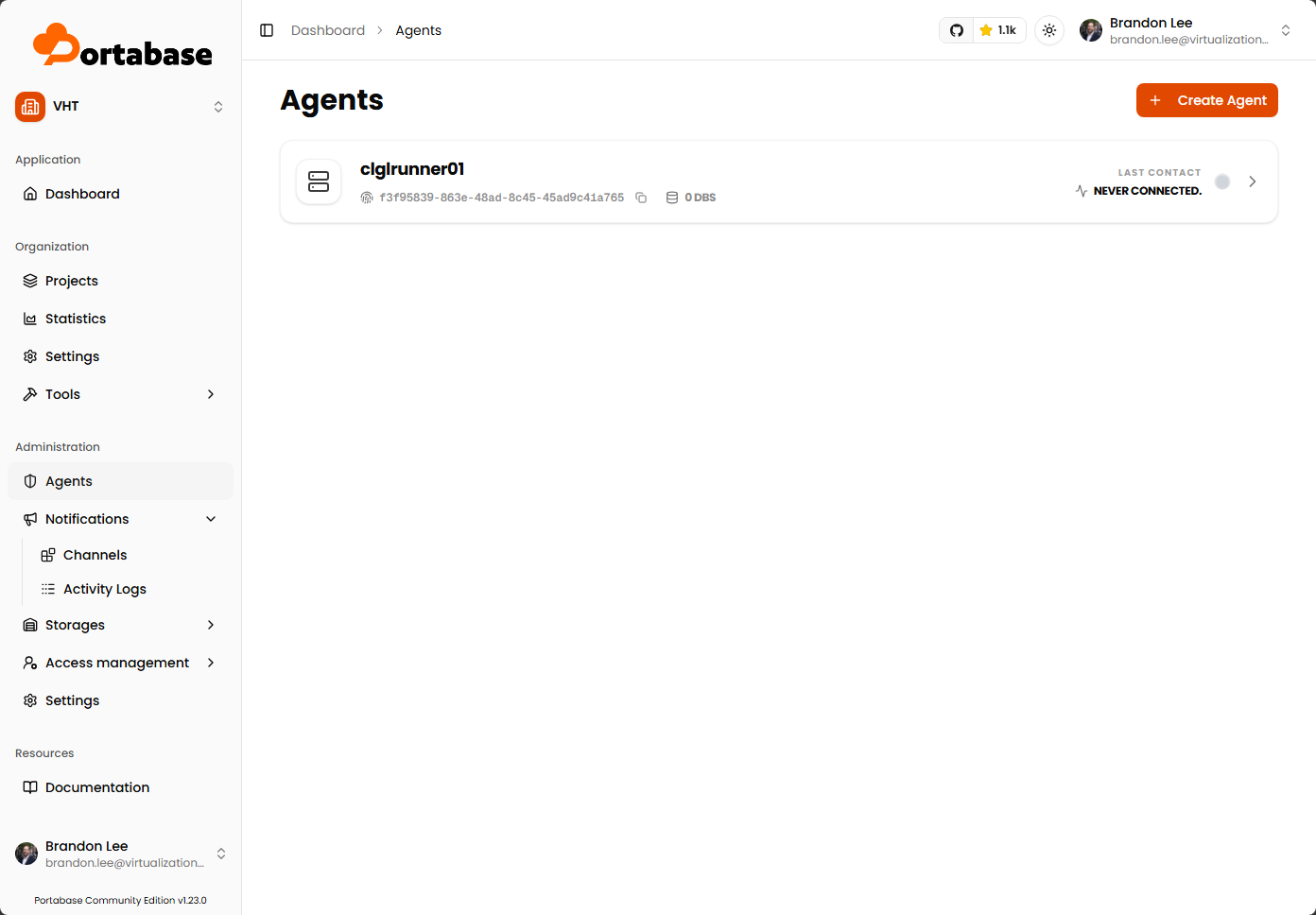
Setting up the Portabase CLI
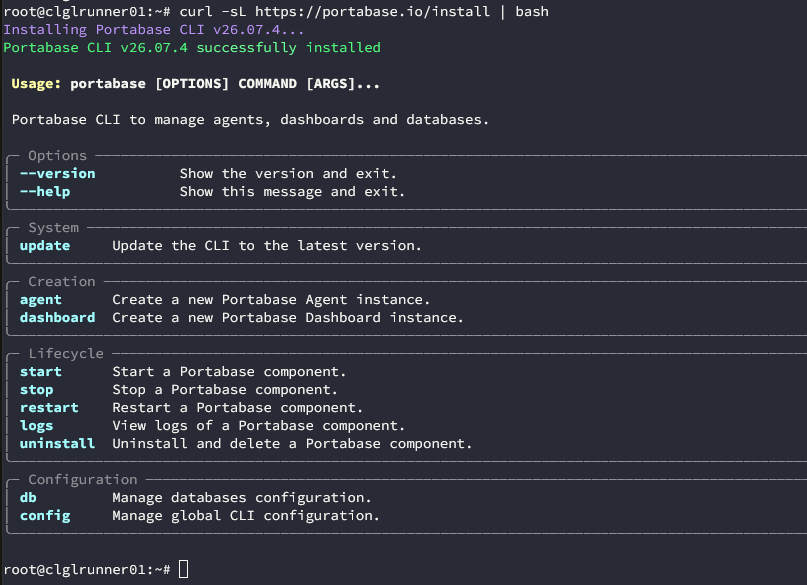
Now that we have the Portabase side of the agent configured, we need to configure the “client” side which is the Docker host. To do that, we install the Portabase CLI. It is easy to install with the command below, based on the Portabase documentation:
curl -sL https://portabase.io/install | bashBelow, you can see what the installation of the portabase CLI looks like on one of my Docker hosts.
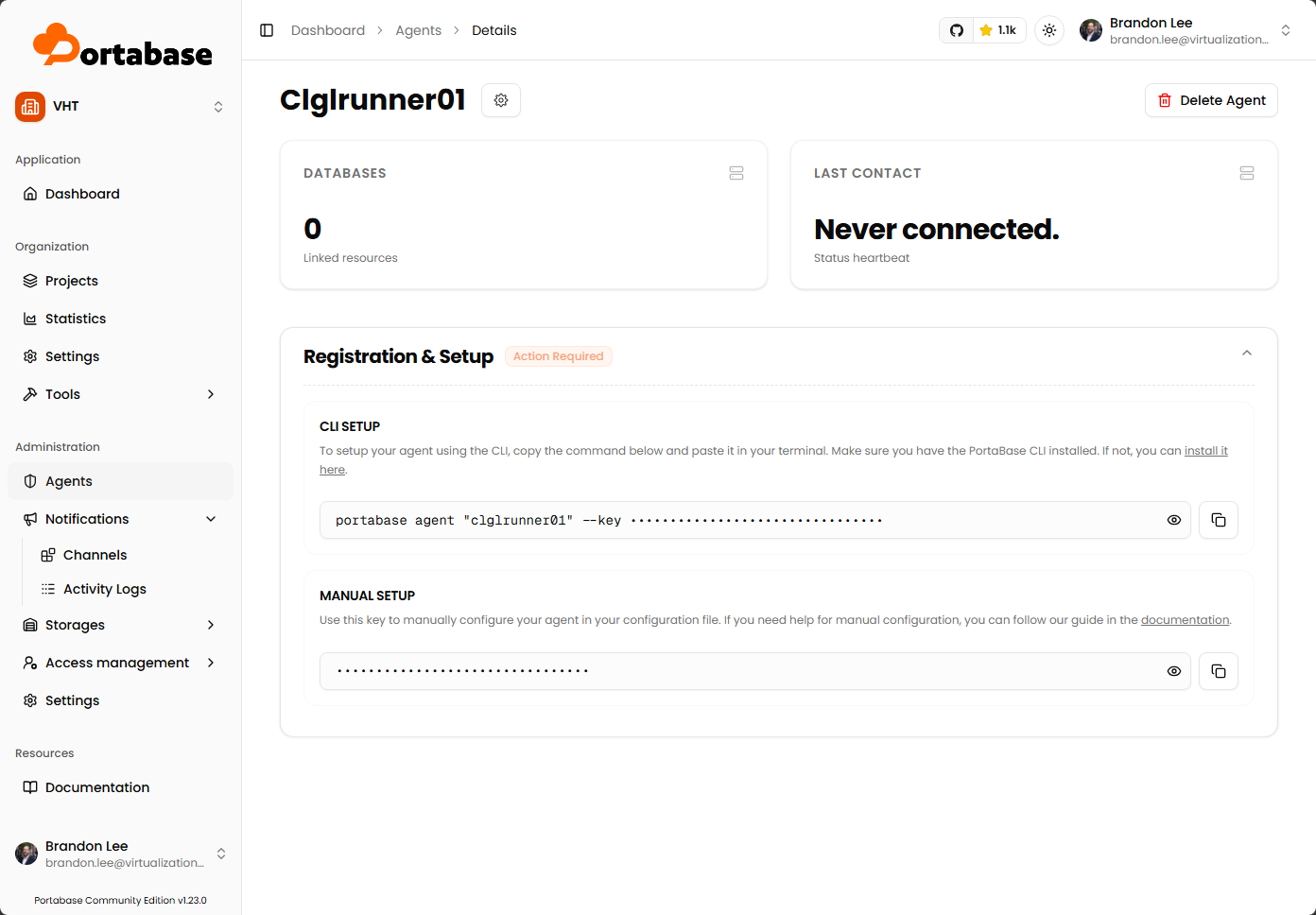
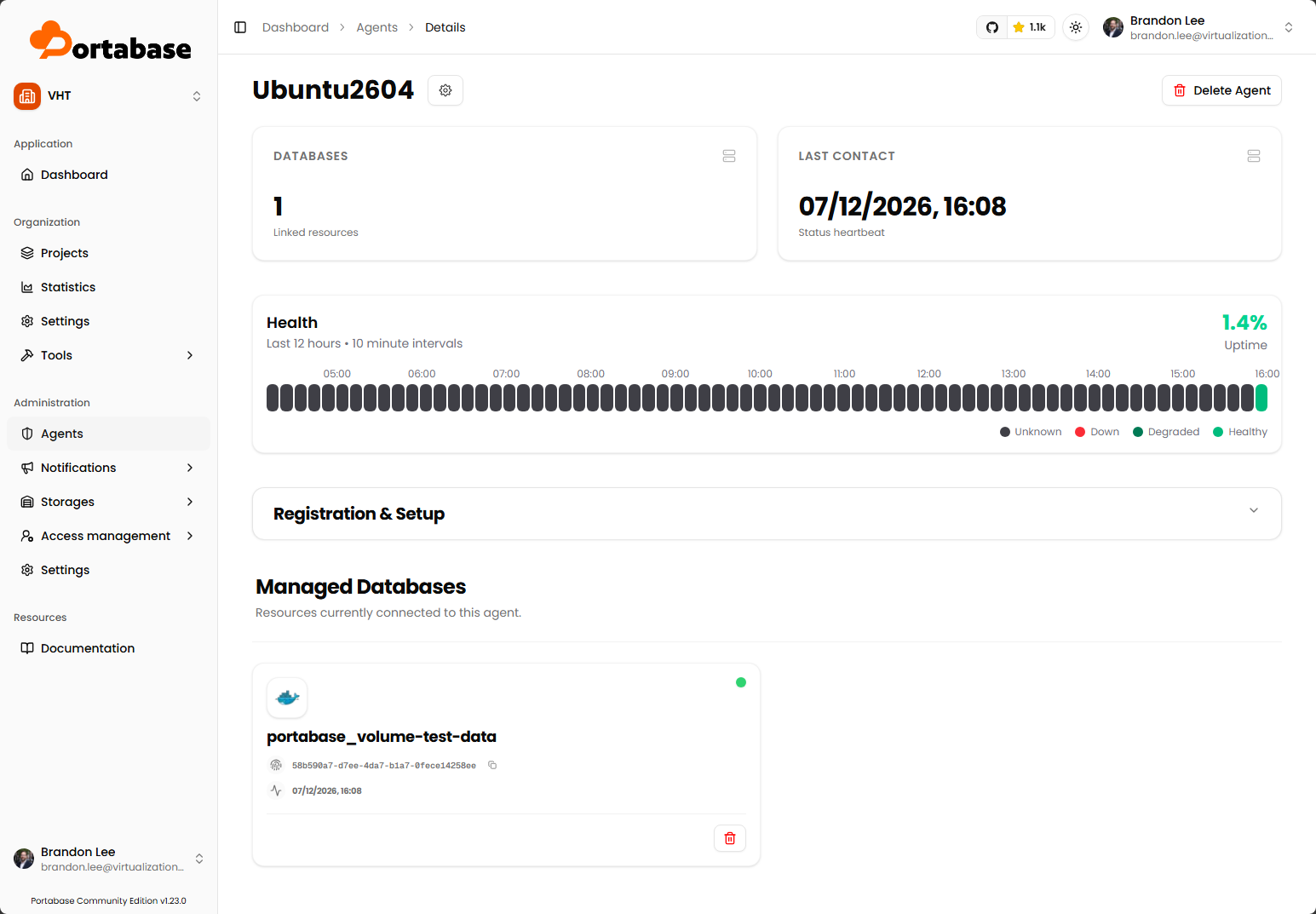
The agent screen shows the Registration & Setup code boxes where you can copy the CLI command that has an authentication token that allows the remote agent to connect to Portabase.
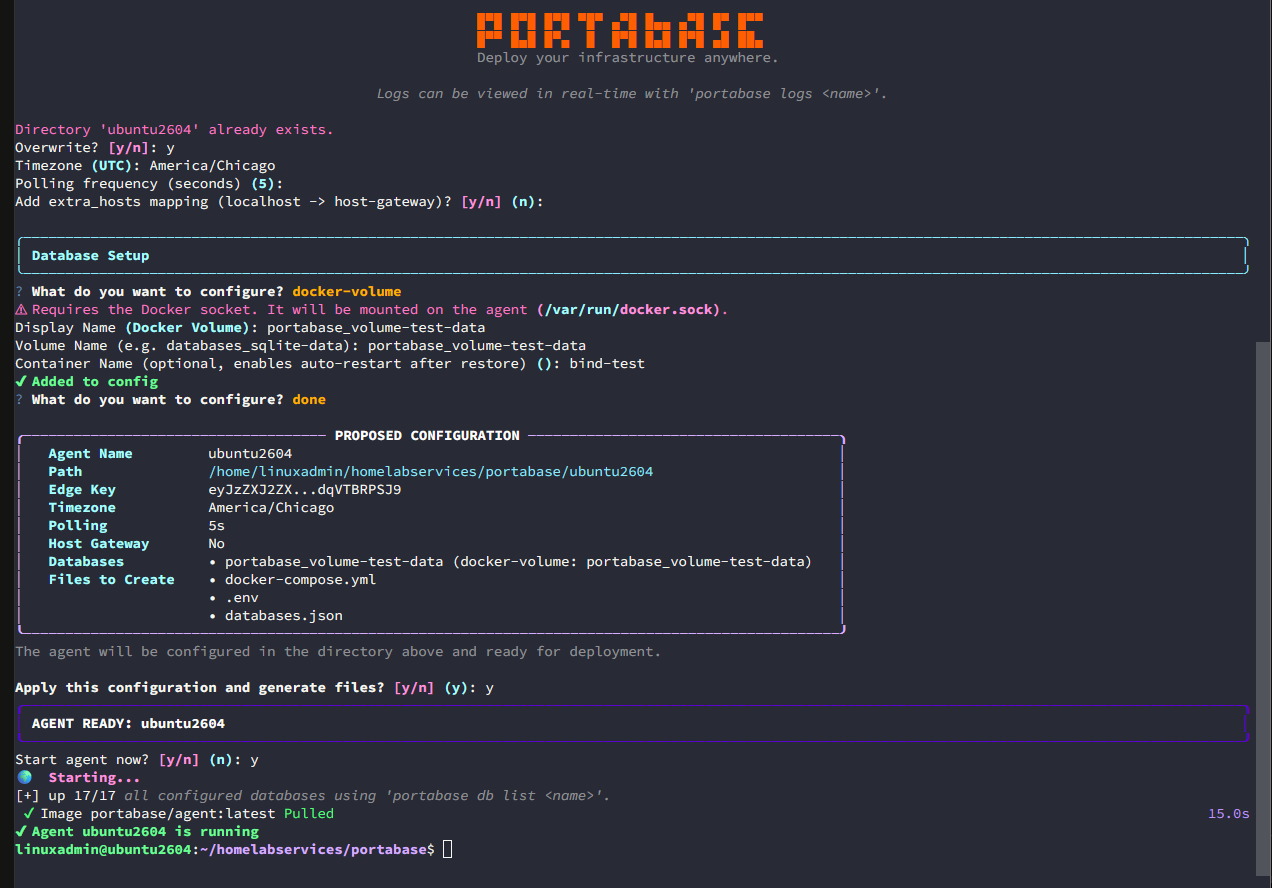
Below, you can see the TUI wizard like interface to add the docker volumes you want to protect to your Portabase server. Be sure to have your docker container and the volume name handy when completing this wizard.
Below, you see the agent is connected and the Managed Databases shows the docker volume we have protected.
Create a new project and docker volume to protect
Below, I am creating a new Project. You need to create a project as this is the object where you are able to perform the backup. Here, I am naming the project and selecting the database.
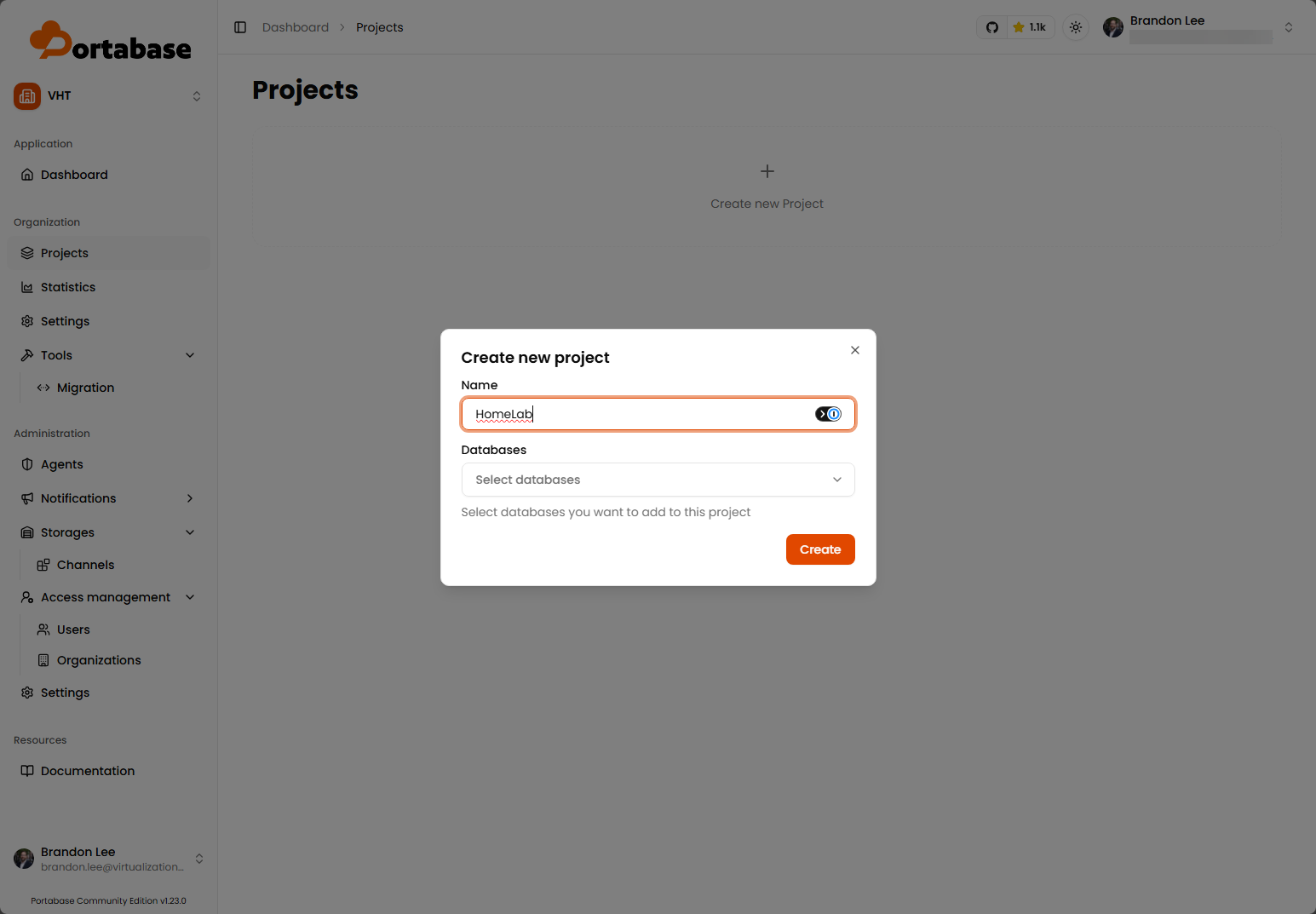
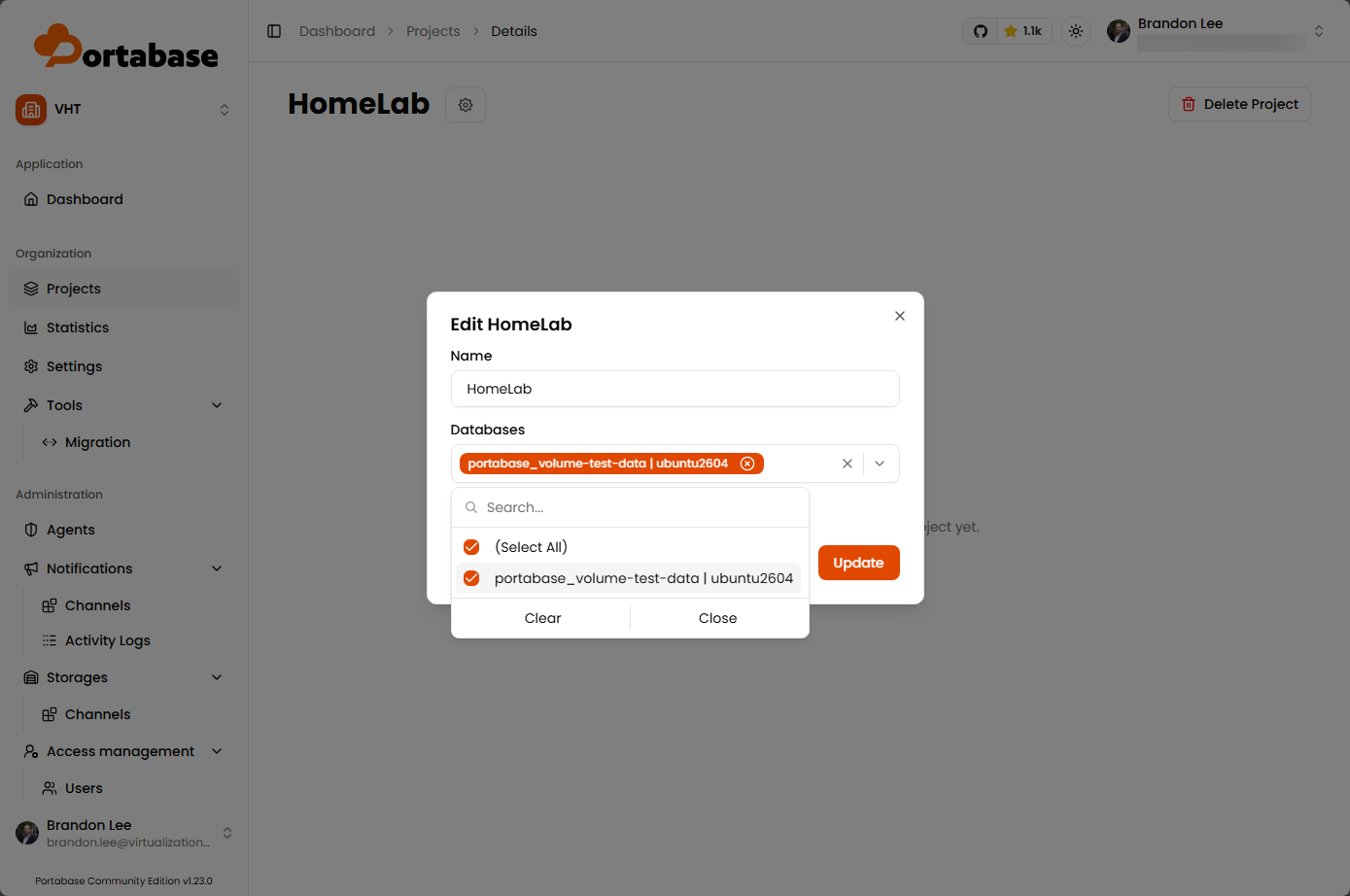
Selecting the database to be part of the project.
Running a backup using Portabase
Here I have clicked into the project and see the volume that we added as part of the project.
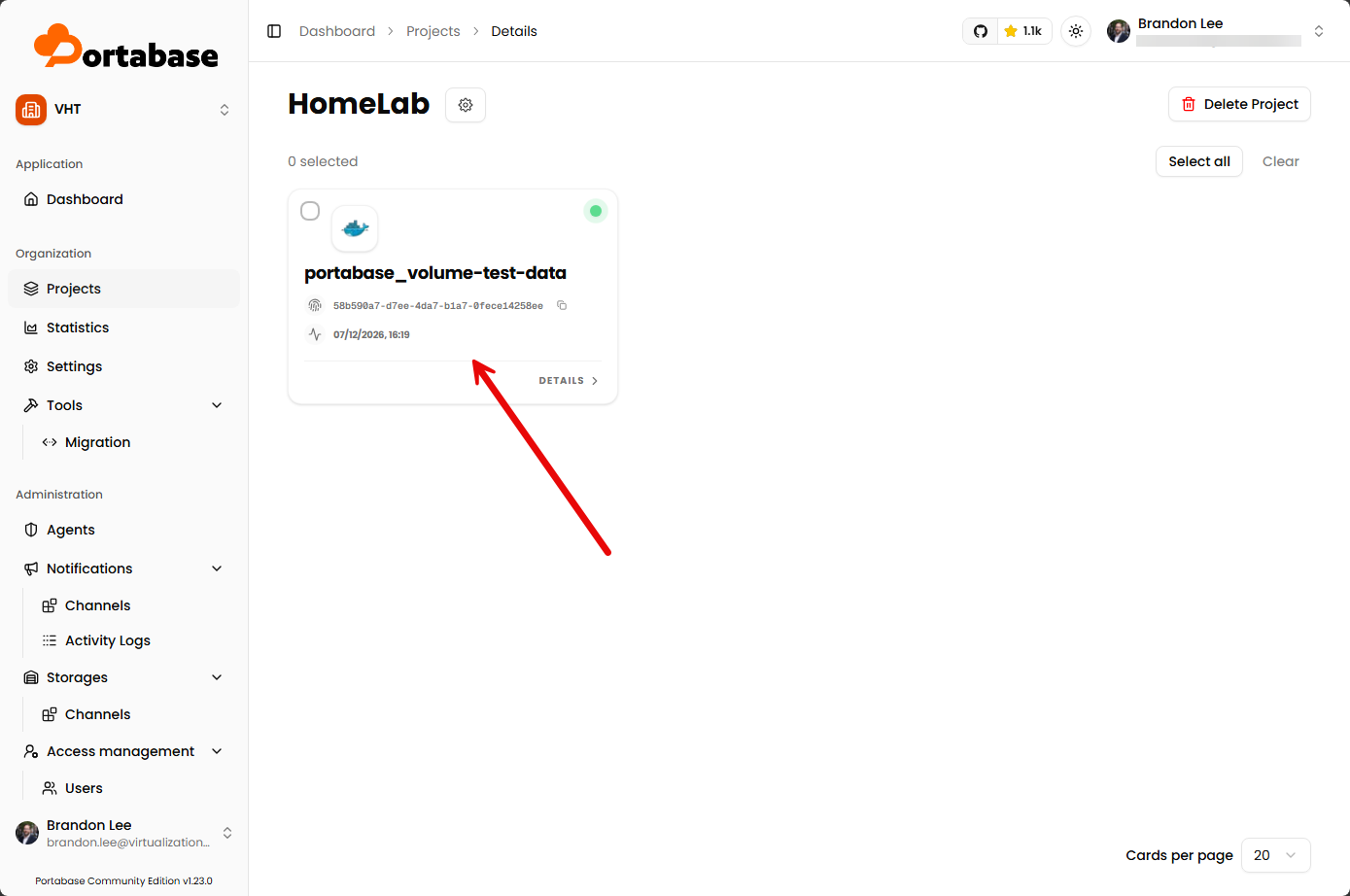
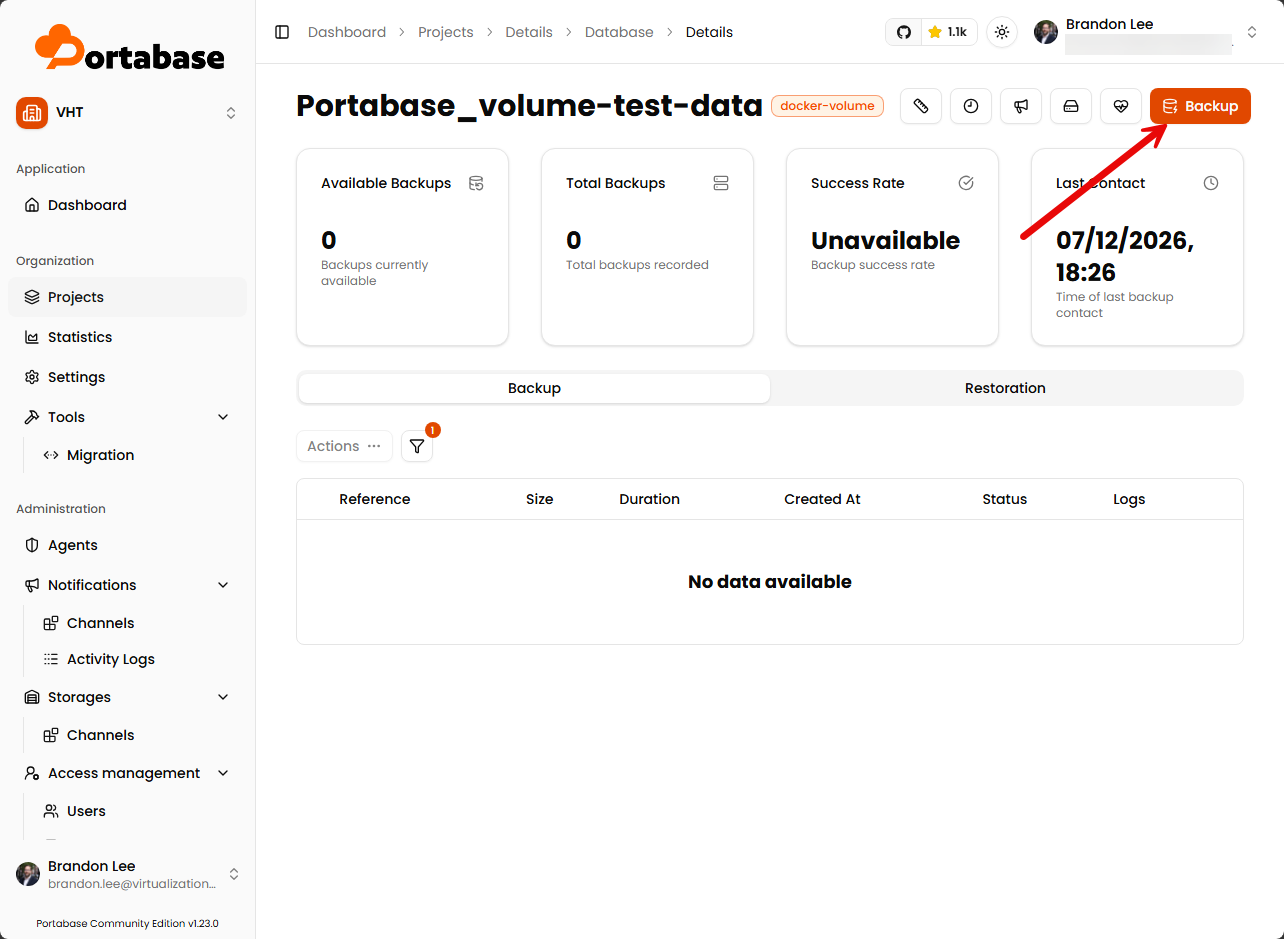
Click Backup.
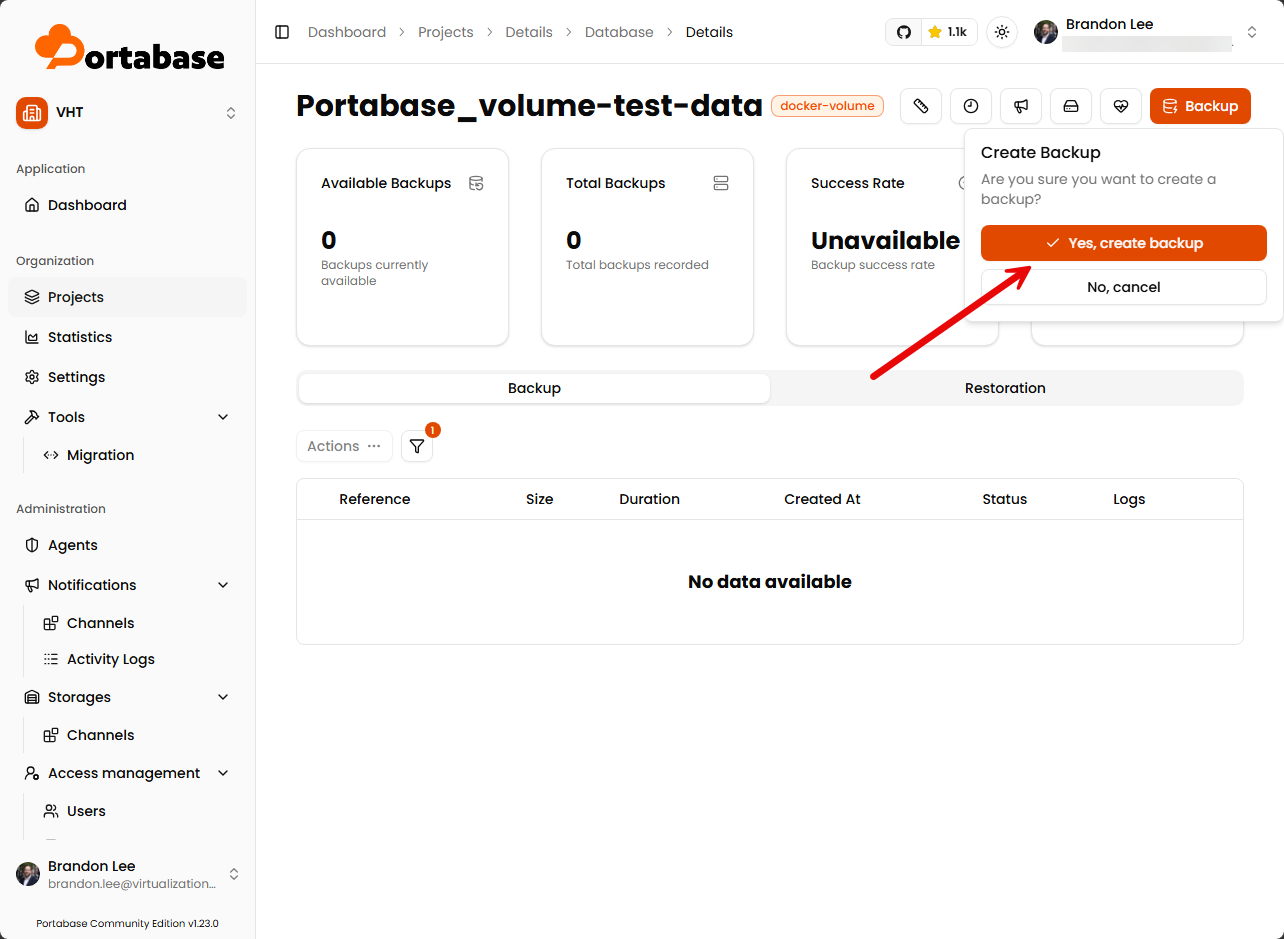
Verify by clicking Yes, create backup.
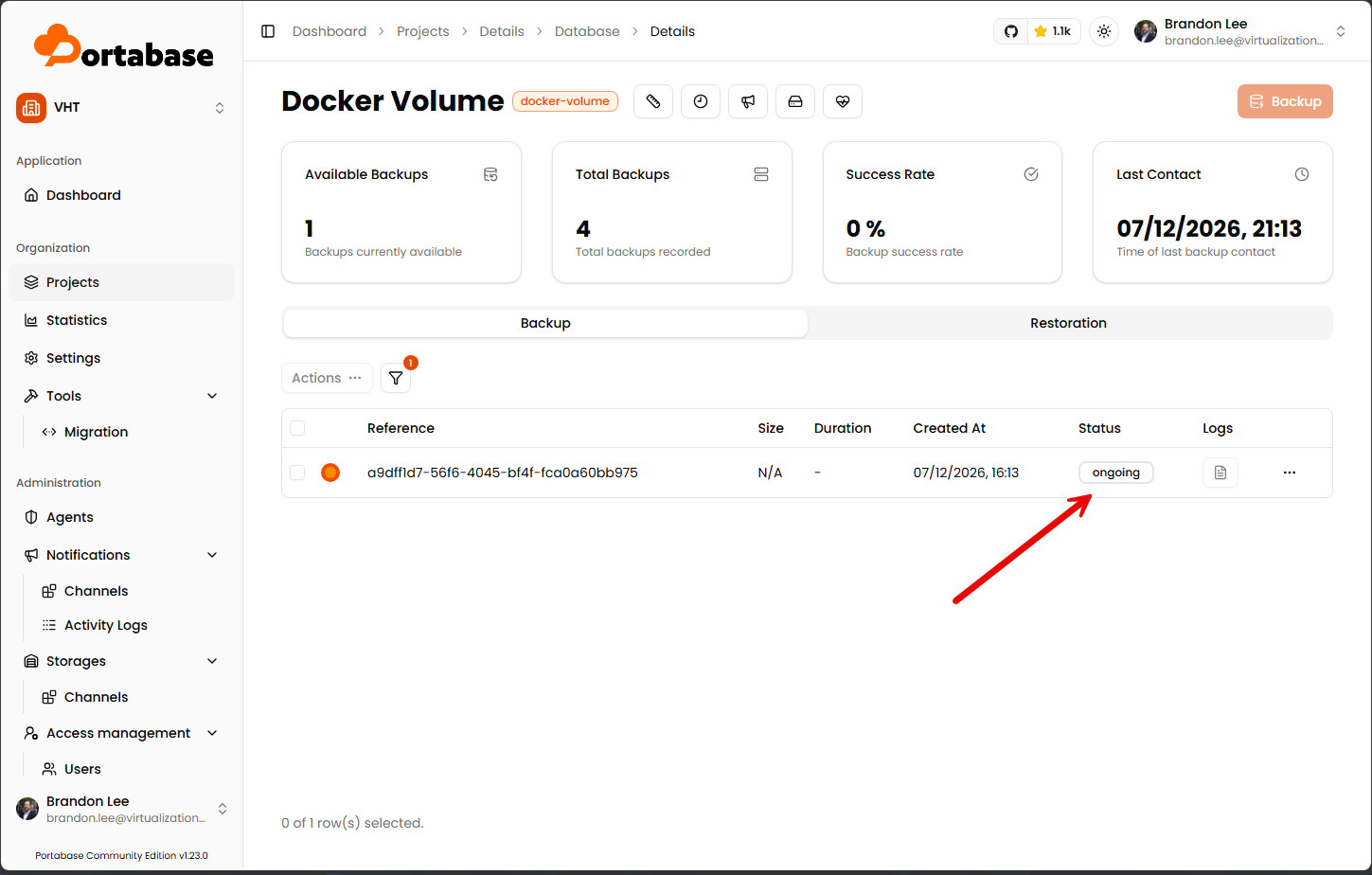
Here we see the backup job kick off and will say “ongoing” until is shows successful.
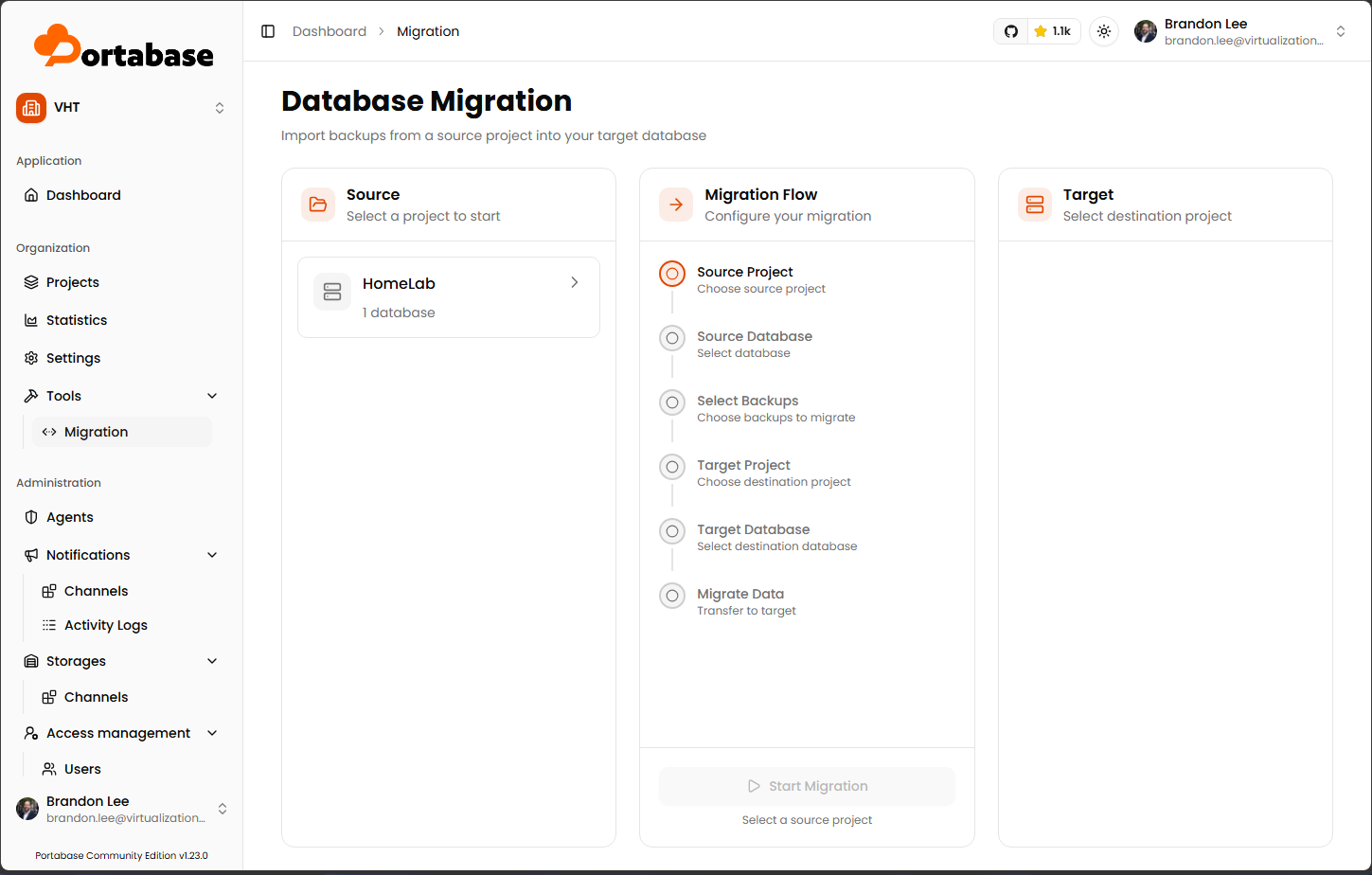
Migration wizard
One of the really cool features of Portabase is the Database Migration wizard. This wizard allows you to select the source database and backups. Then you select a target project, target database, and then migrate the data.
Limitations to be aware of
There is a couple of things that I want to shed light on with Portabase. The major limitation here I think is that you have to be using true Docker volumes for the backups to work, at least that I was able to figure out. I didn’t see a way to protect a bind mount. I am wondering if this will be coming in a future release. So, just know that you need to be using true Docker volumes currently to back up your data with Portabase.
Second, the configuration of Docker volume backups isn’t rocket science, but I do think it is a little convoluted. You have to run the Portabase CLI and connect the target Docker host to the Portabase server with the special command you get from the Portabase agent dashboard.
All in all though, I really like what I see. Portabase “feels” professional and polished, even at this point with the new Docker volume backups. I think with future releases we will see this functionality get refined with new capabilities, hopefully like adding bind mount backups.
Wrapping up
I like Portabase and like the fact that it is free and open source and is a polished solution for not only backing up your databases, but now has added Docker volume backups. As shown, the interface is streamlined and intuitive. Adding the Docker host to your agents isn’t difficult but do note there are the steps involved that I have shown here. Let me know if you have tried Portabase before or you have been using it for your database backups? What do you think about it? Let me know if you will be trying out the new Docker volume backup functionality.
More in this topic



Google is updating how articles are shown. Don’t miss our leading home lab and tech content, written by humans, by setting Virtualization Howto as a preferred source.
About The Author

Doesn’t everyone just mount their volumes somewhere central on the host so they can be picked up and backed up all at once?
Matt,
That is a great observation and this is the main part of my docker persistent volume backup strategy. In my case I use these kinds of backups as a secondary backup strategy in addition to getting snaps of my virtual machines.
Brandon