


Docker Compose is still one of my favorite ways to run applications in the home lab. It is simple, it makes sense, it is human-readable, and it is quick to stand up applications without a lot of fuss. Even as awesome as Kubernetes is, there is something refreshing about a simple Docker compose file that can spin up your entire application stack in the home lab or production environment. I have used a lot of tools in my home lab, and tried a LOT of projects. Recently, I stumbled on a project called Sencho, that is an open source Docker Compose management platform that has some features I haven’t seen before and its a refreshing way to manage your Docker Compose stacks. After testing it out, I think it is a project that is worth testing in your own lab and watching to see how it evolves. Let’s check out the details. Just as a spoiler, holy crap it is good.
What is Sencho?
Let’s take a look at what Sencho actually is. It is noted to be for “homelab operators”, small DevOps teams, or even platform engineers who make use of Docker Compose. If you want a graphical interface to manage the environment, Sencho is a solution that can definitely provide the GUI interface to your docker compose environment, with a lot of other features baked in that we will get to.
The Compose files that Sencho manages can stay on the host file system and you can keep that location as the source of truth that Sencho pulls from. I found that as an interesting change from other solutions. Sencho basically auto imports all of your existing stacks by you simply pointing it to your parent Docker Compose folder with child folders that you have organized underneath.
Each instance of Sencho is autonomous. If you want to manage another machine, it does have a means to do that. It has what is called a “Pilot agent” that you can use and spin up as a container on the managed system. Your primary Sencho instance then connects securely over HTTPS to the remote instance.
One aspect of Sencho that keeps it simple is that it doesn’t need to have SSH connectivity and it does not expose the remote Docker socket on the network which is a security nightmare that I have seen other solutions need. Also, if you have a node that is behind a NAT or strict firewalls, the “pilot agent” connects a single outbound Websocket tunnel to the primary so your remote host doesn’t need to have inbound port connectivity to it at all.
It is free and open source for the most in the Community tier. There is an Admiral Tier that introduces paid features that cater more to businesses as it allows you to manage your entire fleet and has things like governance and security features built in.
Deploying Sencho
The process to deploy your Sencho instance is straightforward and uses its own Docker Compose YAML file to do this. The one thing I had to wrap my head around was the mapping configuration for pointing the Sencho management container to the local stacks, but I will show you what worked in my configuration.
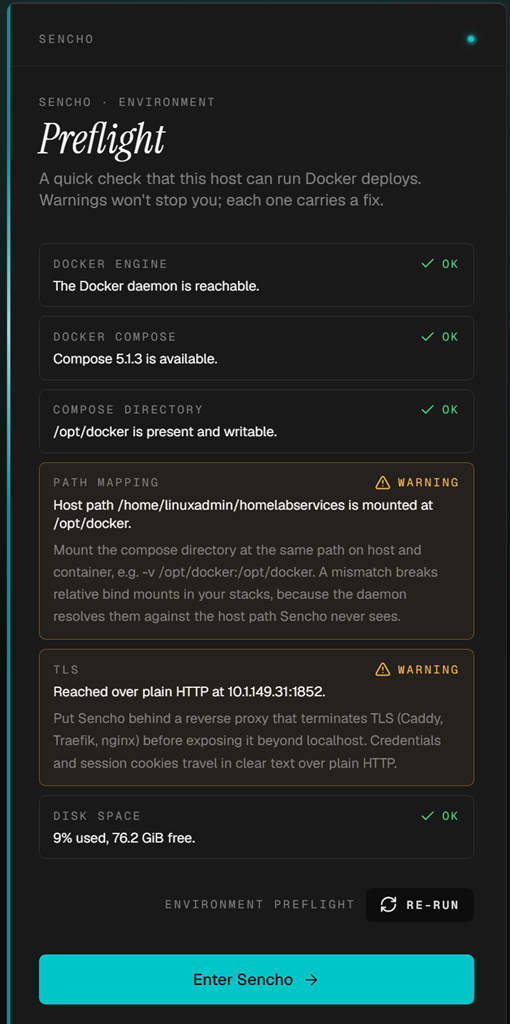
Basically where you see the “volumes” stanza of my docker compose below, the line that has the “/home/linuxadmin/homelabservices:/home/linuxadmin/homelabservices” is the mapping that maps where hte docker compose stacks are on the host to the Sencho container. The trick is you need to mirror what the directory is on your host with the container. I didn’t think that is what they were wanting you to do, but this is the configuration that works.
services:
  sencho:
    image: saelix/sencho:latest
    container_name: sencho
    restart: unless-stopped
    ports:
      - "1852:1852"
    volumes:
      - /var/run/docker.sock:/var/run/docker.sock
      - /home/linuxadmin/homelabservices/sencho/data:/app/data
      - /home/linuxadmin/homelabservices:/home/linuxadmin/homelabservices
    environment:
      - COMPOSE_DIR=/home/linuxadmin/homelabservices
      - DATA_DIR=/app/data
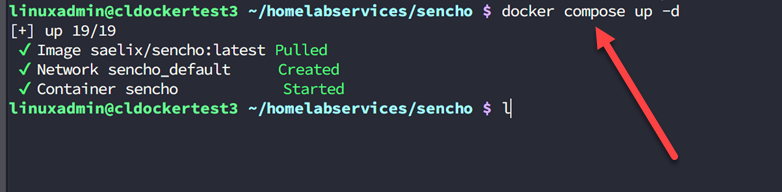
Then just run the normal “docker compose up -d” command.
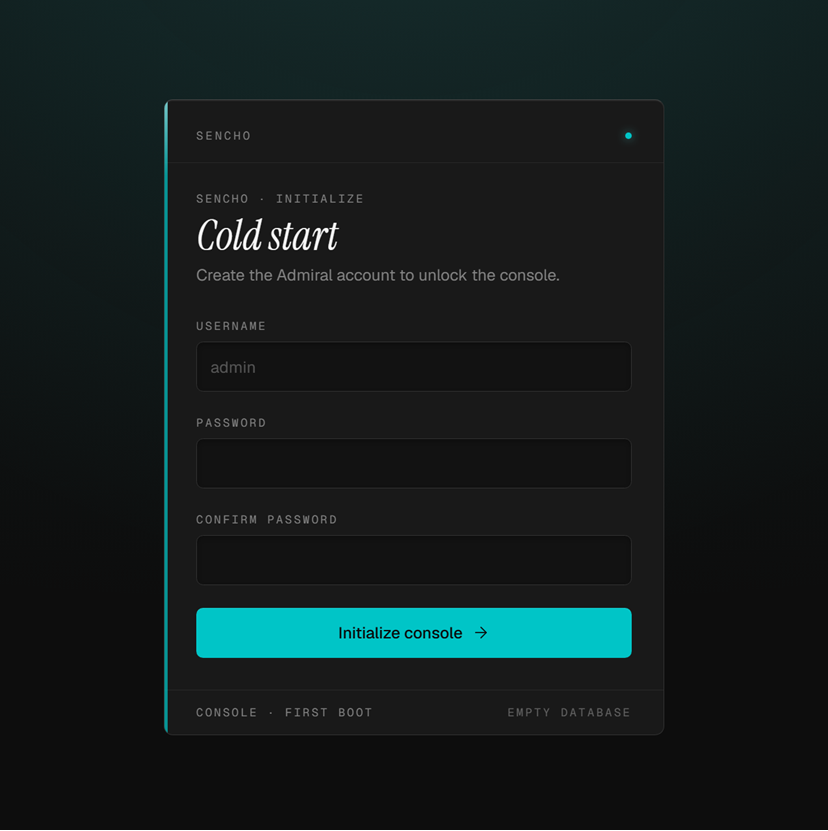
Then, the next thing that you do to get started is to create your first admin account.
If you don’t line up the mapped docker compose parent directory with what you have in your container, you will see this on the next screen’s preflight check:
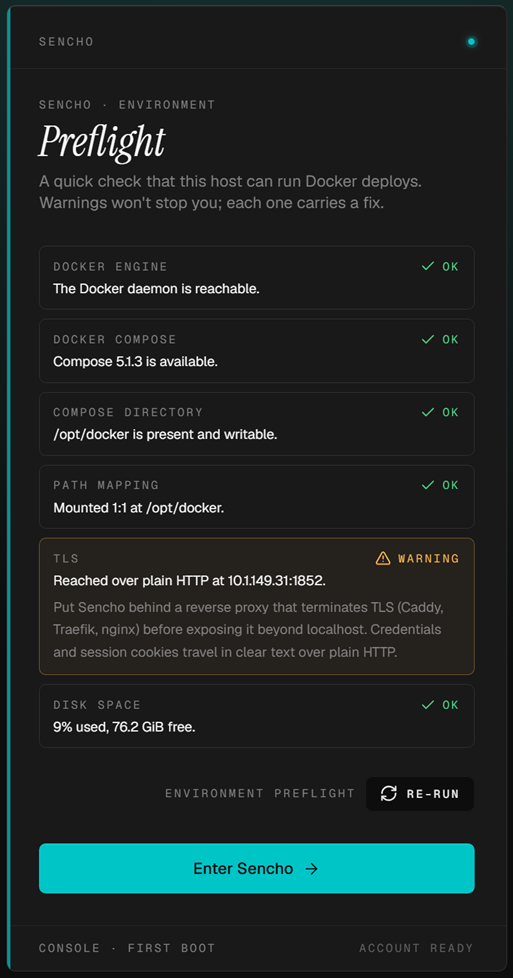
Once I changed to the mirrored mapping in the example compose code, the warning will go away:
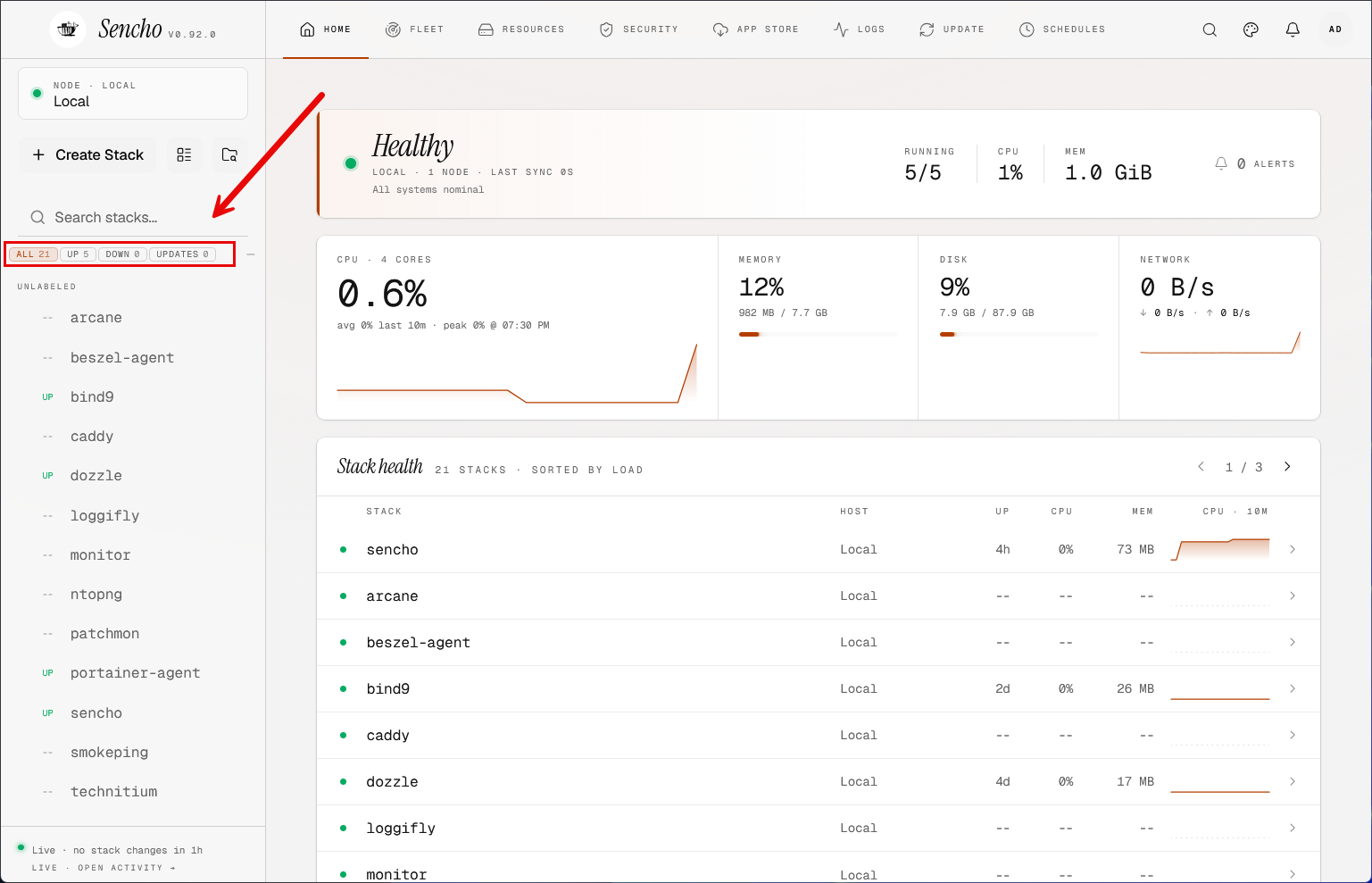
After you bring up the stack and get logged in, since we mapped the compose directory correctly, we already see all the compose stacks recognized and imported, which is awesome. I really dig the Sencho interface. It just seems like everything makes sense and is what you would want the interface to be if you were designing your own container management interface. I like little details like the easy filter for “all, up, down, updates” that you can quickly view those containers without jumping through hoops.
Sencho has an awesome “snapshot feature”
One of the first features when I was clicking around is a feature called “Snapshots” and is found under the fleet management area. This is one of those features that I think is a killer feature. Maybe I have missed this in other tools, but I haven’t noticed this type of feature in other projects I have tested with.
Snapshots allow you to grab point in time copies of your Docker compose stacks on your host. Then you can roll all back or roll back specific stacks to previous points in time if you want to. Isn’t that awesome? In other words, you don’t have to involve your backup solution at this level (you still need backups but this gives you another option), you can simply just use Sencho’s snapshots feature. So, if you made a change to your Unbound DNS server running as a stack in Docker Compose, you could roll that back easily. There is also a way to scheduler this with the built-in scheduler, but will share that down below.
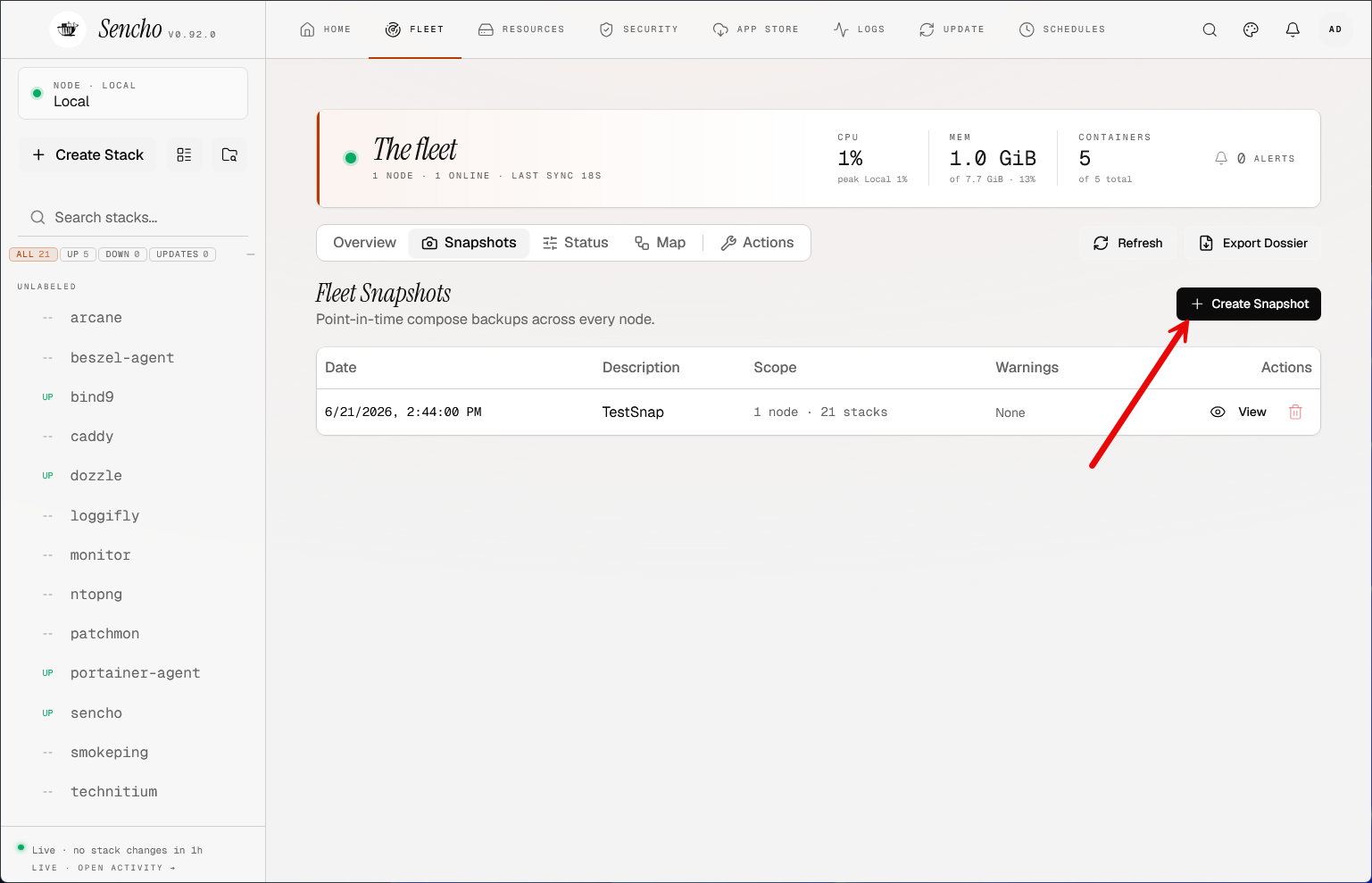
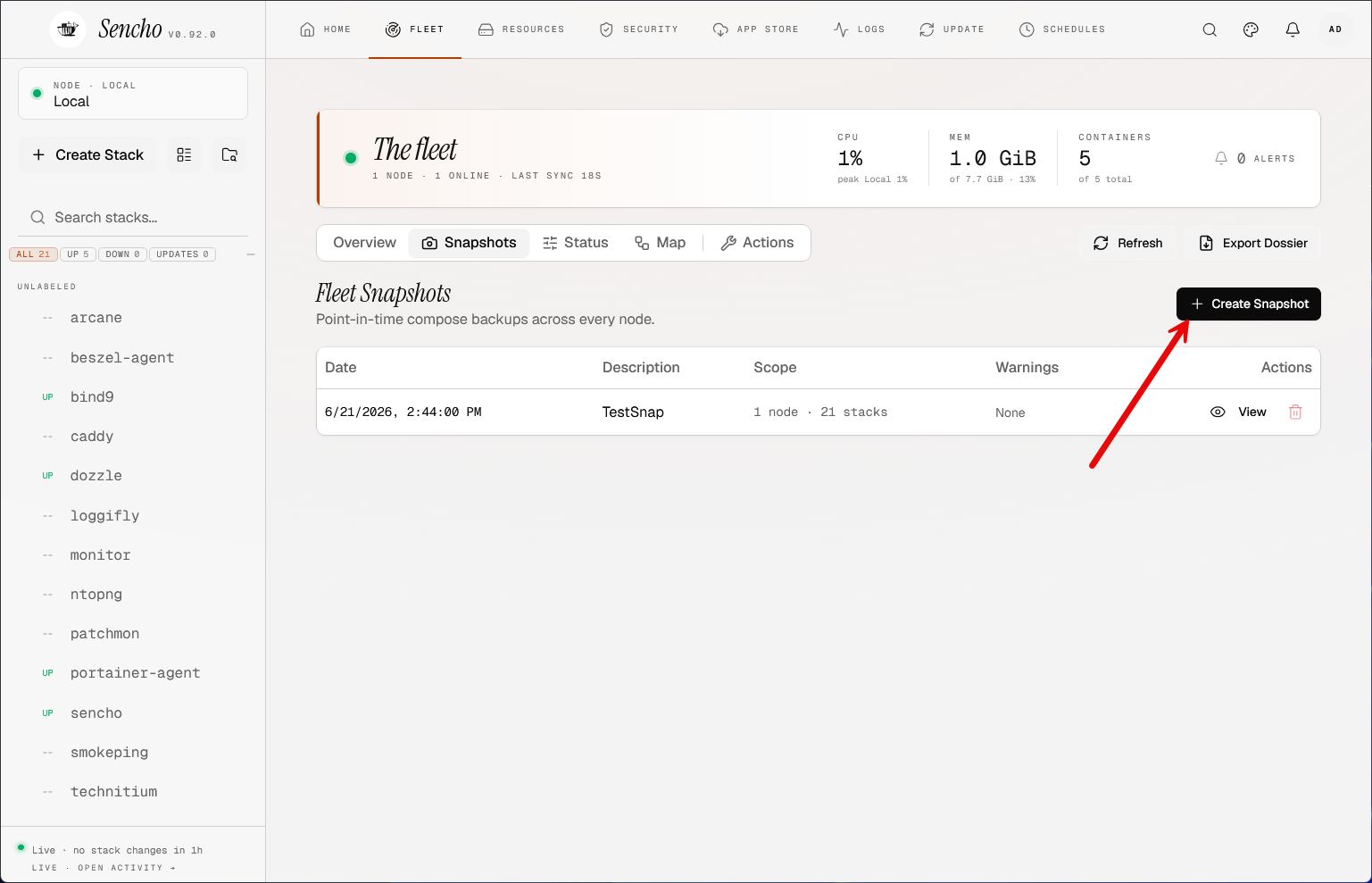
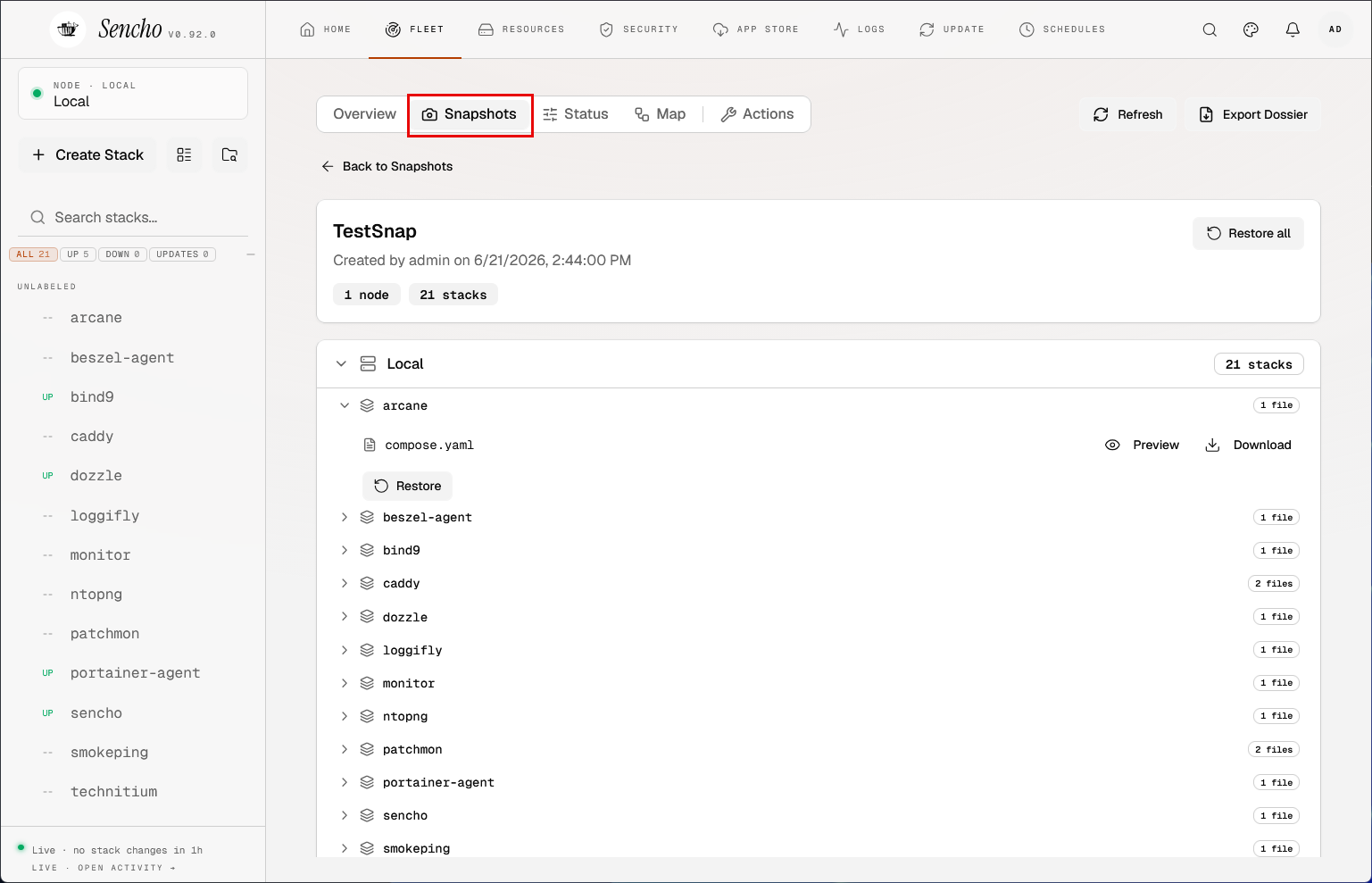
Under the snapshots tab you can create snapshots or you can restore the snapshots you have already created. Note how you can do this from a global level, restore all, or you can click the stack you want to restore and then you have a granular restore option there.
Scheduled tasks allow you to easily automate
There is another feature that really stands out with Sencho I think and that is the scheduled task functionality. Most home labs will accumulate enough containers and Docker Compose stacks that you will need to perform maintenance operations from time to time. Sencho covers this with the scheduled tasks.
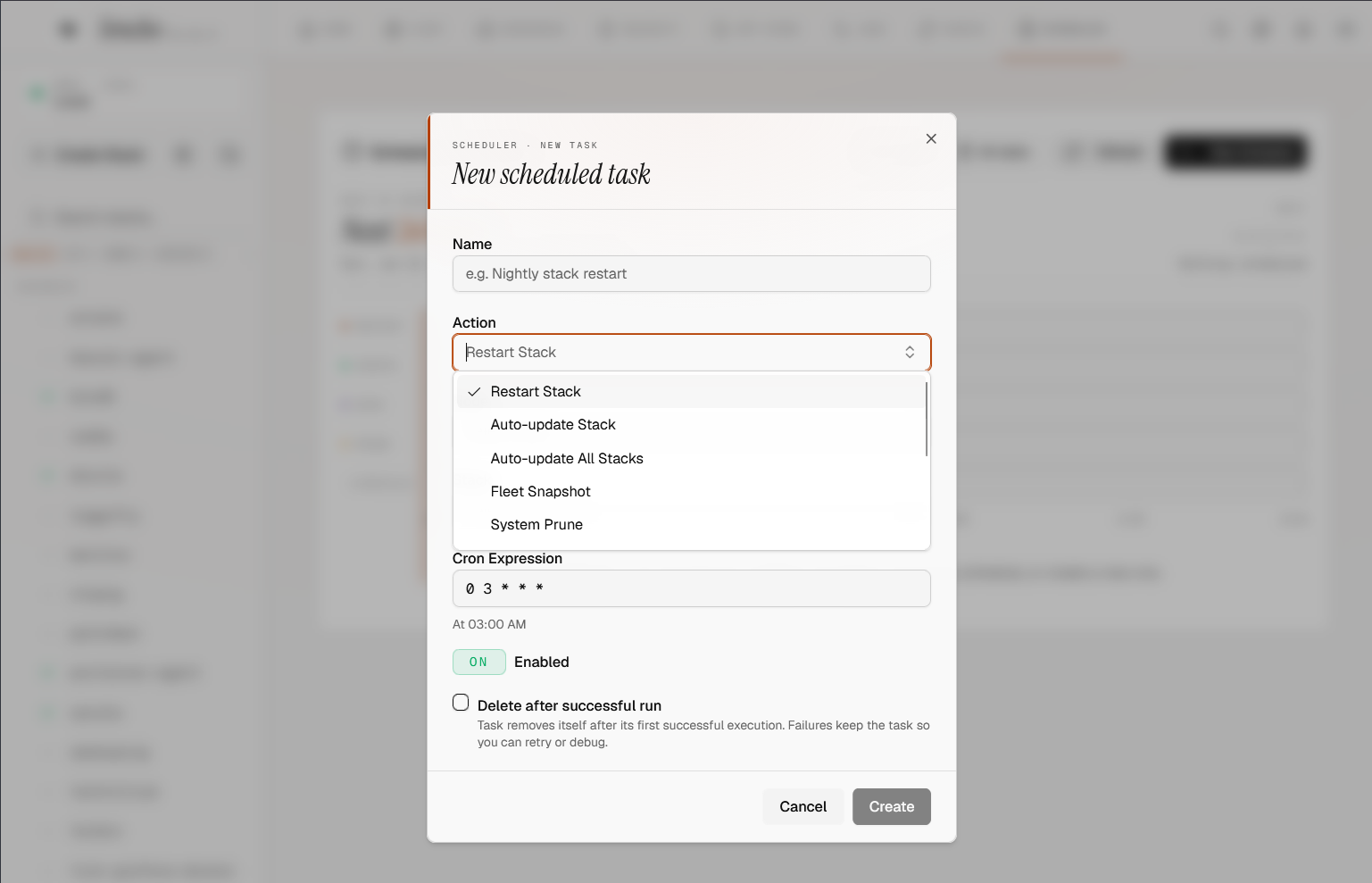
Automation you can take advantage of include the following:
- Restarting stacks
- Auto update stack (specific one)
- Auto update stacks (all)
- Fleet snapshot (what we talked about above but automated)
- System prune
It has normal CRON formatted scheduling that is easy to understand. This takes the heavy lifting out of routine things that you might spend minutes each day working through when you can just have it all automated. Update automation negates the need to run other projects like Watchtower to keep your images updated.
It has an app catalog for easy app installs
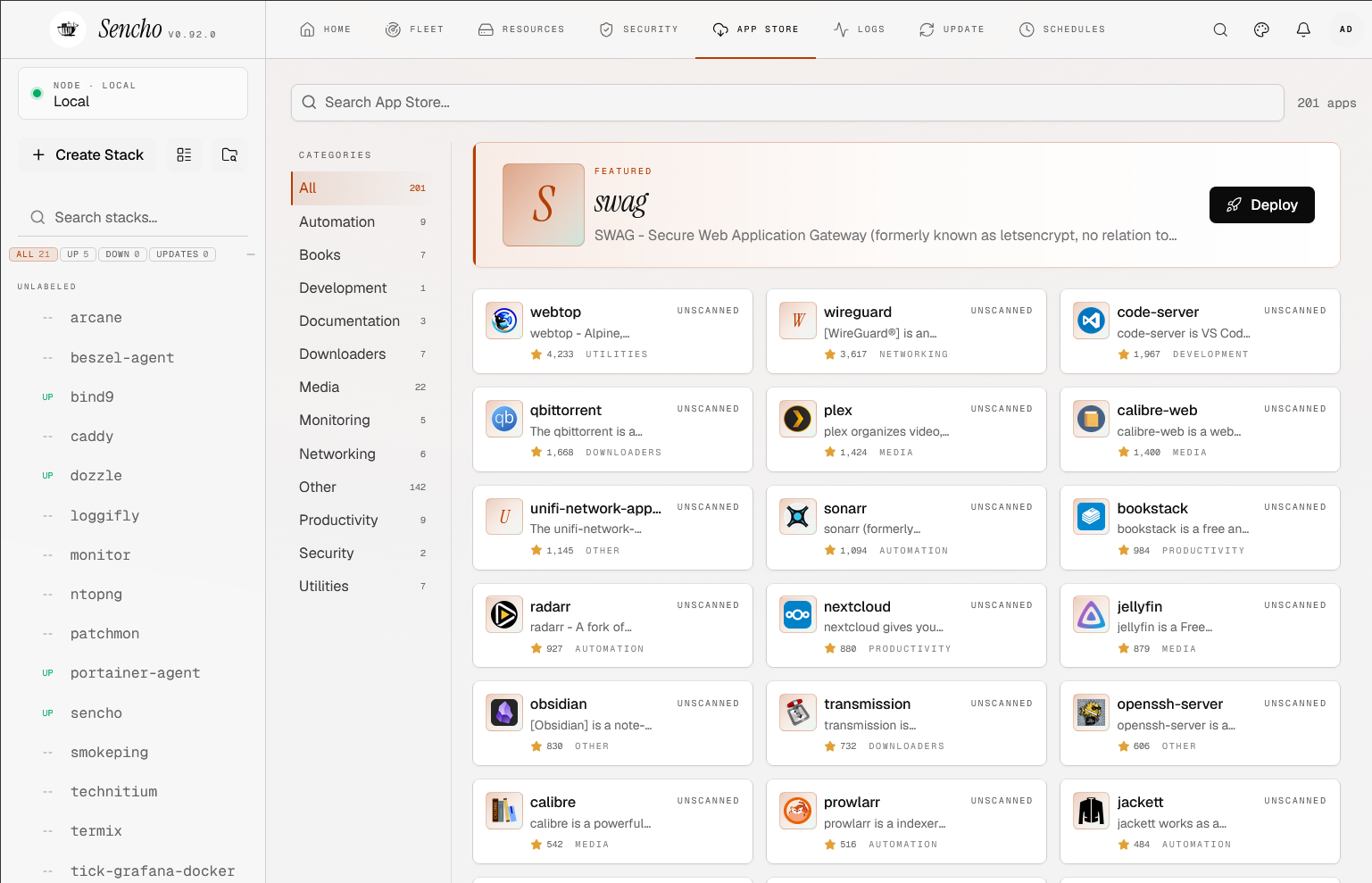
This is not really a revolutionary feature as this is found in other solutions, but it has an app catalog that is nice to see. This makes deploying new apps and services even easier by simply being able to click the app and allowing it to install using Sencho. Deploying the stack this way allows Sencho to manage the stack and gives you the added visibility.
Multi-host management
As we mentioned earlier, Sencho allows you to manage multiple hosts in your environment with all of the features that the central management container can see locally. It does this using the pilot agent we mentioned and connects to a remote host using an API call.
Under your fleet management, you can choose to add a host:
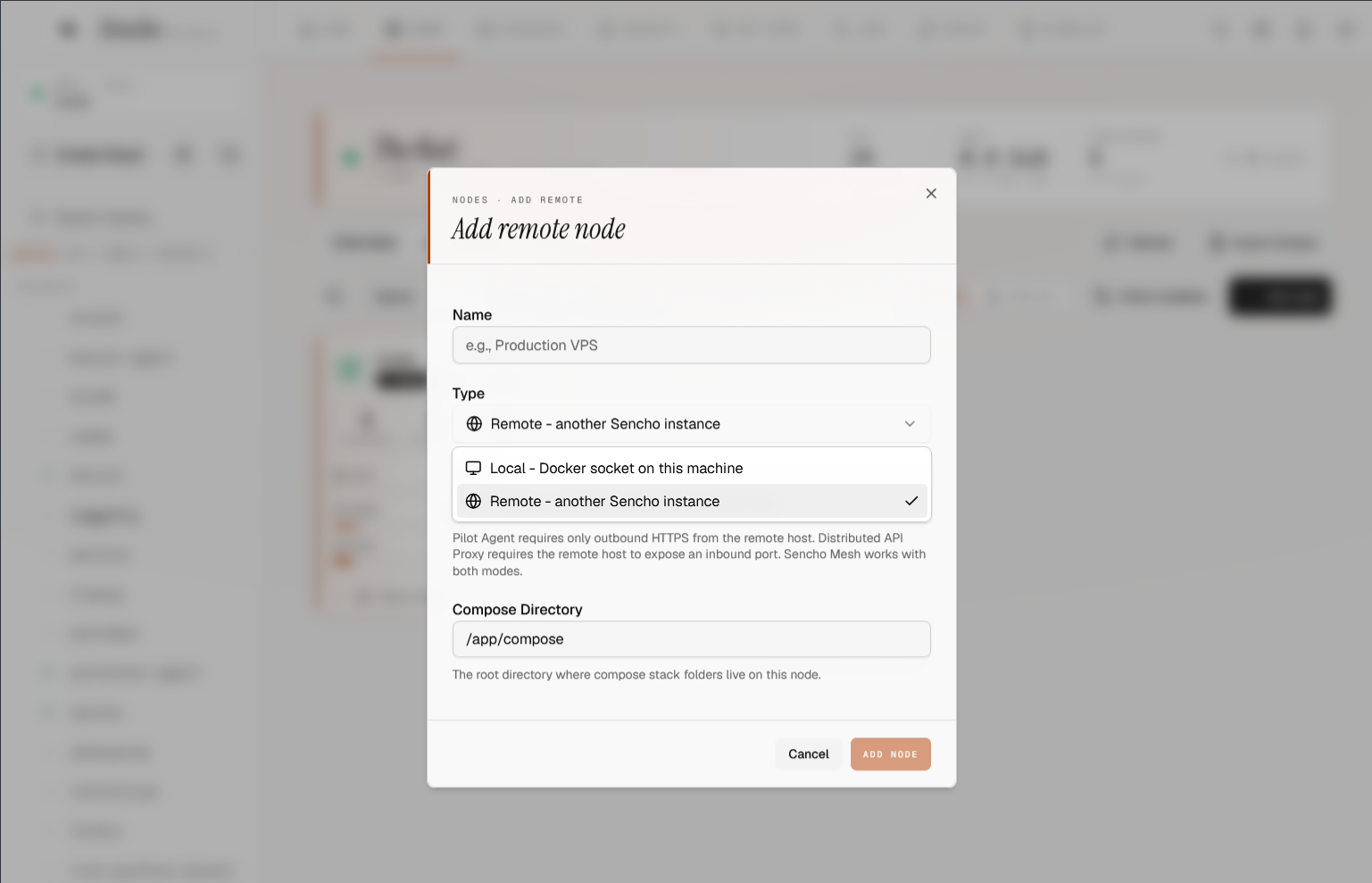
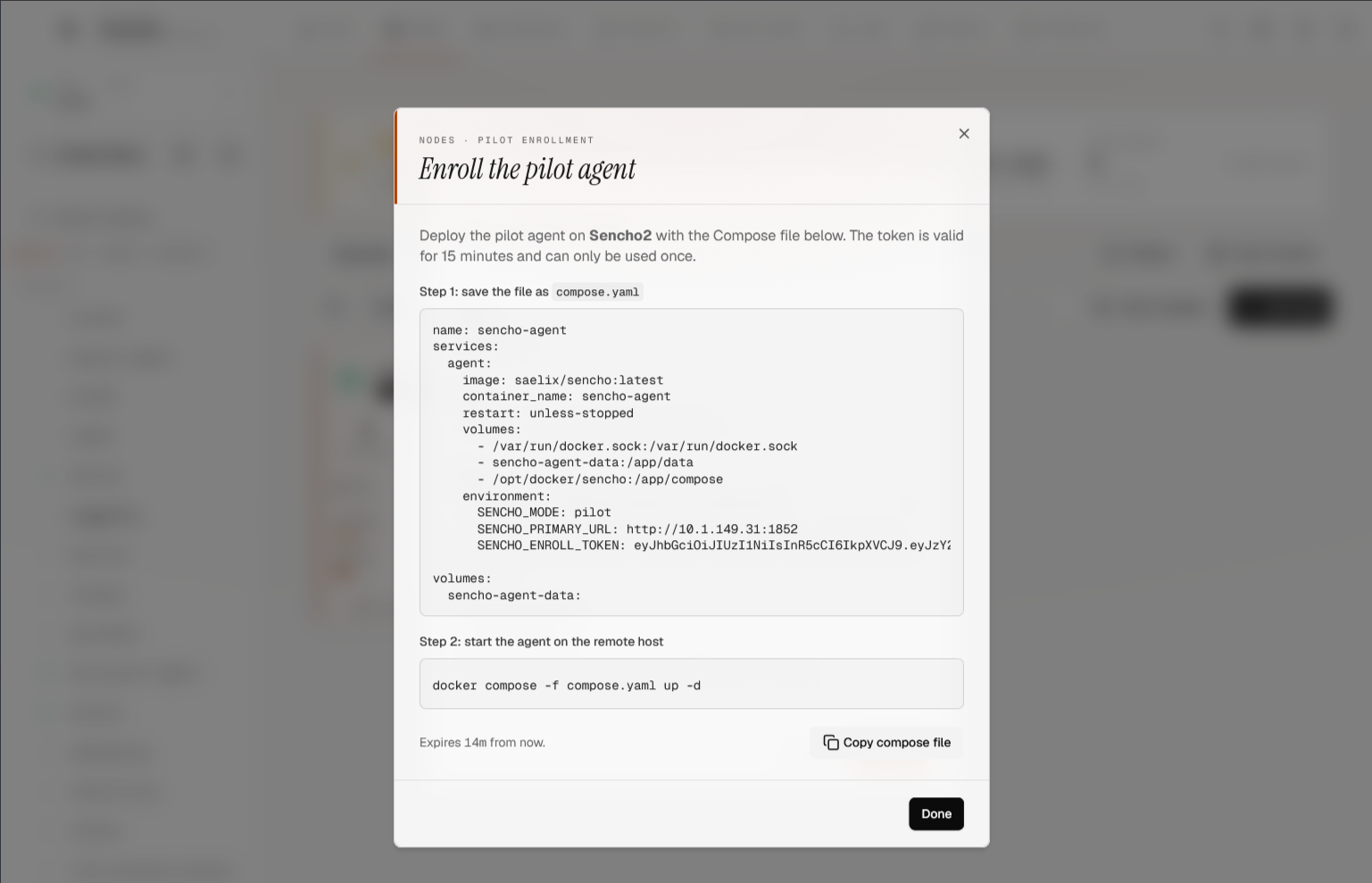
Once you name the remote node, Sencho will give you the pilot agent Docker Compose code you need to run on the remote node. This contains the API key. It will only be displayed once, so if you don’t copy it, you will need to re-enroll the agent, which isn’t a bit deal. But, keep this in mind.
Here, under our fleet management, we can see the remote agent added.
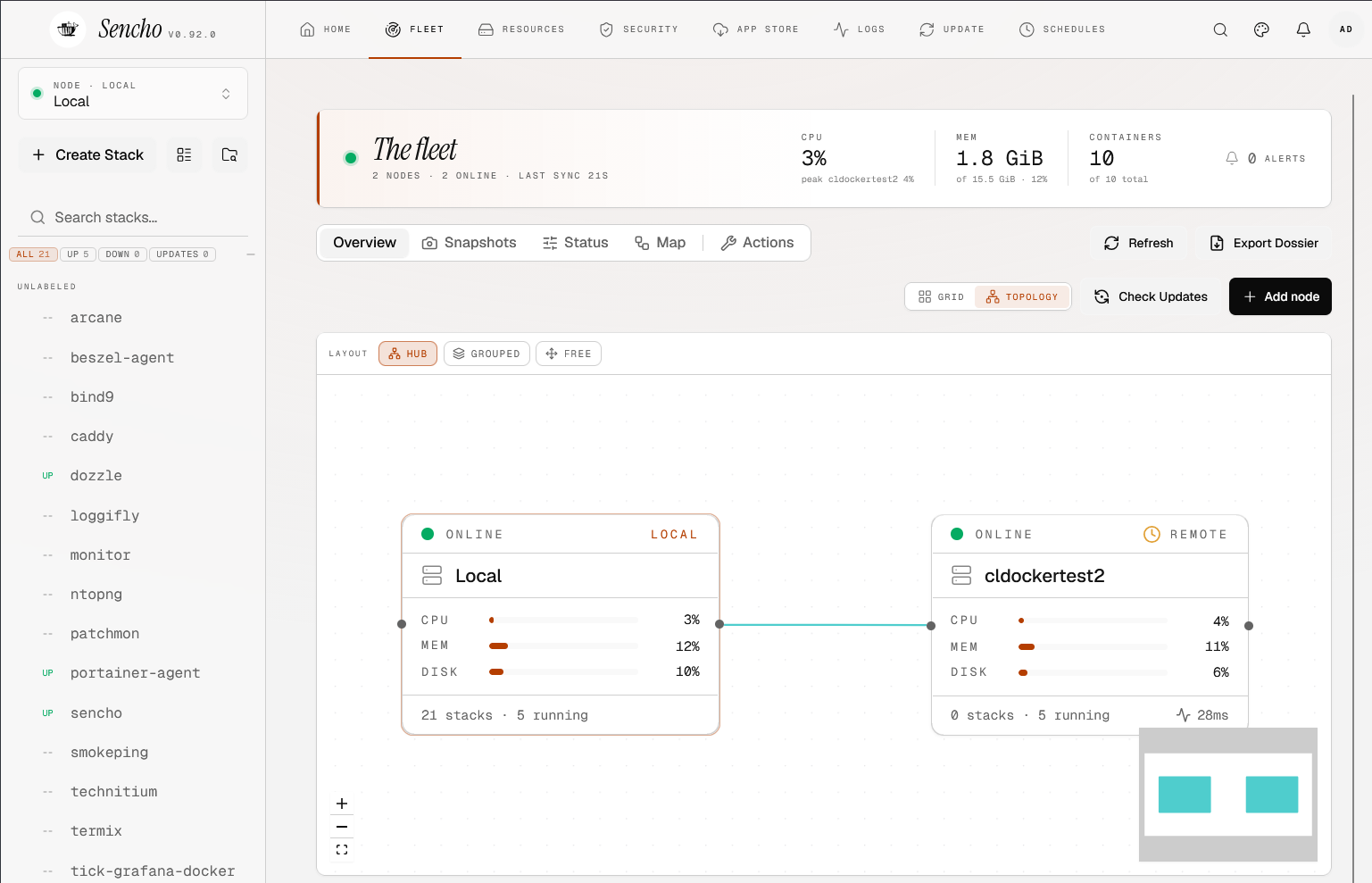
With Sencho remote nodes, this gives you the ability to have centralized management across multiple nodes. This includes being able to search across your nodes for a specific container and also view logs, etc.
Lots of visual cues and GUI resources
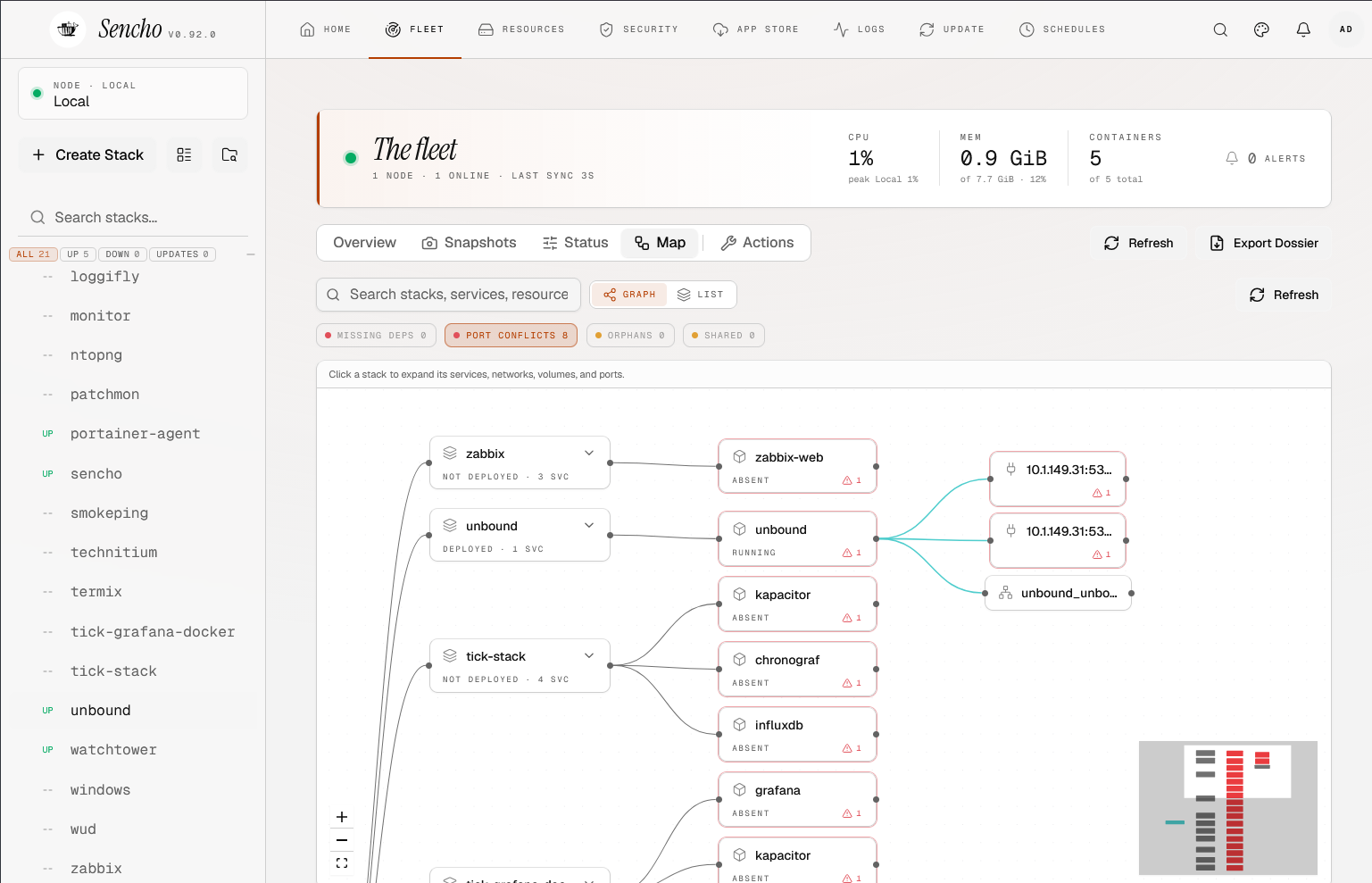
One of the things that I really like about Sencho and still getting to know and discover are the visual cues and GUI resources that you get in the interface. For instance, there is a lot of functionality even found in the fleet management under the Fleet > Map > Graph and there are lots of helpful things like Port conflicts which give you quick and easy visual cues on containers with potential port conflicts just as one example.
Housekeeping and management tasks
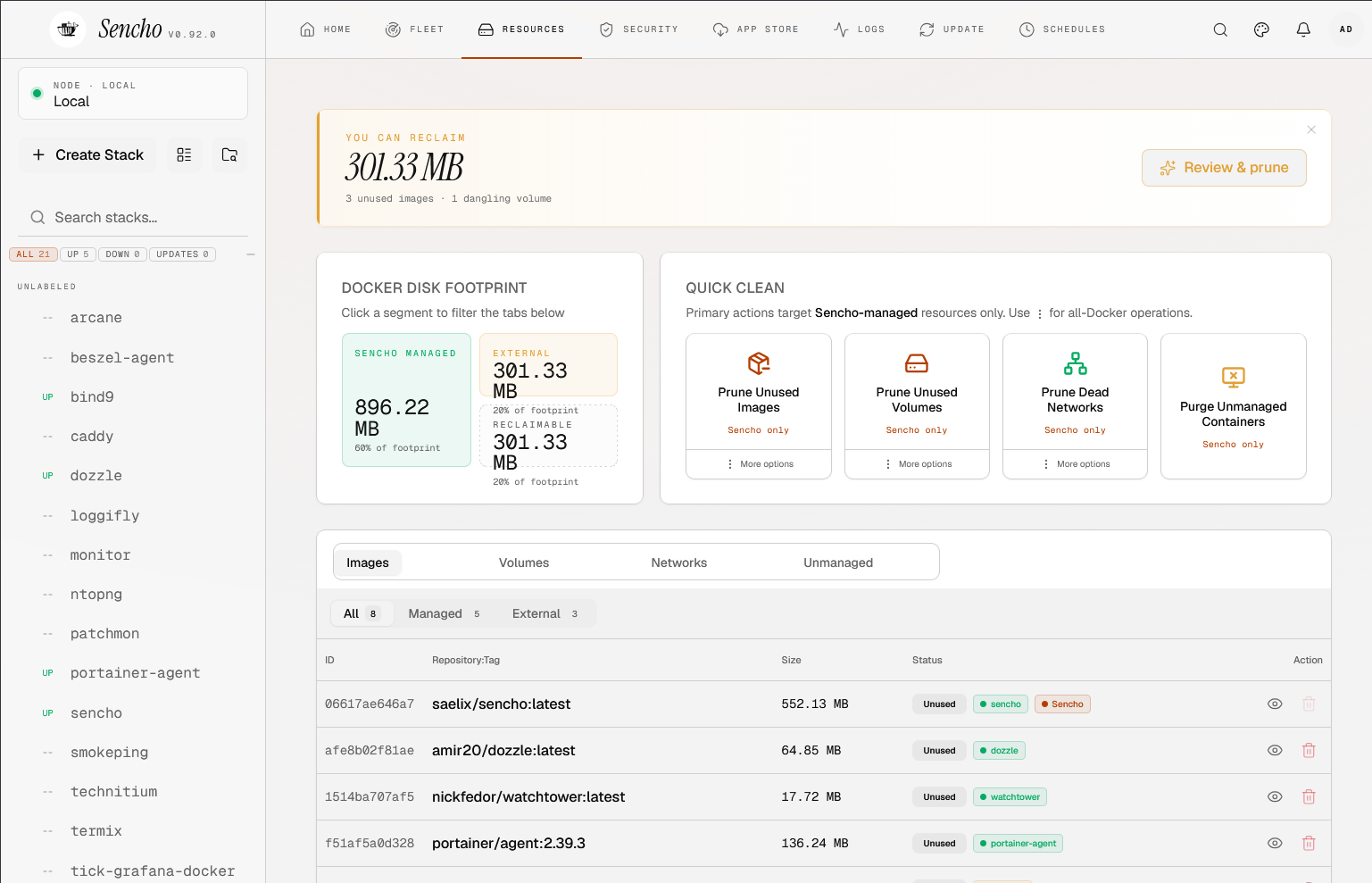
With Sencho, you have all the tools for taking care of the housekeeping tasks you need to carry out. We already mentioned some of this with the scheduled tasks functionality. However, we can also carry out these tasks manually. Under the resources tab, you can get a really good overview of the resources that may possibly be reclaimed, including disk resources, unused networks, etc.
The Dossier in Sencho provides built-in documentation
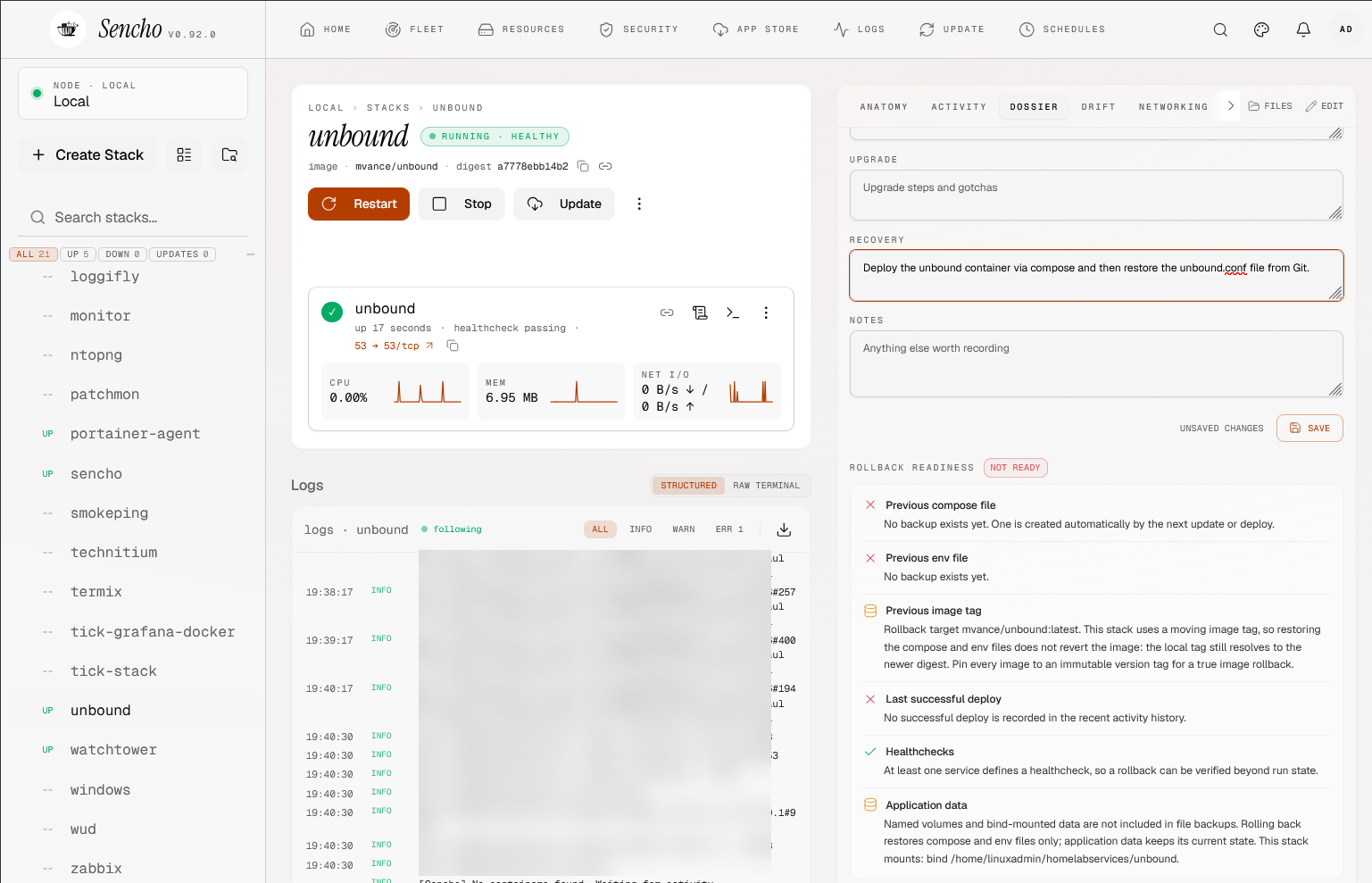
There is also a functionality built into Sencho that I really like called the Dossier. Here, you have several fields that can be populated that amounts to basically really good documentation for each individual container that you are running. You can keep notes on backup and recovery procedures, upgrades, general notes, and many other fields. It also has a really neat section called Rollback Readiness that based on your settings and other features you have used, tells you if you are prepared to rollback if needed. Pretty cool.
Wrapping up
I have spent a lot of time over the years and still do, testing out docker management tools as there are so many of them that are released fairly regularly. However, I will say that Sencho is the first one that I have been excited about in a while due to the great mix of features of the solution and really unique features that after seeing them in action I think are great. Things like the snapshot functionality, scheduled tasks, and very nice visual maps that you get with it to view your compose code and even details like port conflicts, etc. As always though, don’t take my word for it. Pull this down into your lab and try it out for yourself. How about you? Have you tried this out before? What are you currently using in your home lab for container management? Let me know down in the comments.
More in this topic



Google is updating how articles are shown. Don’t miss our leading home lab and tech content, written by humans, by setting Virtualization Howto as a preferred source.
About The Author

That’s nice, but I think I’ll stick with “Dockhand.” Still, it’s good to know.
Thomas,
Thanks for the comment! Dockhand is great. Definitely keep an eye on this project, I think it is a really good one to watch.
Brandon
The issue I’ve experienced with similar tools is their inability to update services with a build directive. Is this any different?
Any support in Sencho for git?
tanhauser_18656,
It looks like it is coming according to the features section as it mentions what it doesn’t have “yet” and git is on that list of features. I suspect this will be in a future release.
Brandon
It’s very complete. It’s also slow. Slow to start up, and slow to load pages (so, I keep seeing messages like “No Stacks” or “No Containers running for this stack” simply because it hasn’t got the data yet—and having written code that watches the docker socket, I know this isn’t on Docker’s end).
It’s got some annoying quirks: It keeps telling me I need to use the Janitor tool, but there’s no such tool (I think it just wants me to prune stuff). And I saw in the documentation that I should be able to suppress some notifications but I can’t find anything in the UI to allow it.
Still it looks much more useful to me than Dockhand, which I’ve had running for a month and never found a use for.
Oh, and the other thing: I have one annoying third-party container that needs to be restarted daily, but scheduled tasks only operate on _stacks_.
Derek,
I saw the same thing honestly. Looked for the janitor tool to see how to use it and see what it does, but never found it. Unless they are calling the cleanup tools the janitor tools and just not naming them such in the interface. So far, I haven’t see any startup problems, but I haven’t finished adding the agent to a few other test hosts which I want to do to full stress test it. Loving the snapshot feature though and a few others that I haven’t seen in other solutions. Interesting too on the stacks. I will do more testing with that as well.
Brandon
Yeah, the snapshots are great.
The biggest thing for me is that I want to supress the warnings about (certain) containers using the “latest” tag. Yeah, I understand that leads to non-reproducible builds, and appreciate that it pointed out that one of those was “Traefik”—which I thought I HAD pinned; I can’t afford to have that upgrade to something incompatible by accident—but there are many non-critical services where I’m much happier keeping them upgraded to the latest version, and fixing problems as they occur, than trying to upgrade them 3 major versions at once in a couple of years.
He’s super-fast about fixing issues, though! I’ve been using this for a day, and he’s already added a feature I requested and fixed a bug I reported.