


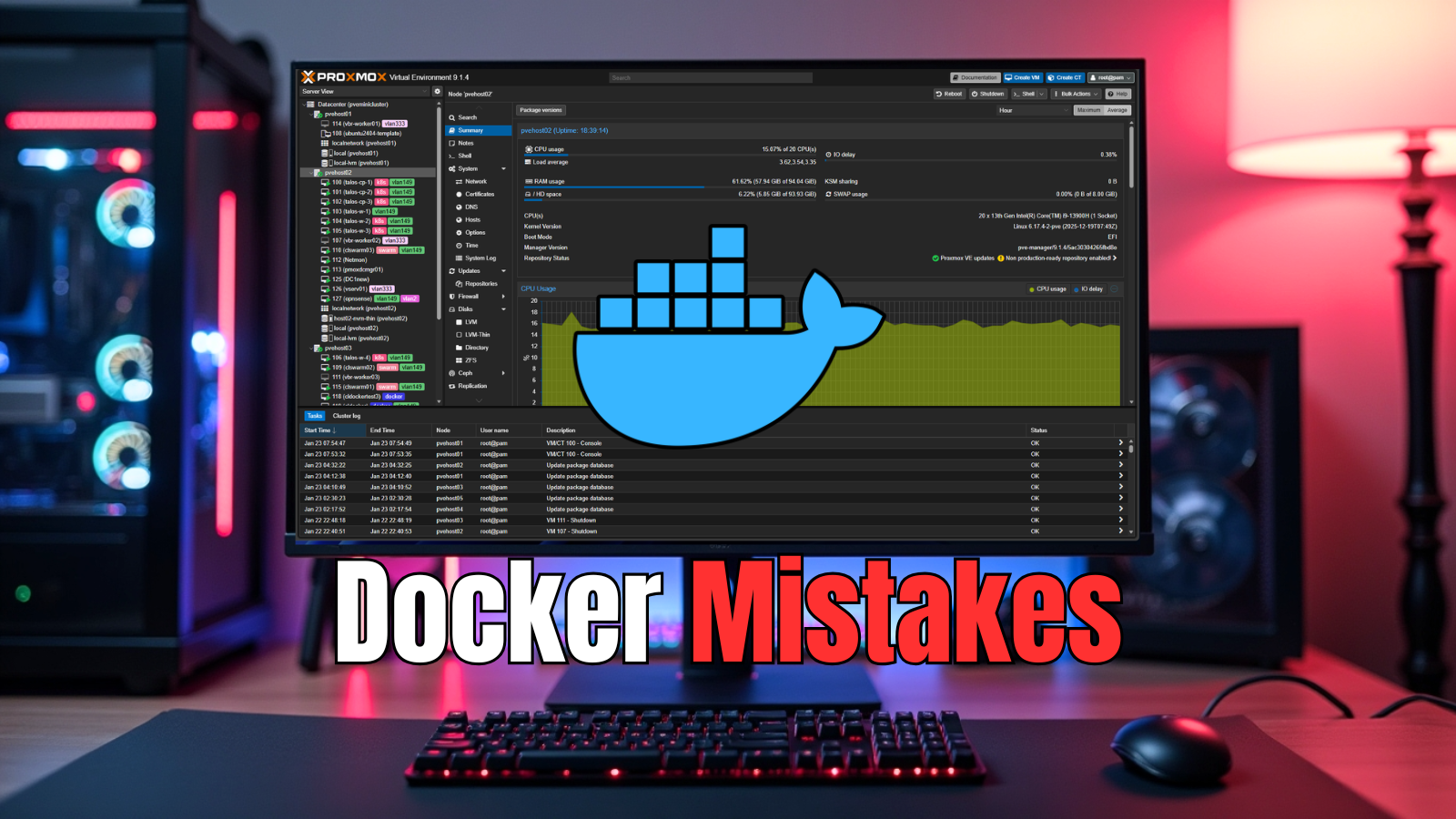
Docker is a super powerful tool that you can use in your home lab. I think for me personally, a turning point was when I started running mostly containerized services. Learning about Docker and how to run containerized self-hosted services ups your game. But running Docker can also lead to messy, fragile setups when mistakes are made. The good news is that most of the issues are easy to fix once you recognize them. I have covered general Docker mistakes before, but in this post I wanted to focus specifically on what I still see in real home lab environments today. Let’s walk through the biggest Docker mistakes I still see in home labs today and what I do differently now to keep things clean, stable, and easy to manage.
Running everything in one giant docker compose file
Docker Compose is an exciting way to run containers. It lets you put containers in a stack of services and run these all together But the problem (I know I did this when starting out) is that some are tempted to put everything they want to run in the same compose file. Then before you know it you have dozens of containers defined in one massive file.
At this point, things become harder to manage, and not easier. It is difficult to find things, updating services has to be done carefully. Also, troubleshooting gets to be a pain because everything is tied together. Now, there is nothing wrong with grouping related containers that are part of the same “stack” of services that depend on one another. That is what Docker Compose was meant to do.
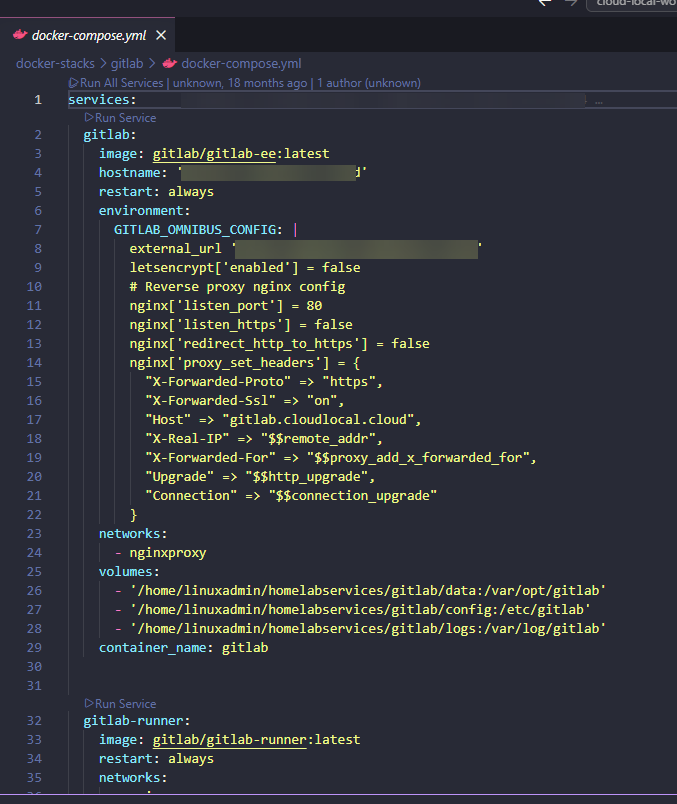
What I like to do is keep things simple, and group stacks of containers together if they have dependencies on one another or related to the same application inside their own folder. For instance, you could do something like the following for organization:
/opt/portainer/docker-compose.yml
/opt/nginx-proxy-manager/docker-compose.yml
/opt/netdata/docker-compose.yml
This approach makes it easy to start, stop, and update individual services without impacting anything else. It also makes your setup much easier to understand when you come back to it later.
Not using volumes correctly
Another issue that I was guilty of as well is not having a consistent way to deal with storage for your Docker containers. People usually either use bind mounts everywhere without much of a plan or they rely on volumes without understanding where their data is at. The result is confusion and sometimes data loss.
When you use named volumes, this is great for portability and keeping things simple. Bind mounts are useful when you want direct access to files on the host for configuration or working with the files inside your containers.
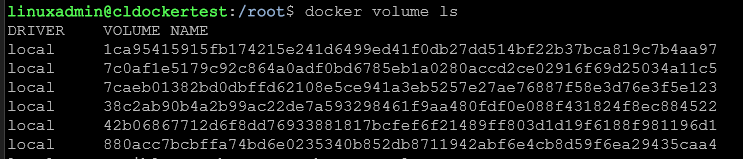
Pick a standard approach and stick with it. For example, you might store all application data under /opt/appname/data and all configs under /opt/appname/config.
Also take the time to understand where your data actually lives at. If you cannot quickly answer where your database files are stored, that is a problem that will probably cause you some heartburn in the near future when you are struggling to know if you have a copy of your data or you need to restore a corrupted config file, etc.
Having no real backup strategy for your persistent data
Most beginners running Docker don’t really understand that the “container image” is different from the data these rely on. That is one of the first hurdles when you start dealing with running containers and understanding that just because you have a copy of the container “image” this is separate from the data it connects to. Container images are the disposable part, your data is not.
If you are not backing up your volumes or bind mount directories, then you don’t have a good backup strategy. I have seen people lose entire setups because they assumed they could just spin up the container again and everything goes back to normal. That works until you realize your database, application state, or configuration is gone and you have no way to recreate it.
A solid approach is to back up your persistent data directories on a schedule. Even a simple rsync job to another system is better than nothing. If you want to go further, you can use tools like Proxmox Backup Server or other backup solutions in your lab. I use a combination of PBS and Veeam to grab good copies of the entire VM, but then use tools like Duplicati and Borg to grab another copy of the persistent data folders as well.
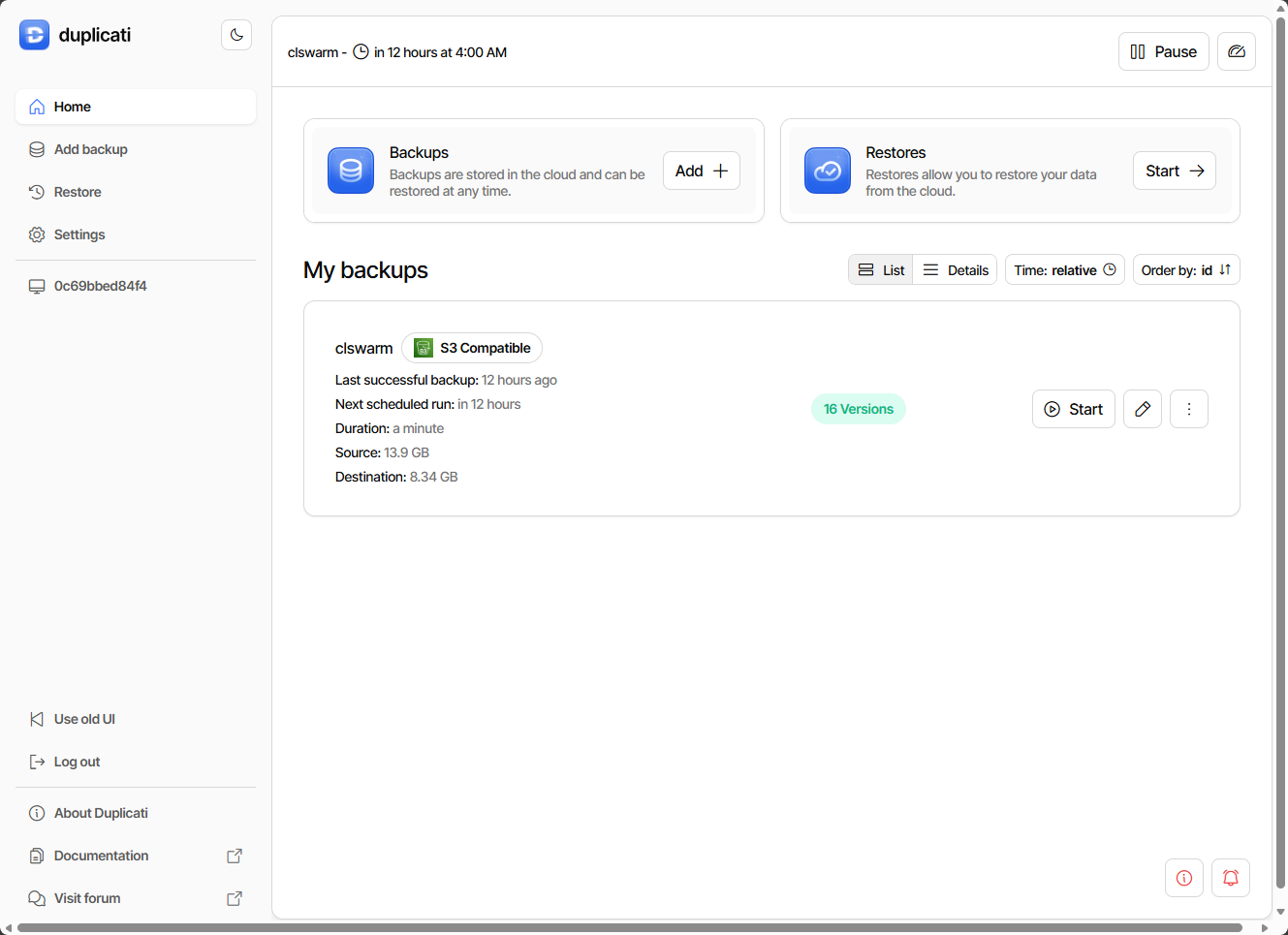
Also, don’t assume that just because you have backups, these are good. Without testing your backups, you don’t really know for sure you can restore your data. So, frequently test a restore here and there, especially of your critical home lab apps just to make sure the data is there and the backup contains what you expect it to contain.
Exposing ports directly to your container host
It is definitely easy to do and it can be convenient to expose ingress ports on your firewall that directly hit your container host. You spin up a service, expose the port to the Internet and you are done. Don’t do this. This creates a management problem with managing rules and ingresses, but it is also a massive security risk.
Instead of doing that, I recommend using a reverse proxy like Nginx Proxy Manager or Traefik. These allow you to have a single entry point exposed, and then route traffic to your containers internally. Traefik has some really great plugins that you can use in addition for even better security like Geo-IP blocks, and many others that help with security.
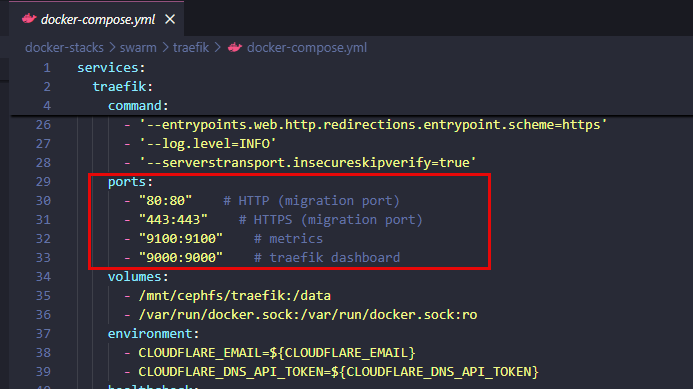
This will keep your access from the outside simple and easy and will allow you to drastically reduce the number of open ports you expose. This gives you easier security and the ability to also automate your certificates.
Not setting proper restart policies
Another mistake I still see in the home lab around docker containers is not setting or using a restart policy. By default, when you run a Docker container, it doesn’t restart automatically. That means a simple reboot of your container host can take down your entire environment until you manually restart the containers. The
The ultimate fix for this situation is pretty straightforward though. Use restart policies in your compose files. In many cases, using the simple restart policy of:
restart: unless-stopped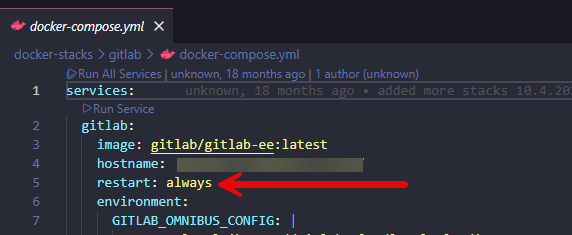
This makes sure that your containers are spun back up after a reboot but it still allows you the flexibility to stop them intentionally when this is needed. This small change makes your setup feel much more reliable.
Bad network organization
The Docker network is another area that can get overlooked. Many home lab setups leave everyghing on the default bridge network. This will work. But it starts to get difficult to manage as your environment grows.
The best practice that makes life easier the more services you run is to separate services into their own networks to give you better control and keeps things intentional. This also lets you isolate your apps that should not communicate with each other.
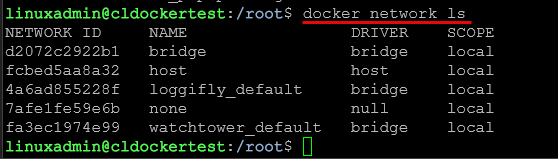
For example, you might have a network for your reverse proxy and then have another network for backend services in your home lab. Containers that need to talk to each other share a network. Then the others stay isolated. This will help you with securing your containers and it also helps with troubleshooting and isolation..
Blindly copying docker compose files from the internet
Hey I have done this more times that I care to say. There are arguably thousands upon thousands of examples of using the same apps or similar apps on the Internet. It is tempting to just copy and paste one of the examples you find and move on. But this can definitely lead to having problems.
Examples are great, but they could be from an outdated way of configuring the container. It may include insecure settings or other non-optimal defaults. Then, when you copy the compose and spin up a container from it, you inherit the security issues and other potential misconfiguration that someone else has.
Instead of just blindly copying a docker-compose example, take a few minutes to better understand the configuration. Look at the image being used. Is it outdated? Is the configuration of the container still recommended to be done the way the example is showing? Look also at the environment variables, volume mappings and network configuration.
I like to check the official documentation for applications that you are interested in running as a container. Often vendors will keep their examples updated to align with the recent versions of their apps, so this is a good place to start.
Not pinning image versions
This is another one that most of us are guilty of in our home labs, using the latest tag. But, even though you may be pulling the latest image available or posted, this can introduce unexpected issues in your environment. An update to a container might introduce new behaviors or break compatibility. It can also introduce new bugs that you may not be expecting.
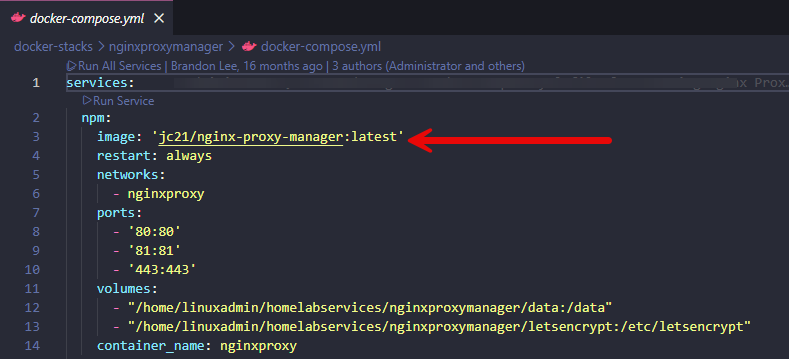
Most will tell you that one of the best ways to deal with your container lifecycle is to pin your containers to specific versions of images. This gives you control over when updates happen and it lets you test changes before you roll these out in your “production” environment.
When you are ready to update your container image version, you can review the release notes and then update the version in your compose and force recreate
Not monitoring
Many may think that just monitoring the Docker container host itself, whether this is a physical machine or a virtual machine is enough and the main thing you need to do. However, make it a habit to monitor the containers themselves. Check the logs out in your running containers. I use a tool called Loggifly that automatically notifies me if it sees certain key words show up in the container logs like “error” or “failed” etc.
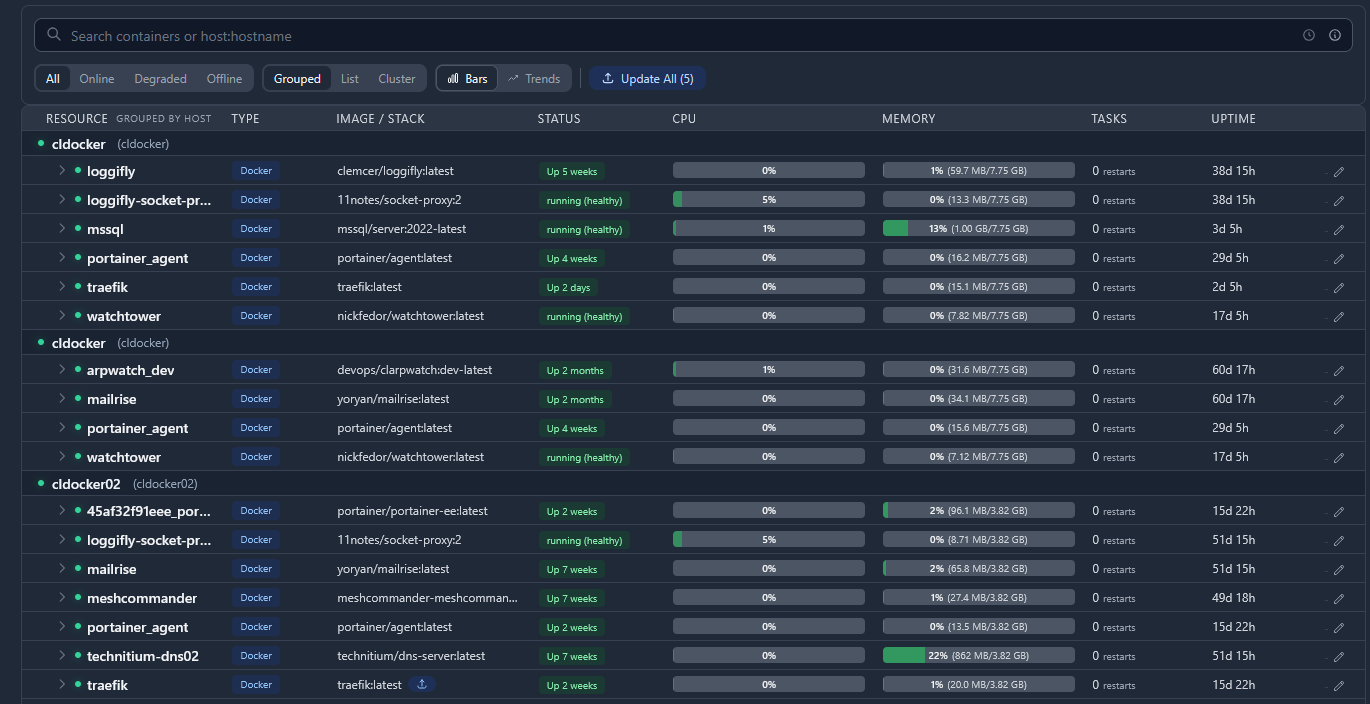
Also, if you are running Proxmox in your home lab, a tool like Pulse is a great tool to monitor everything that relates to your containers in the home lab. It monitors Proxmox, the virtual machines running, including your Docker container hosts, and it also monitors the containers themselves. It is arguably one of the best monitoring solutions out there right now in my honest opinion.
Treating containers like virtual machines
If you are running your containers like you would a virtual machine, you are really not using them in the way they are designed or intended. Containers are not VMs. They are meant to be disposable and reproducible. If you find that you are logging into your containers, making changes, or relying on state inside the container, you are probably not doing things the right way.
It is much better to define everything in your docker-compose file. If you need to make a change, update the config and recreate the container. This will keep your environment consistent and easy to rebuild if you have something go wrong.
Not cleaning up unused resources
This is a big one that i still see a LOT. Over time, Docker hosts will accumulate unused images, stopped containers, and it will have dangling volumes. You will be surprised at just how much space this can take up on a Docker container host that you have had running a while.
You can check your disk space from unused resources with the command:
docker system df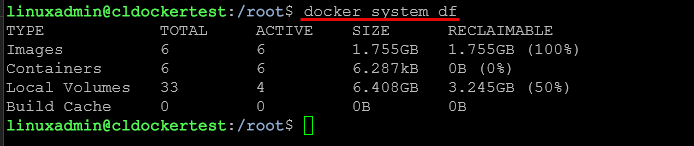
I have a scheduled pipeline that runs the command docker system prune that reclaims space. Just be careful whn you are pruning data that you do not get rid of volumes that may have important data in them. Running this simple command at least weekly can help to keep your container host running smoothly with plenty of disk space.
Wrapping up
Running Docker containers in your home lab is one of the most powerful and surprisingly easy things you can do to self-host your apps. Keep in mind that most of the problems that we see in our home labs related to Docker are not caused by Docker itself. But, they are caused by how we structure and manage our containers over time. These small changes that we have mentioned, like organizing your compose files, setting restart policies, and being intentional with storage and networking can help you improve the overall stability and manageability of your home lab. How about you? What mistakes have you made or do you see made when it comes to using Docker in the home lab?
More in this topic



Google is updating how articles are shown. Don’t miss our leading home lab and tech content, written by humans, by setting Virtualization Howto as a preferred source.
About The Author
