


For the past several months now, I have shifted my home lab to immutable Linux distros like Flatcar which has changed how I think about installing software and things like monitoring agents. On a traditional Linux box, I just SSH in and install the package and let it do its thing. However, with immutable Linux, it isn’t that easy. You have to be much more intentional about where binaries live and how services start. For my Flatcar hosts, every custom component that I didn’t include in my ignition file runs as a custom component using either a systemd service or a systemd timer. Let me take everyone through what I have configured, how, and why that makes it possible to run certain things you wouldn’t be able to otherwise.
Why systemd becomes even more important with your immutable Linux distro
The first lesson I learned is that immutable Linux changes where you can customize things. The operating system for the most part is mainly read only. So you have to remember that instead of changing the base OS image you have to do things a different way. One of the ways that you can “install software” is installing services using systemd that do what you want the software to do.
With this approach in your home lab, you can do things like:
- Start custom agents
- Launching containers
- Schedule various tasks
- Restart failed services
You can let systemd do all of these for you. Once I saw this was possible, I now manage my Flatcar hosts using systemd services and timers.
Running agents with systemd
One of the things that I wasn’t sure about was how I was going to “install” agents that I was running on my other docker hosts inside of Flatcar. One of the first examples in my environment was deploying the Pulse Unified Agent across multiple Flatcar hosts.
At first, I created a straightforward service file that looked like the following:
[Unit]
Description=Pulse Unified Agent
After=network-online.target docker.service
Wants=network-online.target
Requires=docker.service

[Service]
Type=simple
ExecStart=/var/lib/pulse-agent/bin/pulse-agent \
  --url http://pulse.cloud.cloud:7655 \
  --token-file /var/lib/pulse-agent/token \
  --interval 30s \
  --enable-host \
  --enable-docker
Restart=always
RestartSec=5s
User=root

[Install]
WantedBy=multi-user.target
This service file looked good at first glance and looked like it would work. I knew Pulse depended on Docker because I wanted it to collect container metrics. It seemed like it was a logical step to include Docker as a required dependency. But, after running this config across several of my hosts, I found a problem with doing it this way.
If Docker restarted in an unexpected way or took longer than expected to get up and running after a boot, Pulse would end up in a failed state because of the dependency on:
Requires=docker.serviceIt worked “most” of the time, but I wanted to have something that is bulletproof. After looking to see what I could do, I updated my service definition to remove the hard dependency on docker.
[Unit]
Description=Pulse Unified Agent
After=network-online.target docker.service
Wants=network-online.target docker.service
StartLimitIntervalSec=0

[Service]
Type=simple
ExecStart=/var/lib/pulse-agent/bin/pulse-agent \
  --url http://pulse.cloud.cloud:7655 \
  --token-file /var/lib/pulse-agent/token \
  --interval 30s \
  --enable-host \
  --enable-docker
Restart=always
RestartSec=10s
User=root

[Install]
WantedBy=multi-user.target
This version of my service file for the Pulse agent has been rock solid in my Flatcar environment. The service still starts after Docker in most cases. But, now, it doesn’t get stuck if Docker restarts or is down for whatever reason.
I have played around with increasing the restart delay to ten seconds and this gives Docker a little more time to start up before Pulse retries. That is one of the small tweaks that I have left in place now.
Using systemd timers instead of cron
Another place that I have used systemd is for scheduling certain tasks to run various workflows in the home lab. On Flatcar, I am using systemd timers to carry out certain tasks. A great example is the automatic TLS certificate renewal for my Sidero Omni instance.
On Ubuntu Server, certbot was installed and automatically renewed my Let’s Encrypt certificate for my Omni instance. However, with Flatcar, instead of installing Certbot onto the OS, I run Certbot Docker container when a systemd timer fires off.
The timer itself is fairly straightforward. It looks like this:
[Unit]
Description=Check Omni TLS certificate twice daily

[Timer]
OnCalendar=*-*-* 00,12:00:00
Persistent=true

[Install]
WantedBy=timers.target
When the scheduled timer goes off, a service launches the Certbot container. The certbot container has access to my Cloudflare DNS creds and it renews the certificate if it needs it. It also fires a deploy hook that restarts the Omni container if it needed to renew the certificate, but only then.
I really like this approach because it allows me to keep my Flatcar instance clean, without having to jump through hoops to install anything. It is less to maintain later. Everything is inside the container that runs and systemd handles the scheduling.
Organizing executables and data that you want to be persistent
One of the mindset changes in working with an immutable Linux OS like Flatcar is that you can’t take for granted where you actually put the data and executables that you want to remain persistent. At first, I stored some things under /var/lib. I created symbolic links elsewhere so they could be found in my PATH.
For example, one tool I use is Doppler. I originally kept the Doppler CLI under the following path:
/var/lib/doppler/binBut after doing some troubleshooting on another host related to an app, I realized there was a better way. Flatcar’s has documentation that recommends using /opt/bin for custom exe’s. That makes much more sense because it is a dedicated location for software that is not part of the operating system, which is read only. So, the following are the general locations that I put things:
- /opt/bin for custom exe’s
- /etc/systemd/system for services and timers
- /var/lib for persistent state
- /etc for config files and such
- /var/lib/… for app creds/tokens
Keeping a consistent location for these types of things helps with troubleshooting and just general management overall.
The troubleshooting commands I use for my systemd services and timers
Systemd has a lot of great commands built-in that allow you to setup things like custom agents and software and also set up timers to fire off.
To view all of your systemd services, use the command:
systemctl list-units --type=service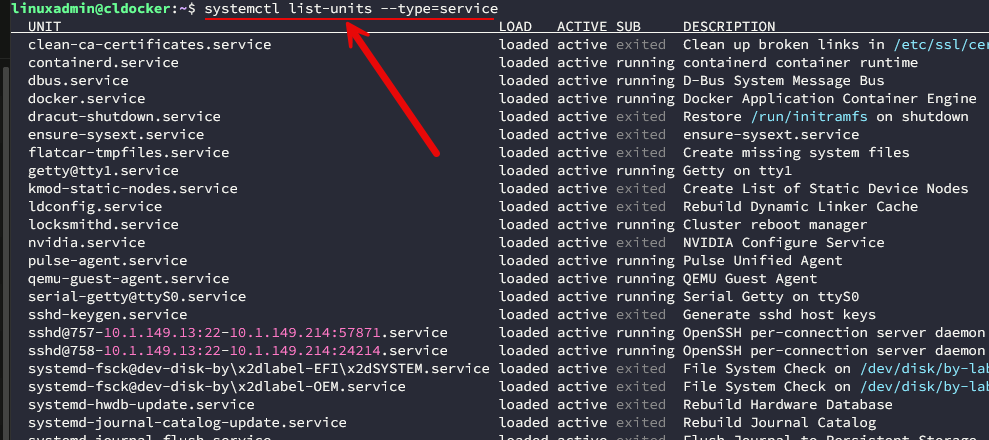
You can also grep for a service when you combine it with grep:
systemctl list-units --type=service | grep pulse
One of the most basic commands to use when something is not acting right is:
systemctl status your-service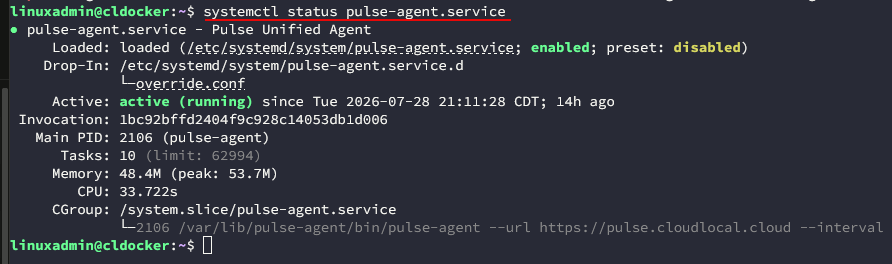
This command will tell you if something is running or exited and it usually gives you enough information to know for sure what the problem is. If you want to know which system unit is active, you can also use this command:
systemctl cat your-service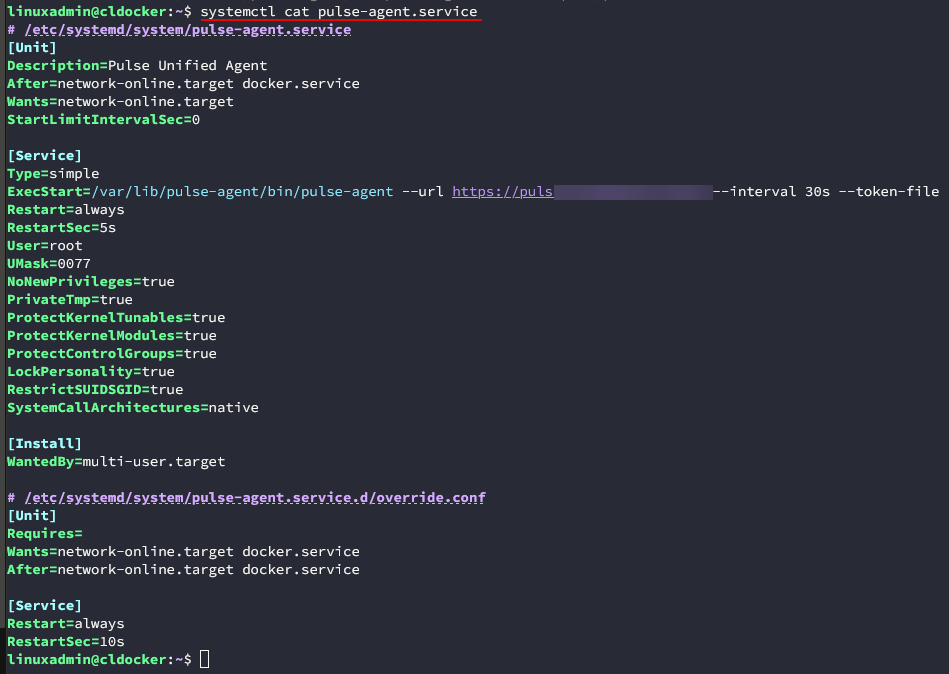
When I need more detailed information about a service, I usually jump directly to the journal logs:
journalctl -u your-serviceFor scheduled jobs you can use this command for details:
systemctl list-timers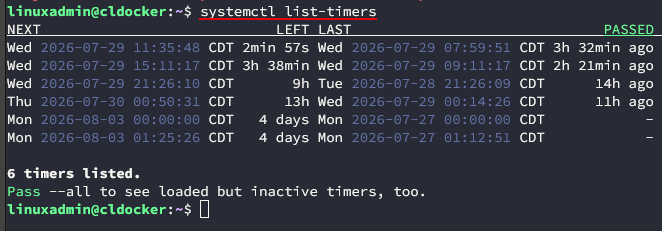
This will tell you if the timer is enabled. It will also let you determine when it will fire off next, and that it has actually run.
For my certificate renewal automation that I mentioned with Sidero Labs Omni, I also check:
systemctl status omni-cert-renew.timerTo trigger the service manually, instead of waiting on the timer to fire, you can do this, which makes testing a lot easier.
systemctl start omni-cert-renew.serviceWhenever I modify a service definition, it is a good habit to reload systemd before restarting the service. With this command you’re telling the systemd manager process to re-read all of its unit files from disk because they may have changed.
sudo systemctl daemon-reload
sudo systemctl restart your-service
Wrapping up
When move away from running mutable Linux distros in the home lab over to immutable distros, there is definitely a learning curve or maybe a mindset change in how you manage things. Systemd becomes your friend and it is a great skill to learn any way. Moving over to immutable Linux forces you to get more familiar with it. I like this since I am trying to improve my skills with Podman quadlets and Systemd is THE management tool with Podman. How about you? Are you moved over to immutable Linux distros in the home lab as of yet? Let me know what your experience has been and if this post is helpful with how I am doing things in my lab.
More in this topic




Google is updating how articles are shown. Don’t miss our leading home lab and tech content, written by humans, by setting Virtualization Howto as a preferred source.
About The Author

Thank you Brandon, I have been wondering how to handle some of these things in Flatcar Linux when I have tested. This will help me in my home lab.
Same here, I have been able to hack my way through a couple of “installs” but they got wiped out when the OS updated, so need to look at the directories here.
I also found this article timely and quite helpful.
If you are considering a follow-on article, I would really appreciate your insights into best practices for pre-assembling systemd services in a Flatcar template. So far, I haven’t found any documentation that clarifies how to do this in a repeatable manner.
echuck,
Very nice idea here. I will think about how to best put this together and a few examples for Flatcar and systemd services 👌
Brandon