


There are definitely some home lab problems that are easier to diagnose. If you have a service you know about that crashes, a container that exits for some reason or a disk space problem on a VM, those are fairly easy to find and fix. Then you just move on. However, I have spent more hours troubleshooting networking than almost any other part of my home lab. Looking back, what still surprises me most is that it is almost always a relatively simple mistake that creates very confusing problems. These are the networking mistakes that have caused some of the weirdest problems in my own home lab, along with the lessons I learned from each one.
MTU mismatch mistakes cause apps to hang
This one is one of the most frustrating ones that I have ran up against in my home lab. It can be incredibly misleading. In troubleshooting an MTU mismatch, I started by troubleshooting all the normal things. I checked DNS on the VM and it could resolve hostnames. I could also ping remote hosts. HTTPS requests worked. Docker registry responded. But a VERY large Docker image download would stall. Or backups were failing with weird connectivity issues.
When a Docker image pull fails, I thought Docker was the problem. When the backups failed, I thought it could be a firewall issue or something else. The real culprit turned out to be the network MTU.
Somewhere along the path, packets larger than what the network path could handle were being silently dropped. Small packets would work perfectly. But if you had certain “elephant flows”, these were failing. So, if you just do basic network connectivity tests, these look healthy. Then, larger transfers would eventually hang because packet fragmenting was not happening correctly.
Just know that you can’t rely completely on a successful ping test proving anything beyond basic connectivity. Today, MTU is one of the first things I check when I see symptoms like:
- Docker image pulls hanging
- Git clones stopping unexpectedly
- Backup jobs failing
- VPN traffic that misbehaves
- Some websites load but others do not
Testing for MTU issues
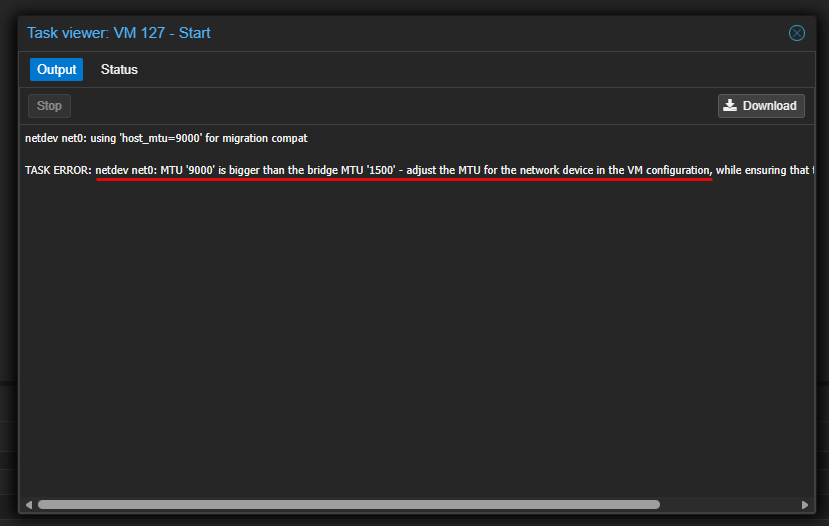
Sometimes you can lower the MTU temporarily to immediately test and then confirm that you have found the problem. You can also ping with a jumbo frame packet size to see if the path is setup for jumbo frames. I have had situations too where I didn’t realize I had accidentally set jumbo frames on a Proxmox VM and this was the one that was failing on backups.
Check out my full post on what happened to me not long ago with this here: Jumbo Frames Broke My Proxmox Cluster and Here’s Why. Moral of the story is this: don’t rule out an MTU issue just because it seems like it is an obscure issue.
Overlapping subnets are a mistake that confuses routing
This is a mistake that can be easy to make in a home lab or even production environment when you are coming up with new subnets especially for a new network segment. Sometimes I have gotten into trouble with this one when bringing up a new subnet in the home lab.
For instance if you were to come up with a “supernet” like the following:
192.168.0.0/23This subnet overlaps the very common consumer router type subnet of:
192.168.1.0/24I have seen these used in business environments as well. So when planning out your subnets, be sure to know that you haven’t overlapped another subnet you have in “production” in your home lab.
Also, this can be a common problem when you connect connect different locations together through VPN connections. If both sites use the same subnet or one overlaps the other, routers have no real way to determine which destination is the correct one to send packets.
Honestly, after you get more than 3 or 4 networks in your home lab or production environment, this is where an IPAM comes in extremely handy. You think you will remember all your subnets off the top of your head, but none of us can really do that after several months pass and we get enough networks in play. I use phpIPAM in my home lab and it works really well. If you want to learn how to stand it up, check out my post: Mastering phpIPAM Docker – The Ultimate Setup Guide.
An IPAM gives you an organized way to keep up with your network information and keep your VLANs and subnets straight in your mind. Instead of reusing the same private network everywhere, it is a good idea to intentionally separate your networks, especially if you are connecting locations. That makes future VPNs, cloud connectivity, disaster recovery environments, and temporary lab deployments dramatically easier.
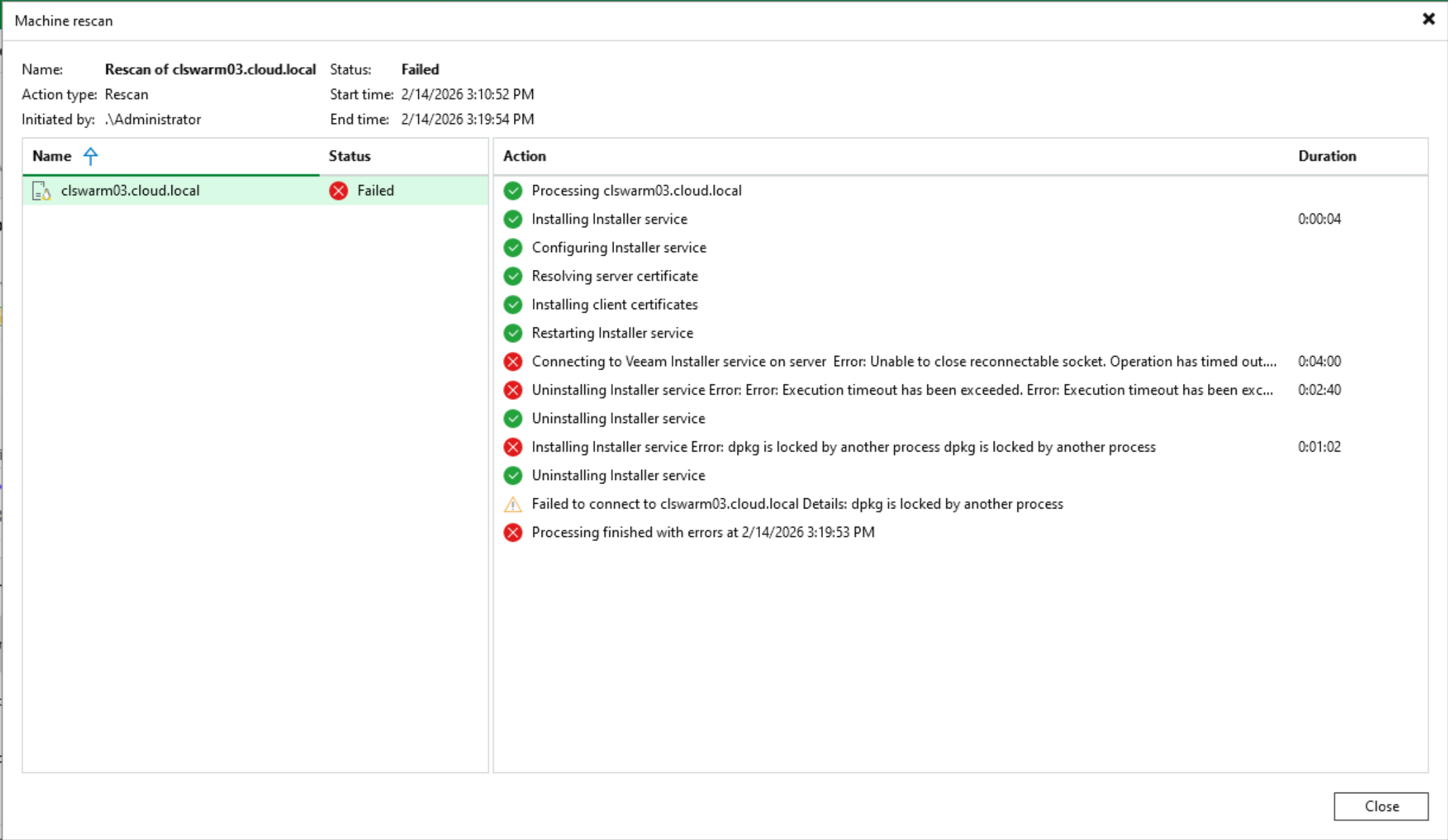
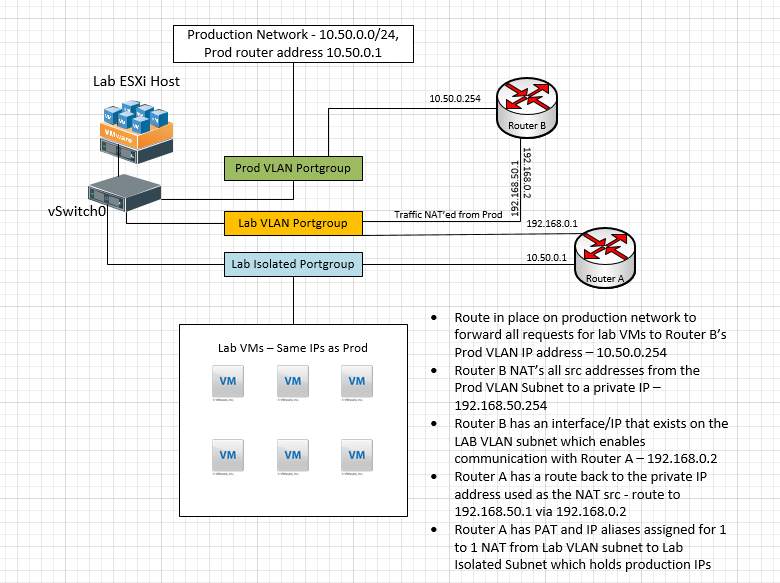
Sometimes, you might intentionally want overlapping subnets maybe to be able to restore machines as is, in a nested lab so you don’t have to reconfigure networking. But to do that, you have to take special steps. Read my post on this here. It is an oldie but a goodie on how you can pull this off: Overlapping Subnets Lab Environment.
DNS mistakes
If there is one system that you can make a mistake in that will absolutely nosedive your home lab or even production environments, it is DNS. It provides the name resolution that applications and services rely on to function correctly.
You have probably heard the joke “it’s always DNS” and the funny thing or joke about that statement is that it is normally true! There are definitely some silly DNS mistakes that I have made in the home lab. So let me pass on things that I have done that you shouldn’t do. Please learn from my mistakes.
- Running only 1 DNS server – This is a big one. You need more than one server, even in a home lab. When name resolution is down, everything is down. Don’t paint yourself into a corner
- Creating another record when you already have the same record in place and only one of the records is good. What does this do? Well your clients will do what is called round robin record look ups. So one query may query the good record. Then, the other query a few minutes later may query the bad record. This leads to super hard to figure out randomness. Prune out your old records.
- Keep DNS configurations in source control – I now keep things like Unbound configs in source control. This allows you to roll back configs and even check configs for syntax issues as part of a pipeline.
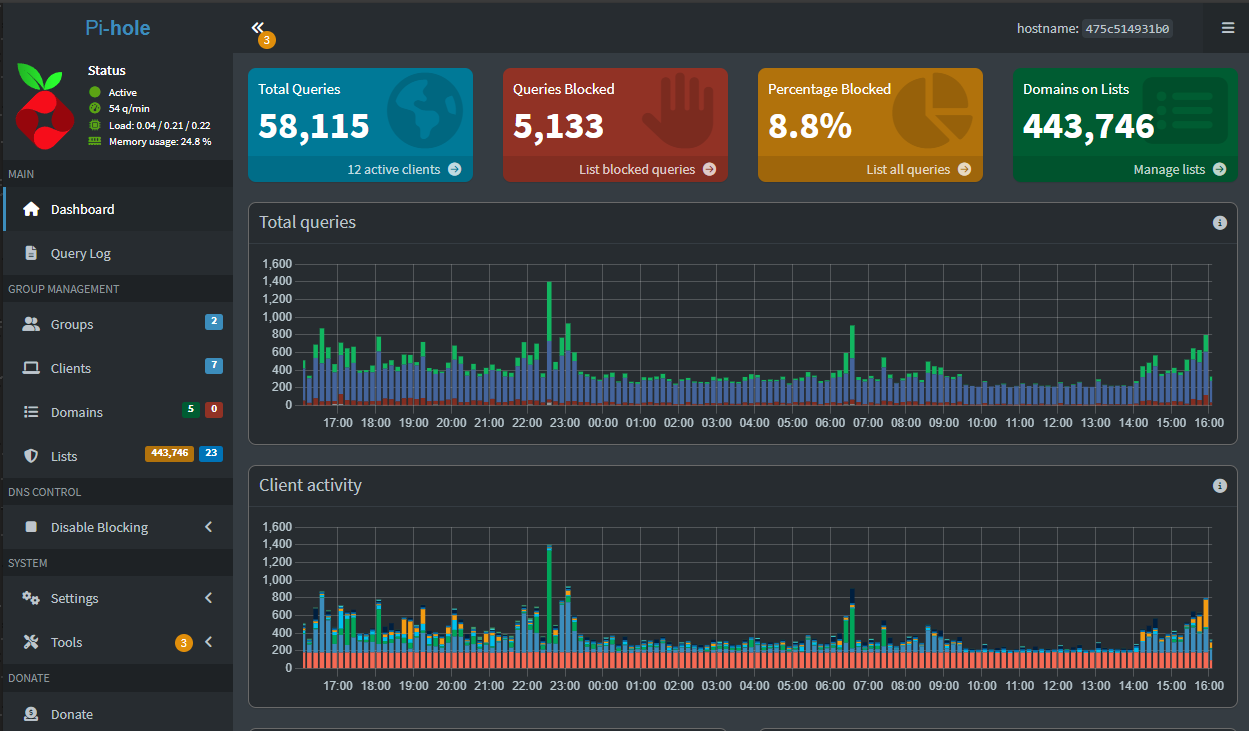
If DNS becomes unreliable, the entire home lab starts feeling unreliable. So, do yourself a favor and make DNS one of the most resilient services you run in your home lab network. Check out how I added multiple Unbound instances that were driven from infrastructure as code and a CI/CD pipeline: I Thought I Needed an Unbound Cluster. The Solution Was Much Simpler.
Duplicate IP address mistakes
Duplicate IP addresses can cause super strange networking issues across the board. If you have ever seen this, you will know the frustrating part is that often things work ok for a while, until it doesn’t. You might lose connectivity for thirty seconds. Then all of the sudden things are connected again.
What you don’t know behind the scenes is you have two machines ARP’ing out and fighting over who has that IP address. This can cause extremely frustrating issues in a home lab network. How can you easily make this mistake?
Well, I do this all of the time, still to this day and it always comes down to discipline. I will stand something up “temporarily” just to play around and get it on the network. I will static the box inside a network that also has a DHCP service running. Often I will do this with some of my automation scripts that sets networking config. Like deploying a new Ubuntu Linux server for some testing I am doing.
Then, I will forget I have it on the network, then another machine I bring up is on DHCP and grabs the same IP address. So this is a product of shooting myself in the foot. But I wanted to tell this story to illustrate how this can easily happen.
Avoiding IP address issues
Do these things:
- Set up an IPAM solution to keep track of IP addresses in the environment
- Set up an ARP watch box to alert you if you have “flip flops” across your address space
- If you see continuous flip flopping of MAC/IP, then you know two devices are fighting over an address
- Check out my post on building your own ARP watch Docker container: Build Your Own Arpwatch Docker Container to Watch Your Network.
- Carve out a range in your DHCP space for static IP addresses. This way you don’t have IPs handed out in the same range that you might be static’ing IP addresses.
Below is a screenshot from the phpIPAM solution that I use in my home lab environment:
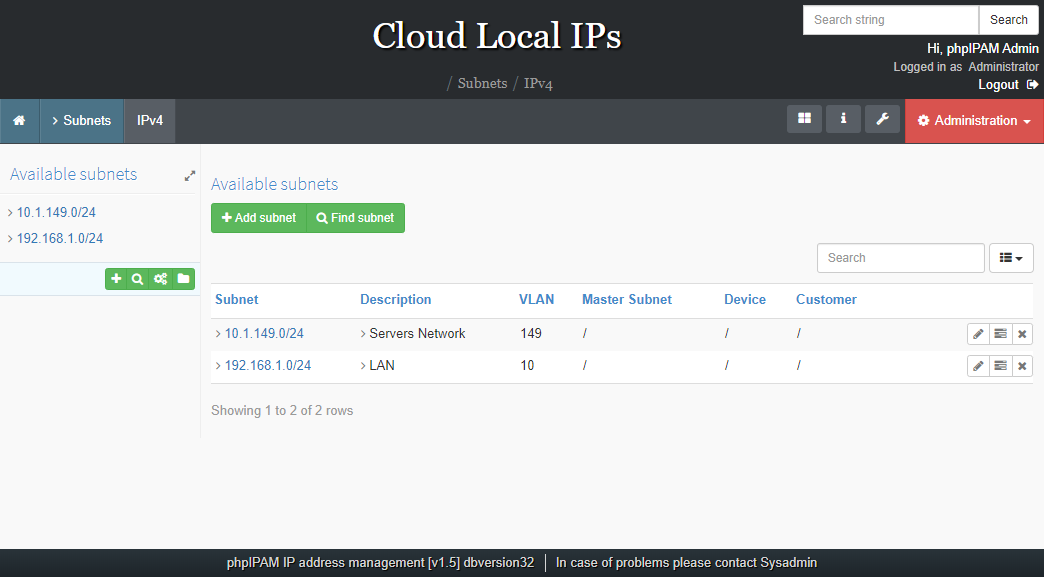
These days also I try to reserve static IPs through DHCP whenever possible instead of manually configuring addresses. It keeps everything documented in one place and greatly reduces accidental conflicts.
VLAN configuration mistakes
There are so many mistakes that can be made with VLANs and they are one of the hardest things to get straight for beginners. If you don’t have a strong networking background, VLANs can be difficult to wrap your mind around. However, all it takes is a bit of educating yourself on the terminology and then practicing with a switch and a couple of devices or a networking simulator.
But there seems to always be problems for all of us at some point with VLANs and most of our problems stem from mistakes that we make with tagging. VLANs work from the construct of “tags” and these tags representing logical networks.
Check out my Home Lab Networking 101 post for a quick tutorial on several of the basics here: Home Lab Networking 101: VLANs, Subnets, and Segmentation for Beginners.
Tagged and Untagged traffic
So, for that traffic to pass correctly, the switch port where devices that are tagging traffic are uplinked, have to be tagged with that VLAN. Ports that carry all VLAN traffic are generally called trunk ports and ports that are tagging traffic by setting a VLAN tag are called access ports. These terms are generally accepted from the Cisco terminology that most other switch vendors have adopted.
I like to sit down with a piece of paper and actually draw out and map out my VLANs as this helps me to visualize the flow of network traffic. Sometimes I find when I “wing” it and just try to throw a configuration together, this is when I make the most mistakes when it comes to my VLANs.
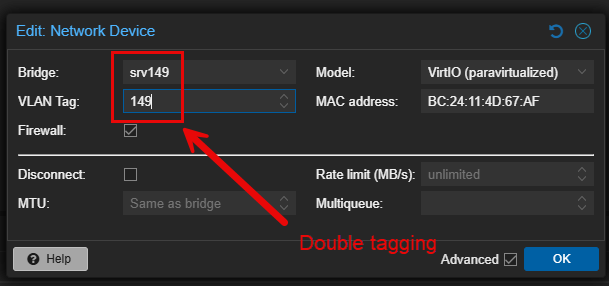
Double tagging can happen for instance when you are setting the VLAN tag on a virtual machine, but then you are also connecting the virtual machine to a Proxmox bridge that is also setting the VLAN tag. So this is another mistake to watch out for.
Multi-homed virtual machines and asymmetric routing
Another mistake I have run into is assuming I always need to connect to a server using what I think of as its “primary” IP address. I do this even though the server has another interface on the same network as my client. This is where “multi-homed” servers can be tricky.
For example, suppose a server has these interfaces:
ens18 - 10.1.149.10/24
Gateway: 10.1.149.1

ens19 - 192.168.1.10/24
No gateway
My workstation lives on the 192.168.1.0/24 network, but I try to SSH to 10.1.149.10. The connection request reaches the server just fine through the router. However, when the server sends its reply, Linux checks its routing table and notices that my workstation is directly reachable through ens19. Instead of sending the response back through the same path, it sends it directly out ens19.
Depending on the network, this may work without issue. But with most general purpose configurations, if there’s a stateful firewall in between, the return traffic may be dropped because it never comes back through the firewall that established the session. This is a classic example of asymmetric routing.
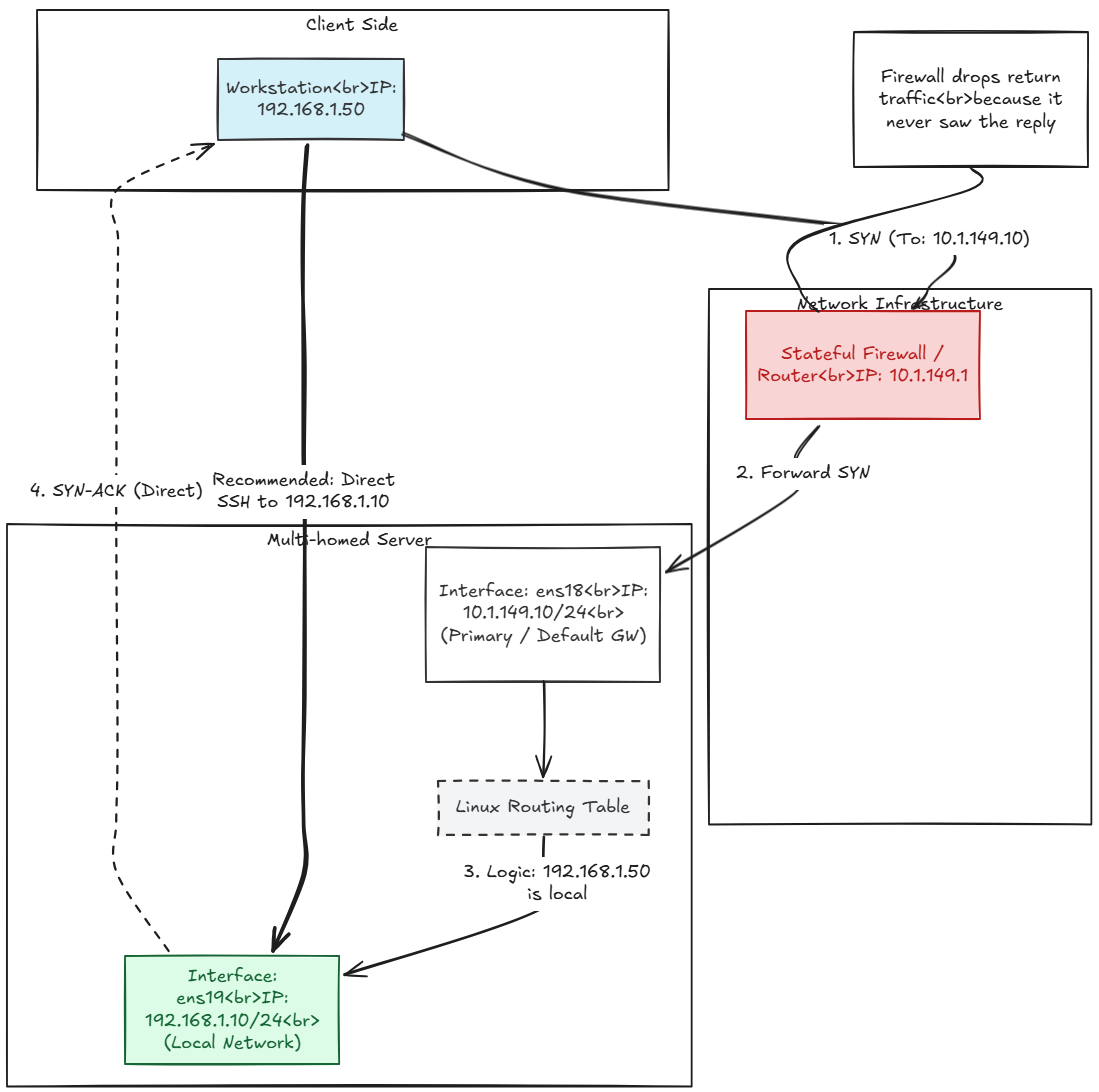
When you know that a client already shares a subnet with one of the server’s interfaces, you should connect to that interface instead. It keeps the traffic on the same network segment and avoids introducing unnecessary routing issues.
Assuming you have a problem with the hypervisor
One mistake I think that we all make is assuming that we have an issue with the hypervisor layer, before we actually verify the underlying network. I can’t tell you how many times I have started looking at my network bridges in Proxmox for a config issue when I should have looked at layer 2 on the switch and verifed my VLAN tagging.
This is also especially true if you are using LACP in your environment. LACP must have identically configured ports in terms of VLAN tags and your other configuration. So make sure to give plenty of attention to detail on this aspect of your config.
Common “mistake-prone” areas to check before you check your hypervisor:
- A switch port
- A firewall policy
- A DNS server
- A routing table
- A VPN
- A physical cable
- A misconfigured gateway
When I slow down and work through each layer more slowly, I usually find the problem much faster than when I immediately start changing hypervisor settings.
Wrapping up
Most of the time, frustrating home lab problems can be traced back to fairly simple networking causes. What makes them difficult to troubleshoot is not really the complexity but it is the misleading symptoms that often makes us think that it is something else first before we start looking at these normal networking culprits. A VLAN issue can look like an issue with your hypervisor, A duplicate IP can make things look like you have unstable hardware. An MTU mismatch can be super frustrating and look like you have intermittent network connectivity on larger traffic when small traffic flows work just fine. The point is, more often than not, the small mistakes we can make can lead to weird problems that are difficult to troubleshoot. How about you? What is the most frustrating problem you have encountered in your home lab from a networking perspective?
More in this topic


Google is updating how articles are shown. Don’t miss our leading home lab and tech content, written by humans, by setting Virtualization Howto as a preferred source.
About The Author
