



I have been on a containerization journey in my home lab for a number of years now and have been using Docker to run containerized workloads in the home lab on Linux hosts for my “production” home lab. However, when I have wanted to run containers on my Windows workstation, Docker Desktop has always just been the de facto standard to run containers on a Windows host. However, in case you missed the announcement, Microsoft has introduced native containers in WSL. This has been in beta form, but now WSL containers is now GA. Let’s take a look at WSL containers, what they are, and if you still need to run Docker Desktop on your Windows workstation now that we have this as an option.
What are WSL containers?
Microsoft made the announcement on September 29, 2026 that WSL containers that had been in beta form, was now generally available. With the addition of WSL containers, it introduces a new wslc.exe command that is the equivalent of the “docker” command. The cool thing is they have tried to mirror a lot of the familiar Docker commands to help with everyone’s muscle memory.
Like WSL in general, WSL Containers are backed by WSL 2’s virtualized Linux environment which is running on top of Microsoft’s Hyper-V. Each container is not a full VM but the containers share the Linux environment and kernel that is provided by WSL 2 itself.
With the new functionality users can use the wslc.exe command to:
- Pull images
- Build images
- Run containers
- Publish ports
- Create networks
- Mount storage
- Execute commands
- Look at logs
So, with all of this, it made me immediately start to wonder about things. If Windows now has its own Linux container platform built into WSL, do we actually still need Docker Desktop? Does this mean I can get rid of the idiosyncrasies of Docker Desktop which can definitely be a bear to deal with in Windows?
Well, I think with this new solution, as exciting as it is, it isn’t just a “slam dunk” as of yet. For simple container tasks, WSL Containers I think is already really fully featured. But for right now, there is a pretty big limitation to note that we will get to.
Updating WSL to get the new WSLC containers feature
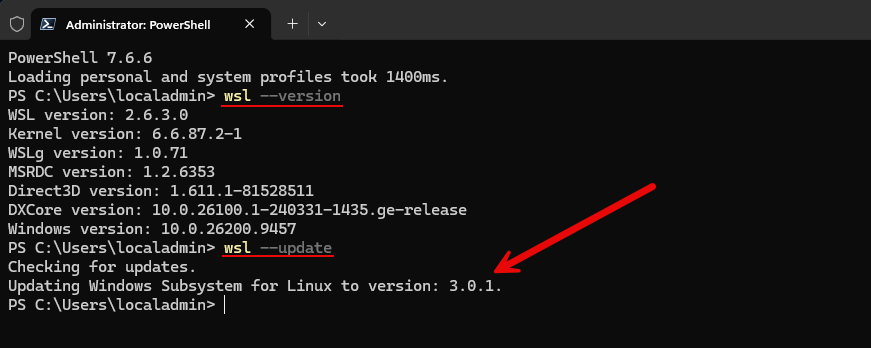
In order for you to get the WSLC containers feature in your WSL version, you need to update to the latest version. First, you can check to see what version you are running with:
wsl --versionThen, you can kick off an update of WSL using the command:
wsl --updateThe version that it updated my installation to was version 3.0.1 and I can confirm this version does have the WSLC functionality.
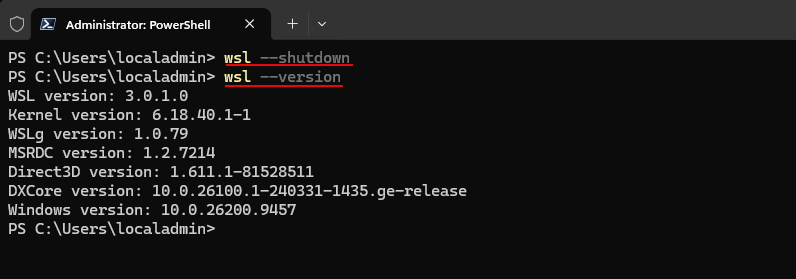
After updating, one thing I like to do is shutdown WSL and then check the version. Here you can see all the details of my installed WSL.
Next, I am checking the wsl status with the command:
wsl --statusThen also listing the versions of my WSL machines to make sure they are version 2 which should be the case:
wsl --list --verbose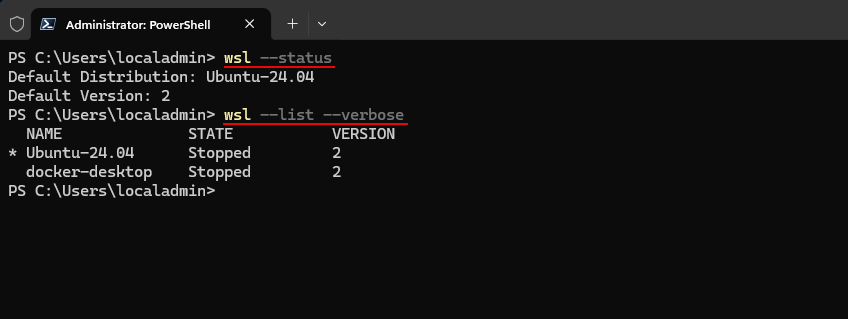
Everything was looking good to me. So, what you do after this is close your terminal window and then reopen or you may still get the wslc command isn’t found. But after reopening, I was able to get a return on the wslc command:
wslc --help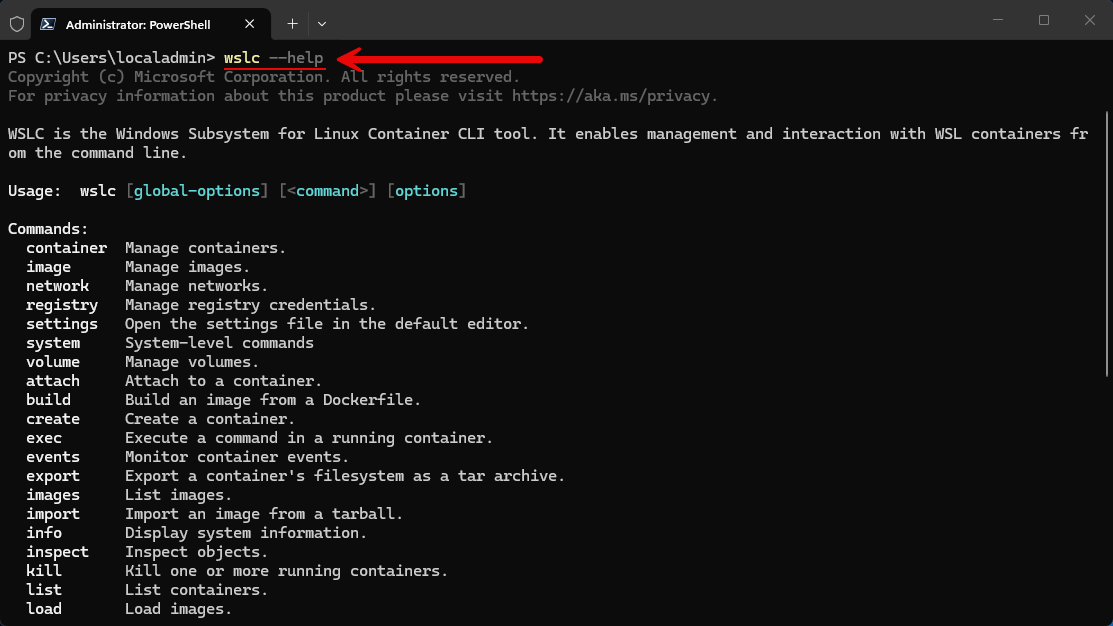
Another command you can run similar to the one above is the command:
wslc system info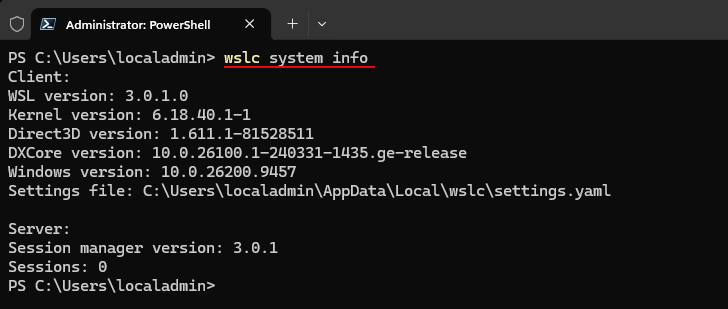
Running containers with the new WSL container CLI
You can run the new containers command by simply typing the command:
wslcJust as a side note, Microsoft has added the built in alias to the wslc command in container.exe. I think like most new container solutions, Microsoft is doing something smart by mirroring the commands with wslc aligned to what we are used to with Docker.
For example, I can launch an Ubuntu container that is interactive with the following:
wslc run --rm -it ubuntu:latest bash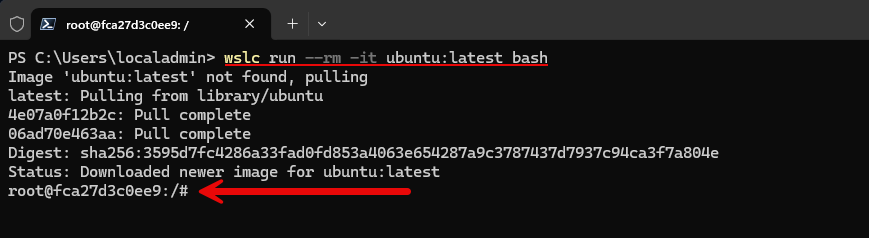
I can see the images available locally:
wslc image ls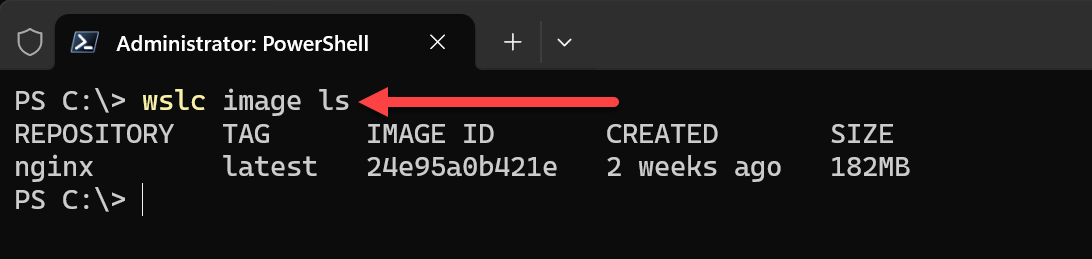
I can start an nginx container and publish its web server on port 8080:
wslc run -d -p 8080:80 --name web nginx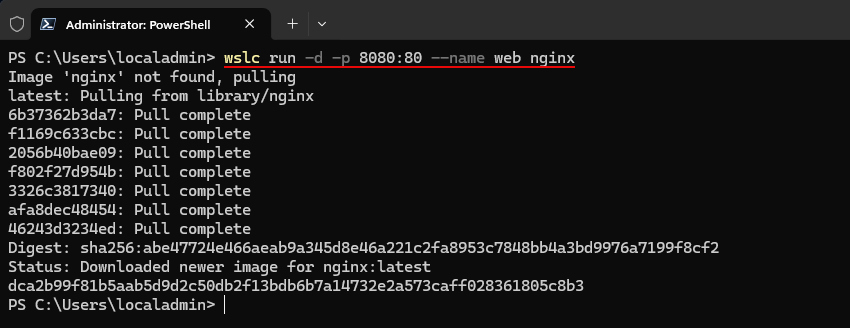
I can see the running containers:
wslc container ps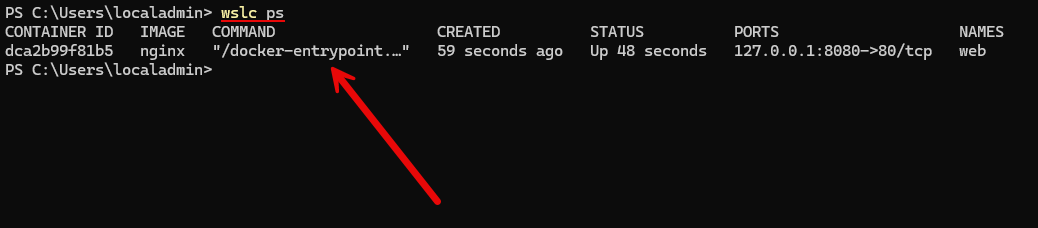
And when you are finished, just like Docker, you can do:
wslc stop webYou can also build container images with this release
One of the other things that you can do with this release is “build images” which is very cool in the GA release. Like Docker, you can use a Containerfile like the following example:
FROM python:3

WORKDIR /app

COPY requirements.txt .

RUN pip install --no-cache-dir -r requirements.txt

COPY . .

EXPOSE 8000

CMD ["python", "manage.py", "runserver", "0.0.0.0:8000"]
Then you can build the image similar to Docker syntax with:
wslc build -t myapp .Check that your newly built image exists in the local repository:
wslc image lsAfter you verify it is there, you can launch it just like you do any other container image that you want to run. I think this helps to make this even more powerful in the GA release.
So, if you are keeping up so far, we have done all of this without using Docker Desktop and only with the now built-in wslc.exe command.
There is one major missing piece
After being impressed with just how fully featured this is with this first release, I thought about the one feature that I use constantly. The wslc command doesn’t support it yet. What is that? Docker compose. This, I think will prevent many from taking this seriously as of yet until this feature is added.
Most of us don’t just run one single container, we run stacks of containers in the home lab and in production. It also allows you to store your container infrastructure as infrastructure as code. In my home lab, I am constantly working with compose stacks.
Then deploying your whole Docker stack is as simple as just running this one command:
docker compose up -dThis again, is where WSL containers falls WAY short today without compose support. I don’t think this is a minor one and for everyone to take Microsoft seriously with their solution here, they must add it. But, thankfully, Microsoft specifically calls this out as a top requested feature with the next version of the WSL containers feature.
Also, good news is that Microsoft isn’t trying to invent their own “compose” like stack language. They are specifically going to make this compatible with existing Docker Compose files. So, I do think we will see the workflow introduced with WSL containers to match what we have with Docker Compose like:
wsl compose upAnd, at least our hope is, that we will be able to use existing Docker Compose files that we have in place today like:
compose.yamlNetworking with WSL containers
Microsoft is continuing to put development time around improving the networking capabilities of WSL. If you are like me, I have been frustrated more than once with very quirky behavior with WSL networking. Microsoft has already streamlined the networking of WSL in the latest versions, and this continues to improve.
You can take a look at the networks that WSL containers creates for you with a familiar “dockerized” command with wslc:

You can also inspect a WSL containers network. It gives you information about the network driver used, the scope, IPv4/IPv6 stats and the type of network, IP, gateway, subnet, etc.
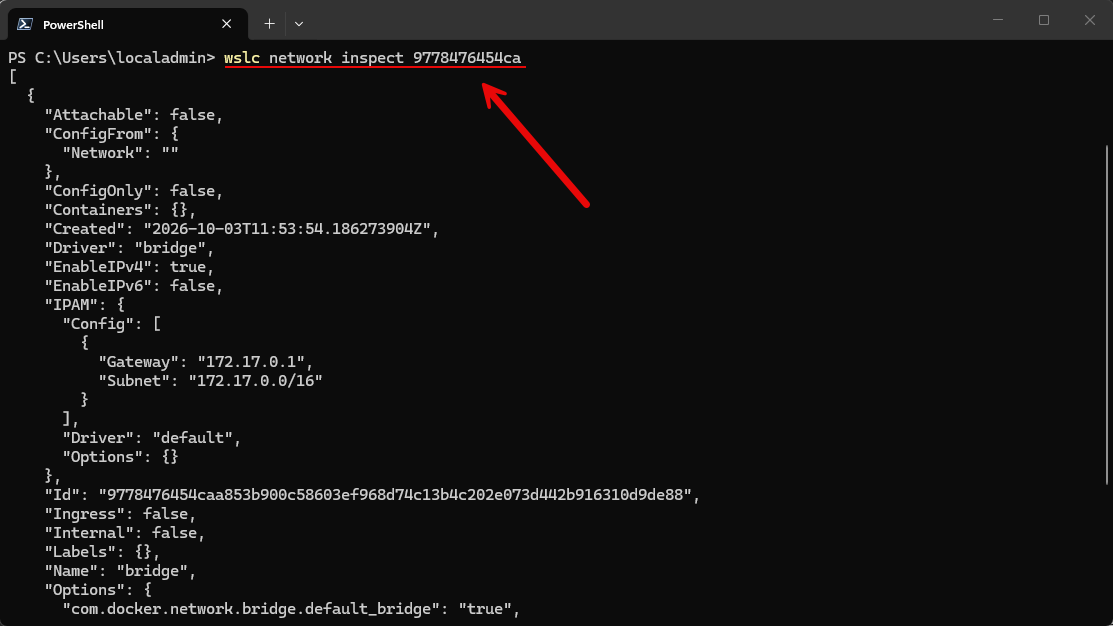
You can also create your own WSL container networks as well just like you can do in Docker:

So like in Docker if you need to create a frontend and backend network and connect a container to each:
wslc network create frontend
wslc network create backend
Storage with WSL containers
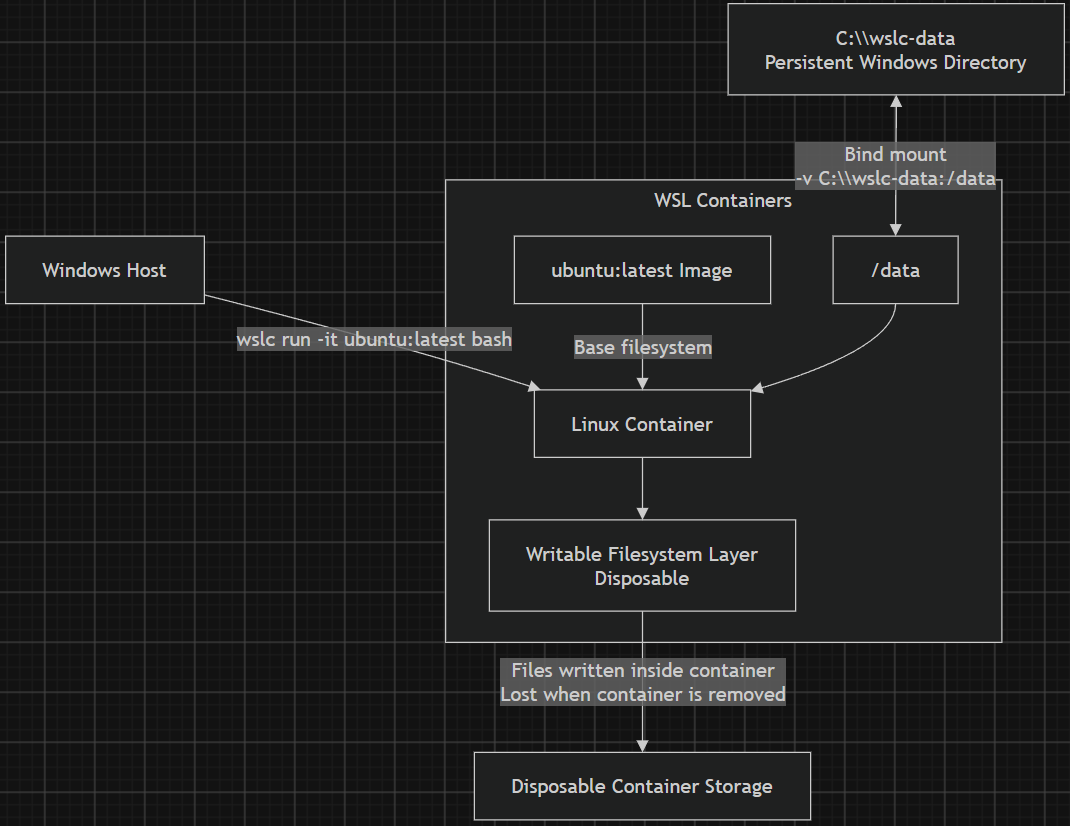
With the WSL containers functionality, storage was another area that I wanted to understand better in how it manages this. I’m used to Docker automatically providing a writable filesystem for the container and letting me use things like bind mounts or volumes for the data that I want to be persistent.
In case you are wondering, WSL containers uses the same basic model. So if you run something like this below, the container automatically gets a writable filesystem layer on top of the image:
wslc run -it ubuntu:latest bashWith this, you don’t have to create a volume or bind mount just to write files inside the container. But treat this type of storage as disposable.
WSL Containers also supports bind mounts like we have with Docker. This means I can map a directory from the Windows host directly into a Linux container. For example you can do something like the following:
wslc run --rm -it `
  -v "C:\wslc-data:/data" `
  ubuntu:latest bash
Your files and changes will persist since these files actually live on the Windows host side.
So the storage model should feel familiar if you’re coming from Docker:
| Storage type | What it does | Persistence | Best use |
|---|---|---|---|
| Writable container layer | This gives you writable storage on top of the container image | Tied to the container | Temporary files, caches, disposable application data |
| Bind mount | It maps an existing Windows directory into the container | Persists on host | Anything |
| Managed volume | Provides persistent storage managed by WSL Containers | Persists independently | Anything |
So, do you need Docker Desktop still?
I think that we won’t automatically see Docker Desktop uninstalled in droves after this GA release. I think it will take quite some time for ones to gain confidence in the new Microsoft solution compared to Docker. Docker Desktop has become something quite a bit more than just a command line to run containers.
I have been using Docker Desktop lately as well to run MCP servers locally for my development environment. This is just one example of how powerful the solution has become and is much more than just simple containers. You can even run multinode Kubernetes environments locally for development. Docker has also been working hard to improving and adding AI features to the solution and integration to run local models.

And, of course it can make use of docker compose, which again, I think is one of the major features that it offers here. But all in all, it is an entire ecosystem of solutions and products that many have come to depend on.
Wrapping up
I think this is a great new feature as part of WSL and will definitely make running containers on Windows a much easier and less complicated process than having to install another application with Docker Desktop and sometimes jumping through hoops to get Docker to run or running into weird Docker Desktop errors. However, again, Docker has become such a large ecosystem of solutions and is integrated with literally everything. Microsoft has a long way to go to reproduce everything that Docker offers as part of Docker Desktop I think. But, I am not sure that is their entire goal here. Will they stop at just a command line tool? What are your thoughts? Do you use Docker Desktop today? Do you see the new WSL containers replacing what you do with Docker Desktop?
More in this topic




Google is updating how articles are shown. Don’t miss our leading home lab and tech content, written by humans, by setting Virtualization Howto as a preferred source.
About The Author