


Recently while migrating a Windows VM in my home lab running Proxmox VE, I noticed a warning message that honestly caught me off guard. At first glance, it looked like one of those harmless informational messages that you can sometimes mentally file away to “deal with later”. I know I do this. But after digging into it more, I realized this is something that many home labbers and even production administrators probably need to pay attention to sooner rather than later. It was a warning about expiring UEFI certificates from Microsoft, expiring June 2026. Let’s look at the details of this warning and see what needs to be done.
The warning about the expiring UEFI certificates
I received the warning below when migrating a Windows VM to another Proxmox VE host in the cluster. The warning I saw in the environment had the following messaging:
WARN: EFI disk without 'ms-cert=2023k' option, suggesting that not all UEFI 2023 certificates from Microsoft are enrolled yet.

The UEFI 2011 certificates expire in June 2026!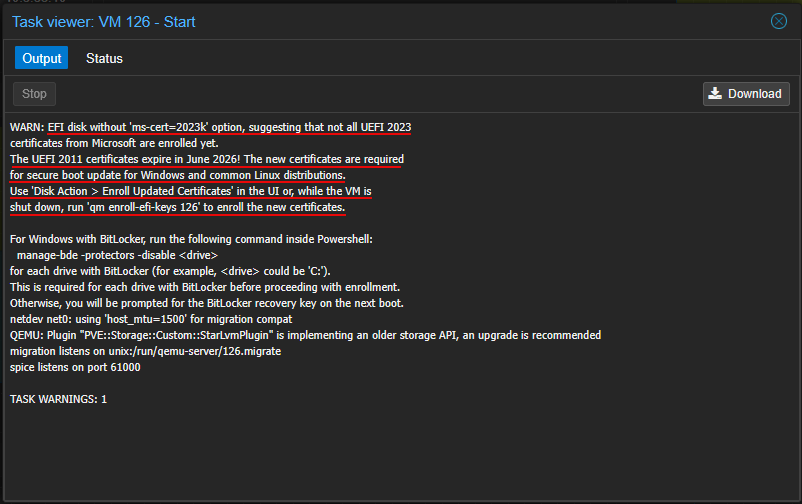
When you examine this closely, it is actually a pretty serious statement when you stop and think about it. Microsoft’s older Secure Boot certificates are expiring in June 2026, and systems that still rely on those older certificates may eventually run into issues with Secure Boot updates, bootloaders, operating system updates, or compatibility in the future.
This is going to be super important for anyone running:
- Windows Server 2022
- Windows Server 2025
- Windows 11
- Modern Linux distributions
- UEFI VMs with Secure Boot enabled
- OVMF-based virtual machines
And honestly, that probably includes a huge percentage of modern home labs.
Why is Linux affected?
Wait, this is Microsoft UEFI certificates right? Why would Linux be affected? I know until I did some research on this, I didn’t realize that modern Linux distributions are affected because many of them rely on Microsoft’s Secure Boot trust chain to boot on UEFI systems when Secure Boot is enabled.
The key piece is something called the “shim” bootloader. Most mainstream Linux distros do not have their own Secure Boot keys preloaded into firmware. Instead, they use the following:
- a small Microsoft-signed shim loader
- which then validates GRUB and the Linux kernel
This is how distributions like Ubuntu, Debian, Fedora Linux, Rocky Linux, AlmaLinux can boot successfully with Secure Boot enabled on standard UEFI firmware and virtualized OVMF firmware.
So the chain of certificate trust looks something like the following:
UEFI firmware
  -> trusts Microsoft UEFI CA
    -> trusts shimx64.efi
      -> trusts GRUB
        -> trusts signed kernel
The important detail is that many Linux distributions ultimately depend on Microsoft’s UEFI CA being trusted in firmware. So, as Microsoft transitions from the older 2011 certificates to the newer 2023 certificates there will be:
- newer signed shims
- future GRUB updates
- future Secure Boot revocations
- future bootloader signing changes
These may eventually require the updated certificate chain to already exist in the VM firmware database. So, long story short, if you are running a Linux Docker host, or other Linux infrastructure in your environment with Secure Boot enabled, this will be something you will want to address there as well.
What this warning actually means
So, what is this warning actually trying to say? Well, most probalby already know this, but modern operating systems use Secure Boot certificates to make sure that the bootloaders and OS components themselves are trusted before the system boots. Microsoft originally issues out what they referred to as the 2011 certificates. These have been used across most of the Windows systems and virtualization platforms for years now.
Now, Microsoft is moving to a newer Secure Boot cert introduced in 2023. The older 2011 certificates are set to expire in the month of June 2026. So, systems that are currently relying on the older certificate chain may eventually fail their validation checks for newer Secure Boot components or future updates.
So, long story short, this will probably eventually affect:
- Secure Boot functionality
- Windows bootloader updates
- Linux shim updates
- Future operating system upgrades
- VM migrations
- Hypervisor compatibility
- Boot reliability
So, in the meantime, right now, most systems continue to function normally because the old certificates are still valid. But platforms like Proxmox VE have started warning administrators ahead of time so they can proactively update their EFI environments.
Honestly, I think this is a very good move that the warning is being given, because many people would otherwise have no idea this change is happening.
Why many home labbers are seeing this now
There are a few reasons that I can think of you may be seeing this warning now in particular. First, many home labbers are currently migrating from VMware to Proxmox. I have personally moved over to Proxmox since the beginning of the year as my sole hypervisor.
The last little while, I started to see a migration warning any time I migrated a VM between cluster hosts.
Second, I think more are running Secure Boot now compared to even just a few years back. And finally, newer versions of Proxmox are now showing these warnings more aggressively during operations like we mentioned, like VM migration, startup, EFI disk operations, etc.
How to check if your VM is affected
The easiest way to determine whether your VM uses UEFI and EFI disks is to check the VM configuration.
From the Proxmox shell:
qm config 126Look for entries like:
bios: ovmf
efidisk0:
If you see those entries, your VM is using UEFI firmware.
You can also check directly in the Proxmox UI under:
- VM
- Hardware
Look for:
- BIOS = OVMF (UEFI)
- EFI Disk present
If Secure Boot is enabled and the updated Microsoft certificates have not been enrolled yet, you may eventually encounter the warning.
On each host, you can run a Bash script like the following to find EFI disks attached to VMs:
#!/usr/bin/env bash

echo "VMID | Name | BIOS | EFI Disk | Secure Boot"
echo "---------------------------------------------------------------"

for vmid in $(qm list | awk 'NR>1 {print $1}'); do

    config=$(qm config "$vmid")

    name=$(echo "$config" | awk -F': ' '/^name:/ {print $2}')
    bios=$(echo "$config" | awk -F': ' '/^bios:/ {print $2}')

    efidisk=$(echo "$config" | grep '^efidisk0:')

    secureboot="No"

    # Detect secure boot via pre-enrolled keys
    if echo "$efidisk" | grep -q "pre-enrolled-keys=1"; then
        secureboot="Yes"
    fi

    # Only show EFI/OVMF VMs
    if [[ "$bios" == "ovmf" ]]; then

        if [[ -n "$efidisk" ]]; then
            efistatus="Present"
        else
            efistatus="Missing"
        fi

        printf "%-5s | %-25s | %-5s | %-8s | %-12s\n" \
            "$vmid" \
            "$name" \
            "$bios" \
            "$efistatus" \
            "$secureboot"
    fi

done
What Proxmox is recommending
Fortunately, Proxmox already includes tooling to help update these certificates. The recommended process is straightforward. First, shut down the VM completely. Then run the following command:
qm enroll-efi-keys 126Replace 126 with your VM ID. You can also perform the operation directly from the UI:
- VM > Hardware > EFI Disk > Disk Action > Enroll Updated Certificates
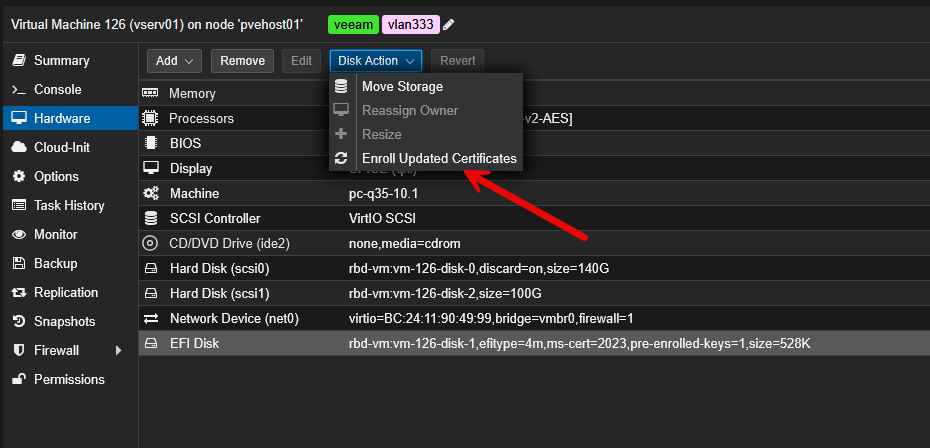
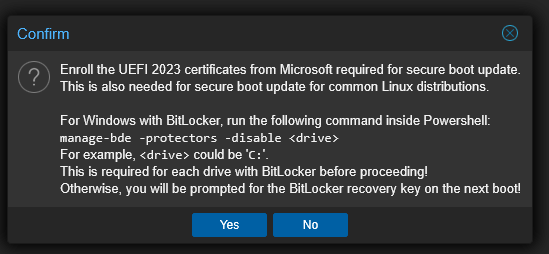
You will get the following dialog box to confirm the enrollment of the certificate. Click Yes.
Below, we are looking at the task in Proxmox after clicking Yes above.
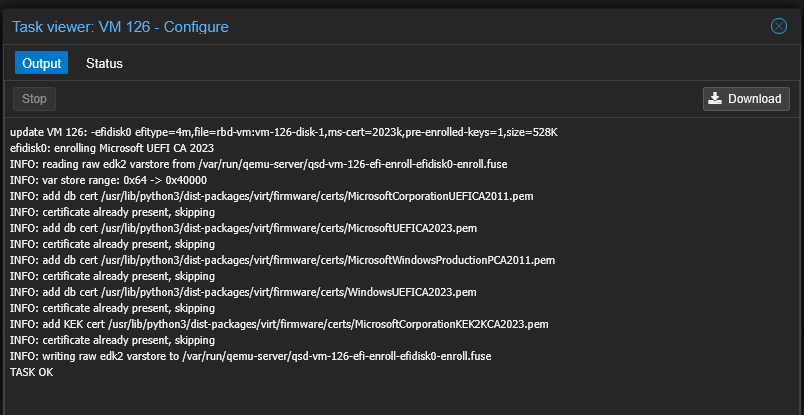
This updates the EFI disk with the newer Microsoft 2023 Secure Boot certificates. That is really all there is to the Proxmox side of the process to enroll the new PK and KEK certificates.
However, there is another detail involving Windows systems with BitLocker that may require that you give special attention to.
Enrolling the certs from the guest operating system side
You will need to be running the March 2026 cumulative update that enables the cert enrollment. Once you have the Updates installed, your machine should automatically pull the latest UEFI certificates. Hopefully, you are already keeping pace with the latest updates with your home lab and production Microsoft estate.
Check out the script you can run below inside your Windows guest to check your Secure Boot 2023 certificate status:
# Check Secure Boot 2023 Certificate Status
# Run locally on each Windows Server (elevated PowerShell)

# 1. Confirm Secure Boot is enabled
$secureBoot = Confirm-SecureBootUEFI
Write-Host "Secure Boot Enabled: $secureBoot" -ForegroundColor Cyan

# 2. Check if the 2023 cert is already in the DB
$has2023Cert = [System.Text.Encoding]::ASCII.GetString((Get-SecureBootUEFI db).bytes) -match 'Windows UEFI CA 2023'
Write-Host "2023 Certificate Present: $has2023Cert" -ForegroundColor $(if ($has2023Cert) { "Green" } else { "Yellow" })

# 3. Check servicing registry key status
$servicing = Get-ItemProperty "HKLM:\SYSTEM\CurrentControlSet\Control\SecureBoot\Servicing" -ErrorAction SilentlyContinue

if ($servicing) {
    [PSCustomObject]@{
        UEFICA2023Status   = switch ($servicing.UEFICA2023Status) {
                                0 { "Not Started" }
                                1 { "In Progress" }
                                2 { "Complete" }
                                default { "Unknown ($($servicing.UEFICA2023Status))" }
                             }
        UEFICA2023Error    = if ($servicing.UEFICA2023Error) { '0x' + '{0:x}' -f $servicing.UEFICA2023Error } else { "None" }
        AvailableUpdates   = if ($servicing.AvailableUpdates) { '0x' + '{0:x}' -f $servicing.AvailableUpdates } else { "Not Set" }
    } | Format-List
} else {
    Write-Host "Servicing registry key not found - Windows Update may not have staged the update yet." -ForegroundColor Yellow
}

# 4. Check Event Log for relevant events
Write-Host "`nRecent Secure Boot Events:" -ForegroundColor Cyan
Get-WinEvent -LogName System -ErrorAction SilentlyContinue |
    Where-Object { $_.Id -in @(1801, 1803, 1808) } |
    Select-Object TimeCreated, Id, Message |
    Sort-Object TimeCreated -Descending |
    Select-Object -First 10 |
    Format-Table -AutoSize -Wrap
The BitLocker issue not to ignore
This is probably the most important part of this entire process for Windows users that you may see. If you are using BitLocker and you update the Secure Boot certificates without preparing Windows first, you may trigger BitLocker recovery mode on the next boot.
That means Windows may prompt you for the recovery key because it detects a change in the Secure Boot environment. Proxmox actually warns about this directly with a message:
manage-bde -protectors -disable C:Before updating the certificates, you need to run the command that it states above which disables BitLocker protectors inside the VM.
Open PowerShell as administrator and run that command:
manage-bde -protectors -disable C:If you have multiple encrypted drives, repeat the process for each drive letter.
Then, follow the process below:
- Shut down the VM
- Run the Proxmox certificate enrollment command
- Boot the VM
- Verify everything works normally
- Re-enable BitLocker
To re-enable BitLocker:
manage-bde -protectors -enable C:I think this is the step many people could easily miss if they just rush through the warning.
Why Proxmox is handling this better than many platforms
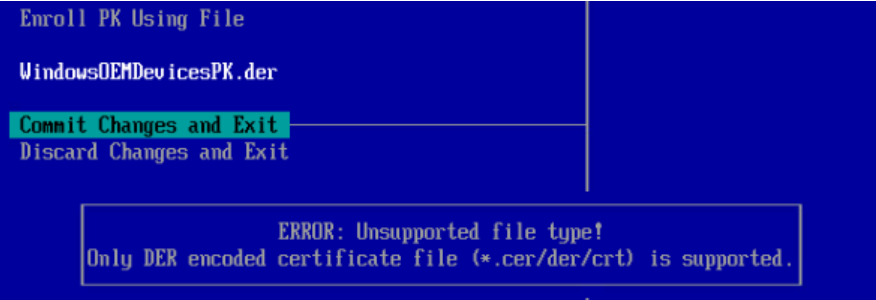
One thing I genuinely appreciate here is how Proxmox is making the transition here much easier than some other platforms. I was looking into VMware’s KB on getting the UEFI certificate changed out and it is a nightmare. For older versions of ESXi, you have to mount a VMDK, copy the certs to that VMDK, boot your VM into EFI configuration and manually import the certificates. OUCH!
This is due to what Broadcom explains this way:
On virtual machines created on ESXi versions earlier than 9.0, the PK is configured with a NULL signature by default due to previous design considerations. In this case, the platform cannot authorize updates to the KEK, which in turn prevents subsequent DB and DBX updates.So, in other words, be glad you are running on Proxmox if you are not running on VMware 9.0 and higher. Below, is a screenshot of booting into the EFI setup and manually pointing it to the certificate on the attached VMDK :-/
Wrapping up
I think this is a warning that many may accidentally overlook or think that it is less important than it really is. Thankfully, Proxmox does a great job here letting us know what is going on with good messaging across the board. There are multiple moving parts and pieces to this puzzle. Make sure you enroll the updated certificates as you can think of this as getting the platform with your EFI disk ready to upgrade to the newest certs. Windows updates are also in play that need to be installed from March 2026.
More in this topic

Google is updating how articles are shown. Don’t miss our leading home lab and tech content, written by humans, by setting Virtualization Howto as a preferred source.
About The Author

Very Good article but of course you missed the level above. For PVE the same is required if secure boot is enabled in the hosts bios…
Jurgen,
Great shout out. Yes, this would also apply to the Linux host side as well, you are right. Definitely a good point to keep in mind here.
Brandon
Hello,
I installed a Proxmox on an Intel NUC
I followed your tutorial and magically everything worked.
I have:
BIOS: OVMF (UEFI)
But not: efidisk0:
So, in the VM / Hardware / Action disk
I don’t have “Enroll Updated Certificates”
So I used the 1st method: “qm enroll-efi-keys 126”
and everything went well.
What about the update, which Jurgen talks about. Can you please explain or better give the details of the update?
Thanks