



Proxmox is definitely the de facto standard for open-source virtualization in the home lab. It is a crazy good virtualization platform that you can run for free, with clustering, and all the other enterprise features it offers. However, there are certain tools and scripts that make it even better. Let’s take a look at the 15 best Proxmox tools and scripts that make your home lab easier, better, and well, just more fun!
1. ProxMenux
This is a great tool that I reviewed recently and showed how to install in the home lab. It is one of the newest and I think one of the most interesting new tools in the community. It is a text-based user interface menu system that lets you carry out common management tasks. You can update, reboot, manage VMs, configure GPU passthrough, and many other things using the menu-interface.
Also, super recent is the addition of ProxMenux Monitor. This is a monitoring tool that has been built into the recent version of the tool. Check out both of my posts on ProxMenux here:
- Meet ProxMenux Monitor: The New Way to Monitor Proxmox Servers
- ProxMenux Might Be the Best Proxmox Management Tool You’re Not Using

GitHub: https://github.com/danshumaker/ProxMenuX
2. Proxmox VE Helper Scripts by tteck
If you have spent any amount of time around the Proxmox community, you have for certain heard about the Proxmox VE helper scripts repository. These are constantly referenced in the community when you are trying to automate or configure things in Proxmox.
The helper scripts repo contains hundreds of scripts for different aspects of configuring Proxmox, such as provisioning. You can use scripts from there that do things like suppress the subscription nag, etc.

GitHub: https://github.com/tteck/Proxmox
3. Proxmox Backup Server (PBS)
Proxmox Backup Server (PBS) is an official solution from Proxmox. However, since it is also free and open source it is a great tool to include on the list. It provides deduplicated, incremental backups for virtual machines, containers, and also bare metal hosts. It gives you a simple way to protect your workloads and also use your storage in an efficient way.
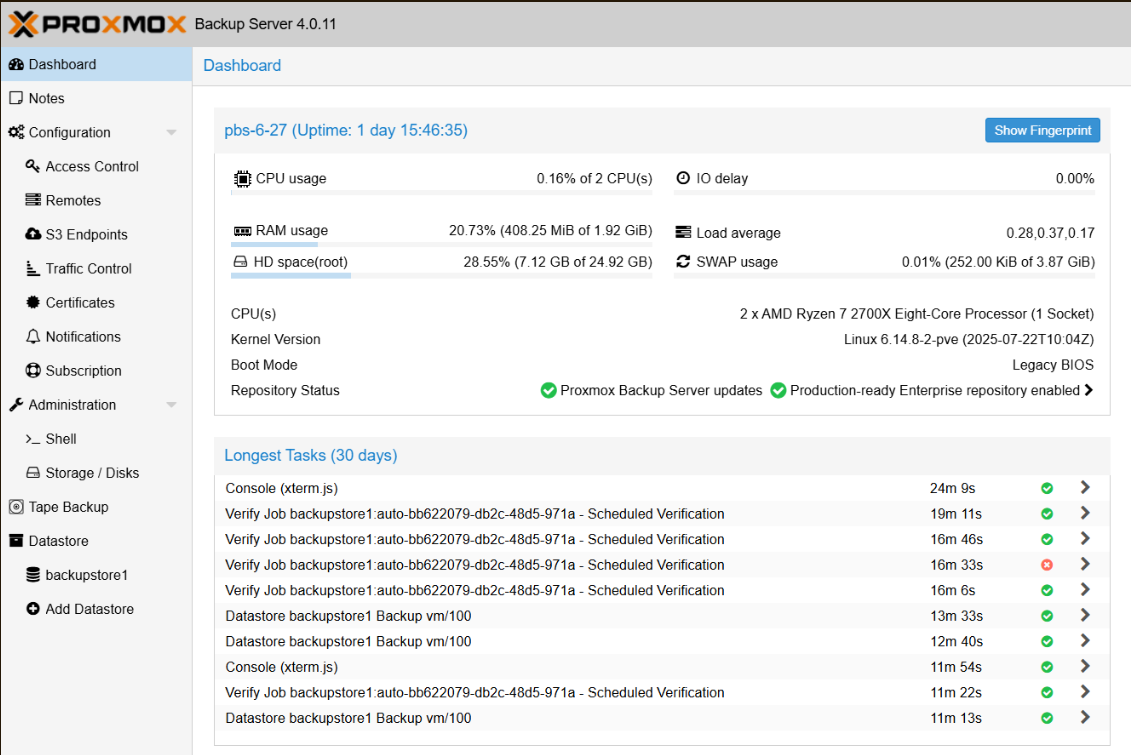
Site: https://www.proxmox.com/en/proxmox-backup-server
4. Proxmox VE Ansible Automation
Ansible is a great tool to use if you are deploying new Proxmox nodes or rebuilding clusters as is always the case in the home lab for me. With a module called pve-ansible ansible-role-proxmox you can fully automate the install and config of Proxmox VE on Debian hosts.
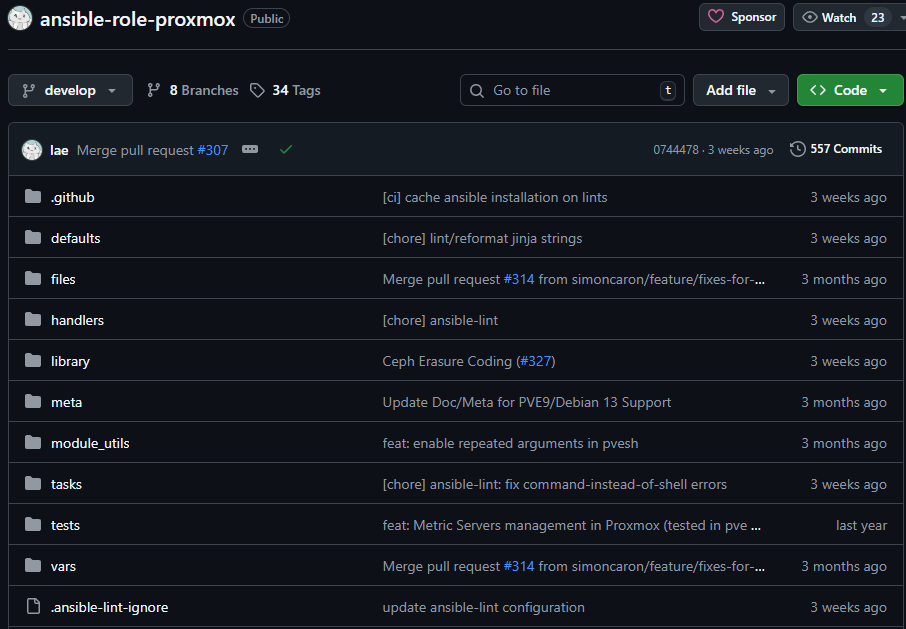
The tool can handle most everything, including adding repos, configuring storage and managing cluster members, etc. If you want to have a reproducible setup across physical machines and VMs, this allows you to spin up an identical PVE host in just a few minutes.
GitHub: https://github.com/lae/ansible-role-proxmox
5. PVEPerf
There is a useful built-in tool in Proxmox called pveperf that gives you some easy and lightweight benchmarking for your Proxmox environment. You can quickly use it to test your performance on things like host CPU, memory, and storage.
With this command, you can get a clear snapshot of performance characteristics of your PVE node. This can be helpful if you are comparing storage backends, testing out new NVMe storage, or “burning in” a new hardware configuration in the home lab.
Run it directly on a Proxmox node by typing:
pveperf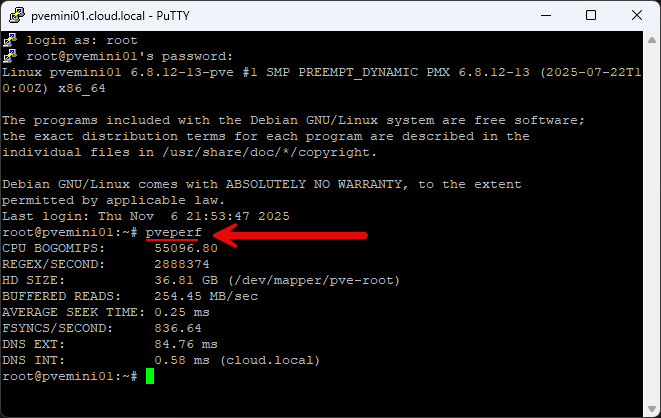
It can also measure things like disk throughput, memory bandwidth, and latency statistics. All of these can help you confirm whether your configuration is optimized. It’s simple, fast, and doesn’t require any additional installation.
Docs: https://pve.proxmox.com/pve-docs/pveperf.1.html
6. PVE-Exporter for Prometheus
If you are into creating your own standalone and open-source monitoring solution for Proxmox, the pve-exporter is the way to go for easy metrics collection. With it, you get detailed statistics from the Proxmox VE API. This lets you build dashboards, alerts, and visualizations beyond what you get by default in the web UI.
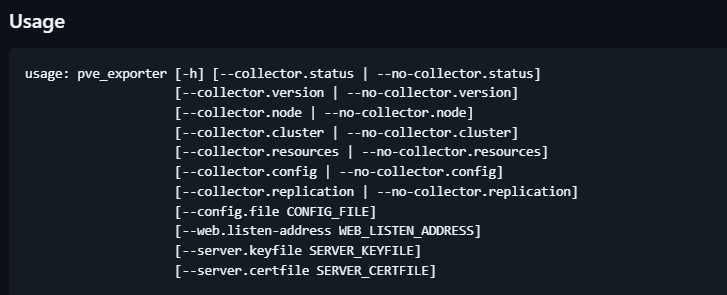
You can check out a blog post I did on monitoring Proxmox with these tools here: Server Monitoring with Prometheus and Grafana.
GitHub: https://github.com/prometheus-pve/prometheus-pve-exporter
7. CV4PVE‑AutoSnap
This is a tool that if you want a reliable way to automate snapshots you can do it. It allows you to have control over retention, hooks, and cluster support. It also supports wildcard VM/CT selections along with pool or tag filtering, memory state snapshots, and also “importantly,” cleanups. You can set custom retention rules to control your cleanups as well.
You can set it up and schedule it with cron and run it across your clusters. You can use this to manage your snapshot schedule, whether this is daily, weekly, or monthly without having to do any of it manually.
GitHub: https://github.com/Corsinvest/cv4pve-autosnap
8. PVE-ZSync
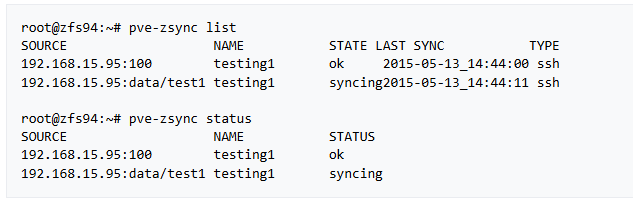
This one is built into Proxmox VE Server directly. It is pve-zsync and it is a hidden gem. If you are running ZFS storage it allows you to replicate virtual machines and containers between hosts using incremental ZFS snapshots. This is a great tool to give you very easy disaster recovery and test environment options. Also, there isn’t much configuration needed to use it. Also, you can schedule replications to run every few minutes and can actually achieve near real-time failover between nodes.
Official link: PVE-zsync – Proxmox VE
9. Proxmox Ntfy
Proxmox Ntfy is a Python-based script that listens for Proxmox VE events. These events can include things like backups, VM start and stop actions, or task completions. It can then send alerts directly to your phone or browser using the Ntfy notification service.
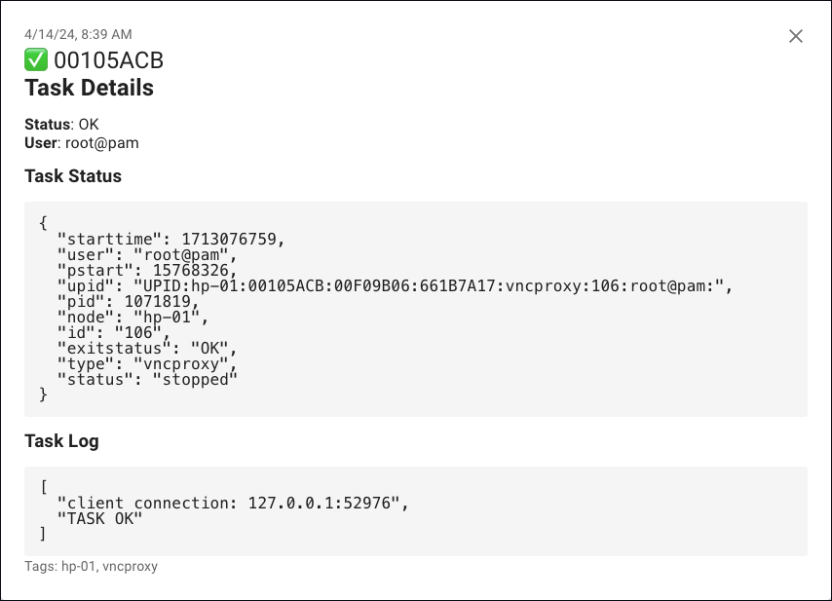
I think these kinds of solutions are great for a couple of reasons. Number one, you probably are not able to have a monitoring dashboard open 24/7 on your home lab nodes, so to be able to get quick alerts about various tasks and failures in your Proxmox environment is super helpful. Also, using the modern notification framework is extremely helpful since you don’t have to rely on the old and flaky SMTP notifications as email is getting harder and harder to send and receive due to SPAM restrictions continually getting tightened.
GitHub: https://github.com/qtsone/proxmox-ntfy
10. BPG Terraform Provider for Proxmox
The bpg Proxmox terraform module is the de facto standard Terraform provider for Proxmox. Also, this is for OpenTofu as well if you are using this in yoru lab environment. Terraform is definitely the tool to use if you want to have immutable infrastructure in code to control your virtual machines, templates, and network configuration. You can also version control your IaC for Proxmox in Git and this way, you know you have consistent configurations.
GitHub: https://github.com/bpg/terraform-provider-proxmox
11. Proxmoxer API Python
Gathering statistics from the command line is helpful, especially for automation. Proxmox API Python is a powerful toolkit that lets you connect directly to your Proxmox VE cluster using the REST API. Using this, you can get information from your nodes like node uptime, CPU usage, memory consumption, and virtual machine status.
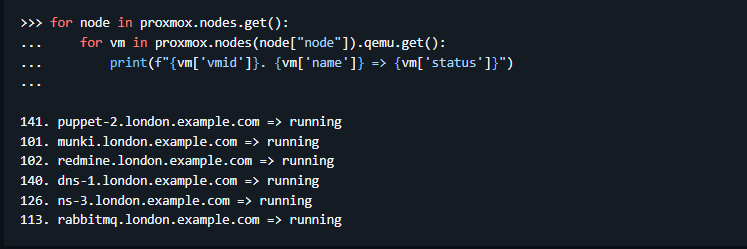
With Python, you can script daily health checks, send summaries to chat apps, or even hook something like this up in n8n automation workflows to have AI check out the health of your Proxmox environment.
GitHub: https://github.com/proxmoxer/proxmoxer
12. PVESH command
I think one of the most underrated built-in tools in Proxmox VE server is the pvesh tool. With this tool, you can also interact with the Proxmox REST API directly from the command line. Pvesh can get detailed information about all kinds of specific Proxmox related metrics and activities. You can query information about your cluster, nodes, virtual machines, and containers. You can also execute admin actions like starting and stopping VMs and LXCs, creating snapshots, listing volumes, etc.
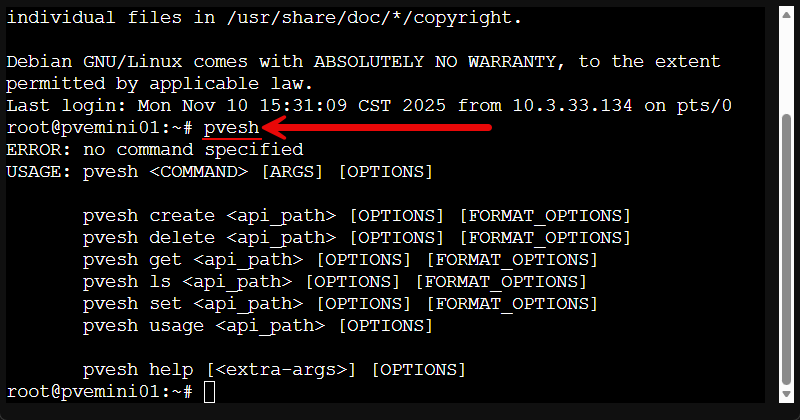
If you are looking at creating scripts for Proxmox, this is a really good one to understand and know for automation in your home lab. Since it gives you API access from the terminal, really, you can do just about anything.
You can explore available commands using:
pvesh helpDocs: https://pve.proxmox.com/pve-docs/pvesh.1.html
13. Proxmox Datacenter Manager
There is a lot of excitement brewing on this one. Proxmox Datacenter Manager is a new solution for the Proxmox ecosystem that will provide a centrralized interface for managing multiple clusters and environments. So think of it like a “vcenter-like” tool for your Proxmox environment. Instead of logging into each PVE instance separately, you can instead use Datacenter Manager to view and control all your nodes, storage, and VMs.
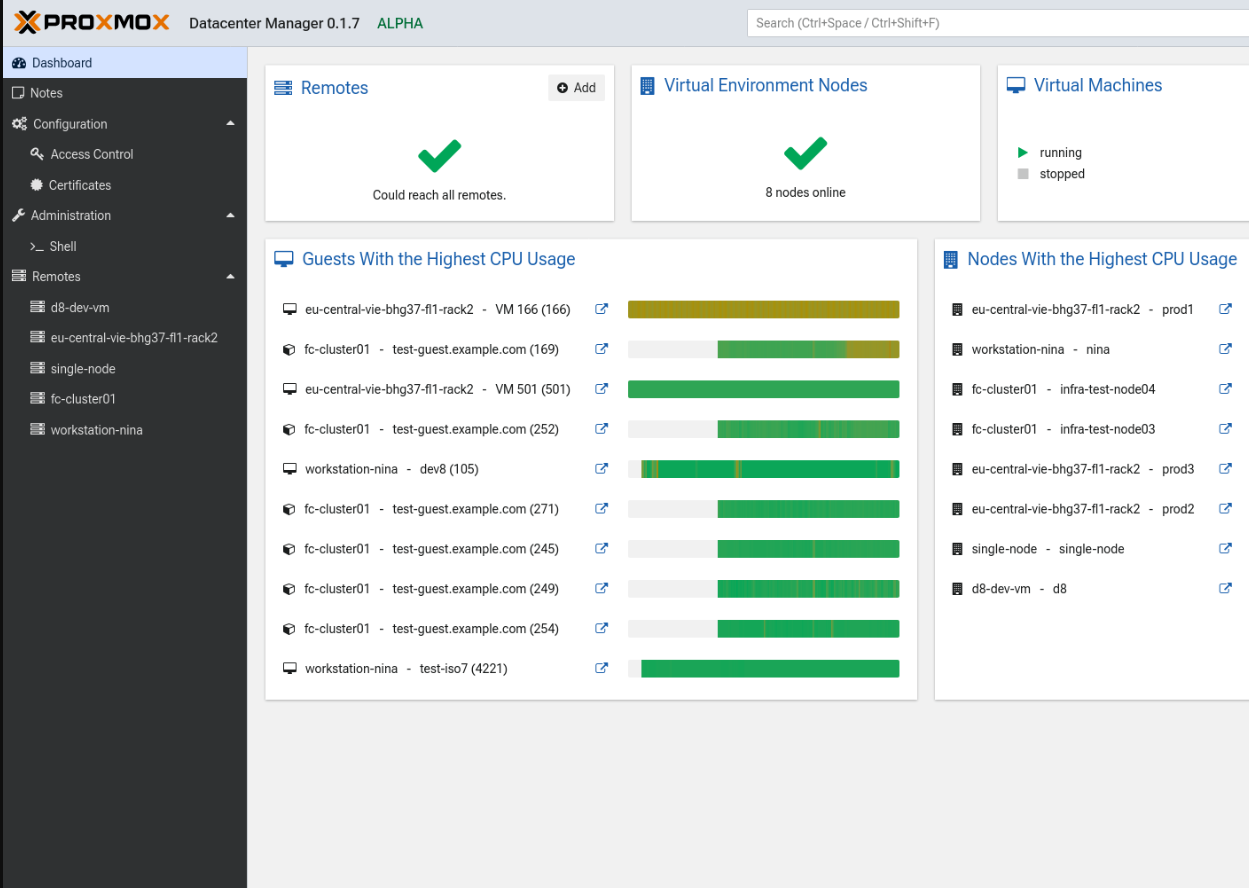
It lets admins operate PVE instances in multiple data centers and home lab clusters to keep an eye on everything in one dashboard. From the Datacenter manager dashboard, you can monitor performance, updates, view health status, and other things. Keep in mind it is still in active development and is an official product.
Official roadmap: https://pve.proxmox.com/wiki/Proxmox_Datacenter_Manager_Roadmap
14. Pulse monitoring
This is one that I wrote about recently in a blog post. Pulse is an open-source and self-hosted monitoring solution for Proxmox that lets you monitor your Proxmox and Docker environment at the same time, all from a responsive web interface.

Pulse is a great little solution for those who want a quick at-a-glance dashboard of their Proxmox environment to see the health of everything. It is great since it allows you to see your Proxmox environment side-by-side with your containerized environment using Docker.
My blog post: This Free Tool Gives Proxmox the Monitoring Dashboard It Always Needed
GitHub: rcourtman/Pulse: A responsive monitoring
15. PVETUI
This is a new tool that is called PVETUI. It is a minimalist text user interface (TUI) for Proxmox VE server. It lets you monitor and control your PVE environment from the command line and provides an ncurses-style dashboard that displays various aspects of the environments. These include your nodes, VMs, containers, and other things like resource metrics (CPU, memory, disk, network, etc).
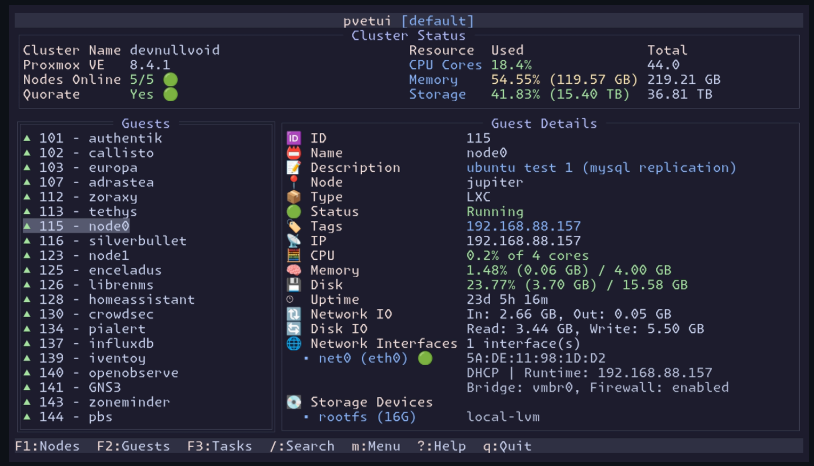
It almost feels like a k9s type interface for Proxmox since it is blazing fast and gives you a lot of powerful tools from the command line, and still have a visual way to manage them.
Look for a follow-up blog post on this one soon!
GitHub: https://github.com/devnullvoid/pvetui
Wrapping up
Proxmox continues to rapidly evolve and there are so many great developers and open-source contributors that are developing great tools to extend the features and functionality of Proxmox. This list of 15 tools that I have shown here is just the start. There are many others out there. These are ones though that I have personally tried and tested and they can definitely streamline how you manage, monitor, and automate your Proxmox environment. How about you? What Proxmox tools and scripts are you using if not found on this list?

Google is updating how articles are shown. Don’t miss our leading home lab and tech content, written by humans, by setting Virtualization Howto as a preferred source.
About The Author

This is a great list. I knew about a lot of them, but not all. Going to add these to the “home lab time” this weekend.
jdodd14, great to hear! There are so many great projects out there now for Proxmox. Hard to keep up with them all.
Umm you do know Tteck died last year and his scripts were moved over to “Proxmox Helper Scripts” community. Maybe do some due diligence before posting old stuff that you claim you use.
Ouch!!! I did indeed know that tteck passed away sadly and have noted as such in previous blogs. This is my way to tip my hat to the developer that started it all and give credit where credit is due. I never understand when ones comment in anger when simply trying to share a list of tools with the community :-/
I appreciate the information you shear. Some people just don’t have nothing better to do but to pick at something.
Westcarr,
I really appreciate that! just trying to give back a little if I can. The community has been good to me and my learning journey. Thank you for the kind words.
You also forgot to mention that Proxmox Helper Scripts are not vetted by anyone, and it can execute remote scripts. Proceed with caution. 🙂
All right soiboi. Next you’re going to write a guide on how the windows 95 plus setup wizard runs, when you could have posted a guide on the widows 11 25H2 wizard.
Same in this case, why post outdated information when there is a whole new github repo for over a year that gets updated.
😆😆😆😆😆😆😆😆😆