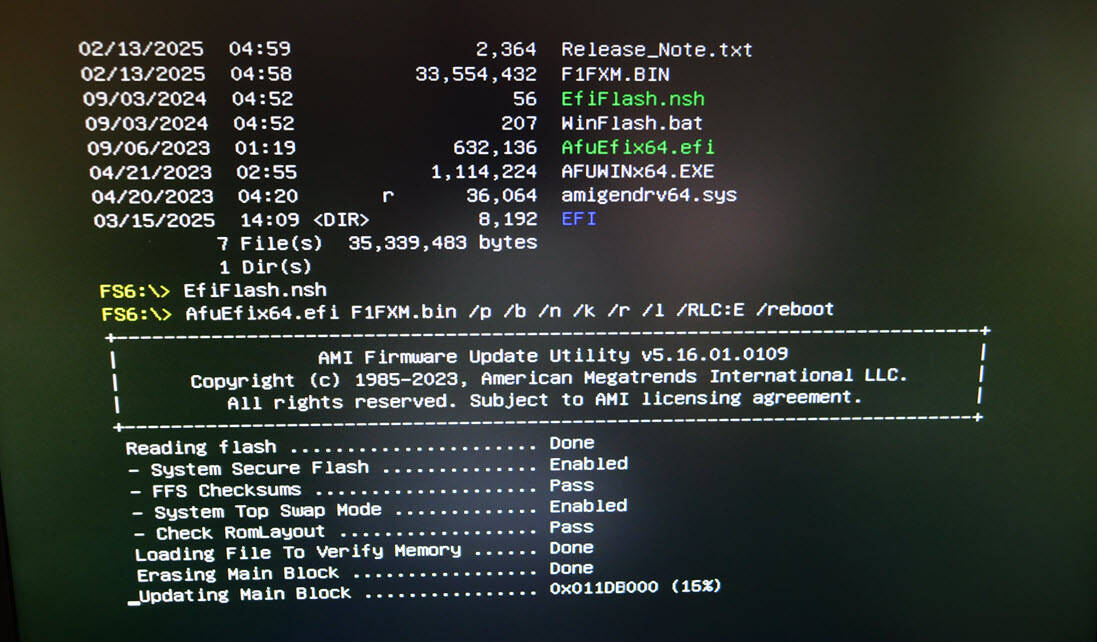




I have recently gone through the steps to upgrade my Minisforum Motherboard BIOS version for the Minisforum BD795M and BD795i SE motherboards. I wanted to show you the process that I used to get the upgrade done.
First, navigate to the Minisforum Downloads site. You can just google this term and it should show as the first result, but here is the link I have: https://www.minisforum.cn/new/support
Navigate to motherboards and select the model you want to update. In my case, I have both the BD795M and the BD795i SE motherboards. Click > Downloads > BIOS & Firmware.
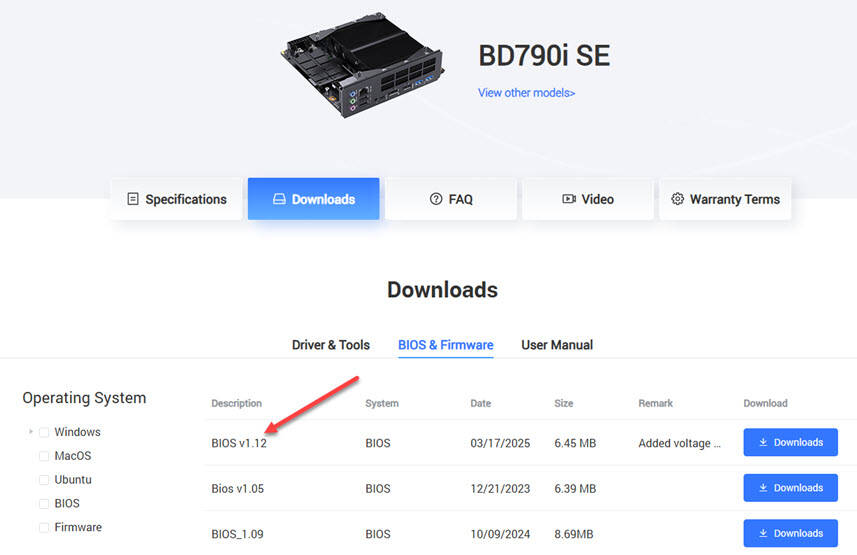
Below, I am selecting the BIOS v1.12 download.
AAfter you get the download it will be a .7z file. So you will seen something like 7-zip if you are on Windows. After extracting, you will see the following files:
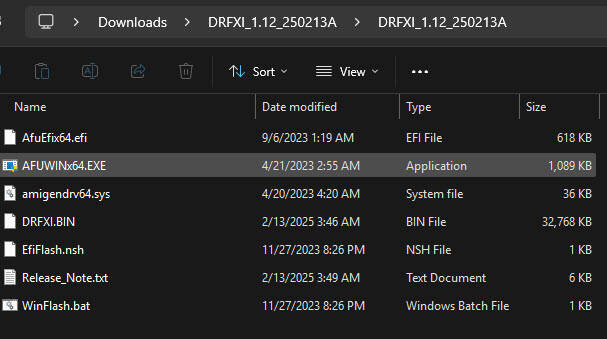
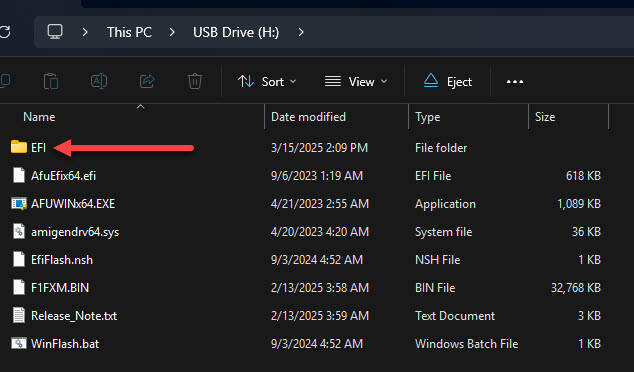
When I downloaded the above package as you can see above when extracted, there is no EFI folder. When I booted from USB into UEFI it didn't like the USB key. An easy workaround I found was to download the MS-01 BIOS package which does have an EFI folder and just copy this folder into your downloaded package to the above folder after you extract it. Below is a look at the MS-01 files extracted.
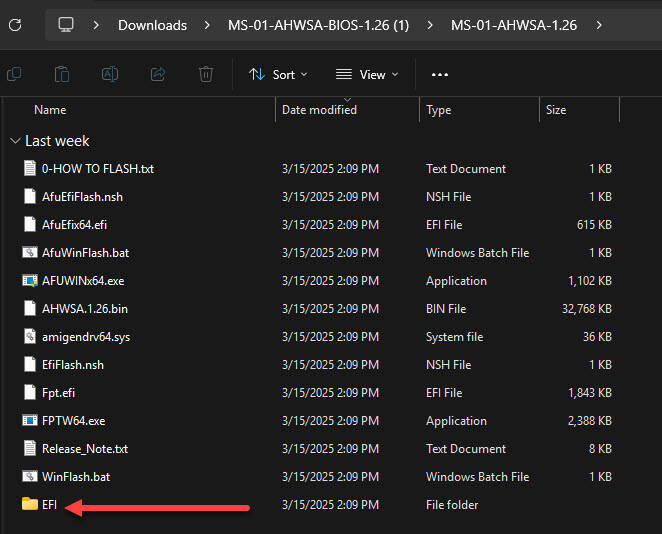
After copying the EFI folder into the extracted motherboard upgrade files, this is what my folder looks like:
USB key prep
Now that we have the files we need, we need to prepare the USB key. To do that, following the steps here to prepare it with diskpart:
diskpart
list disk
select disk X  # Replace X with the number of the disk you want to format
clean
create partition primary
format fs=fat32 quick
Run the update
- Boot into U disk, with uefi shell (F7 to choose boot disk)
- Use “FS0:” “FS1:” “FS2:” to find your BIOS udisk (mine below was FS6 as you can see, you just have to try and see which one it is, likely FS0 for many)
- Use the command “ls” to check the files contained as you change to each one until you find your USB disk
- Run EfiFlash.nsh