



One of the things I have noticed recently in the Proxmox ecosystem is that many tools are becoming much larger and more complex. That is not necessarily a bad thing. Tools like dashboards and alternate interfaces that give you centralized management that is better than the default PVE web UI are awesome. However, sometimes you just want a lightweight utility that helps you manage VMs and containers quickly. And, ones that can do this without adding another web interface, another database, or another service to maintain. This is where a project called proxmox-manager comes in. Let’s take a look at this Proxmox CLI manager and how it can help with Proxmox management.
What proxmox-manager actually is
The proxmox-manager project caught my attention as it is a Bash script that gives you an interactive text-based interface for managing Proxmox virtual machines and LXC containers. So, instead of typing long sequences of qm and pct commands manually, this tool gives you a menu-driven interface for common management VM and container tasks.
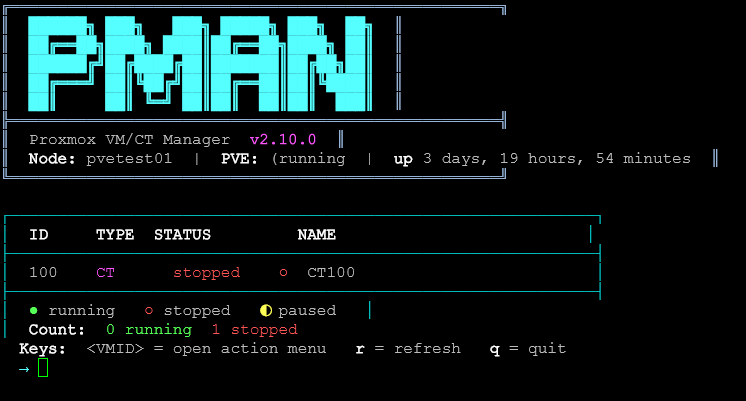
So keep in mind from the outset, this is not trying to be a replacement UI for Proxmox. It acts more like a productivity layer on top of the existing CLI tools that you have built into Proxmox VE Server natively. But if you are like me, how many times are you at the command line and can’t get the right combination of CLI commands with qm and pct for the information you need, so you pop back out to the GUI? This tool helps to bridge that gap.
Also, one of the things that stands out about it is that it is lightweight and you don’t have to install anything. There aren’t any agents, or API services/users to configure. It is simply a Bash utility that runs directly on your Proxmox host and gives you a better way to interact with your VMs and containers.
Installing proxmox-manager
Now, let’s take a look at how you get proxmox-manager installed in your environment. Installation is pretty straightforward. Just SSH into one of your Proxmox hosts. Then clone the repository:
git clone https://github.com/TimInTech/proxmox-manager.git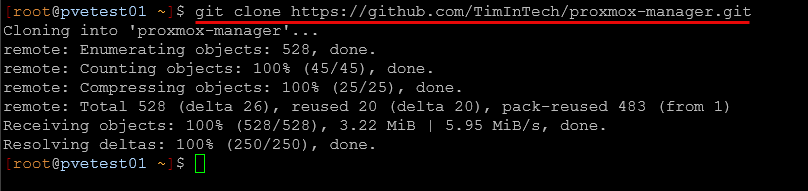
Change into the directory:
cd proxmox-managerMake the script executable:
chmod +x proxmox-manager.shThen launch the tool:
./proxmox-manager.sh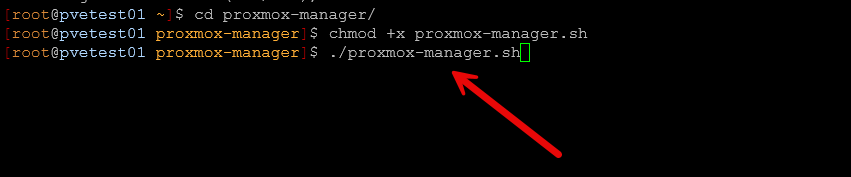
That is basically it. Short and sweet. As you can see by the screenshots, there is no complicated installer or dependencies to deal with. You can also optionally install it globally so that it is accessible system-wide using a command like pman. If you want to do something like this, you could create a shortcut symlink like this:
sudo ln -s $(pwd)/proxmox-manager.sh /usr/local/bin/pmanThat makes it feel much more like a native utility integrated into the system. One thing I appreciate here about proxmox-manager is that the barrier to testing the tool is extremely low. You can install it, try it for a few minutes, and decide immediately whether it fits your workflow.
The interface is simple by design
One of the things that I really like is this tool isn’t trying to be too complicated. It is simple by design. When you launch it, you will appreciate that it embraces very old-school Linux command line environments.
The interface is text-based and menu-driven. You are presented with options for the following:
- listing VMs
- listing containers
- starting systems
- stopping systems
- restarting systems
- managing snapshots
- viewing status information
- accessing console sessions
So, it is not trying to be super fancy or have intricate dashboards or animated widgets. But, again, I think this is part of the appeal. When you launch the interface, it will automatically query for VMs and containers.
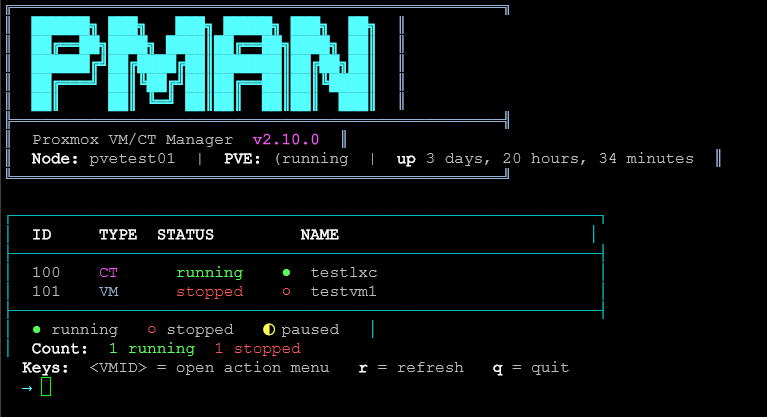
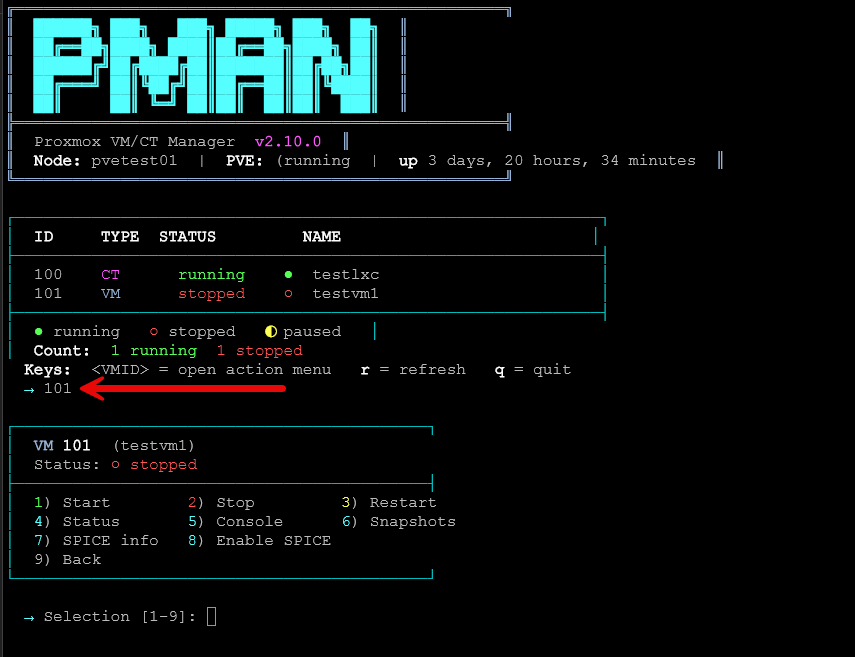
To navigate around for a specific virtual machine or container, you first type in the ID of the resource. Here I am typing in “101” for the VM that is currently stopped. You will see the menu that launches after typing in the ID.
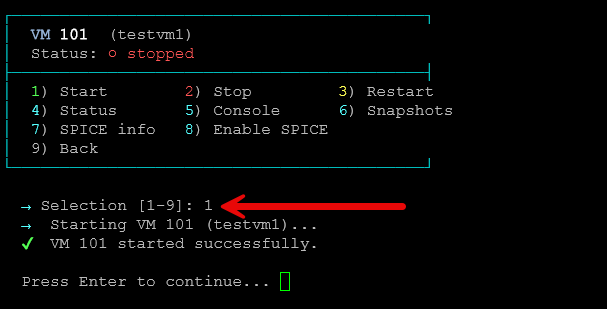
Now that the menu is launched, you can make your selection from the available options. Here, I am selecting to “start” the VM since it was currently stopped.
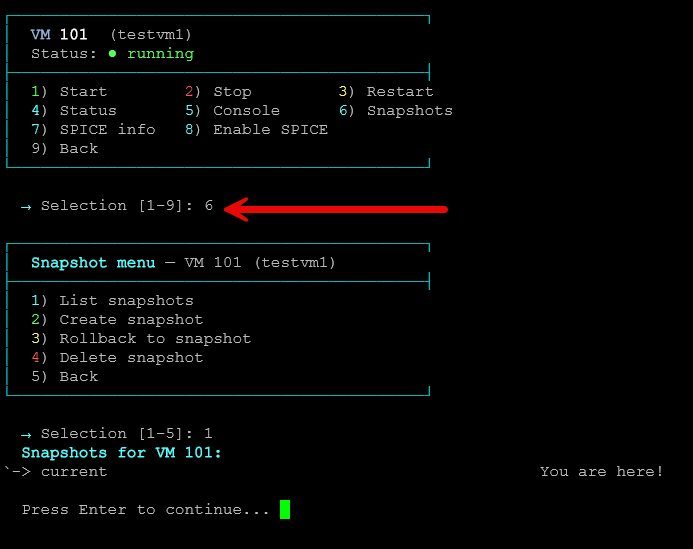
Here we are checking to see if there are any snapshots on the VM currently. You can see once you make the selection it will launch the sub-menu that gives you the available options from that point forward like listing snapshots, creating snapshots, rolling back, etc.
Managing VMs and containers quickly
One area where this tool genuinely improves workflow speed is day-to-day VM and LXC management. Instead of repeatedly typing commands like:
qm start 105
qm stop 105
qm status 105
pct status 100
pct start 100
pct stop 100
You can navigate quickly through the interface and perform the same tasks interactively. So, are the “qm and pct commands” fast? Yes, but if you are more into a TUI or menu driven system for management or you can’t remember the command “qm” or “pct” commands and their parameters not doing it enough, this makes it easier.
This becomes especially helpful when managing:
- multiple lab VMs
- temporary testing systems
- Kubernetes nodes
- Docker hosts
- LXCs used for lightweight services
In larger home labs, it is common to have dozens of systems running simultaneously. Even though the Proxmox web UI handles this well, the terminal can often feel faster for quick operational tasks.
I also found that this works nicely when connected remotely through VPN or over slower internet connections where loading the full web interface may feel sluggish.
Console access and SPICE integration
Another useful feature is the ability to launch console sessions quickly. The utility supports console access and SPICE integration, which can simplify workflows when you need to jump directly into a VM. Again, this is not necessarily replacing the Proxmox web interface. It is more about reducing friction for common operational tasks.
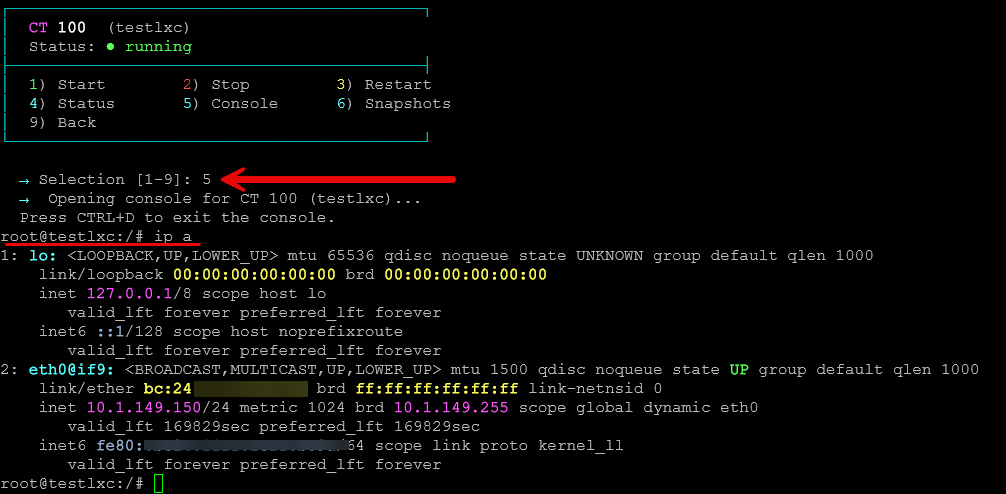
Even though proxmox-manager is interactive, I think it still feels very close to the underlying Linux administration model that many of us are already comfortable with.
Limitations you should know about using it
I really like the tool, but there are a few limitations that are worth mentioning when using it. First, the tool runs on the Proxmox node. It isn’t a centralized cluster management platform and only shows the resources that are local to the specific Proxmox node you are running the tool from.
Also, one little quirk that I don’t necessarily like is that when you complete an operation or choose an operation and you finish with that, even if you are focused on a particular VM or container at that time, when you want to run another command, the tool has to reload every time back to the very beginning. This makes sense though when thinking about it as it is really just a Bash script underneath. So each new operation requires you to “run” the script again.
Wrapping up
After testing and playing around with proxmox-manager Proxmox CLI manager in the home lab I can say that I appreciate how simple it is. Does this add earth-shattering functionality to the Proxmox command line? No I don’t think it does that. But, if you are looking for an intuitive utility that allows you to control your VMs and containers from the Proxmox command line and you don’t want to mess around with the qm or pct command line tools. So, I do think in a pinch if you only have access to the Proxmox command line and you need to perform quick operations on VMs or containers from there (maybe you don’t have access to the web gui or there is a network issue), you can manage things with proxmox-manager right from the host. What about you? Have you heard about proxmox-manager before? Is this a tool that you would possibly use? Let me know in the comments.
More in this topic



Google is updating how articles are shown. Don’t miss our leading home lab and tech content, written by humans, by setting Virtualization Howto as a preferred source.
About The Author
