I have been following a really great project called PegaProx for the last few months and it is rapidly evolving into one of the goto tools for Proxmox management with a modern interface. With the last few updates (which have happened just in a couple of weeks), there have been a couple of features added that most will be interested in: ESXi migration and Proxmox Backup Server monitoring. These additions I think come at the right time for many who are reevaluating their virtualization platform. Let’s take a closer look at what these new features look like and what they mean for Proxmox moving forward.
Quick Recap of PegaProx in general
I covered PegaProx as part of a recent discussion on managing and administering multiple Proxmox clusters. The first review of the tool where I had my hands on it, it was like a breath of fresh air for Proxmox management. It felt modern and richly featured.
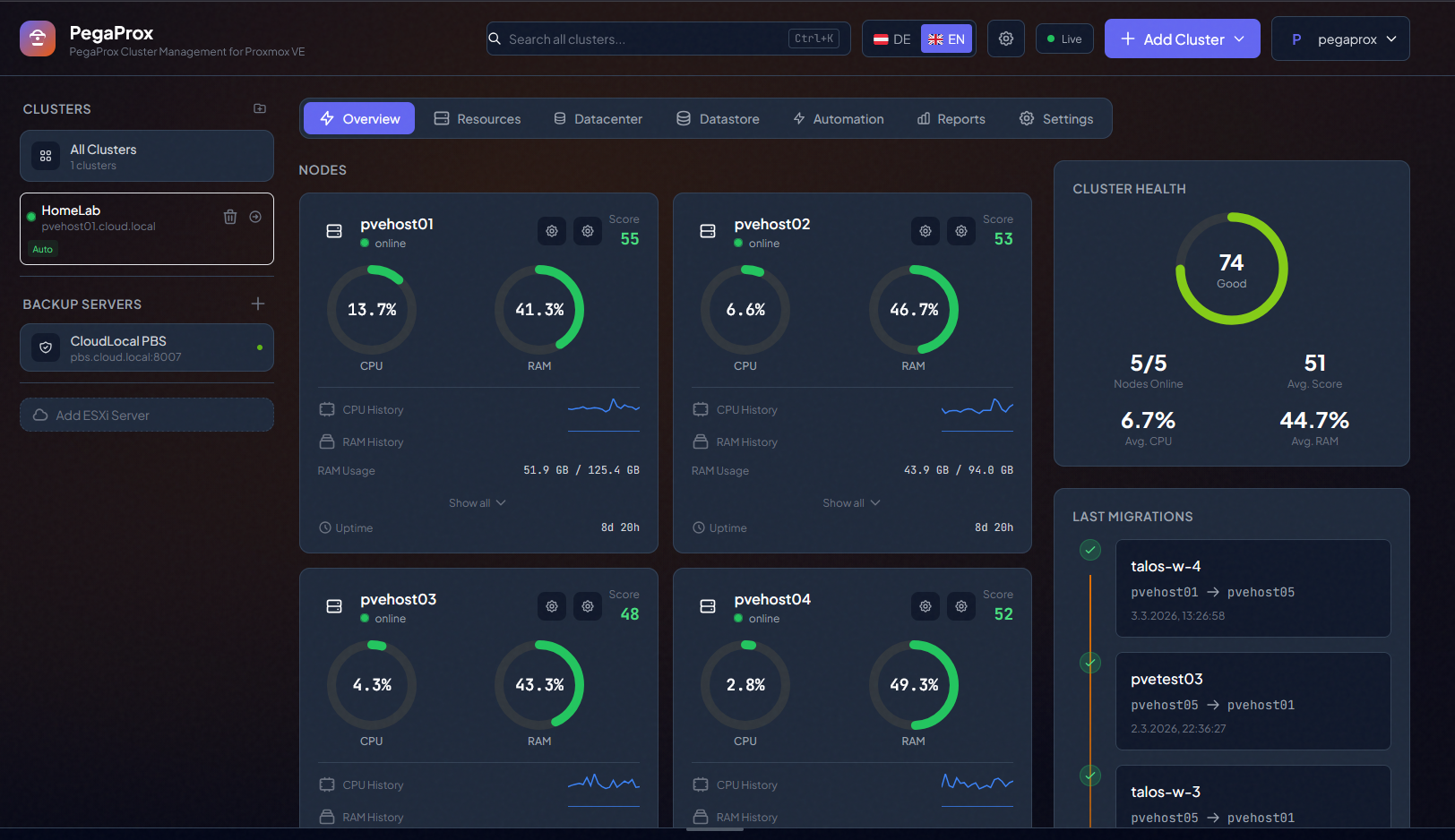
Its purpose is to help with Proxmox VE Server management but also multi-cluster management and do this in an easier and more intuitive way. As we all know, when you manage multiple clusters, when you start managing these at scale, you run into problems with the default tooling, including:
- You lose centralized visibility across clusters
- You have no native cross-cluster placement intelligence
- You end up manually deciding where new VMs should land
- You cannot easily see an aggregate view of resource utilization across your clusters
PegaProx helps to address this by giving you a single interface to understand cluster resources and help with smarter placement of VMs, containers, and storage. In my opinion, it helps with solving the gap that many vSphere admins feel when first moving to Proxmox with what vCenter and DRS provide.
Now, the tool has recently added ESXi migration and Proxmox Backup Server monitoring, which I think takes the project even further down the path of helping Proxmox be THE solution for migrating away from VMware and the new defacto standard in the home lab and enterprise. But these are just my strong opinions on the subject.
New built-In ESXi migration
Let’s start with the ESXi migration wizard which is newly added as of version v0.9.0 of the beta release. Right now, there is a very real and ongoing migration wave away from VMware ESXi. The licensing changes and cost increases from Broadcom have been hard to swallow and forced most labs and even production environments to evaluate alternatives. Proxmox VE has become one of the most talked about landing spots in the circles I am in.
But migration has always been a pain point for environments running VMware vSphere. Even in a home lab, moving VMs from ESXi to Proxmox typically involves a workflow that looks like the following:
- Exporting VMs as OVF or OVA
- Handling disk format conversions
- Adjusting network interfaces
- Fixing drivers
- Reconfiguring boot settings
- Cleaning up hardware definitions
Adding an ESXi server to PegaProx
In the interface, you begin the process to add an ESXi server to PegaProx by clicking the Add ESXi Server button on the left hand menu.
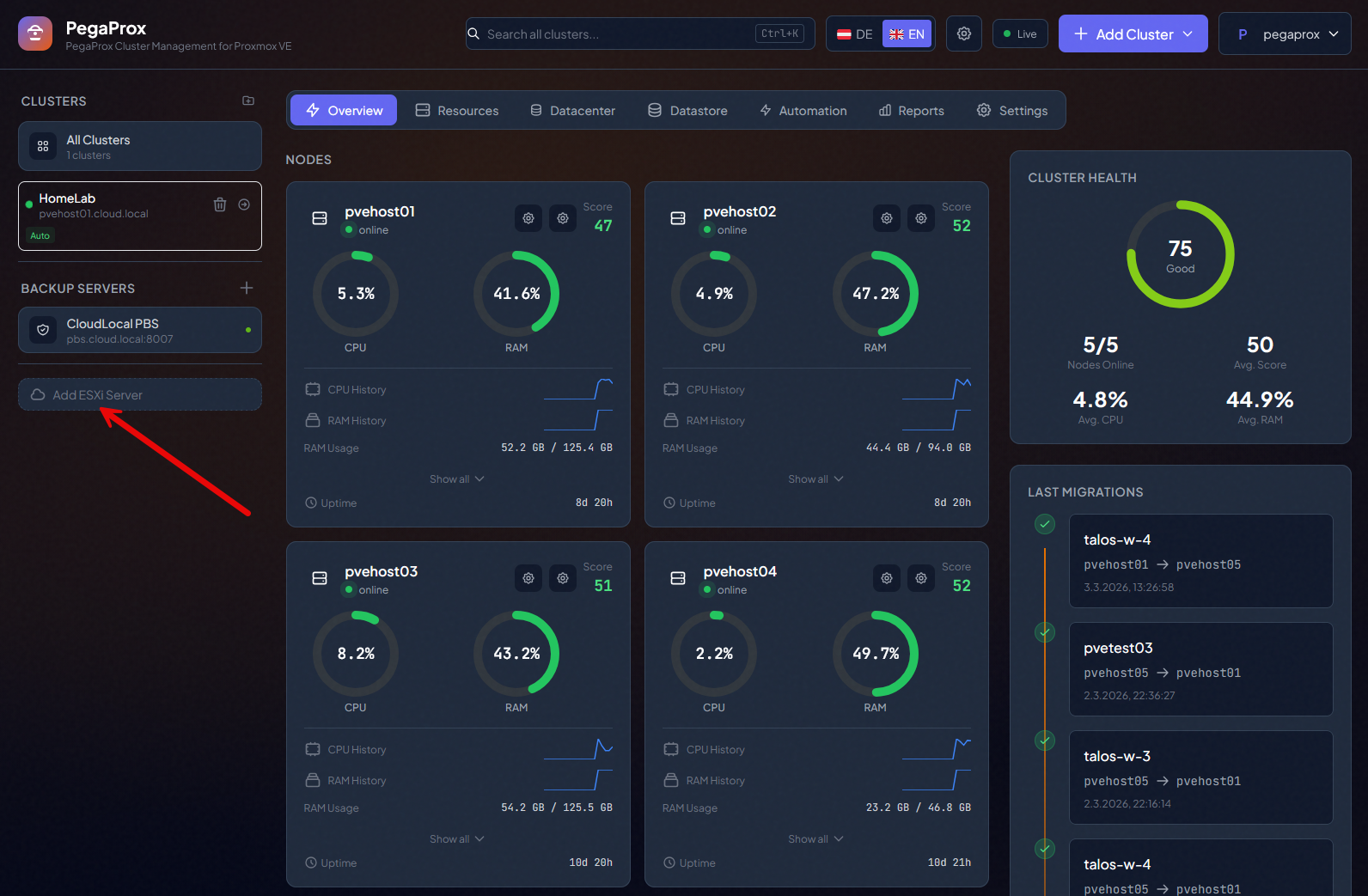
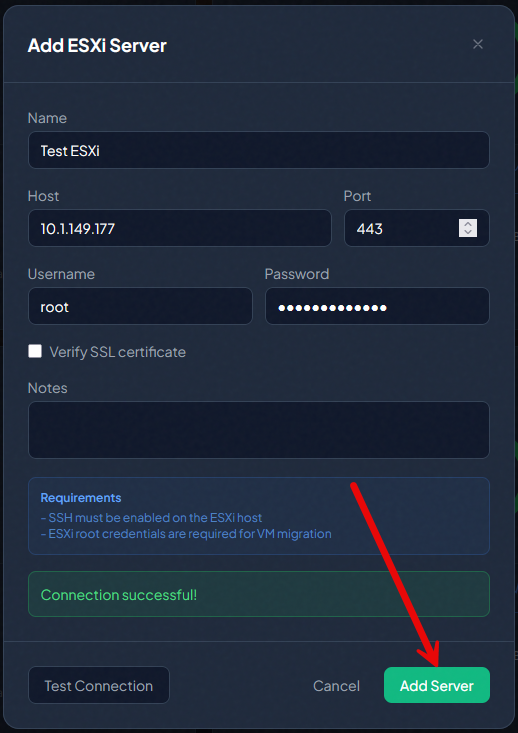
This brings up the Add ESXi Server dialog box. Here, you name the instance, enter the host or IP address, port, and username and password, which for most will be root. You can click the Test Connection to make sure it tests out and then click Add Server.
Migrate an ESXi virtual machine to Proxmox with PegaProx
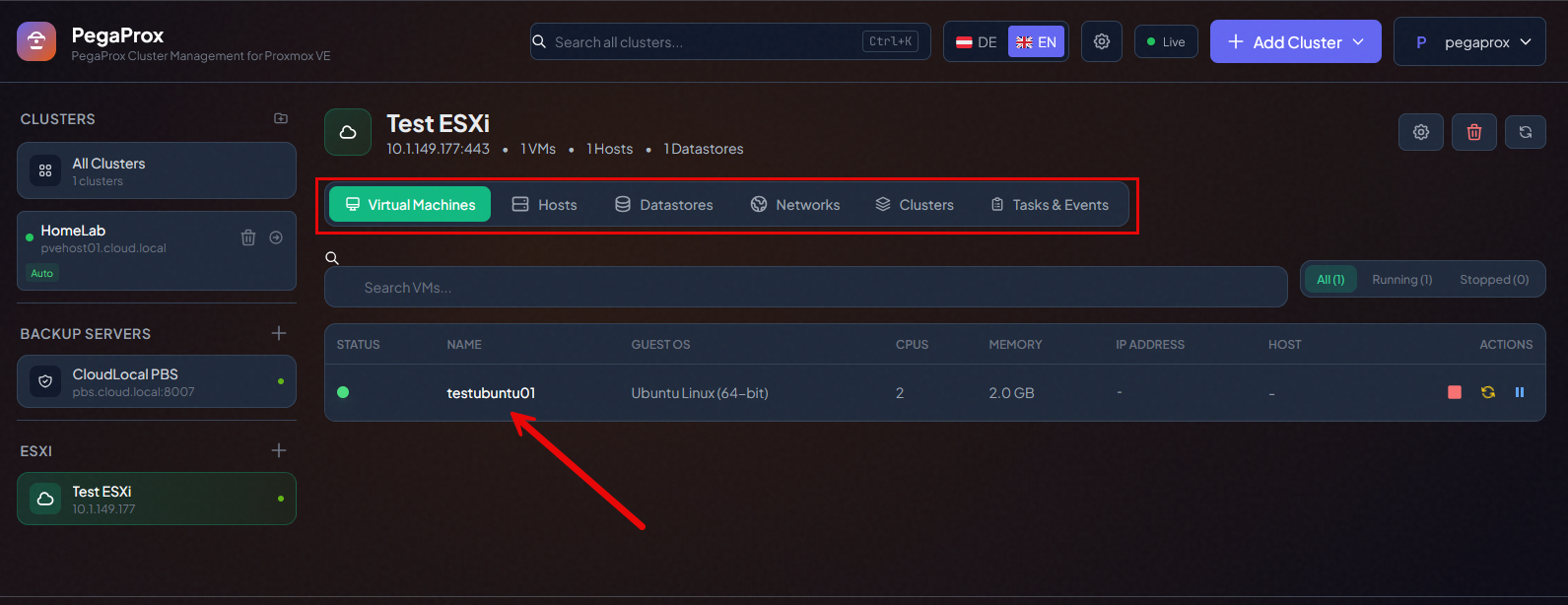
Now, let’s look at the dashboard once you have an ESXi server host added and how you actually kick off a migration over to Proxmox. You can see here, after connecting PegaProx to the ESXi server, we see the one virtual machine that I have running on the ESXi host.
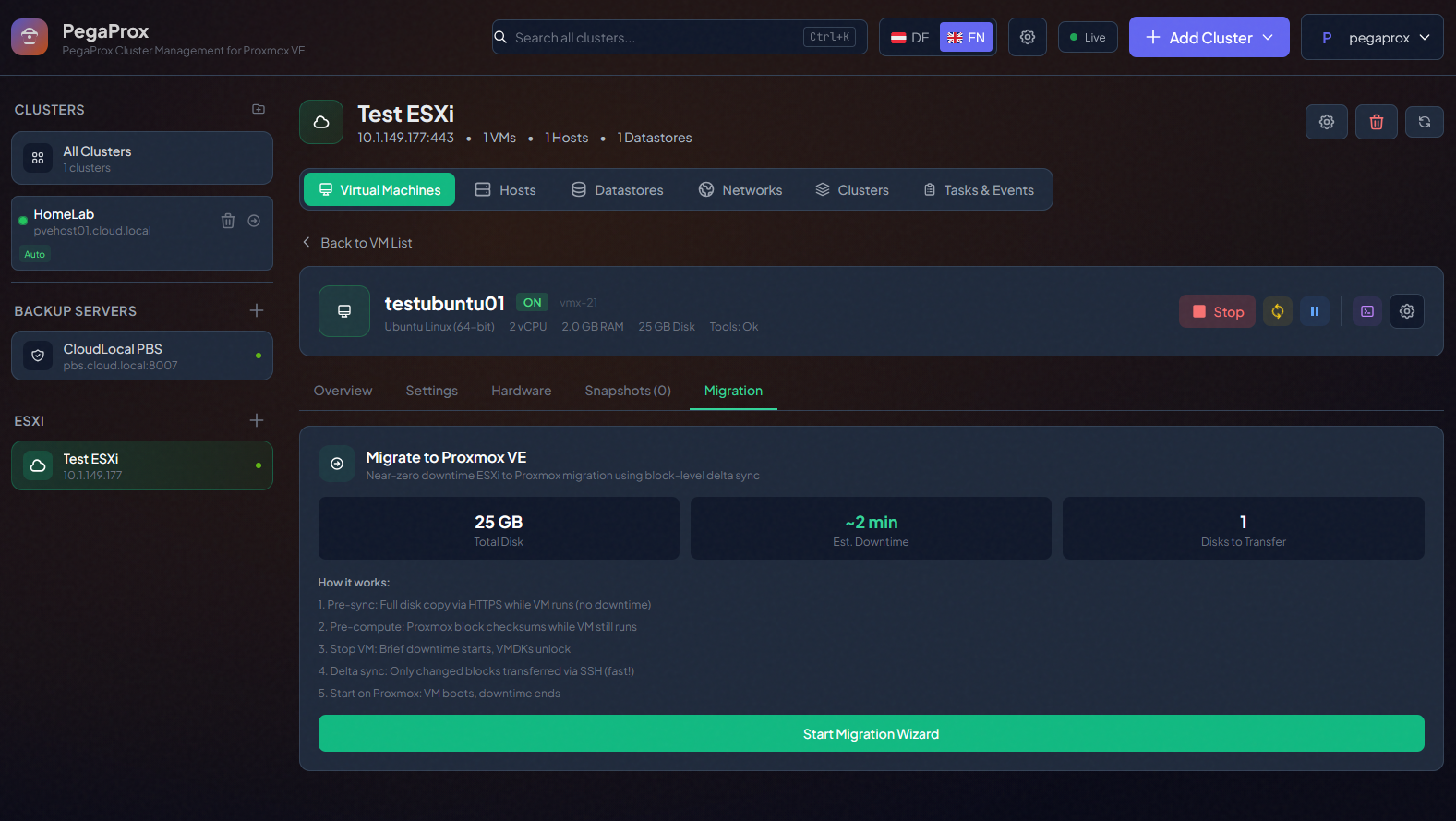
When you click the VM name above, like testubuntu01, it will take you to this screen below. You see the long green button at the bottom for starting the migration wizard.
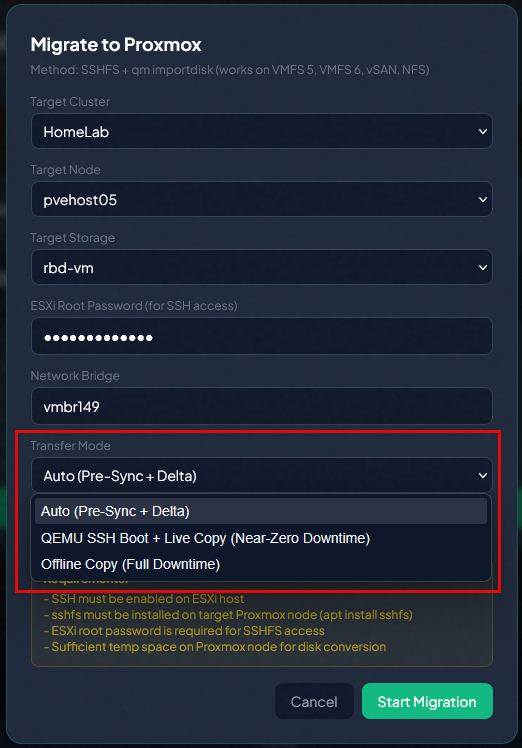
This launches the Migrate to Proxmox dialog box. Note the options here that you have. You can select your target cluster. So if you have multiple clusters, you can select which one you want to target. Then also target storage, ESXi root password and Network bridge you want to connect your VM to once migrated. There are also options to Start VM after migration and Remove source VM.
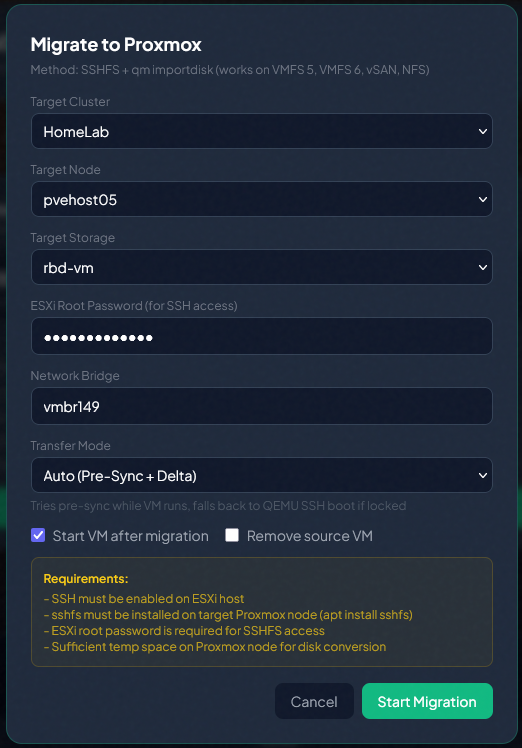
One of the interesting things I see with this tool though is the variety of Transfer modes you get with it. Note the options:
- Auto (Pre-Sync + Delta)
- QEMU SSH Boot + Live Copy (Near-Zero Downtime)
- Offline Copy (Full Downtime)
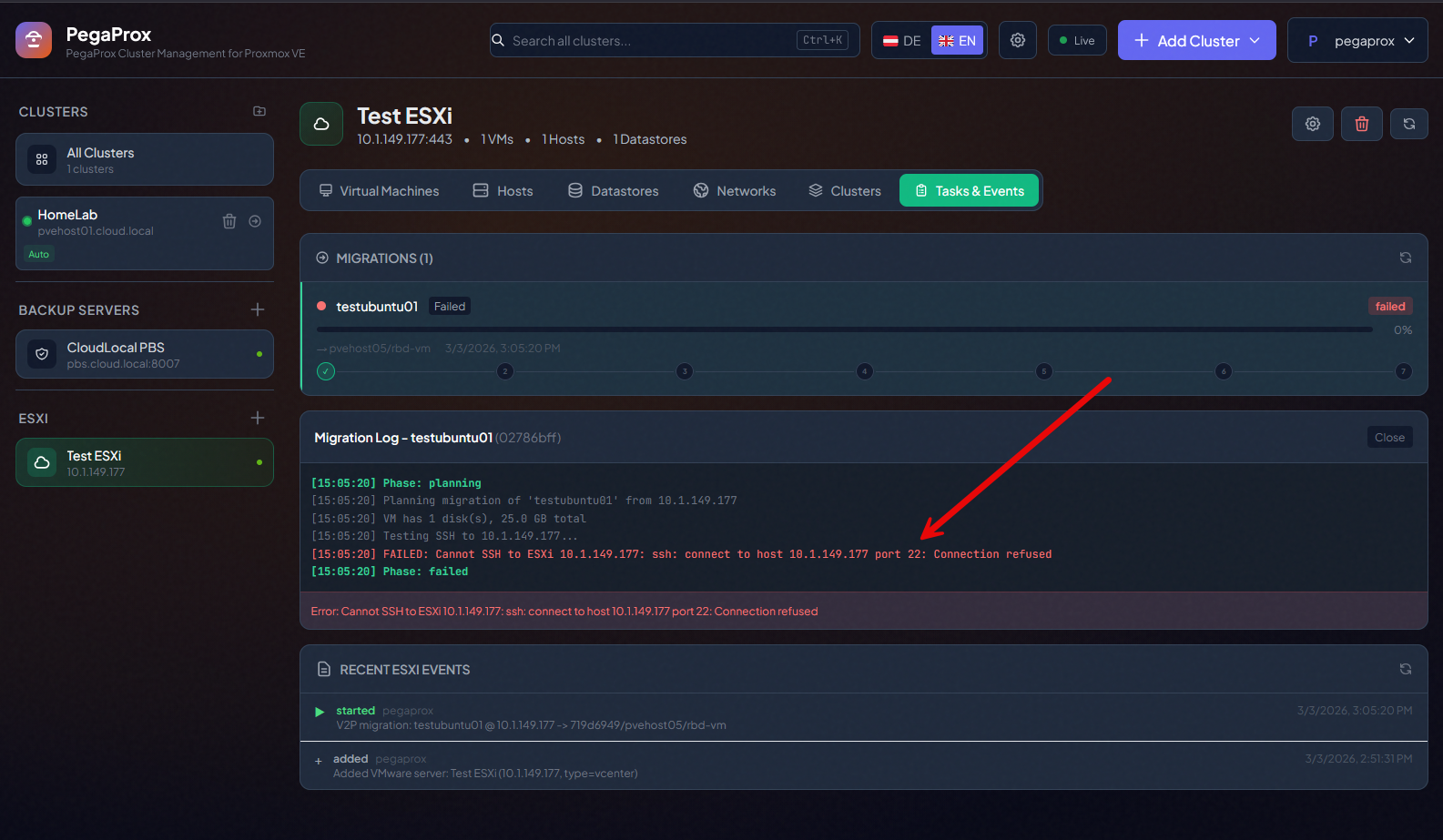
I immediately received an error since I didn’t have SSH enabled. You will need to enable SSH on your ESXi host.
Only one method for migration worked for me. Which one?
So, of the three methods, I was excited to try the one that offered the “near zero downtime” migration. Unfortunately, I received errors with this one. With this method, QEMU SSH Boot + Live Copy, it failed. it seemed like the migration never really got to the point of copying the data. I first thought it was an issue targeting a Ceph storage location, but I tried to target local-lvm on a host and it still didn’t work.
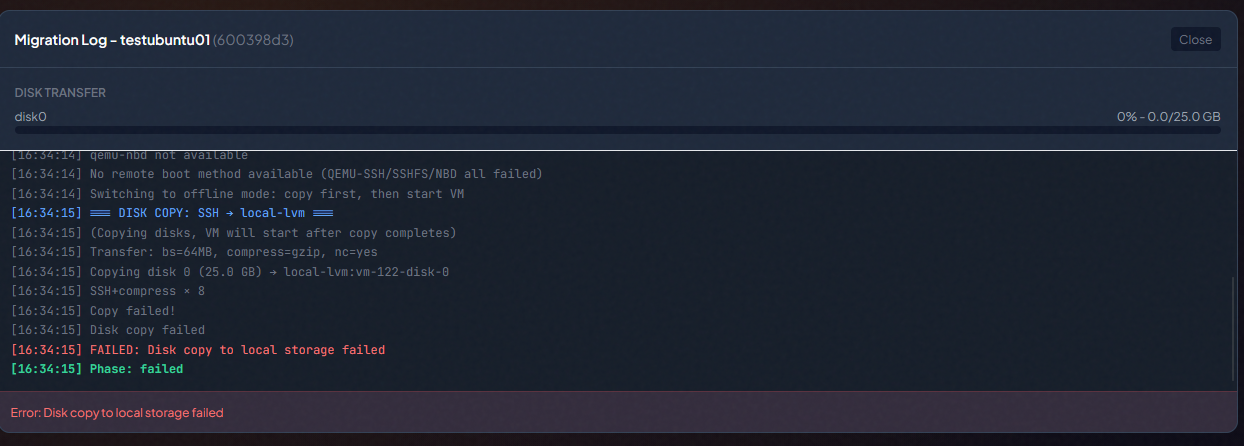
This is the part of the error log I kept seeing. It was suprising though that it was complaining about the running VM having things locked, since a zero-downtime migration would assume the VM would be running. It would quickly give this error and then would try to stop the VMware VM and then force stop and then would just fail.
[16:31:27] SSH: only 0.00 GB (VMDK locked?)
[16:31:27] SSHFS dd from /tmp/v2p-d5d82dda/testubuntu01/testubuntu01-flat.vmdk...
[16:31:27] SSHFS: dd: failed to open '/tmp/v2p-d5d82dda/testubuntu01/testubuntu01-flat.vmdk': Operation not permitted
[16:31:28] ALL methods failed (0 of 26843545600 bytes)
[16:31:28] Hint: VMDK locked by running VM. The ESXi HTTPS /folder endpoint should
[16:31:28] serve files even while locked - check verbose curl output above for details.
[16:31:29] Pre-sync failed (VMDK locked) - switching to QEMU SSH boot
[16:31:29] Stopping VMware VM...
I also tried the other method that assumed things were still running I believe, the Auto (Pre-Sync + Delta). This method also failed for me.
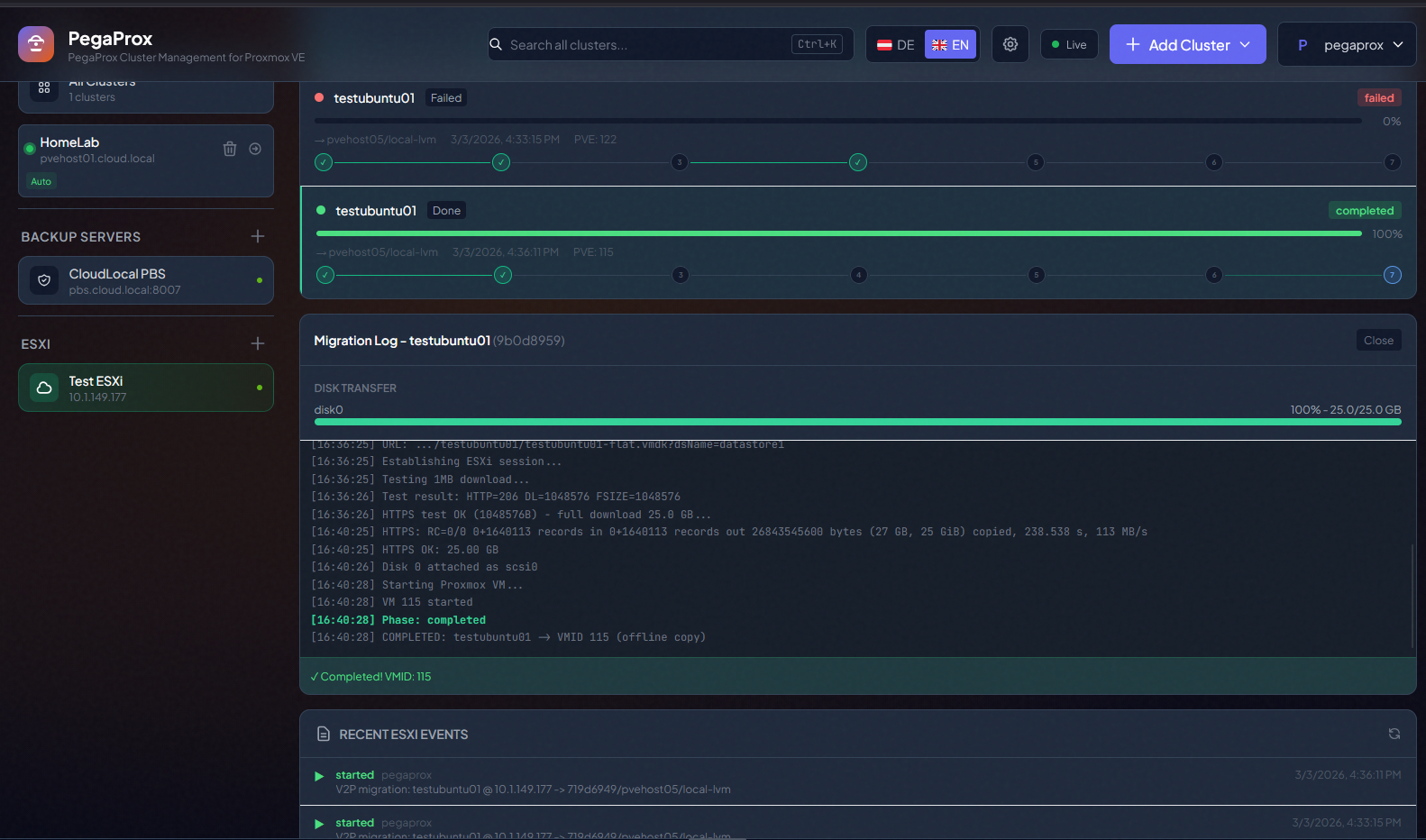
However, i did get the Offline Copy (Full Downtime) method to work as expected. So, as excited as I was, the near no downtime methods are evidently still a work in progress. Still promising that these are features that are being developed.
Proxmox Backup Server monitoring integrated ito the dashboard
The second major feature that has now been introduced into PegaProx is the Proxmox Backup Server integration. Most who are running within the Proxmox ecosystem will have Proxmox Backup Server running. So, this is a great addition for full visibility into storage, backups, datastores, etc.
Traditionally, Proxmox Backup Server has its own interface and management plane. So, to really manage and monitor Proxmox Backup Server (PBS) you have had to log into the PBS server and see things like:
- Datastore usage
- Backup job results
- Prune and garbage collection status
- Snapshot counts
- Storage consumption trends
Adding a Proxmox Backup Server to PegaProx
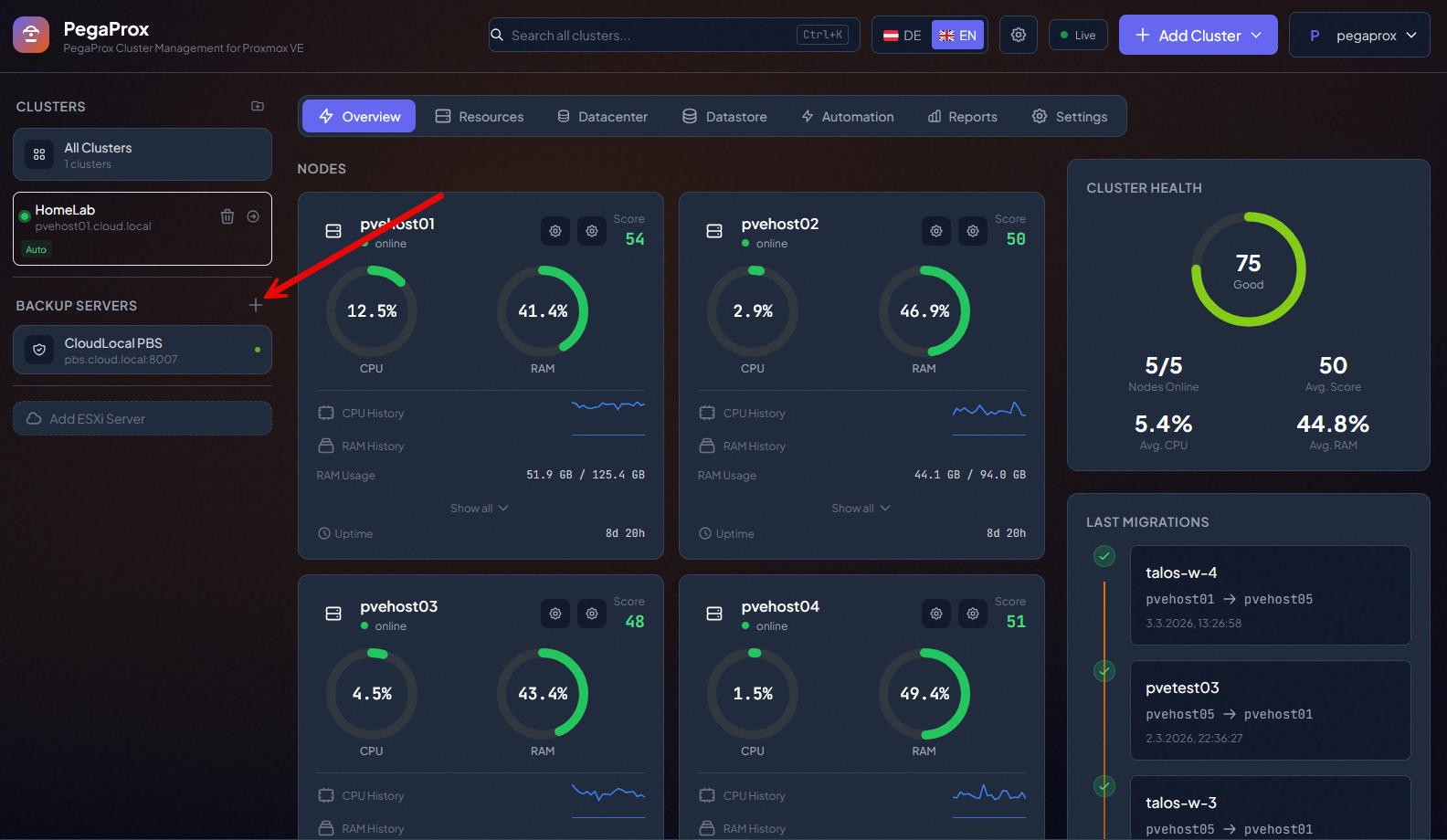
Now, PegaProx introduces the ability to monitor Proxmox Backup Server directly from its dashboard. Click the + sign next to Backup Servers.
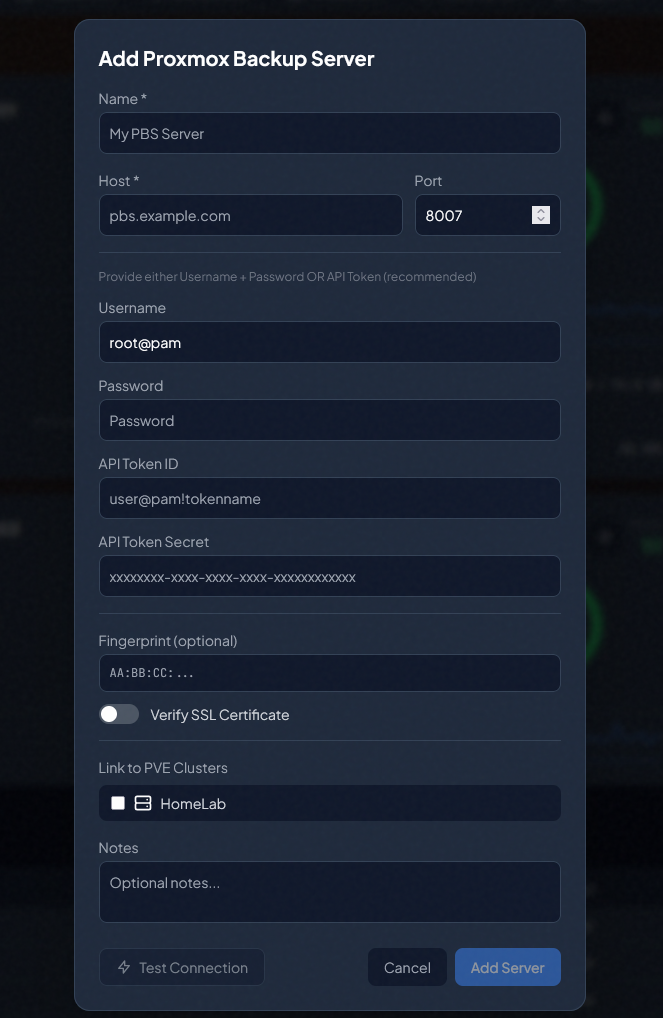
Once you click the + sign in the Backup Servers section of the interface, you will see the dialog box for adding in your Proxmox Backup Server. Enter in the connection information and click Add Server.
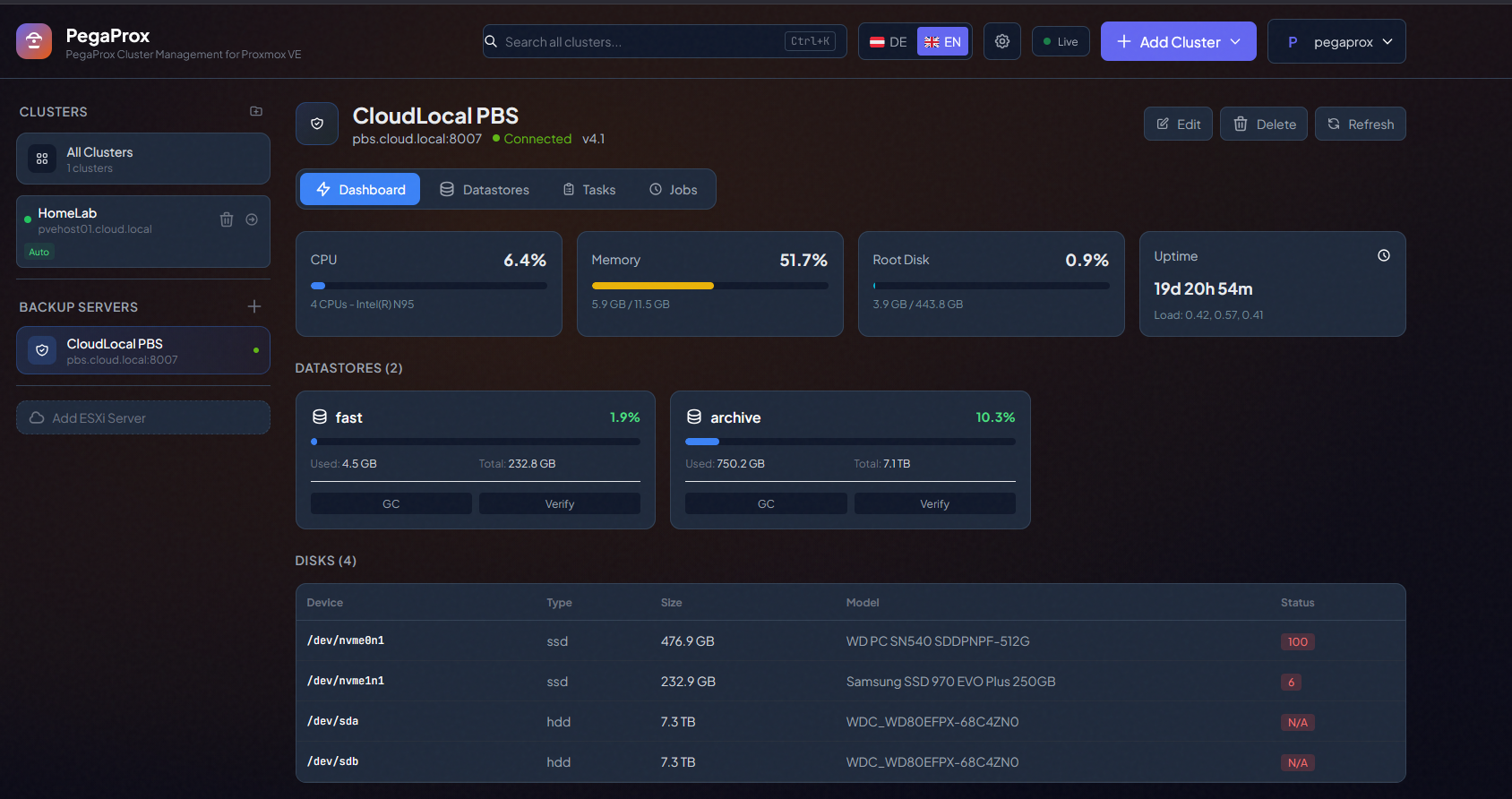
Visibility into Proxmox Backup Server from PegaProx
After you add your PBS server into PegaProx, you get a wealth of information for monitoring your PBS environment on the Dashboard menu. You will see the health and performance metrics displayed such as CPU, memory, Root Disk, Uptime, Datastores, disks, etc.
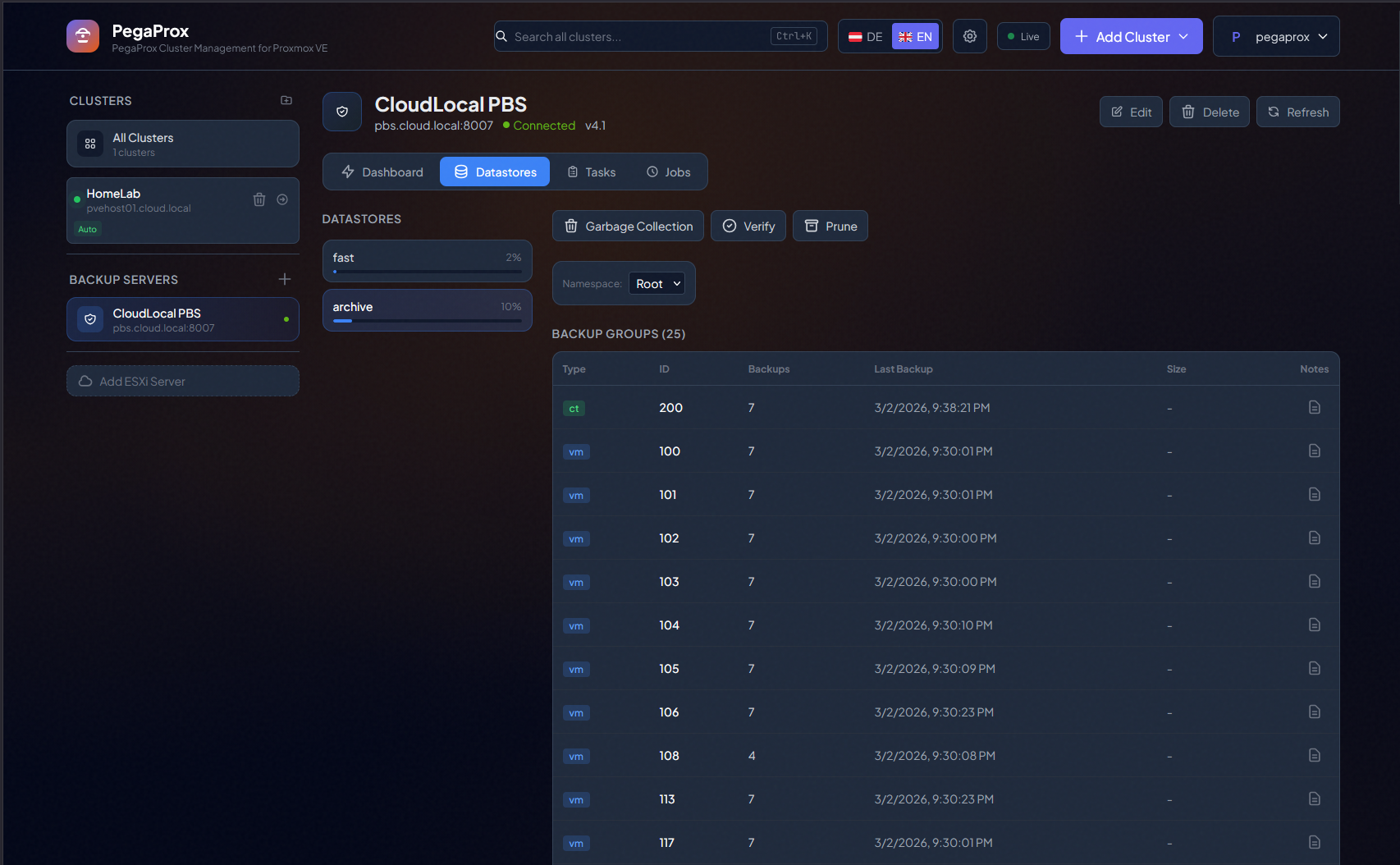
On the Datastores screen, you see the VMs and their IDs that have been backed up.
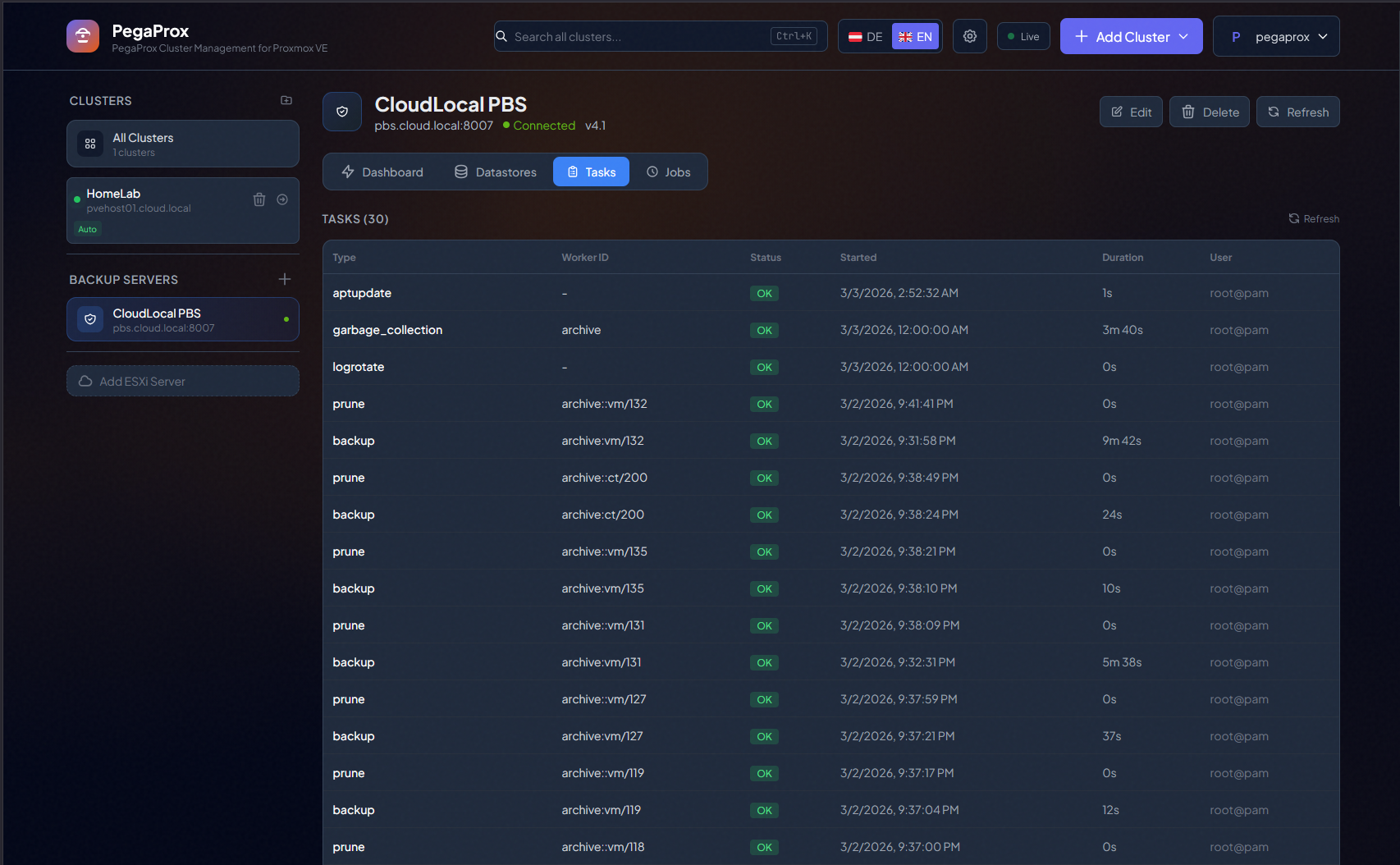
The tasks screen shows the tasks that have finished up and are complete.
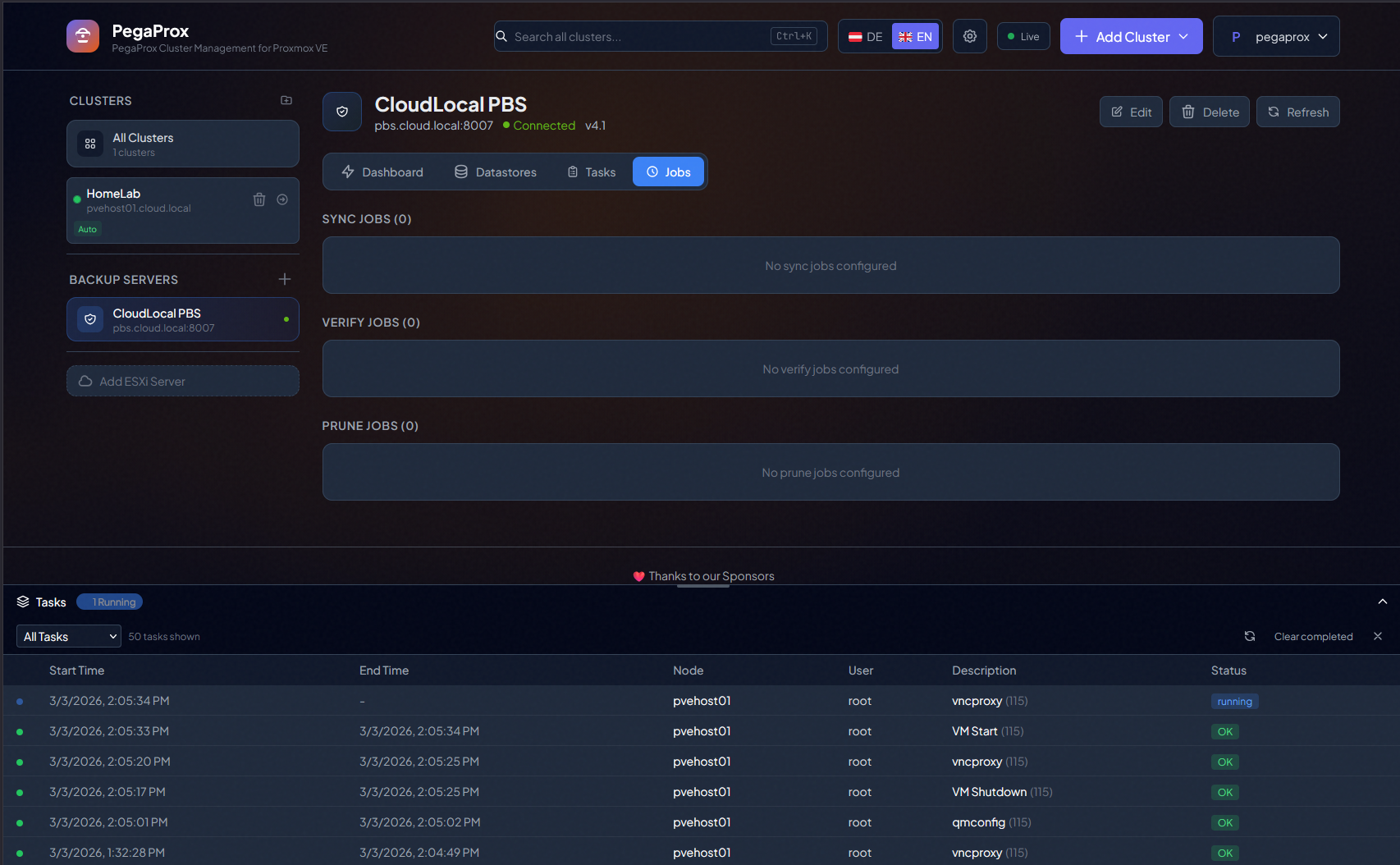
Here is the Jobs screen. Which I don’t have any sync, verify, or prune jobs configured on this backup server.
Wrapping up
While Proxmox Datacenter Manager is evolving and will no doubt become a fully featured dashboard and management tool for Proxmox. But PegaProx is far and above a better UI experience in my opinion. It just feels like a very modern UI experience and one that is quickly adding features that vSphere admins have been used to, like:
- Rolling updates
- Smarter automation
- DRS
- Multi-cluster management, etc
PegaProx adding ESXi migration and Proxmox Backup Server monitoring are great additions to what I think is already a super strong project. What about you? Have you tried this out as of yet? Are you looking at migrating away from VMware vSphere?

Google is updating how articles are shown. Don’t miss our leading home lab and tech content, written by humans, by setting Virtualization Howto as a preferred source.
About The Author