If you are working with more than a single Proxmox VE Server host, you are probably already thinking in terms of cluster management. Storage is also probably clustered. Your networking is clustered. HA for Proxmox is clustered. But one thing that can still be a pain and feel like we are still having to sneakernet around is managing one host at a time with SSH sessions and repeating the same commands over and over. But, thankfully, there is a tool that if you haven’t heard about yet, you need to. It is called ClusterShell. It has a clush command that helps close this gap between being able to run commands simultaneously across cluster hosts at the same time. It can be a lifesaver when you are in a maintenance or shutdown scenario for your cluster. Let’s see how.
What is ClusterShell (clush)?
I hadn’t heard about it either until recently, but ClusterShell is a lightweight command execution tool that can run commands in parallel across different nodes. It uses SSH under the hood so you aren’t having to adopt some totally new communication protocol to include it in your workflow.
Its job is to do one thing really well and that is to run commands on many nodes at once. It also aggregates and presents the output in a way that makes a difference in the tool being extremely effectively. The clush command is the command that you will use the most often.
It allows you to group hosts together into a special group that clush uses to target for running your commands and then executes it simultaneously across all of them at once. Let’s state a couple of things that it is not. What are those?
It is not trying to be a configuration management tool. It doesn’t keep up with any kind of state over time. But instead it is powerful when you view it in light of live operations, maintenance windows, and troubleshooting sessions where you need to run the same commands across all nodes to get output.
I think for Proxmox VE Server and cluster management, this makes it a perfect fit for many of the operations we need to do.
Installing ClusterShell on Proxmox VE hosts
Proxmox VE is based on Debian, so installing ClusterShell is straightforward.
On each Proxmox host, run:
apt update
apt install clustershell -y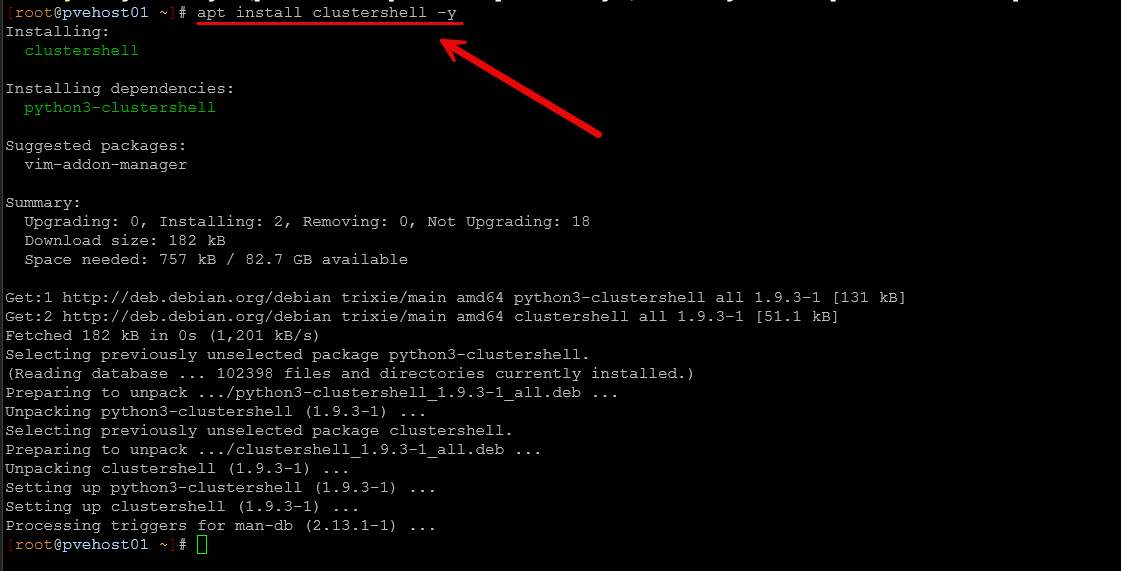
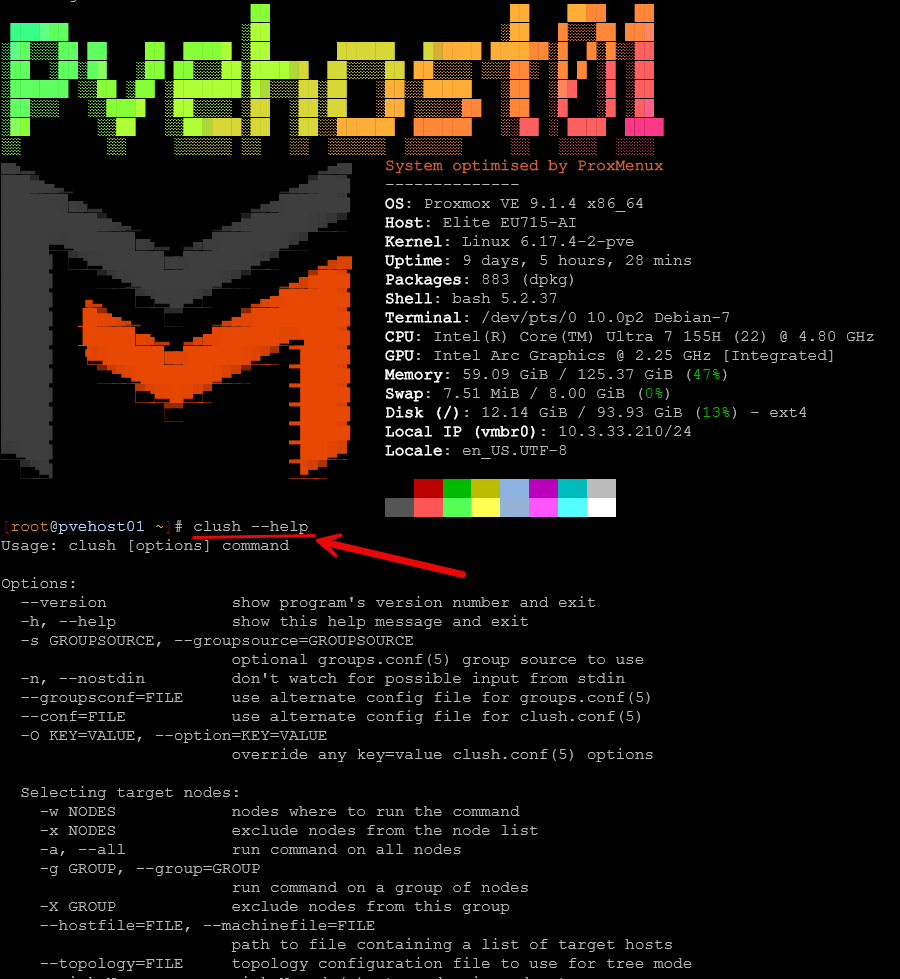
You can view all of the available commands with ClusterShell’s clush command with the following once you have it installed:
clush --helpYou should see an output similar to the below. Note the options you have with the clush command:
Options:
  --version             show program's version number and exit
  -h, --help            show this help message and exit
  -s GROUPSOURCE, --groupsource=GROUPSOURCE
                        optional groups.conf(5) group source to use
  -n, --nostdin         don't watch for possible input from stdin
  --groupsconf=FILE     use alternate config file for groups.conf(5)
  --conf=FILE           use alternate config file for clush.conf(5)
  -O KEY=VALUE, --option=KEY=VALUE
                        override any key=value clush.conf(5) options

  Selecting target nodes:
    -w NODES            nodes where to run the command
    -x NODES            exclude nodes from the node list
    -a, --all           run command on all nodes
    -g GROUP, --group=GROUP
                        run command on a group of nodes
    -X GROUP            exclude nodes from this group
    --hostfile=FILE, --machinefile=FILE
                        path to file containing a list of target hosts
    --topology=FILE     topology configuration file to use for tree mode
    --pick=N            pick N node(s) at random in nodeset

  Output behaviour:
    -q, --quiet         be quiet, print essential output only
    -v, --verbose       be verbose, print informative messages
    -d, --debug         output more messages for debugging purpose
    -G, --groupbase     do not display group source prefix
    -L                  disable header block and order output by nodes
    -N                  disable labeling of command line
    -P, --progress      show progress during command execution
    -b, --dshbak        gather nodes with same output
    -B                  like -b but including standard error
    -r, --regroup       fold nodeset using node groups
    -S, --maxrc         return the largest of command return codes
    --color=WHENCOLOR   whether to use ANSI colors (never, always or auto)
    --diff              show diff between gathered outputs
    --outdir=OUTDIR     output directory for stdout files (OPTIONAL)
    --errdir=ERRDIR     output directory for stderr files (OPTIONAL)

  File copying:
    -c, --copy          copy local file or directory to remote nodes
    --rcopy             copy file or directory from remote nodes
    --dest=DEST_PATH    destination file or directory on the nodes
    -p                  preserve modification times and modes

  Connection options:
    -f FANOUT, --fanout=FANOUT
                        use a specified fanout
    -l USER, --user=USER
                        execute remote command as user
    -o OPTIONS, --options=OPTIONS
                        can be used to give ssh options
    -t CONNECT_TIMEOUT, --connect_timeout=CONNECT_TIMEOUT
                        limit time to connect to a node
    -u COMMAND_TIMEOUT, --command_timeout=COMMAND_TIMEOUT
                        limit time for command to run on the node
    -m MODE, --mode=MODE
                        run mode; define MODEs in <confdir>/*.conf
    -R WORKER, --worker=WORKER
                        worker name to use for command execution ('exec',
                        'rsh', 'ssh', etc. default is 'ssh')
    --remote=REMOTE     whether to enable remote execution: in tree mode,
                        'yes' forces connections to the leaf nodes for
                        execution, 'no' establishes connections up to the leaf
                        parent nodes for execution (default is 'yes')
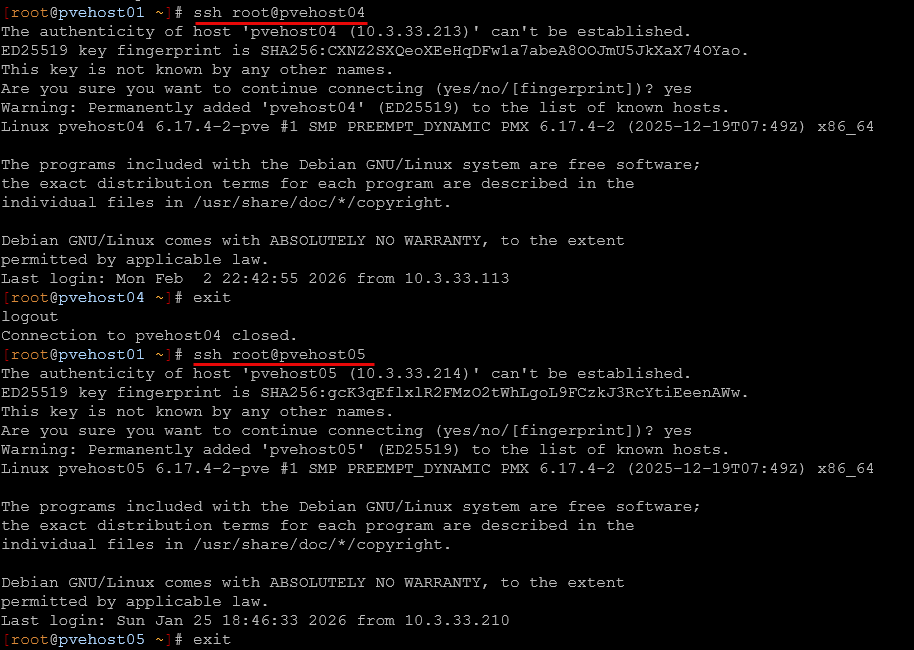
There is no Proxmox specific configuration required. ClusterShell relies on standard SSH connectivity, which you already have if you manage Proxmox from the shell.
If you use SSH keys for root or administrative access, ClusterShell will automatically take advantage of them. If not, you will be prompted for passwords just like normal SSH sessions. Below, I already had key-based authentication in place, so I just had to
Defining your Proxmox cluster once
The real power of ClusterShell comes from host groups. Instead of typing hostnames every time, you define them once and reuse them forever.
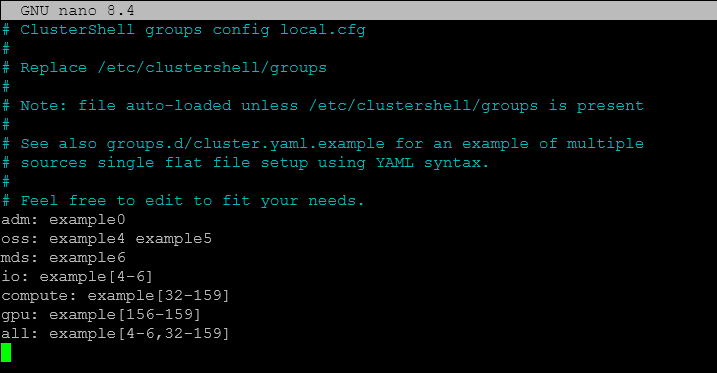
Edit the local.cfg file:
nano /etc/clustershell/groups.d/local.cfgThis is what that file looks like by default.
Add a group for your Proxmox cluster like so:
proxmox: pvehost01 pvehost02 pvehost03 pvehost04 pvehost05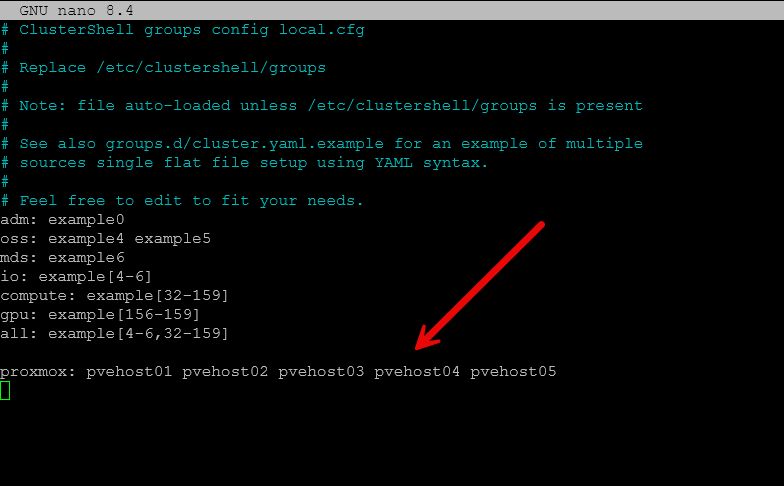
Save the file. That is it.
From now on, the word proxmox represents your entire cluster when used with the clush command! Very cool! This small step helps to eliminate a huge amount of repetition and mental overhead trying to run commands across your cluster nodes.
Running your first cluster wide command
Before doing anything destructive like wipefs or sgdisk –zap-all (lol), start with something harmless.
clush -g proxmox hostname
You will see output from every host in your group you created. If one host responds in a different way or fails altogether, it stands out very quickly.
This grouped output is one of the most underrated features of ClusterShell in my opinion, but more on that below.
Is this safer than SSH’ing into each server?
Well, I could answer that with a “yes” and a “no.” First of all, when it comes to opening up multiple SSH terminals and running commands, there is a danger of losing focus and discipline and doing things differently on one host vs another.
ClusterShell helps with this in a few key ways:
- Commands are given consistently across hosts
- Output is grouped so anomalies stand out more easily
- You are less likely to forget a host
- You can copy and reuse commands confidently
Now obviously, the one downside to running ClusterShell is running a command that you didn’t intend on running. ClusterShell in that case would make the blast radius larger. But I think overall, the benefits outweigh this particular downside. Especially, if you are in a high stress scenario like a power event or emergency maintenance, being able to run the commands simultaneously from one terminal helps with consistency and alleviates potential problems.
A real world example of preparing for a cluster shutdown
This is where I think the capabilities of clustershell really starts to shine is getting things done quickly and consistently in scenarios like cluster shutdowns. If you have HA enabled, and you want to stop HA services cleanly across your hosts. You can do this easily with clustershell commands:
To stop HA services on all hosts at once:
clush -g proxmox "systemctl stop pve-ha-lrm pve-ha-crm"To disable them so they do not restart during the shutdown process:
clush -g proxmox "systemctl disable pve-ha-lrm pve-ha-crm"This single action replaces five separate SSH sessions and removes guesswork entirely.
Then, before powering off your cluster
After stopping services, you may want to run some quick confirmations. For instance, you can check uptime across the cluster:
clush -g proxmox uptime
In this way, you run the commands once and are able to touch all the servers at the same time.
Checking kernel updates or filesystem usage
Another helpful operation to use clush with is doing things like checking kernel versions before or after updates:
clush -g proxmox uname -r
You can also check root filesystem usag to compare between your hosts:
clush -g proxmox df -h /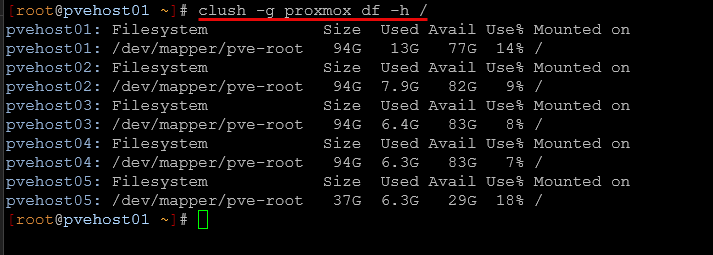
These checks take seconds instead of minutes and give back the state of the cluster in no time.
Using ClusterShell during Proxmox upgrades between versions
Proxmox upgrades often require consistency across nodes. While the official upgrade process is well documented, ClusterShell helps with the parts that can be repetitive. For example, you can use it for checking package versions, verifying reboot status, or restarting services after upgrades.
For example, to restart a service across all hosts:
clush -g proxmox "systemctl restart pveproxy"Or to confirm that all nodes have rebooted after a kernel update:
clush -g proxmox who -b
Instead of guessing or checking hosts one by one, you get a cluster level view instantly.
The grouped output of the combined commands helps spot things
I think one of the simple but most powerful benefits to ClusterShell is the grouped output. This helps you to spot things much more easily. If one host is missing a package, running a different kernel, or has unusual disk usage, the grouped output of ClusterShell makes this stand out and much easier to key in on.
Below, you can easily see which host stands out in terms of uptime:

Especially in Ceph backed Proxmox clusters, consistency is really important. Small differences between your nodes can lead to performance issues or warnings that can possibly be hard to track down when you look at hosts individually.
Security considerations with this?
Because ClusterShell relies on SSH underneath the hood, the same security practices apply here that do with plain SSH security.
- Use SSH keys where possible
- Limit root access
- Restrict which hosts are included in groups
- Test commands with harmless checks before running any commands that might be destructive
A good habit is to run a read only command first, then repeat it with the actual change once you confirm the target hosts are what you think they are.
Wrapping up
Definitely check out ClusterShell for Proxmox VE server as part of your administration toolbag. Keep in mind as well, this is not a Proxmox-specific tool, but rather, you could use this on any set or group of Linux servers that you want to run commands on in parallel. I think ClusterShell makes a lot of sense for admin tasks like checking all of your Proxmox nodes at the same time or running various comparisons between them. The grouped output is one of its strengths allowing you to much more easily spot variances between your hosts.

Google is updating how articles are shown. Don’t miss our leading home lab and tech content, written by humans, by setting Virtualization Howto as a preferred source.
About The Author