



There has been a lot of community projects that have sprung up around Docker UIs and dashboards. Most of us run Docker in the home lab and as your containers grow, so does the management tasks and other requirements. You generally end up with multiple Docker hosts, with multiple terminals to check things in, and tracking Docker Compose file across your hosts. Many opt for a web management UI for Docker management, something like Portainer or Komodo. Dockge has gained traction as well. There is a new tool I would like to showcase called Arcane.
What is Arcane?
Arcane is a new web based Docker management tool that allows you to run a container and connect to Docker using the socket or socket proxy. Once you are connected to your Docker hosts, it gives you visibility into things like your containers, images, volumes, networks, and Compose stacks.
Keep in mind that it is not an enterprise orchestration platform. So, it isn’t replacing Kubernetes or do something new with Docker itself. You still are working with the containers and compose files, but Arcane gives you a way to see and manage things better.
Arcane aligns with how most of us manage Docker in the home lab so you don’t really have to learn new workflows or concepts.
Check out the official GitHub repository here: getarcaneapp/arcane.
Core Features of Arcane
Arcane is a tool that really focuses on clarity in managing Docker containers. With the dashboard, I found it easy to quickly scan and see which containers are running, stopped, or which ones might be grabbing more resources than they should. I like the way CPU and memory usage is displayed in the Arcane dashboard.
Another great feature of Arcane is that it has very strong Docker Compose support. You can manage your Compose stacks using templates. This is something that is ideal for those in their home labs that deploy the same types of services using Docker. Templates in Arcane allow you to eliminate copy and paste errors and standardize in on your deployments.
Arcane also gives you quick and easy views of your images, networks, and Docker volumes built-in. This is great to have especially when disk space starts running low on your Docker host or when containers don’t start due to missing resources or other issues. It also supports notifications and modern auth options like OIDC.
How to install Arcane
The Arcane documentation site makes installing Arcane super easy by what I think is a great idea that I wish more would follow. It has a Compose generator that will actually generate the Docker Compose code for you based on the inputs/code you give in the generator.
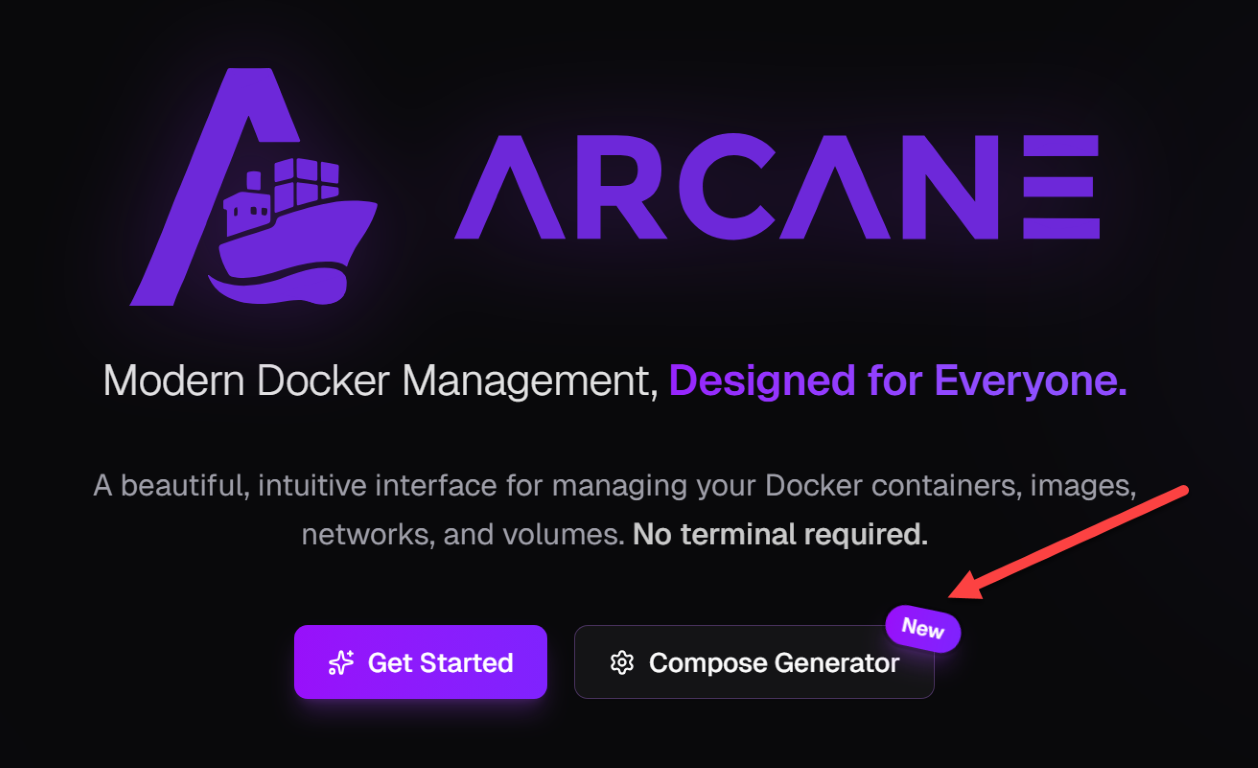
When you click on the compose generator, you will have a Configure Your Deployment screen that allows you to build the deployment as you want with the parameters you want.
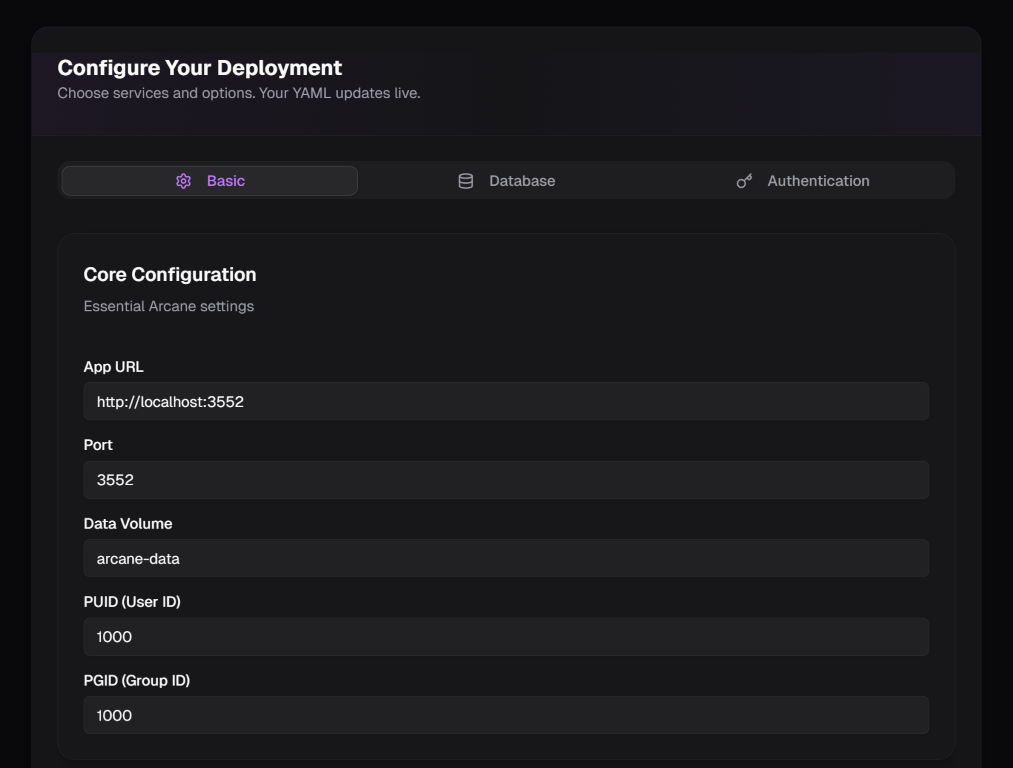
This is the same page as above, but just broke out this screenshot to help show the configuration. Here you can click Generate on the Encryption Key and JWT Secret to generate strings to use. Then just click the Generate Docker Compose button.
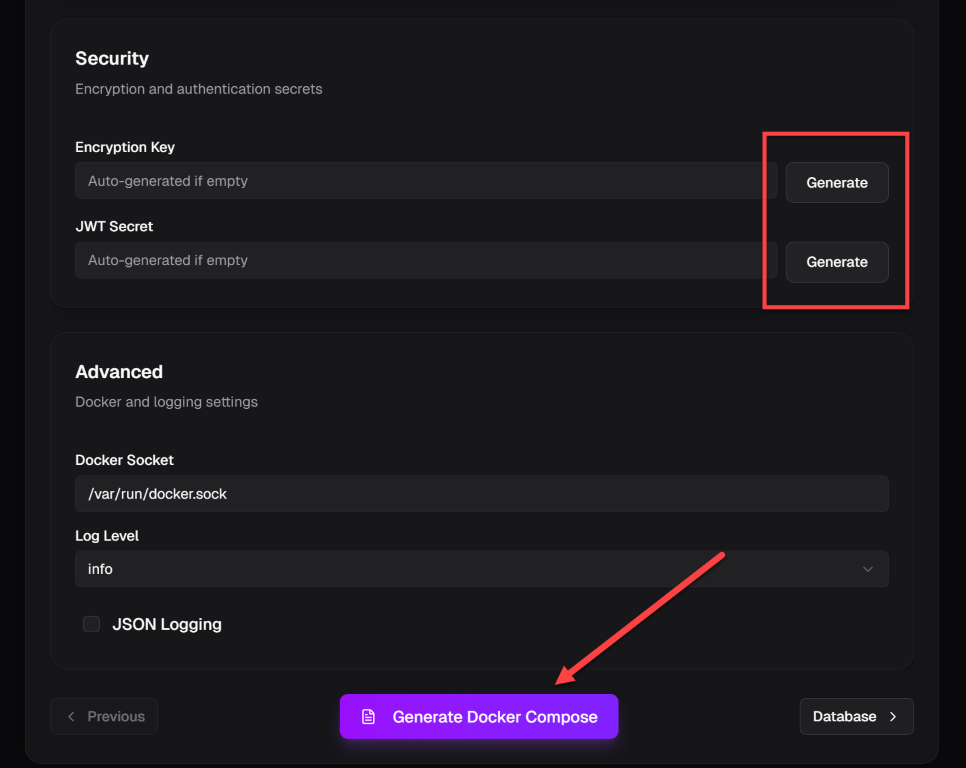
Below is the code I got when I clicked the Generate Docker Compose button:
services:
  arcane:
    image: ghcr.io/getarcaneapp/arcane:latest
    container_name: arcane
    restart: unless-stopped
    ports:
      - 3552:3552
    volumes:
      - /var/run/docker.sock:/var/run/docker.sock
      - arcane-data:/app/data
    environment:
      - APP_URL=http://10.1.149.26:3552
      - PUID=1000
      - PGID=1000
      - ENCRYPTION_KEY=c3568a071b289ac904754ed50150dee2d70ae27f694ab807ce2b4751ff54df4c
      - JWT_SECRET=154d1ba629fa0230394b0107b223ccc36a21cec39be4a0dc747b0d50f603efa4
      - LOG_LEVEL=info
      - LOG_JSON=false
      - OIDC_ENABLED=false
      - DATABASE_URL=file:data/arcane.db?_pragma=journal_mode(WAL)&_pragma=busy_timeout(2500)&_txlock=immediate

volumes:
  arcane-data:
    driver: local
Next, just run the typical docker compose up command:
docker compose up -d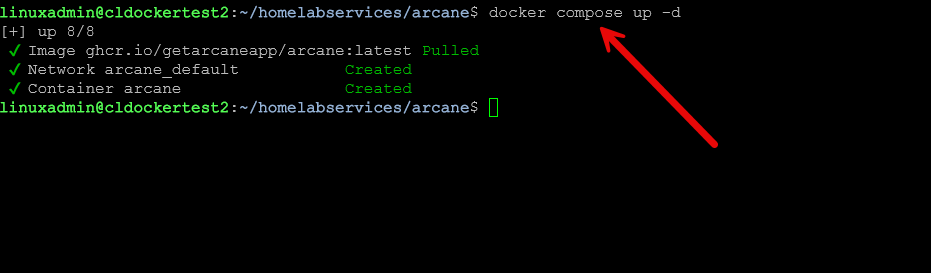
Logging into the interface
Once the container is up and running, browse out to port 3552 of your Arcane management container (this is what we just spun up). You will see the username and password fields here.
You enter the defaults of the following:
- username: arcane
- password: arcane-admin
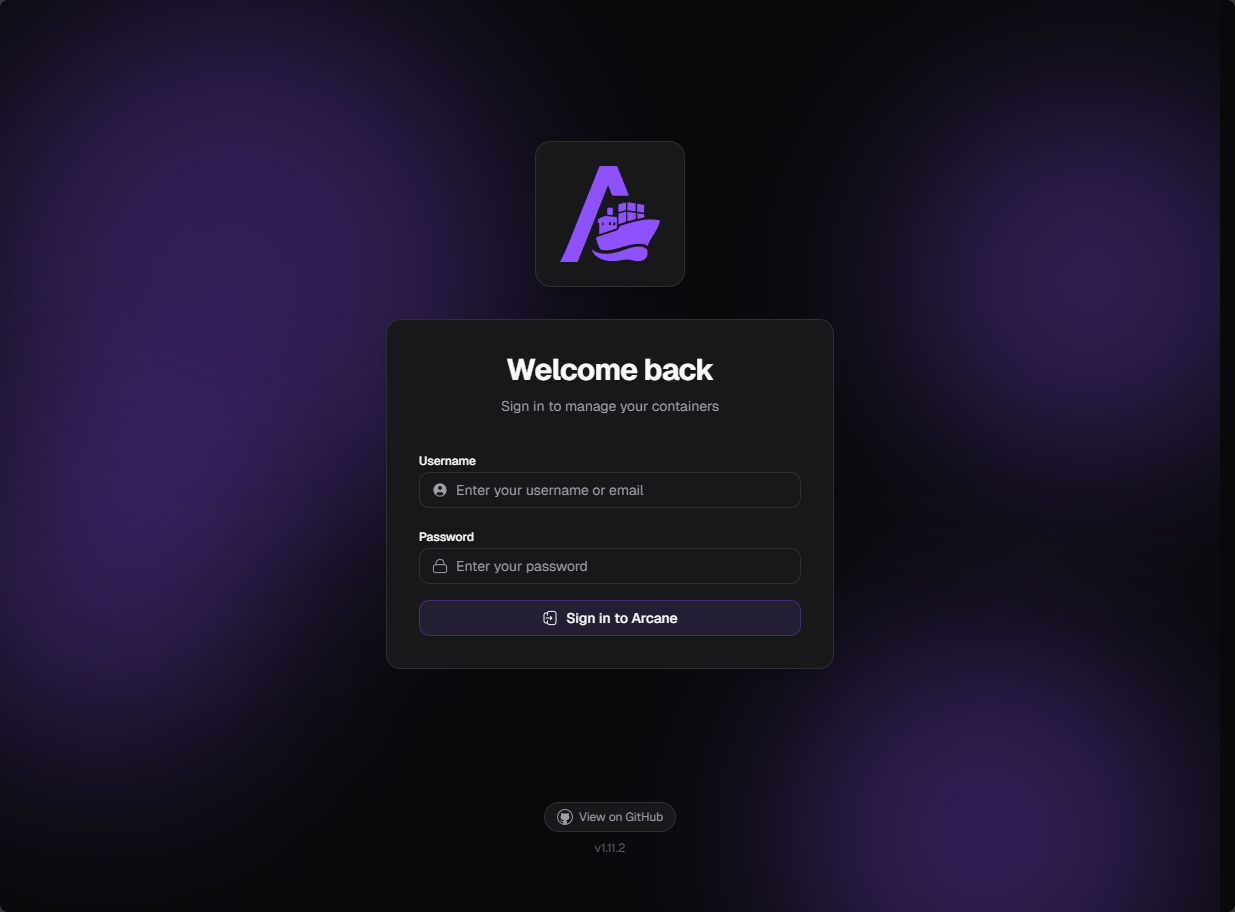
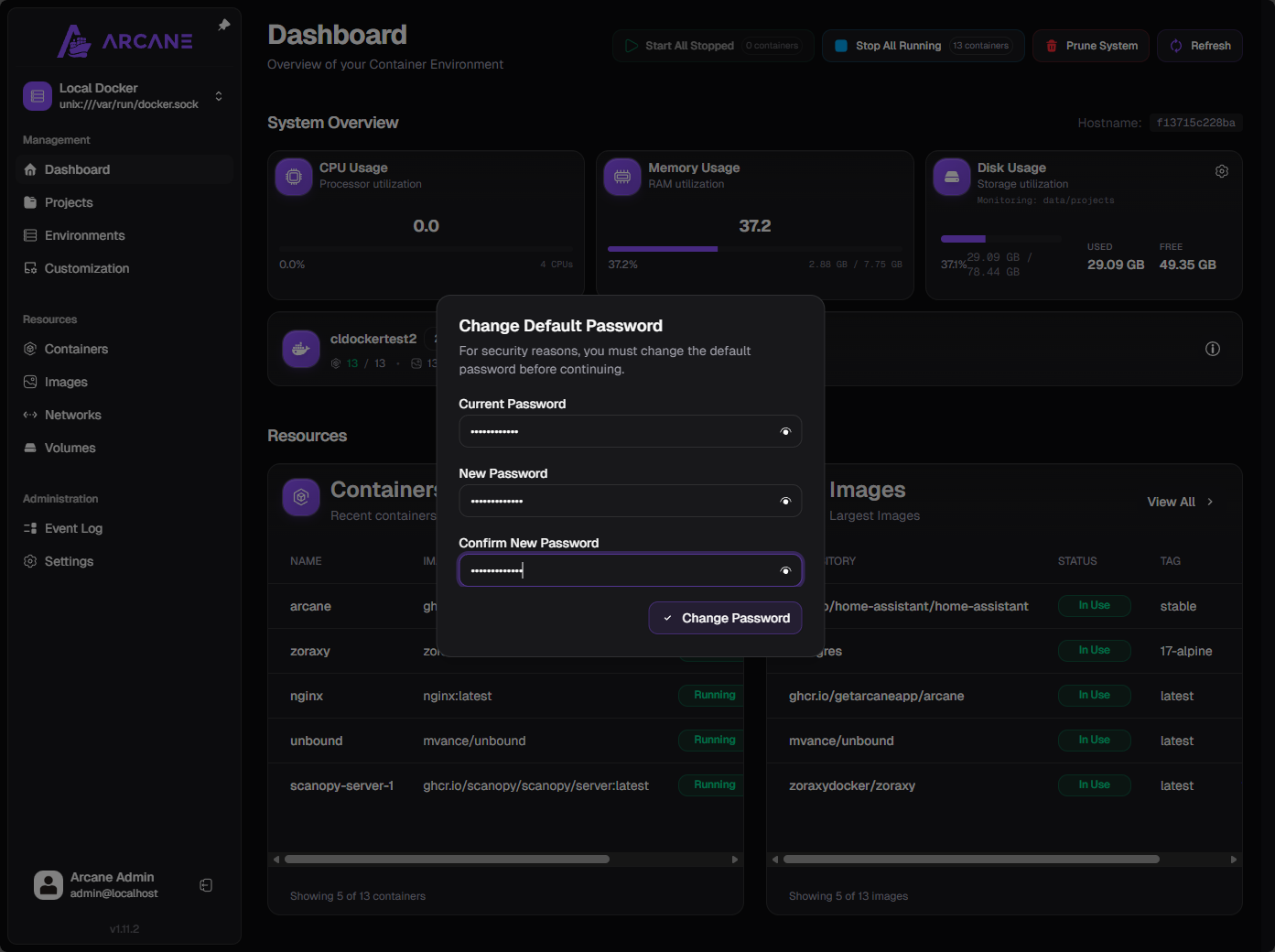
It will log you in and prompt you immediately to change the default password. This is what we are doing below.
Highlights of the Arcane UI
Let me take you through a few of the highlights of the Arcane Docker UI and show you some of the features. The dashboard view looks like the below. You will see a global view of your environment, currently only connected to your local docker host where you are running Arcane.
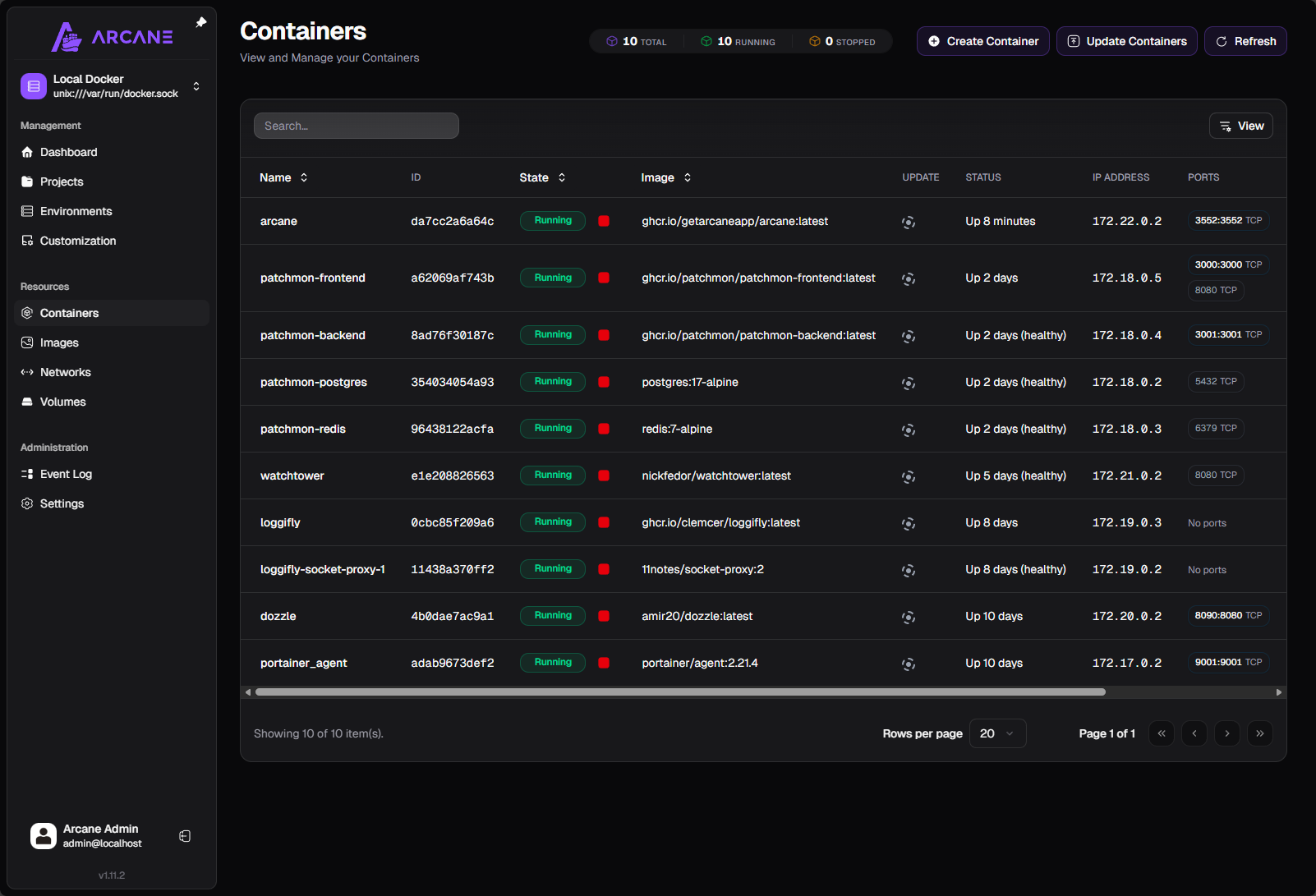
Containers view
Most will probably spend a lot of time in the interface on the Containers page. This shows a wealth of information. You can click on the name of the containers and drill in for more detailed information.
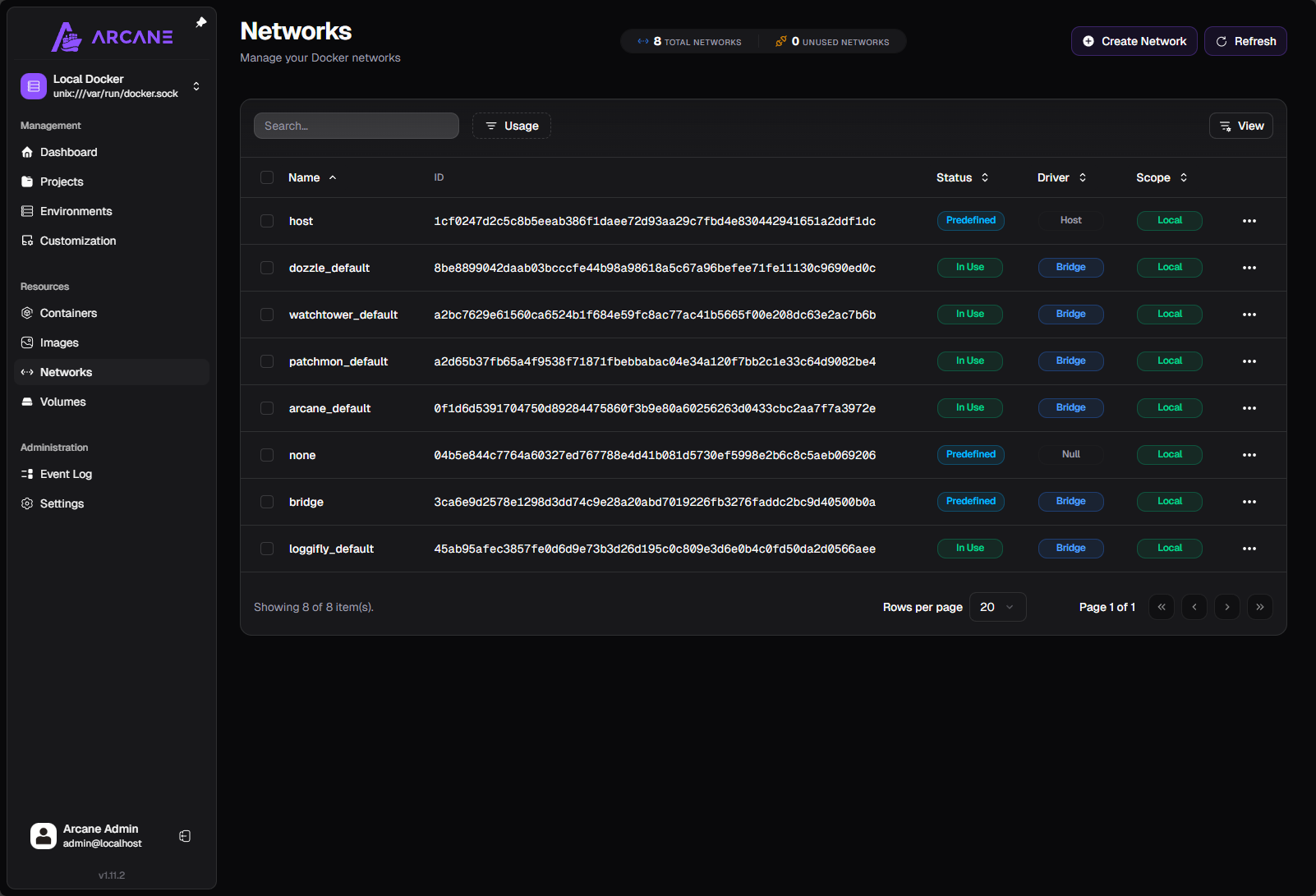
Networks view
Like the containers view, you can see the details of the networks on the docker host where Arcane is loaded.
Volumes view
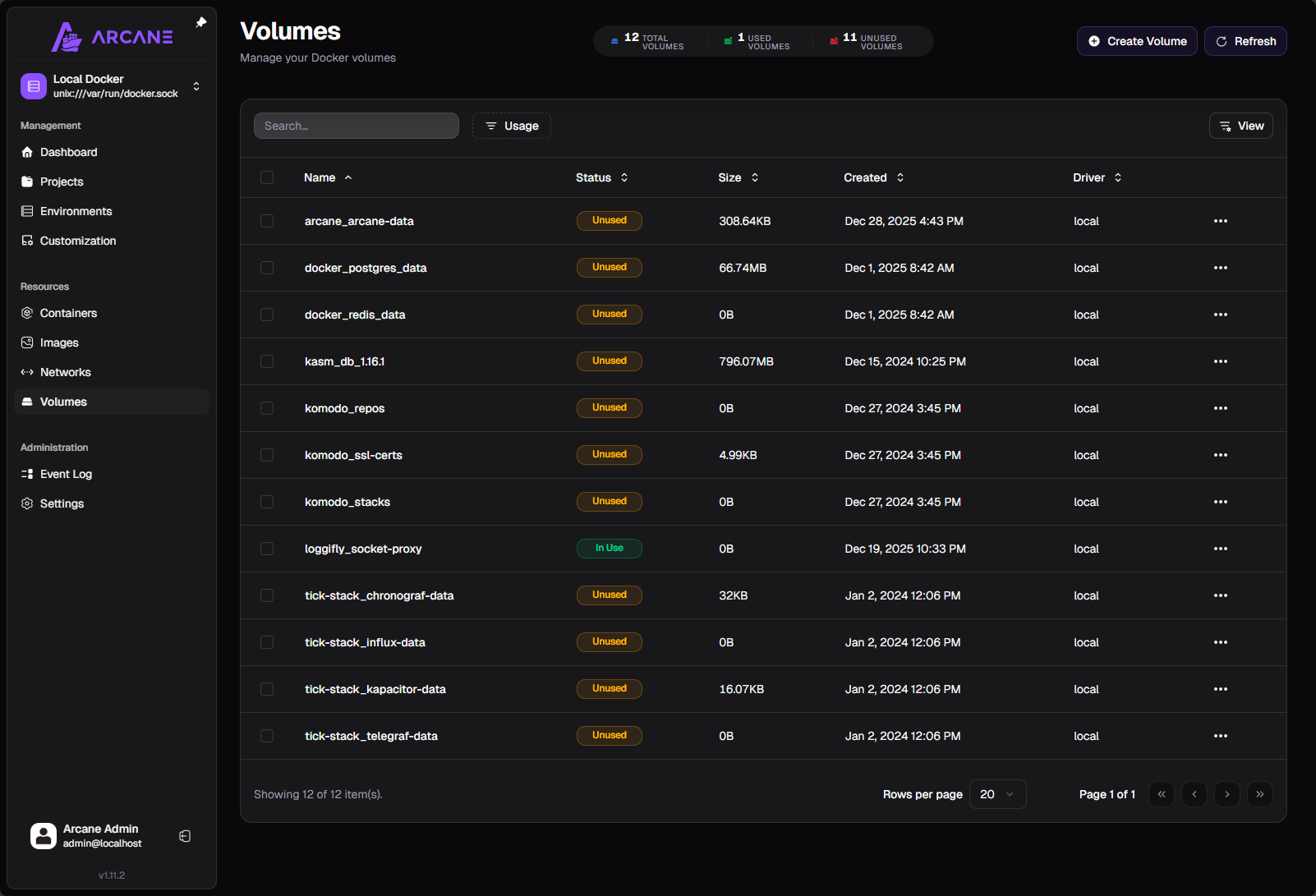
The Volumes dashboard shows the volumes on the host and also whether these are used or unused which is handy since this will tell you if it is just taking up space from perhaps a stale, long removed container.
Pruning disk space
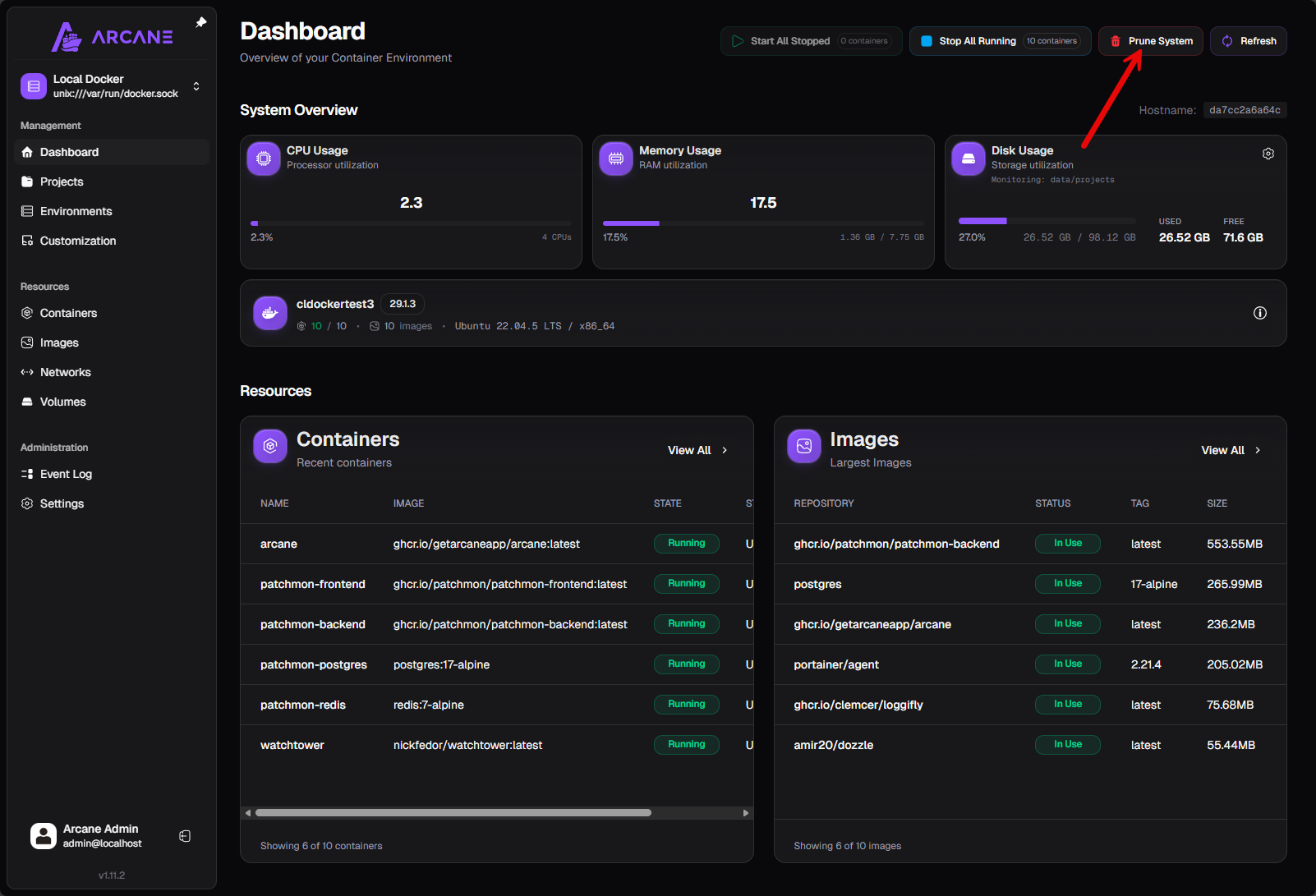
One of the really cool things you will see at the top is an easy way to get started performing maintenance. you have the Prune System button.
This allows you to prune dangling images and other resources that may be taking up space.
This will launch the Confirm System Prune dialog. By default it will have the following options selected.
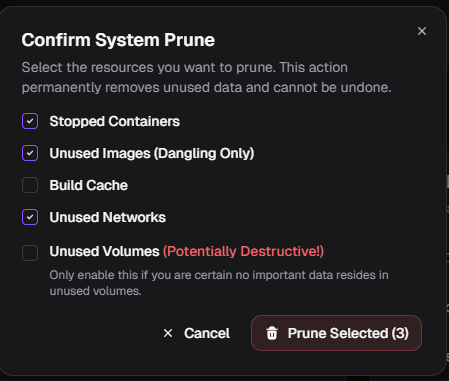
You can also check off the Unused Volumes but as you can see, it tosses out there that you may want to think about this option as it may result in data loss if you don’t have backups.

I think this is a great little feature that helps you keep your Docker container hosts running in smoothly and not build up disk pressure.
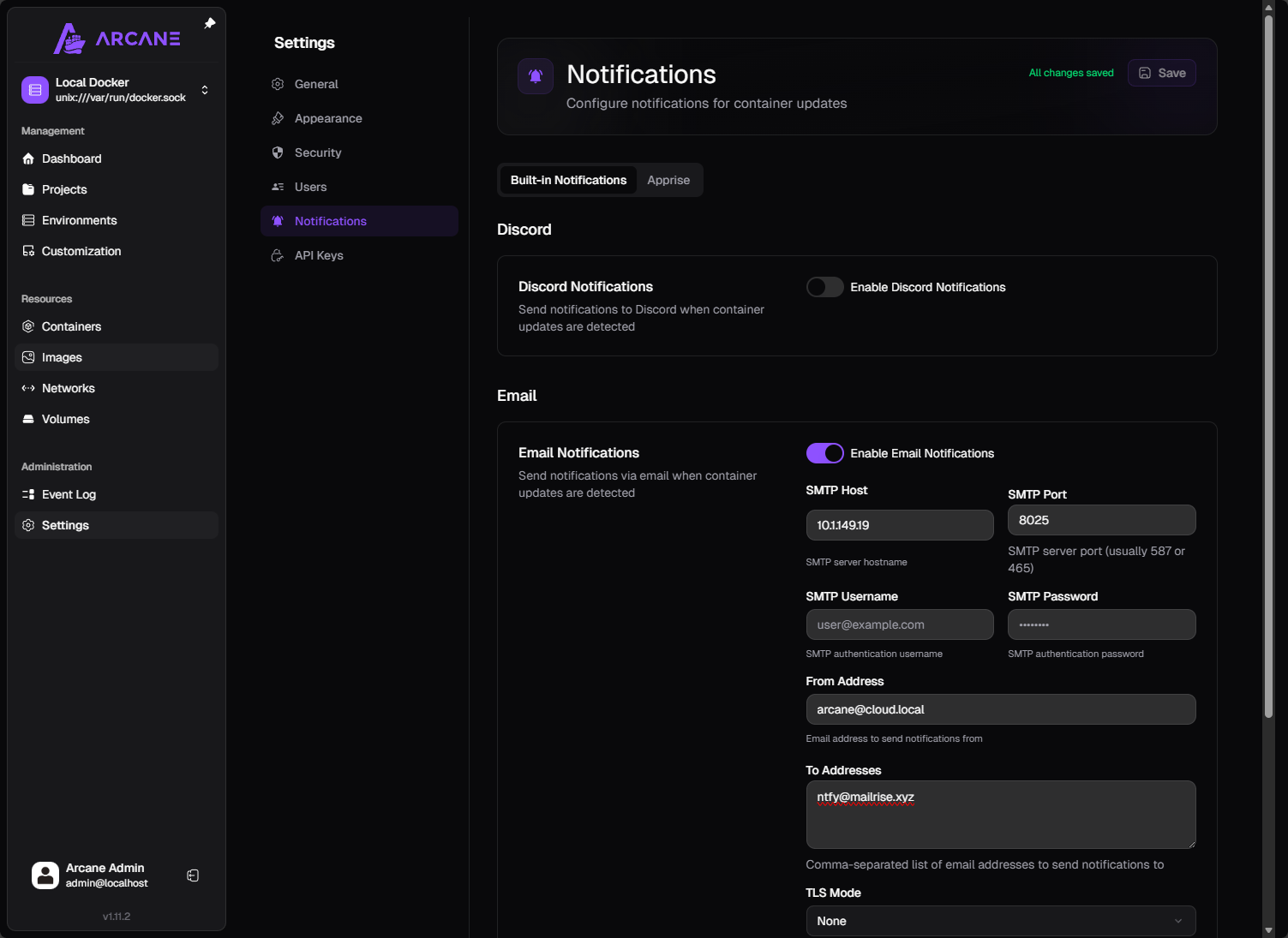
Setting up notifications in Arcane
Here is a quick look at the notification options with Arcane Docker UI. You have the ability to use Built-in notifications which are comprised of Discord and Email. There is also apprise notifications as well you can flag on.
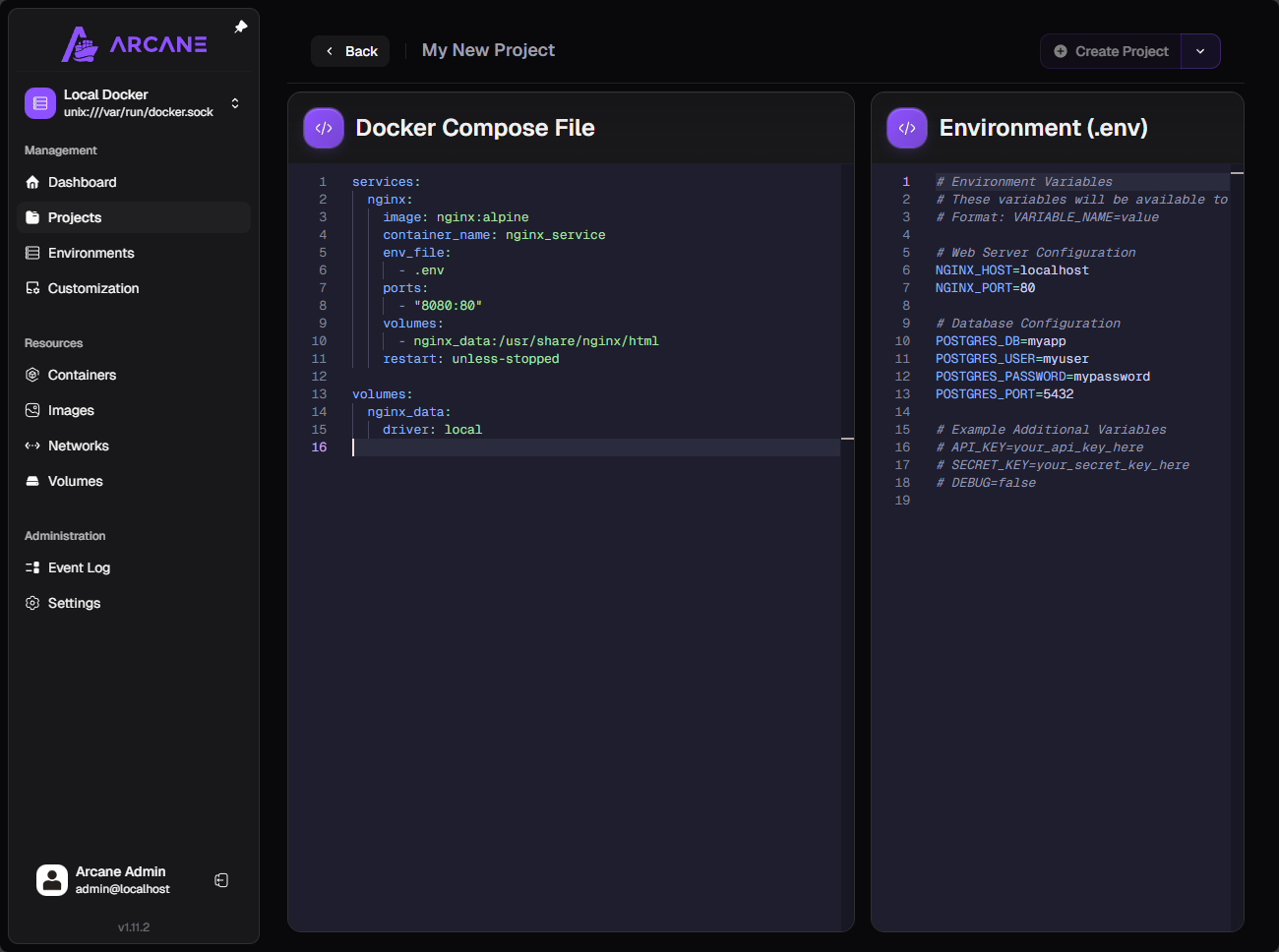
Projects
Projects allow you to setup new experiments or services in your home lab as it gives you a way to quickly paste in your docker compose and .env file contents.
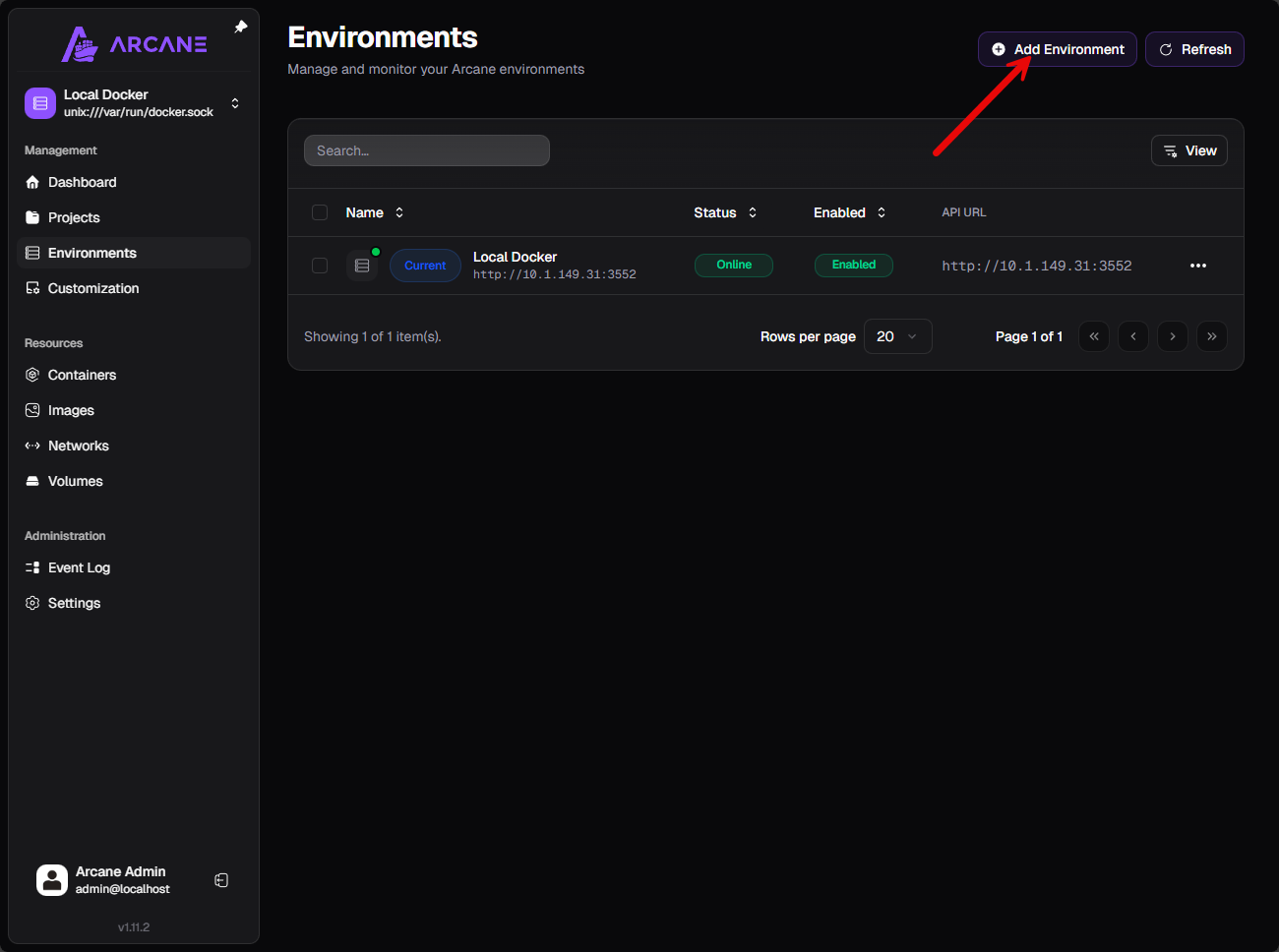
Adding remote nodes
Another really great feature like Portainer and Komodo have is you can add remote hosts to Arcane. Under the Environments menu, you can add new environments to the solution. Under environments, click the Add Environment button in the upper right-hand corner.
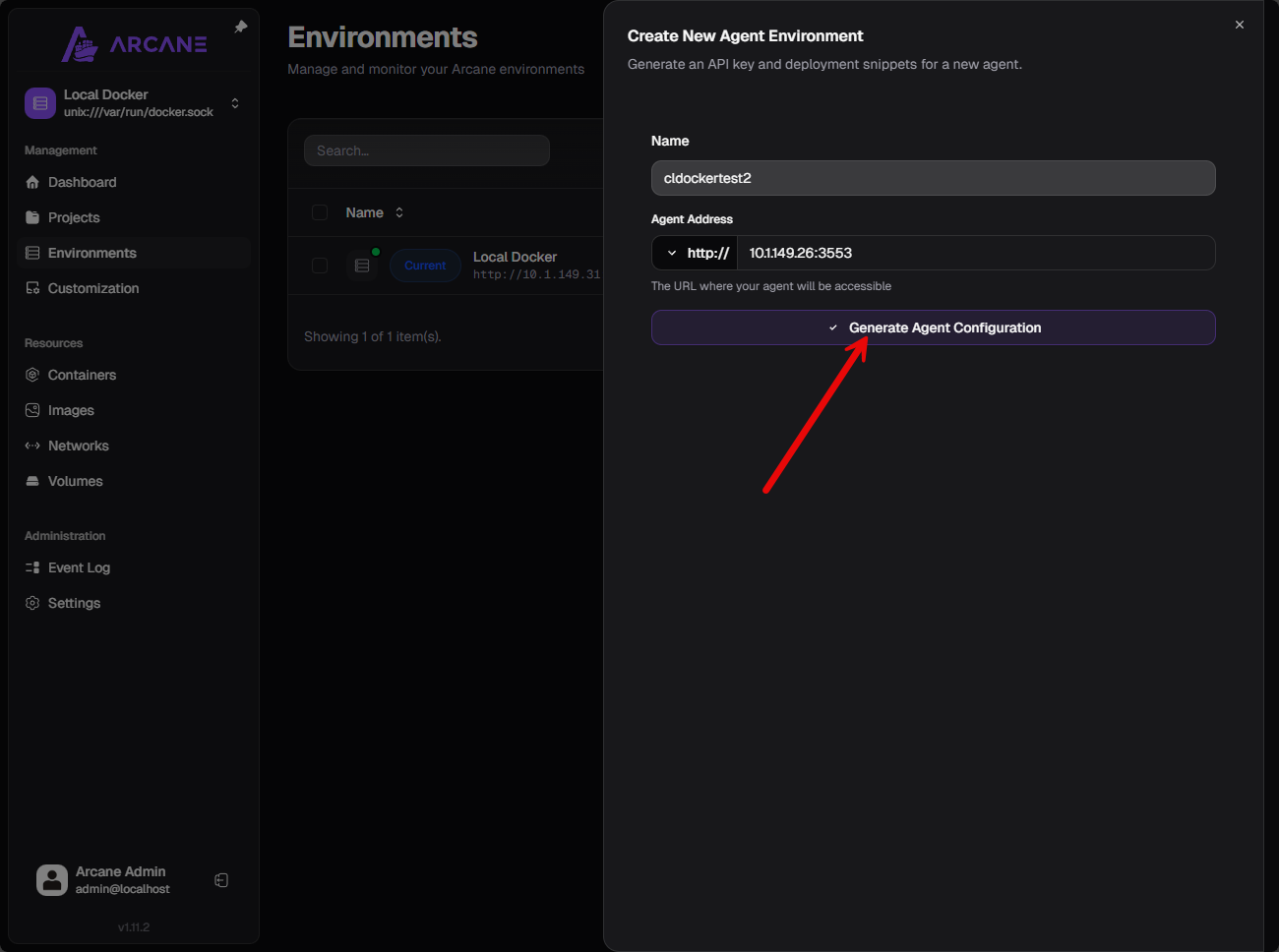
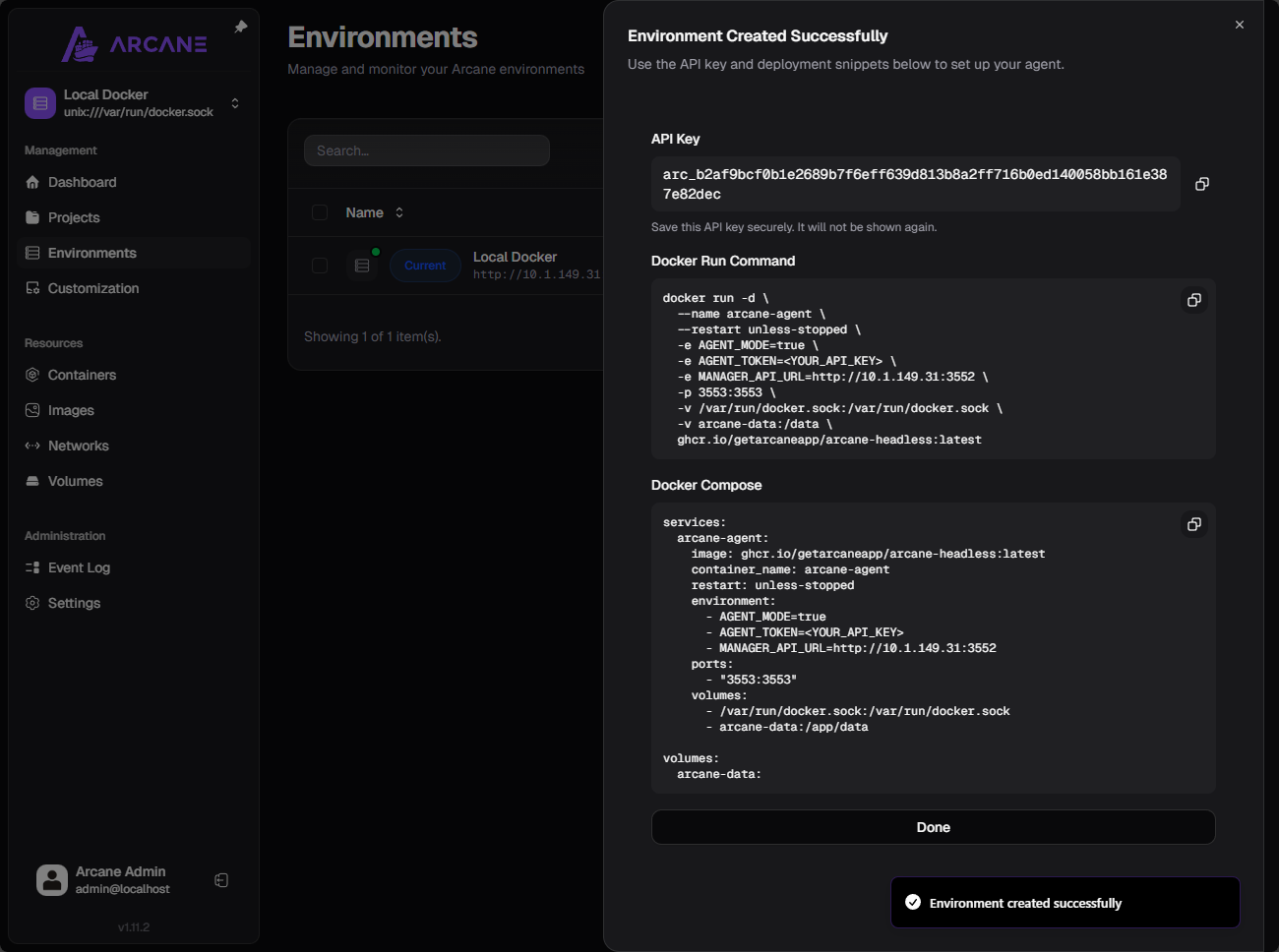
This launches the Create New Agent Environment blade that pops out. You need to assign a name to the new environment, then an Agent Address. One thing that is a little confusing and I had to figure out with trial and error is on the agent address, the example they give does not show the port number. You need to add the port number which is port 3553 for the agent communication. Once you enter the URL, click the Generate Agent Configuration button.
Once you generate the agent configuration, it will show the Environment Created Successfully and give you three blocks:
- API Key
- Docker Run command
- Docker Compose
You can choose either docker run or compose to stand up the container. Be sure to copy the API key as it is only displayed here and you can’t view it again, only reset it.
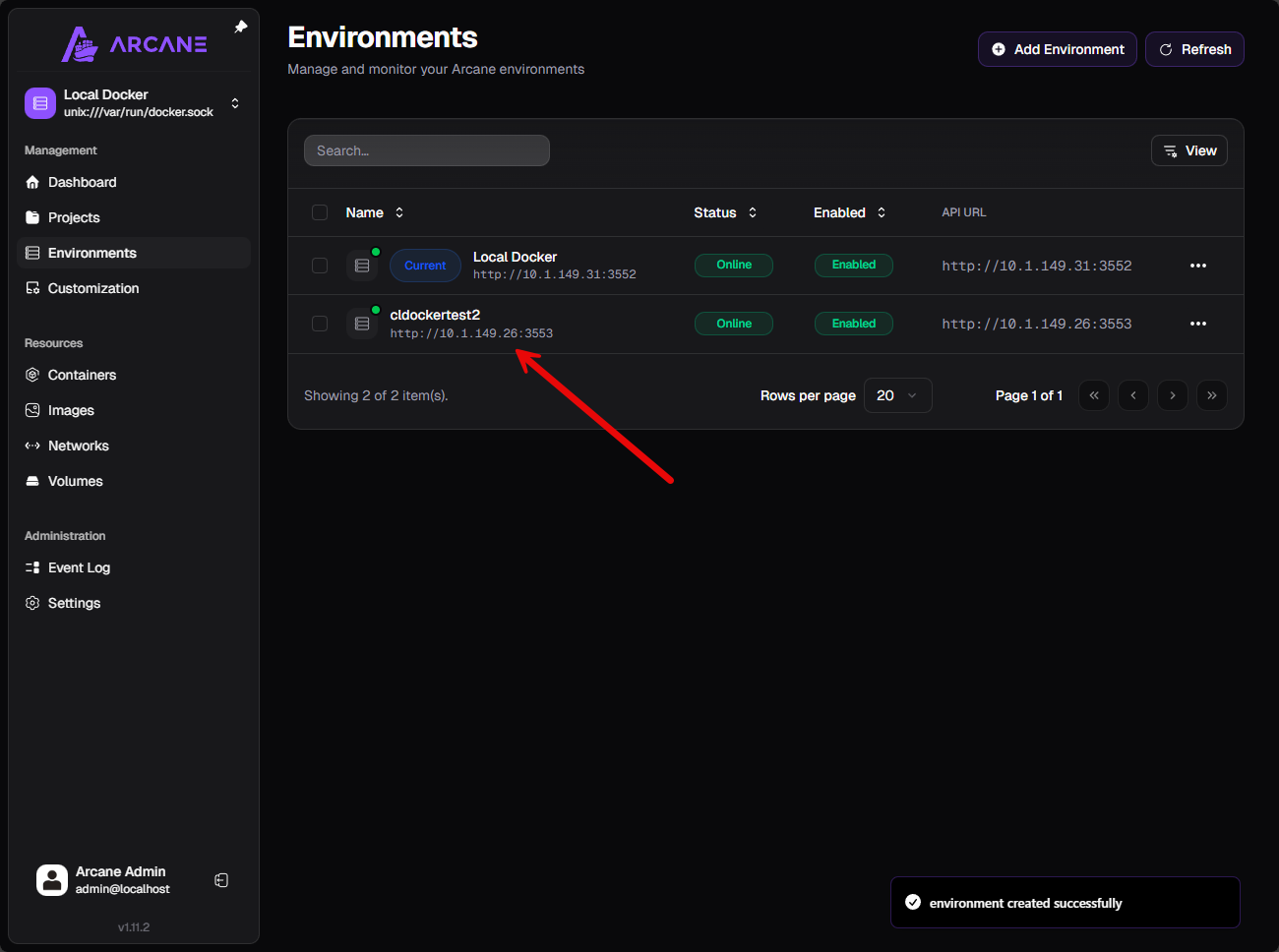
After starting the container on the remote Docker host, I refreshed the interface and the node showed up as connected and enabled. Now you can view containers and other configuration for the remote node as you can for the local host.
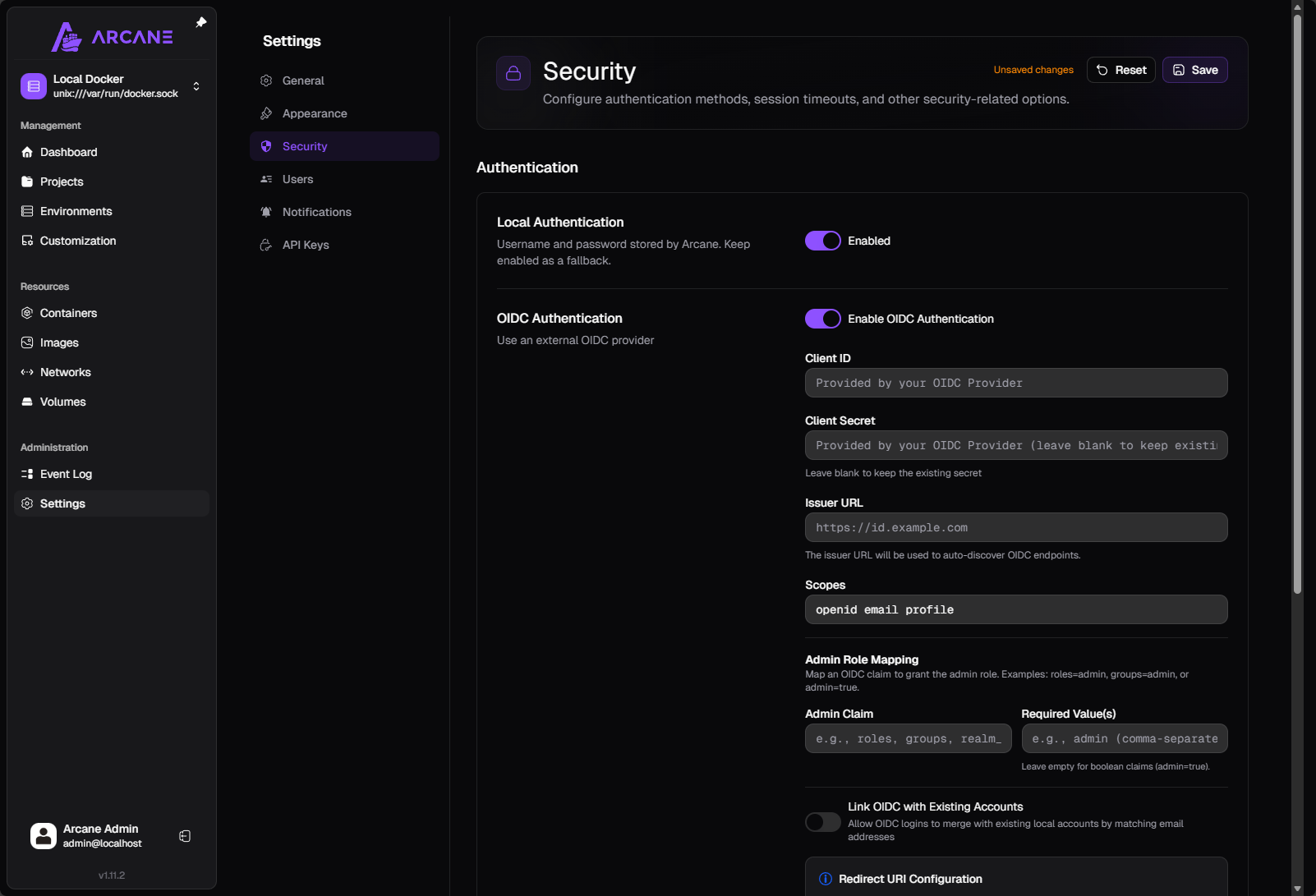
Authentication types for logging into Arcane
Arcane supports basic local authentication as we have used in the examples. However, you can also turn on OIDC Authentication. This allows you to use open ID authentication for logging into Arcane.
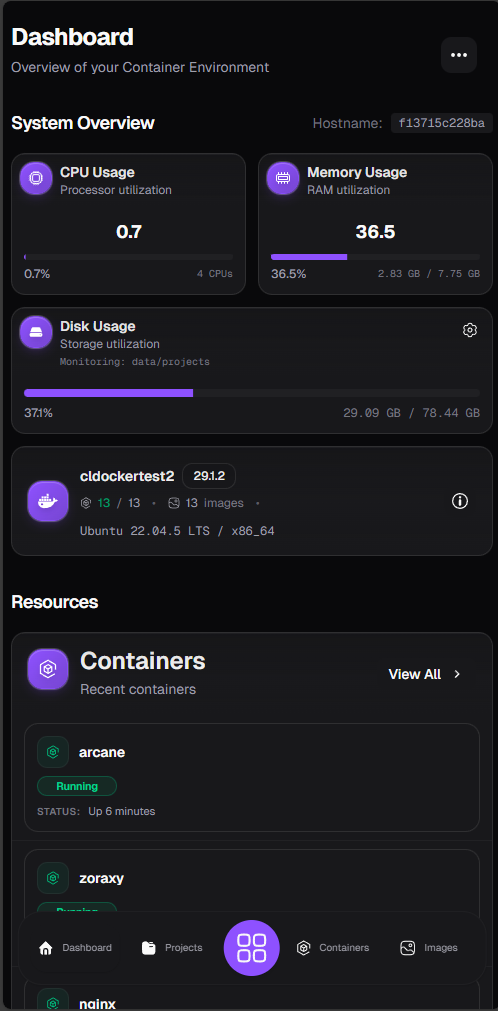
Mobile interface
One of the nice things about Arcane is that it is already mobile friendly. It has been developed with a mobile responsive interface that looks great. So, shout out to the contributors to the project for this work.
How Arcane Compares to Other Docker Management Tools
Take a note of the comparison below between Arcane and other popular Docker management tools in the home lab.
| Tool | Primary Focus | Strengths | Limitations | Best Fit For |
|---|---|---|---|---|
| Arcane | Docker and Docker Compose management with a modern UI | Clean and lightweight interface, visibility into containers and resources, Compose templates, complements CLI workflows | Newer project, smaller ecosystem, fewer enterprise level features | Home labs that want fast day to day management |
| Portainer | Full featured container and orchestrator management | Supports Docker, Swarm, and Kubernetes, role based access control, mature and widely adopted | Heavier interface, might feel complex for simple Docker only environments | Enterprise environments who need multi orchestrator support but also for home labs that want the Cadillac solution for Docker management |
| Dockge | Docker Compose stack management | Good for Git based workflows, simple and focused Compose UI | Limited visibility into overall Docker environment, narrower feature scope | Users who manage everything through Compose files and Git repositories |
| Docker CLI | Direct container management via command line | Most control and flexibility, scriptable, no additional services required | No visual overview, higher learning curve for day to day management | experienced docker admins, automation, scripting, and low level troubleshooting |
| Arcane + CLI | Hybrid workflow | Visual visibility with full CLI control, faster troubleshooting and management | Requires comfort with both tools | Most experienced homelabbers running Docker environments |
Wrapping up
All in all, I really like Arcane. It feels like a tool that is well-suited for the home lab audience. The interface is beautiful and modern. It gives you a robust interface for all the normal day-to-day Docker management tasks that you need to do across your Docker hosts. You can manage multiple remote docker hosts natively in the solution, and it gives you native pruning tools to keep some of the normal housekeeping tasks done like deleting stale images, etc. I think as the project matures, it has the potential to become the next big Docker UI for the home lab. How about you? What are you currently using in your home lab today for Docker management? Are you going to try Arcane?

Google is updating how articles are shown. Don’t miss our leading home lab and tech content, written by humans, by setting Virtualization Howto as a preferred source.
About The Author


Out of curiosity, have you seen/used komodo? I’d say its a strong contender
Fredrik,
Absolutely, love Komodo. I would say that Portainer and Komodo are the leaders of the pack. I think though Arcane shows promise of being a great option though as well.
Brandon