



When I build a brand new Proxmox host or cluster, I don’t start with deploying everything and the kitchen sink. I focus on getting a small set of home lab services up and running that provide the foundation and make the environment solid at the core. But, also including services to make it observable and able to grow and use current technologies. Once these are in place, everything becomes easier. Let’s look at 9 different categories and 2 services for each category to think about as options.
1. DNS
Options:
- Technitium DNS or Pi-hole
DNS is definitely the backbone of your home lab running on Proxmox or any other hypervisor. Getting this up and running first along with other core network services like DHCP is absolutely necessary to have a solid foundation on which to build the rest of your services.
Technitium DNS has become my go-to choice. If you read my previous post on Technitium DNS, it has gotten even stronger with native clustering since v14. So, it not only gives you authoritative DNS, recursive resolution, filtering, but now also native clustering for more than one DNS server to keep settings synchronized. This newest feature in the recent release removes needing to rely on custom sync scripts or other community projects and makes high availability DNS actually easy to stand up. It also runs extremely well in a lightweight LXC.
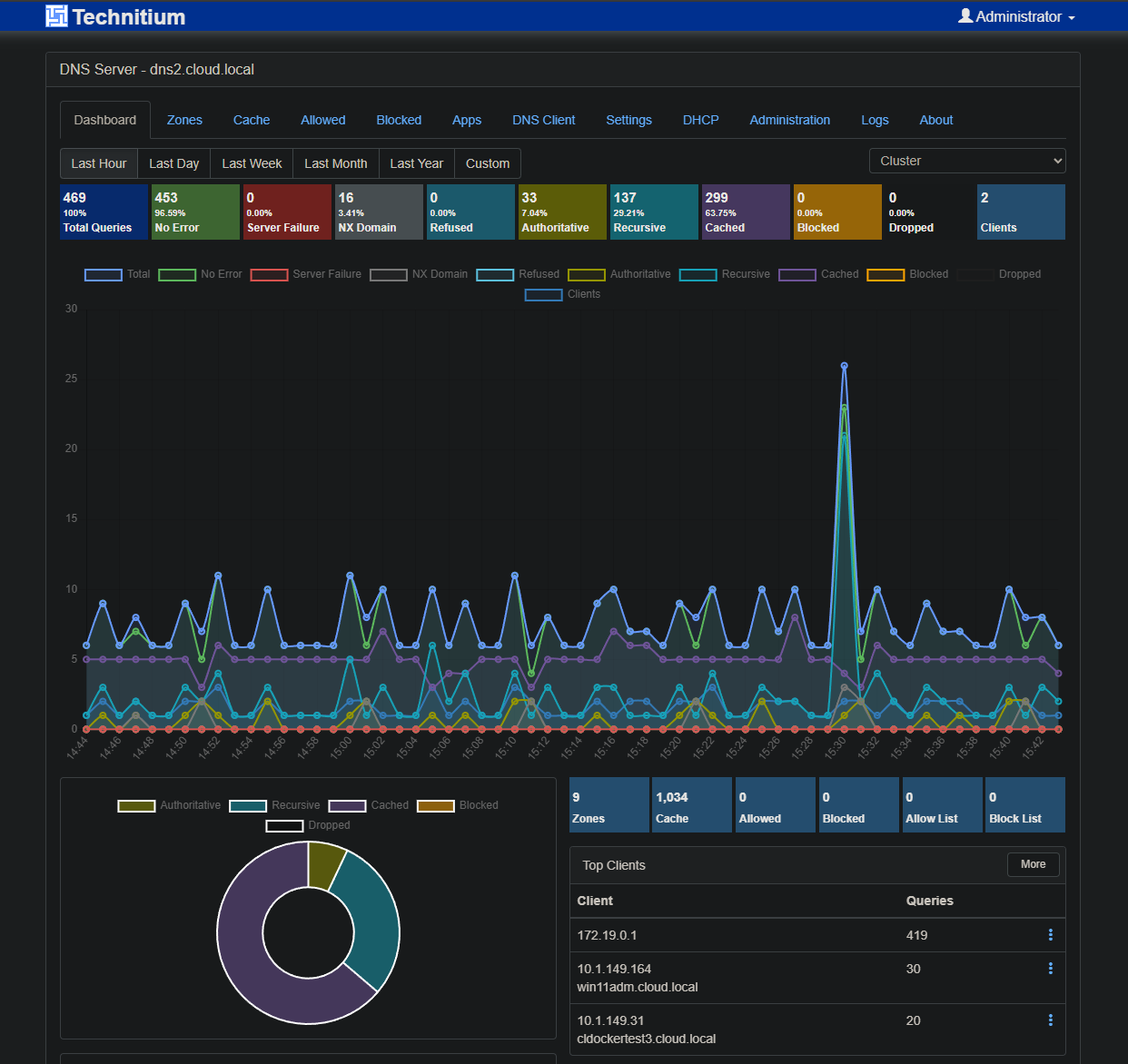
Check out my post here on the latest Technitium v14 clustering configuration: Stop Using Pi-Hole Sync Tools and Use Technitium DNS Clustering Instead.
Pi-hole is still one of my top choices as I have a lot of miles behind me with the solution and it is rock solid. It is easy to deploy, and well documented. For smaller home labs or users who want something simple and proven, Pi-hole is still a #1 or #2 choice depending on your needs.
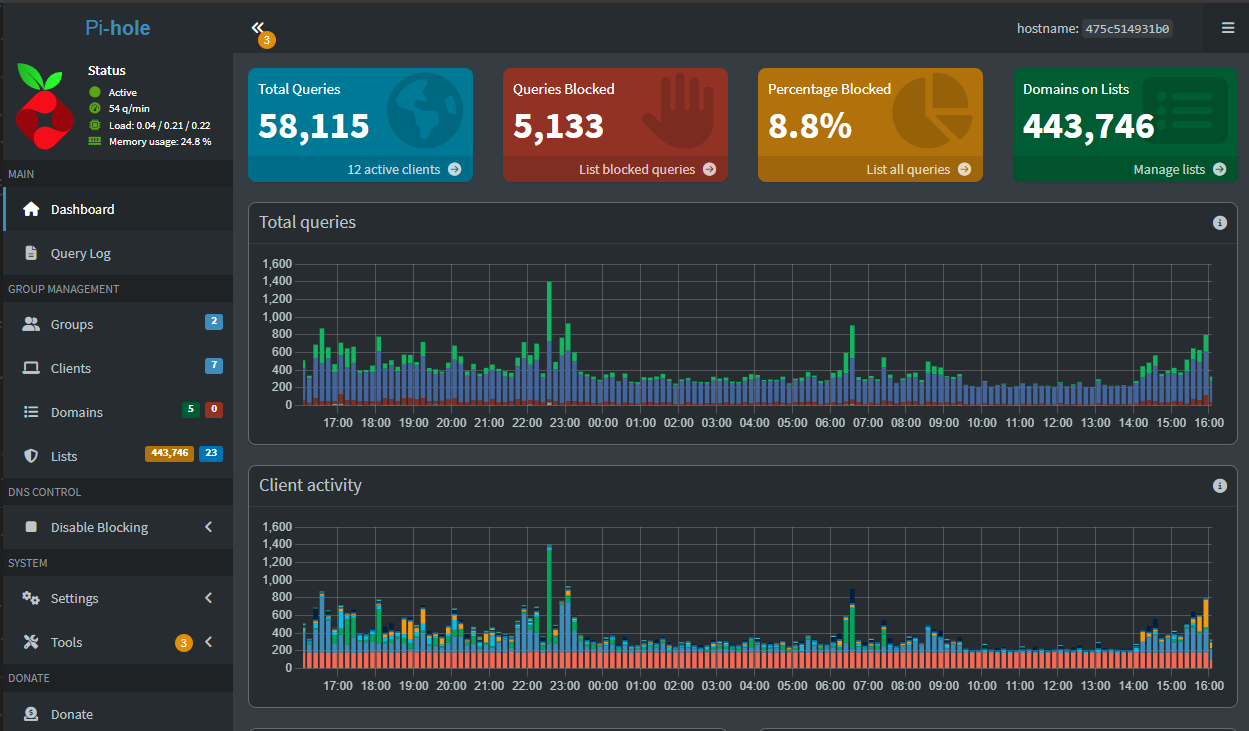
The key is not which one you pick. The key is deploying DNS as one of the first services and treating it as critical infrastructure, not an afterthought.
2. Reverse proxy and TLS
Options:
- Nginx Proxy Manager or Traefik
Once you have your DNS in place,
Once DNS is in place, the next quality of life upgrade is access to services. Standing up a reverse proxy in your Proxmox environment sets you up to then be able to expose services in a very clean and natural way to the rest of your network, including having proper SSL certificates securing your web services.
Also, it allows you to not have to remember random non-standard ports that many self-hosted solutions use and simply remember the web URL to the service, which you can make intuitive by using the reverse proxy.
Nginx Proxy Manager is my choice if you are just getting started or want simplicity. It has a web interface that makes configuration and management easy to create proxy hosts, manage certificates, and troubleshoot issues. For most, this is the fastest path to having HTTPS and trusted SSL certificates everywhere.
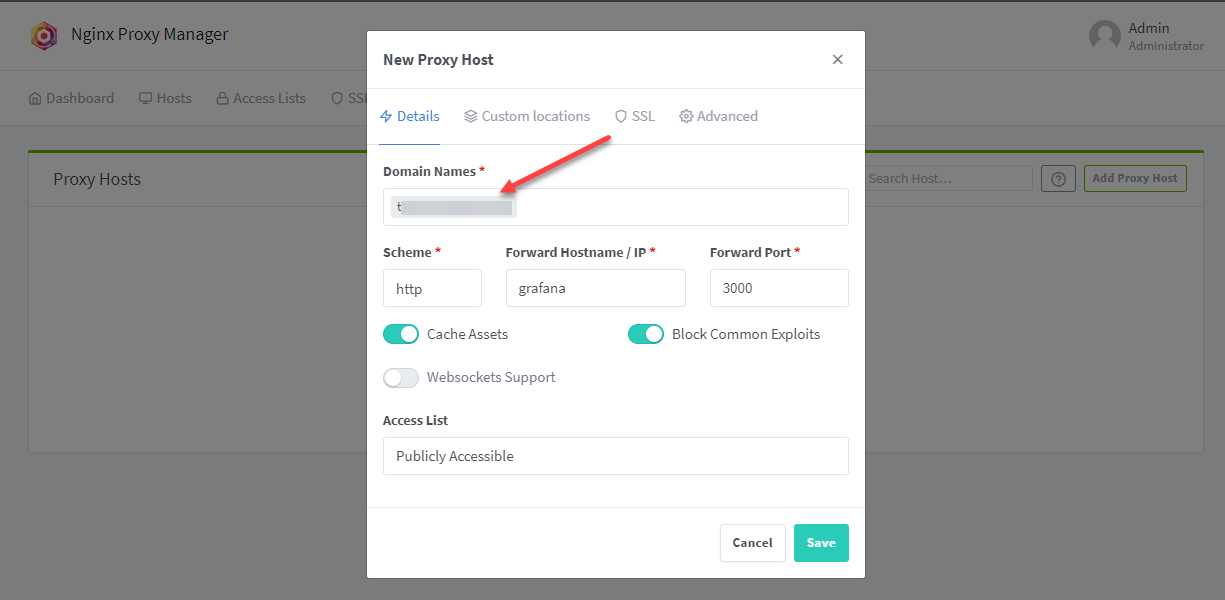
Traefik is the better option if you are more advanced in your home lab journey and you are focusing on automation. It allows you to keep everything in infrastructure as code inside your docker-compose.yml files. If you are comfortable with Docker labels and dynamic configuration, Traefik is THE solution.
Check this post out if you are at the point of moving from Nginx Proxy Manager over to Traefik: I Replaced Nginx Proxy Manager with Traefik in My Home Lab and It Changed Everything.
Both of these accomplish the same goal. They just take different paths to get there.
3. Container management
Options:
- Portainer or Komodo
One of the reasons that many shy away from running Docker containers instead of VMs in Proxmox is the tooling has been better around running VMs. Maybe in previous days you have been used to the vSphere Client or something like Hyper-V Manager.
There are a couple of tools though that make running containers feel just as easy as they give you all the GUI tools you need to not have to be a command line warrior day in and day out.
Portainer is arguably the most popular in this space and for good reason. It has a ton of functionality around managing not only Docker but also Kubernetes. It was really the first tool that made containers “click” for me as it makes up for a lot of the skills you may lack early on, to just get started and start running them. The command line skills will come as you go if you make it a point to work on these as you grow as a container engineer.
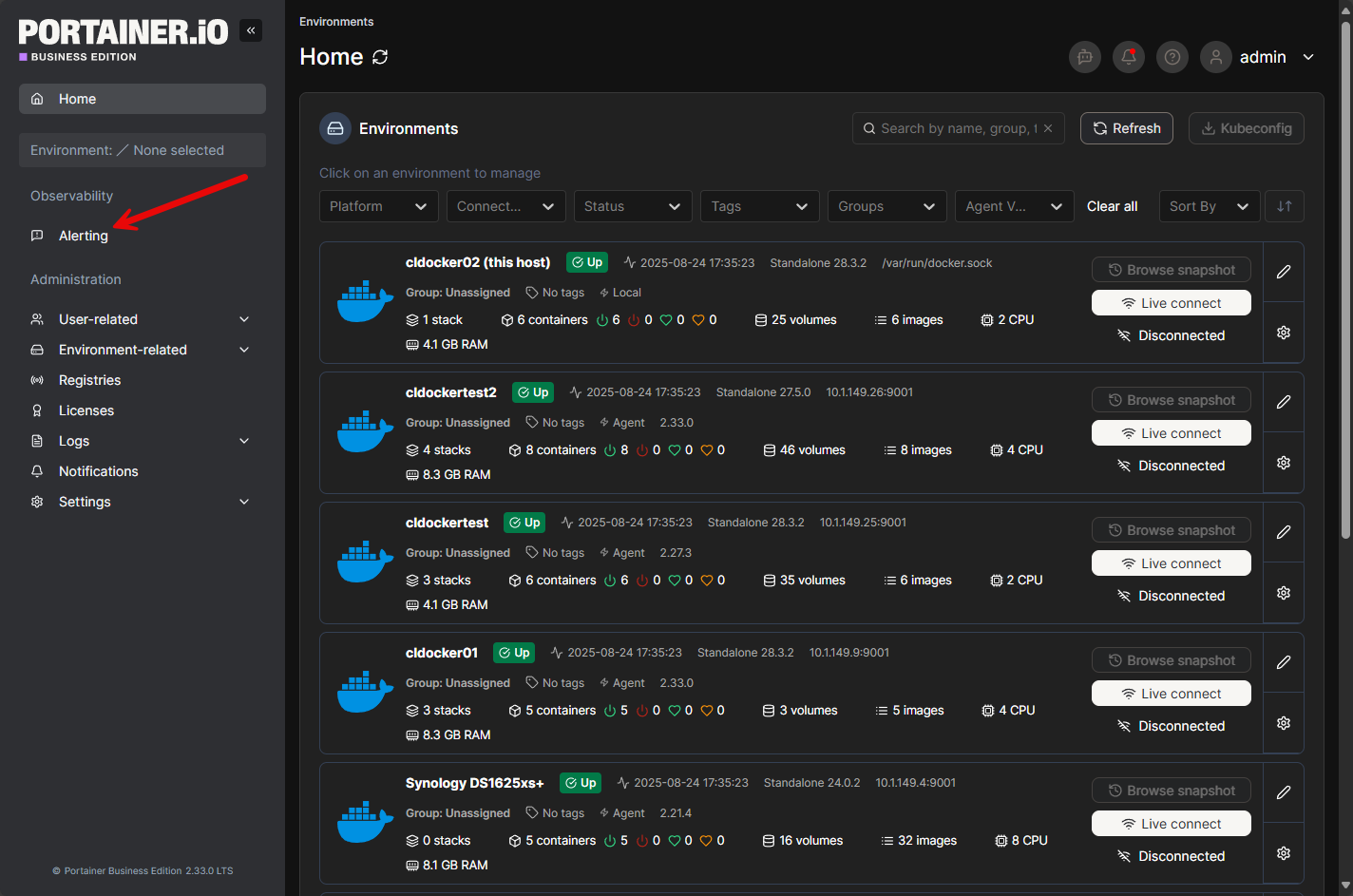
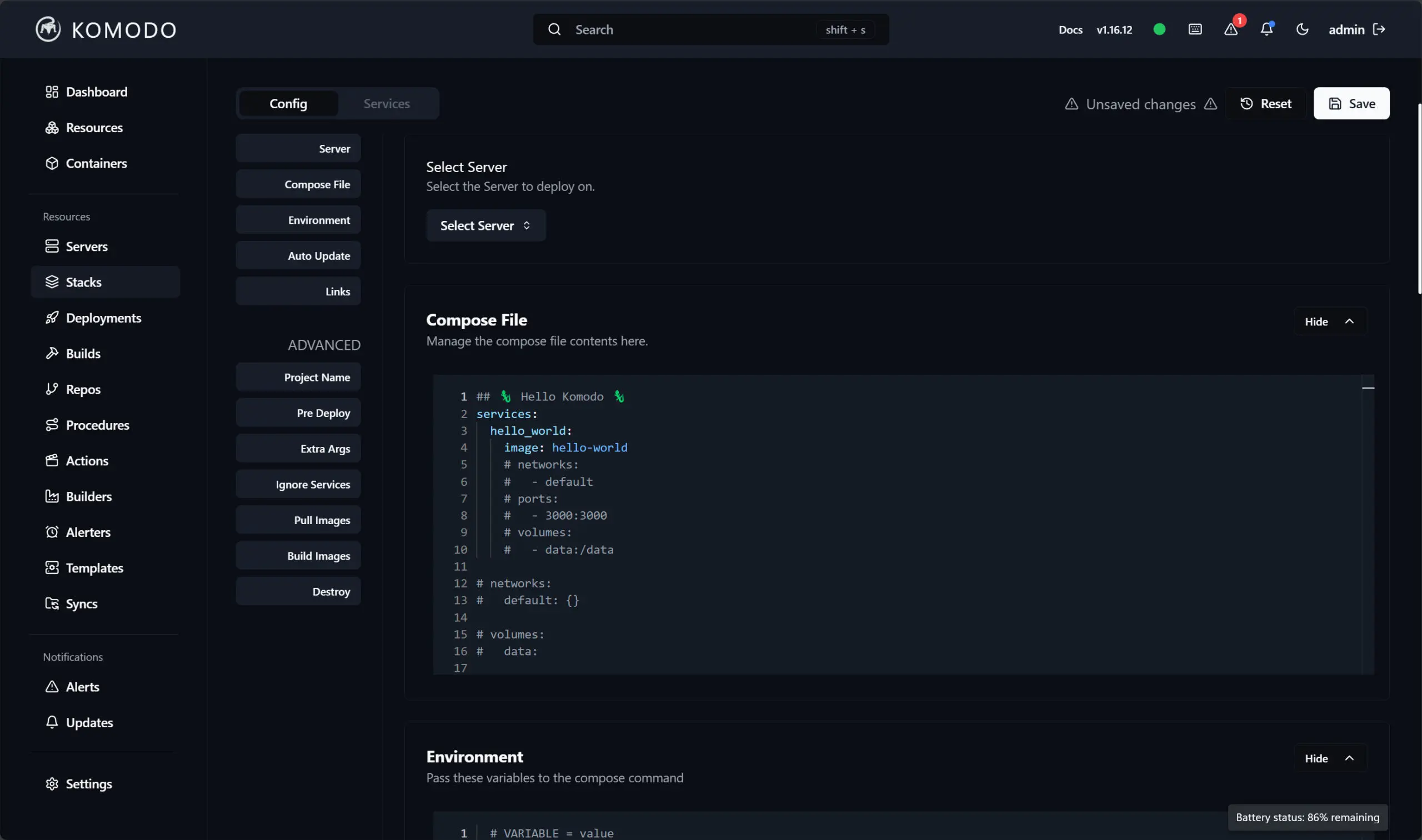
Komodo has stormed onto the scene as a favorite Portainer alternative. It contains features that Portainer does not in the non-paid version of Portainer. Komodo is totally free and there aren’t any paid levels to the tool. So, you get everything right off the bat.
Check out my post on Komodo here: Portainer Alternative Komodo for Docker Stack Management and Deployment.
4. Backups
Options:
- Proxmox Backup Server or Veeam Community Edition
Backups are honestly something that many save for later, but shouldn’t. Right from the start, you can have data loss from the moment that your first “production” service hits your Proxmox server. This is one of the lessons that most learn the hard way, including myself.
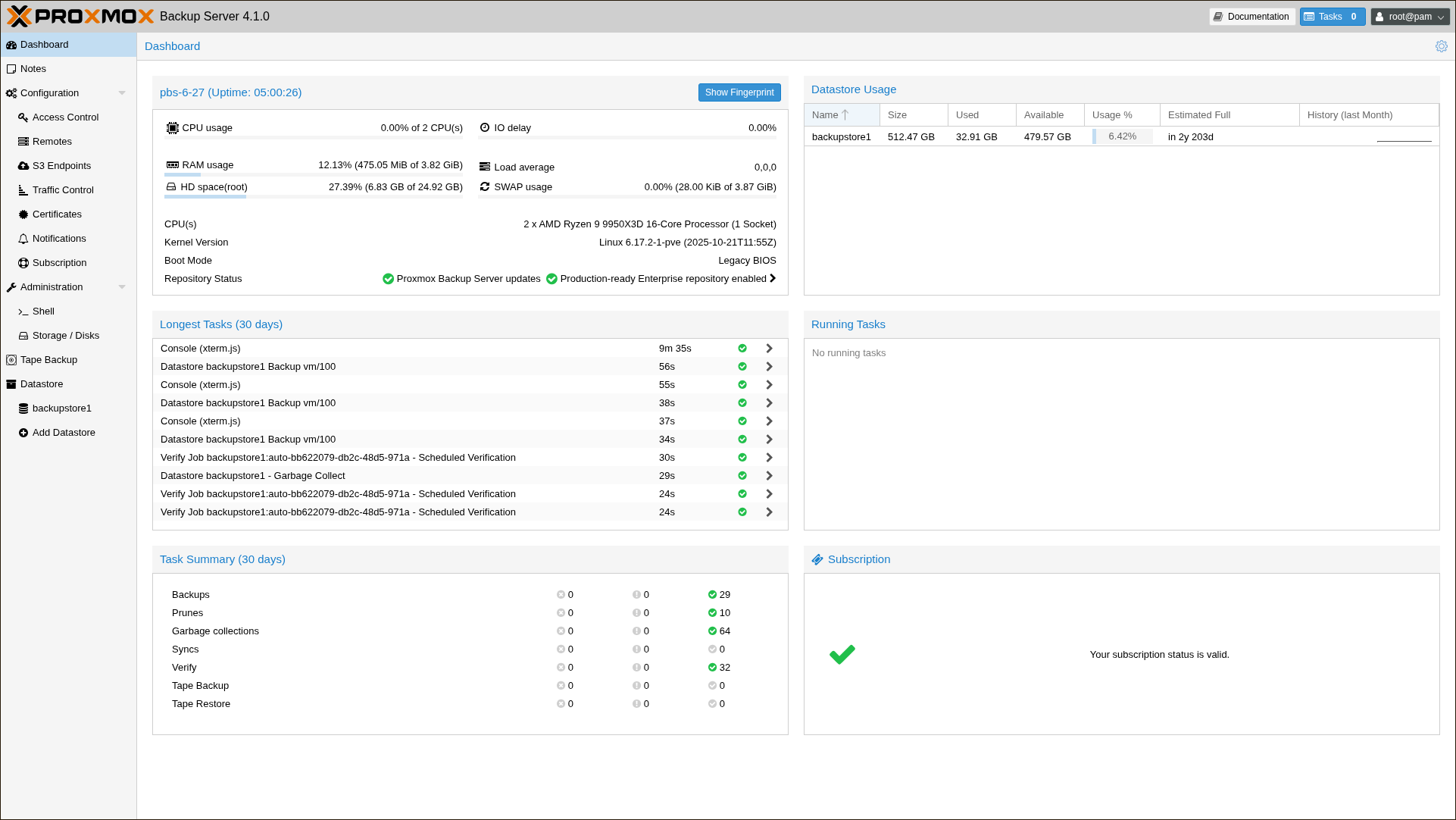
Really though, there is no need for this to be the case. Proxmox Backup Server (PBS) is a totally free solution from Proxmox that has tight integration with Proxmox and understands snapshots, has deduplication, and can easily recover your data.
For those that may have a long track record with Veeam in the enterprise, Veeam Community Edition is a great alternative if you want an enterprise solution that you may be familiar with. It is a single tool that can span multiple platforms, including Proxmox. It can also help you migrate from VMware to Proxmox in a very easy way.
No matter which you choose, deploy backups early and test restores while nothing is on fire.
5. Proxmox monitoring
Options
- ProxMenux or Pulse
The area of Proxmox monitoring has really progressed this year with some great free and open-source tools that are great for Proxmox. I have covered both of these in separate blogs.
ProxMenux Monitoring is a new component of ProxMenux that provides a clean view of your environment. It helps you see clusters, nodes, and workloads at a glance. It also complements the Proxmox UI rather than replacing it altogether.
I did both a blog and a video on this one.
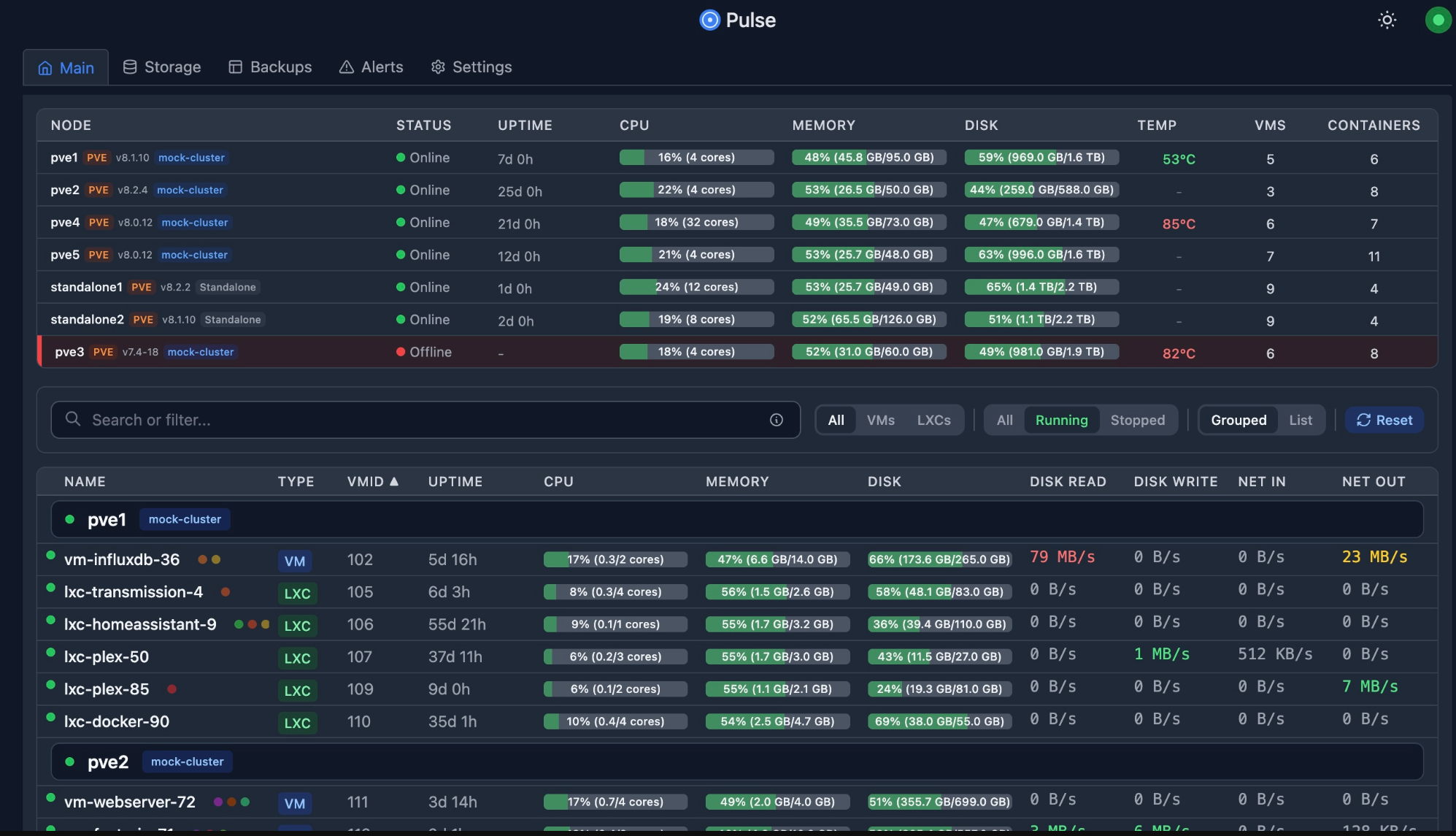
Pulse is another tool that I think is one of the best out there for Proxmox specific monitoring. It can tell you if your services are healthy and if there are any workloads or Proxmox hosts that need attention.
Check out my blog on Pulse: This Free Tool Gives Proxmox the Monitoring Dashboard It Always Needed.
6. Password and secrets management
Options:
- Bitwarden Unified or Vaultwarden
Right off the bat, having a way to centralize your passwords in a self-hosted way saves you from bad habits that are hard to undo later like using the same password for everything. Many also don’t like to trust cloud-hosted password solutions with personal secrets and other sensitive information.
Bitwarden has a new unified self-hosted deployment that is much easier to install and run without the need for running multiple containers that the full Bitwarden solution requires.
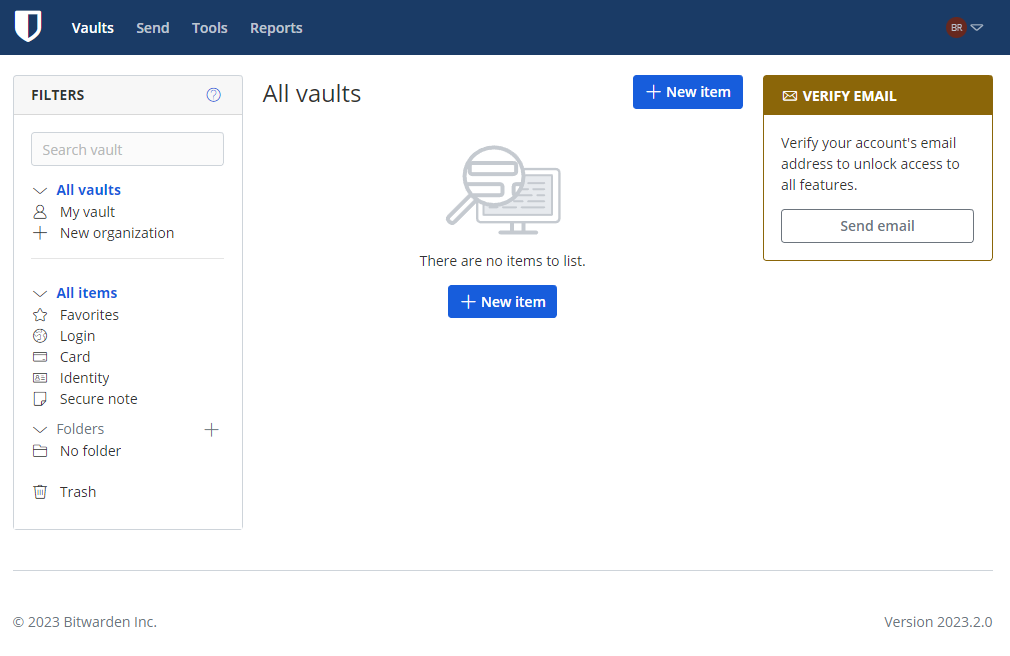
Vaultwarden is an excellent choice for ultra lightweight environments. It runs as a single container and supports official Bitwarden clients, and is very easy to self-host. For many home labs, it is still the simplest path to self-hosting your password manager.

Either way, hosting your own password manager has tremendous benefits.
7. Logging
Options:
- Logward or Dozzle
There have been great tools developed in this space as well. Logging has historically not been easy with very complex solutions designed for logging at scale, but nothing that was really mean to be functional for the size of a home lab environment.
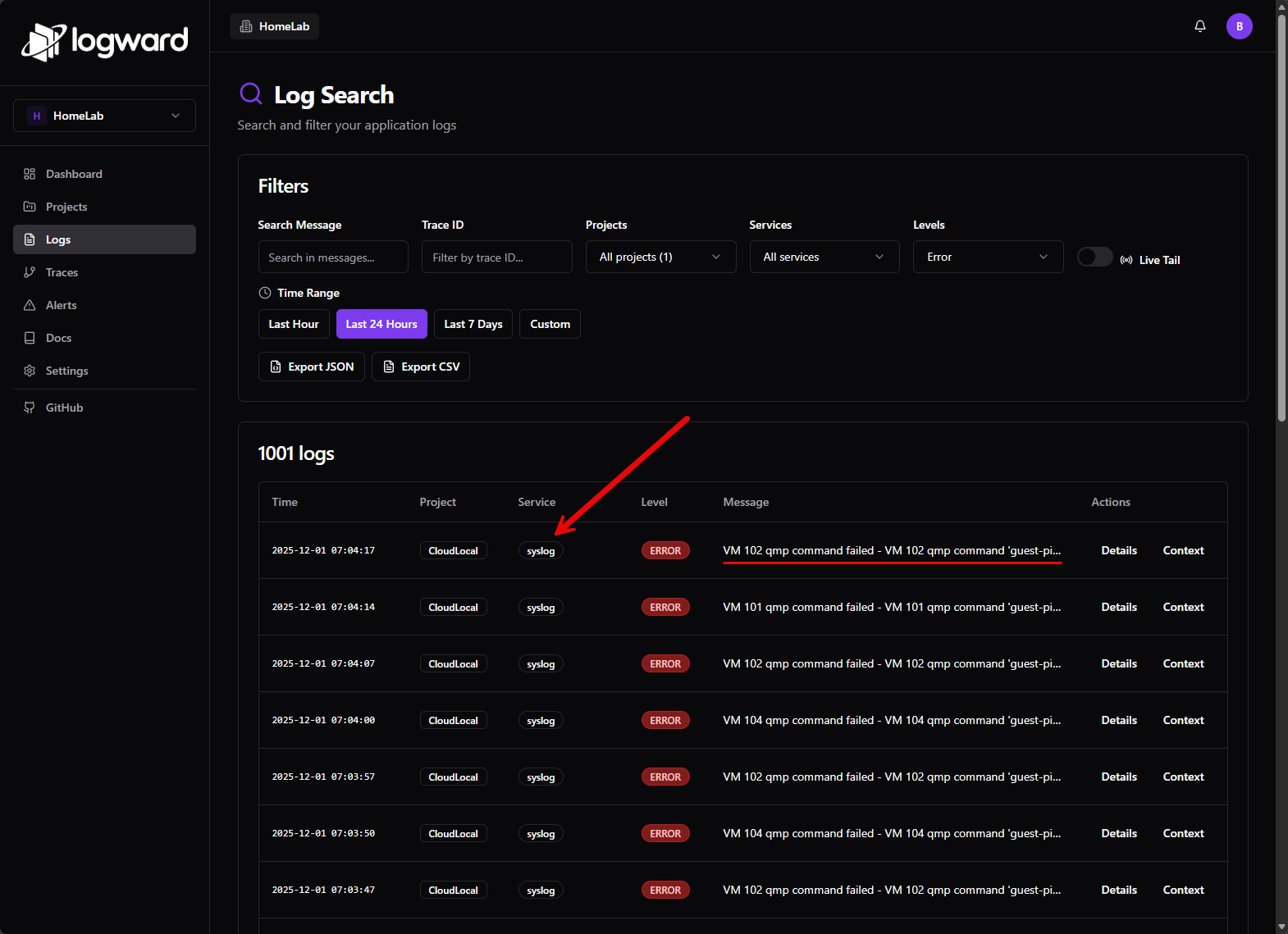
Logward is a solution that is free and lightweight that I reviewed recently. It allows you to have a very easy syslog server that is simple to stand up. Once you have it running, you can send your Proxmox host logs, firewall logs, switch logs, and really anything else to Logward.
Check out my blog on Logward: Logward Is the Lightweight Syslog Server Every Home Lab Needs in 2025. Below is a screenshot of Logward serving as a syslog server capturing Proxmox system messages.
Specific to your Docker containers, Dozzle is a solution that focuses on aggregating logs for all your containers. It gives you real-time access to these logs without any type of complicated configuration. This way you don’t have to log in and run docker logs command on multiple container hosts.
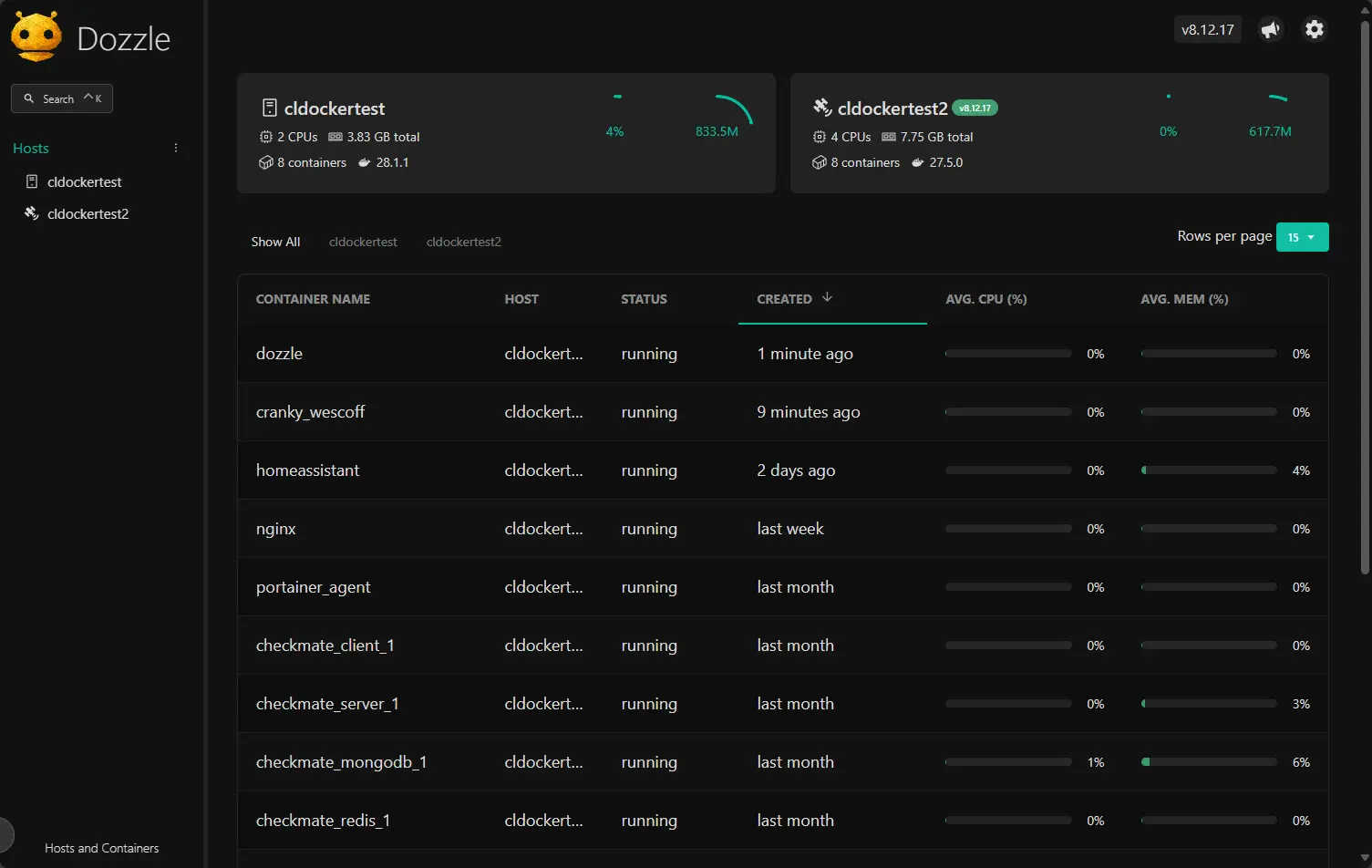
Together, these tools give you just enough visibility to understand what is happening when something feels off.
8. Automation
Options:
- n8n and Ansible
n8n is a solution that I have written about this year and it has taken the world by storm at just how good it is for creating automated workflows as part of your home lab services. It provides a very visual way to automate tasks and connect services. It is great for notifications, health checks, scheduled tasks and it allows you to glue together various solutions so these are cohesive.
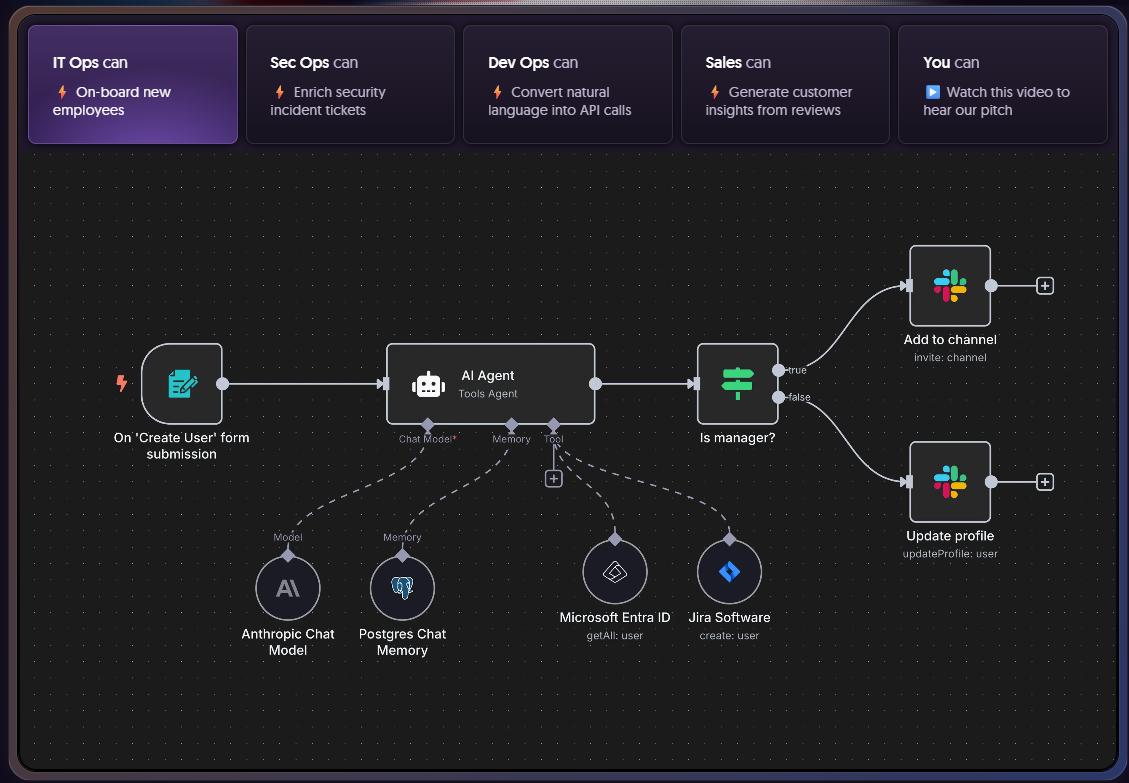
You can even tie it into self-hosted LLMs that you may be hosting with Ollama. You can also tie into commercial AI solutions like ChatGPT, Gemini, etc. Whatever the case, it can allow you to build your own AI agents to do work you need to get done.
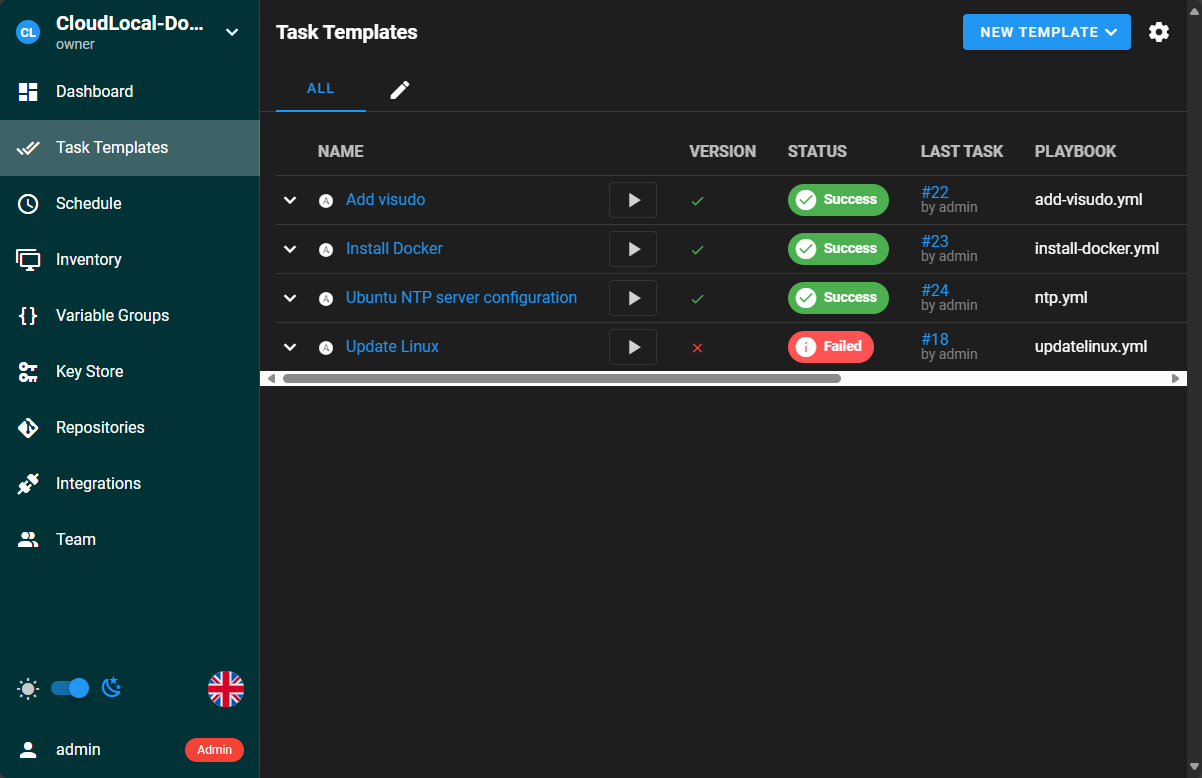
Ansible I think is still the best overall solution for automating a general Proxmox environment. You can use Ansible Playbooks to configure and manage your Proxmox host and use it to provision infrastructure. Also, you can add a GUI around Ansible with something like Semaphore.
9. AI and LLM tools
Options:
- Ollama with OpenWebUI
I think most of us in the modern home lab are experimenting with AI. Even if you are not using it in production, learn how it works locally is only going to get more valuable.
When you combine Ollama with OpenWebUI as part of your home lab services, it gives you a way to totally duplicate what you can do with something like ChatGPT and control everything locally. It works with the CPU only, albeit very slowly, but if you add a GPU with GPU passthrough, you will drastically improve your experience.
Check out my walkthrough on how to get this AI LLM stack setup in Proxmox with GPU passthrough: Run Ollama with NVIDIA GPU in Proxmox VMs and LXC containers.
This home lab services setup is perfect for things like simple prompts and chats you want to keep local. Also, as mentioned above, you can tie in n8n into your local Ollama setup to make use of AI locally for workflows as well.
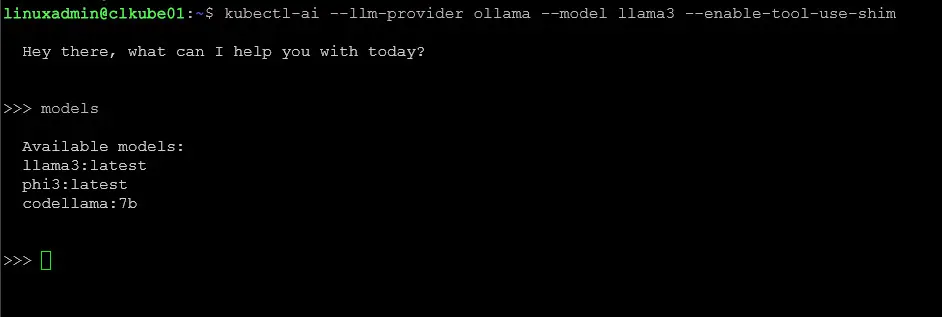
Cloud based AI APIs are a valid alternative if you want convenience and performance without local resource usage from Ollama. You can tie in your OpenWebUI instance with the API of ChatGPT, Gemini, etc.
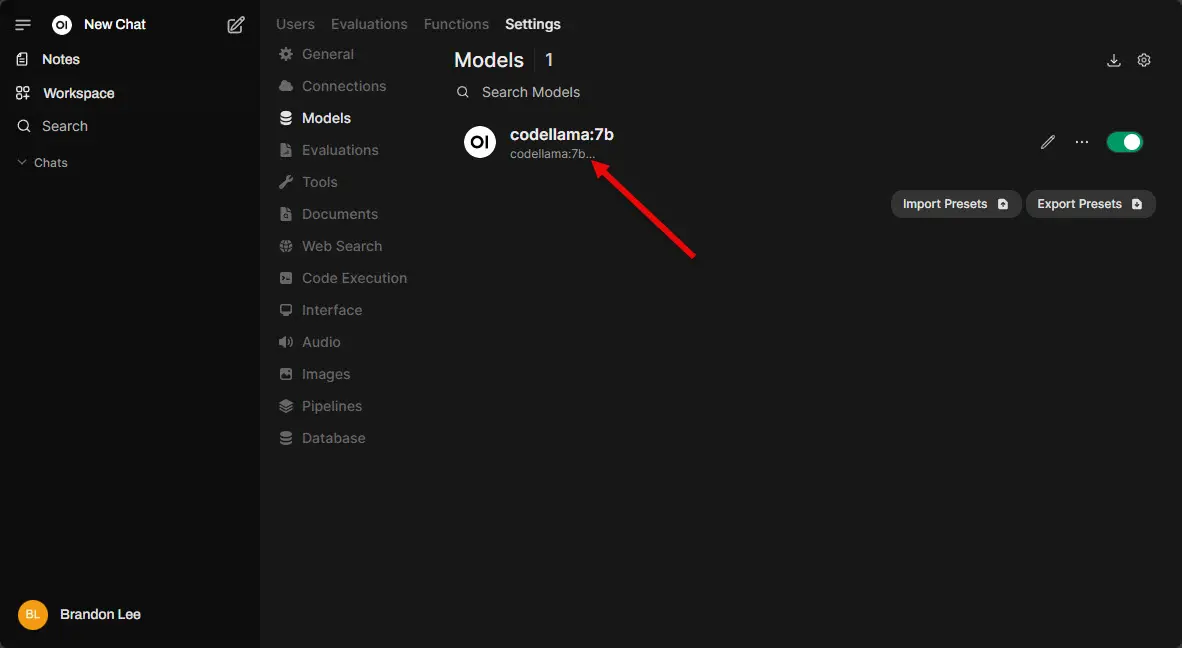
Including AI as a lab workload keeps your environment relevant and future ready.
Wrapping up
The list of home lab services that I start out with on a fresh Proxmox installation is an intentional list of services that builds the foundation for the rest of the lab. The service areas mentioned will get you name resolution services, container ingress stack resolution and SSL certificates, monitoring, backups, logging, and much more. Also, this stack grows with you. You can stop at five services or deploy all nine. You can also swap out tools without breaking the structure we have laid out here. Hopefully the two examples per home lab services area will give you services to consider for each one and allow you to pick the solution that fits best. What about you? Are there other services you would install on a fresh Proxmox installation?

Google is updating how articles are shown. Don’t miss our leading home lab and tech content, written by humans, by setting Virtualization Howto as a preferred source.
About The Author




I think for 1 and 2 i would just do tailscale it solves those 3 problems
Kurt,
Thanks for the comment! Great input as well. Tailscale is a great solution and definitely has a place I think as a core service. What other services are you running in your lab currently? Curious what everyone’s stack is comprised of these days.
Brandon
I prefer Beszel for monitoring, proxmenux is my 2nd choice.
Ivan,
I need to take Beszel for a spin again. What features or functionality do you like best about it compared to other solutions like ProxMenux?
Brandon
maybe is the data persistant since Beszel uses a database, and can see a finer grain regarding Docker
What an amazing article to have read and so many helpful resources and suggestions! I’m relatively green to homelabbing but am very curious as to how deploy websites and have heard about self hosting your own email service and was wondering if you have any insight into that?
Great read!
Hey Chris! Thank you for the kind words and so glad the article is helpful. It is great that you are starting your home lab journey and getting some valuable insights here. Let me ask. Are you just simply wanting to self-host an SMTP relay to forward to an external email address, or do you mean you want to become your own email destination, host an email server for your domain?
It is getting harder and harder to host your own email in the second sense, since most providers are getting more and more strict on the requirements for sending or accepting email from a domain. However, if you are meaning the first case (a simple SMTP relay) this is usually much more doable for someone to host a relay inside a home lab and then forward emails to a destination address outside. Let me know on that front. Thanks Chris.
Brandon
Thanks for replying so soon! Really appreciate the effort, I’m interested in the second setup listed and I have all the necessary hardware however I have no idea on how to do this… how would you approach this task?
Could you also perhaps mention an email address where I could contact you further for more personal questions as I feel communicating via this website is abit public and ineffective. Thanks a lot Brandon.
Kind regards Chris