If you have spent any amount of time working with Proxmox, you are probably super familiar with the web interface. The default web interface is clean and gives you good visibility, and everything feels pretty intuitive. But as your environment grows, the web UI doesn’t scale very well. You will find yourself clicking through menus. Jumping between nodes. Trying to keep track of what is running where. And if you are doing anything at scale or trying to automate, then the UI actually becomes a bit of a blocker. This is where I have found things. At the same time, I have been spending more time around Kubernetes. And one of the biggest mindset shifts with Kubernetes is how much you rely on the CLI. That is when I came across a tool called cv4pve-cli, and it completely changed how I think about managing my Proxmox clusters from the command line. Let’s see what this Proxmox CLI tool is and how to use it.
The problem with managing Proxmox at scale with only a GUI
Proxmox UI management is great when you are managing a handful of VMs when you access your home lab. Even a small cluster feels very manageable through the UI. But once you start scaling out and you need to perform the same actions over and over again with clicks, this can get to be a bit of a hassle.
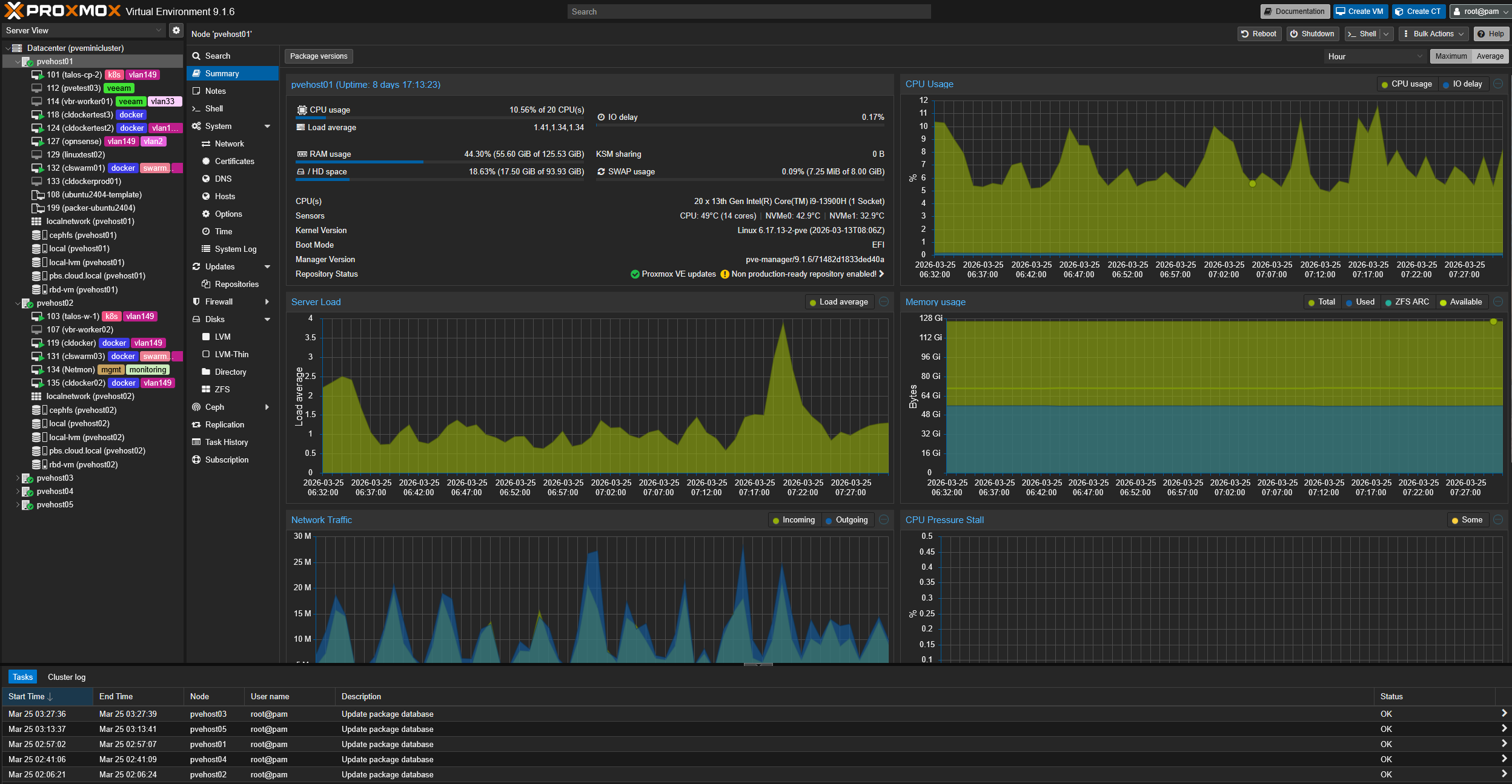
You may say, doesn’t Proxmox have built-in CLI tools? Yes it does, but the built-int CLI tools are a bit fragmented. You have commands like qm for virtual machines, pct for containers, and pvesh for API access. Each one has its own syntax and way of doing things. There is no single command and unified way to query things in your environment.
This all means that automation becomes harder than it should be in Proxmox. Yes, you can script things with bash or call the API directly or use things like Terraform and Ansible, but it takes effort to stitch everything together. It does not feel natural or consistent in every use case.
This is where Kubernetes tooling like kubectl really shines. With kubectl, you can do things like list all resources, filter them, output JSON, pipe into other tools, and build workflows that feel seamless. You are interacting with your infrastructure in a consistent, predictable way. That is the experience that I have wanted with Proxmox. There is a tool that makes this experience very close.
What is cv4pve-cli?
cv4pve-cli is a command line tool that is designed to give you an uplift in how you interact with Proxmox. It gives us a much more unified and user friendly interface to the Proxmox API. So, instead of juggling multiple commands and different syntax, you can get a single CLI that allows you to do the following:
- Query your Proxmox environment
- List virtual machines and containers
- Retrieve configuration details
- Interact with clusters in a more structured way
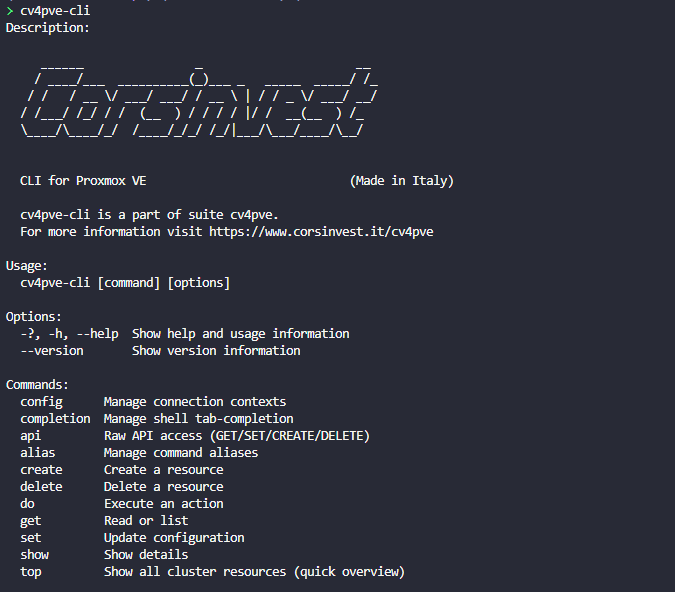
Under the hood, it is leveraging the Proxmox API, but it wraps API calls in a way that feels much closer to modern CLI tools that you might already be familiar with. So, if you have ever used kubectl, you will immediately notice the similarities in how you think about interacting with your environment. It’s not a one-for-one type of syntax with kubectl, but you will definitely notice the similarities with the workflow.
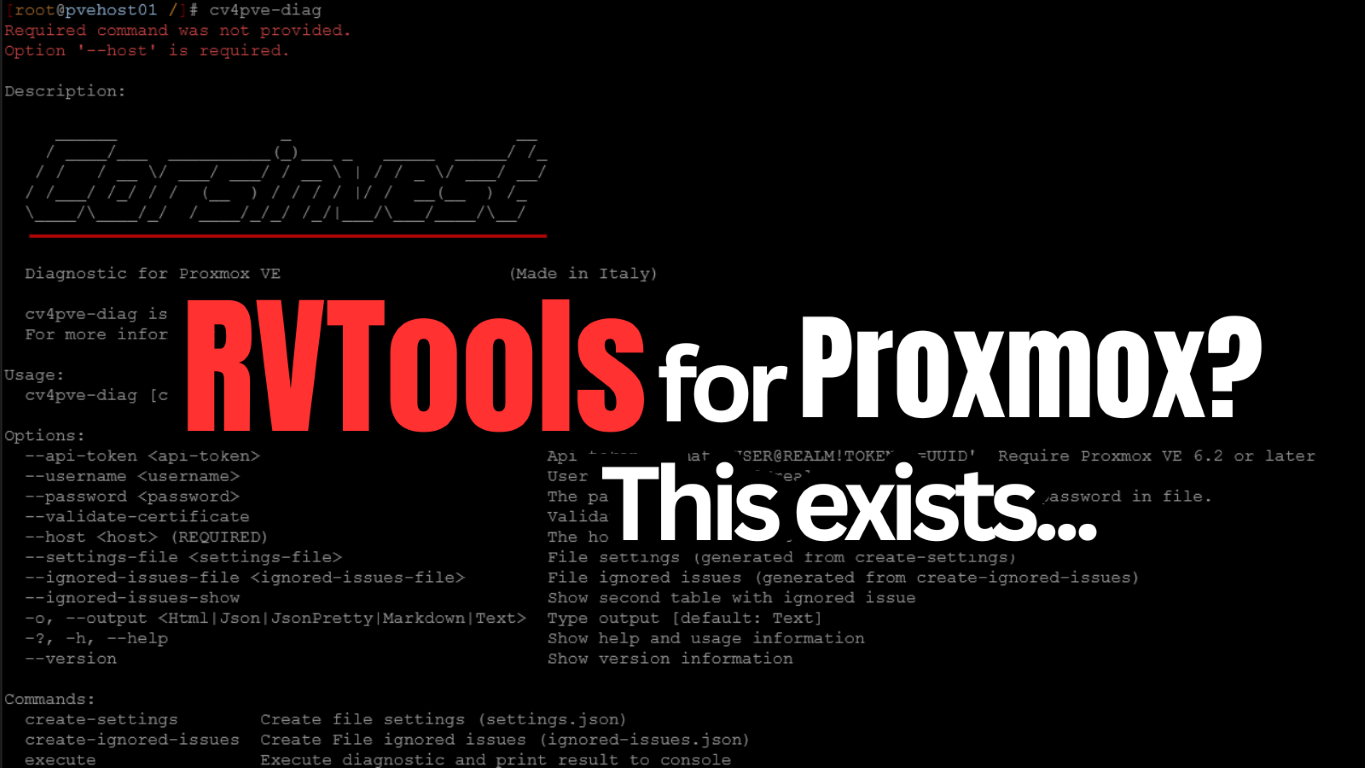
Also, this is made by the same company/developer that made the tool I recently covered as well which is an RVTools for Proxmox type tool that is great for those moving over to the PVE platform. Check out my blog post on that one here:
How to install the cv4pve-cli command
On the Github repo, the developer has a simple script that will pull down the latest version programmatically so you don’t have to worry about grabbing the latest. It will pull it down, extract it and copy the binary to your /usr/local/bin folder.
LATEST_URL=$(curl -s https://api.github.com/repos/Corsinvest/cv4pve-cli/releases/latest | grep browser_download_url | grep linux-x64 | cut -d '"' -f 4)
wget "$LATEST_URL" && unzip cv4pve-cli-linux-x64.zip
chmod +x cv4pve-cli
sudo mv cv4pve-cli /usr/local/bin/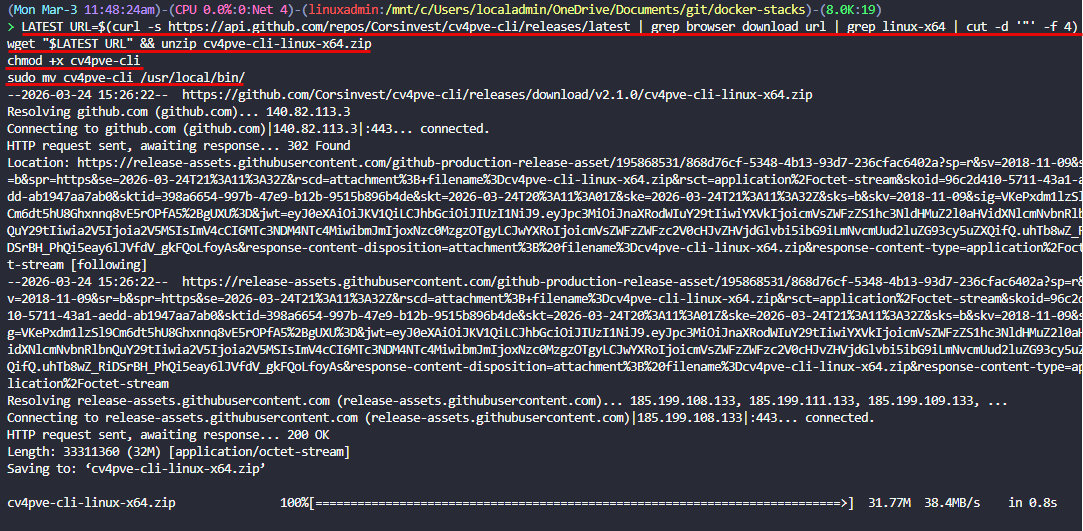
Setting a “context” for the cv4pve-cli command
One of the other cool things that you can do with this tool is set a “context”. Think of this like a kubeconfig. You set the context to point to a specific Proxmox environment like you would a Kubernetes cluster.
You can see the syntax below, but it is the following:
cv4pve-cli config add homelab --host 192.168.1.100 --username root@pam --password P@$$w0rd1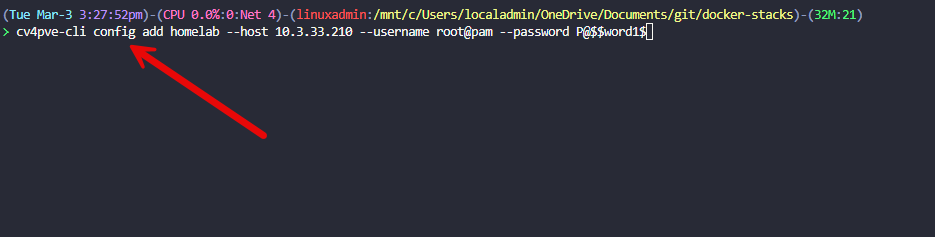
You can also skip certificate verification which will be what most will want to do:
cv4pve-cli config add dev --host 10.0.0.1 --port 8007 --username root@pam --password P@$$w0rd1 --validate-certificate false
Viewing multiple contexts you have configured
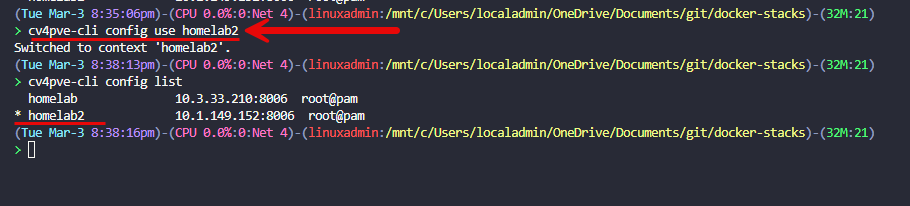
One of the great Kubernetes-like things that you can do with this tool is set “multiple contexts” or Proxmox environments that you have saved as connections. When you add multiple contexts as we have shown above, you can then list your contexts, using the command:
cv4pve-cli config listBelow, you can see the one that has the asterisk next to it is the default:

Switching contexts with the cv4pve-cli tool
Below, you can see that we are switching the context with the command:
cv4pve-cli config use <context>Then you can see I quickly followed it up by viewing the contexts and we now see the asterisk next to “homelab2”.
Simple examples of using the cv4pve-cli utility
There are several great examples of how you can use the cv4pve-cli utility and do so easily. What I like is that it will return results to you for the entire cluster and not just a particular node.
Below is getting information for a specific VM by the VM name:
cv4pve-cli show vm --guest <your vm name>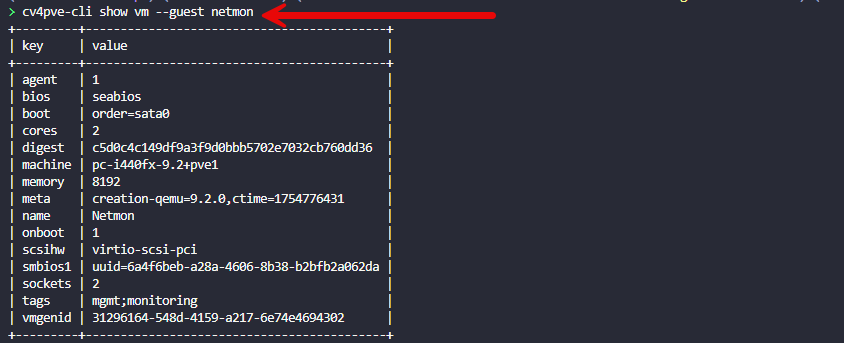
You can also get the VM status using the VM ID:
cv4pve-cli get vm status --guest 100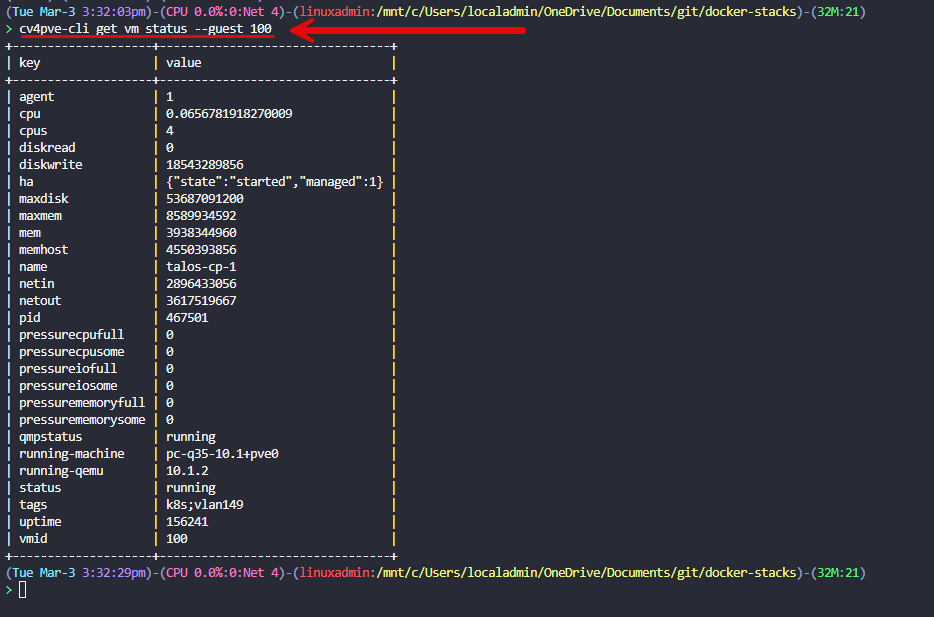
Getting information about the Proxmox nodes
Very similar to the kubectl get nodes command, you can do something similar with the command:
cv4pve-cli api get /nodes --output text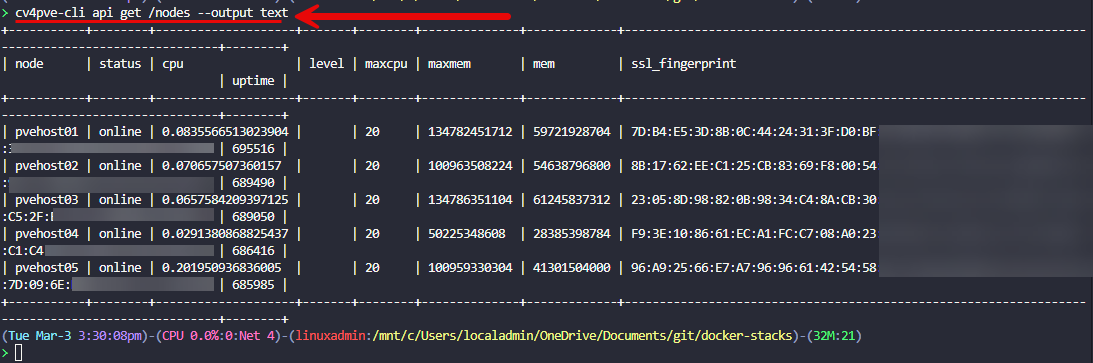
There are built-in aliases that allow you to do a lot of really cool things very easily from the command line.
| Alias | Arguments | Description |
|---|---|---|
get guests | — | This will list all VMs and containers for the whole cluster |
show guest | <node> <vmtype> <vmid> | Show guest configs for (VM or CT) |
get guest status | <node> <vmtype> <vmid> | Show guest runtime status |
do start guest | <node> <vmtype> <vmid> | Start a guest |
do stop guest | <node> <vmtype> <vmid> | Stop a guest |
do shutdown guest | <node> <vmtype> <vmid> | Shutdown a guest |
do reboot guest | <node> <vmtype> <vmid> | Reboot a guest |
do migrate guest | <node> <vmtype> <vmid> <target_node> | Migrate a guest to another node |
get guest snapshots | <node> <vmtype> <vmid> | List snapshots |
create guest snapshot | <node> <vmtype> <vmid> <snapname> <descr> | Create a snapshot |
do rollback guest | <node> <vmtype> <vmid> <snapname> | Rollback to a snapshot |
delete guest | <node> <vmtype> <vmid> | Destroy a guest (this is destructive and will result in data loss!) |
Why this feels like managing Proxmox with kubectl
The biggest difference I think is not just the commands. It is the mindset. When you start using a tool like cv4pve-cli, you start thinking more in terms of querying your environment instead of “Click Ops”.
For example, instead of asking questions like “which node is this VM on”? You start asking the question “how can I query all VMs and filter the results”? Instead of “let me click into each VM to see its status”, you think “how can I get a list of all VMs and their states in one command”? This is a subtle shift, but it is powerful. This allows you to:
- Get faster visibility into your environment
- Build scripts that automate common tasks
- Combine commands with other CLI tools
- Treat your infrastructure as something you can query programmatically like Kubernetes
Also the whole “contexts” mental model I think is powerful that allows you to manage your Proxmox environments in terms of contexts of different PVE hosts or clusters and allows a single command line or management workstation to span all of the environments you have.
Limitations of cv4pve-cli?
No tool is perfect though no matter how good they may be, and it is important to know where cv4pve-cli fits in and maybe where it isn’t the best fit. First, don’t think of this as a replacement for the Proxmox UI. The default Proxmox web UI is still super powerful for:
- Visual management
- Initial configuration
- Quick troubleshooting
- Advanced configurations
Second, there is a learning curve. If you are used to the UI, shifting to a CLI driven workflow takes some adjustment and time. I don’t think you should think of it being a “one or the other” type tool. Use it to complement your other management tools for Proxmox. But I do think for many day-to-day tasks, especially anything repetitive or automation related, this tool can save a lot of time compared to clicking around in the GUI of the Proxmox web UI.
Wrapping up
I think this is a really great Proxmox CLI tool that allows you to have the familiar workflows that we already have for Kubernetes clusters but have these for our Proxmox VE Servers and Clusters. With all the built-in aliases in the tool there is probably a command that will do what you want it to be able to do. Adding the cv4pve-cli command has definitely changed how I think about and interact with my Proxmox VE Server environment. It provides a fast way to get information and automate tasks from the command line. If you are running a Proxmox cluster and have started to feel the limits of managing everything through the UI with Click Ops, this is absolutely worth checking out. How about you? Have you used the cv4pve-cli command before? Does this seem like something you would like to check out?

Google is updating how articles are shown. Don’t miss our leading home lab and tech content, written by humans, by setting Virtualization Howto as a preferred source.
About The Author