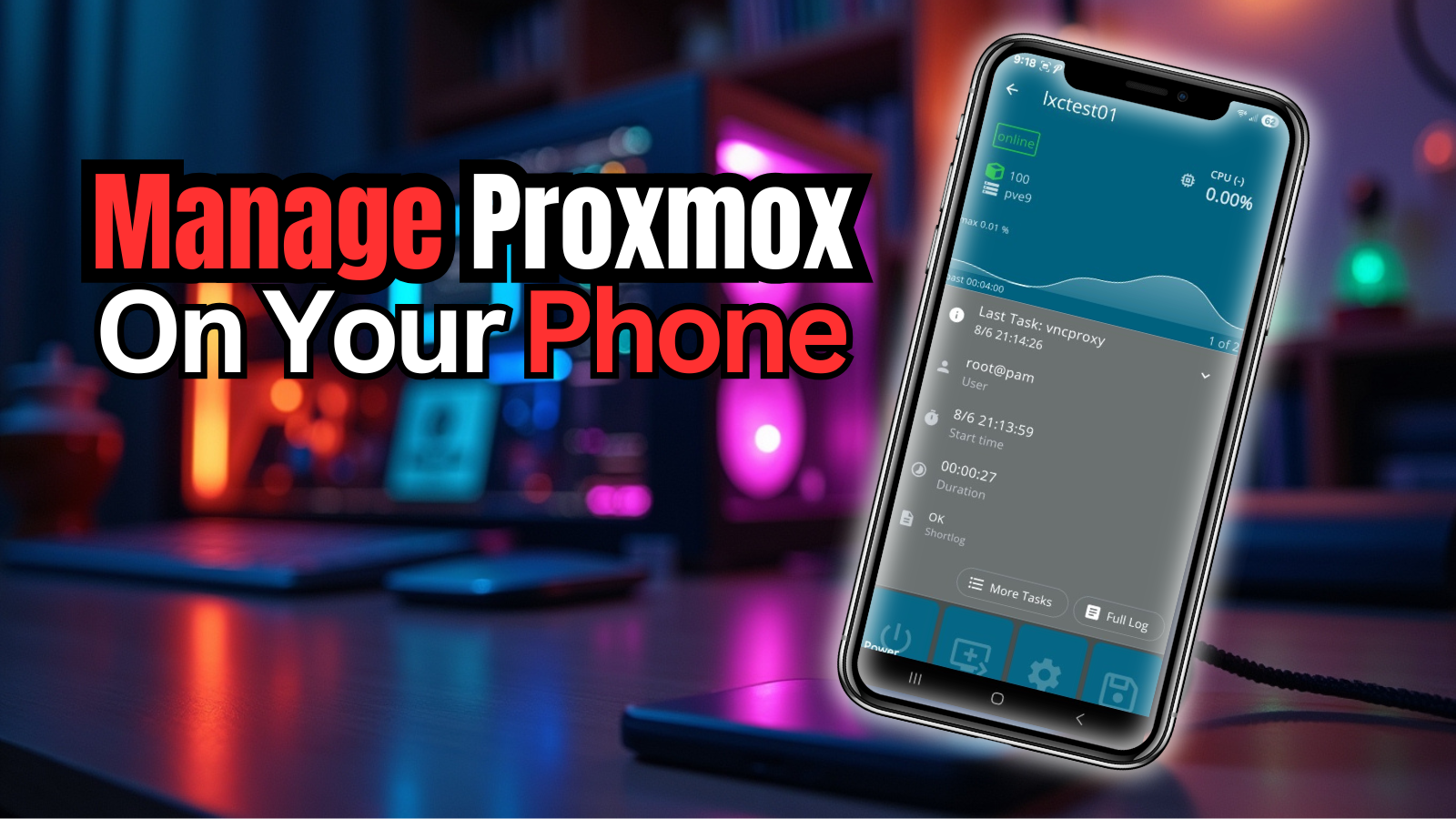
One of the great things I have found about moving over to Proxmox is all of the tools that you have access to when you do. There are tons of community projects and other solutions that make working with and managing the platform great. Mobile management is no exception. I have found there are great mobile tools that allow managing Proxmox from a mobile device like a phone and carrying out tasks that need to be done while you are on the go. I want to highlight four solutions that I have used in managing Proxmox from a phone and my thoughts on these. If you run a Proxmox home lab, having these tools make it much easier to keep an eye on things even when you are away from your desk.
Can you manage Proxmox from your phone?
Yes, and in many cases it works better than you might think it would. Sometimes, I even find information is easier to see on some of the mobile apps than in the desktop web UI. Keep in mind that the web UI is definitely the place you want to go on a full desktop if you want to manage every aspect of your Proxmox environment. But the mobile experience has gotten really good, thanks to various solutions.
Recent versions of Proxmox have improved the mobile experience of the web UI itself. In addition to that improvement in Proxmox 9 in the native interface, there are several mobile apps have been developed that connect to the Proxmox API and present a cleaner interface for phones and tablets.
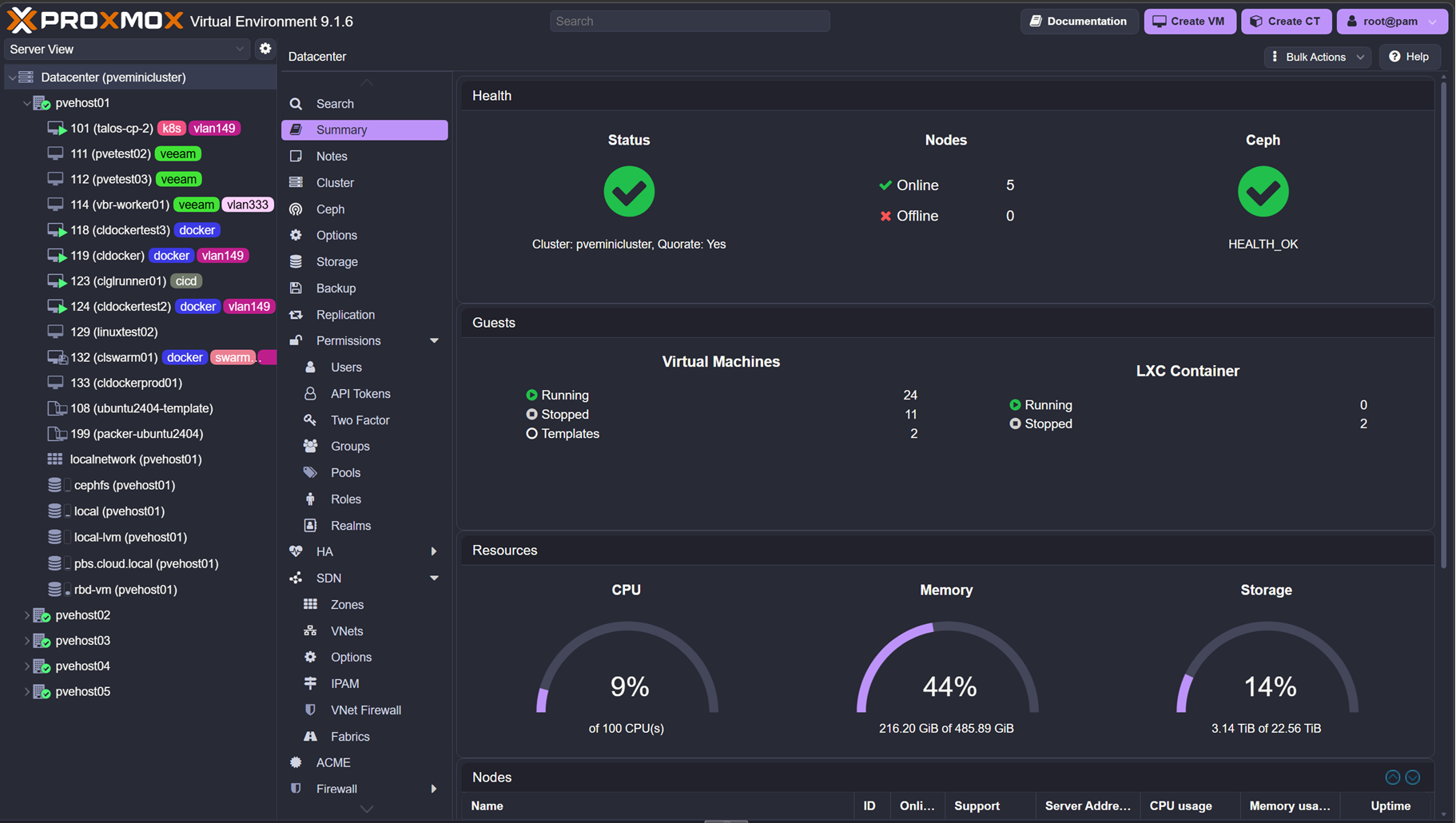
From a phone you can usually perform tasks such as checking node status, viewing cluster resources, starting or stopping virtual machines, and restarting containers. You can also monitor CPU and memory usage, check storage utilization, and view system logs.
You probably wouldn’t want to perform complicated infrastructure changes from a mobile device. But, most day-to-day monitoring and quick operational tasks are easily handled from your phone. For many home labs this convenience is really fantastic on the go.
If you are in a pinch and need to quickly reset a virtual machine or roll back a snapshot for instance (there is an app in the list that can), you can do this from your phone if you need to which saves a ton of time if you aren’t near your laptop or don’t have it with you.
Let’s consider the four solutions that I have used and my thoughts on each of these.
Native Proxmox mobile web interface
In case you haven’t heard on this front, since Proxmox 9, the experience with pulling up the native web UI in mobile friendly version has been refined. If you open the Proxmox server URL in a mobile browser, Proxmox adapts to the smaller screen and lets you navigate nodes, VMs, containers, and you can look at storage resources. Compared to Proxmox 8, this experience is much better.
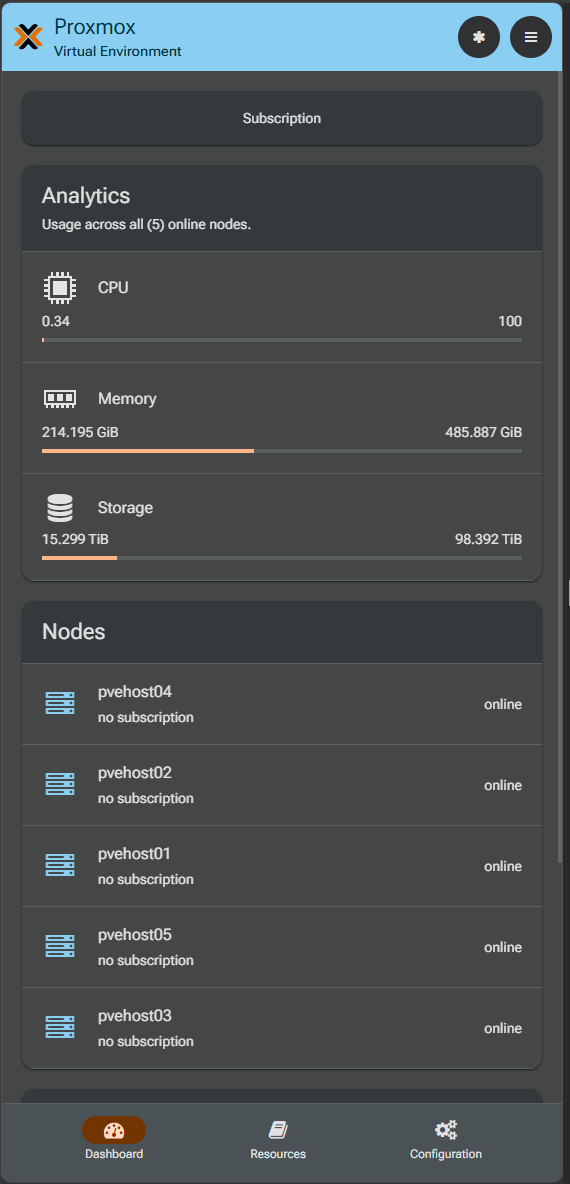
There are several advantages to using the native web UI in a mobile browser on a mobile device. Note the following:
- It doesn’t require an additional application. Any device with a modern browser can connect directly to your Proxmox cluster
- The interface is always compatible with the latest Proxmox release. Because it is built into the platform itself and nothing is installed on your mobile device, you do not need to worry about app compatibility or updates
- It provides a good cross section of admin features, however, still puzzling that you still can’t do certain things from that interface like take snapshots
So, the mobile web interface is great to quickly check cluster health, review node resource usage, and look at storage statistics.
If you want a deeper look at the improvements made to the mobile interface in Proxmox VE 9, I previously wrote a full walkthrough focused on the new interface here: Proxmox VE 9’s New Mobile Web UI: Manage Your Cluster from Anywhere.
Official Proxmox mobile application
Another option for managing Proxmox from your phone is the official Proxmox mobile application. In my opinion this is still a better option than connecting directly to the web UI. If nothing more than the simple fact that getting the app open and connected to your Proxmox environment is much easier and it remembers your connection. It also ties in with biometrics to make the login process seamless.
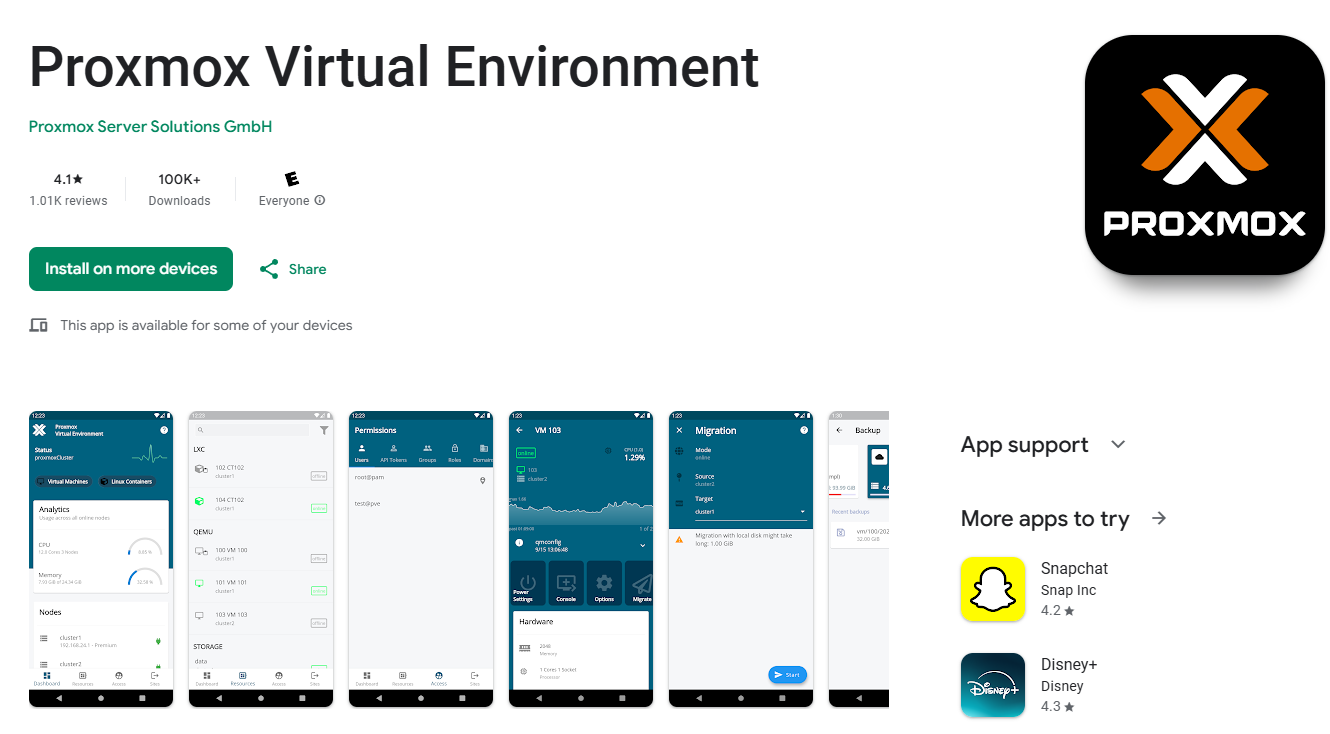
This app connects directly to the Proxmox API and provides a simplified interface designed specifically for mobile devices. The goal is to make common management tasks easier without needing to navigate the full web interface.
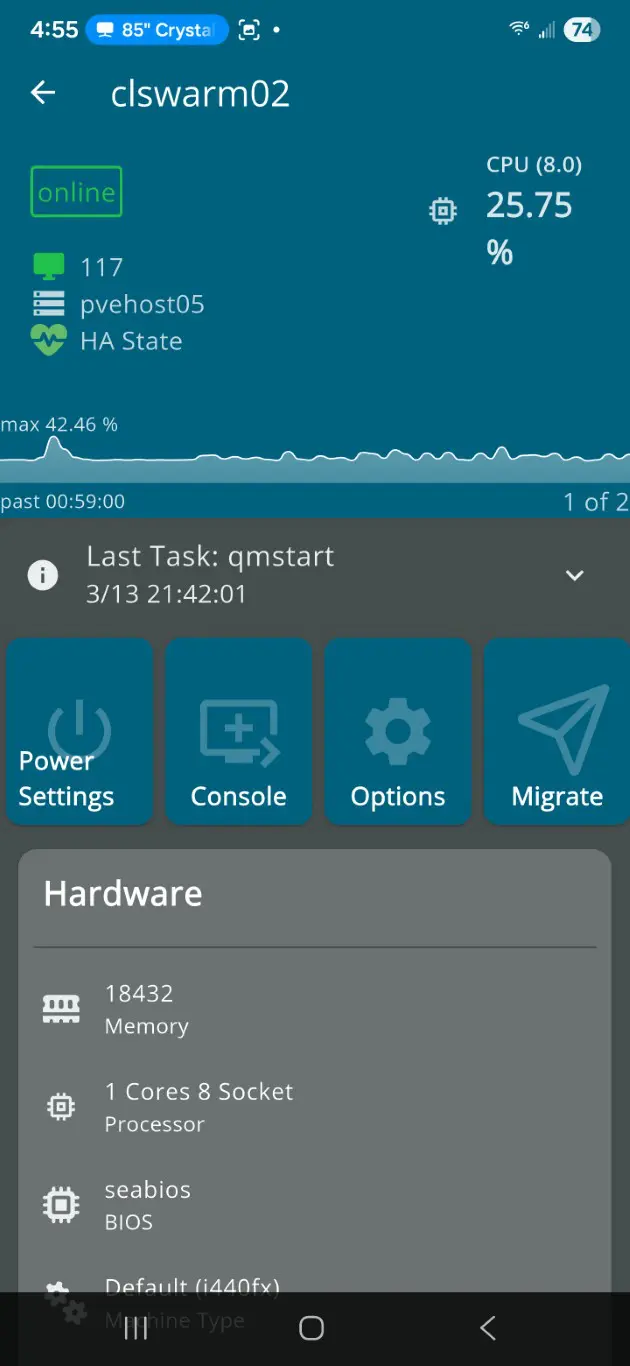
Using the official app you can perform tasks such as viewing node status, monitoring CPU and memory usage, and controlling virtual machines. Starting, stopping, and rebooting VMs can be done with only a few taps.
It has a simple interface and I think this is one of the best features of the app. It focuses on the most common tasks. However, this is a double-edged sword though as the official app does have limitations.
It does not expose every feature available in Proxmox (but keep in mind that most mobile apps don’t). Tasks such as configuring networking, managing storage, or doing things like performing cluster level configuration still require the full web interface. For quick operational actions like restarting a VM or verifying node health, the official application works pretty well.
All in all, I dop prefer this one over the native web UI in a mobile browser as I think it is more polished and easier to manage from the app.
Pros:
- Easy to use
- Shows most information that ones would want to see
- Resource information
- Power operations on VMs, etc
- Biometric login
Cons:
- No finer grained management
- No snapshot management
- No Proxmox Backup Server (PBS) management
Proxmobo
Proxmobo is a third-party mobile application that provides another way to manage Proxmox clusters from a phone. Like other mobile tools out there and the native app, Proxmobo is an app that communicates with your Proxmox environment through the Proxmox API. It presents the information in a mobile friendly dashboard. I think it does a good job of giving you a quick overview of your infrastructure and the health of everything.
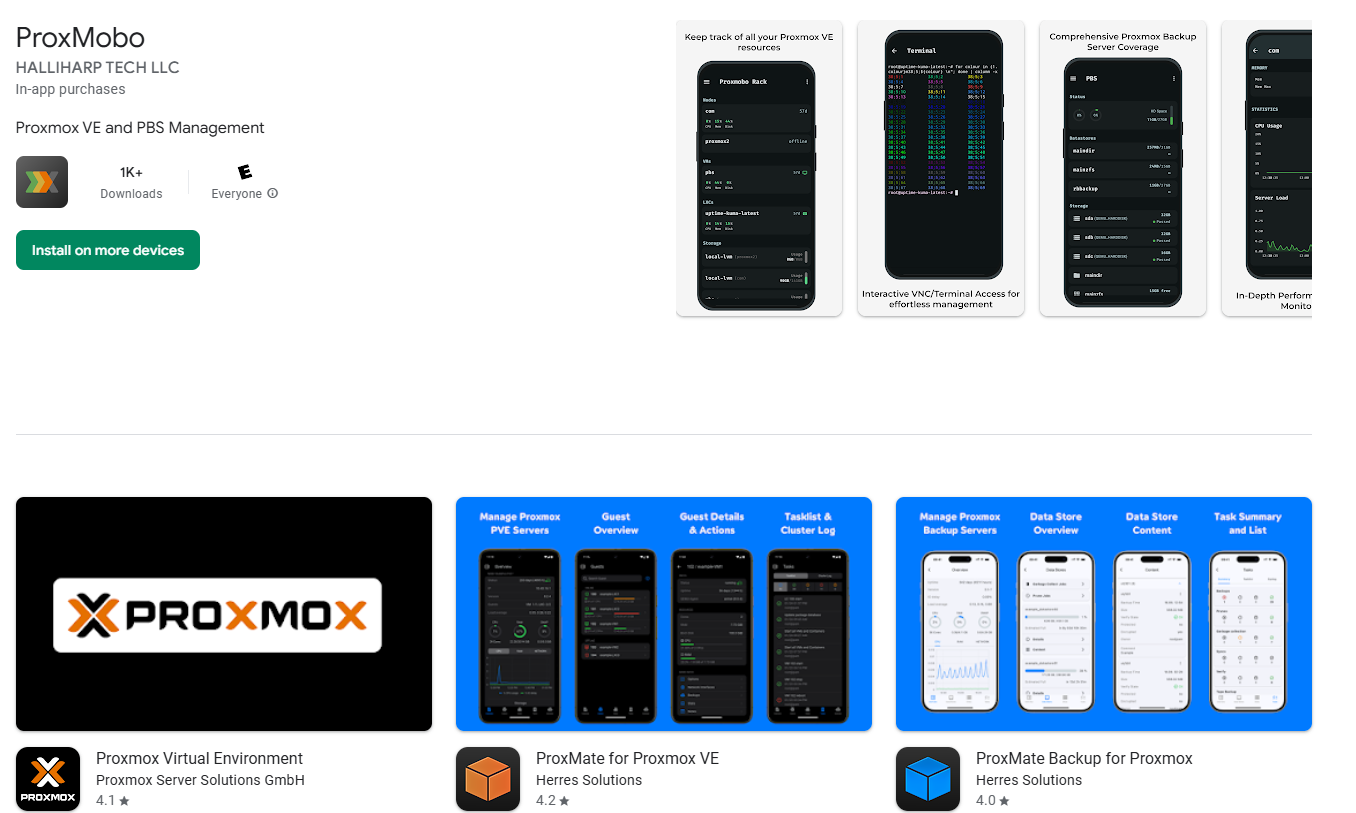
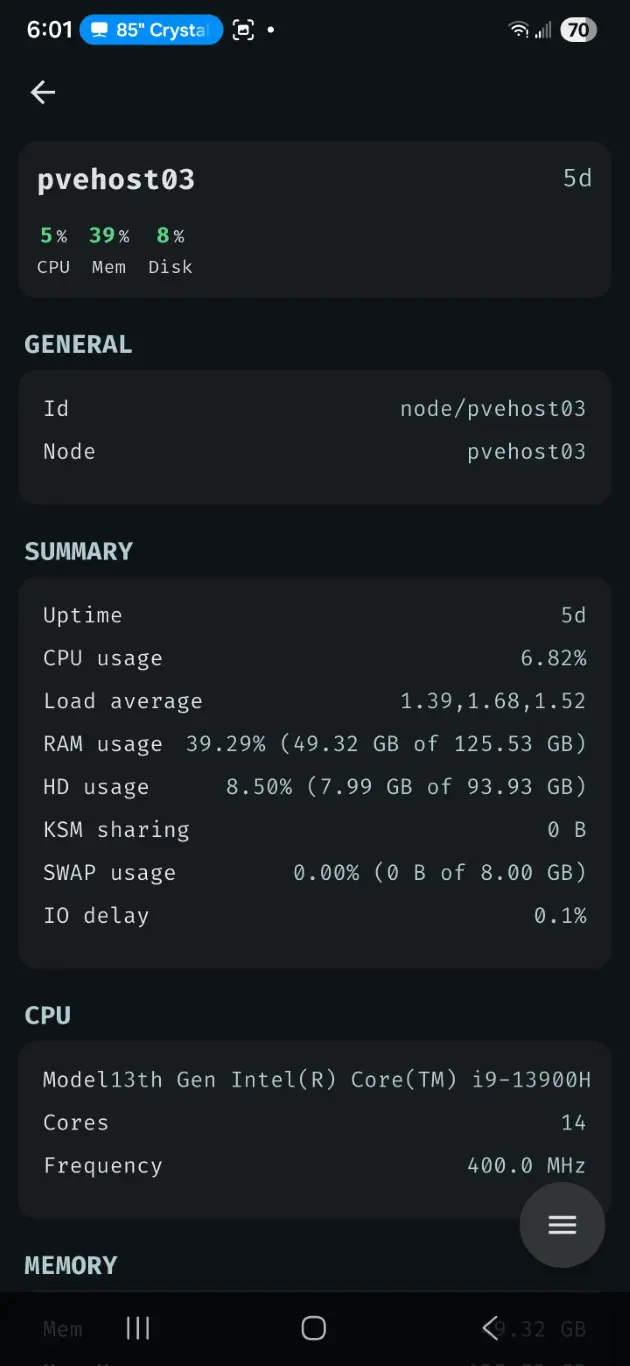
One of the features I like about Proxmobo is the way it organizes system statistics and cluster information. The interface makes it easy to see node performance and resource usage at a glance. I really like the defaults in Proxmobo in terms of the font and colors they use as well. Very pleasing to the look and feel.
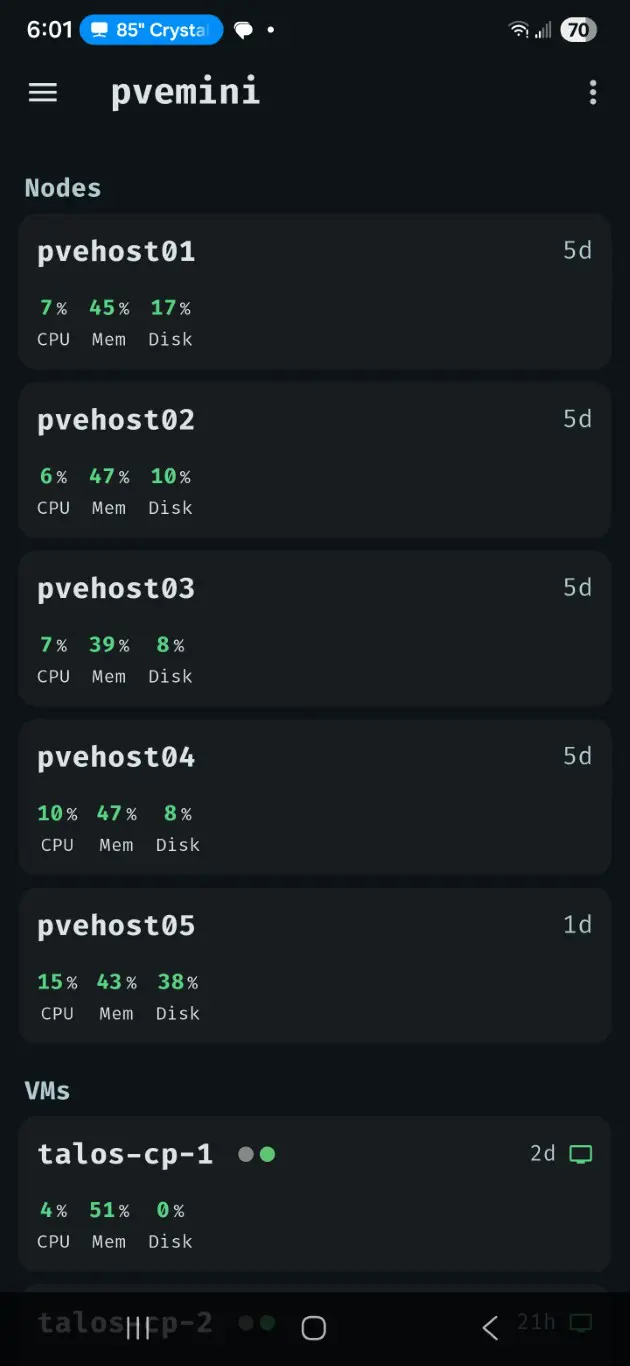
For users who want a simple visual overview of their cluster, Proxmobo can be a nice alternative to the built-in web interface or mobile interface. In many ways I think it is superior to the official Proxmox mobile app as weell. The dashboards provide an easy way to quickly assess how your nodes are performing.
I think the resource usage graphs in Proxmobo look arguably the best out of all the mobile apps.
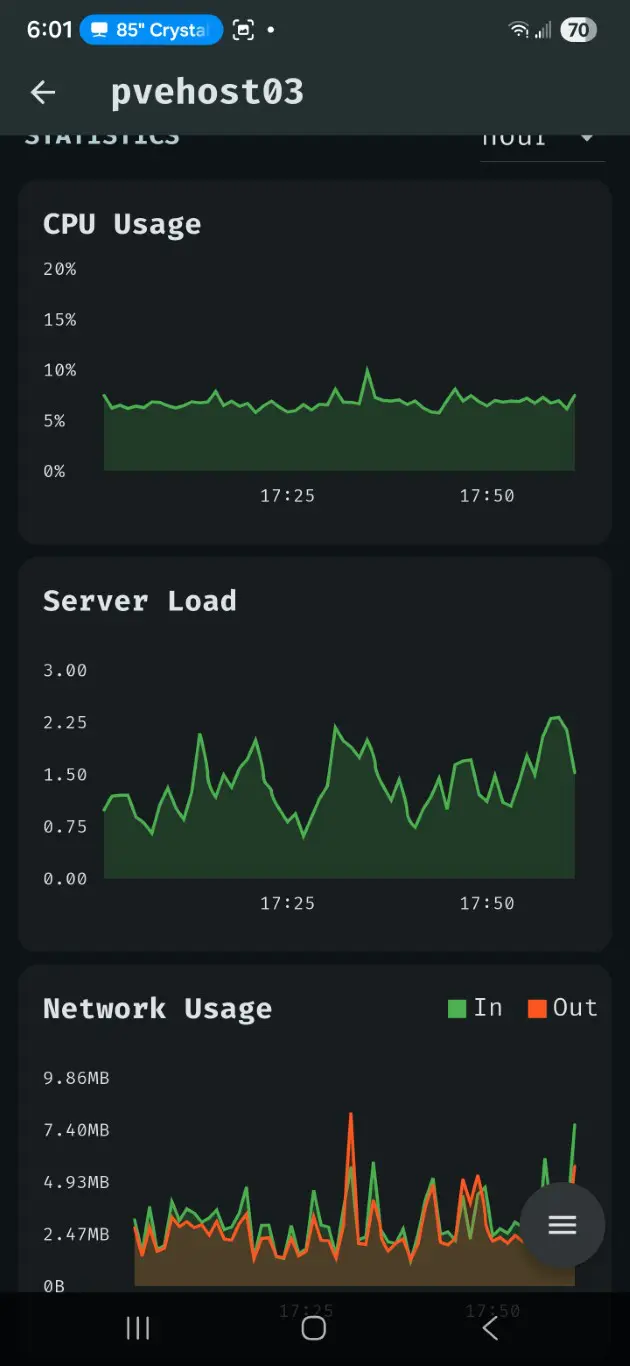
For home lab users who frequently check cluster statistics, this can make the experience much more convenient compared to navigating the full Proxmox UI.
Pros:
- One of the best looking UIs I think
- Detailed resource information
- Power operations on VMs
- You can natively add a Proxmox Backup Server (PBS) instance
Cons:
- Some features locked behind premium
- No snapshot management
Proxmate
The Proxmate app is one that I discovered recently and I have to say it has quickly become one of my favorites for managing Proxmox on the go. The look and feel of the app is extremely intuitive. And, I was looking for an app that would let me manage snapshots which the paid one of this one does.
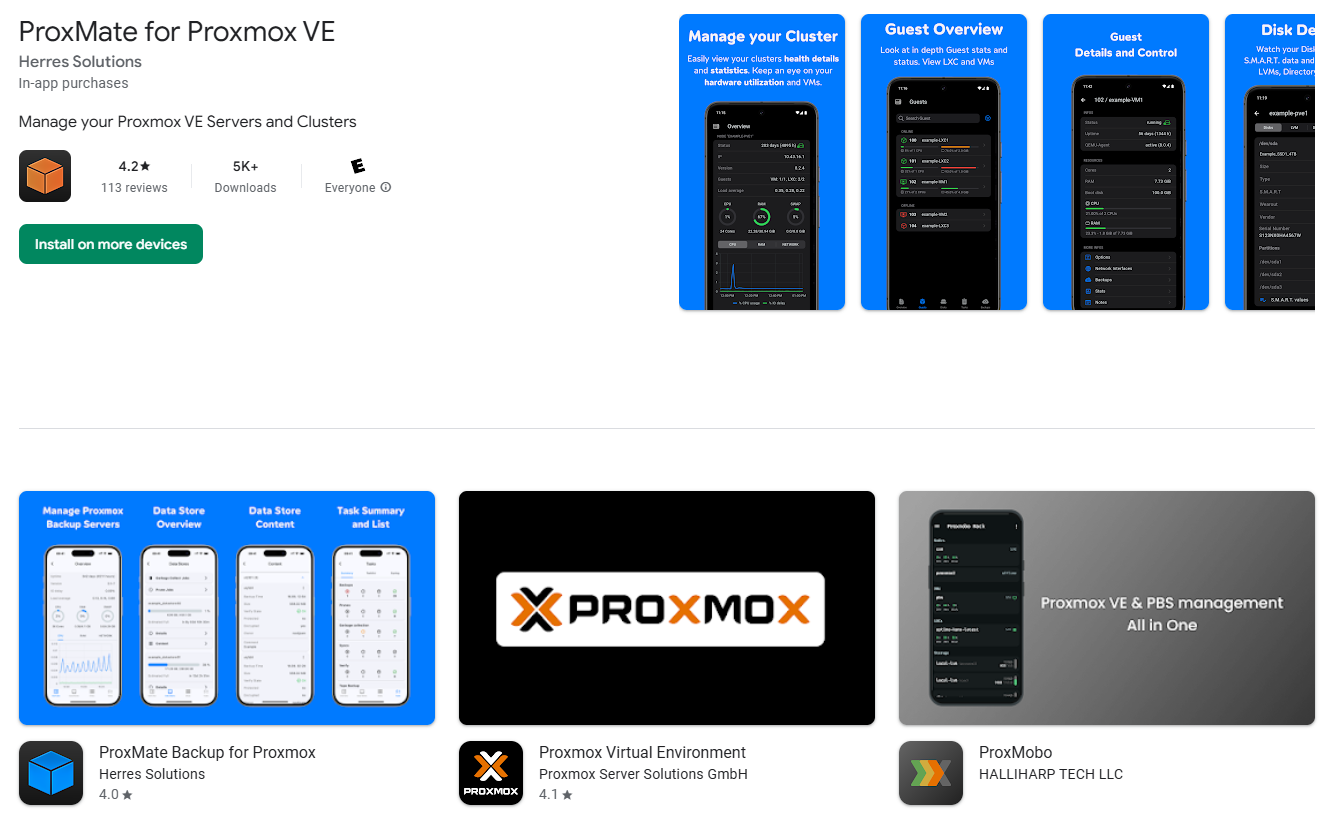
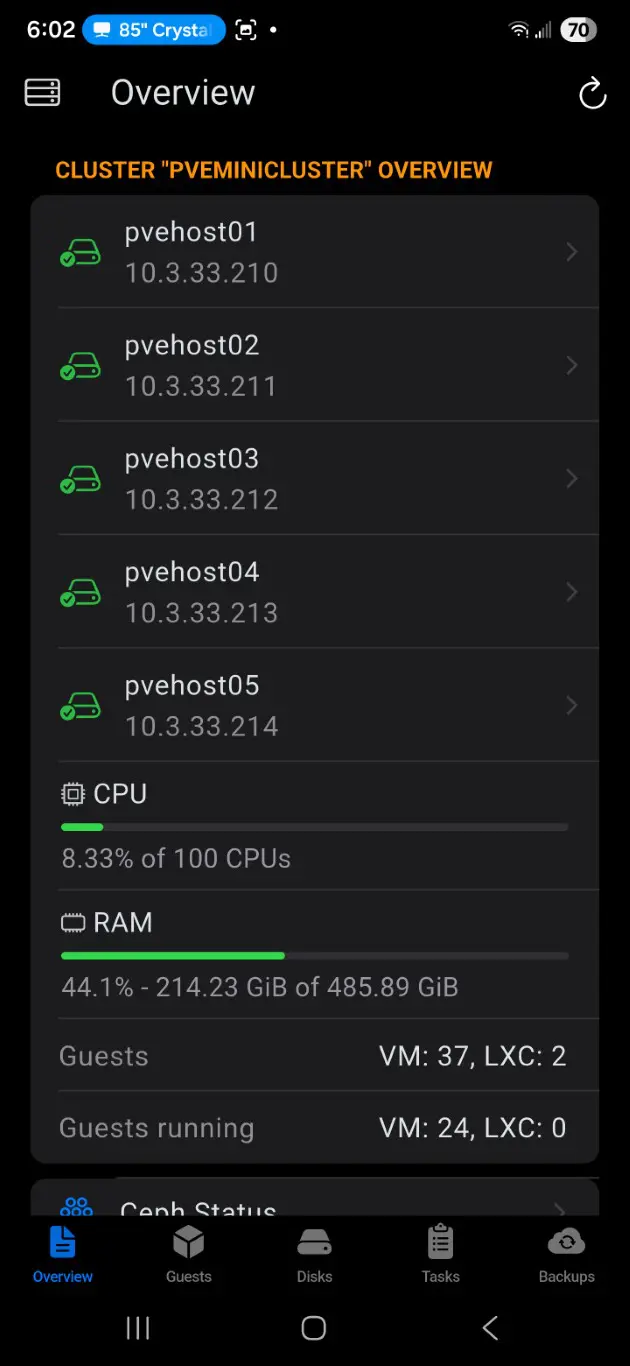
Proxmate has a clean design and has a focus on monitoring and quick operations. The interface is tweaked for smaller screens and gives great overviews of nodes and virtual machines. It also connects to your Proxmox servers through the API so it can retrieve data about cluster resources, system performance, and VM status in real-time.
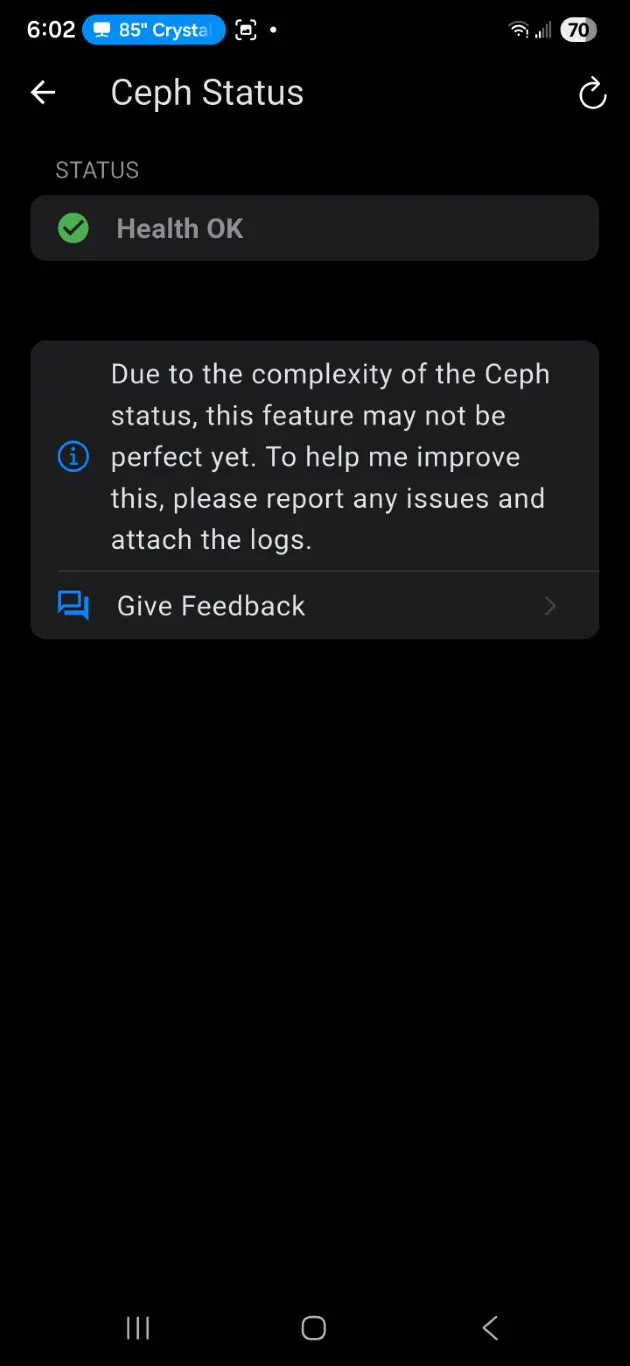
Also, one of the other really great things about this app is that it gives you at a glance visibility into Ceph storage health which I didn’t find in the other mobile apps. So, if you are running Ceph as part of your Proxmox cluster, this is definitely a feature to note.

When you click into the Ceph status screen, it will show you if the health is OK or if there are warnings or errors with Ceph.
Unlike the other mobile apps, you can control snapshots with this one as well and do things like create them, roll back, delete, etc. If you have need to interact with your snapshots on the go, this is definitely a pro for Proxmate compared to other apps out there.
One of the other cool things is that it has SSH quick commands that let you specify commands that you may use often on your Proxmox host or cluster. You can save these as remembered commands and setup the SSH connection in the app. It will run these quick commands and return the output in the app. Very cool.
Pros:
- Easy to use
- Shows the most information of all the mobile apps
- Shows Ceph storage health status natively in the app
- Can control snapshots
- Very detailed resource information
- Can see hardware details like temperature readings
- Quick commands for SSH you can customize and store
- Power operations on VMs, etc
- Premium version is $9.99 perpetual license for life
Cons:
- Some features locked behind premium
You need a remote network tunnel of some sort
One thing to keep in mind with any mobile solution is that when you are outside of your local home lab network, you are going to need a way to have line of site access to your Proxmox hosts and clusters. Do yourself a favor and never expose your cluster web UI to the Internet. Never, ever do that. Instead use some type of modern VPN solution.
This might be something like Pangolin, Cloudflare Tunnel, Twingate, or some other solution. The thing I like about these is they are modern solutions that don’t require you have holes poked inward through your firewall. Instead they use HTTPS proxy connections that mean you just need to allow your connectors to egress out your network to the Internet.
Take a look at my blog where I talk about these options and architecture in more detail: Stop Exposing your Home Lab – Do This Instead.
So, typically, your workflow is to establish a connect with VPN > connect to your mobile app of choice.
Quick comparison of Proxmox mobile management tools
After looking at each option individually, it helps to see them side by side. Each tool has a slightly different purpose depending on how you prefer to manage your Proxmox cluster.
Each of these apps I think have their strengths and like me, you may end up launching and using a combination of all of them at various times as I just like how one app does something specifically over another app. Proxmate for me has become the one I use the most though I would say.
| Tool | Platform | Best use case | Key strengths | Limitations |
|---|---|---|---|---|
| Native Proxmox mobile web interface | Browser (iOS / Android) | Full cluster access | Built into Proxmox, healthy feature set, always up to date no mobile app to install and maintain | Interface has limitations in mobile and doesn’t expose all features like you think it might |
| Official Proxmox mobile application | iOS / Android | Quick VM and node control | Simple interface, easy power operations | Limited advanced configuration |
| Proxmobo | iOS / Android | Beautiful visual dashboards | Good UI, resource graphs, good cluster overview | Third party tool with some feature limitations |
| Proxmate | iOS / Android | Monitoring and alerts including Ceph monitoring | Strong monitoring features, snapshot management, SSH quick actions, hardware monitoring | Some advanced features do need the paid version |
Wrapping up
There are a lot of great options for managing Proxmox from your phone and while you are on the go. I am not used to having all the options that we have for mobile management. Coming from VMware vSphere, we had the one official app, and that was basically it. It is great to see there is a strong ecosystem of third-party and community apps that go along with the options we have with the native web UI and the official Proxmox mobile client. How about you? What app do you prefer for managing your Proxmox environment on the go? Let me know in the comments if there is a great one that I missed here.

Google is updating how articles are shown. Don’t miss our leading home lab and tech content, written by humans, by setting Virtualization Howto as a preferred source.
About The Author