


If you are getting into running Proxmox and backing up your Proxmox environment using Proxmox Backup Server, which is a great way to back up your Proxmox environment. It has tight integration, incremental backups, deduplication, encryption, fast restores, etc. However, if you are like me when you get started you don’t really know what you don’t know for Proxmox Backup Server. You install it, create a datastore, then point your PVE server at it, schedule backups, and call it good. However, as your lab grows, several settings and design decisions make a big difference. Let’s take a look at the Proxmox Backup Server settings I wish I knew earlier.
Enable your prune settings before you actually need them
This is an area of confusion between PVE settings and PBS settings. I know it was for me as well when I was first setting things up in the Proxmox VE environment for backing up to Proxmox Backup Server. So when you configure a Datacenter > backup job in Proxmox VE Server web UI, you can define retention settings on this job:
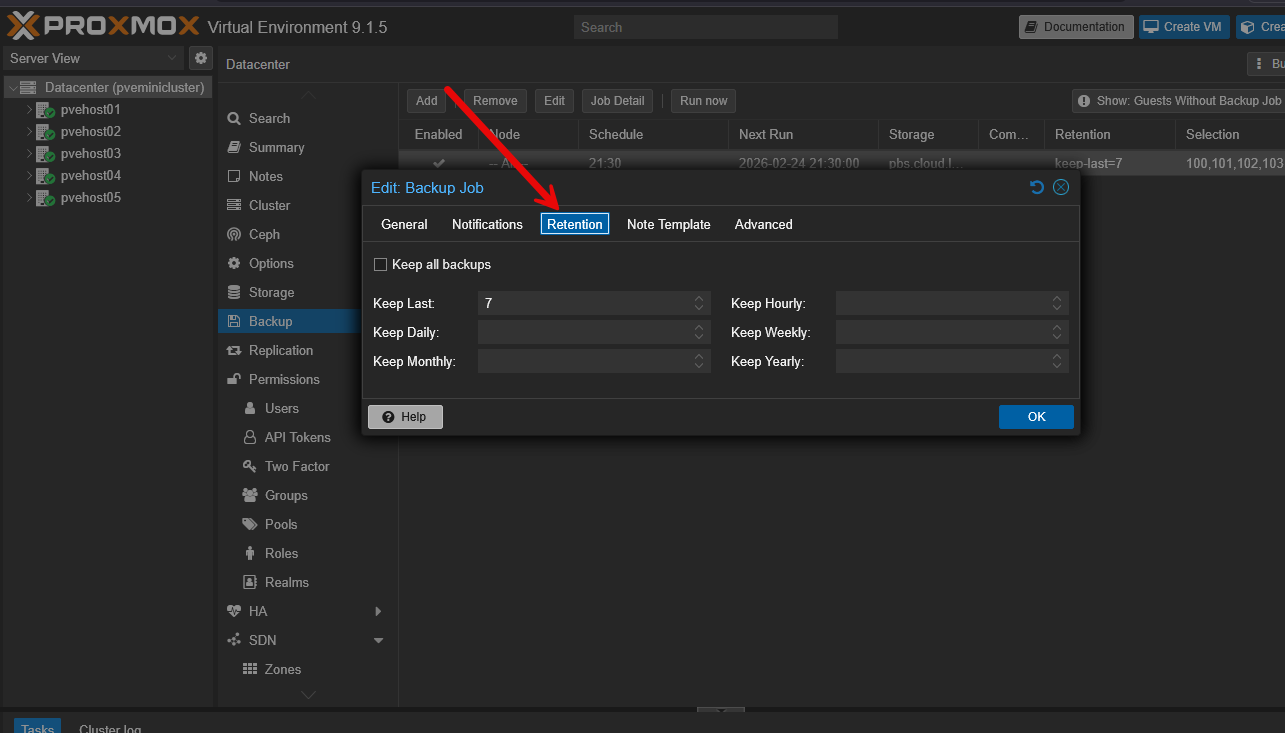
When you set retention in Proxmox VE, those retention rules are attached to a backup group. When a backup completes, Proxmox VE tells PBS which snapshots should be kept and which ones should be pruned. Then PBS automatically enforces that policy for that default group.
So, you don’t have to setup a prune job in PBS with different retention rules unless you have a reason to do so. In a simple home lab:
- Retention is defined in PVE
- You don’t have to have a manual prune job in PBS
When does configuring a prune job in PBS make sense? You might consider doing that when:
- You have multiple Proxmox clusters backing up to the same PBS server
- You are making use of namespaces
- You want to have centralized retention control separate from PVE
- You want to prune based on a fixed schedule regardless of whether or not the backup was successful
How do you know if pruning is working?
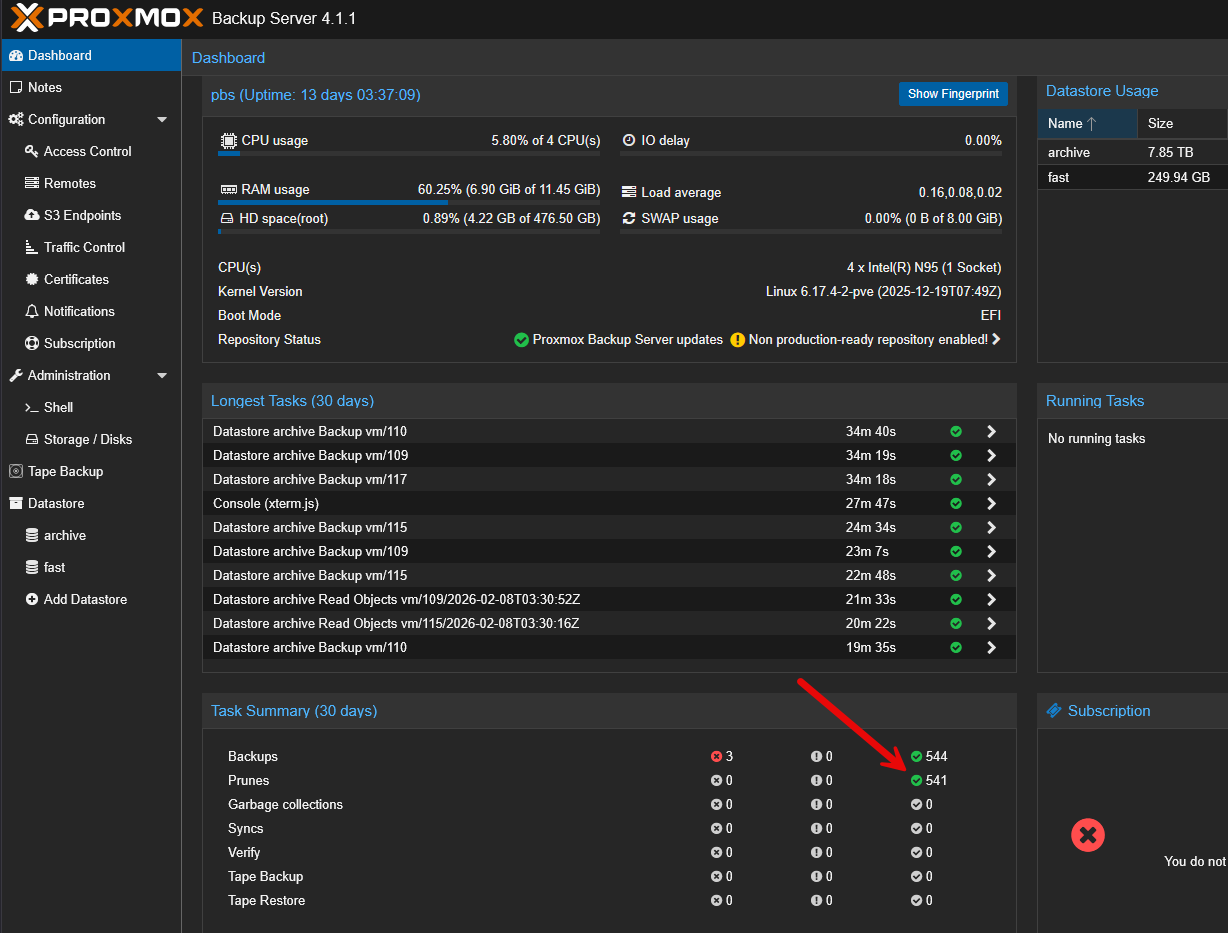
You can take a look in the PBS dashboard. Under the Task summary list, you can see the Prunes listed and see if you have successes or failures.
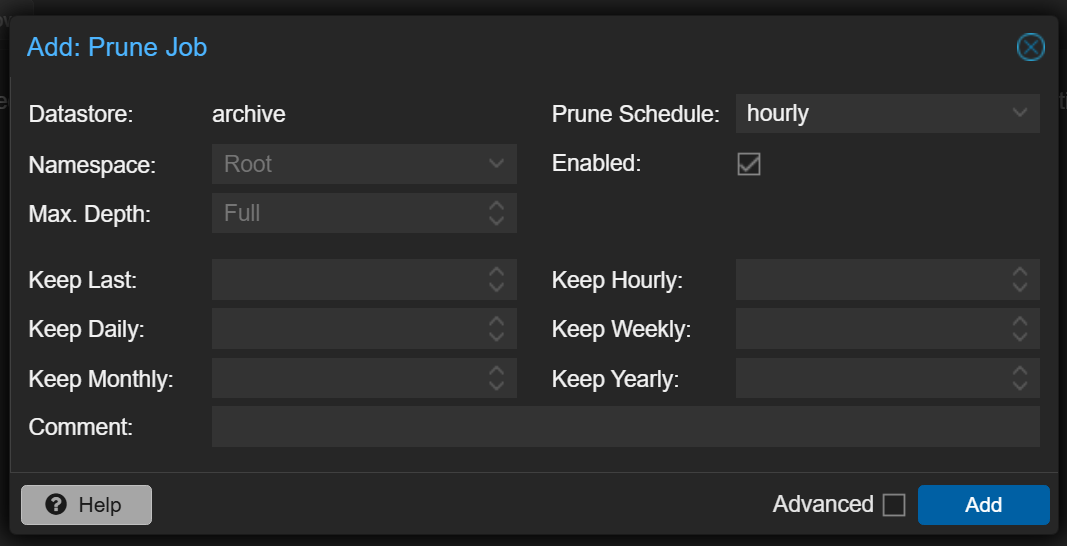
In case you have seen reference to the prune settings in PBS, these are a very important set of configuration for your storage. In Proxmox Backup Server, prune jobs are basically the same as retention settings in other software like Veeam Backup & Replication. These define how many backups you keep on disk. So, think dailies, weeklies, and monthlies. Don’t just assume the defaults are what you need or want. Review these carefully so they match up with your RPO objectives.
When I first stood up the Proxmox Backup Server environment, I used very generous retention policies because I had plenty of storage at that time. However, over time, these will grow. Even though PBS does incremental backups, if you have a lot of VMs, retention on disk will definitely grow.
When it comes to figuring out your retention and pruning, you can ask yourself a few questions:
- How many days back do I realistically need for quick rollback?
- How many weekly snapshots make sense?
- Do I really need 12 monthly backups for every lab VM?
For production style services in my lab, I now keep more granular short-term backups and fewer long-term archives. But for just throw-away type lab VMs, retention is much shorter. My advice is this. You may not know at the start what kind of retention you need. But revisit this within a week, 2 weeks, and again at a month to see where you are on storage and if these settings are realistic.
Don’t forget to setup Garbage Collection in PBS
If you have wondered what garbage collection is in PBS, it is a process where PBS reclaims unused chunks that are no longer referenced by any backups. So if you delete backups but you don’t run your garbage collection process disk space will not be entirely reclaimed. I kind of think of this like using thin provisioned storage. When you delete data off, those blocks aren’t automatically unmapped. There are processes that need to run to do this.
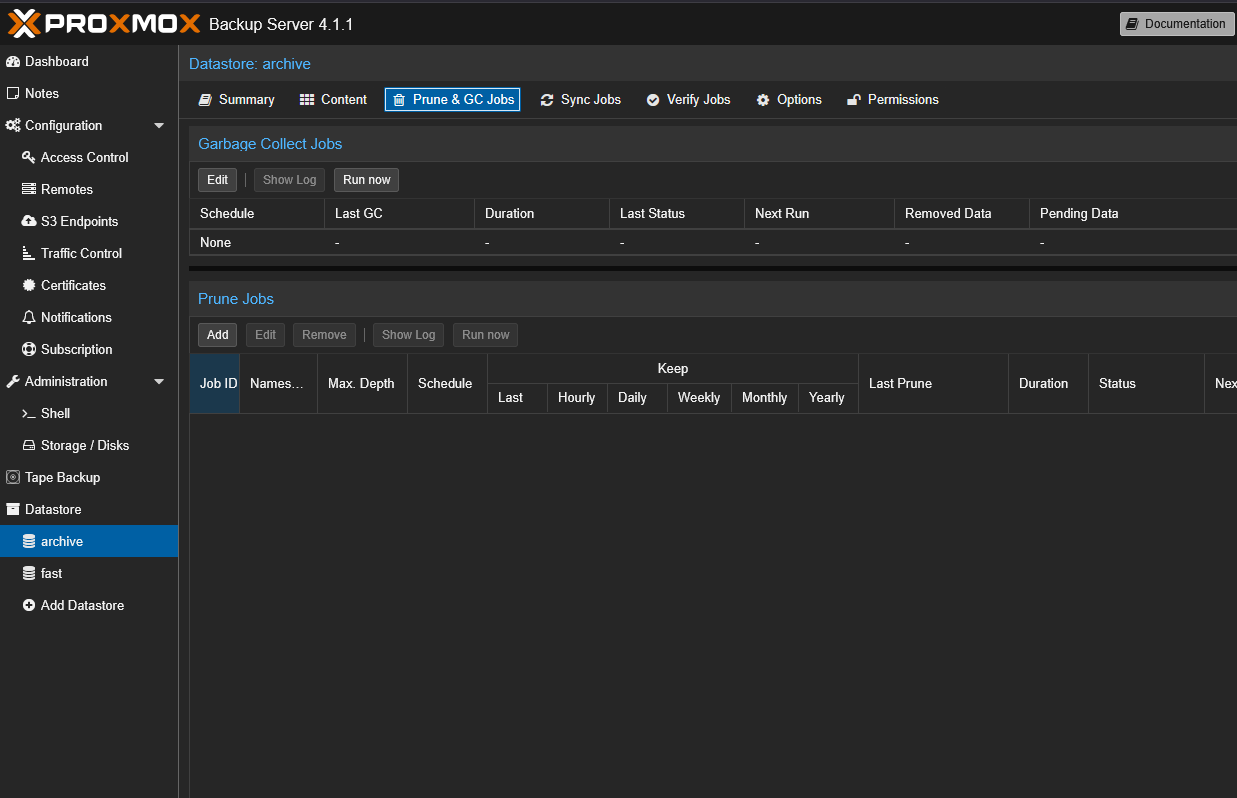
If you log into your Proxmox Backup Server interface and navigate to your repository and then click on Prune & GC Jobs. This is where you configure your Garbage collection as well as prune jobs. Below is the default view that you will see. Nothing will be configured by default.
When you click the Edit button, it will display the Garbage Collect Schedule. Here you can select the schedule that you want to configure for garbage collection.
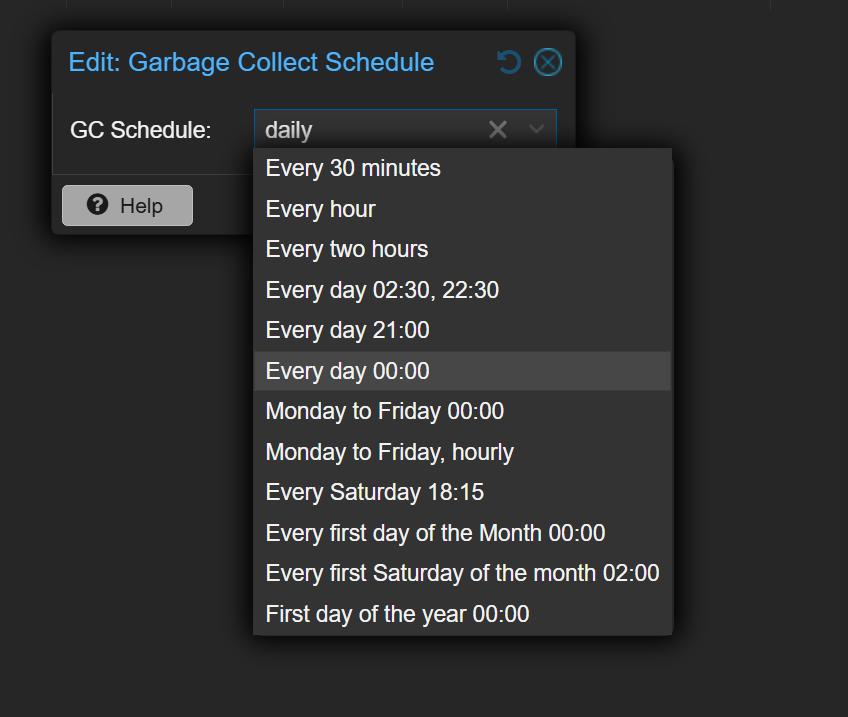
Over time, the datastore can look a lot more full than it actually may be if there have been a lot of deletes and unused chunks that have built up.
In the beginning, I underestimated how important scheduled garbage collection is. I didn’t even have a job scheduled. That was fine when my data was small. As it grew, delaying the garbage collection process meant longer cleanup jobs.
Now I schedule garbage collection to run regularly. I usually run it after midnight in my environment as by then my backups have already ran against my cluster. On faster storage, the impact is fairly minimal. On slower disks, plan it so it does not interfere with heavy backup jobs. If you ever wonder why disk space used is not dropping after pruning happens, garbage collection is usually the missing piece.
Backup verification is not optional
One of the most important parts of backing up your data is a step that many ignore and this is super dangerous. It is verifying your backups and making sure they are good. You can schedule backup verification jobs that will read the backup data and make sure chunks are intact.
It is tempting to skip this in a home lab. After all, it is just a lab, right? But trust me the first time you need to restore something that is important, you will be glad to know the data is actually good and you can have confidence in it because you have been verifying it.
You can configure a Verify Job by navigating to your Datastore > Verify Jobs. Here you can configure the settings for the verify job. You can also define how often you re-verify your backups.
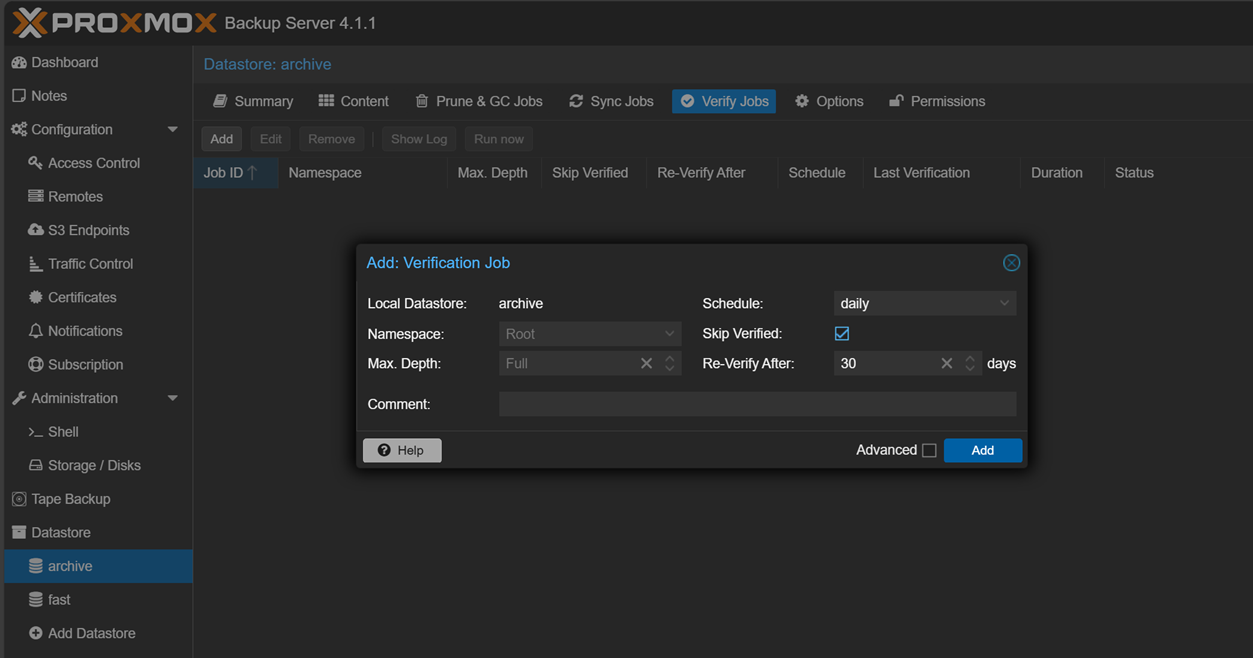
Verification jobs do consume disk I/O. This is another reason that you might decide to use faster storage media for your PBS backups. But if not, you can schedule verification jobs to run weekly for critical workloads and less frequently for less important systems.
Encryption and key management
Proxmox Backup Server has strong security built in that you can take advantage of. This includes client-side encryption. When you enable this, backups can be encrypted before they are sent to the server. This is a great feature to make use of if your PBS instance is off site or is in a different security zone.
As great as encryption is, it does introduce additional complexity in terms of key management. If you lose your encryption key, your backups are effectively unrecoverable.
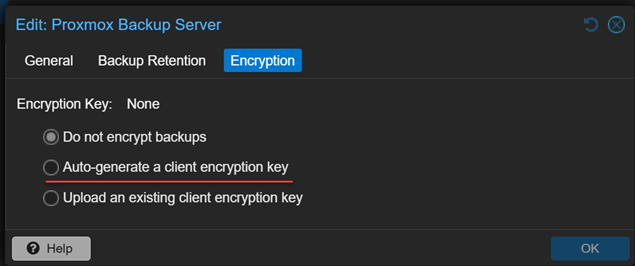
Be sure to understand the implications of this and how important it is to do the following:
- Exportin keys after creating them
- Store them in a password manager or somewhere else that is safe
- Keep an offline copy in a secure location
Do not treat encryption lightly. It is an excellent option for security, but only if you manage your keys in the right way.
Understand namespaces
This is something that I didn’t really wrap my head around until later. I think it is an underrated feature in PBS, and that is namespaces. What are they in PBS? they allow you to logically separate backups within the same datastore.
This can be helpful if you run multiple clusters, environments or just want to separate a “lab” environment from “production” environments. Namespaces are a construct that helps to keep things organized. When I first started with running Proxmox Backup Server, I just ran with the root namespace which is the default.
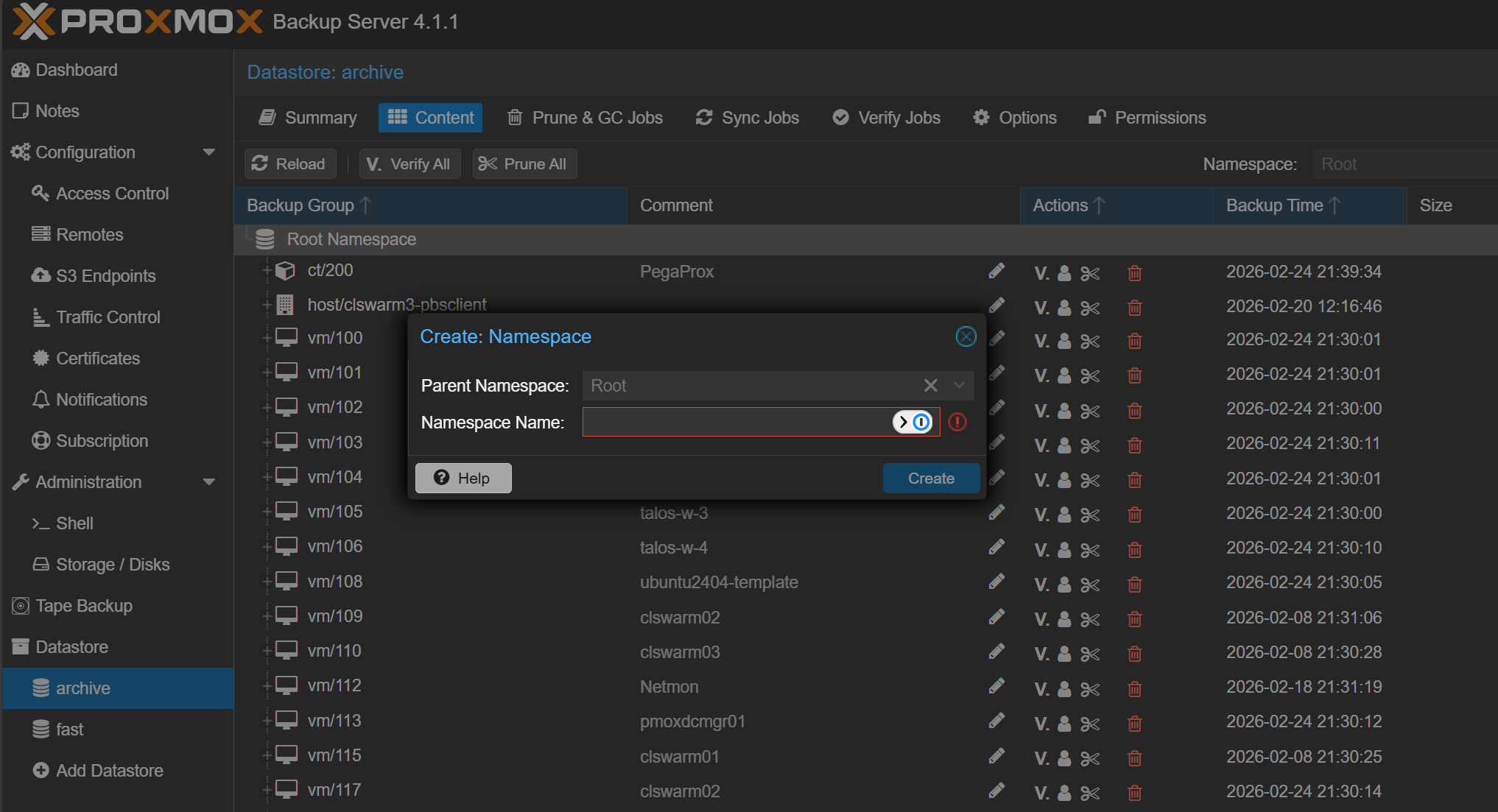
Namespaces are an underrated feature in Proxmox Backup Server. They allow you to logically separate backups within the same datastore. Another feature of this logical separation is that you can target prune and verification jobs based on namespaces. If your environment is growing, namespaces are definitely worth implementing early on before things get messy.
Sync jobs for off site storage
The 3-2-1 backup rule states that you need to have at least “1” backup stored offsite. The reason for this is that a backup server that sits next to your cluster protects you from VM corruption, hardware failure, and accidental deletion. But, it does not protect you from things like fire, flood, or catastrophic hardware failure that may also take out your backup server.
Proxmox Backup Server includes sync jobs that allow you to replicate backups to another PBS instance. This can be another machine in your house, a remote location, or even a VPS server. For a long time, I relied on a single PBS instance. That was a single point of failure.
You can configure a sync job in Datastore > Sync Jobs. You can either push or pull data.
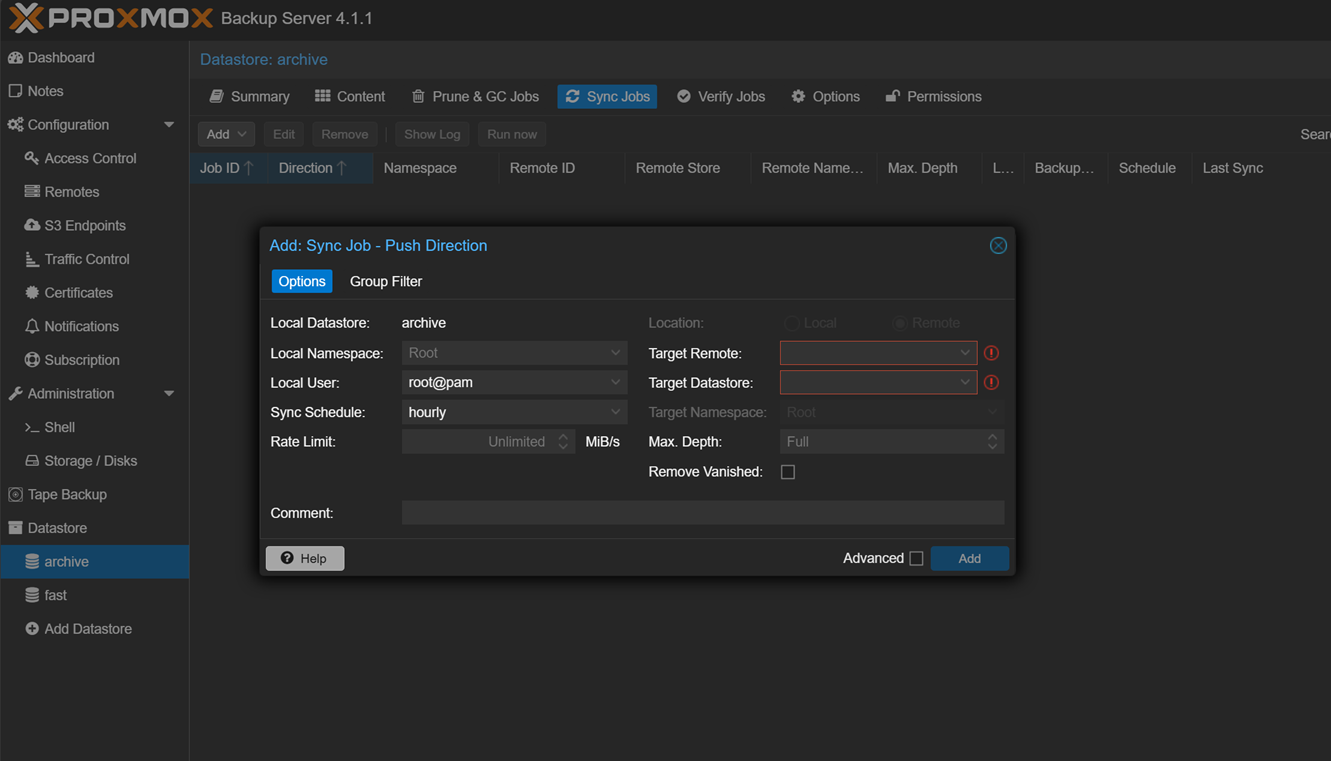
Now I run a secondary PBS instance and schedule sync jobs. The process is efficient because only new chunks are transferred. Deduplication still applies across sync targets.
If you are serious about protecting your lab, especially if you host personal data, off site sync should be part of your design.
Monitoring and alerts
Proxmox Backup Server integrates well with Proxmox VE, but it still deserves its own monitoring. I definitely recommend that you watch disk usage trends. Monitor backup job failures. Pay attention to verification results. Even in a home lab, when you have silent failures, these are the ones that are the most dangerous.
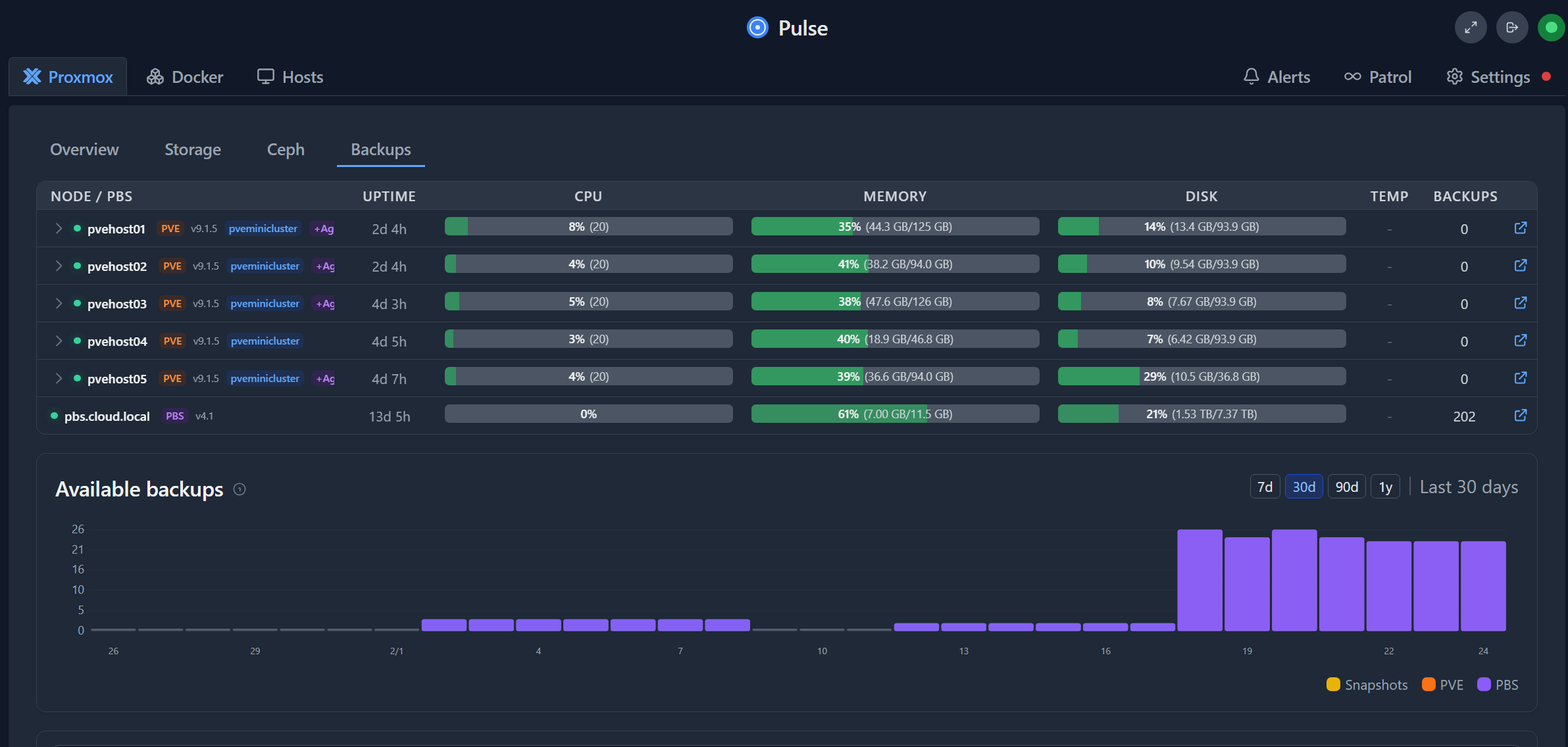
One of my current favorite tools right now for monitoring both Proxmox and Proxmox Backup Server is a tool called Pulse. It has excellent coverage of PBS and you can setup alerting and notifications on various PBS related things.
Check out my blog post on Pulse here: This Free Tool Gives Proxmox the Monitoring Dashboard It Always Needed.
Wrapping up
Hopefully these Proxmox Backup Server settings that I wish I knew when I first starting using PBS will help you to get up to speed much more quickly than I did. PBS is a great solution that you can use for absolutely free in your home lab to backup your important critical data. I have been using it long enough now to have a lot of confidence in the solution as I have used it to restore quite a few things in the home lab and it has always come through for me. However, don’t forget the critical components of your backup solution like garbage collection, and verifying your backup jobs.

Google is updating how articles are shown. Don’t miss our leading home lab and tech content, written by humans, by setting Virtualization Howto as a preferred source.
About The Author


I love this post : I am currently working on this topic, can find a lot on the Proxmox-forum but your information says it all.
Rob,
Very nice! So glad this was helpful to others. I found the same. Not a lot out there with PBS and what people are running or recommending. So, just trying to close some gaps there. Thanks again!
Brandon
I have my off site backup on a Raspberry Pi with a USB drive running a PBS for ARM. Works pretty good. Next step is place it at a buddies house and put it on the Tailscale network
Very nice! I love how many work with friends to create an off-site backup location for their data.
Brandon
Great write up Brandon, I also watch all of your Youtube videos which are superb as well. Glad to see and hear from another tech who loves all things virtualisation! Keep up the quality content!
Stu,
Thank you so much for your kind words. So glad others in the community find the content valuable and helpful. Thanks again!
Brandon