


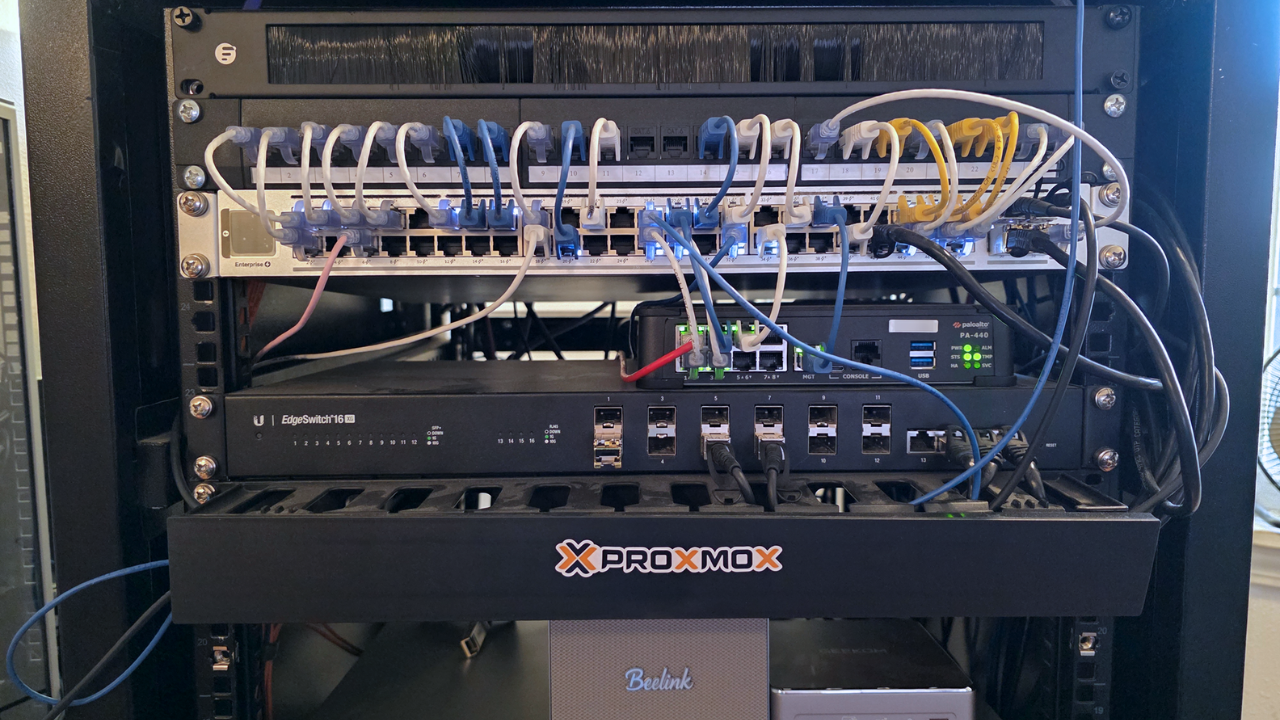
Over the last few years my home lab has diminished in the footprint of the servers I have used to run my home lab workloads. For several years, I ran fairly efficient (for the day) Supermicro servers with Xeon-D processors. However, even then, these ran around 100 watts a piece if not more and I have 5 of them running on top of 10 GbE switches, and other devices. Now I am shrinking things down with mini PCs. Still power consumption is definitely an aspect of the home lab that you have to consider. With rising power costs and cooling weighing into that, it can get expensive to run servers 24/7/365. However, let’s consider a few unexpected ways that you can reduce your power usage in the home lab while keeping performance where it matters.
1. Stop using 10GBase-T instead of SFP+
This is one that many do not necessarily know about or expect. When you are running 10 gig networking, the 10 gig connections that use 10G-Base-T SFPs run extremely hot! That draw a lot more power as well. I learned this the hard way. If you have an SFP switch and have a device that uses the Base-T connection, it has to convert electrical 10GBase-T signaling into SFP+ serial signaling that the switch ASIC understands. This leads to all of the following:
- Higher power draw (typically 4–8W per port)
- More heat
- Higher latency than SFP+
- More complex PHY processing
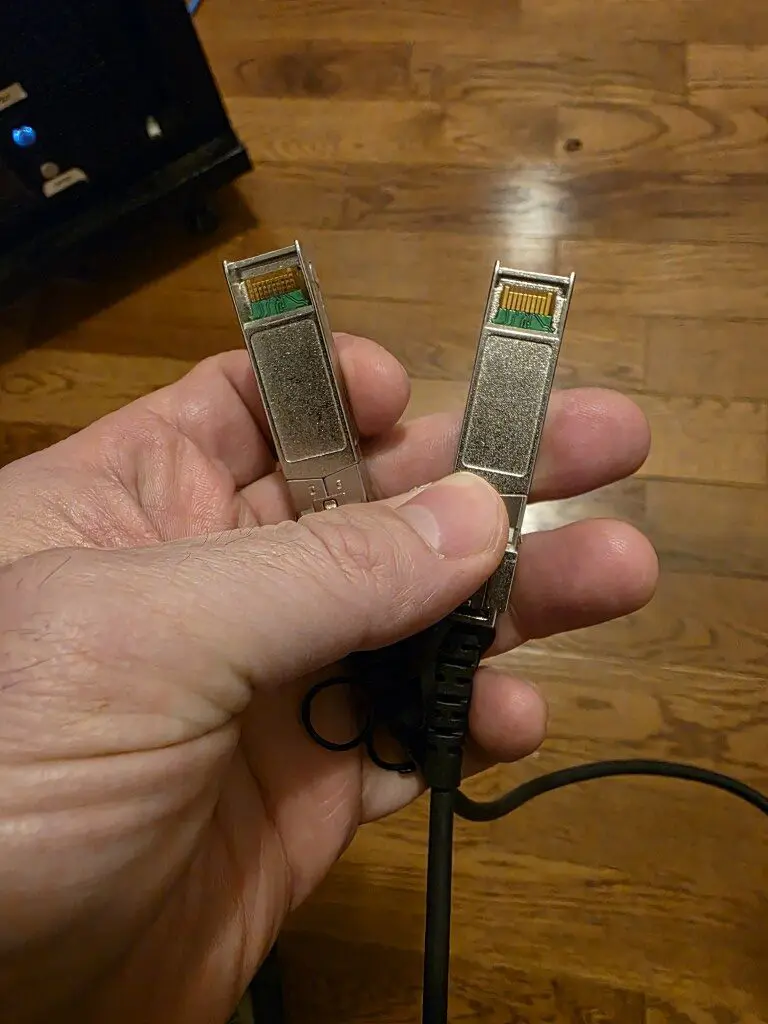
So, this can seriously add up if you have a switch full of 10G-Base-T ports. This can be one of the most overlooked power drains in many home labs. On paper, 10GBase-T over copper sounds like it would be the best since you can use existing Ethernet cables and plug into RJ45 ports just like 1Gb/2.5Gb networking. But there the power consumption and heat tradeoff.
In a small home lab environment, most 10Gb connections are short runs between nodes and a switch. That is exactly where SFP+ with DAC cables shines. SFP+ DAC connections are super efficient for short distances. They draw less power and generate less heat. In my own environment, I am using SFP+ instead of copper 10Gb and this has noticeable reduced temperatures and power consumption. Over a period of a year’s time, this can save quite a bit of power. It may not be a flashy change, but definitely worth doing.
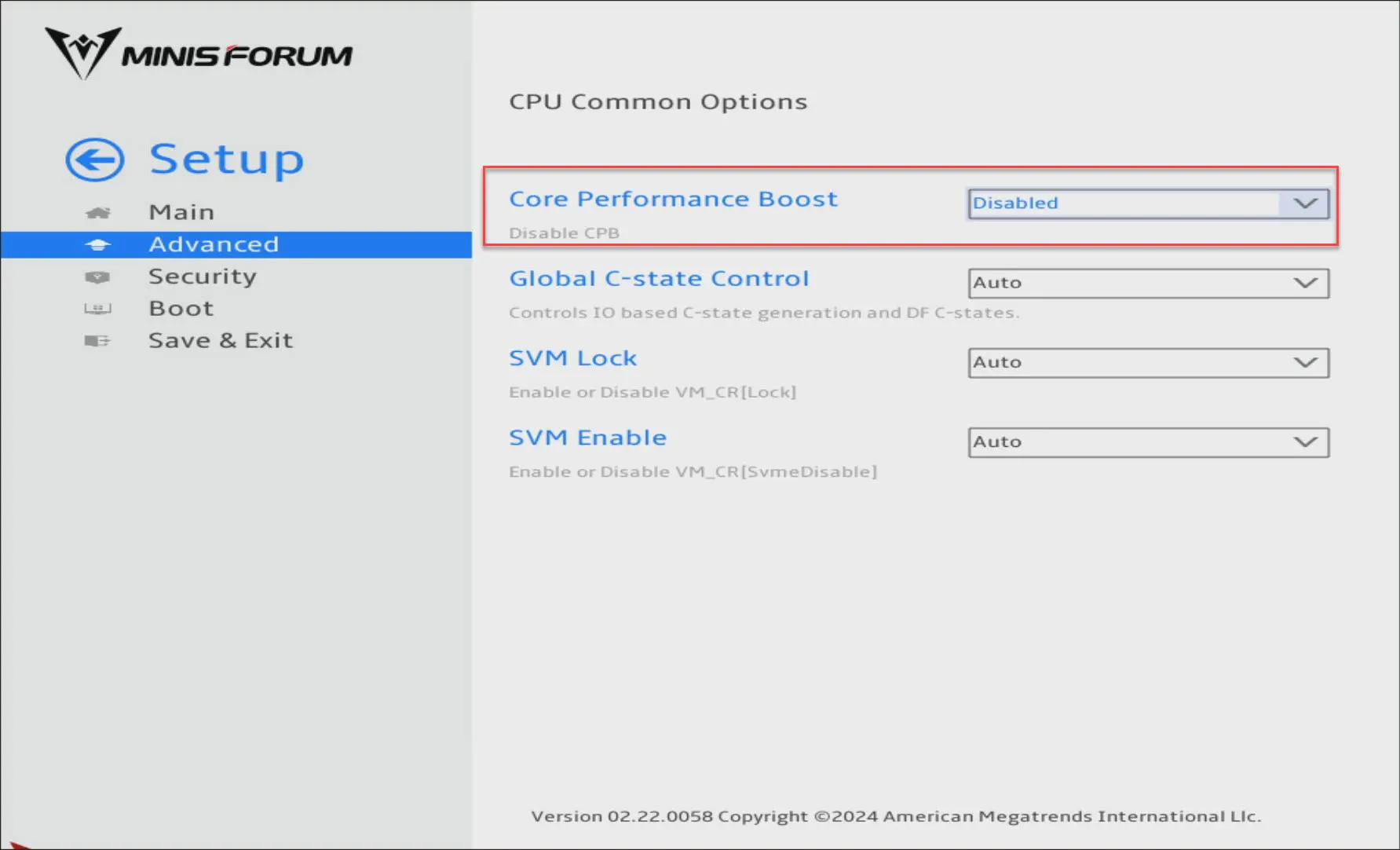
2. Turn off turbo or core performance boost
This is one that you may not think about or think you would want to do, turn off Turbo (Intel) or Core Performance Boost (AMD). But, doing this will DRASTICALLY reduce your power, almost in half. What you are doing is locking your CPU to the base clock speed and telling it not to burst. The bursts consume a lot more power than when the CPU is running at the base clock, speed.
Modern CPUs are very aggressive about boosting frequency when they see available thermal and power headroom. Intel Turbo Boost and AMD Core Performance Boost allow processors to spike way far beyond base clock speeds. Turbo and Core Performance Boost are great if you need those quick bursts of performance. But in a home lab environment, most workloads sit idle most of the time.
When you think about it, most of what we run amounts to:
- Infrastructure VMs
- Monitoring systems
- Git servers
- Lightweight Kubernetes clusters
- Management appliances
These are rarely going to sit at high CPU utilization. In my testing, disabling Turbo or Core Performance Boost reduced power draw under light and moderate loads. Idle power dropped. Under partial load, the system consumed way less power without noticeably affecting responsiveness for most lab workloads. To be honest, you will likely not even realize you have Turbo or CPB disabled across your cluster.
This does not mean you should disable boost everywhere. If you are doing heavy build pipelines or sustained compute tasks, you may want it enabled. But for infrastructure nodes that mostly idle, turning off boost can cut power usage significantly while maintaining a very usable performance profile.
Where do you set this? It is in the BIOS generally where you will enable or disable this setting. Most systems will default with it on as opposed to off.
3. Consolidate your switches
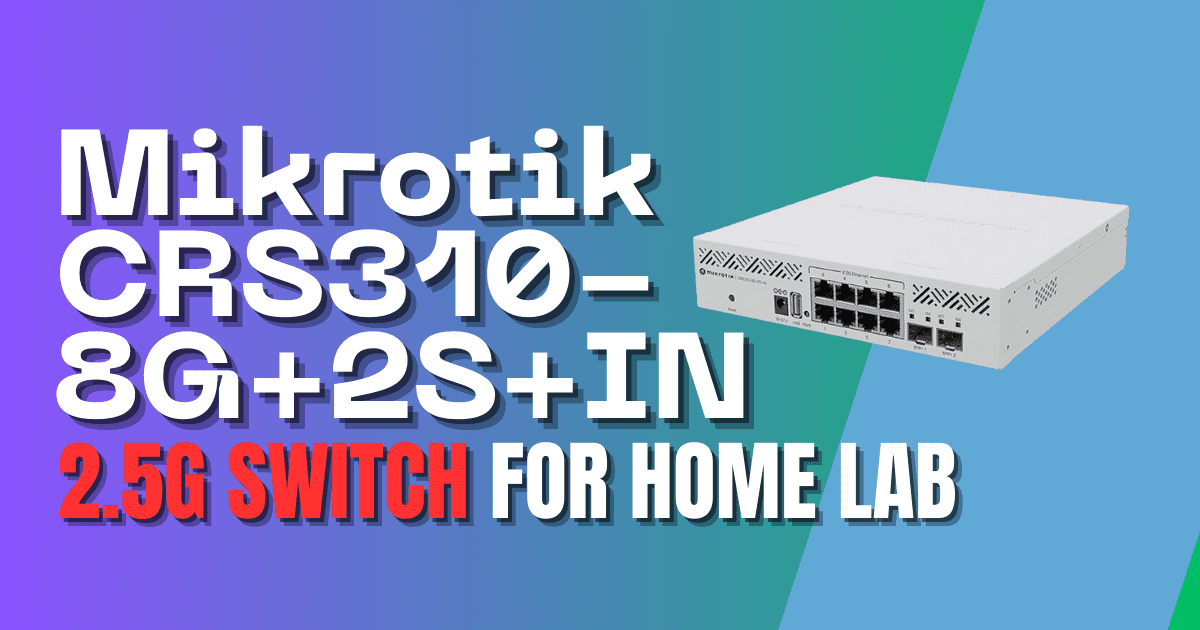
I love networking and love to have a variety of switches. But this can eat up a lot of power draw in the home lab. Its common to see home labs that have a string of networking gear connected and powered up, including the ISP modem/router, unmanaged switches, maybe a 2.5 GbE switch, a 10 GbE switch, and maybe a separate switch for lab-only traffic.
Keep in mind that with this, each switch has a baseline power draw. Even small managed switches can draw 10 to 25 watts continuously. When you multiply this across several devices, you are looking at a fairly steady drain on your electric bill. And, what’s more, networking gear usually runs constantly. Its usually not as common for us to audit our networking equipment as it is our servers.
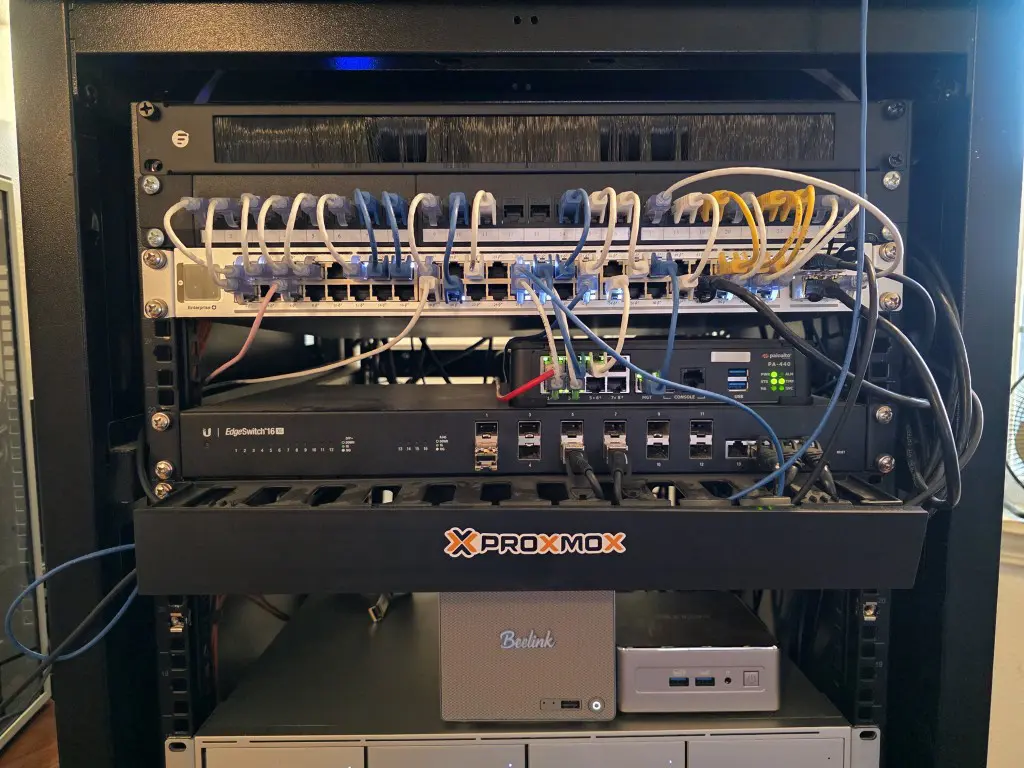
When I redesigned parts of my network, I try to think about how different traffic types can coexist on the same switch and what types of ports are needed to do so. If you have a fairly fully featured single switch that has a combination of copper and SFP+ ports, you can fairly easily combine different traffic types like:
- Management
- Ceph storage traffic
- Migration networks
- General lab traffic
You can still have proper segmentation using VLANs and also aggregate links with LACP where this is needed. Since I have started thinking about my traffic in this way, I was able to remove redundant switches that were doing very little beyond passing traffic. Over time, it is amazing how we often string together networking equipment that isn’t really “needed” it is just convenient to do it that way.
Consolidating your switches is one of those things that isn’t talked about very often, but it can make a really noticeable difference in your power usage and in simplifying the devices in your rack. A side benefit is that it makes troubleshooting easier as well, when your traffic flows through a single switch, it is much easier to see how everything flows.
4. Stop running devices 24/7 with no work to do
This is one that may be controversial especially when you design things to be up all the time with high availability, but honestly, there may be some low hanging fruit that you can reap by using some clever scheduling.
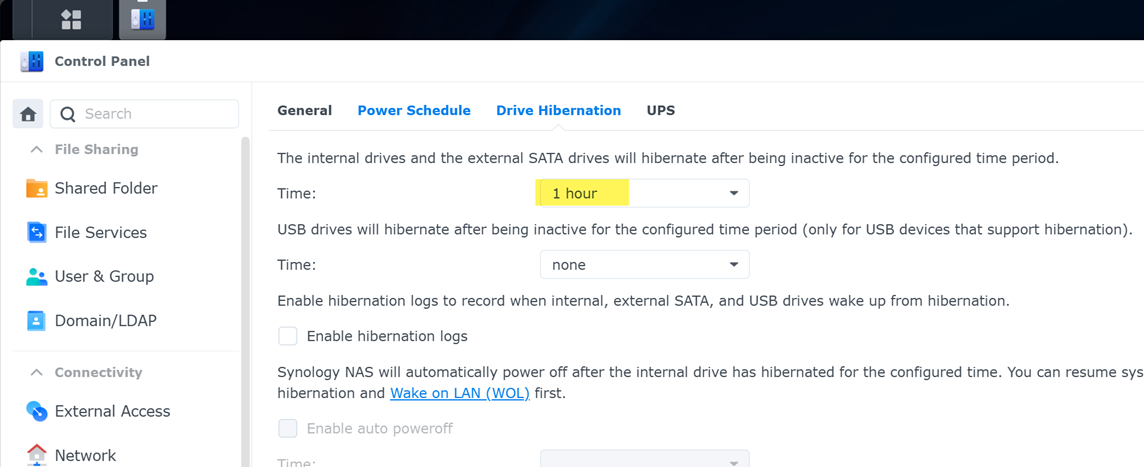
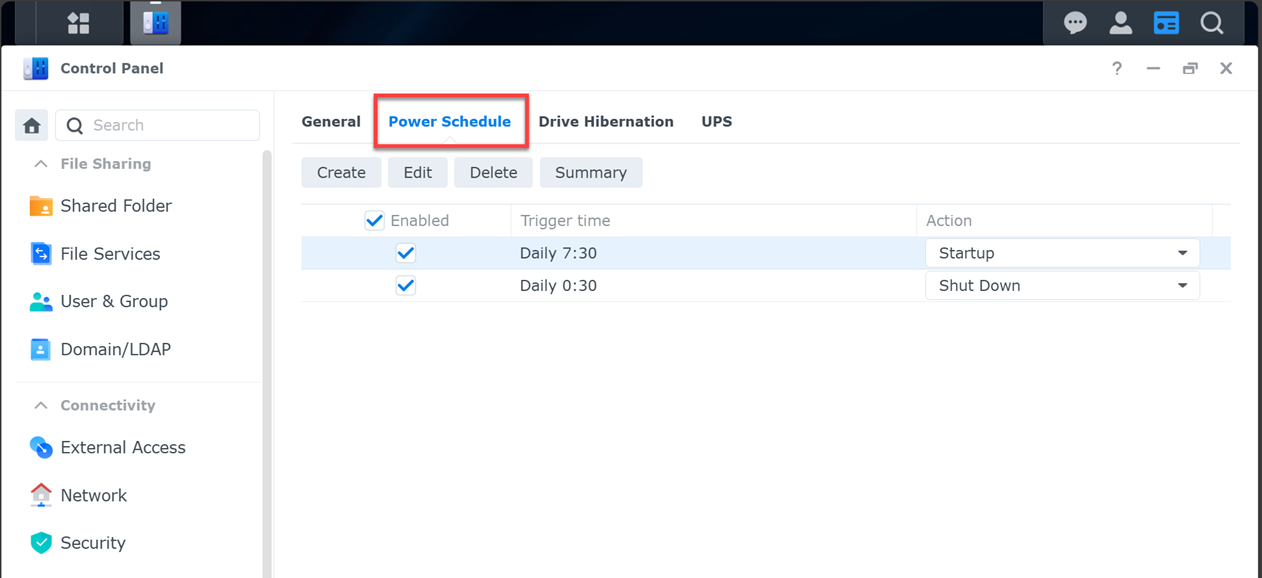
One thing that I have introduced in my home lab recently is powering down my Synology NAS for around 6-7 hours a night. When I started thinking about it, I don’t really need my NAS after a certain hour of the night, once backups that target it are finished, and I am asleep and not accessing files from it, it is safe to put it to sleep.
Many don’t realize, but Synology and others have some pretty cool power saving features that you can make use of. You can actually hibernate your drives and also put these on a power schedule Below is a look at the hibernate feature for drives:
You can also power down your Synology NAS and then power it back up:
This is just one idea. But consider the following as ways you can save quite a bit on your power budget:
- Powering off non-critical nodes at night
- Keeping only a baseline number of nodes active
- Using Wake-on-LAN for quick bring-up
- Scheduling heavy workloads during active hours
Even turning off one node in a multi-node cluster can drastically lower your power consumption over time. In my own lab, I have experimented with running a reduced footprint of nodes during periods of low activity. The cluster remains functional. Services stay available. But the overall power draw drops.
5. Disable unneeded devices in your servers
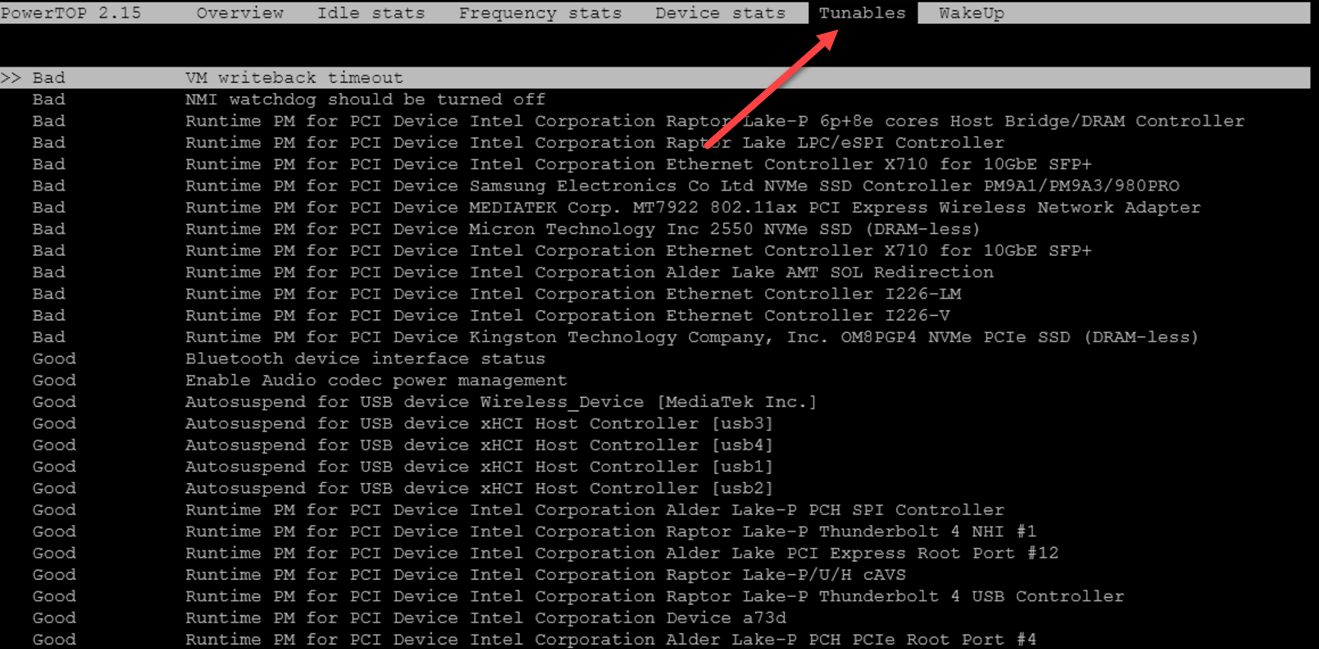
There is an extremely cool little tool called powertop that lets you see the power draw of various devices in your server and measures these at the component level. So, if you want to be hyper focused on power consumption and reclaim any amount possible, this tools lets you do that.
Powertop also has a tunables menu that lets you automatically disable and tune devices in your servers that you maybe want to disable or allow to be power throttled. Especially if you are using mini PCs, these often have many “consumer” type devices enabled that will likely serve no purpose when you use them as a server. Things like Bluetooth and wireless connectivity are likely not going to be used in your Proxmox server.
Be sure to measure before and after
Don’t guess about the power consumption of your devices or servers. Buy yourself a power meter and get an idea of what things are drawing. This way when you start making decisions on saving power, you have a good idea on what type of impact the various changes are making in the lab.
I have been surprised when taking power measurements with a real power meter as some devices I have thought take a lot of power have been less and then others that you “assume” draw a little power are actually very inefficient. So having real measurements is the only way to go.
You can also use something like a smart plug or power meter on your rack which is nice since you can measure things as a whole. Just an idea of things you can measure include the following:
- Idle consumption
- Light workload consumption
- Heavy workload consumption
Then make one change at a time.
- Disable Turbo on one node. Measure again.
- Consolidate a switch. Measure again.
- Power down a node overnight. Measure again.
You may find that a small tweak saves 10 watts. That may not sound like much. But 10 watts running 24 hours a day for a year adds up to meaningful energy and cost savings.
Wrapping up
There can be a misconception that when you save power it means that your server is no longer capable. This is just not the case. I have been running a home lab now for over a decade and building and operating your lab efficiently means that you still have just as much fun but without giving money to your power company and instead investing this back in buying other cool gear instead of paying for power consumption. Capable labs don’t mean “power hungry” labs. You will be surprised at just how much you can do while still being efficient.

Google is updating how articles are shown. Don’t miss our leading home lab and tech content, written by humans, by setting Virtualization Howto as a preferred source.
About The Author

Thanks Brandon, there are some really useful tips in there … time to have a play …
Thank you Michael! I appreciate it!
Brandon