


I have tried a whole lot of different Docker “dashboards” and consoles over the past few years. We have seen this area explode with many different options available out there now. A few years back, it seemed like the only really good option was Portainer. However, now, there are literally a dozen different tools that are actually very good for managing Docker. One that I hadn’t tried as of yet was Dockhand. What is this Docker tool and what challenges does it help to solve? Let’s jump in and take a look at this really helpful tool for docker management tool security both home lab and production environments.
What is Dockhand?
Dockhand is a very versatile docker management tool security solution that is extremely intuitive for managing your Docker environment. Think Portainer, mixed with Komodo, with a super modern and intuitive interface. Even when you have never used it, about 2 minutes clicking around and you will feel at home.
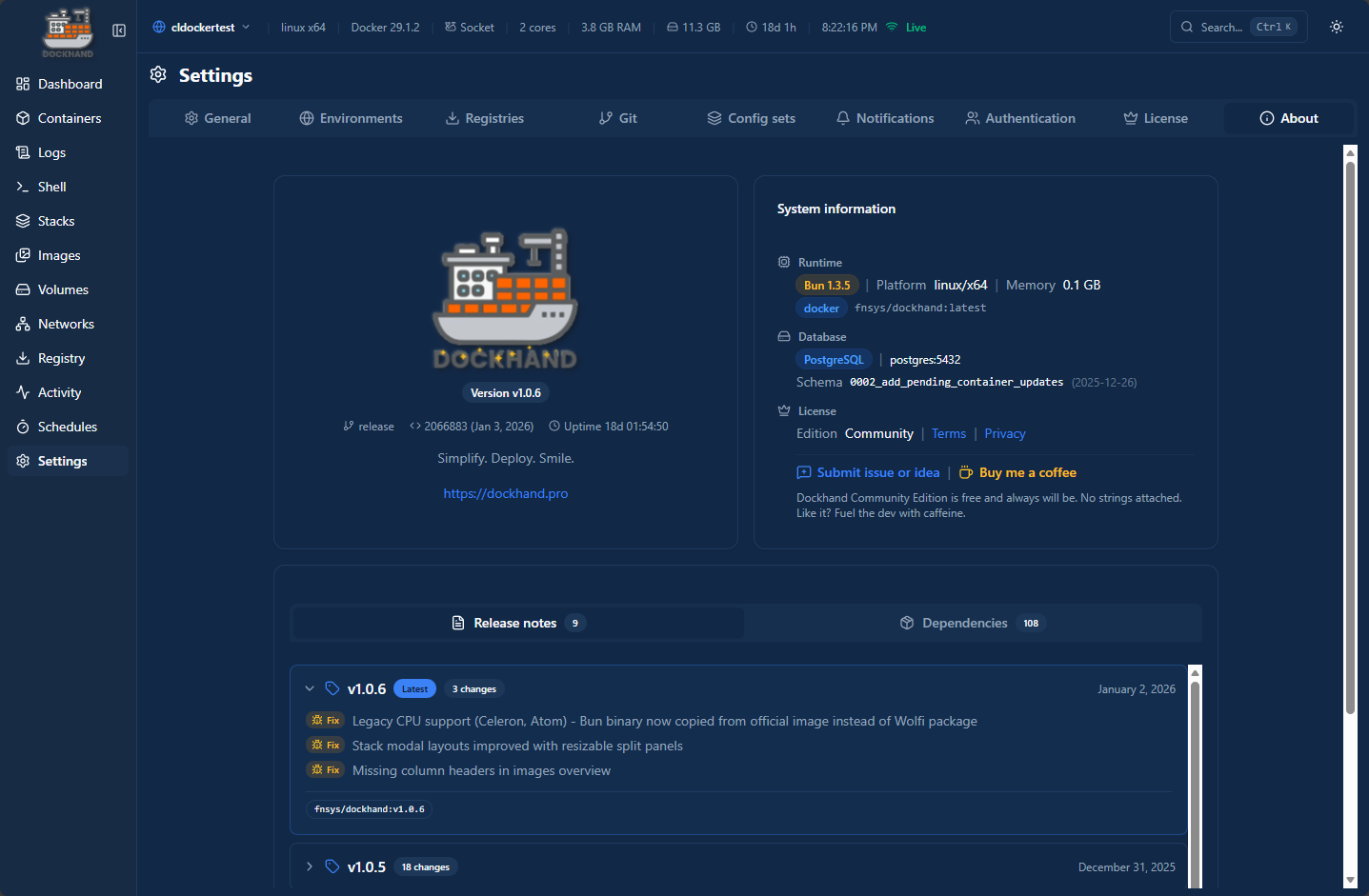
I honestly think it has one of the best interfaces of docker management tools I have provided. And the developer has been keen on listening to the feedback from the community and it shows with the latest release at the time of this writing (v1.06).
Serious about security from the core out
In fact, I think it also has one of the better security stances of Docker tools out there currently. Over the past few releases, many strong security features have been built into the platform, both from an architectural standpoint and operations wise. Version 1.0.5 introduced a custom hardened image built from scratch using Wolfi packages, which has allowed it to eliminate almost all of the Alpine vulnerabilities for really great docker management tool security.
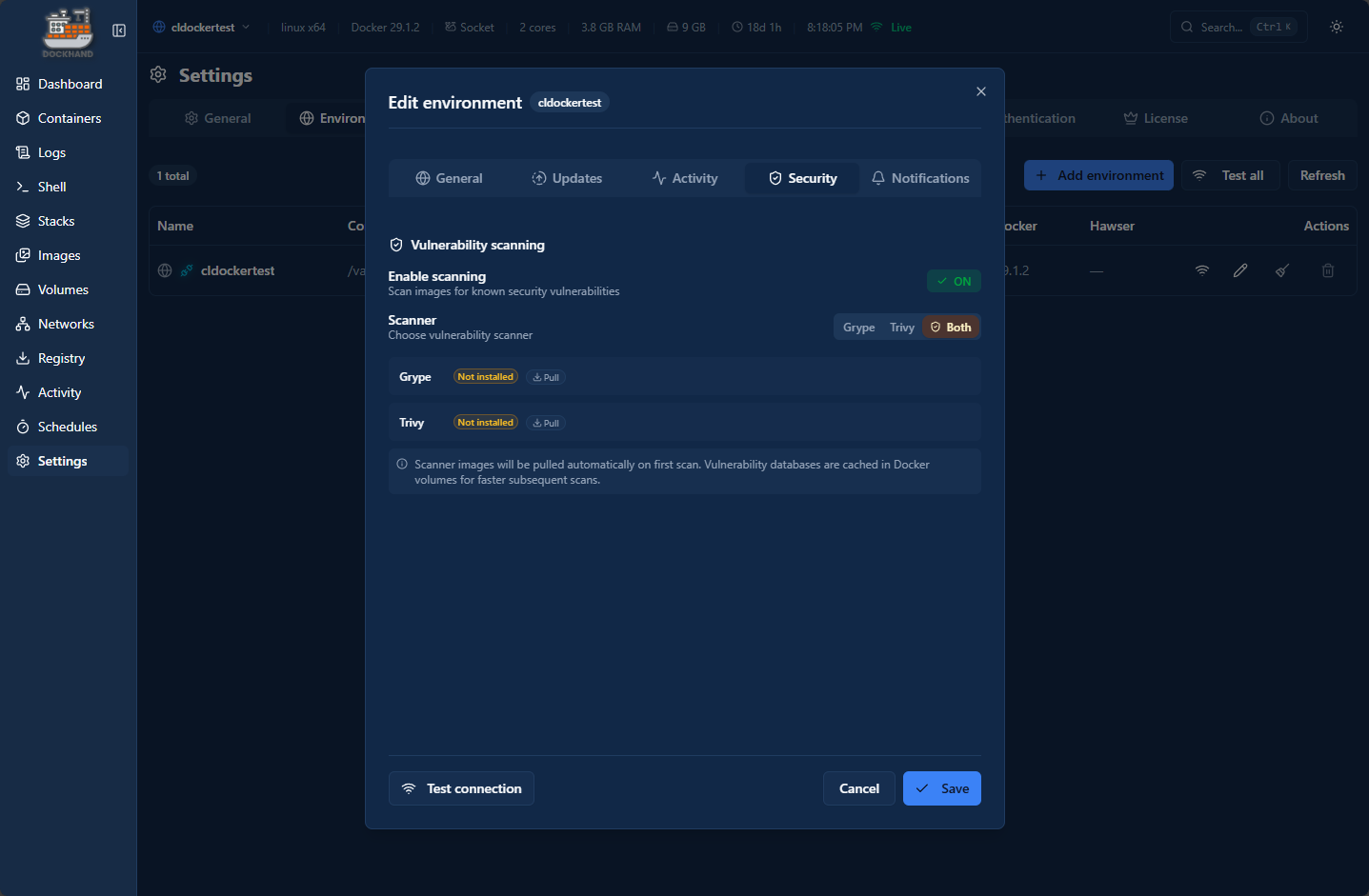
Also, Dockhand has built-in security scanning as part of the scheduled workflows that you can enable which I think is excellent. I have done a lot of this manually with CI/CD pipelines and pull down Trivvy to scan the images before completing the pipeline. It is great with Dockhand, that this is built in as part of the interface.
Below you can see that you can Enable scanning and then with the scanner, you can choose one or both Grype and Trivvy.
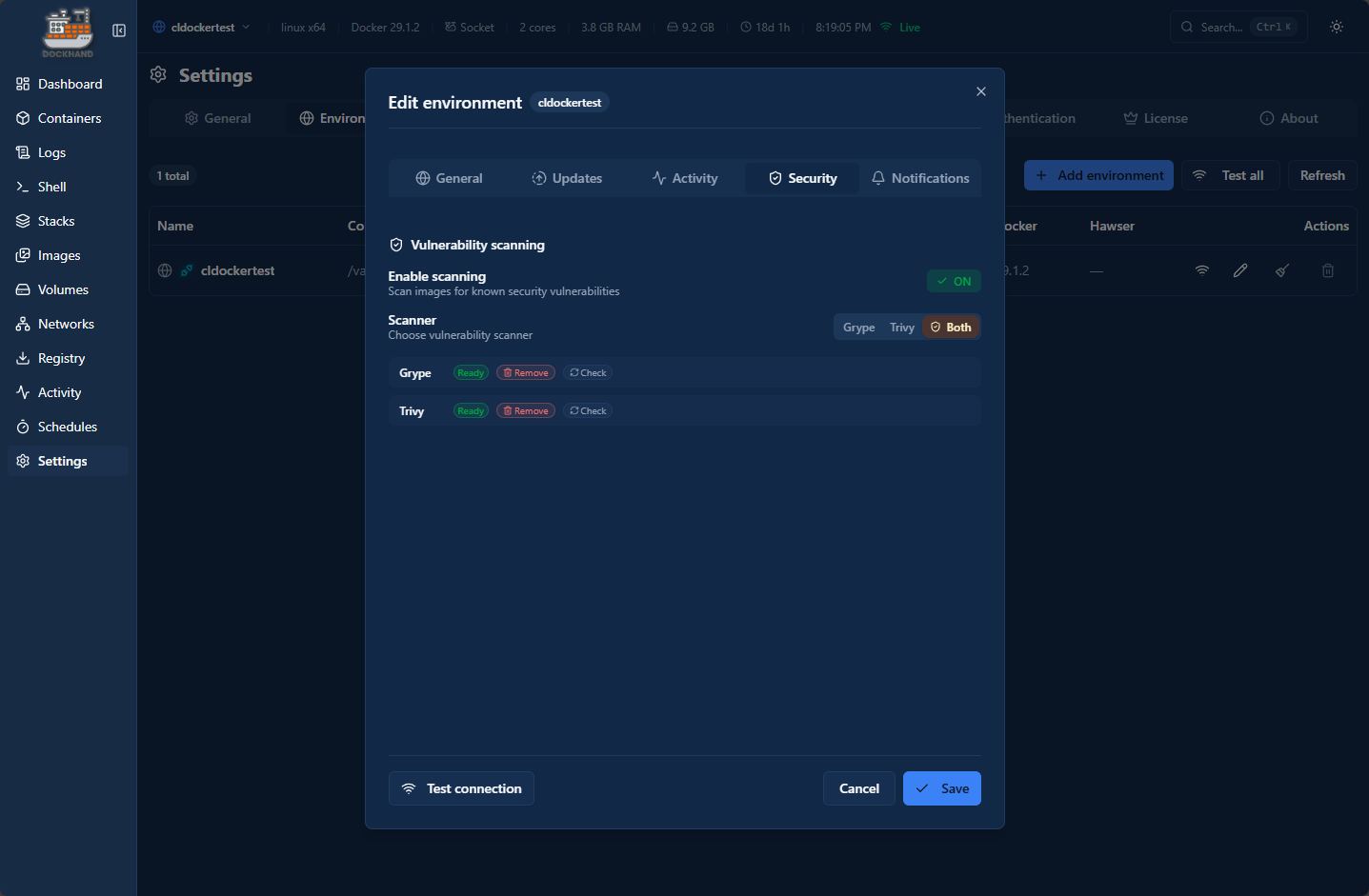
Below, I have clicked to pull down the security containers. You don’t have to do this ahead of time. If you hover over the image it will tell you they will be pulled at the time of the scheduled security run.
Installing Dockhand
Installing Dockhand can be done very easily. You can use a simple Docker run command or Docker compose.
Docker run
docker run -d \
  --name dockhand \
  --restart unless-stopped \
  -p 3000:3000 \
  -v /var/run/docker.sock:/var/run/docker.sock \
  -v dockhand_data:/app/data \
  fnsys/dockhand:latest
Docker compose
services:
  dockhand:
    image: fnsys/dockhand:latest
    container_name: dockhand
    restart: unless-stopped
    ports:
      - 3000:3000
    volumes:
      - /var/run/docker.sock:/var/run/docker.sock
      - dockhand_data:/app/data

volumes:
  dockhand_data:
You can also use Docker compose with Dockhand combined with PostgreSQL which is the more robust architecture for Dockhand:
services:
  postgres:
    image: postgres:16-alpine
    environment:
      POSTGRES_USER: dockhand
      POSTGRES_PASSWORD: changeme
      POSTGRES_DB: dockhand
    volumes:
      - postgres_data:/var/lib/postgresql/data

  dockhand:
    image: fnsys/dockhand:latest
    ports:
      - 3000:3000
    environment:
      DATABASE_URL: postgres://dockhand:changeme@postgres:5432/dockhand
    volumes:
      - /var/run/docker.sock:/var/run/docker.sock
      - dockhand_data:/app/data
    depends_on:
      - postgres

volumes:
  postgres_data:
  dockhand_data:
After you create your docker-compose.yml file with the above code, just use the typical docker compose up command:
docker compose up -d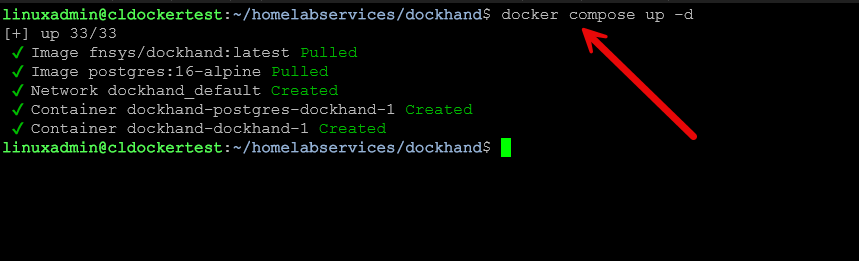
Authentication
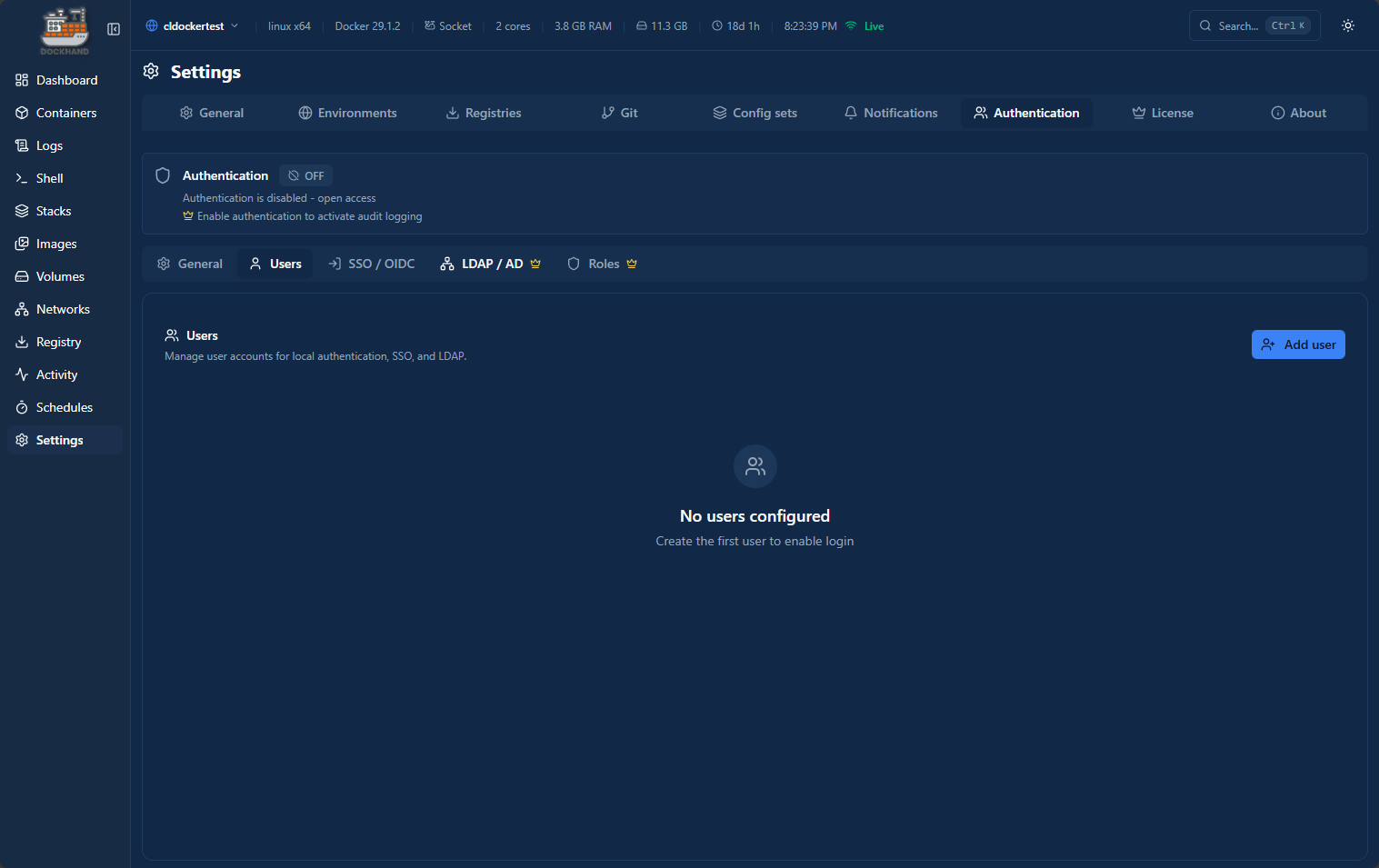
One of the questions you might have when you first stand up Dockhand is why doesn’t it ask you to login out of the box? I was relieved to see that we can turn on authentication and it also has a wide range of options here for authentication. Just keep in mind that you need to turn it on, but the feature is there.
Also, you have a healthy number of options, including local authentication, SSO/OIDC and LDAP/AD (pro version).
Automated updates and update checks and block Docker image vulnerabilities
I think one of the first things that you start trying to figure out as a Docker administrator and when you get Docker in your home lab is how to keep your container images updated. We all started with Watchtower, and now trying to keep pace with the Docker API changes with the latest version and swapping over to different Watchtower forks since the official repo has grown stale.
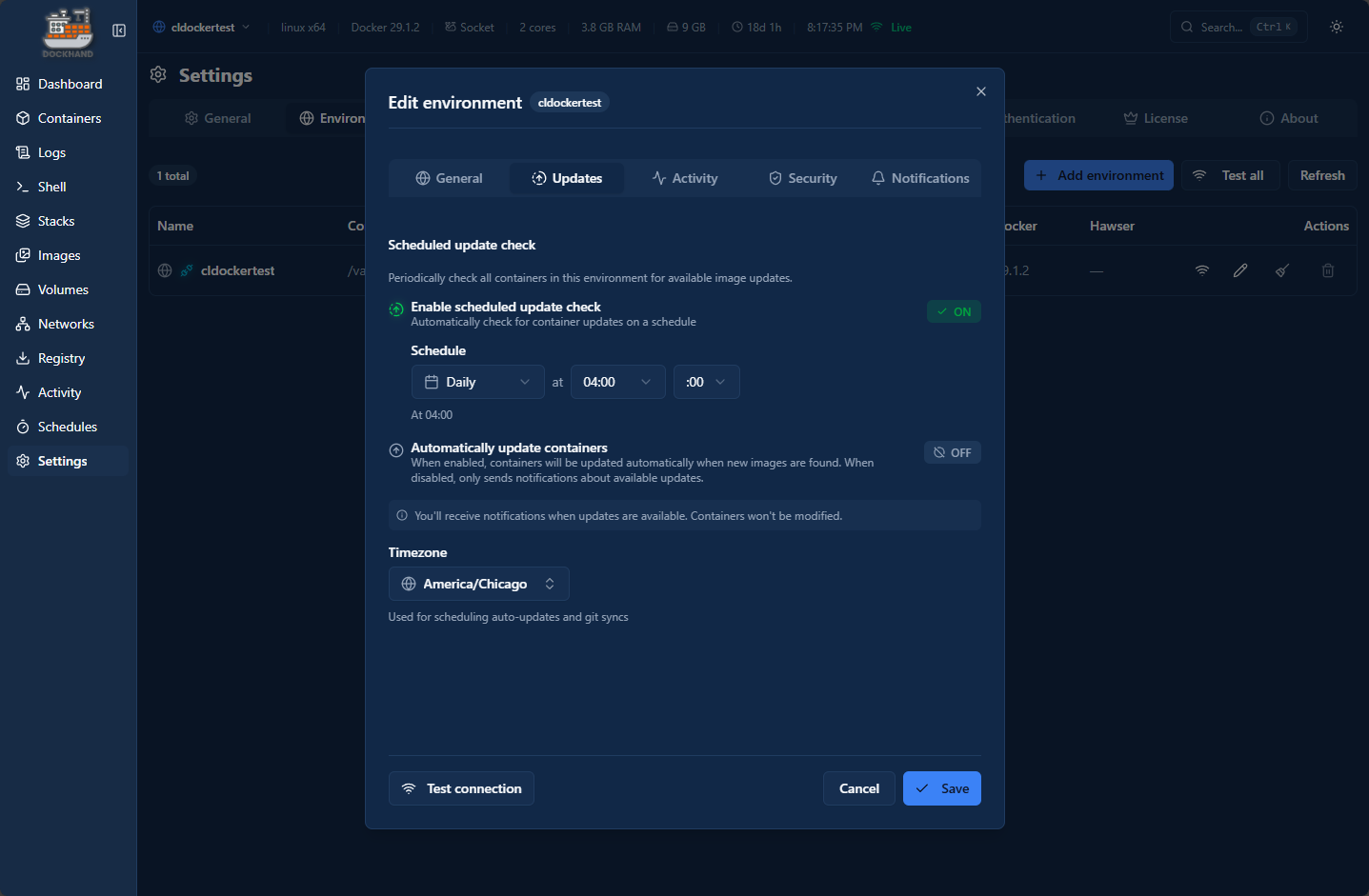
But, that is where Dockhand will be extremely helpful. With Dock hand, you can enable two different workflows. You can have Dockhand check for containers and then notify you when updates are available. You can also check for updates and automatically apply the updates when updates are found which can be enabled.
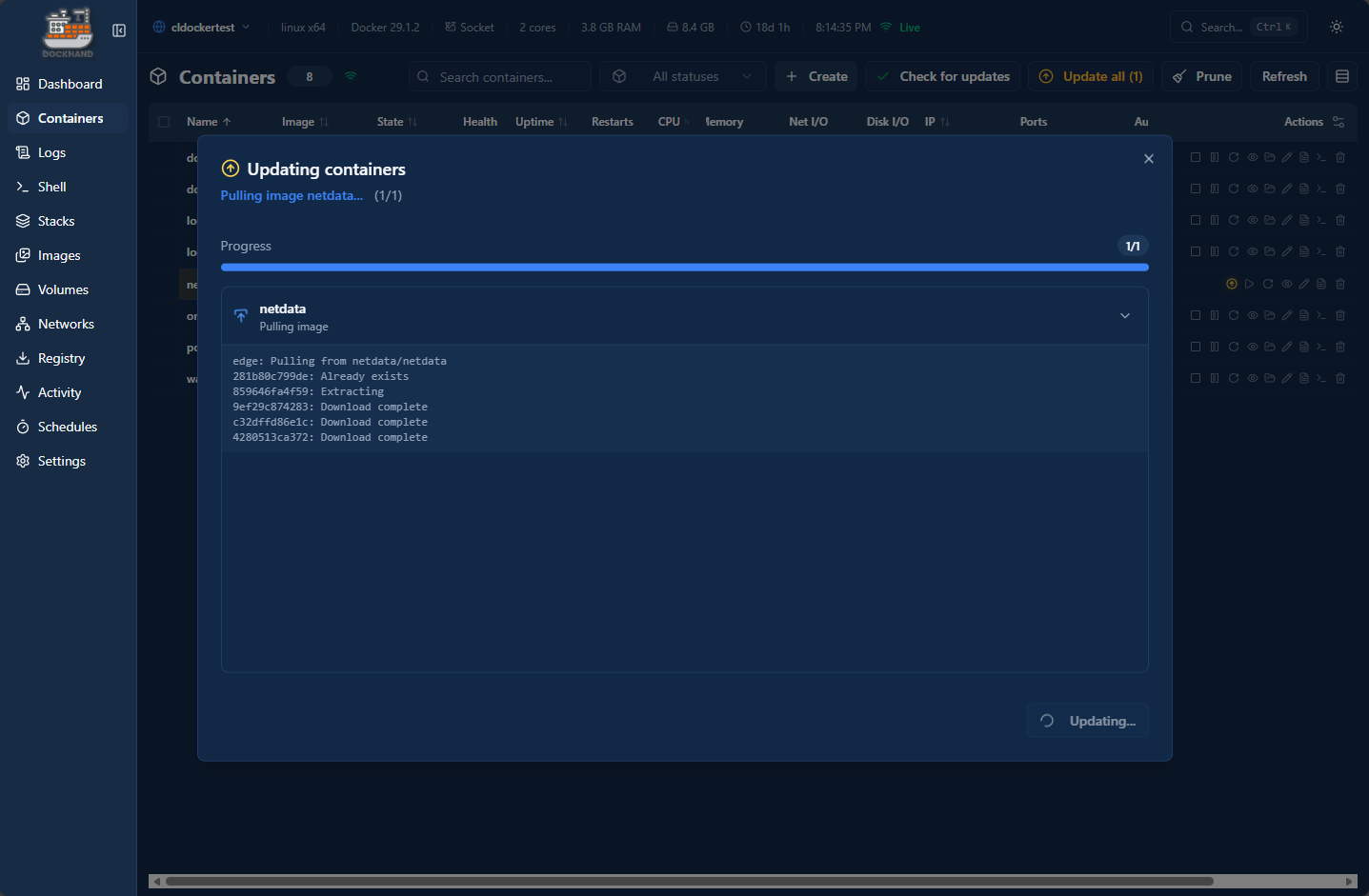
You can also manually update your containers that show to be behind in the container image version. Below is me stepping through updating a Netdata container running on this particular home lab Docker host.
One of the other extremely awesome things they have tied together is container image updating and security requirements. You can set the updates so that container images won’t update if certain levels of vulnerabilities are found. You can block any vulnerabilities, critical and high vulnerabilities, or critical vulnerabilities only.
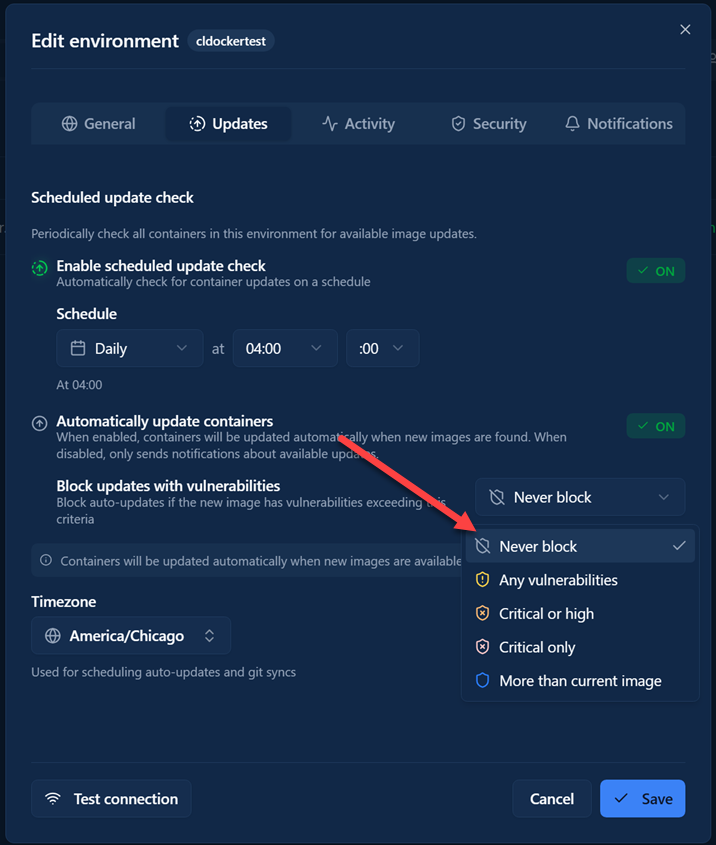
This is a really great feature that I Dockhand really got right when it comes to update automation with your Docker environment.
- Never block – If you want to pull the latest image even if it has vulnerabilities. The scan still runs (for visibility in the UI and notifications). This is a suitable option for development containers, internal tools, or situations where you trust upstream vendors to patch issues fairly quickly
- Any vulnerability – This is the strictest option. This option blocks the update if the new image contains any vulnerability of any severity (critical, high, medium, or low). Most container images have at least some low-severity vulnerabilities, so this option may block most updates. You might use this in an environment with the strictest security requirements.
- Critical or High – This is a fairly balanced approach for production environments. This option allows updates with medium and low severity vulnerabilities but blocks if the image has critical or high severity issues. This is the recommended setting for most production containers.
- Critical only – Blocks only for the most severe vulnerabilities which are rated at CVSS 9.0+. High, medium, and low severity issues are tolerated. Use this when you need updates to flow freely but you still want to have good protection against the most dangerous vulnerabilities like privilege escalation or remote code execution.
- More than current – This is a very cool approach as well. It compares the vulnerabilities you may have currently. Instead of blocking based on absolute thresholds, this compares the total vulnerability count between your current image and the new image. The update is blocked only if the new image has more total vulnerabilities than your current container image.
From a security perspective, I think Dockhand has some of the best features that are baked right into the platform when it comes to container image management.
Container image layers detail
Dockhand gives you really great detail into the image layers of your container image you are running. There is a really nice visual representation of these layers in the container detail properties.
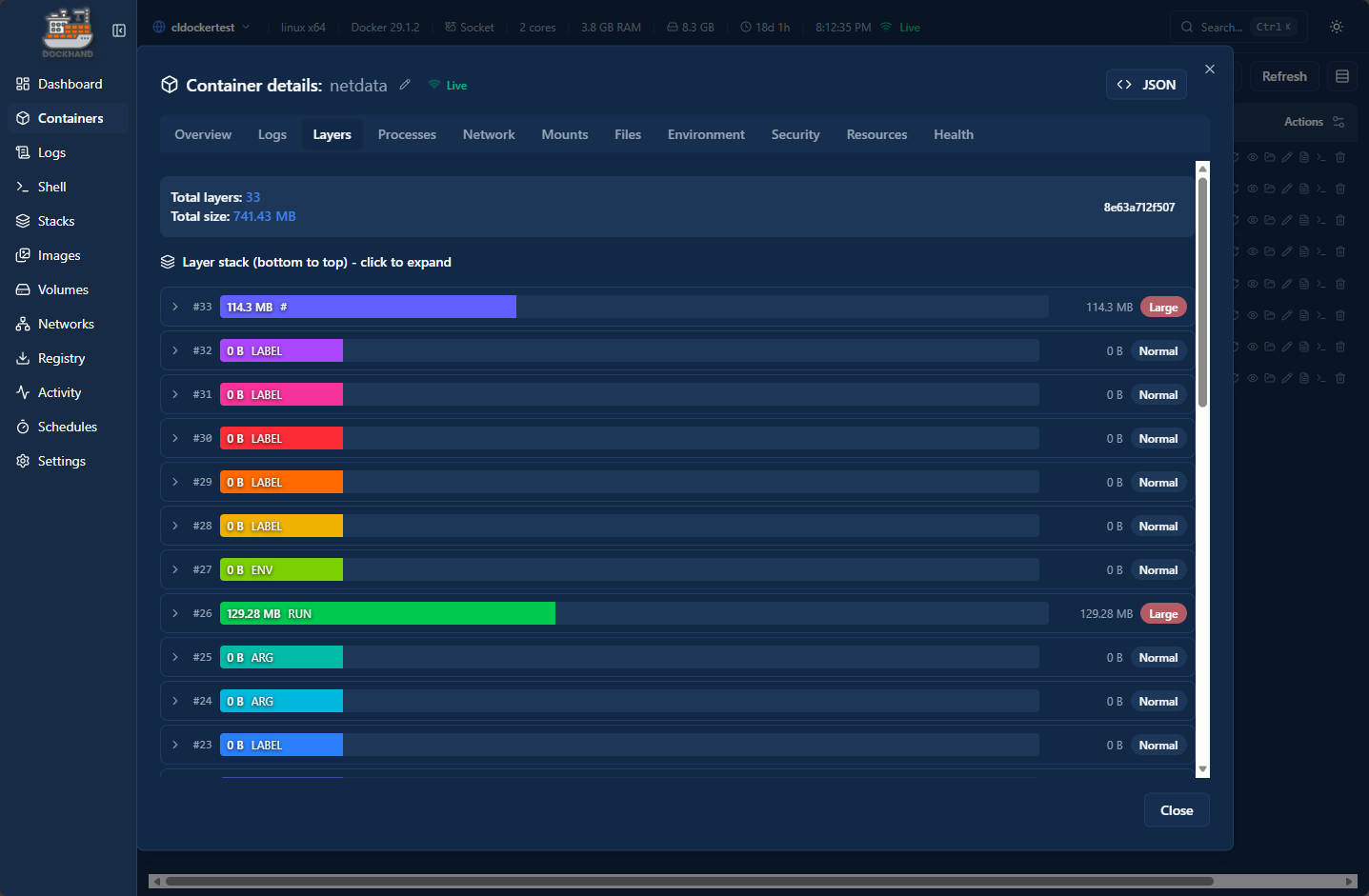
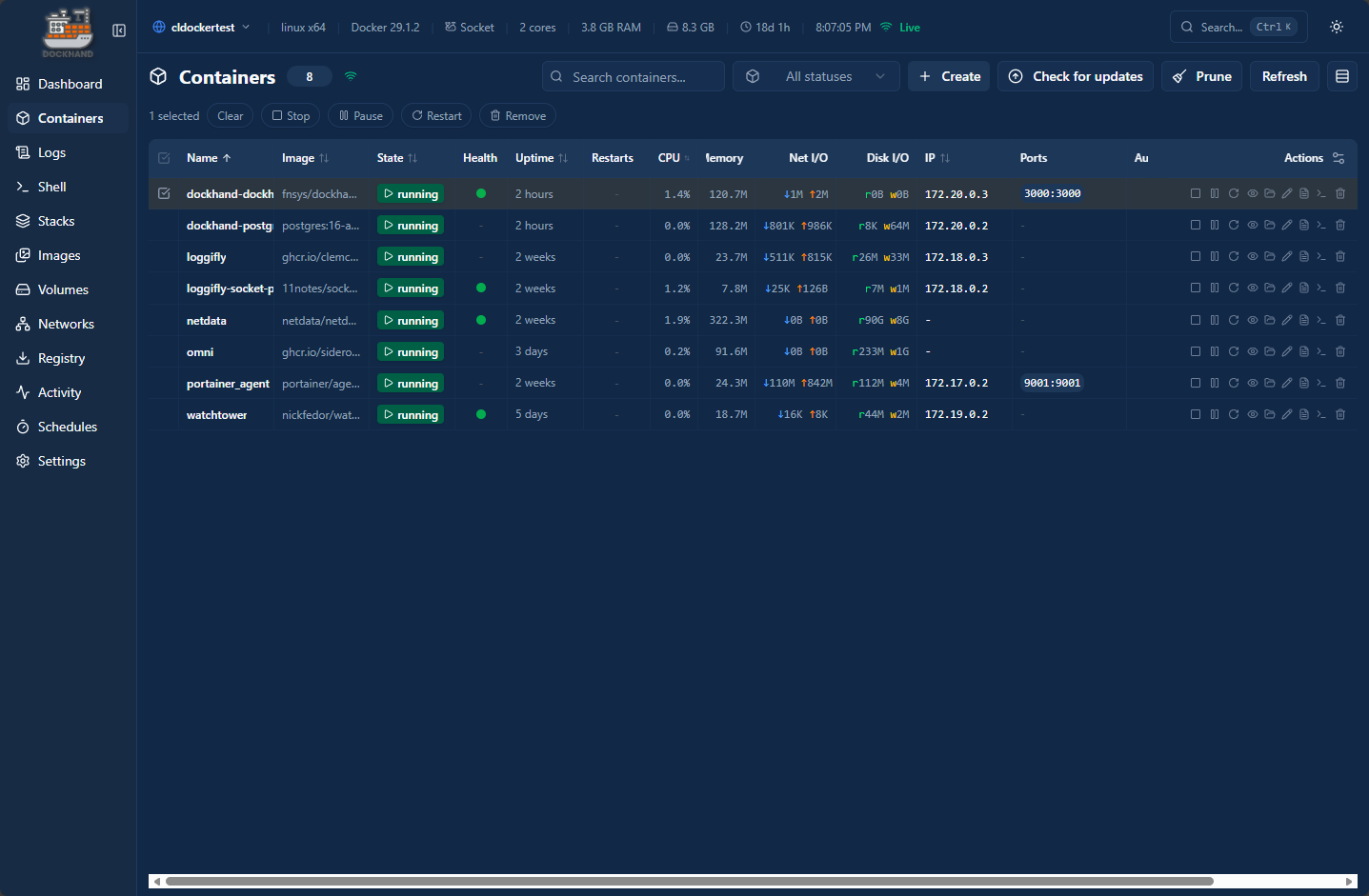
Viewing your containers, files, volumes, and networks in Dockhand
Dockhand can also show you the basic and detailed information that you want to see for your containers. I really like the containers view that it displays by default. You get a wealth of information all arranged in a way that makes it easy to read and consumable. The statistics for the containers perform live updates.
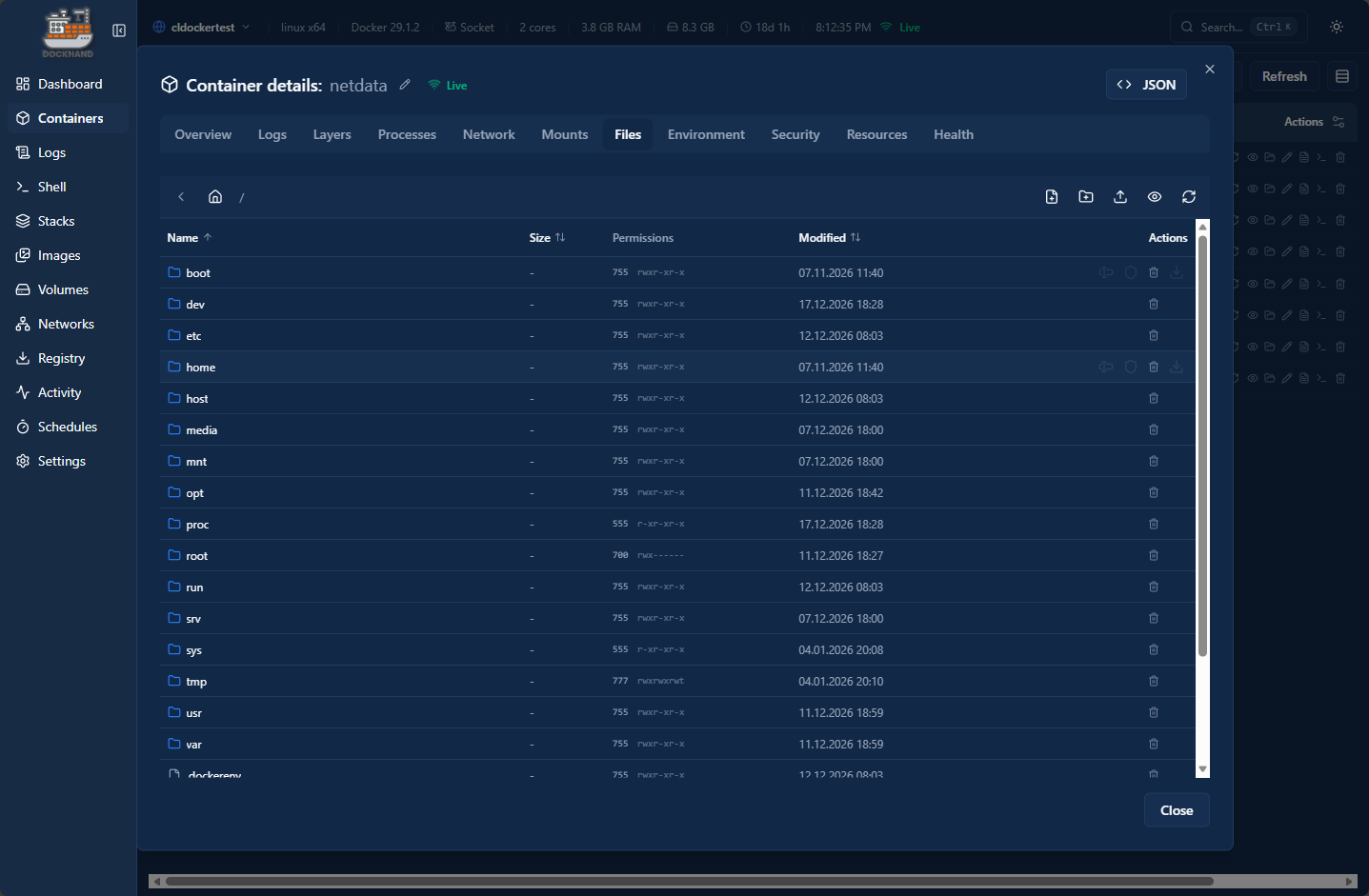
You can see your files inside the container which is super handy as you don’t have to exec into a container and navigate around with the CLI. Instead you can click around and find resources you are looking for very easily.
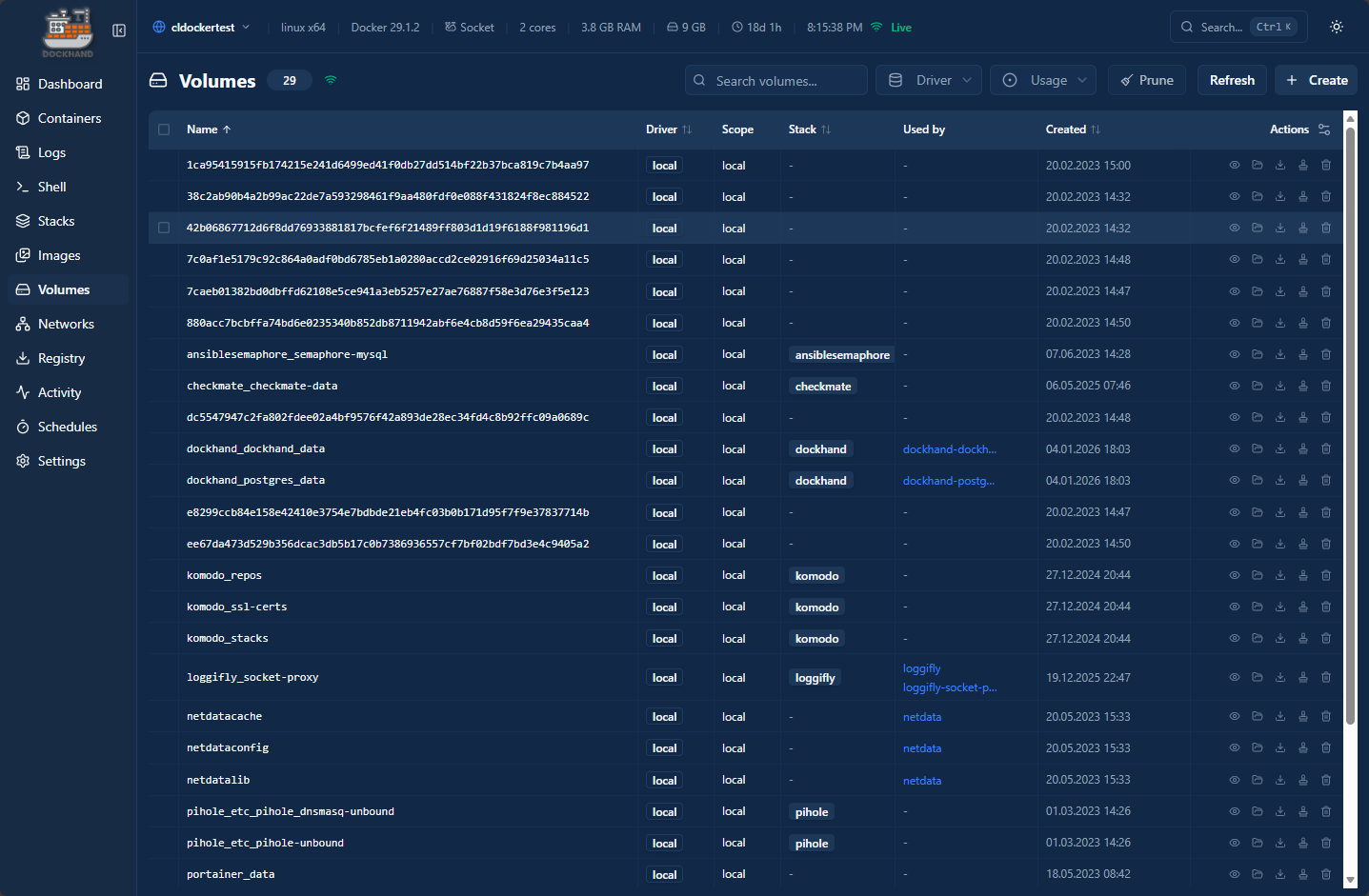
Volume information is also easy to view. You can easily get the details about all your docker volumes.
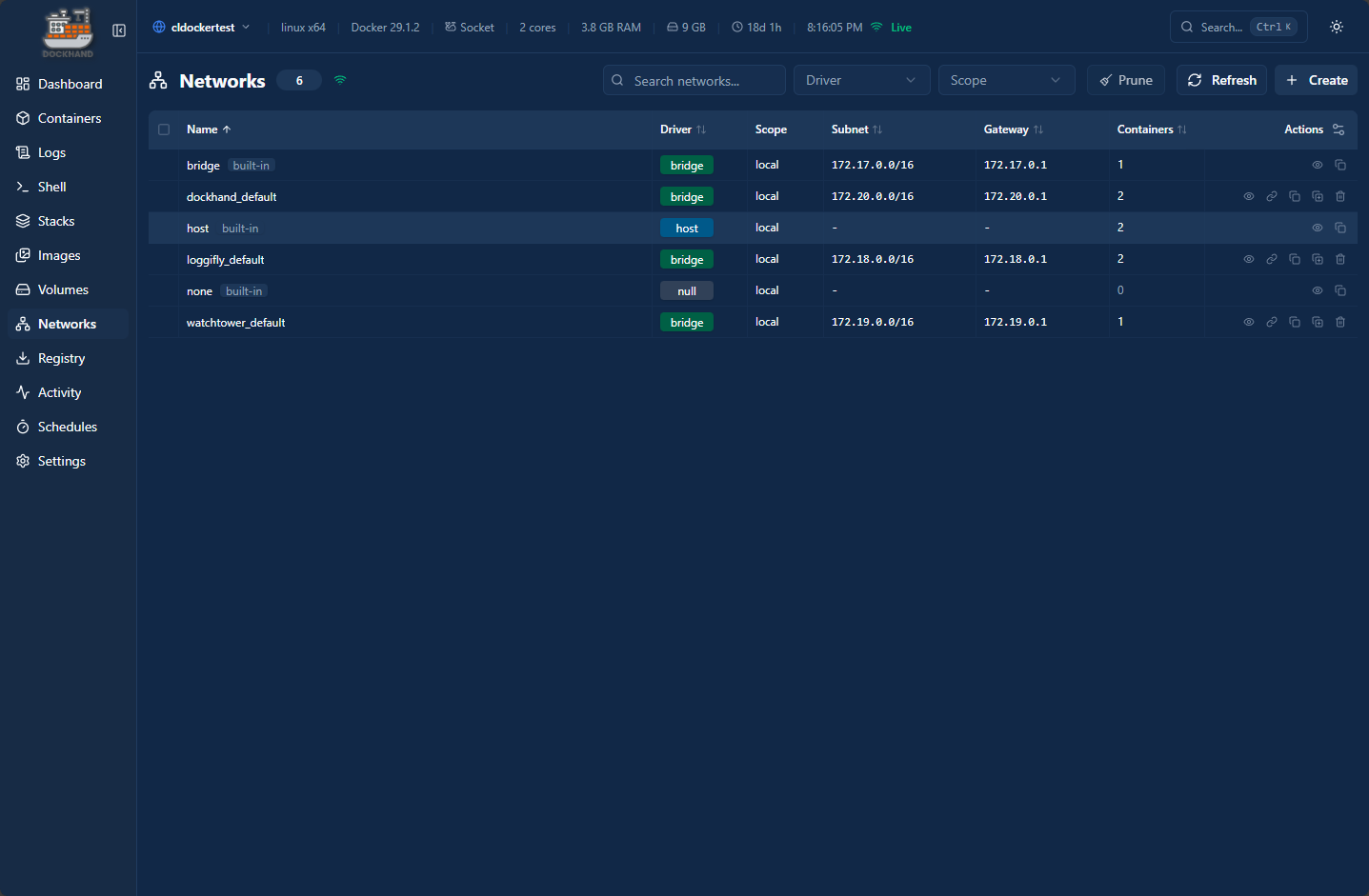
Networks as well. You can see all your networks and the various details, along with creating networks.
Docker compose stacks
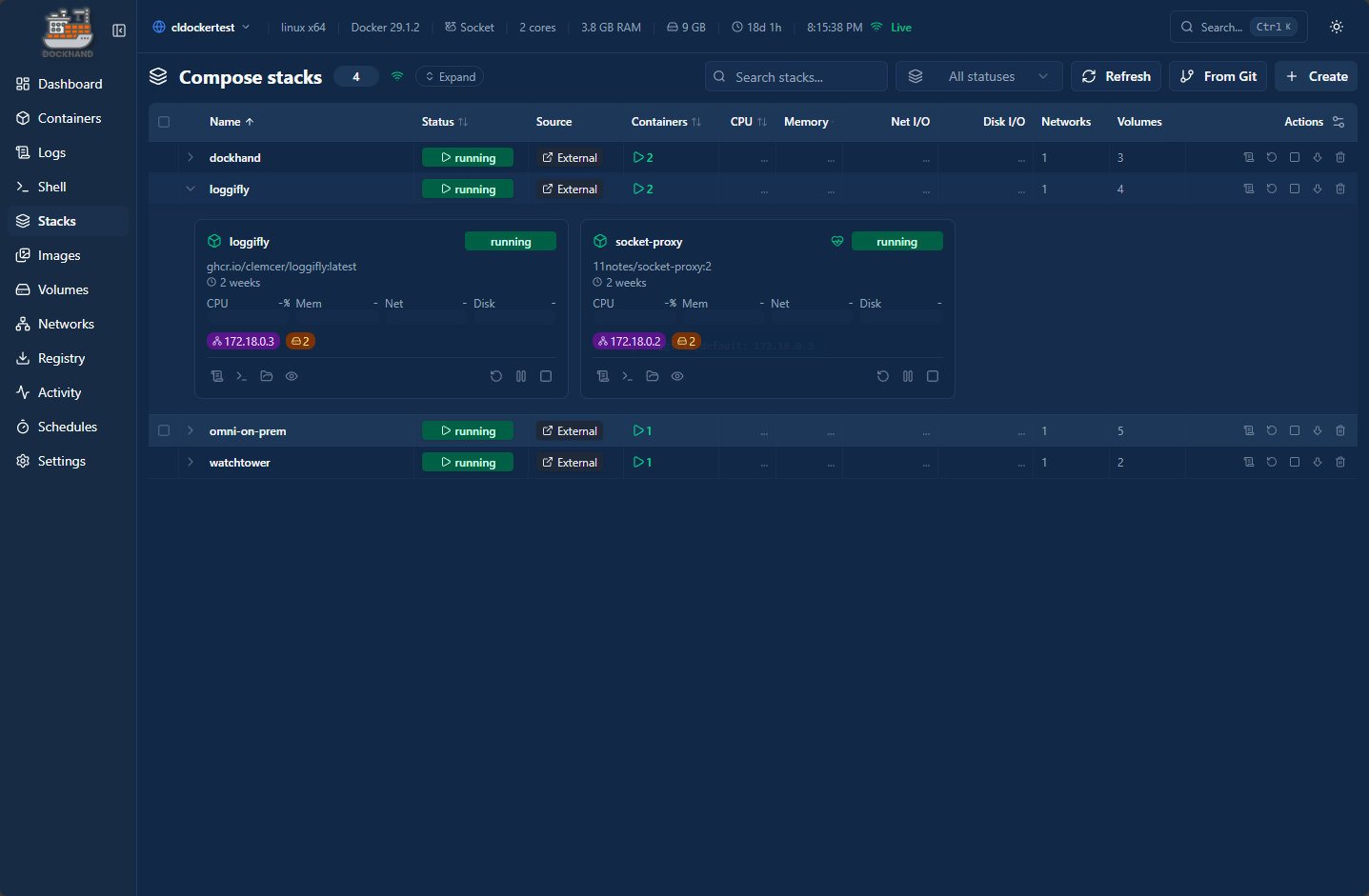
You can view and create Docker Compose stacks in the Compose stacks area of the Dockhand interface. It will automatically show you the stacks you have running currently. Also, you will see the ability in the upper right-hand corner of the interface that you can Create and also use the From Git option.
Git-backed deployments
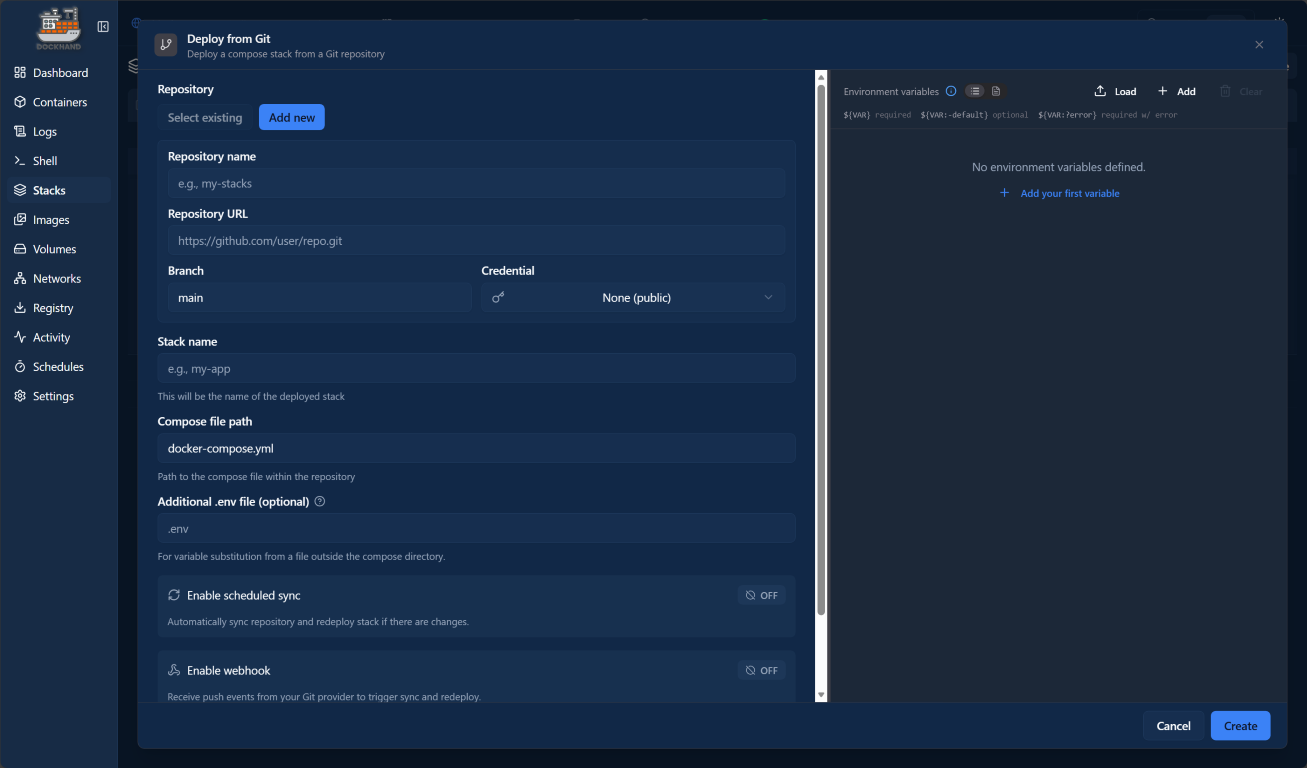
It is great to see that Dockhand supports Git-based deployments in your home lab environment or production with strong Git integration.
You can deploy Docker Compose stacks directly from Git repositories and select to have these synced over time so your changes are rolled out. Webhooks allow Dockhand to react to changes pushed to Git, pulling updates and redeploying stacks automatically. You can have your changes synced with any frequency that can be configured in CRON format if you choose the custom setting for syncing from Git.
Wrapping up
After trying Dockhand in my lab and comparing features toe to toe with other tools I am currently using, I can honestly say it is one of the best that I have used. It is extremely easy to use, intuitive, and it puts docker management tool security in focus where it should be, not only in the underlying architecture of the solution itself, but also in how you can use it to manage your container updates. These as we have shown, can hinge on the security vulnerabilities of the container image you are pulling, very cool. It has a wide range of other features and also has great Git integration to setup GitOps workflows in your environment as well. Have you tried Dockhand as of yet? Are you currently using it? Let me know in the comments.

Google is updating how articles are shown. Don’t miss our leading home lab and tech content, written by humans, by setting Virtualization Howto as a preferred source.
About The Author


Can you use this one with terraform or is it a compose specific tool?