Well, it is happening, there is another casualty of the AI boom and that is hard drives. Just in the last couple of days, news of hard drive price increases are starting to surface. So, like RAM, to make use of the space we have in the home lab in a cost effective way, we may need to run what we have more efficiently. I covered something similar with a post on cutting RAM usage in the home lab. One technology that can really drain disk space is Docker. While containers themselves are super lightweight, the images they use and persistent data volumes can grow and eat tons of space. I want to dig into why this happen and also a new tool called PruneMate that can help with this challenge.
Why Docker disk usage grows in the background
First of all, why is it that a lightweight technology like Docker can take up so much disk space? Well, this is a problem that tends to happen over time. When you stop a container, Docker does not assume that you are done with this container forever, even when you are just testing an app or new service. Volumes persist even when the containers are removed.
If we think about it, Docker is doing the right thing here. It would be dangerous to simply remove a volume because a container gets deleted as you may want to keep the data and simply attach a new container to it. Also, build cache is kept so repeated builds are quicker.
So, over time, this slow accumulation of unused resources happens. In the home lab, this may in fact be even worse. If you are like me, you are trying out new services, apps, stacks, building and tearing them down. This leads to volumes created for testing that may never get cleaned up. Also build caches may grow to many gigabytes if you build images locally.
You can see what the size of these various aspects of Docker amount to on your host with a special built-in command:
docker system df
The bad thing with this is that Docker disk space problems turn into overall system problems and affecting other containers that may be core infrastructure, like DNS, etc. This is especially true if you have your Docker volumes stored on the same volume as your system. This is one of the reasons why many recommend to store persistent data on a different volume.
Why manual pruning always feels risky
You can manually prune your docker images and volumes, but this always feels a bit risky. Whatever you do, don’t navigate to /var/lib/docker/volumes and start whacking things. Each named volume gets its own directory under that directory, so: /var/lib/docker/volumes/<volume-name>. I remember early on in my experimentation with Docker having disk space issues and like any curious admin doing the following command:
du -ah --block-size=1G / | sort -rh | head -n 20After finding I had a lot of space with container volumes, I thought I knew what I was doing and starting surgically deleting folders. This led me to delete persistent data that I didn’t want to delete and blowing away some data in my first foray into self-hosting with containers. So, lesson learned and something I want to pass along so you don’t have to make that same mistake.
There is actually a purpose-built prune command with docker that is a safer option to manually trying to delete things. You can use the following variations
- docker image prune
- docker volume prune
- docker system prune (more dangerous with the wrong flags)
I actually have done this with scheduled CI/CD jobs that connect to docker hosts and run these commands. Take a look at my post where I walk through how to use CI/CD to keep your Docker hosts pruned here: Docker Prune Automating Cleanup Across Multiple Container Hosts – Virtualization Howto
PruneMate is a tool that performs Docker cleanup
In case you haven’t stumbled onto it as of yet, PruneMate is a new open source tool that provides an easy way to keep your Docker container hosts running lean as it cleans out unused Docker artifacts of your choosing. You can choose to clean up images, volumes, networks, unused containers, etc.
I think one of the biggest advantages of the solution is the visibility that it gives. It helps you to have a clearer pictures of where disk space is going on your docker hosts. This helps you to no longer guess at where disk space is going.

You no longer have to guess at where disk space is going, which is a huge benefit. Also, you can granularly select which resources you want it to clean up in the interface. You setup the schedule that you want it to check your Docker hosts and it runs the cleanup routine on those hosts.
Here is the link to the official GitHub project: anoniemerd/PruneMate: PruneMate.
Remote hosts
One other nice thing I like about it is that it supports remote hosts. You don’t have to load it on each Docker host individually. Instead, you load it up on one your Docker hosts and then setup a Docker Socket Proxy listener on each of your remote docker hosts. This allows PruneMate to connect to these remote hosts and run the scheduled cleanup.
Installing PruneMate in a Docker container
PruneMate runs in a Docker container and you can easily stand this up using some Docker compose code. What does the code look like? Take a look at the code I am running on one of my hosts below:
services:
  prunemate:
    image: anoniemerd/prunemate:latest
    container_name: prunemate
    ports:
      - "7676:8080"
    volumes:
      - /var/run/docker.sock:/var/run/docker.sock
      - /home/linuxadmin/homelabservices/prunemate/logs:/var/log
      - /home/linuxadmin/homelabservices/prunemate/config:/config
    environment:
      - PRUNEMATE_TZ=America/Chicago # Change this to your desired timezone
      - PRUNEMATE_TIME_24H=true #false for 12-Hour format (AM/PM)
      # Optional: Enable authentication (generate hash with: docker run --rm anoniemerd/prunemate python prunemate.py --gen-hash "password")
      # - PRUNEMATE_AUTH_USER=admin
      # - PRUNEMATE_AUTH_PASSWORD_HASH=your_base64_encoded_hash_here
    restart: unless-stopped
Once you have the docker compose code in place, you can bring up the container using the command:
docker compose up -d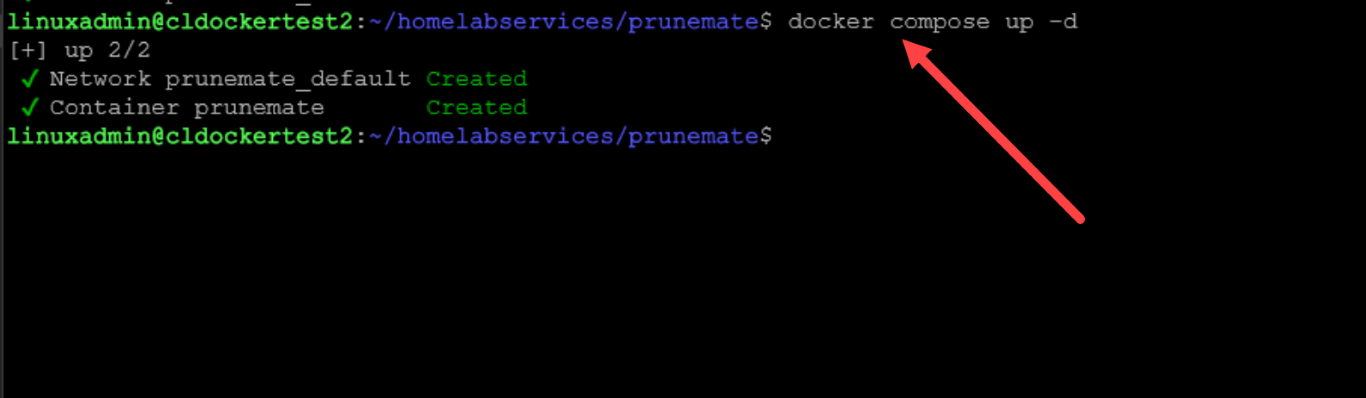
Remote Docker proxy listener
The Docker compose code below allows you to easily spin up the Docker socket proxy on your remote hosts so that PruneMate can connect:
services:
  dockerproxy:
    image: ghcr.io/tecnativa/docker-socket-proxy:latest
    environment:
      - CONTAINERS=1
      - IMAGES=1
      - NETWORKS=1
      - VOLUMES=1
      - BUILD=1         # REQUIRED FOR BUILD CACHE PRUNE
      - POST=1          # Required for prune operations
    ports:
      - "2375:2375"
    volumes:
      - /var/run/docker.sock:/var/run/docker.sock:ro
    restart: unless-stopped
The PruneMate interface and options
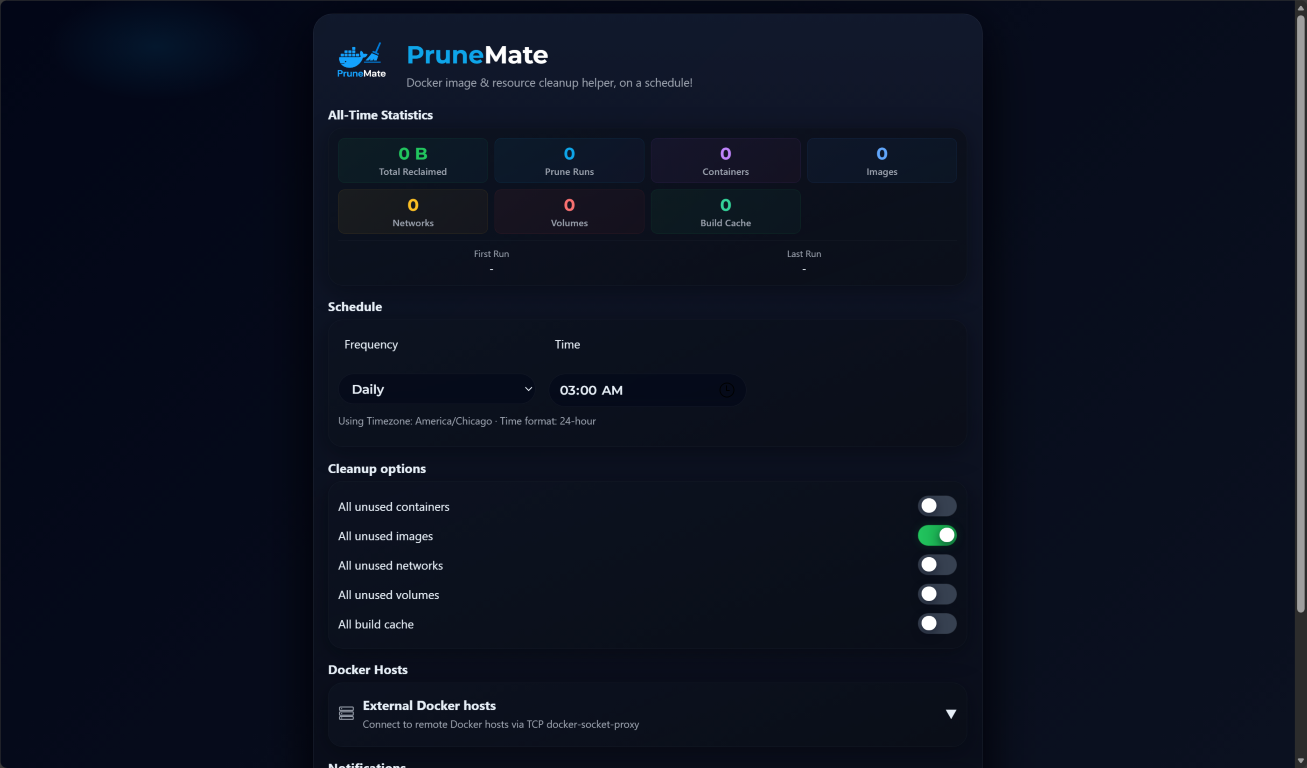
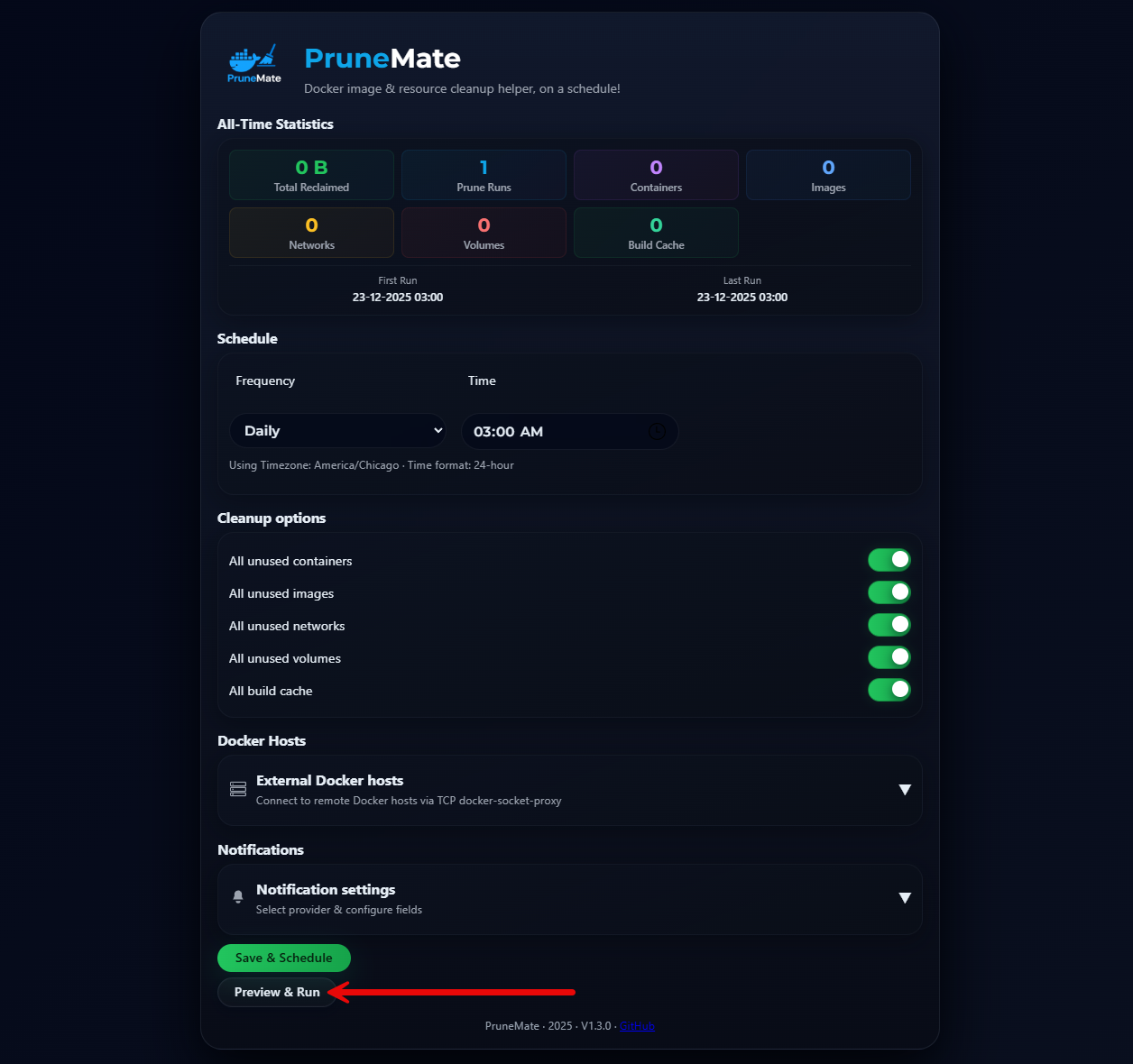
Below, is the PruneMate interface that you will see once you browse out to the default port of 7676 in a browser. As you can see below, you have the options for pruning:
- All unused containers
- All unused images
- All unused networks
- All unused volumes
- All build cache
The interface makes it easy to select the options you want. Below, you will see that by default, the only option that is selected is to prune all unused images.
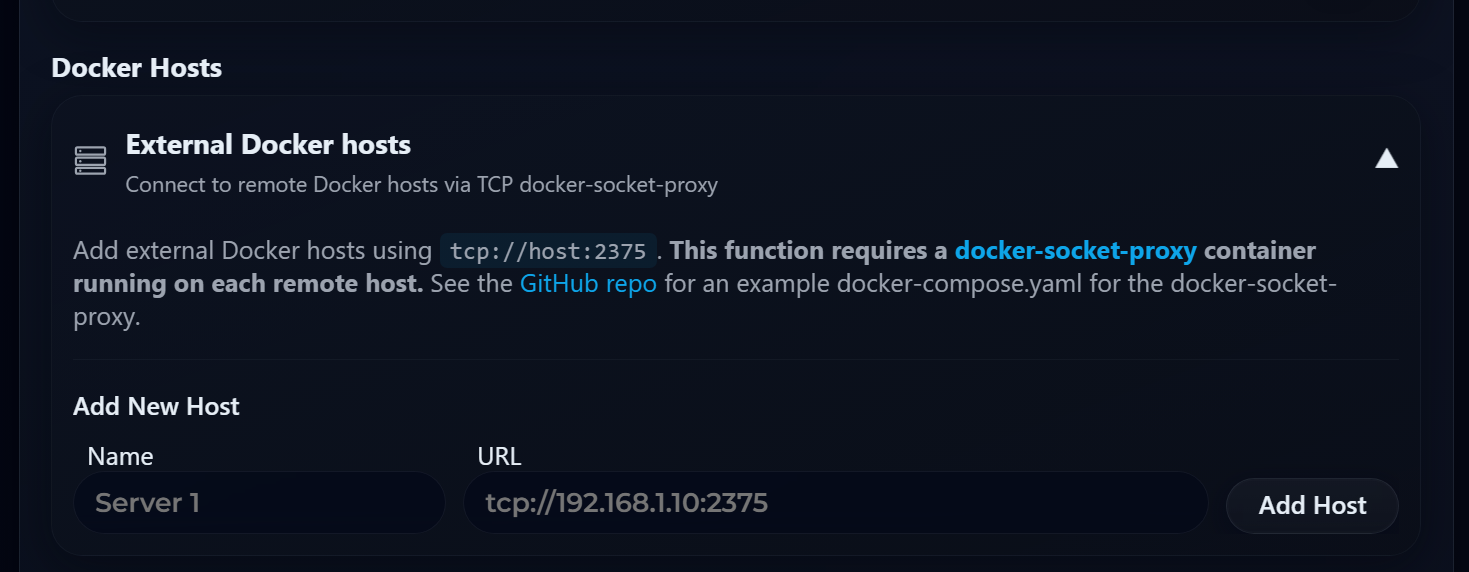
If you expand the External Docker hosts drop down, you will see the following:
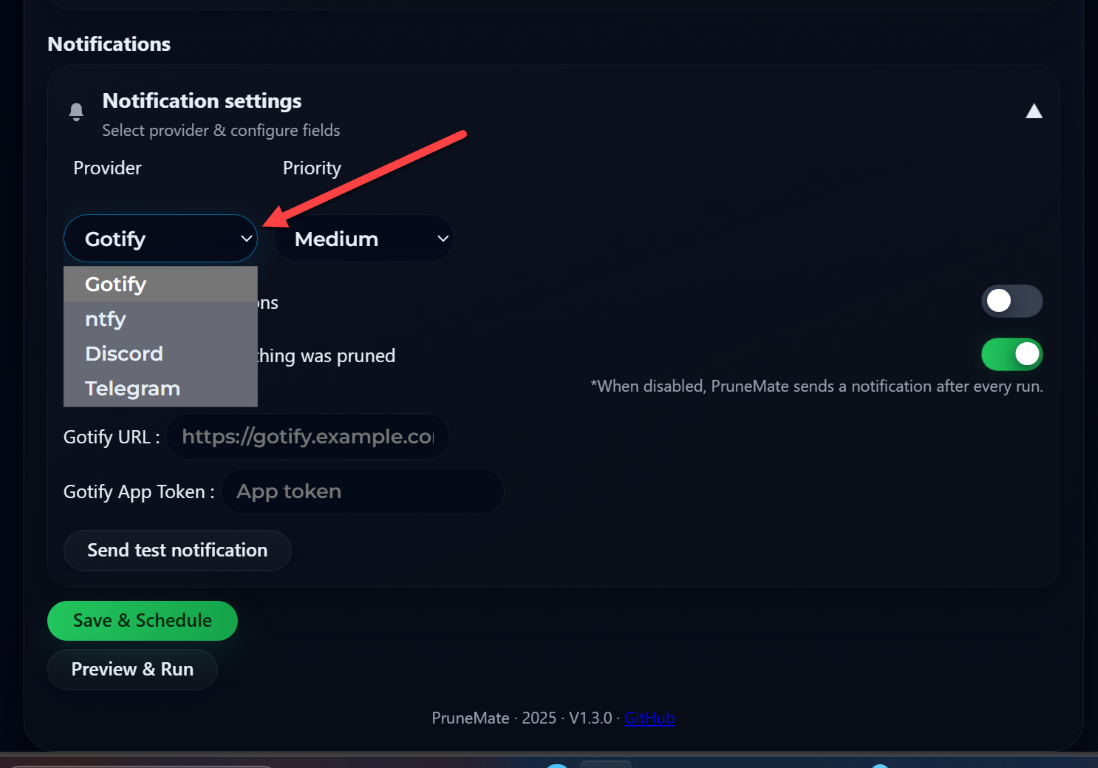
Under the notifications section, you will see the options available here as well. You can choose from providers and priority levels. Under the provider, you see the following:
- Gotify (default)
- ntfy
- Discord
- Telegram
By default, it will only notify when there are pruned items. You can untoggle the option here. When disabled as the interface shows, PruneMate sends a notification after every run.
Running a prune job
It is very simple to run an ad-hoc prune job in PruneMate. Toggle the options you want to toggle for Cleanup options. Then run the Preview & Run button.
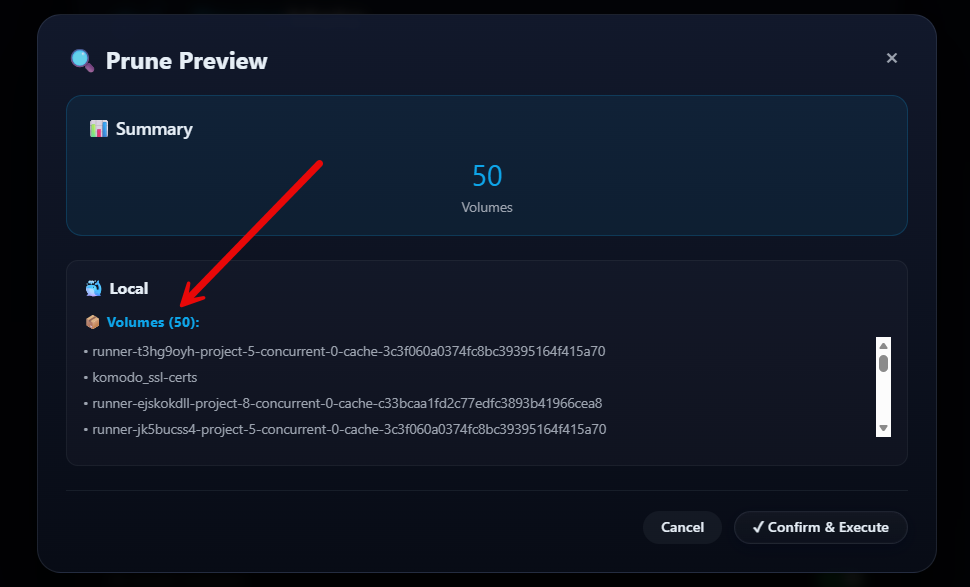
It will give you a preview of what will be pruned. Here I have 50 volumes that will be deleted. Click Confirm & Execute.
The prune is completed successfully.

Comparing PruneMate with Manually cleaning up Docker hosts
Below is a quick comparison between keeping your docker hosts cleaned up manually or using something like PruneMate.
| Area | Manual Cleanup Commands | PruneMate |
|---|---|---|
| Visibility into disk usage | Very manual process. You have to remote to all your hosts and run the docker system df command | Easy visibility into all your docker hosts using the tool in the GUI |
| Safe? | High risk if incorrect flags are used, especially with volumes | It is designed to avoid losing your data and focus on truly unused resources |
| Granularity | All-or-nothing in many cases, especially with system-wide prune commands | More targeted cleanup across images, containers, cache, and volumes |
| Running it unattended? | It can be done if you know what you are doing. I have had CI/CD pipelines setup that do this. | PruneMate seems to work well in unattended mode without issues |
| Automation friendliness | Possible but more complicated as you have to trigger scripts or other means to execute | Designed for scheduled cleanup jobs |
| Learning value | Teaches commands and docker maintenance very well | Doesn’t really teach you the commands, but once you understand the commands you run manually, this can bolster manual operations with automation |
| Consistency across hosts | Depends on manual discipline and memory | Consistent behavior across all Docker hosts |
| Time involved | Can be time-consuming to develop a script to do this or CI/CD pipeline. Or doing it manually takes time to connect to each host and prune them | Quick to get it right since basically you just stand up the container and the solution does the rest of the pruning |
Valuable at a time when component prices are drastically rising (RAM and Hard Drives, SSDs, etc)
Considering that we are entering a time of hyper-inflated prices for just about all PC components which we use to build and upgrade home labs, this is a life saver. If we can’t afford to upgrade components, the next best thing is using what we have much more efficiently. Often, when it comes down to it, we don’t need more space, but rather just to clean out old storage that is just taking up that space.
Even a 1TB NVMe drive or larger can be taken up quickly with unused Docker images, volumes, logs, and cache. Also, when the root filesystem fills up, the system starts having issues outside of Docker and specific containers. Containers can then start failing to write logs. Databases will start refusing connections. Package managers break, etc.
PruneMate helps with this situation by keeping your system pruned effectively from Docker artifacts and objects that can quickly take up free space.
Wrapping up
Docker is an incredibly powerful tool for a modern home lab and production environments. It has so many advantages and benefits over running full virtual machines. However, you have to be aware of the disk space maintenance that needs to be performed to make sure your docker host remains healthy and doesn’t accumulate tons of stale docker artifacts like stale images, volumes, networks, and containers. I think PruneMate is a really cool tool that can help ones especially starting their containerized journey to keep their hosts in tip top shape and running efficiently. What about you? Are you using any kind of automation to keep your docker hosts clean? What do you think of PruneMate? Is this something you will take for a spin? Let me know in the comments.

Google is updating how articles are shown. Don’t miss our leading home lab and tech content, written by humans, by setting Virtualization Howto as a preferred source.
About The Author