




The following steps are not supported by Veeam. I want to make that clear. directly modifying the Veeam configuration database like I am going to show below is not in an official KB. So please be warned. This is meant for the setting of a home lab where we take on these types of risks in our learning and understanding the infrastructure we run there on a daily basis.
Before you start to make any updates take a snapshot of your Veeam 13 VM and/or take a backup of your database. I am not sure on the majority of what ones are hosting in terms of VBR 13. I upgraded my 12.3 Windows instance to 13.x. I am running SQL Server.
Below is a look at the issue that I saw. I had the Veeam Backup and Replication job that backs up my cluster was showing it had been running since the day before. Right-clicking and stopping the job did nothing. I even killed all the Veeam services on the box and restarted the services and when these came back up, the job was still showing as "running".
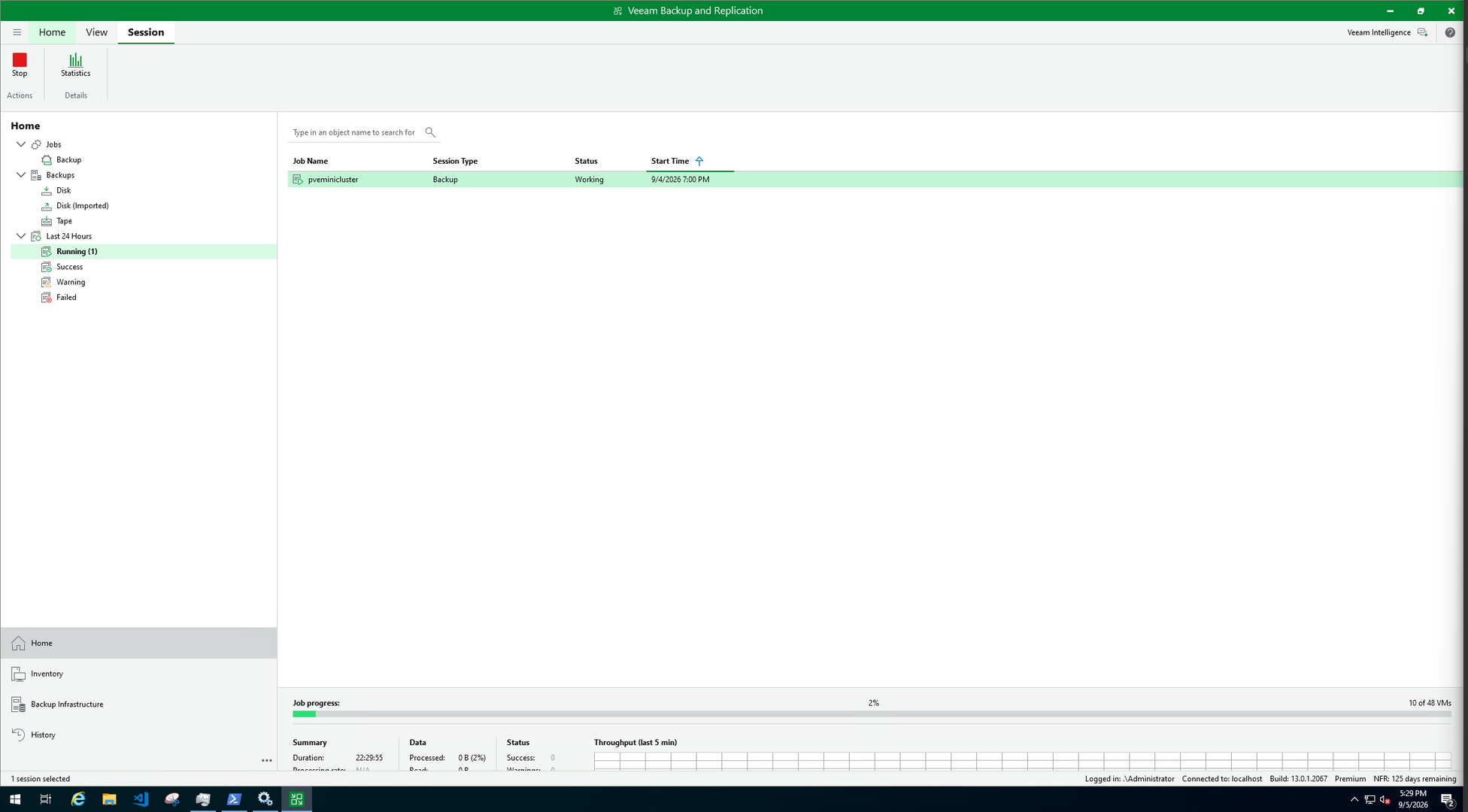
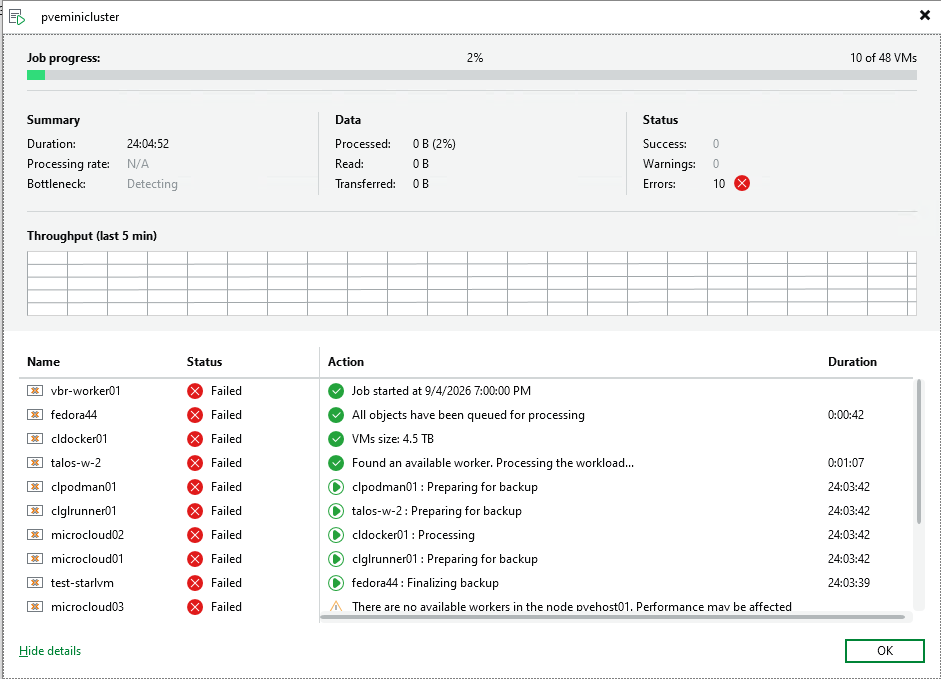
Here are the logical steps that I followed to remove the "stuck" job:
1. Confirm that Veeam still thinks the job is running
Basically I had already done this and could see it in the console, but you can also do this from PowerShell with the following:
Get-VBRJob -Name "pveminicluster"
Mine returned:
Job Name       Type            State
--------       ----            -----
pveminicluster Proxmox Backup  Working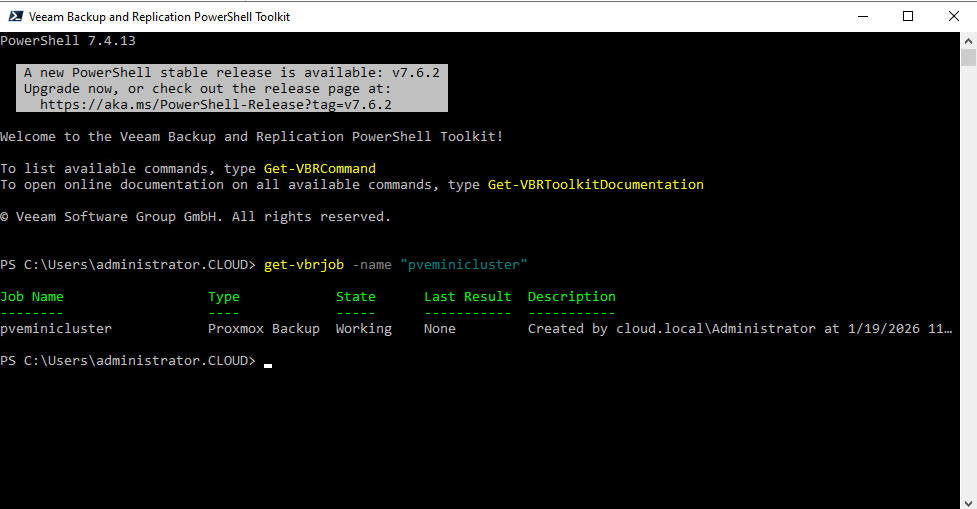
Trying the normal stop command did not help either from PowerShell
Stop-VBRJob -Job (Get-VBRJob -Name "pveminicluster") -Confirm:$false2. Get the Veeam job GUID
To get the GUID of the Veeam job, run this:
(Get-VBRJob -Name "pveminicluster").Id
In my home lab as an example, it returned:
564d17eb-77d8-4fc2-875c-b81658398eef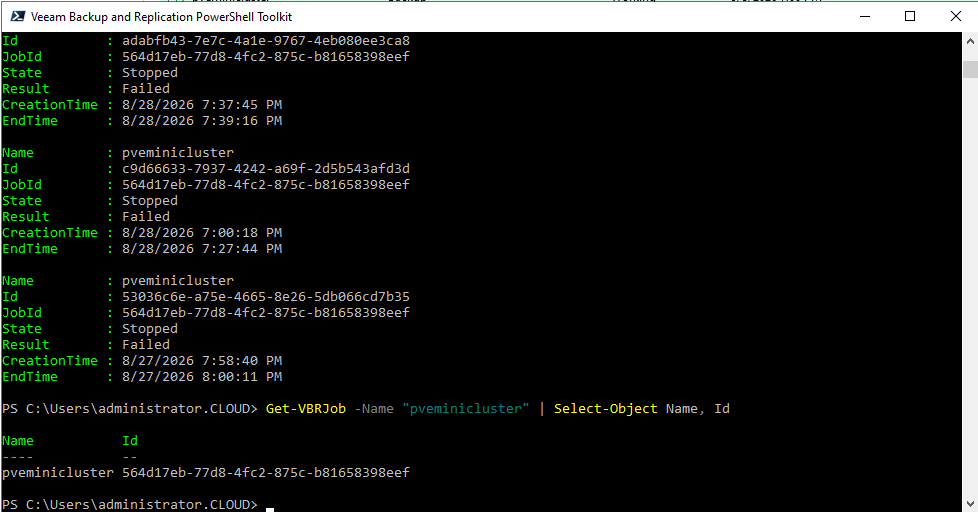
Save that GUID because it lets you identify all sessions belonging to the job.
3. Determine which database Veeam is actually using
Do not assume Veeam 13 is using PostgreSQL just because PostgreSQL is installed.
My upgraded Veeam server was still using Microsoft SQL Server:
VSERV01\VEEAMSQL2017
Database: VeeamBackup
You can confirm this using the Veeam Configuration Database Connection Settings utility. Then connect to the VeeamBackup database using SQL Server Management Studio.
4. Find all sessions belonging to the job
Run:
USE VeeamBackup;
GO

DECLARE @JobId UNIQUEIDENTIFIER =
'564d17eb-77d8-4fc2-875c-b81658398eef';

SELECT
    id,
    job_id,
    job_name,
    creation_time,
    end_time,
    state,
    result,
    control,
    progress,
    reason,
    usn
FROM [Backup.Model.JobSessions]
WHERE job_id = @JobId
ORDER BY creation_time DESC;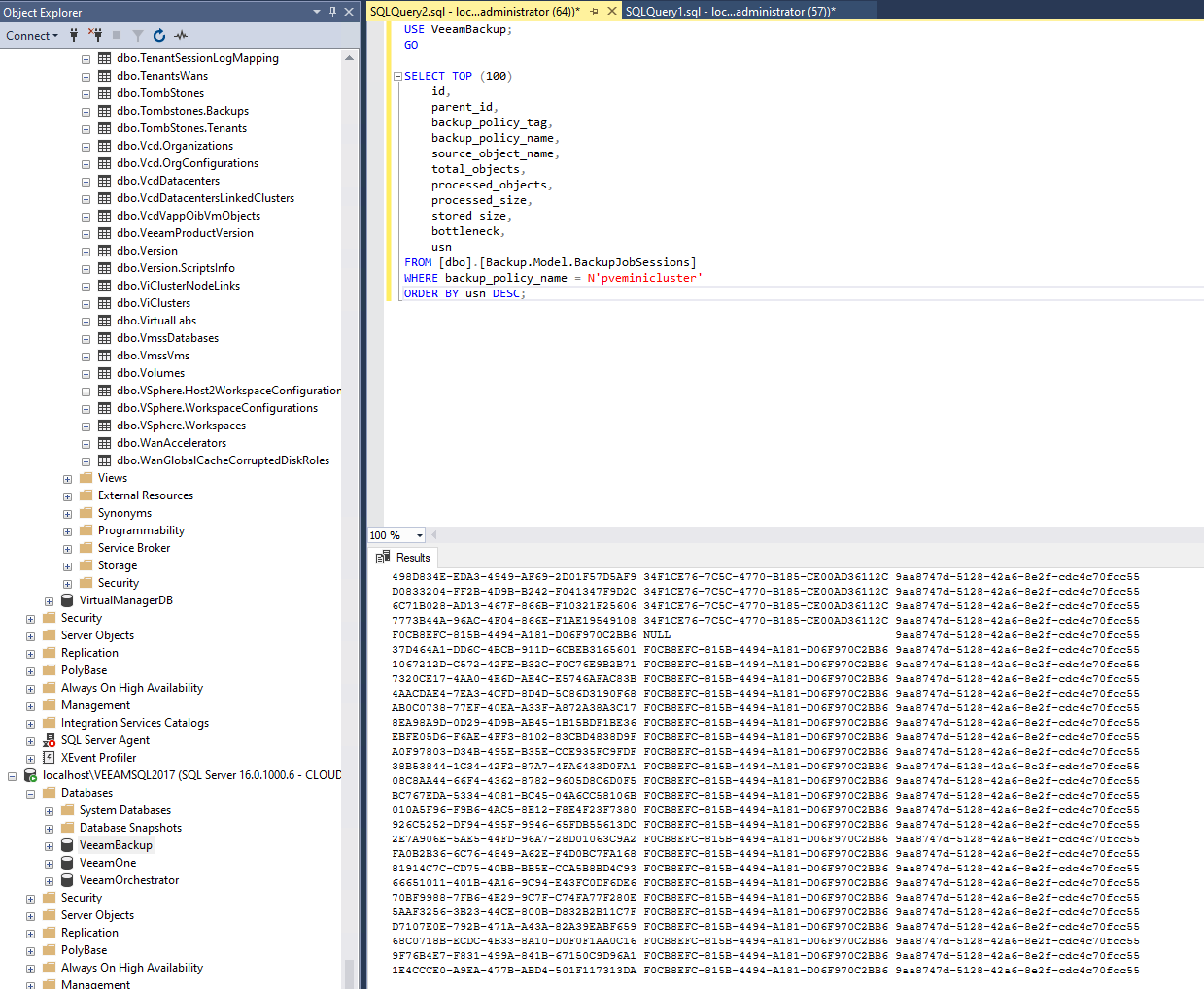
This was the query that made the problem obvious. My stuck session looked like this:
id            4C9B5EC7-E1C2-428C-AB71-004CD4D9B86E
job_name      pveminicluster
creation_time 2026-09-04 19:00:00.747
end_time      1900-01-01 00:00:00.000
state         5
result        -1
Meanwhile normal completed sessions had actual end_time values and were no longer in state 5. That session GUID is what we need to remove, not the job GUID.
5. Put the stuck session GUID in a variable
For example:
DECLARE @SessionId UNIQUEIDENTIFIER =
'4C9B5EC7-E1C2-428C-AB71-004CD4D9B86E';
Before deleting anything, verify the exact row:
SELECT *
FROM [Backup.Model.JobSessions]
WHERE id = @SessionId;
Also check whether the session appears as its own original session ID:
SELECT *
FROM [Backup.Model.JobSessions]
WHERE orig_session_id = @SessionId;
In my case the stuck session appeared in both the id and orig_session_id fields.
6. Check the Veeam session log for that session
Run:
SELECT *
FROM SessionLog
WHERE sessionId = @SessionId;
Our stale session GUID was also present in SessionLog.sessionId, which is why I checked and removed its associated session-log data as part of the cleanup.
7. Stop the Veeam services before changing the database
I would stop Veeam before modifying the session records:
Get-Service *Veeam* | Stop-Service -Force
Verify they are stopped:
Get-Service *Veeam* |
    Where-Object Status -ne 'Stopped'
Do not stop SQL Server itself.
8. Remove the stuck session
At this point I would use a transaction so there is at least an opportunity to inspect what was affected.
USE VeeamBackup;
GO

BEGIN TRANSACTION;

DECLARE @SessionId UNIQUEIDENTIFIER =
'4C9B5EC7-E1C2-428C-AB71-004CD4D9B86E';

DELETE FROM SessionLog
WHERE sessionId = @SessionId;

DELETE FROM [Backup.Model.JobSessions]
WHERE id = @SessionId;
Now check:
SELECT *
FROM [Backup.Model.JobSessions]
WHERE id = @SessionId;

SELECT *
FROM SessionLog
WHERE sessionId = @SessionId;
If those return no rows and SQL Server did not report any constraint errors:
COMMIT TRANSACTION;
If something looks wrong:
ROLLBACK TRANSACTION;
The important part with this workaround is to delete only the specific stale session GUID. Do not delete everything associated with the job GUID.
9. Start Veeam again
Once you verify everything is good go back in PowerShell:
Get-Service *Veeam* | Start-Service
Give the core services a moment to initialize and then check, replacing with your particular job name:
Get-VBRJob -Name "pveminicluster"
You should see now that you don't have the job running any longer. This worked in my environment