If you have run Linux servers for any length of time, there is a good chance you have been bitten by network interface renaming at some point. It usually happens at the worst possible time. You reboot your system, expect everything to come back online, and suddenly the server is unreachable and you can’t get to it. That exact situation recently happened to me in my home lab. Since Proxmox is essentially Debian Linux underneath the hood, I rebooted a host and noticed that my out of band management access stopped responding. At first, I thought it might be some type of issue on my switch, VLAN tagging, etc. But after connecting locally, I realized what had happed. One of the network interface names had changed. Thankfully Proxmox 9 introduces a feature that solves this problem cleanly and permanently. It is called network interface pinning, and it allows you to lock network interface names so they never change again. Let’s see how to take advantage of Proxmox NIC pinning with the built-in tool.
Why network interface names sometimes change
Before understanding how Proxmox NIC pinning fixes this problem, it helps to understand why interface names can change in the first place. Modern Linux distributions use something called predictable network interface names. So instead of using simple names like eth0 or eth1, the system generates names that are based on hardware location and PCI bus information.
So, this helps to explain why you might have wondered in the past, why would it use such a funky interface name? This is why you get names like:
enp3s0
enp4s0
ens18
Below is a look at some of the weird names that are found on one of my Proxmox nodes running on my Minisforum MS-01:
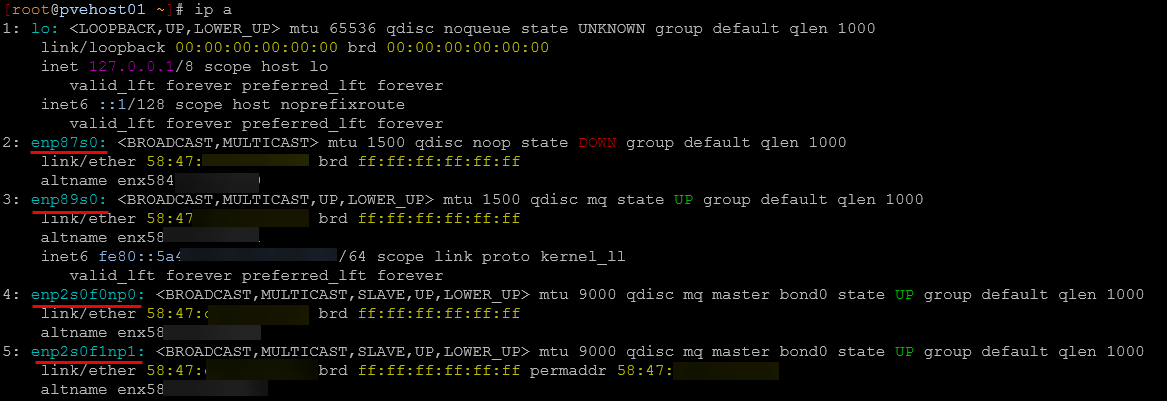
These names are intended to remain consistent across reboots. However, they can still change in certain situations.
What are those situations? Well, these can include the following:
- Adding or removing hardware
- BIOS updates
- PCI bus order changes
- Adding a GPU or storage controller
- Firmware changes
- Moving NICs between slots
In my case, I had added an external GPU using an OCuLink connection. That hardware change caused the PCI device order to change. This in turn, caused the Linux kernel to assign different interface names, which is a problem. Because my Proxmox networking configuration depended on those names, the network configuration broke during boot.
If you want to read about my eGPU shenanigans and that experiment in the lab, read that blog post here: I Added an eGPU to My Proxmox Mini PC Home Lab Using OCuLink (Here’s What Happened).
Why this behavior causes problems in Proxmox
As you can imagine, this behavior is a problem, even for desktop systems. But for a virtualization host, this is really bad as it essentially changes the networking for not only the host itself, but for any Linux bridges underneath that depend on it.
Proxmox networking relies heavily on the /etc/network/interfaces file. This file is the one you use to determine how network interfaces are configured and how bridges are created and named, VLAN tagged, etc.
For example, a typical Proxmox configuration might look like this:
auto vmbr0
iface vmbr0 inet static
    address 10.1.149.10/24
    gateway 10.1.149.1
    bridge-ports enp3s0
    bridge-stp off
    bridge-fd 0
In this example, the bridge vmbr0 depends on the physical interface enp3s0 and that exact name. So, for example, if that interface suddenly becomes enp4s0, the bridge configuration fails. The network interface does not come up correctly and the server will probably loose connectivity entirely.
If this happens on a remote system without console access, you can be in for a world of hurt and actually lock yourself out of the system until you can regain console access to fix the network interface naming issue. This is exactly why Proxmox introduced interface pinning in version 9.
What Proxmox 9 network interface pinning does
Proxmox 9 adds the ability to pin network interface names to specific hardware devices.
Instead of relying on automatically generated names, you can assign stable names like the following:
nic0
nic1
nic2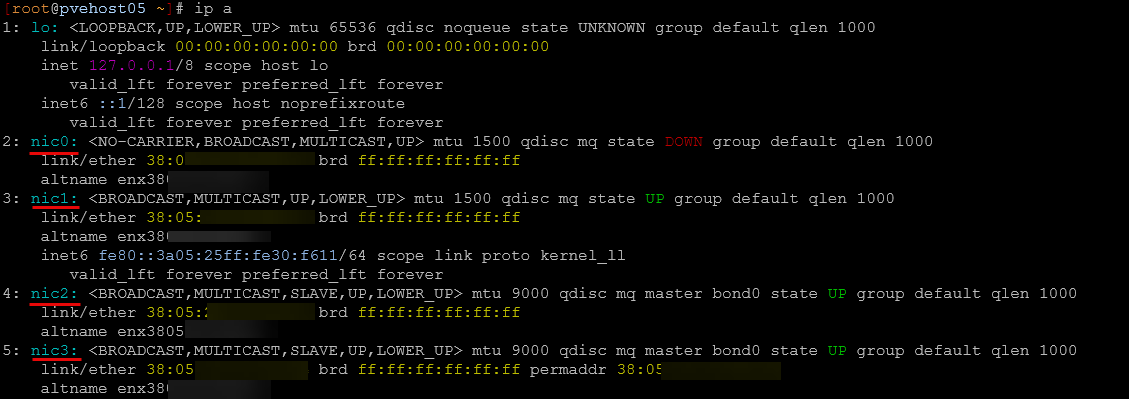
The beauty as well is that you can create a consistent set of names across all your Proxmox hosts so that you don’t have different network adapter names across all your config files on each host. These names are permanently tied to the underlying hardware device using systemd network configuration.
Even if the PCI device order changes or hardware is added, the pinned interface name remains consistent. By extension, this means your /etc/network/interfaces configuration will continue to work regardless. Once pinned, the interface name remains across reboots and hardware changes.
How you can now pin network interface names during Proxmox 9 install
Before we look at how you can pin network interface names “after” the install, you can now actually do this “during” the install process with Proxmox 9.x. When you get to the network configuration screen, you will see that by default, the Pin network interface names option is selected by default.
You will also see the “Options” button you can click.
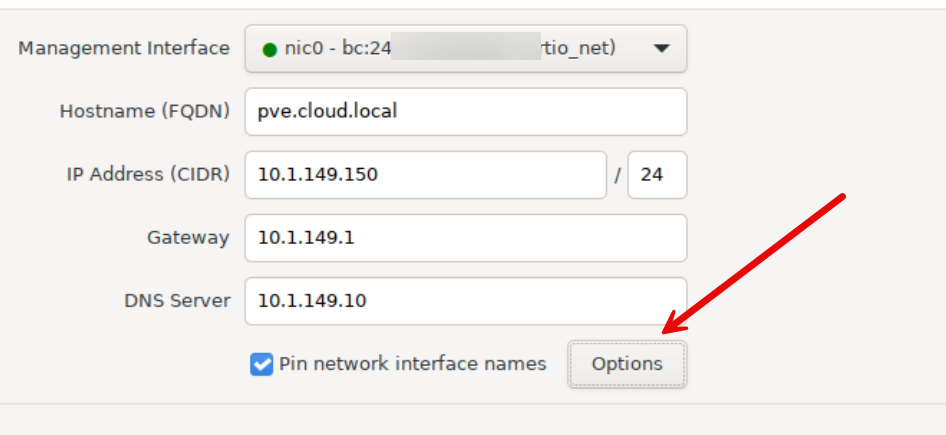
When you click the options button, this is where you can define your own custom naming scheme to your interfaces. This Proxmox host only has one network interface, but if you had multiples you would see those here and also name them during the installation.
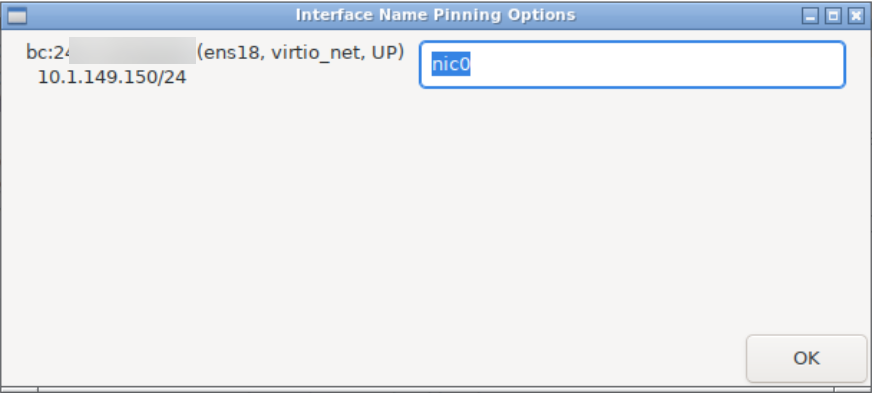
How to pin network interface names in Proxmox 9 after installation
In Proxmox 9, there is a new helper command that has been introduced that makes creating the underlying files needed really easy. This is a great new tool you can use with the management of Proxmox. The command is the following:
pve-network-interface-pinning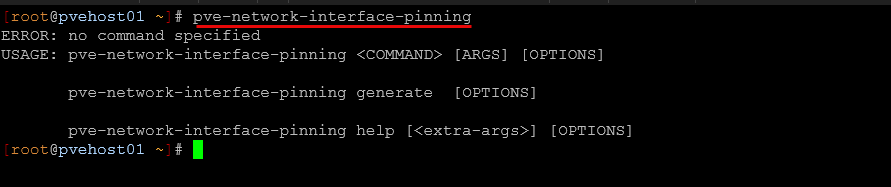
According to the Proxmox VE Administration Guide, with this helper command, Proxmox NIC pinning automatically replaces occurrences of the interface in the following files:
- /etc/network/interfaces
- /etc/pve/nodes/<node name>/host.fw
- /etc/pve/sdn/controllers.cfg
- /etc/pve/sdn/fabrics.cfg
First, identify your current network interfaces.
You can do this with:
ip a
or
ip link show
Then when you have the name of your interfaces that you want to “pin” you can use the following command as an example to pin the network adapter with a custom name that you choose:
pve-network-interface-pinning generate --interface <your old int name> --target-name <your new int name>You can see below, that I am changing the interface name from enp87s0 to nic0.
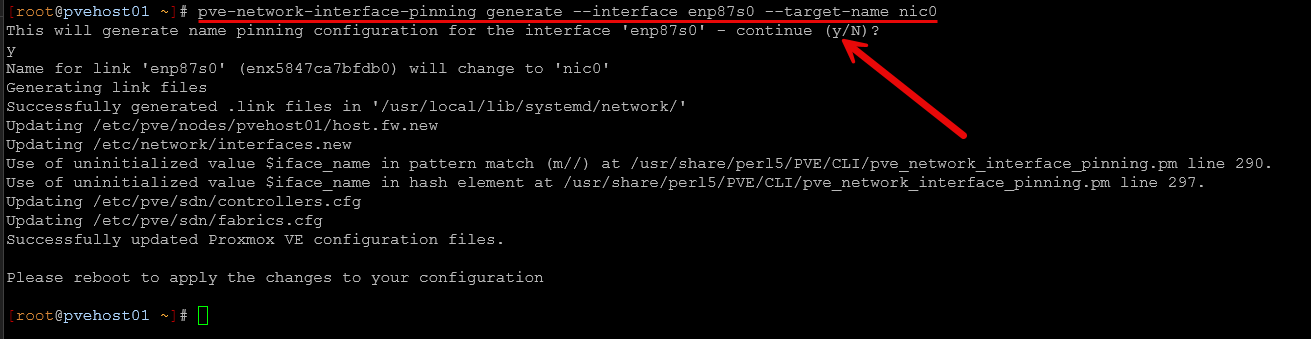
This creates the .link file that is used for making the connection to the hardware address. It will create one of these files for each interface that you pin. Note the location here: /usr/local/lib/systemd/network/:
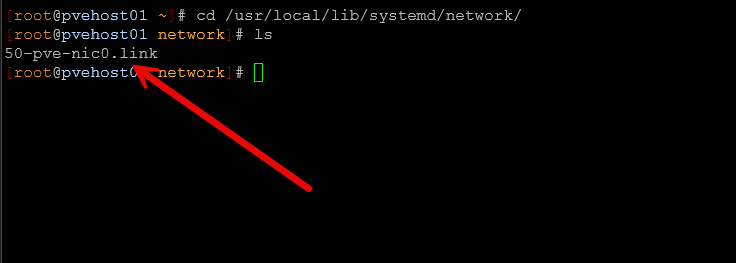
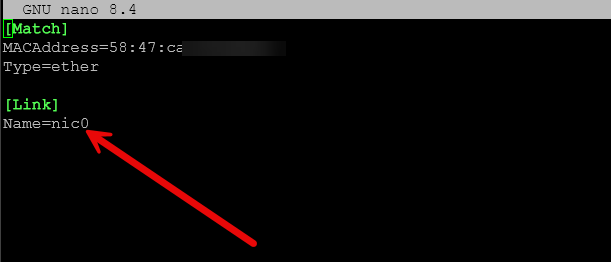
What is inside this file? Take a look at the following:
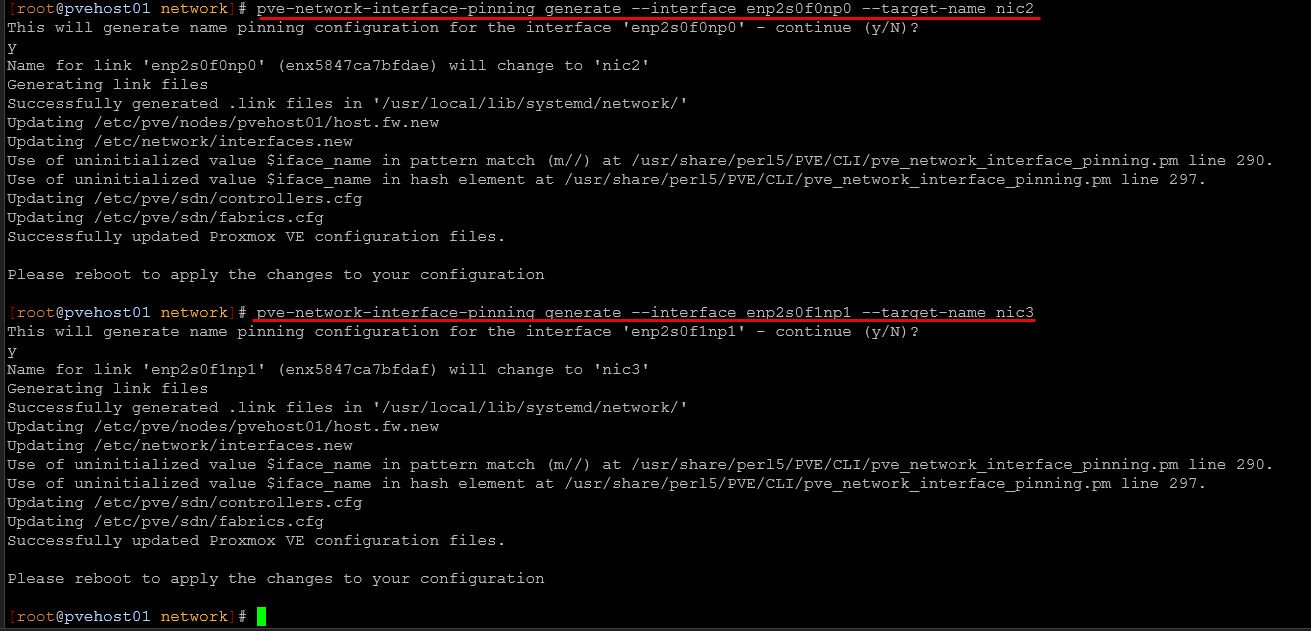
After changing the first interface and verifying the .link file, I went ahead and changed the rest of my interfaces over and pinned them accordingly.
Changing the /etc/network/interfaces file
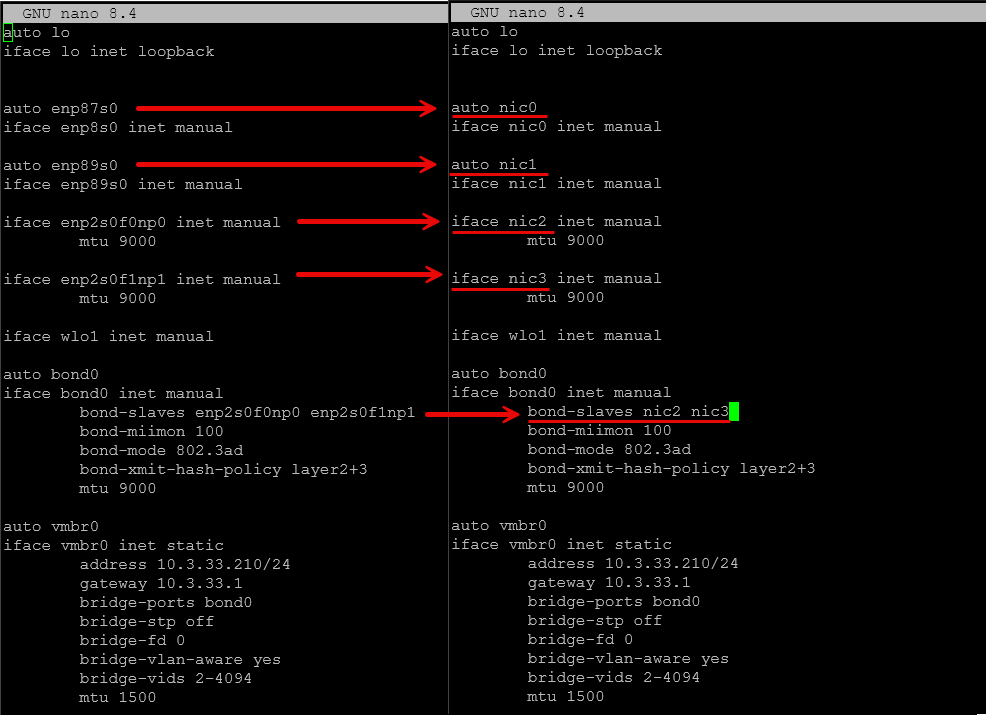
Before I rebooted from the above (which doesn’t go into effect until you do), I wanted to also make the changes to the /etc/network/interfaces file. If you don’t do this, then your interfaces file will reference the old names and your connectivity will be broken. So, I went ahead and made the changes to the interfaces file.
You can see how the interfaces changed with the pic below:
How the interface pinning system works
Let’s go over in more detail what is happening in the process above. We saw the files created, but what is this actually doing? Under the hood, Proxmox uses systemd link files to map network devices to fixed interface names.
These files live in the following directory:
/usr/local/lib/systemd/networkEach pinned interface has its own .link file as we saw in the picture in the above section.
For example:
10-nic0.link
10-nic1.link
10-nic2.link
Each file contains rules that match a specific network device based on properties such as:
- MAC address
- PCI path
- device identifier
When the system boots, systemd reads these files and assigns the defined interface names. This makes sure that the same physical network device always appears with the same name.
Verifying the pinned interfaces after reboot
After configuring pinned interfaces, it is important to verify that everything works as expected.
Reboot the system and check the interface names again:
ip aYou should now see the pinned names such as:
nic0
nic1
nic2
Below, you can see after pinning the interfaces and a reboot, I now have the much more
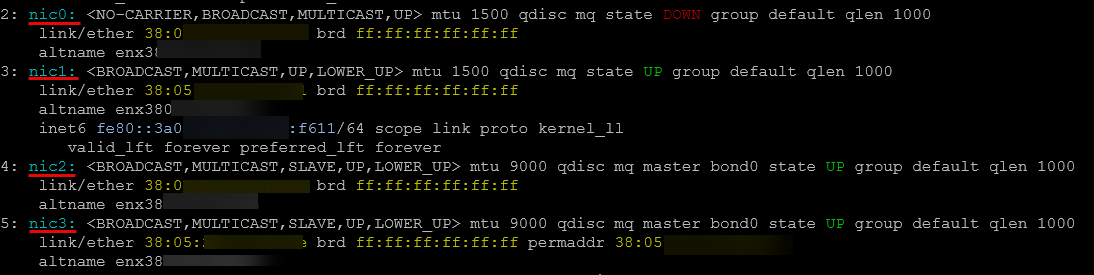
These names should remain stable across future reboots, even if your host has hardware changes.
Why this feature is especially useful in home labs
By their very purpose and definition, home labs and home lab hardware and devices are usually in a constant state of flux, or I know they are in my lab. I am constantly trying things, adding devices, attaching devices, etc. So, the possibly of screwing up the networking and having network adapters renamed is very real.
In a typical lab, you might add:
- GPUs
- NVMe storage
- additional NICs
- PCI expansion cards
Each of these changes can potentially affect PCI device ordering and trigger an interface rename. Do yourself and favor and spend the time on the frontend with Proxmox NIC pinning to pin your network adapter names so these will never change and you will save yourself a lot of heartburn in the future.
Best practices for naming pinned interfaces
When choosing pinned names, the key is to make the names simple and be consistent. If nic0 and nic1 are pointed to the 2.5 GbE adapters in one of your hosts, make that consistent across the rest. Now, you may be using mixed hardware and mini PCs so you will have to take that into consideration. The key is finding some kind of naming that is intuitive and makes sense.
Common options include:
nic0
nic1
nic2
or
lan0
lan1
lan2
Also, be sure before you reboot after the pinning changes to also change your configuration in /etc/network/interfaces file since after the reboot the interfaces will be named differently.
Wrapping up
Network interface renaming is one of those subtle issues that can definitely bite you in the home lab when you are in the middle of experimenting with new devices, PCI-e changes or adding something like an OCuLink connected eGPU, like I did recently. The new Proxmox NIC pinning tool is a saving grace to be able to create the link files needed and make the changes across various files so you make the connection with the adapter at the hardware address level. This way, even if the PCI numbering changes, the NIC will always get the same name, and by extension, your network interfaces file won’t be broken. How about you? Are you using the pve-network-interface-pinning tool as of yet? Let me know in the comments.

Google is updating how articles are shown. Don’t miss our leading home lab and tech content, written by humans, by setting Virtualization Howto as a preferred source.
About The Author