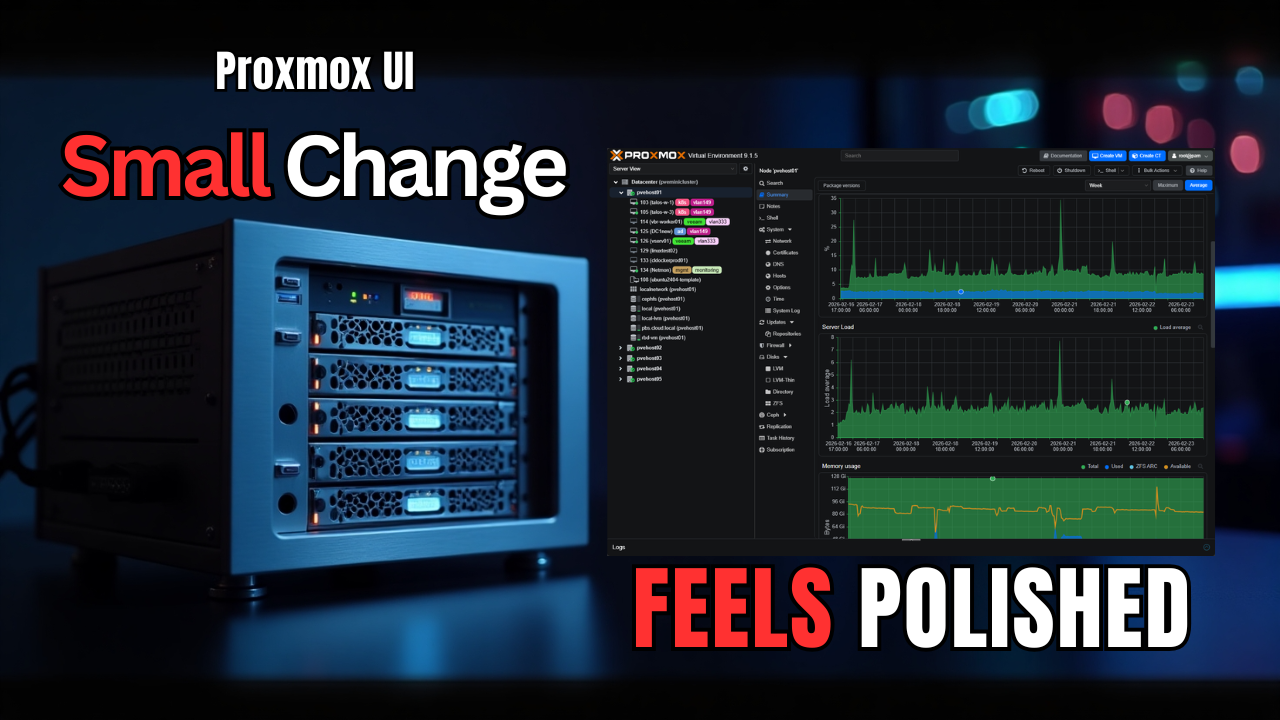
I am constantly on the lookout for projects that have that really “cool” factor to them. In the realm of Proxmox, there has been an explosion of open-source projects that not only add functionality but also enhance the look and feel. One of those projects is one called Proxmorph. Rather than completely change the UI, this project is one that helps to enhance it and make the web UI feel a bit more modern and customized. Let’s take a look at the Proxmorph project, what it is, what it does, and how you can take it for a test spin to customize Proxmox web UI for management.
Proxmorph, what it is and what it does
Proxmorph is a community project that allows applying several custom themes to Proxmox VE Server and Proxmox Backup Server (PBS). It gives you a wide variety of colors that can take the interface I think to a new level of visual appeal. I loved it when we received the dark mode default in Proxmox web UI, but even with dark mode, it is pretty basic and some of the colors and tones I think could be better with dark mode included out of the box to be honest.
These custom themes for Proxmox VE (PVE) and Proxmox Backup Server (PBS) integrate with the native color theme selector when you are in the Proxmox web UI. This gives you the ability to change the theme to something else besides the default “dark” and “light” modes. And, the themes arguably have better contrast ratios over the default themes.
Take a look at this side-by-side comparison (pic from the Github repo) of the default dark mode compared to the Unifi theme that is included with the Proxmorph theme collection.
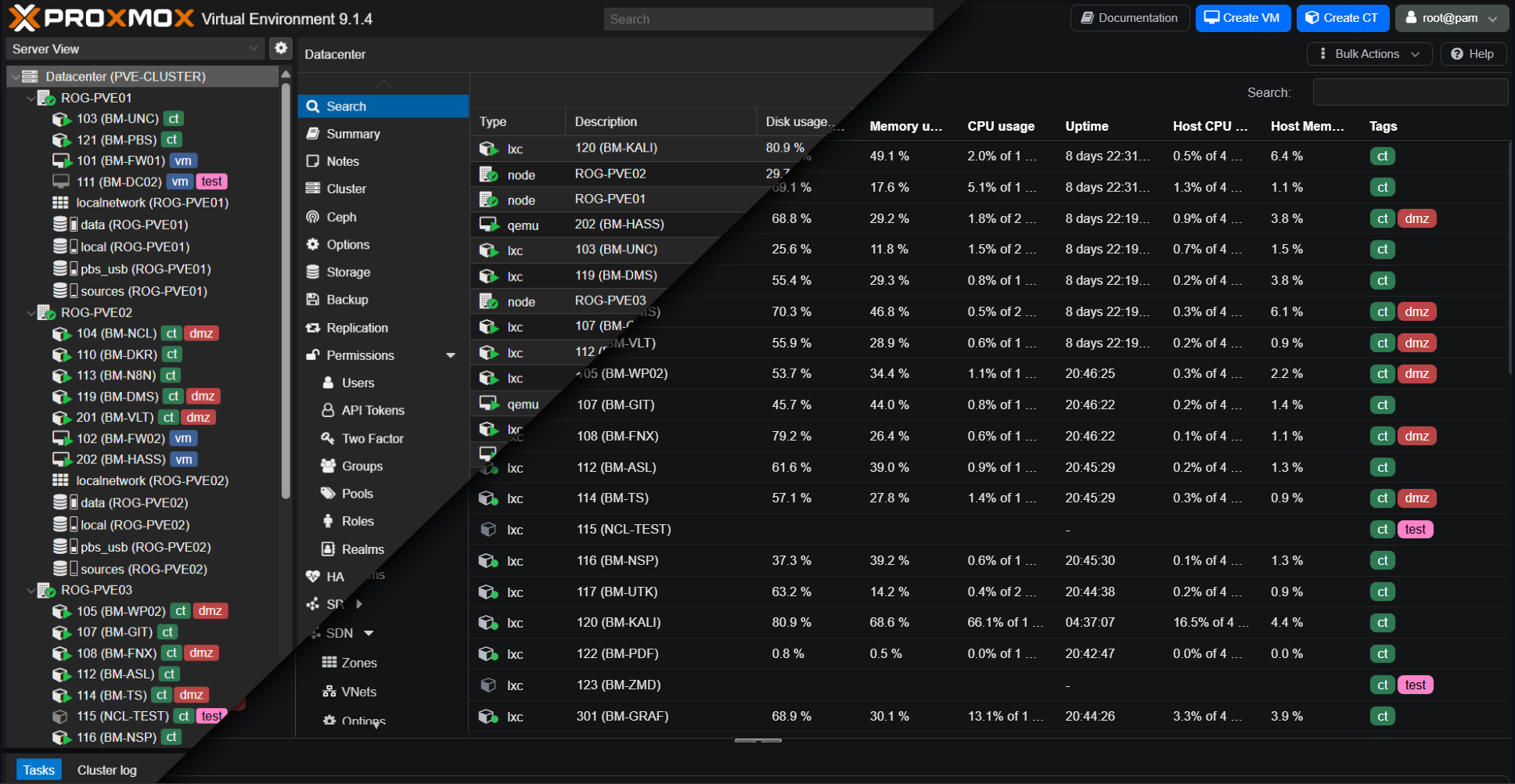
Three different sets of themes currently
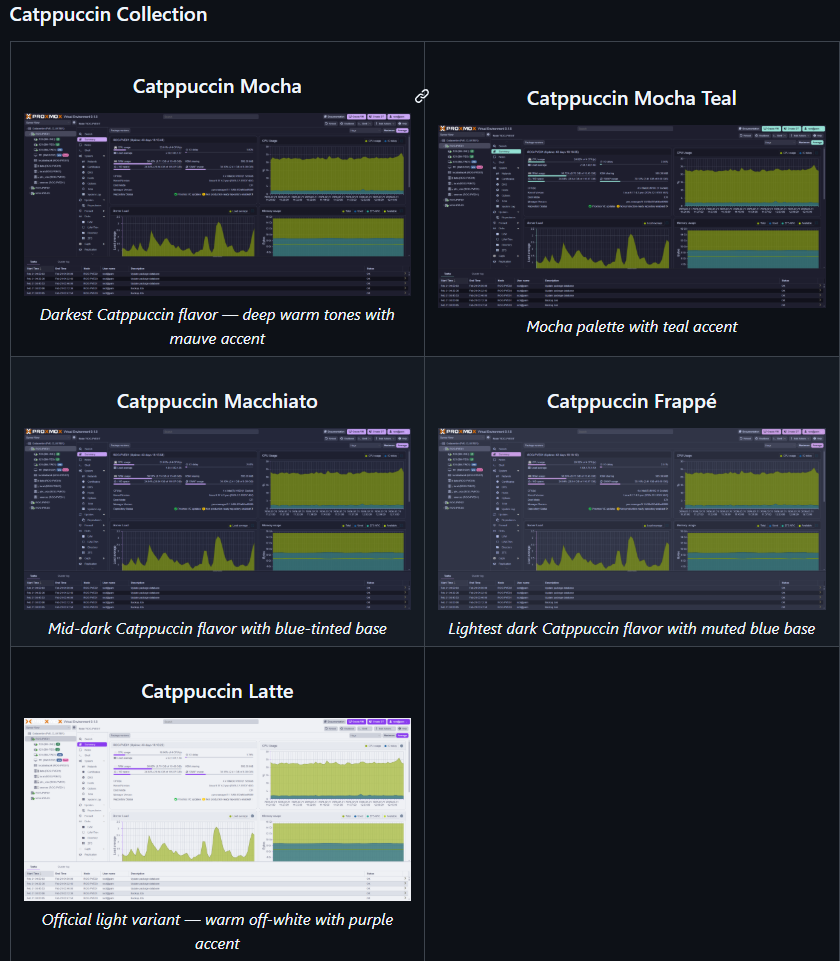
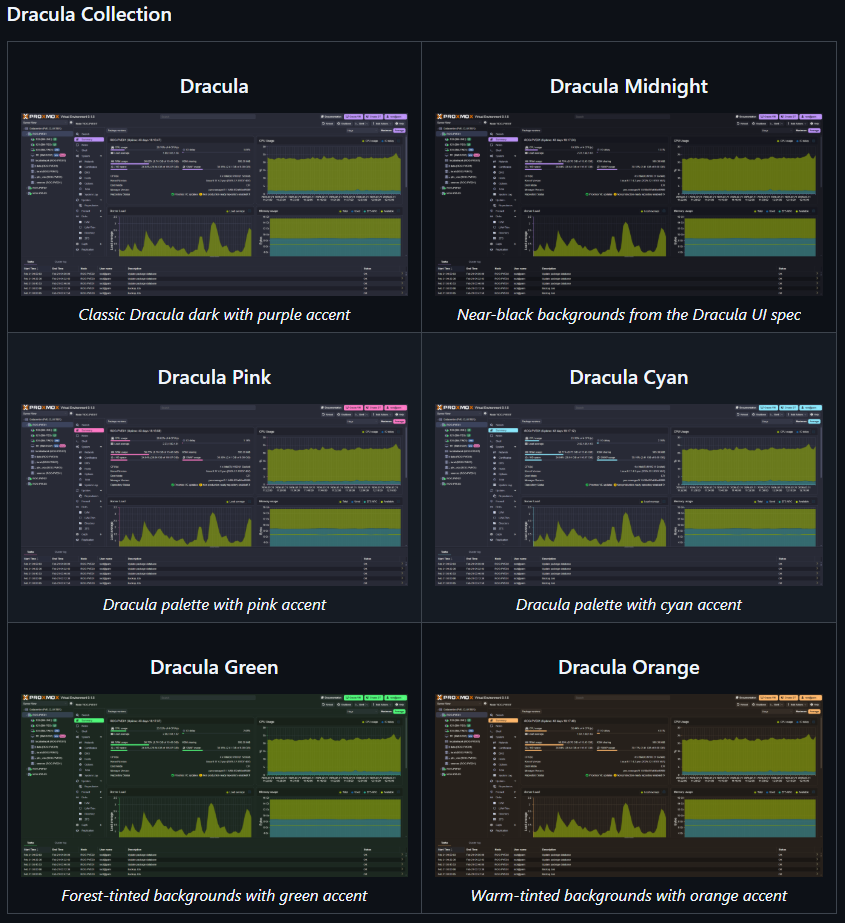
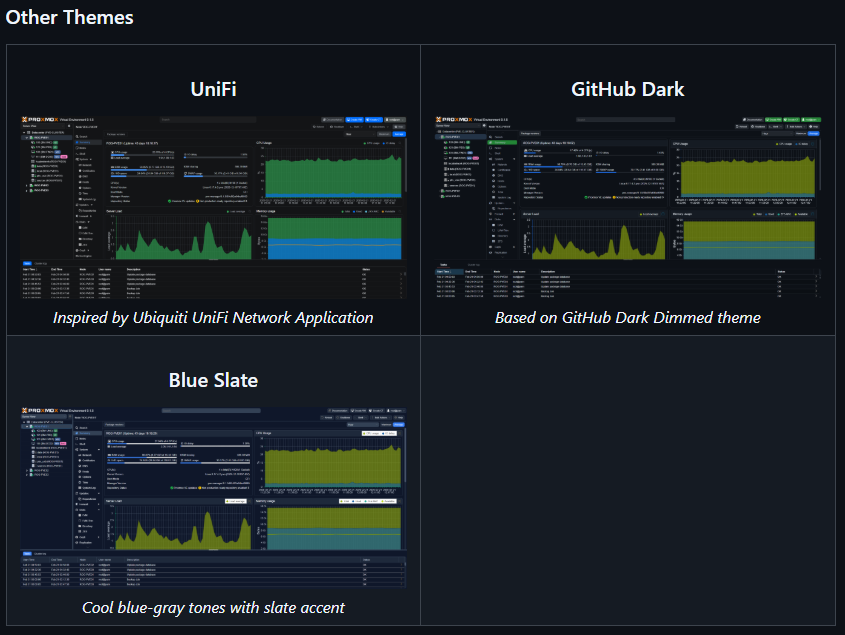
The current release of Proxmorph includes three different sets of themes available. These include the following collections. One of the things about the themes that I like is that they are not too overpowering. In fact, they are what I would describe as subtle in nature but pleasing to the eye for a face lift for the Proxmox web UI.
Catppuccin collection
Dracula collection
Various other themes
How do you install it and should you?
This may not be something that you would install on a production Proxmox environment. However, I think for home lab, these kinds of projects are pretty cool and allow experimenting with the look and feel of the environment. It would be nice to see Proxmox integrate more native themes like this. But, I’m sure this type of feature request is not high on the list of priorities. So keep this in mind.
The easiest way to install it is to run the one-line Bash command:
bash <(curl -fsSL https://raw.githubusercontent.com/IT-BAER/proxmorph/main/install.sh) installThe one-line command takes care of everything to get the new themes up and running.
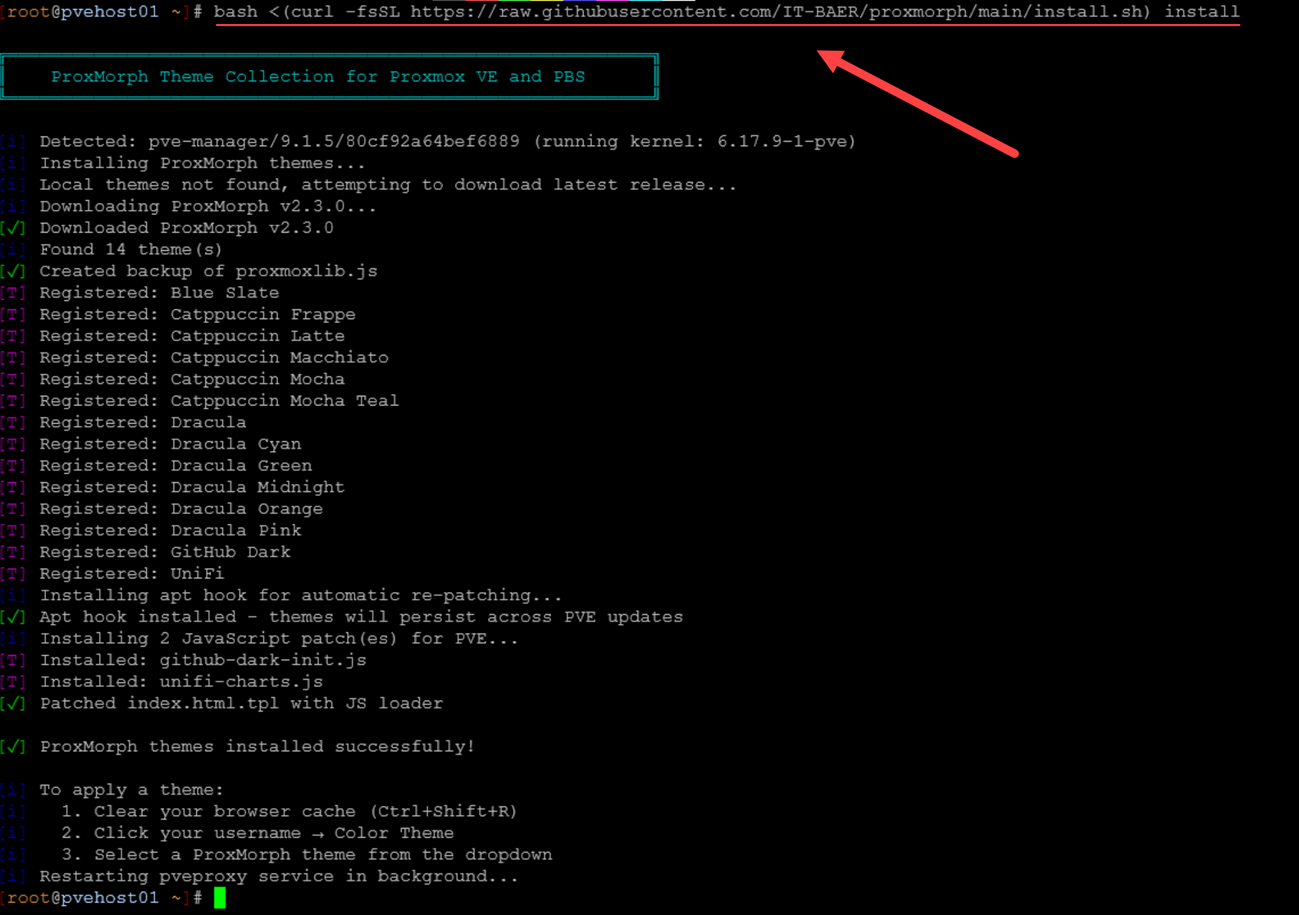
One thing to note AFTER you install it is that your browser will likely not immediately show the new themes as an option. So, you can use the key combination in your browser session: CTRL+SHIFT+R and this will hard refresh your browser so that the new themes will appear.
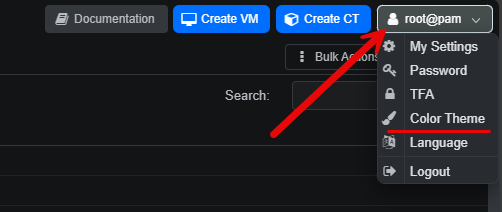
Where are these at? Navigate to the profile menu for your logged in user in the upper right-hand corner of the browser session for Proxmox. Choose Color Theme.
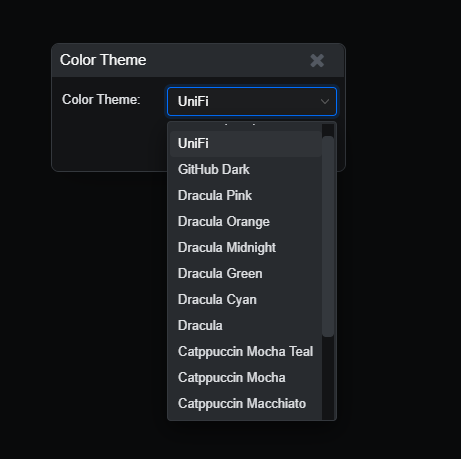
Under the Color Theme selection, you will see all the new themes listed. If you don’t make sure you have initiated the hard reset of the browser using the key combination above or you are using an incognito browser tab.
Alternate manual install process
There is another way to install the project. You can run the manual install steps where you clone down the repo files, then run the install.sh script from the project.
git clone https://github.com/IT-BAER/proxmorph.git
cd proxmorph
chmod +x install.sh
./install.sh install
How does it actually work?
You may want to know how this project is actually altering the visuals in Proxmox VE Server or Proxmox Backup Server. Below are the steps that the project is using to alter the web UI look and feel.
- The installer copies CSS files to the shared /usr/share/javascript/proxmox-widget-toolkit/themes/ directory
- JavaScript patches (for charts) are installed to the product-specific JS directories in Proxmox
- proxmoxlib.js is patched to register the new themes. Also product index templates (.tpl or .hbs) are patched to load these new JS patches
- An apt hook automatically re-patches after product updates (widget-toolkit, pve-manager, or proxmox-backup-server)
- Themes will then show up in the native Color Theme selector of both PVE and PBS
What is my favorite Proxmorph theme?
I think out of the ones that I have tried of the Proxmorph themes to customize Proxmox web UI, I like the Unifi theme the best. I really like the even higher contrast ratio of this theme compared to the out-of-the-box “dark” mode theme. Plus it makes the graphs and other visuals “pop” a bit more in my opinion.
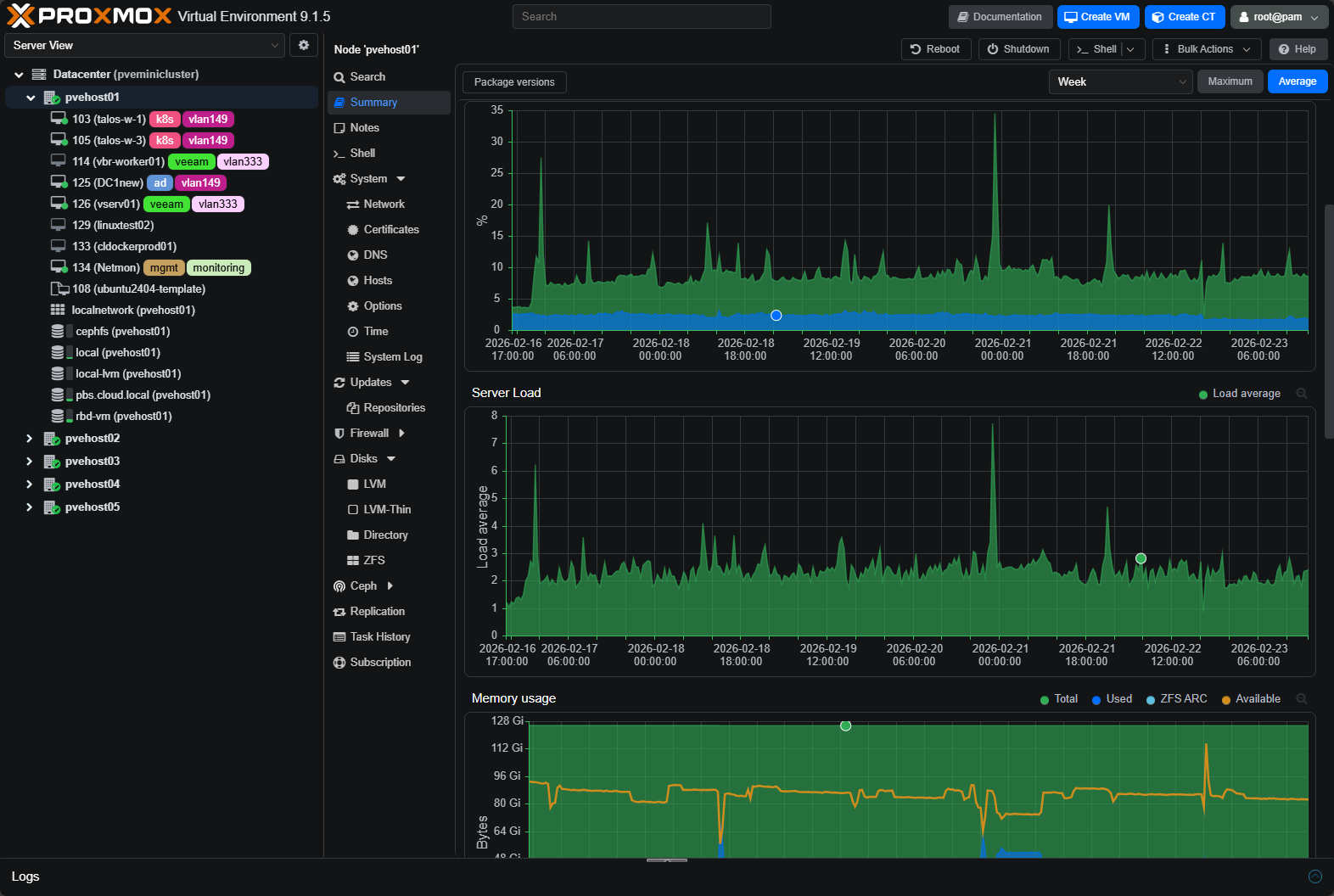
I also like the Github dark theme that is available. This one has still better contrast ratios than the default dark mode I think but it retains the more stock visuals of the graphs and other charts in the web UI.
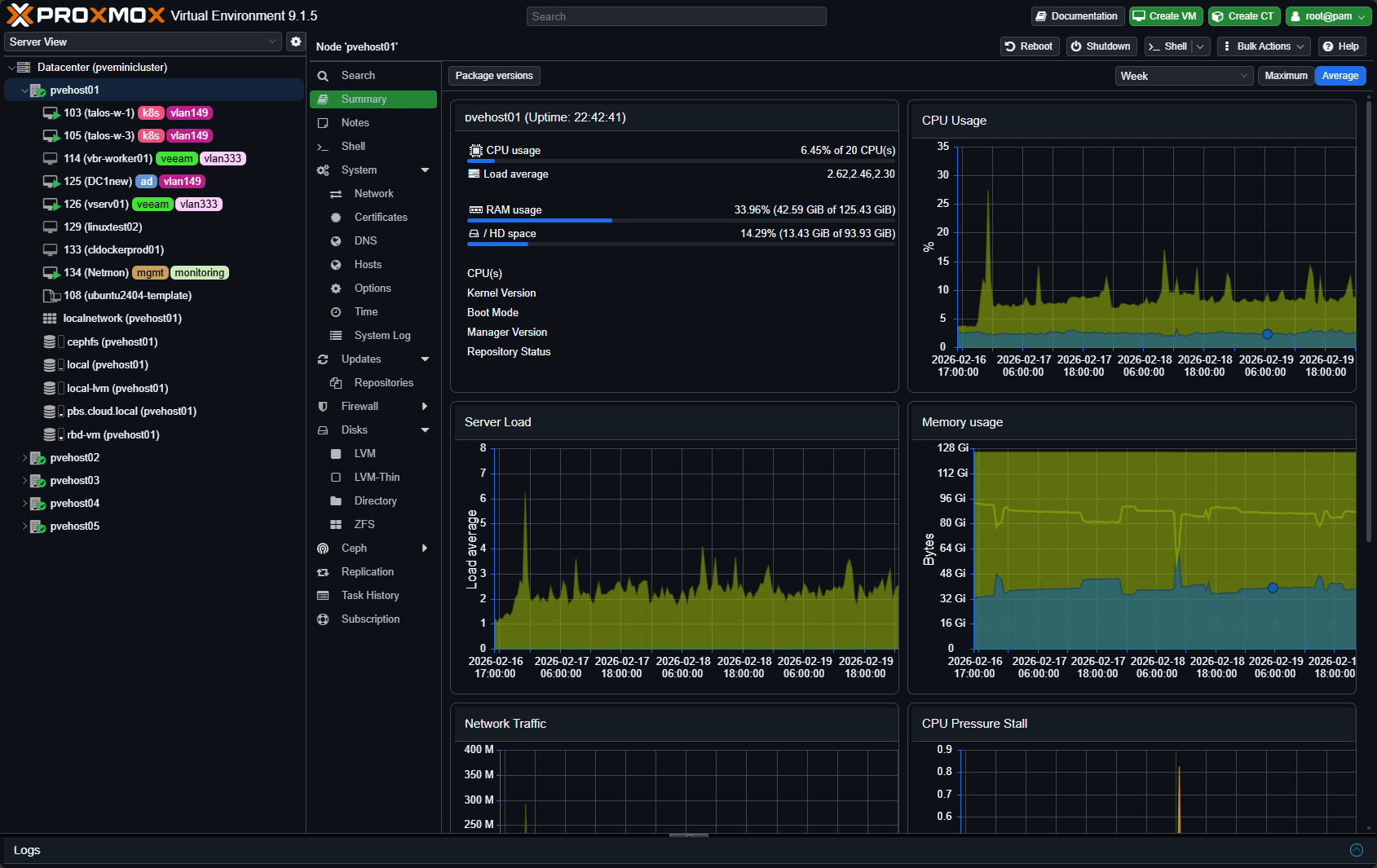
I also like the Dracula Proxmorph theme. This one is very similar to arguably one of the most popular VS Code themes, Dracula. It gives you very cool looking accents in the Proxmox web UI and helps some of the visuals to pop better than the stock visuals in the web UI.
Wrapping up
Do projects like these make your server faster? No. Do they make your home lab more fun? Yes they do! I think this is the very essence of home labbing. Trying out new visuals, tools, and other projects that we wouldn’t get to do for production environments.
I didn’t think before I tried to customize Proxmox web UI that slightly changing it would make a difference in how I felt about the management UI experience. But after trying it, I can say that it does. Even these subtle changes can make a huge difference in day-to-day management and in helping to reduce eye strain from long management sessions. I like the even darker contrasts with some of the themes over the stock dark mode theme that comes with the modern versions of Proxmox. How about you? Have you tried this project out? Have you manually tweaked the look and feel of Proxmox? Let me know in the comments.

Google is updating how articles are shown. Don’t miss our leading home lab and tech content, written by humans, by setting Virtualization Howto as a preferred source.
About The Author