



If you are stuck on another hypervisor at the moment and would like to get over to Proxmox VE Server as your virtualization platform, there is a way that you can get up to speed with Proxmox VE Server skills quickly and easily. In fact, you don’t need any extra hardware, or other resources outside of a Docker host. Did you know that you can run Proxmox inside of Docker? At first, this sounds absolutely wrong, but this weekend project is not about replacing bare metal Proxmox for your “production” home lab workloads, but rather it is about having a disposable and easily recreatable Proxmox environment that you can learn and experiment with clustering. Let’s take a look at how to run Proxmox in Docker and getting this spun up.
Why this is a great approach to learning Proxmox
Learning Proxmox the old fashioned way normally takes extra hardware like extra mini PCs. Now, I know what you are saying as well, you can learn Proxmox using nested virtualization which I have written about before. But honestly, this also can be a little cumbersome by the time you create your VMs, enable nested virtualization, install Proxmox, and get everything setup.
To compare the process, check out my post on nested Proxmox for learning: How to Enable Proxmox Nested Virtualization.
We all know how quick and easy it is to spin up containers in our home labs. Imagine being able to create fast, disposable Proxmox environments where you can experiment with clustering, quorum, node failures, and HA behavior and breaking things without worrying so much about recreating them.
The project that makes this possible is containerized-proxmox. And, I think it will be one of the most beneficial learning tools for learning Proxmox currently out there. You can check out the official GitHub site here:
How does this work?
Well the idea is pretty simple actually. The containerized-proxmox packages a working Proxmox VE environment inside a privileged Docker container. Inside each container, it runs Proxmox services and exposes the same familiar ports that we admin Proxmox with, port 8006. So when you launch the UI, it feels just like a real Proxmox node.
If you run these on the same Docker host, the Docker Compose code as you will see below, forwards sequential ports for each host so that you can run all three hosts on the same Docker host if you want.
The really cool thing is this is not a simulation or just a mock up of Proxmox, this is an actual Proxmox installation that gives you the Proxmox UI, APIs, and clustering capabilities. The only difference is that you are running the nodes as containers instead of physical machines or virtual machines.
Installation using Docker Compose
Most will probably want to spin up multiple nodes for playing around with clustering and other multi-node scenarios. To do that, check out the Docker compose code below if you are using a true Linux Docker host (if using a Windows Docker Desktop setup, see the code following this section):
services:
  pve-1:
    image: ghcr.io/longqt-sea/proxmox-ve
    container_name: pve-1
    hostname: pve-1
    privileged: true
    restart: unless-stopped
    cgroup: host
    ports:
      - "2222:22"
      - "3128:3128"
      - "8006:8006"   # First node Web GUI is listening on 8006
    networks:
      - dual_stack
    volumes:
      - /sys/fs/cgroup:/sys/fs/cgroup
      - /usr/lib/modules:/usr/lib/modules:ro
      - /sys/kernel/security:/sys/kernel/security
      - ./VM-Backup:/var/lib/vz/dump
      - ./ISOs:/var/lib/vz/template/iso  # Replace ./ISOs with the path to your ISO folder

  pve-2:
    image: ghcr.io/longqt-sea/proxmox-ve
    container_name: pve-2
    hostname: pve-2
    privileged: true
    restart: unless-stopped
    cgroup: host
    ports:
      - "2223:22"
      - "3129:3128"
      - "8007:8006"   # Second node Web GUI is listening on 8007
    networks:
      - dual_stack
    volumes:
      - /sys/fs/cgroup:/sys/fs/cgroup
      - /usr/lib/modules:/usr/lib/modules:ro
      - /sys/kernel/security:/sys/kernel/security
      - ./VM-Backup:/var/lib/vz/dump
      - ./ISOs:/var/lib/vz/template/iso  # Replace ./ISOs with the path to your ISO folder

  pve-3:
    image: ghcr.io/longqt-sea/proxmox-ve
    container_name: pve-3
    hostname: pve-3
    privileged: true
    restart: unless-stopped
    cgroup: host
    ports:
      - "2224:22"
      - "3130:3128"
      - "8008:8006"   # Third node Web GUI is listening on 8008
    networks:
      - dual_stack
    volumes:
      - /sys/fs/cgroup:/sys/fs/cgroup
      - /usr/lib/modules:/usr/lib/modules:ro
      - /sys/kernel/security:/sys/kernel/security
      - ./VM-Backup:/var/lib/vz/dump
      - ./ISOs:/var/lib/vz/template/iso  # Replace ./ISOs with the path to your ISO folder

networks:
  dual_stack:
    enable_ipv6: true
    driver: bridge
    ipam:
      config:
        - subnet: fd00::/48
I did find that if you are running this on a Windows machine with Docker Desktop, you need to take out this line:
- /sys/kernel/security:/sys/kernel/securityIf you don’t, you will see this error when you bring up the containers:
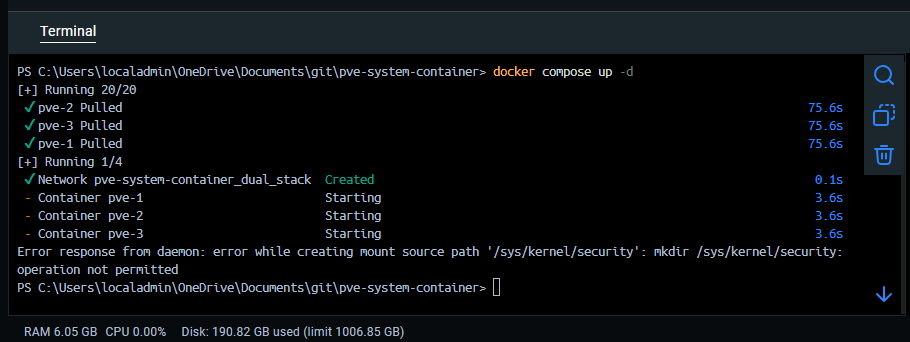
So your compose code for Docker Desktop on Windows will be:
services:
  pve-1:
    image: ghcr.io/longqt-sea/proxmox-ve
    container_name: pve-1
    hostname: pve-1
    privileged: true
    restart: unless-stopped
    cgroup: host
    ports:
      - "2222:22"
      - "3128:3128"
      - "8006:8006"   # First node Web GUI is listening on 8006
    networks:
      - dual_stack
    volumes:
      - /sys/fs/cgroup:/sys/fs/cgroup
      - /usr/lib/modules:/usr/lib/modules:ro
      - ./VM-Backup:/var/lib/vz/dump
      - ./ISOs:/var/lib/vz/template/iso  # Replace ./ISOs with the path to your ISO folder

  pve-2:
    image: ghcr.io/longqt-sea/proxmox-ve
    container_name: pve-2
    hostname: pve-2
    privileged: true
    restart: unless-stopped
    cgroup: host
    ports:
      - "2223:22"
      - "3129:3128"
      - "8007:8006"   # Second node Web GUI is listening on 8007
    networks:
      - dual_stack
    volumes:
      - /sys/fs/cgroup:/sys/fs/cgroup
      - /usr/lib/modules:/usr/lib/modules:ro
      - ./VM-Backup:/var/lib/vz/dump
      - ./ISOs:/var/lib/vz/template/iso  # Replace ./ISOs with the path to your ISO folder

  pve-3:
    image: ghcr.io/longqt-sea/proxmox-ve
    container_name: pve-3
    hostname: pve-3
    privileged: true
    restart: unless-stopped
    cgroup: host
    ports:
      - "2224:22"
      - "3130:3128"
      - "8008:8006"   # Third node Web GUI is listening on 8008
    networks:
      - dual_stack
    volumes:
      - /sys/fs/cgroup:/sys/fs/cgroup
      - /usr/lib/modules:/usr/lib/modules:ro
      - ./VM-Backup:/var/lib/vz/dump
      - ./ISOs:/var/lib/vz/template/iso  # Replace ./ISOs with the path to your ISO folder

networks:
  dual_stack:
    enable_ipv6: true
    driver: bridge
    ipam:
      config:
        - subnet: fd00::/48
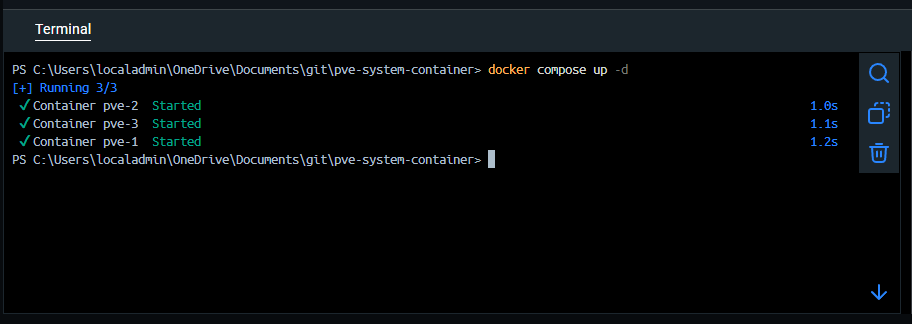
After you have your Docker compose in place, just run a docker compose up command:
docker compose up -d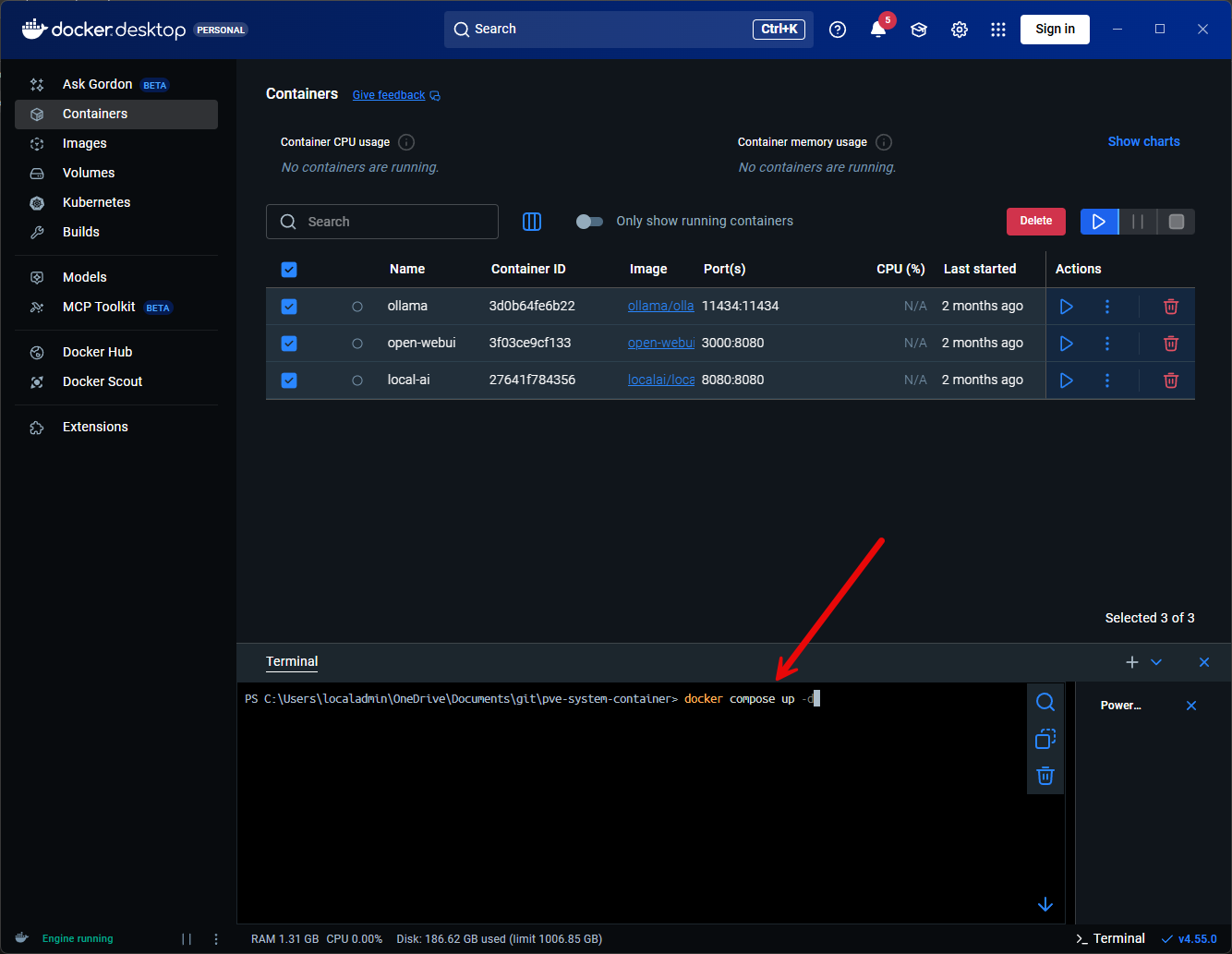
The container image for Proxmox VE is around 1.22 GB during the pull:
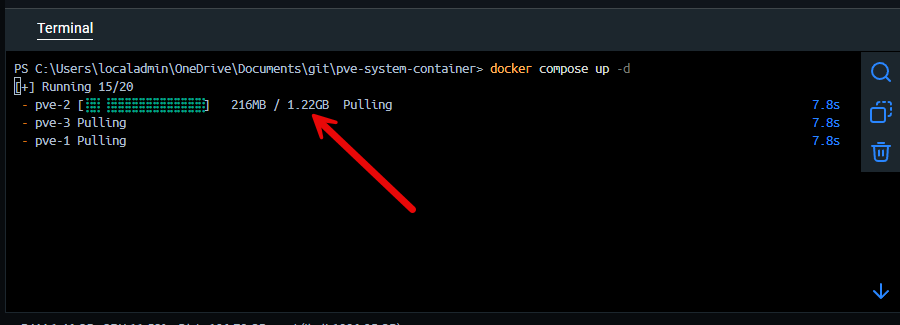
After the containers have spun up:
Change your password for the Proxmox instances and restart
There is a step you need to do after you spin up the three containers and that is to set the root password for the Proxmox instances. To do that, use the following:
docker exec -it pve-1 passwd
docker exec -it pve-2 passwd
docker exec -it pve-3 passwd
Then restart your containers:
docker restart pve-1 pve-2 pve-3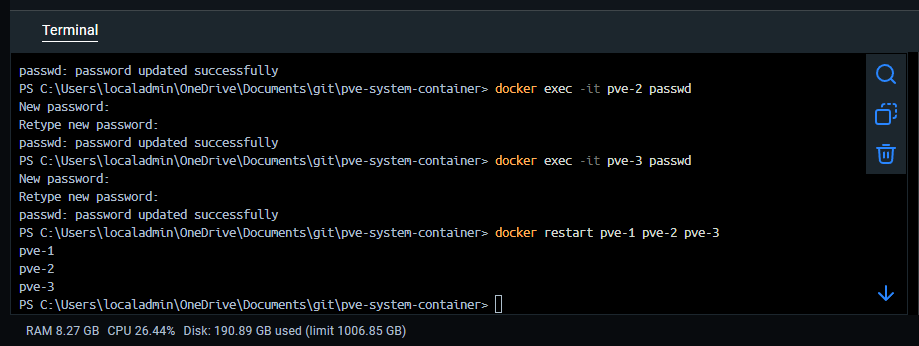
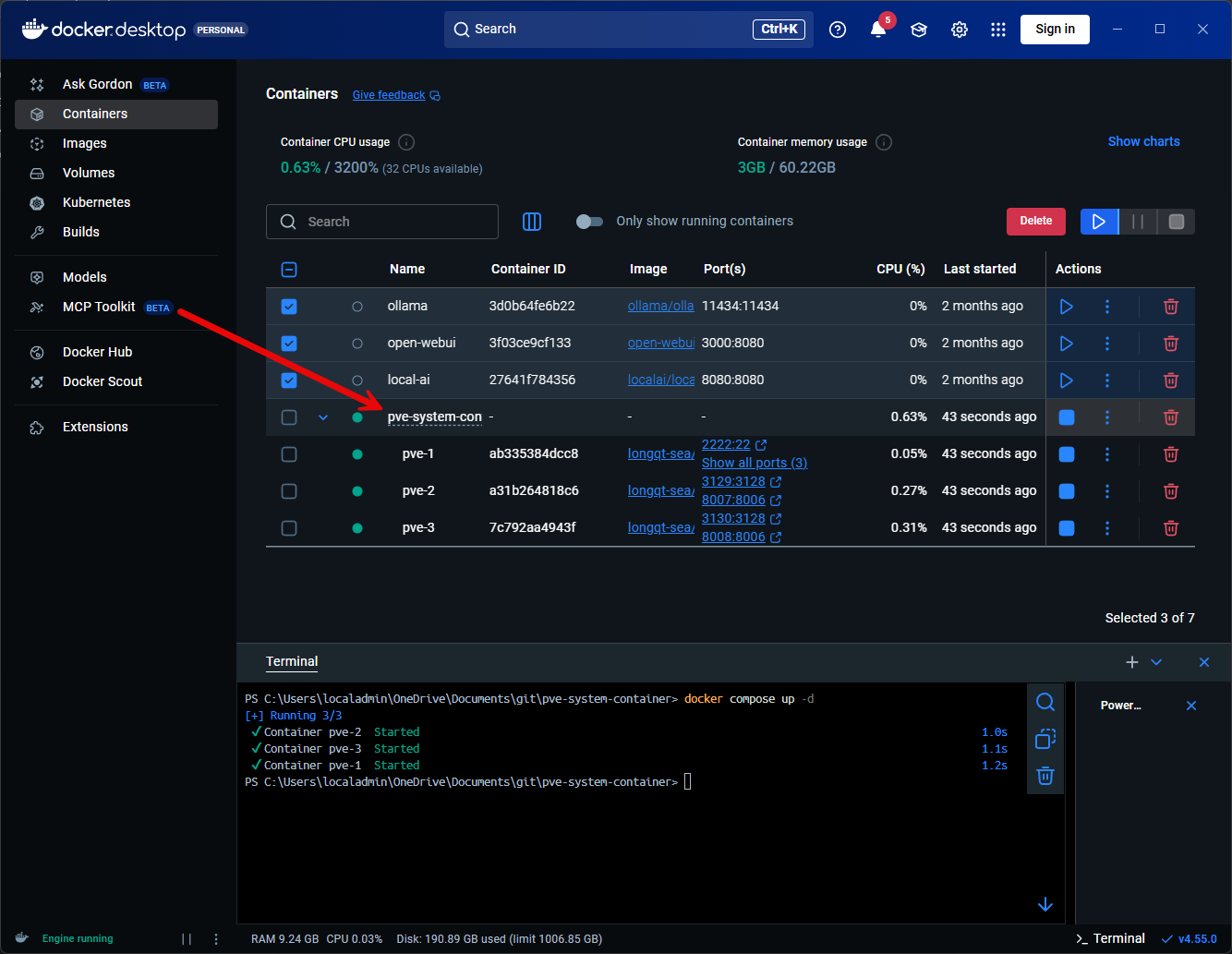
After the containers are spun up, we can see these in Docker Desktop along with the ports configured.
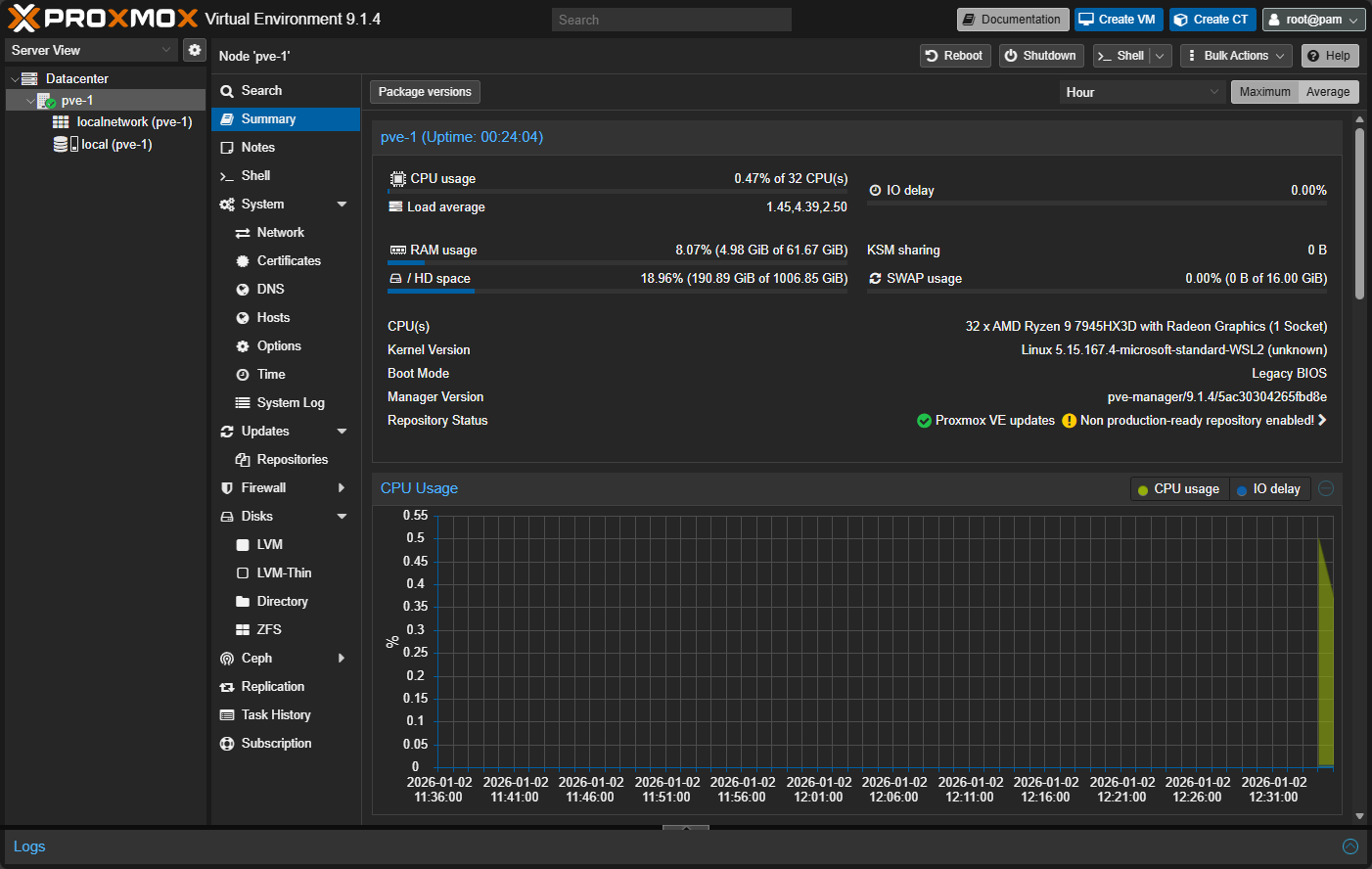
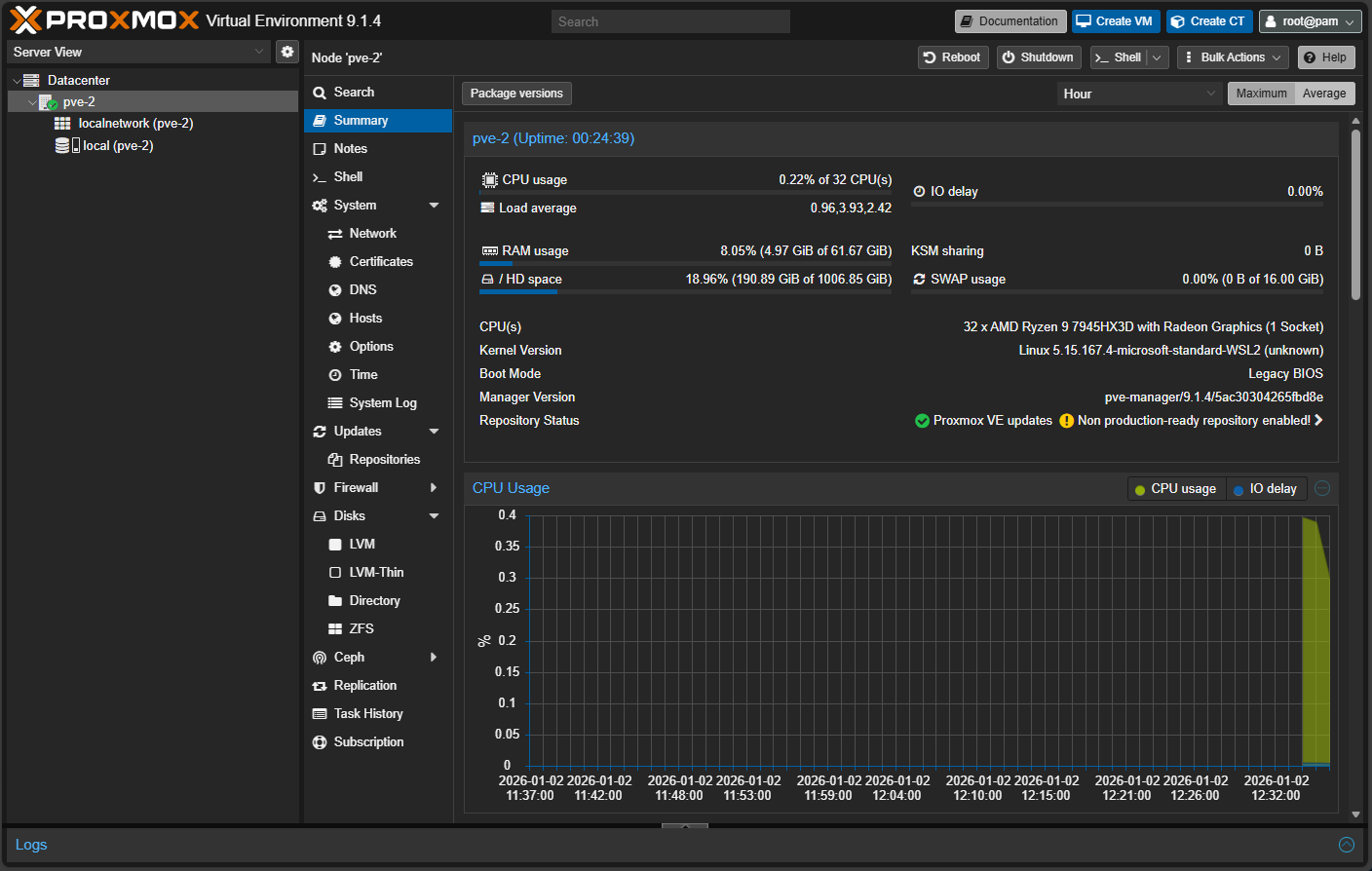
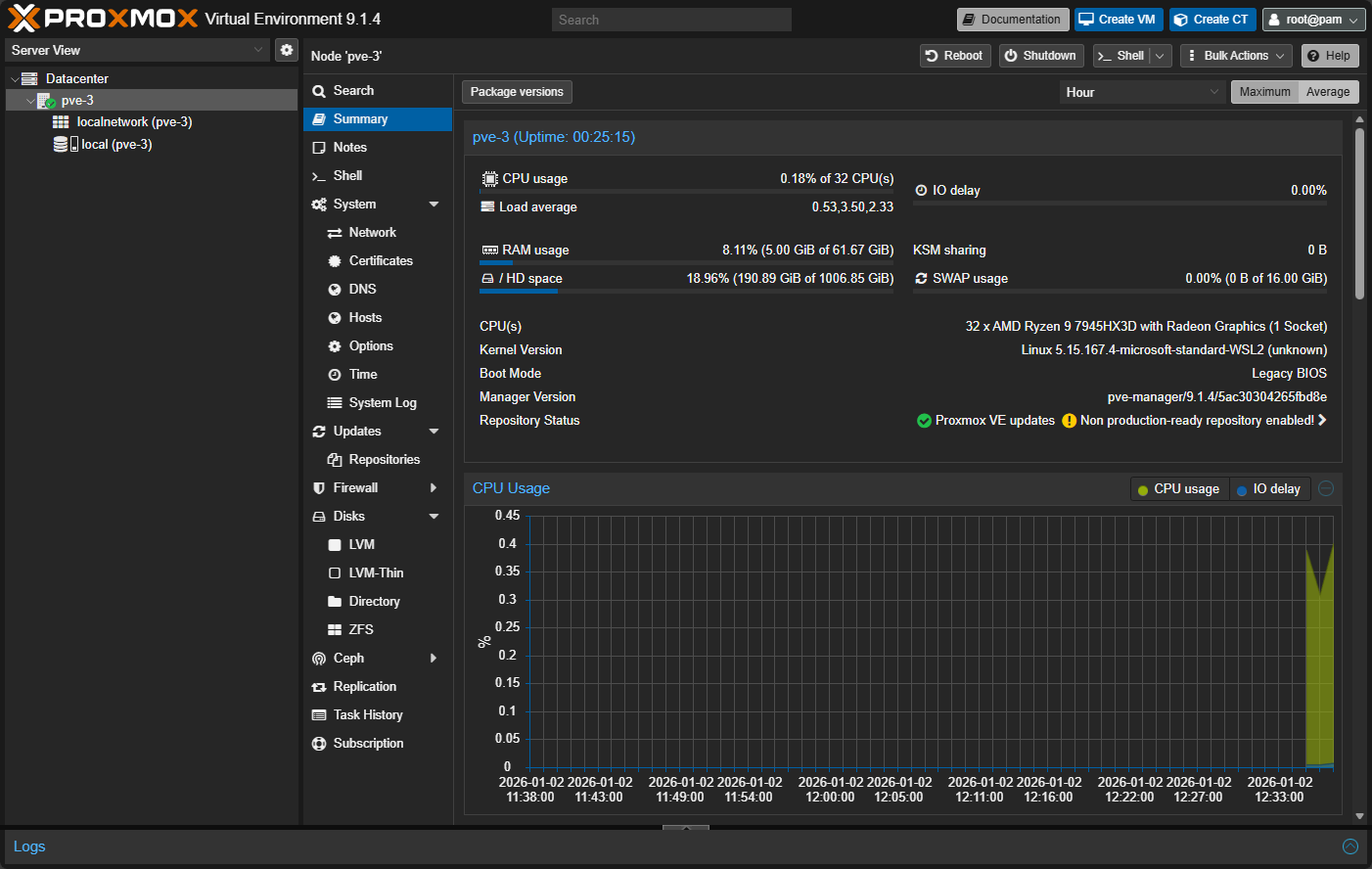
After getting the containers up and running, I was able to connect up to the ports 8006 (pve-1), 8007 (pve-2), and 8008 (pve-3).
And, the next pve-2 host:
Finally, the pve-3 host:
Networking
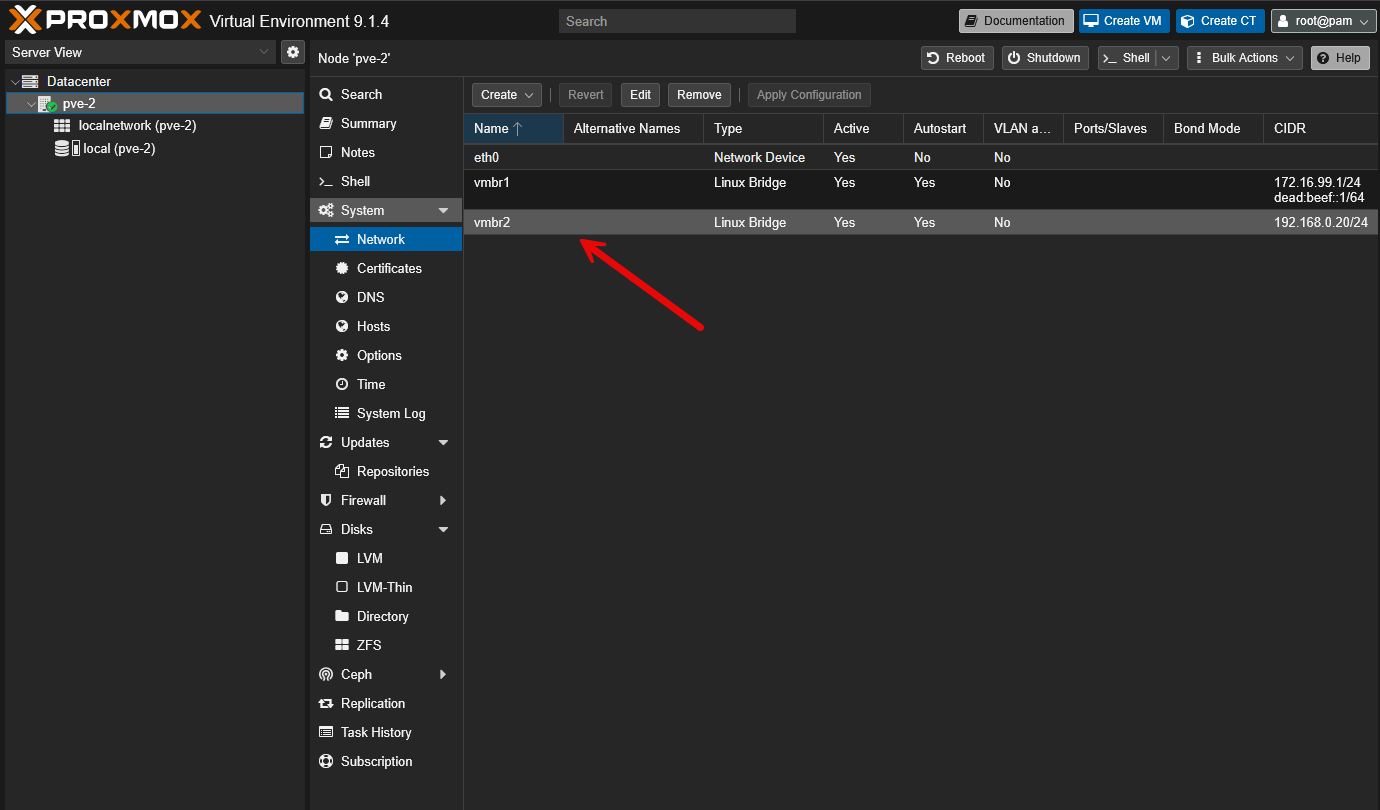
You will notice that the PVE containers will come out of the box with two network connections. Those are:
- vmbr1 – NAT network for VM and LXC, this one works out of the box without any configuration
- vmbr2 – Empty bridge, configure it yourself, maybe with macvlan, veth or passthrough a physical NIC
Connecting Proxmox running in Docker to Proxmox Datacenter Manager
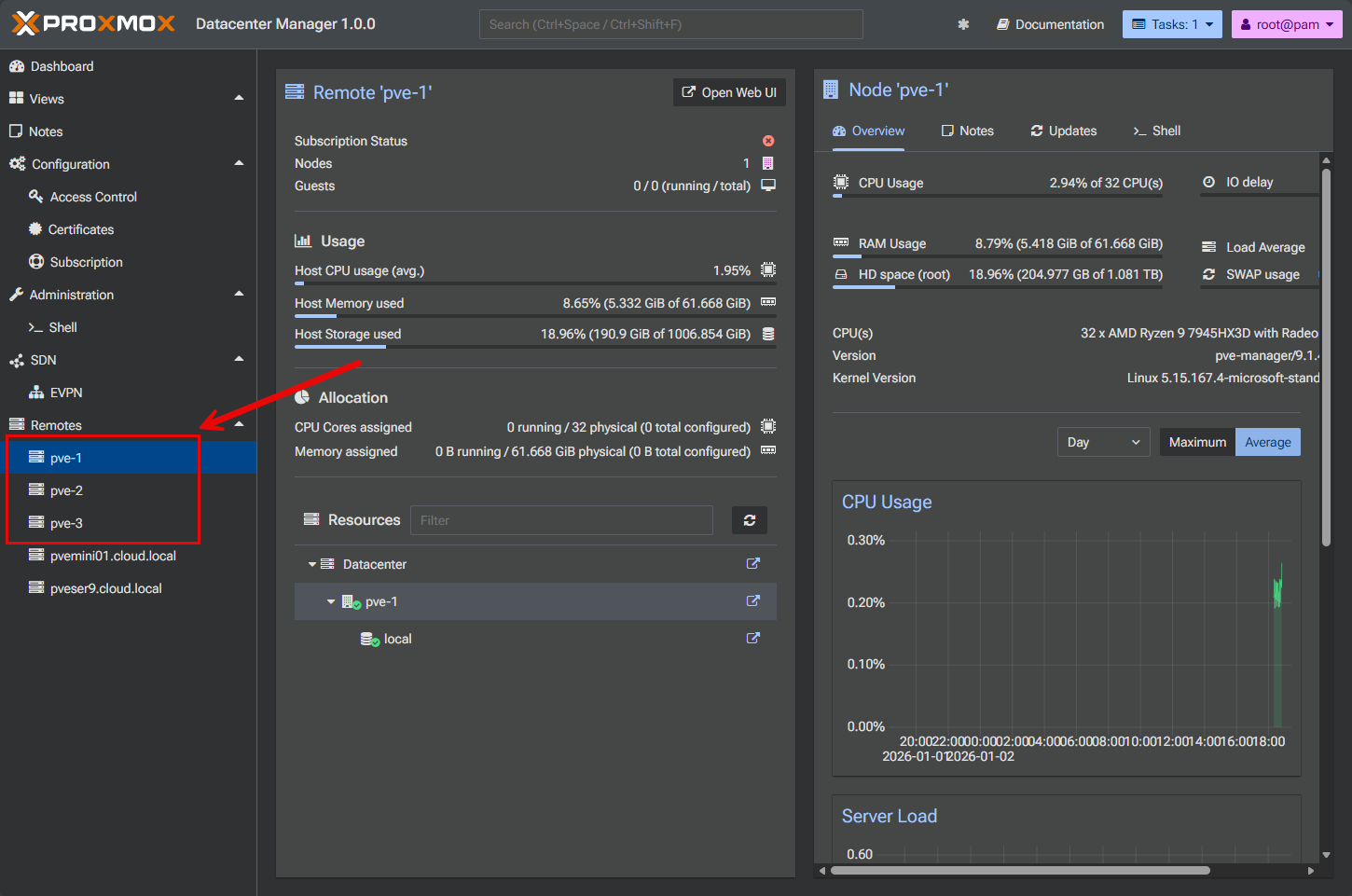
One of the cool things you can do to start learning clustering and Proxmox Datacenter Manager is connecting your Docker PVE nodes into PDM. This process works the same as adding any other Proxmox host. You just point PDM to the IP and port of your PVE Docker nodes and then add them using your credentials.
Use cases and what you can learn from this setup
I can think of a lot of use cases for being able to spin up Proxmox VE Server environments up quickly and easily. I think running Proxmox in Docker will allow ones to be able to spin up Proxmox nodes that can accomplish the following:
- Learning about Proxmox and Proxmox clustering
- Learning about Proxmox networking
- Having a throw-away environment for development
- Developing against real Proxmox API endpoints
- Testing out infrastructure as code automation solutions and projects
- Trying out new features of the latest versions of Proxmox quickly
- Documentation and screenshots
- Also would be great to have for cybersecurity testing and breaking things on purpose
- Firewall testing
- Customizations that you want to implement in production
These are just a quick list of things that I can think of in just a few minutes but there are no doubt many others that would be useful for something like this.
Limitations to running Proxmox in Docker
This type of project I think is incredibly useful for testing things out and using it as a tool as we mentioned above for very specific use cases. Just keep in mind that this is not meant to be used in production to run actual workloads of any kind. So, understand the boundaries of its intended purpose.
Also, know that performance is not going to be the same as it would be running Proxmox on bare metal. Hardware passthrough is going to be limited. You are going to have an additional layer of abstraction with your networking and will probably not be representative of the physical networking for bare metal Proxmox hosts.
Note the following comparison of limitations, etc:
| Proxmox in Docker | Limitation | Why It Happens | Impact on Learning |
|---|---|---|---|
| Production ready? | No | Proxmox expects bare metal or full virtualization, not containers | None. This is a lab and learning tool by design |
| Performance | Lower than bare metal Proxmox | Extra abstraction layers from Docker and the host OS | Minimal. Concepts and workflows remain the same |
| Hardware passthrough | Limited | Can passthrough PCI devices but you may run into hurdles | No impact for clustering, HA, or UI-based learning |
| Networking realism | Not necessarily representative of physical networks | Docker networking abstracts VLANs, bridges, and routing | Acceptable for learning cluster behavior and node communication |
| Storage behavior | Simplified compared to real physical disks | Uses container storage layers and bind mounts | Still useful for understanding Proxmox storage concepts |
| Kernel interaction | Depends on host kernel behavior | Proxmox services assume full Linux host control | Mostly invisible unless testing edge cases |
| HA failover realism | Logical, not performance-accurate | Failures will be simulated by stopping containers | Excellent playground for understanding HA logic and quorum rules |
I think though none of those reasons above will diminish the learning value of something like this. Having your hands on quick and easy Proxmox test environments is going to be a great resource that we can all have in our home labs and in testing/troubleshooting/planning/engineering, etc.
Wrapping up
The ability to run Proxmox in Docker containers I think is going to help reshape how ones can approach learning Proxmox. Instead of having Proxmox clusters that are fragile and intimidating, with containers, they are easy to spin up, tear down, recreate, and provision anytime you need them. As a weekend home lab project, that is exactly what you want to be able to do. If clustering and HA are areas you have avoided in the past with Proxmox due to not having enough hardware or just not having the time to spin up VMs for your Proxmox nodes, this can be another means to do that. How about you? Have you tried this project before? What kinds of projects or use cases do you see may be possible with something like this?

Google is updating how articles are shown. Don’t miss our leading home lab and tech content, written by humans, by setting Virtualization Howto as a preferred source.
About The Author



I love those long articles targeted to advanced users. We’re lacking articles like this these days when every other place talks about “a new phone is launched” or “See this new Linux distro”. 100%!
Eduardo,
Thank you so much for the kind words. I love sharing stuff like this with the community and glad it is striking a chord with readers. Thank you again!
Brandon
Hi Brandon,
I think for the next weekend, you can add Datacenter Manager in the stack… 🤣
But Proxmox in Docker is definitively something I will play with, thanks for sharing.
Franck,
You are reading my mind 🤣Post is forthcoming!
Brandon
By searching on the github, I found it there before your next article! 😁
Wow! Love it! watch out the Addiction to Containerization. We are not far away to see Proxmox running under K3s or K8s 😛
Panagiotis,
Very true! The addiction is real to containerization!
Brandon
Hi Brandon,
I’ve tested the whole and already came back to the project leader.
What I miss for now is data persistence.
Once you delete your containers, everything is gone!
You can start all over again (password, clusters, etc…)
Which IMHO is really an issue if you want to achieve complex configuration and do deep dives.
But it is really a cool project, hopefully the guy can configure that soon 😊
Franck,
I have noticed the same and glad you have approached the project owner about this. Definitely needs data persistence for being more useful in the lab. I thought this was a byproduct of my testing in Docker Desktop. However, later saw this as well on a Linux Docker host. Still as you mention, very cool project and lots of benefits.
Brandon
how to pass tpm in this container to run windows 11
When trying to run this (using the Compose Manager Plus plugin), you still have to comment out ‘- /sys/kernel/security:/sys/kernel/security’ as that path doesn’t exist on Unraid 7.2.4 (what I run and test on).