



I am constantly on the lookout for great tools that help to do things easier in the home lab environment and production than what I am doing currently. In doing so, I stumbled on an open-source project that I wanted to share with everyone that makes having a really awesome syslog server fairly easy to stand up and have a really great modern interface that looks like a modern cloud solution. In the home lab, I have used Loki and other solutions for quite some time, but we will see why Logward is the lightweight syslog server for home labs that you need in 2025
What is Logward?
Logward is an open-source log collector and viewer designed to make log management simple for small environments like home labs and can be self-hosted. It also is geared towards production environments as well as the developer has a SaaS version that is actually free at this time in its alpha form. It is built to centralize logs from your containers, VMs, servers, and network services into one dashboard without the overhead of a large logging stack.

If you have ever tried to configure an ELK stack or something similar it is not for the faint of heart and is a heavy weight deployment in most cases. Loki can be a bear to stand up as well. This is where Logward shines I think, even in its early stages. If you want to collect logs and funnel everything into the clean Logward UI, it allows you to do this with a very standard approach:
- Fluent Bit (the recommendation and what is included)
- Vector.dev (alternative)
- Filebeat (alternative)
- rsyslog (for syslog forwarding)
- Direct API calls (for application-level logging)
The idea is pretty simple, you run the Logward stack, including Fluent Bit, and then forward logs into the solution or make direct API calls to send application-level logging.
Link to the GitHub repo: logward-dev/logward
Sigma rule support in Logward
One of the really cool advanced features provided by Logward is its ability to support Sigma rules. Sigma is a community driven and vendor neutral format for log detection rules. It can allow you to define alerts and detection logic in simple YAML syntax that works across many different log sources and platforms.
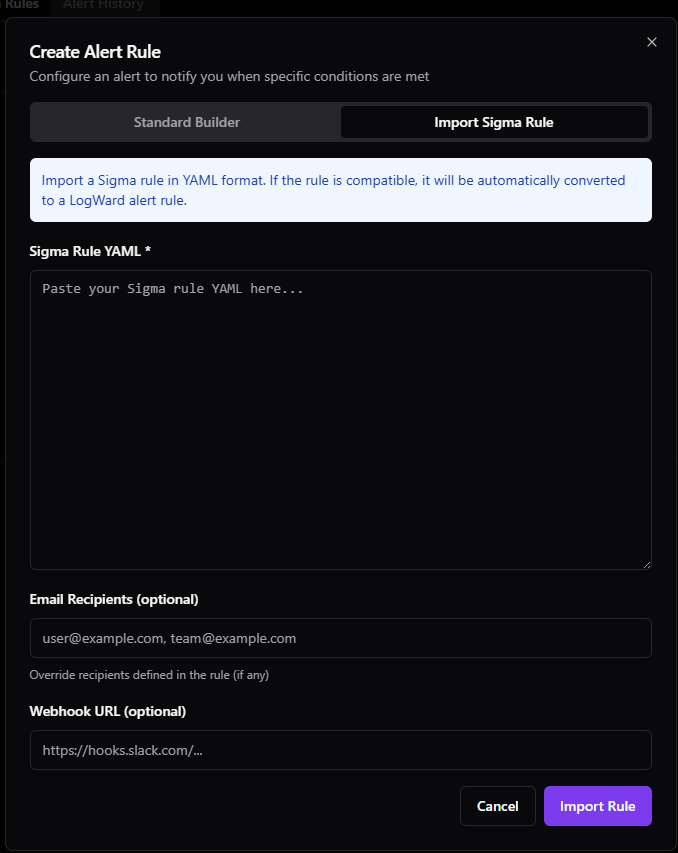
Since it supports the format, Logward can parse these rules and match them against incoming logs to highlight things that may be important. If you want to have a lightweight way to have visibility into your home lab without runing something like a full SIEM solution, you can use the Sigma functionality. it allows you to detect things like authentication issues, suspicious shell activity, failed SSH logins, Docker anomalies, and other network events.
Logward alerting capabilities
We have already mentioned this, but it has an alerting engine built in. Most syslog servers may only have collection abilities as part of what they can do. However, Logward can give home lab users real-time notifications when something unusual happens in their environment.
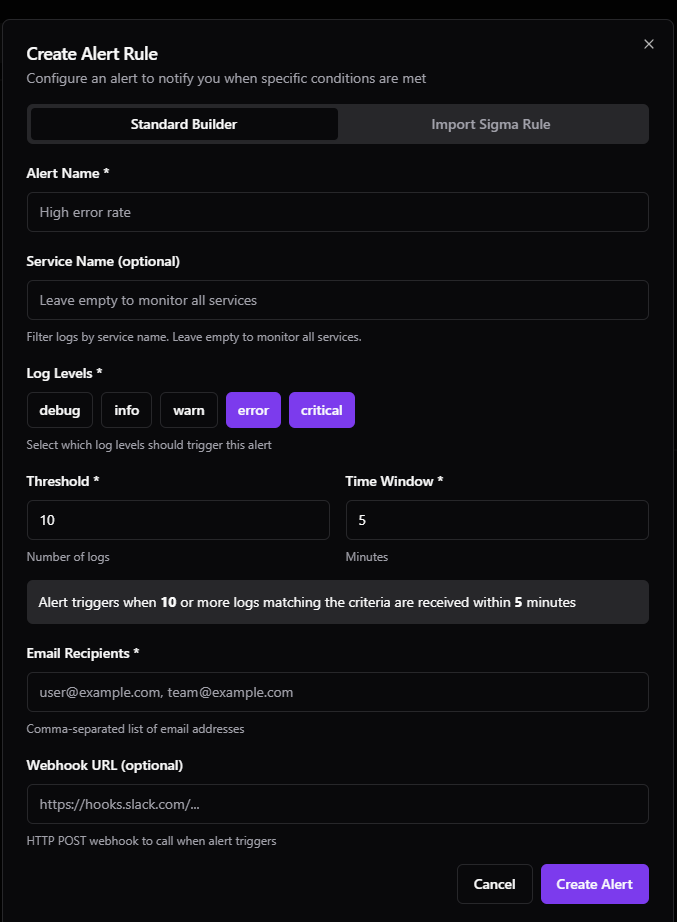
Deploy Logward (Quickstart)
The Logward project has an install.sh script that will stand up the environment and run all the Docker Compose, etc.
# Clone the repository
git clone https://github.com/logward-dev/logward.git
cd logward

# Run the installer
chmod +x install.sh
./install.sh
When you install it this way, it will do the following:
- Check Docker and Docker Compose installation
- Verify required ports (5432, 6379, 8080, 3000)
- Generate secure random passwords (32 characters)
- Create
docker/.envconfiguration file - Pull and build Docker images
- Run database migrations automatically
- Start all services (PostgreSQL, Redis, Backend, Worker, Frontend)
- Perform health checks and display access URLs
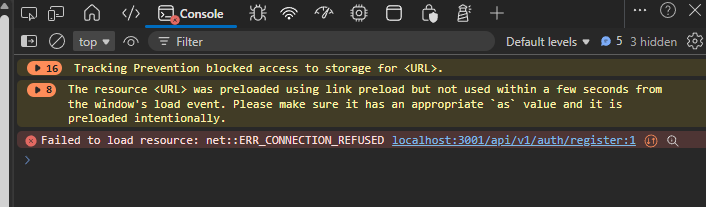
For me the script worked fine. However, I noticed that I received errors when creating my account in the first visit to the dashboard. The default configuration was pointing the frontend container to the “localhost” address for the backend API. I may have missed a step in the documentation honestly, but didn’t see where this was the case.
Manually spinning things up
I then killed the containers from the install.sh script and went the manual route using the docker-compose.test.yml file and also spinning up four other files: extract_container_id.lua, fluent-bit.conf, map_syslog_level.lua, parsers.conf, wrap_logs.lua. The files include configuration to setup a SYSLOG listener for fluent-bit on port 514 which is the standard SYSLOG port.
I made several modifications to be specific to my homelab test environment, such as bind mounts and also API key for Fluent Bit. Below, I am pasting what I used as this will hopefully shortcut this process if you want to use my compose file and replace values specific to your environment.
I just used the defaults on passwords that are in that file, so definitely not production ready, just for testing. Also, keep in mind that the API key that I have bolded in the configuration below is needed so you will have to build the stack first and get into the solution to get the API key and then put in the docker compose below. Then the fluent-bit container will be able to talk to the solution.
docker-compose.yml
services:
  postgres-test:
    image: timescale/timescaledb:latest-pg16
    container_name: logward-postgres-test
    environment:
      POSTGRES_DB: logward_test
      POSTGRES_USER: logward_test
      POSTGRES_PASSWORD: test_password
    ports:
      - "5433:5432"
    volumes:
      - /home/linuxadmin/homelabservices/logward/postgres-data:/var/lib/postgresql/data
    healthcheck:
      test: [ "CMD-SHELL", "pg_isready -U logward_test" ]
      interval: 5s
      timeout: 3s
      retries: 5
    networks:
      - logward-test-network

  redis-test:
    image: redis:7-alpine
    container_name: logward-redis-test
    command: redis-server --requirepass test_password
    ports:
      - "6380:6379"
    volumes:
      - /home/linuxadmin/homelabservices/logward/redis-data:/data
    healthcheck:
      test: [ "CMD", "redis-cli", "-a", "test_password", "ping" ]
      interval: 5s
      timeout: 3s
      retries: 5
    networks:
      - logward-test-network

  mailhog-test:
    image: mailhog/mailhog:latest
    container_name: logward-mailhog-test
    ports:
      - "1025:1025" # SMTP
      - "8025:8025" # API/UI
    networks:
      - logward-test-network

  # Frontend for E2E testing
  frontend-test:
    build:
      context: .
      dockerfile: packages/frontend/Dockerfile
      args:
        PUBLIC_API_URL: http://10.1.149.31:3001
    container_name: logward-frontend-test
    environment:
      NODE_ENV: production
      PORT: 3000
      HOST: 0.0.0.0
      PUBLIC_API_URL: http://10.1.149.31:3001
      ORIGIN: http://10.1.149.31:3002
    ports:
      - "3002:3000"
    depends_on:
      backend-test:
        condition: service_healthy
    healthcheck:
      test: [ "CMD", "node", "-e", "require('http').get('http://localhost:3000/', (r) => r.statusCode === 200 ? process.exit(0) : process.exit(1))" ]
      interval: 10s
      timeout: 5s
      retries: 10
      start_period: 30s
    networks:
      - logward-test-network

  # Backend for E2E and load testing
  backend-test:
    build:
      context: .
      dockerfile: packages/backend/Dockerfile
    container_name: logward-backend-test
    environment:
      NODE_ENV: test
      PORT: 8080
      DATABASE_URL: postgresql://logward_test:test_password@postgres-test:5432/logward_test
      DATABASE_HOST: postgres-test
      DB_USER: logward_test
      REDIS_URL: redis://:test_password@redis-test:6379
      API_KEY_SECRET: test_secret_key_32_chars_long!!!
      SMTP_HOST: mailhog-test
      SMTP_PORT: 1025
      SMTP_USER: ""
      SMTP_PASS: ""
      SMTP_FROM: [email protected]
      # Higher rate limits for load testing (100 req/s = 6000/min, use 100000 for safety)
      RATE_LIMIT_MAX: 100000
      RATE_LIMIT_WINDOW: 60000
      # Higher auth rate limits for E2E testing (many user registrations)
      AUTH_RATE_LIMIT_REGISTER: 10000
      AUTH_RATE_LIMIT_LOGIN: 10000
      AUTH_RATE_LIMIT_WINDOW: 60000
    ports:
      - "3001:8080"
    depends_on:
      postgres-test:
        condition: service_healthy
      redis-test:
        condition: service_healthy
    healthcheck:
      test: [ "CMD", "node", "-e", "require('http').get('http://localhost:8080/health', (r) => r.statusCode === 200 ? process.exit(0) : process.exit(1))" ]
      interval: 10s
      timeout: 5s
      retries: 10
      start_period: 30s
    networks:
      - logward-test-network

  # Fluent Bit for log collection (Docker logs + Syslog)
  fluent-bit-test:
    image: fluent/fluent-bit:latest
    container_name: logward-fluent-bit-test
    ports:
      - "514:514/udp"  # Syslog UDP (Proxmox, ESXi, firewalls, etc.)
      - "514:514/tcp"  # Syslog TCP (more reliable option)
    volumes:
      # Fluent Bit configuration files
      - ./fluent-bit.conf:/fluent-bit/etc/fluent-bit.conf:ro
      - ./parsers.conf:/fluent-bit/etc/parsers.conf:ro
      # Lua scripts for log processing
      - ./extract_container_id.lua:/fluent-bit/etc/extract_container_id.lua:ro
      - ./map_syslog_level.lua:/fluent-bit/etc/map_syslog_level.lua:ro
      # Docker container logs access
      - /var/lib/docker/containers:/var/lib/docker/containers:ro
      - /var/run/docker.sock:/var/run/docker.sock:ro
    environment:
      # API key for LogWard authentication
      LOGWARD_API_KEY: <put your API key here>
      # Backend hostname (internal Docker network)
      LOGWARD_API_HOST: backend-test
    depends_on:
      backend-test:
        condition: service_healthy
    restart: unless-stopped
    networks:
      - logward-test-network

networks:
  logward-test-network:
    driver: bridge
extract_container_id.lua
-- Extract container ID from Docker log filepath
-- Path format: /var/lib/docker/containers/CONTAINER_ID/CONTAINER_ID-json.log

function extract_container_id(tag, timestamp, record)
    -- Get the filepath from the record
    local filepath = record["filepath"]

    if filepath then
        -- Extract container ID from path
        -- Pattern: /var/lib/docker/containers/CONTAINER_ID/...
        local container_id = filepath:match("/var/lib/docker/containers/([^/]+)/")

        if container_id then
            -- Add container_id to the record
            record["container_id"] = container_id
            -- Add short ID (first 12 chars, like docker ps shows)
            record["container_short_id"] = container_id:sub(1, 12)
        end
    end

    -- Return modified record
    -- Return code: -1 (drop), 0 (keep), 1 (modified)
    return 1, timestamp, record
end
fluent-bit.conf
# Fluent Bit Configuration for LogWard
# This configuration collects Docker container logs AND syslog and sends them to LogWard

[SERVICE]
    # Flush logs every 5 seconds
    Flush        5
    # Run in foreground
    Daemon       Off
    # Log level (error, warning, info, debug, trace)
    Log_Level    info
    # Parsers configuration file
    Parsers_File /fluent-bit/etc/parsers.conf

# =============================================================================
# INPUT - Docker Container Logs
# =============================================================================
# Collect logs from all Docker containers
[INPUT]
    Name              tail
    Path              /var/lib/docker/containers/*/*.log
    Parser            docker
    Tag               docker.*
    Refresh_Interval  5
    Mem_Buf_Limit     5MB
    Skip_Long_Lines   On
    Path_Key          filepath

# =============================================================================
# INPUT - Syslog (UDP)
# =============================================================================
# Receive syslog messages on UDP port 514 (Proxmox, ESXi, firewalls, etc.)
[INPUT]
    Name        syslog
    Parser      syslog-rfc3164
    Listen      0.0.0.0
    Port        514
    Mode        udp
    Tag         syslog.udp

# =============================================================================
# INPUT - Syslog (TCP)
# =============================================================================
# Receive syslog messages on TCP port 514 (more reliable)
[INPUT]
    Name        syslog
    Parser      syslog-rfc3164
    Listen      0.0.0.0
    Port        514
    Mode        tcp
    Tag         syslog.tcp

# =============================================================================
# FILTER - Docker Logs - Parse and Enrich
# =============================================================================
# Extract container metadata (name, id, image)
[FILTER]
    Name                parser
    Match               docker.*
    Key_Name            log
    Parser              docker_json
    Reserve_Data        On
    Preserve_Key        On

# Extract container ID from filepath using Lua
[FILTER]
    Name                lua
    Match               docker.*
    script              /fluent-bit/etc/extract_container_id.lua
    call                extract_container_id

# Add required fields for LogWard API
[FILTER]
    Name                modify
    Match               docker.*
    # Set default level if not present
    Add                 level info
    # Rename 'log' field to 'message'
    Rename              log message
    # Set service name from container_name or use container_short_id
    Copy                container_name service

# Remove unnecessary fields to reduce log size
[FILTER]
    Name                record_modifier
    Match               docker.*
    Remove_key          stream
    Remove_key          filepath
    Remove_key          container_name

# =============================================================================
# FILTER - Syslog Logs - Parse and Enrich
# =============================================================================
# Add required fields for LogWard API from syslog
[FILTER]
    Name                modify
    Match               syslog.*
    # Set service name from ident (program name) or hostname
    Copy                ident service
    # Rename 'message' if needed (syslog parser already has 'message')
    Add                 level info

# Map syslog severity to log level
[FILTER]
    Name                lua
    Match               syslog.*
    script              /fluent-bit/etc/map_syslog_level.lua
    call                map_syslog_level

# Remove unnecessary syslog fields
[FILTER]
    Name                record_modifier
    Match               syslog.*
    Remove_key          pri
    Remove_key          ident
    Remove_key          pid

# =============================================================================
# OUTPUT - Send to LogWard
# =============================================================================
# Send Docker logs to LogWard API
[OUTPUT]
    Name                http
    Match               docker.*
    Host                ${LOGWARD_API_HOST}
    Port                8080
    URI                 /api/v1/ingest/single
    Format              json_lines
    Header              X-API-Key ${LOGWARD_API_KEY}
    Header              Content-Type application/json
    # Date/time settings
    Json_date_key       time
    Json_date_format    iso8601
    # Retry settings
    Retry_Limit         3
    # TLS (disable for internal Docker network)
    tls                 Off

# Send syslog logs to LogWard API
[OUTPUT]
    Name                http
    Match               syslog.*
    Host                ${LOGWARD_API_HOST}
    Port                8080
    URI                 /api/v1/ingest/single
    Format              json_lines
    Header              X-API-Key ${LOGWARD_API_KEY}
    Header              Content-Type application/json
    # Date/time settings
    Json_date_key       time
    Json_date_format    iso8601
    # Retry settings
    Retry_Limit         3
    # TLS (disable for internal Docker network)
    tls                 Off
map_syslog_level.lua
-- Map syslog priority/severity to log level
-- Syslog severity levels (from RFC 3164/5424):
-- 0 = Emergency, 1 = Alert, 2 = Critical, 3 = Error
-- 4 = Warning, 5 = Notice, 6 = Informational, 7 = Debug

function map_syslog_level(tag, timestamp, record)
    -- Get the priority number (pri field)
    local pri = tonumber(record["pri"])

    if pri then
        -- Extract severity from priority (severity = pri % 8)
        local severity = pri % 8

        -- Map severity number to log level string
        local level_map = {
            [0] = "emergency",
            [1] = "alert",
            [2] = "critical",
            [3] = "error",
            [4] = "warning",
            [5] = "notice",
            [6] = "info",
            [7] = "debug"
        }

        -- Set the level field
        record["level"] = level_map[severity] or "info"
    else
        -- Default to info if no priority found
        record["level"] = "info"
    end

    -- CRITICAL: Set 'time' field in ISO8601 format using Fluent Bit's timestamp
    -- This ensures we use the actual log timestamp, not when we received it
    record["time"] = os.date("!%Y-%m-%dT%H:%M:%SZ", timestamp)

    -- Keep hostname from syslog
    if record["host"] and record["host"] ~= "-" then
        record["hostname"] = record["host"]
    end

    -- Use ident (program name) as service if available
    if not record["service"] and record["ident"] and record["ident"] ~= "-" then
        record["service"] = record["ident"]
    elseif not record["service"] and record["hostname"] then
        record["service"] = record["hostname"]
    else
        record["service"] = "syslog"
    end

    -- Clean up fields we don't need
    record["pri"] = nil
    record["ident"] = nil
    record["host"] = nil

    -- Return modified record
    return 1, timestamp, record
end
parsers.conf
# Fluent Bit Parsers Configuration
# This file contains parser definitions for LogWard

# =============================================================================
# PARSERS - Docker
# =============================================================================
# Parser for Docker JSON logs
[PARSER]
    Name        docker_json
    Format      json
    Time_Key    time
    Time_Format %Y-%m-%dT%H:%M:%S.%L%z
    Time_Keep   On

# Parser for Docker container logs
[PARSER]
    Name        docker
    Format      json
    Time_Key    time
    Time_Format %Y-%m-%dT%H:%M:%S.%L%z
    Time_Keep   On

# =============================================================================
# PARSERS - Syslog
# =============================================================================
# Parser for RFC 3164 syslog (traditional syslog format)
# Used by: Proxmox, many Linux systems, older network devices
[PARSER]
    Name        syslog-rfc3164
    Format      regex
    Regex       /^\<(?<pri>[0-9]+)\>(?<time>[^ ]* {1,2}[^ ]* [^ ]*) (?<host>[^ ]*) (?<ident>[a-zA-Z0-9_\/\.\-]*)(?:\[(?<pid>[0-9]+)\])?(?:[^\:]*\:)? *(?<message>.*)$/
    Time_Key    time
    Time_Format %b %d %H:%M:%S
    Time_Keep   On

# Parser for RFC 5424 syslog (newer syslog format)
# Used by: Modern Linux systems, VMware ESXi, some firewalls
[PARSER]
    Name        syslog-rfc5424
    Format      regex
    Regex       /^\<(?<pri>[0-9]{1,5})\>1 (?<time>[^ ]+) (?<host>[^ ]+) (?<ident>[^ ]+) (?<pid>[-0-9]+) (?<msgid>[^ ]+) (?<extradata>(\[.*\]|-)) (?<message>.+)$/
    Time_Key    time
    Time_Format %Y-%m-%dT%H:%M:%S.%L%z
    Time_Keep   On
wrap_logs.lua (this one is only needed for Lua based log processing)
-- Wrap logs for LogWard API format
-- LogWard expects: { "logs": [ {...}, {...} ] }

function wrap_logs(tag, timestamp, record)
    -- Extract fields from the log record
    local wrapped = {
        logs = {
            {
                time = os.date("!%Y-%m-%dT%H:%M:%SZ", timestamp),
                service = record["container_name"] or record["container_short_id"] or "unknown",
                level = "info",  -- Default level, can be parsed from log message
                message = record["log"] or tostring(record),
                metadata = {
                    container_id = record["container_id"],
                    container_short_id = record["container_short_id"],
                    source = "fluent-bit"
                }
            }
        }
    }

    -- Return the wrapped structure
    -- Return code: 1 = modified and keep
    return 1, timestamp, wrapped
end
Logging in, creating an account, organization, project & API key
There are several things once you get the solution spun up that you need to create. Those include creating an account, organization, project, and API key. That is a lot of things you might think, but actually it all happens in the first workflow for the most part.
So, here is what that workflow looks like. One thing to note, if you just browse out to your container port without the /login virtual directive, it looks like the website for Logward. However, add /login to the URL and you will see this. Click the Sign up link.
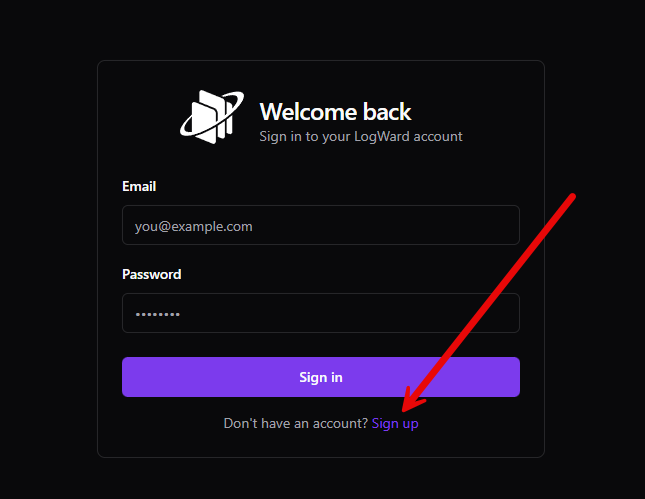
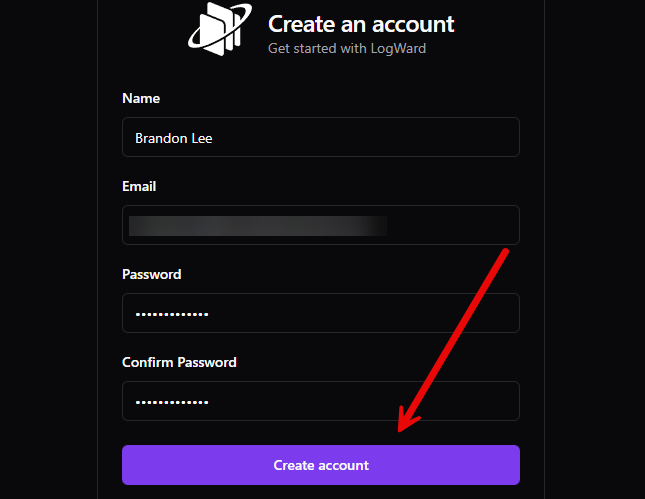
This takes you to the Create account page. Enter your name, email address, password, and confirm your password. Then, click Create account button.
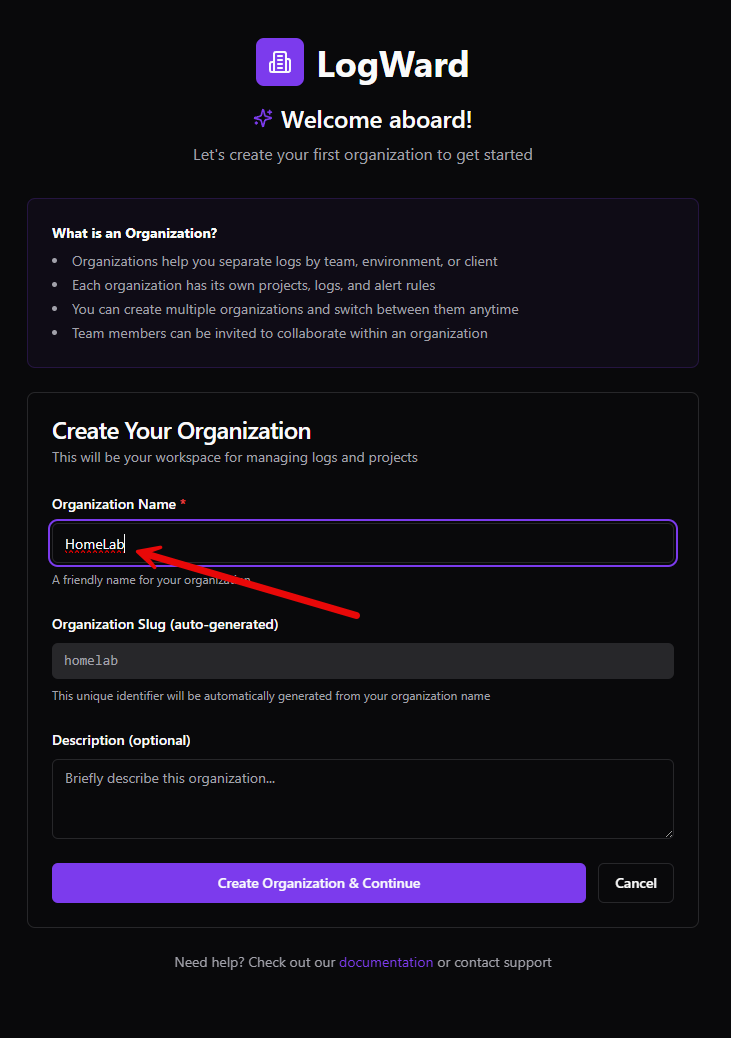
You are then taken to the Create Your Organization form. Enter your Organization name.
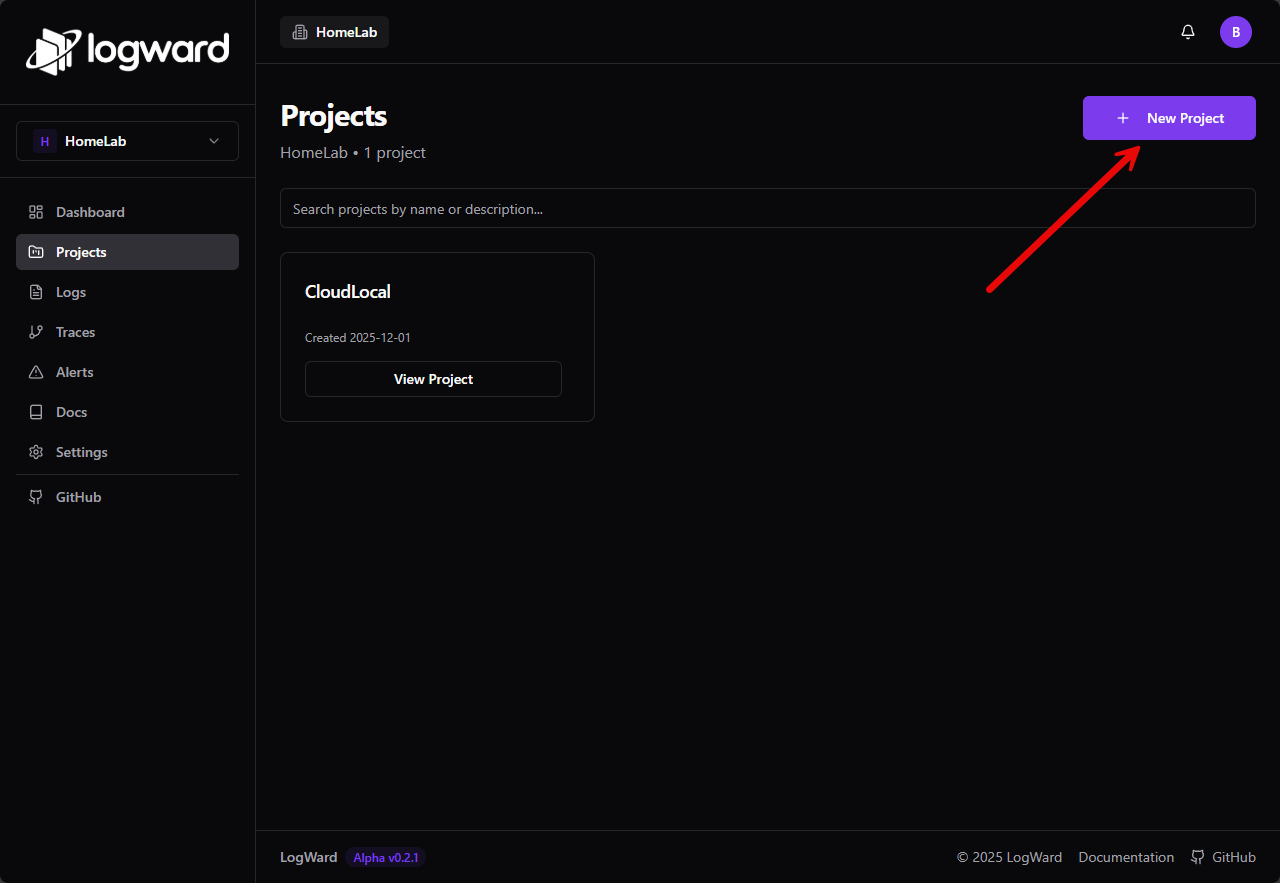
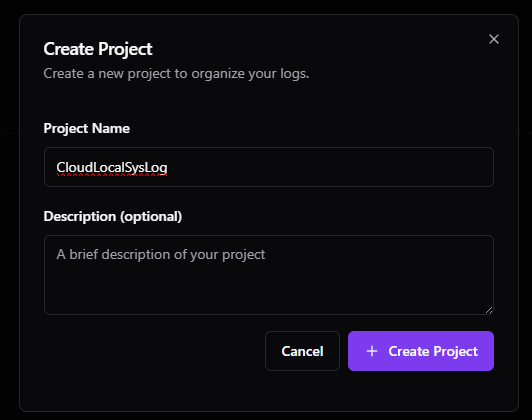
Then, to create a new project, click the Projects menu and then New Project.
Next, let’s create an API key for the project. Click Settings for the project and Advanced settings. Scroll down and you will see the Create API Key button. This ties everything back together. We need to create an API key, that we will put in our docker compose above for fluent bit.
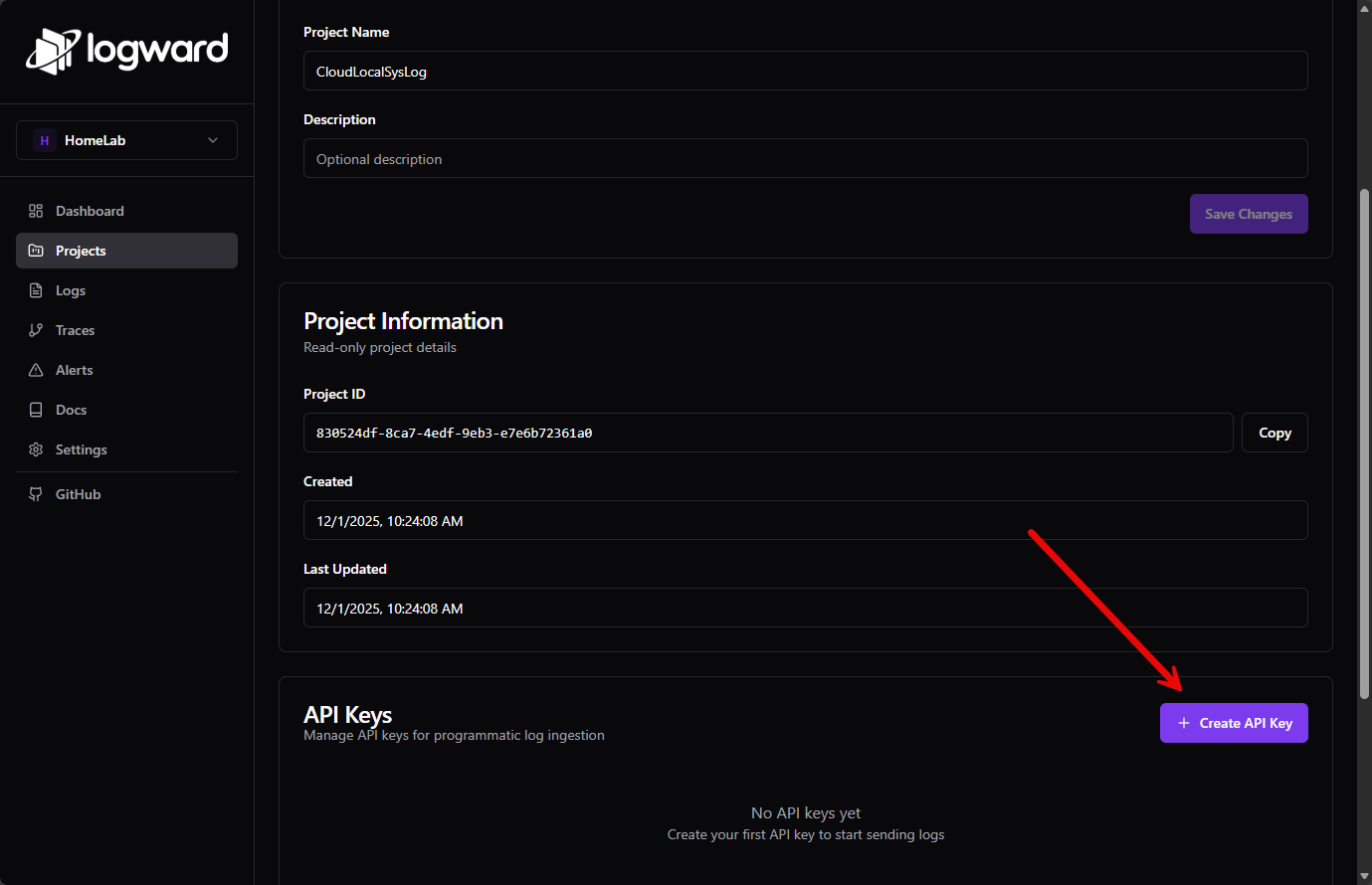
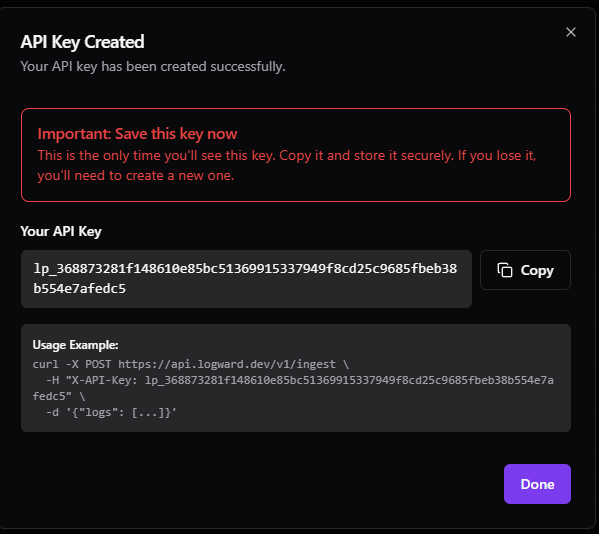
This launches the API Key Created dialog showing your new API key and a CURL command that you can copy to test out connectivity. Be sure to copy the API key as it won’t be displayed again.
As an example, here is a subsection of the docker-compose code under the fluent-bit container. Hard code your API key here. Remember, this is just for testing and to keep things simple. We need to use good credential hygiene for production home lab or production environments.
environment:
      # API key for LogWard authentication
      LOGWARD_API_KEY: lwk_1234567890abcdefghijklmnopqrstuvwxyz
      # Backend hostname (internal Docker network)
      LOGWARD_API_HOST: backend-test
Now, just down and up the docker compose stack with the following, replacing the docker compose file with what you named your file.
docker-compose -f docker-compose.test.yml down
docker-compose -f docker-compose.test.yml up -d
Send Proxmox logs to Logward
So, now that we have things up and running, let’s look at a quick example of sending Proxmox logs to Logward. We first need to install rsyslog.
apt install rsyslog -y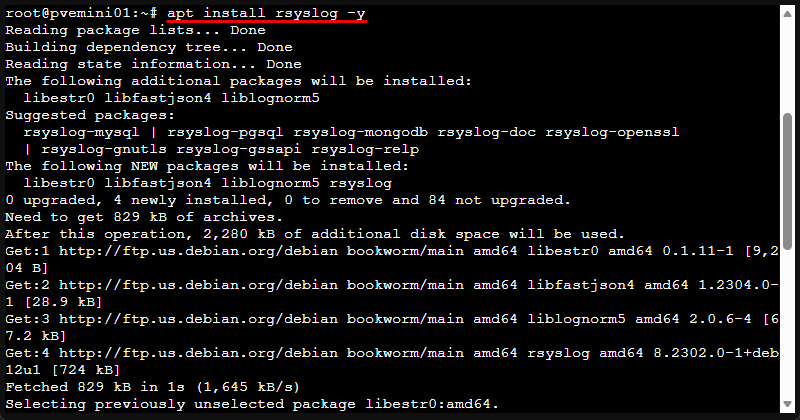
Create a new logforward configuration file after installing rsyslog using:
nano /etc/rsyslog.d/50-logward.confEnter this in the new file, changing out the IP for your specific environment:
*.* @@10.1.149.31:514Now, restart the service in Proxmox:
systemctl restart rsyslog
systemctl status rsyslog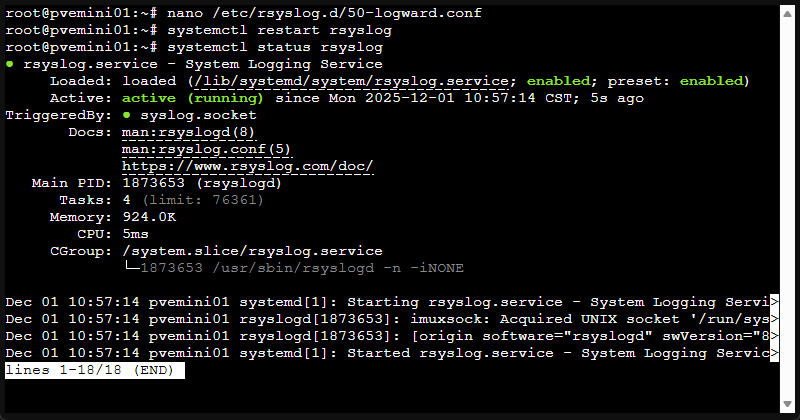
You can send a test message that should appear in Logward:
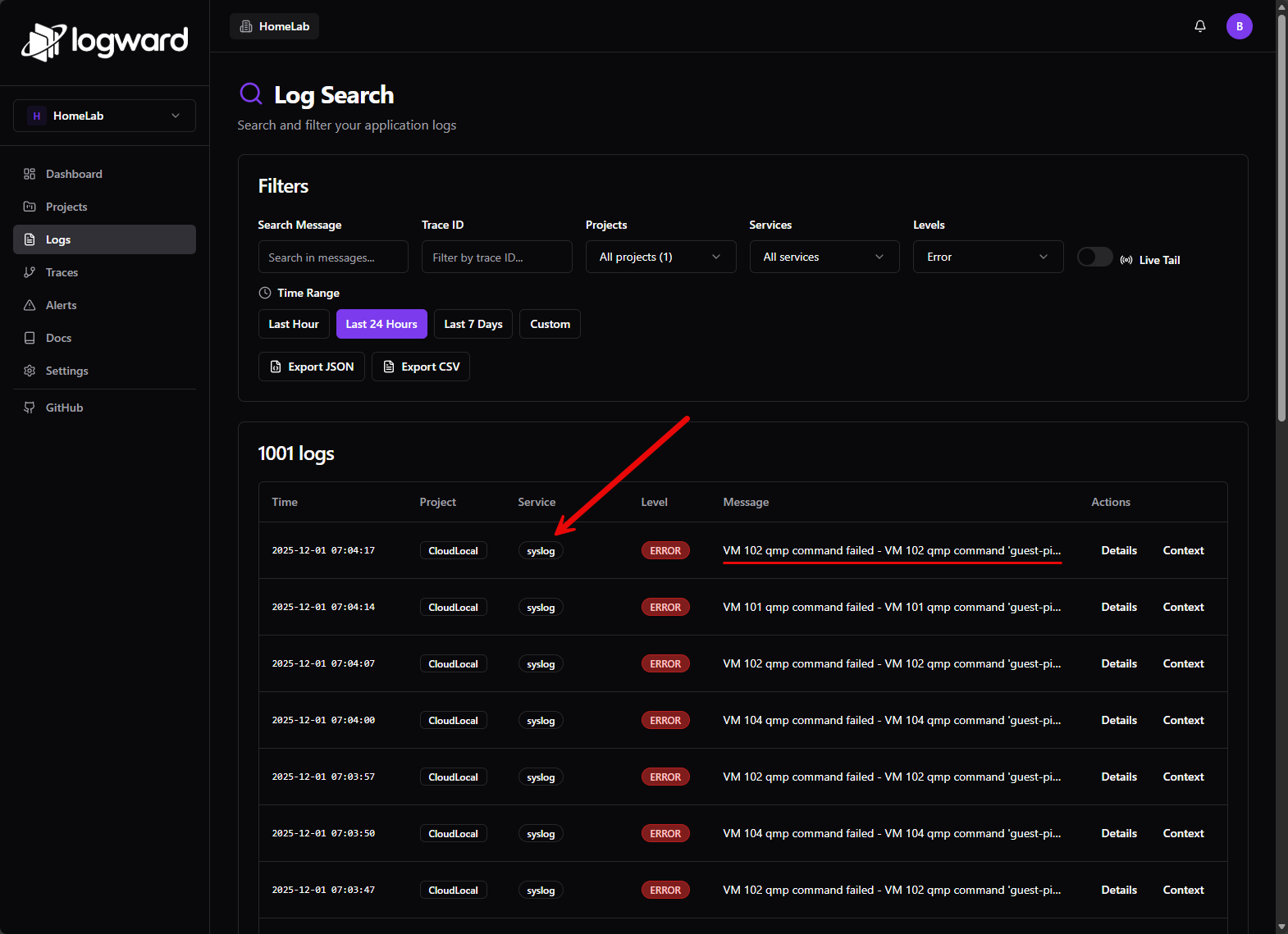
logger -t proxmox-test "Test log from Proxmox to LogWard"Refresh the log search screen and you can filter by syslog service and you should start to see logs coming from your Proxmox server. Pretty cool!
Wrapping up
There are a lot of solutions out there for Syslog servers. I have tried most of them in the home lab. However, if you are looking for a lightweight Syslog server for home labs in 2025, Logward I think is a great option that is “fairly” easy to spin up (with the challenges I noted), and it is also not terribly heavy. It does consist of 5 containers, but these are all spun up with the docker compose code which makes it super simple. And, I think more reading on my part and looking at examples may circumvent the issue I saw with the install script. The solution is in alpha stage so it will likely get lots of additional functionality soon. It is a currently active project as well which makes not so worrisome in terms of the longevity of the solution. Have you tried out Logward before? What are you currently using as a syslog server? Are you going to give this a spin? Let me know your thoughts.

Google is updating how articles are shown. Don’t miss our leading home lab and tech content, written by humans, by setting Virtualization Howto as a preferred source.
About The Author


If a lightweight solution has that involved a compose file, I’m glad I haven’t yet tried Loki.
Great job again, Brandon.
Bartsch,
Thank you for the comment! And, glad to see the Giuseppe’s (Logward developer) comments here. Please see that below. It sounds like the install will get much smoother.
Brandon
Hi Brandon! Creator of LogWard here.
First off, huge thanks for this incredible deep dive. Seeing LogWard labeled as “The tool every home lab needs” is a massive milestone for the project!
A quick update for your readers regarding installation: You reviewed the project right before our v0.2.0 release. Based on the friction you encountered, we have significantly simplified the process.
Now we push official images to Docker Hub (logward-dev/backend, etc.). Users no longer need to build from source or use the complex test compose files.
Regarding Syslog: Your custom Lua script implementation to map Syslog levels is brilliant. Since many Home Labbers need this (Proxmox/Unifi), I plan to integrate your configuration (with your permission) into our official “Syslog Recipe” documentation so it works out of the box.
Thanks again for the support and the honest feedback!
Giuseppe,
So glad to have your comment here! And glad the post hit the right highlights. Great tool by the way! Loving it so far and seeing so much potential here. Logging solutions have been lacking in terms of elegance and ease of deployment for quite some time and I think you are hitting all the right use cases with the tool. Very awesome on the v0.2.0 release. I will get this tested and update the blog accordingly as well. Awesome on the Lua script as well. Please do feel free to link and use the post and content anywhere you like. Thanks again Giuseppe and looking forward to seeing how the project develops.
I finally got it up to where I could create my account. After that, I’m completely lost. Thinking this one is over my head.
Hey Ken! Thanks for the post and comment. Don’t feel bad, we are all at different points in our home lab journey. Things will start to click after you get some road behind you. That is a good spot. It sounds like you at least have a healthy container, that is good. Are you stuck at getting data flowing into it? I think maybe originally you were having issues with it listening on 514?
Brandon
Hi!
2 points. 1st why did you provide wrap_logs.lua even when you dont map and use it anywhere?
2nd in configuration as it is now its nice to have but useless.. when you have multiple host ho you divide them, how do you know from which host that syslog message come?
Hi Lena!
Great questions. the wrap_logs.lua file was just included as an example i the blog. I should have given more explanation there. But Logward supports Lua based log processing so this can be used there. Loward also supports Groups that let you logically separate logs by host, role, environment or service. For example, you might create groups like proxmox-nodes or docker, etc. Once you group them, you can see which group a syslog message belows to.
Also, you can add host meta data to add labels to identify the exact source. Proxmox already includes the hostname and facility in its syslog output. So Logward can read these fields. So long story short, you can use the host metadata along with the groups in Logward to correctly identify and group everything.
Let me know if this helps!
Brandon
I think somethink like that can help. So if you can please add som eexamples. It iwll add more value to the post 😉 👍
Hi Everyone,
Ok a couple of things regarding product. I tried it , I liked it, BUT,
The guide here need to adjust a few items. First once you git clone, you don’t need to fix anything , just edit the .env file , set the hostname and you’re done.
Then, you missed the part for 514 port which for this actually to work you need to bring up the fluent-bit with port 514 enabled. docker compose –profile logging up -d . So yes you show somehow that logs from proxmox entered to logward, but you missed that part of fluent-bit. Now my big problem is the seperation of source syslogs. if you have multiple syslog clients and you need to recognize who is who then defenetily you need their hostname or ip address. I wasn’t able to find anything documented about that 🙁 I was able to change syslog.d/50-….conf file to something like the below
cat /etc/rsyslog.d/50-logward.conf
# Set the local hostname globally
global(localHostname=”nk-pve01″)
# Define the Logward Template
# Added \n at the end to ensure Logward’s collector sees the end of the line
template(name=”LogwardFormat” type=”string”
string=”%timestamp% %hostname% %syslogtag%%msg%\n”)
# Forward all logs to Logward via UDP
action(type=”omfwd”
target=”10.200.13.1″
port=”514″
protocol=”udp”
template=”LogwardFormat”)
But still I didn’t see the results on web!
Note: tcpdump on 514 showing that source ip is included just fine after my changes, so somewhere else is the issue 🙁 I will keep digging.
Great post.
What I am struggle to find now is
Panagiotis,
Thanks for sharing your notes with us here! I will go back through my setup here and documentation and make adjustments if needed here. I will see what I can find as well on the front of splitting out sources of log forwarding into logward.
Brandon
Hi Brandon,
Once again thank you for your great work! I also have posted it to their GitHub discuss
https://github.com/orgs/logward-dev/discussions/80
Awesome, thank you Panagiotis!
Brandon