Docker logs are definitely one of the first places I look when troubleshooting issues with containers. It is often where you will find the root cause of the issue that took down your container or the reason it won’t start. However, Docker logs hold other valuable information, like when someone is trying to login to a web-frontend container and failing logins. Also, container logs are generally a reactive repo of information, meaning I only go there when I am reacting to an issue. This is the gap that LoggiFly fills. Let’s check out why it is the Docker log alerting tool I didn’t know I needed until I tried it.
What is LoggiFly?
LoggiFly is a new open-source tool that watches your container logs in real-time. It has the ability to look for patterns found in those logs or certain key words and it alerts you when something important appears there. There aren’t any dashboards that you need to babysit and you don’t have to sit and grep logs manually.

This gives you the ability to be proactive in monitoring and alerting on things going on in your container environment in an easy way. But it is more than that, it can take action as well. We will show this below. Also, it can monitor remote hosts and not just the local Docker container host.
Here are the high-level features of LoggiFly
- Plain text, regex, and log detection – You can match simple keywords or advanced regular expressions. Neat that it includes log entries that span multiple lines such as stack traces or application crashes
- Notifications – Send alerts directly to Ntfy. Or you can also route them through Apprise to 100+ supported services. These include the likes of Slack, Discord, Telegram, email, webhooks, or custom endpoints.
- Lots of configuration options – Configure LoggiFly using a YAML configuration file, or environment variables, or you can also use Docker container labels
- Actions – Automatically trigger OliveTin actions or perform container actions such as restarting or stopping containers when specific logs patters are matched
- Log attachments – Attach log excerpts or files to notifications for context without needing to log into the server
- Automatic reload on configuration changes – LoggiFly watches the config.yaml file and reloads changes without needing you to do a container restart
- You can configure alert formatting – It has templates to format alert messages so notifications include the most relevant log details instead of raw log noise
- Remote host monitoring – You can monitor and receive alerts from multiple remote Docker hosts. This means you don’t have to set it up on each host
- Multi-platform support – Run LoggiFly on Docker, Docker Swarm, and Podman, making it flexible across different container runtimes and deployment styles.
You define rules that look for specific keywords or regular expressions. When a log line matches one of those rules, LoggiFly triggers an action. That action can be sending a notification, attaching log context, or even stopping or restarting a container.
Notification options
One of the nice things about LoggiFly is the number of different types of alerts it can send. These include modern notification systems as well as more traditional notification solutions like email.
Out of the box, it supports Ntfy, which is excellent for self-hosted and simple push notifications. On top of that, LoggiFly has integration with Apprise. This literally gives you access to dozens of services.
You can send alerts to things like:
- Slack
- Discord
- Telegram
- Webhook endpoints
- Push notification services
Below is a look at what the alerts look like:
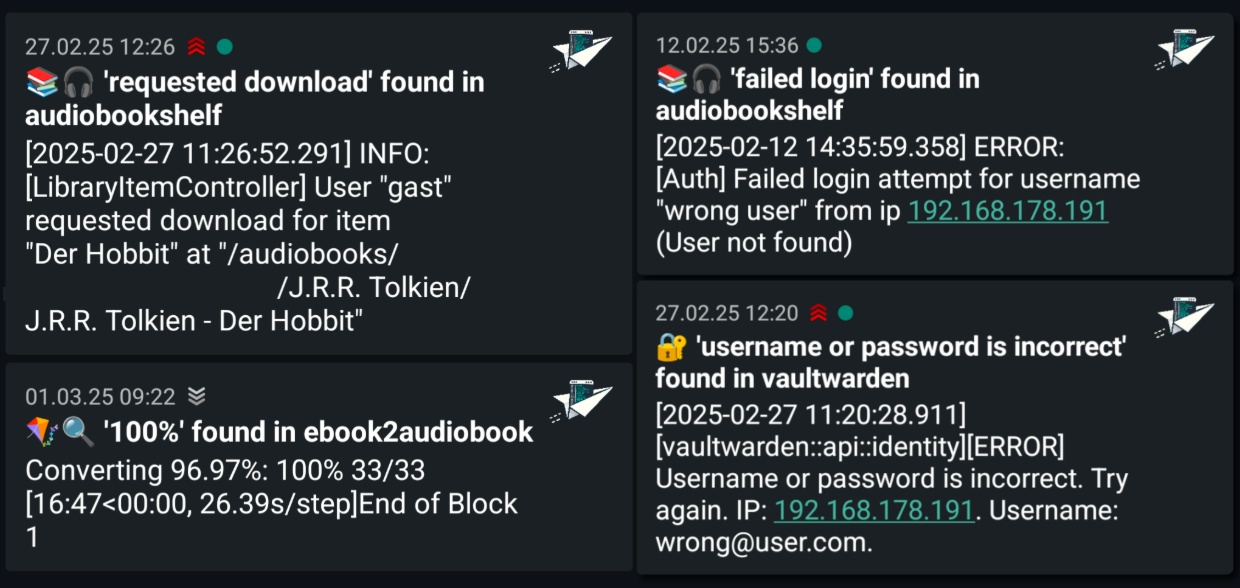
The cool thing is you are not locked into a single alert platform or stuck with traditional email notifications.
Here are a few ideas on what you might decide to alert on:
- Authentication failures in Vaultwarden
- Repeated failed login attempts in Authelia
- Database connection errors in PostgreSQL
- Container crash loops
- OOM killer messages
- Certificate renewal failures
The nice thing here is that it is not a one size fits all. You can tweak and customize the alerting and monitoring so that you only get what you need in your specific environment.
Deploying LoggiFly container configuration
There are basically two ways that you can deploy the LoggiFly container. This includes with or without a Docker proxy. Because LoggiFly needs access to Docker logs, it needs a way to talk to the Docker API. The docs recommend using a Docker Socket Proxy for better security. They also provide examples using two different proxies.
Socket proxy is the safer default for most people because you can restrict API capabilities.
Direct socket mounting is simpler, and it may be necessary if you want features like container actions. So, below, I have three examples. You don’t use all three, but just one. Either choose direct Docker socket connectivity from Loggifly. Or use one of the two socket proxy examples (11notes, technativa).
You also need a config.yml that you mount as part of your Docker Compose file as a volume mount. I created it under a subfolder in my loggifly folder called config.
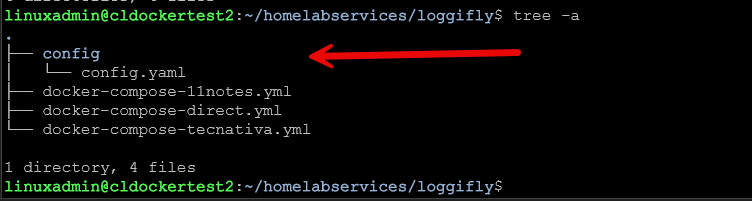
Here is what I used for my test environment. You can see the keywords I added as global keywords that are beneficial. This means that we will monitor all containers for these keywords and send a notification if found. You can find the default file here: Docker Compose examples.
Also, you will see I am sending to what looks to be an email address, but this is actually my mailrise server that speaks apprise notifications. Check out how to setup Mailrise here: IoT Notification System Push Notifications for Home Lab no SMTP required.
settings:
  monitor_all_containers: true  # Monitor all containers
  log_level: INFO

global_keywords:
  keywords:
    - error
    - failed
    - critical
    - exception
    - fatal
    - not found
    - connection refused
    - out of memory
    - permission denied
    - authentication failed

notifications:
  apprise:
    url: "mailto://10.1.149.19:[email protected]&[email protected]"
11notes/socket-proxy
services:
  loggifly:
    image: ghcr.io/clemcer/loggifly:latest
    container_name: loggifly
    # It is recommended to set the user so that the container does not run as root
    user: 1000:1000
    read_only: true
    volumes:
      - socket-proxy:/var/run
      # Place your config.yaml here if you are using one
      - ./loggifly/config.yaml:/app/config.yaml
    environment:
      TZ: America/Chicago
    depends_on:
      - socket-proxy
    restart: unless-stopped

  socket-proxy:
    image: "11notes/socket-proxy:2"
    read_only: true
    # Make sure to use the same UID/GID as the owner of your docker socket.
    # You can check with: `ls -n /var/run/docker.sock`
    user: "0:996"
    volumes:
      - "/run/docker.sock:/run/docker.sock:ro"
      - "socket-proxy:/run/proxy"
    restart: "always"

volumes:
  socket-proxy:
tecnativa/docker-socket-proxy
services:
  loggifly:
    image: ghcr.io/clemcer/loggifly:latest
    container_name: loggifly
    # It is recommended to set the user so that the container does not run as root
    user: 1000:1000
    read_only: true
    volumes:
     # Place your config.yaml here if you are using one
      - ./loggifly/config:/config
    environment:
      TZ: America/Chicago
      DOCKER_HOST: tcp://socket-proxy:2375
    depends_on:
      - socket-proxy
    restart: unless-stopped

  socket-proxy:
    image: tecnativa/docker-socket-proxy
    container_name: docker-socket-proxy
    environment:
      - CONTAINERS=1
      - POST=0
    volumes:
      - /var/run/docker.sock:/var/run/docker.sock:ro
    restart: unless-stopped
Direct Docker socket communication (not the recommended approach)
Below is the configuration for direct Docker socket configuration. In the documentation, this is not the recommended approach due to security implications, but is definitely a viable option.
services:
  loggifly:
    image: ghcr.io/clemcer/loggifly:latest
    container_name: loggifly
    # It is recommended to run the container as the same UID/GID as the owner of your docker socket to avoid running as root.
    # But you can also just comment out the user line and run as root.
    # You can check the socket permissions with `ls -n /var/run/docker.sock`
    user: "0:996"
    read_only: true
    environment:
      TZ: America/Chicago
    volumes:
      - /var/run/docker.sock:/var/run/docker.sock:ro
      - ./loggifly/config:/config    # Place your config.yaml in this directory
    restart: unless-stopped
Testing it out
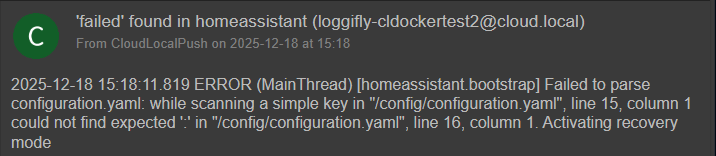
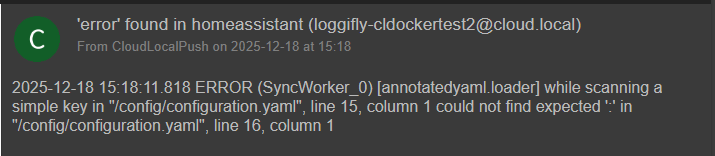
I had a test Docker host that I had a test instance of homeassistant and a few other containers. I intentionally typed in some syntax errors in the configuration.yaml file for homeassistant.
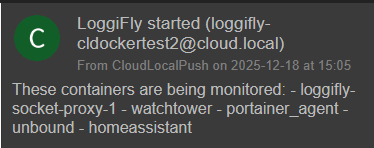
Started the solution. You can see it tells you which containers it is monitoring.
After introducing the errors, I restarted the homeassistant stack and just a few seconds later, it sent over two messages that were great since they got straight to the issue.
And this one:
Configuring actions based on Docker log entries
Below is an example of the config.yaml file that has example actions that you can have it take with various containers.
settings:
  monitor_all_containers: true
  log_level: INFO
  action_cooldown: 300  # Default cooldown for all actions (in seconds)

containers:
  redis:
    keywords:
      - keyword: "OOM command not allowed"
        action: restart
        action_cooldown: 600  # Wait 10 minutes before next restart
        notification_title: "Redis restarted due to OOM"
        attach_logfile: true
        attachment_lines: 50

  postgres:
    keywords:
      - keyword: "FATAL:  database"
        action: restart
        action_cooldown: 300
      - keyword: "PANIC:"
        action: restart

  nginx:
    keywords:
      - regex: "upstream.*timed out"
        action: restart@backend-api  # Restart a different container
        action_cooldown: 120

global_keywords:
  keywords:
    - error
    - failed
    - critical
    - exception
    - fatal
    - not found

notifications:
  apprise:
    url: "mailto://10.1.149.19:[email protected]&[email protected]"
Remote hosts
Keep in mind as well LoggiFly can monitor remote hosts meaning you don’t have to set this up on every Docker host you have. Instead, you can set it up on your management Docker host and monitor your remote containers.
Below is an example of code to add to your config.yaml file for remote host monitoring:
version: "3.8"
services:
  loggifly:
    image: ghcr.io/clemcer/loggifly:latest
    container_name: loggifly
    volumes:
      - /var/run/docker.sock:/var/run/docker.sock:ro
      - ./loggifly/config:/config # Place your config.yaml here if you are using one
      - ./certs:/certs
      # Assuming the Docker hosts use TLS, the folder structure for the certificates should be like this:
      # /certs/
      # ├── 192.168.178.80/
      # │   ├── ca.pem
      # │   ├── cert.pem
      # │   └── key.pem
      # └── 192.168.178.81/
      #     ├── ca.pem
      #     ├── cert.pem
      #     └── key.pem
    environment:
      TZ: Europe/Berlin
      DOCKER_HOST: tcp://192.168.178.80:2376,tcp://192.168.178.81:2376|foobar
    restart: unless-stopped
The LoggiFly documentation makes mention that the simplest and easiest way to monitor remote hosts is to run the socket proxy on your remote hosts. Then you just point the solution to them. Keep in mind the start/stop/restart actions are limited without direct connectivity to the Docker socket.
Things to keep in mind with LoggiFly
If you want this to be reliable and low maintenance from day one, here is the order I recommend:
- Start with a config.yaml deployment, even if it is minimal, so you can grow into regex and per-container rules later.
- Monitor only 2 to 4 containers at first or start with a test Docker container host like I did to get a feel for the settings and behaviors and tweak your keywords
- Add a short list of global keywords like failed and critical, then refine after you see what the alerts look like.
- Decide early whether you want actions. In the documentation it seems to indicate you may need direct socket access, however, I haven’t thoroughly tested this as of yet.
- Keep LoggiFly read-only and run it as a non-root user when possible, as shown in the docs examples.
Why I think this is a great one to add to your stack of services
I think LoggiFly is a great little solution to add to your home lab. It checks a lot of boxes that help you to have visibility much quicker to issues with your Docker containers. If you are like me, I tend to look at the logs when I know something has failed.
However, having this little solution proactively notifying you if something goes down or there are specific keywords in the logs is a game changer on getting things back up and running quickly. I like to know the moment something goes down so I can start triaging. This also attaches the log message and the specific one that is relevant so you automatically will have a heads up at what you are looking at when you get logged in and start troubleshooting.
Wrapping up
This little tool serves a hugely helpful purpose I think and definitely one that I can say I recommend. This way, you have monitoring in place as close to the container as possible, the container logs. You don’t have to just rely on application monitoring to catch when something isn’t right. Most likely problems are definitely going to appear in the container logs before even the application presents with issues. Have you tried out LoggiFly before? Are you currently using another solution that I don’t know about to have this kind of functionality? Let me know in the comments.

Google is updating how articles are shown. Don’t miss our leading home lab and tech content, written by humans, by setting Virtualization Howto as a preferred source.
About The Author