
Let's look at how to install PegaProx in your home lab. Take a look at my full write up on PegaProx here: Managing Multiple Proxmox Clusters Gets Messy When You Want Smarter Placement.
Interestingly, PegaProx provides both VM and LXC container templates you can download from their mirrors that already have PegaProx installed. You can install it in a Docker container as well, but this is noted to be a dev-only type solution. When you provision these, they have a quick wizardized provisioning process to configure PegaProx in your environment.
Download the images from the Pegaprox site here: PegaProx.
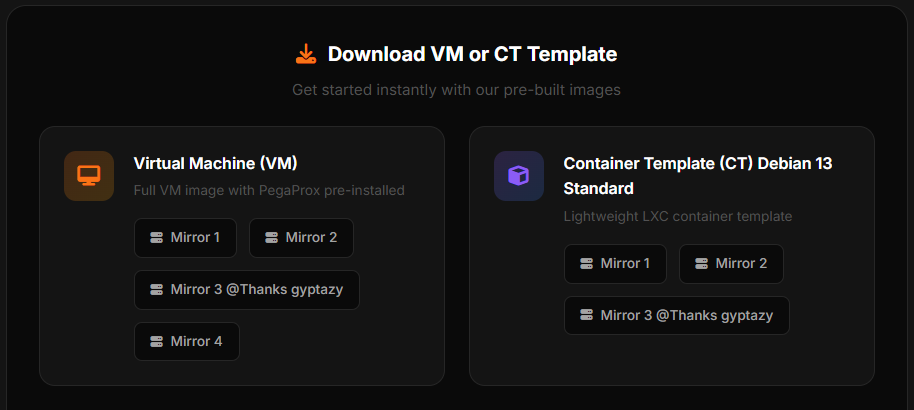
I picked the LXC container image. You download the image, and then copy this to your Proxmox host or just curl the image URL from your Proxmox host directly if you have it connected to the Internet.
Once you pull down the backup image they provide, you can import it into Proxmox using the commands below for each respective image type. Be sure to change out the ID for the VM or LXC container and also what storage you want to target.
# For VM
qmrestore /var/lib/vz/dump/vzdump-qemu-XXX-YYYY_MM_DD-HH_MM_SS.vma.zst 100 --storage local-lvm

# For Container
pct restore 100 /var/lib/vz/dump/vzdump-lxc-XXX-YYYY_MM_DD-HH_MM_SS.tar.zst --storage local-lvm

# Replace:
#   100 = Your desired VM/CT ID
#   local-lvm = Your target storage name
#   File path = Path to your downloaded backup
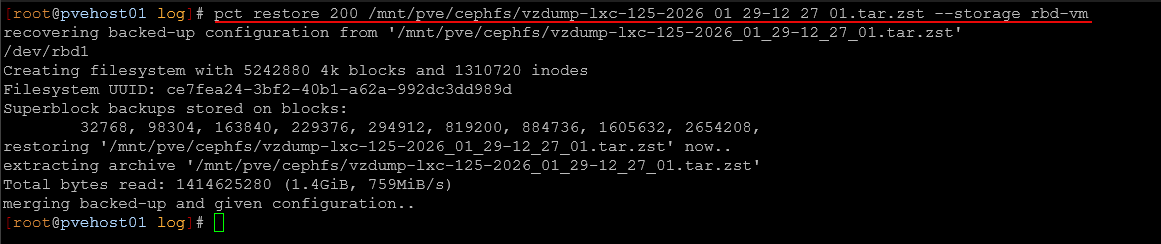
Below you can see me running the command for the downloaded image and getting this restored to my Proxmox server host.
I like how easy they have made this to get up and running. When you first login with the default username and password which are the below:
Container:
| Username | root |
| Password | PegaProx2026! |
Virtual machine:
| Username | pegaprox_admin |
| Password | PegaProx2026! |
Then it will launch the configuration wizard you see below. You will set up your network connection and choose which port you want to run it on. It defaults to port 5000, 5001, 5002.
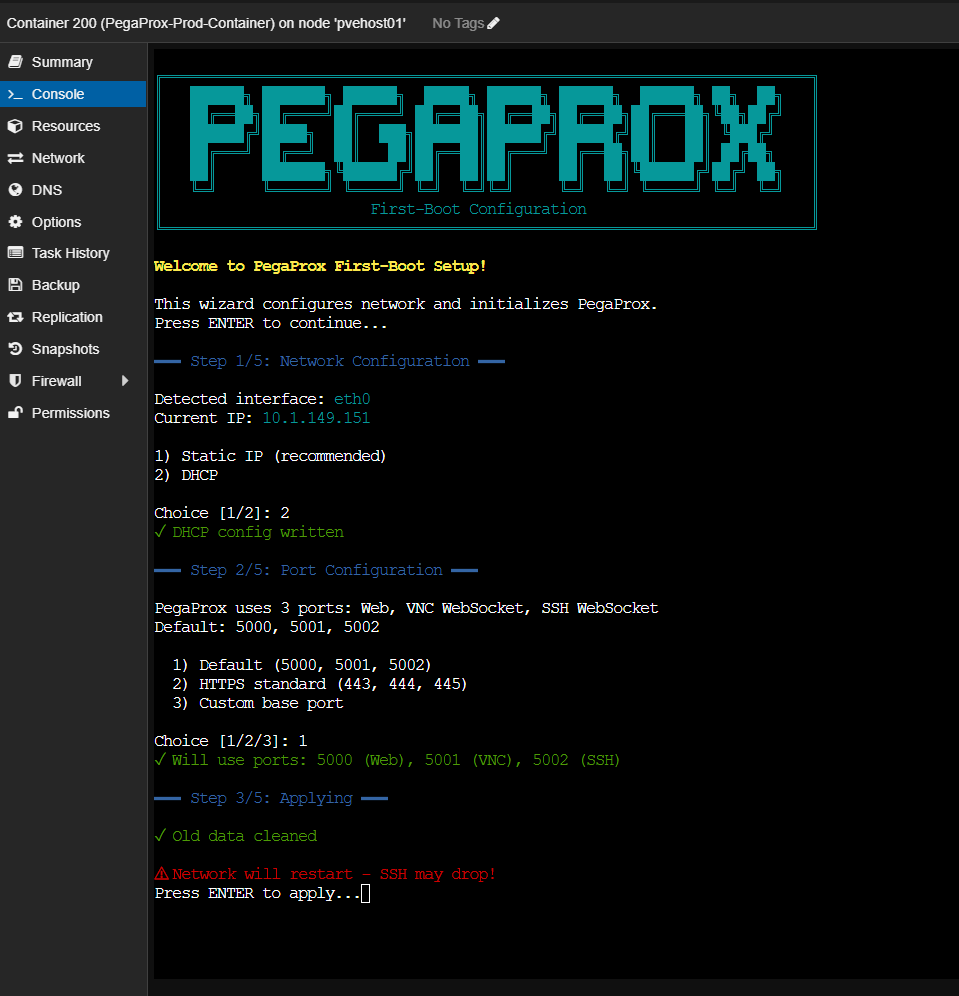
Setting a new password, etc.
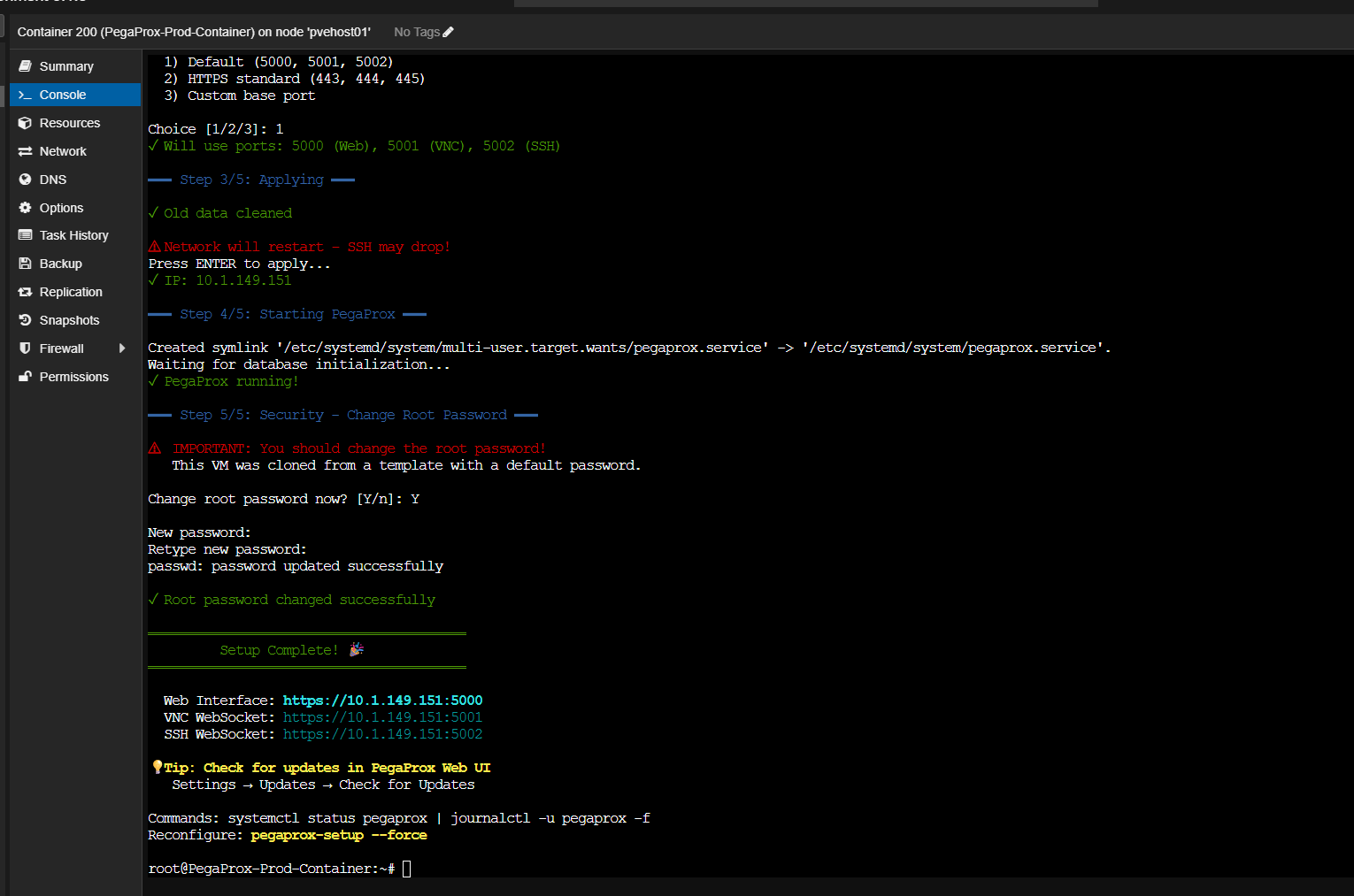
At this point once the configuration wizard is ran, you can connect to the IP address and port configuration and login with the default password:
- user: pegaprox
- pass: admin
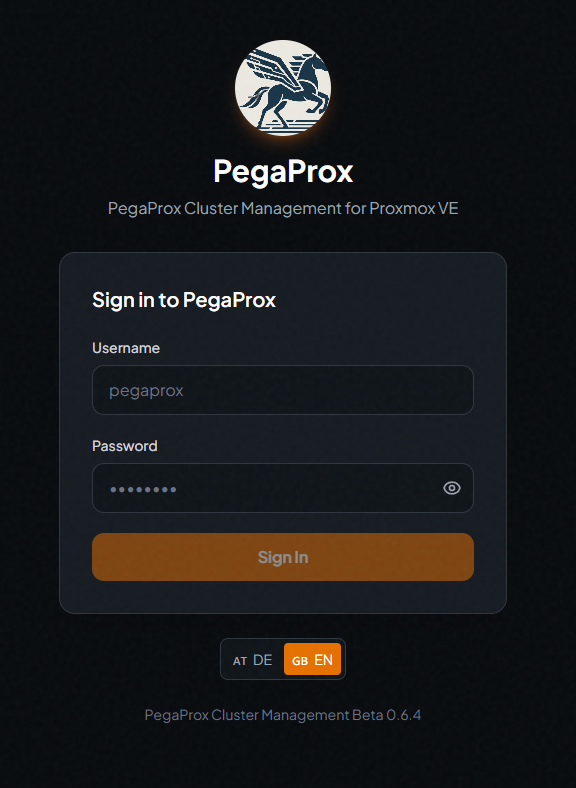
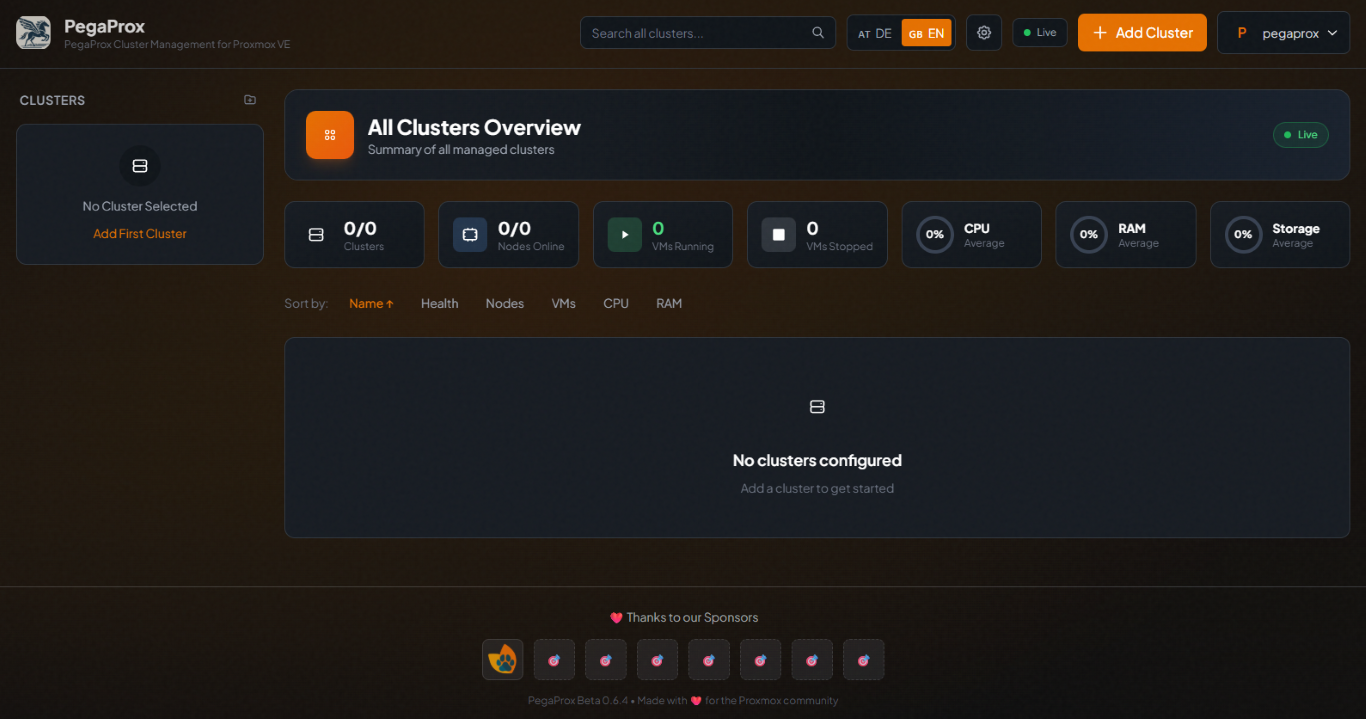
After you get logged in for the first time, this is what the all clusters overview screen by default looks like.