




Below are screenshots of deploying the Veeam Data Platform 13 appliance in a VMware vSphere environment. First, you grab the ISO or OVA. Here I am grabbing the OVA appliance file.
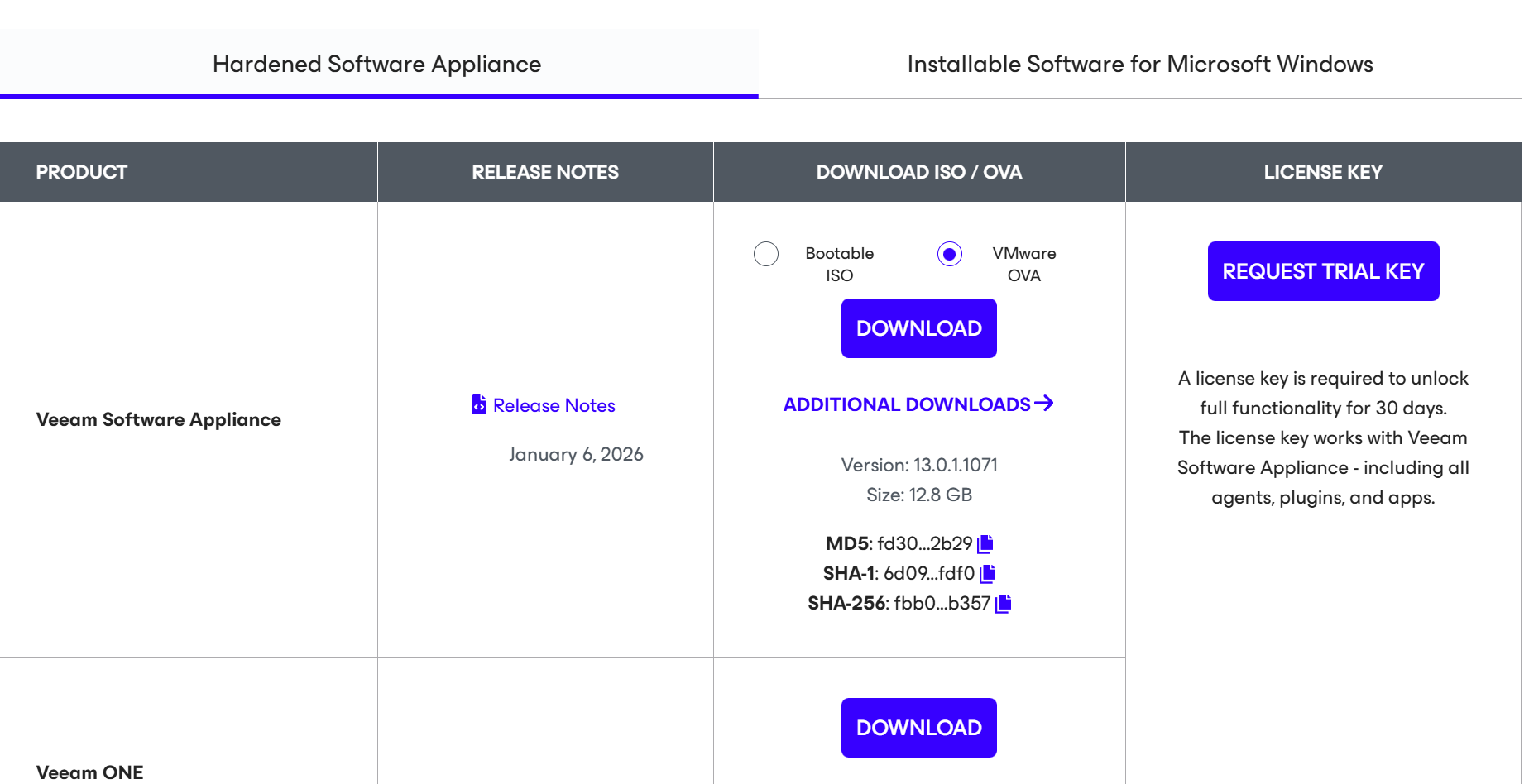
Deploying the OVA appliance in vSphere
This is just classic OVA deployment in vSphere but below are the screenshots of the process for my home lab.
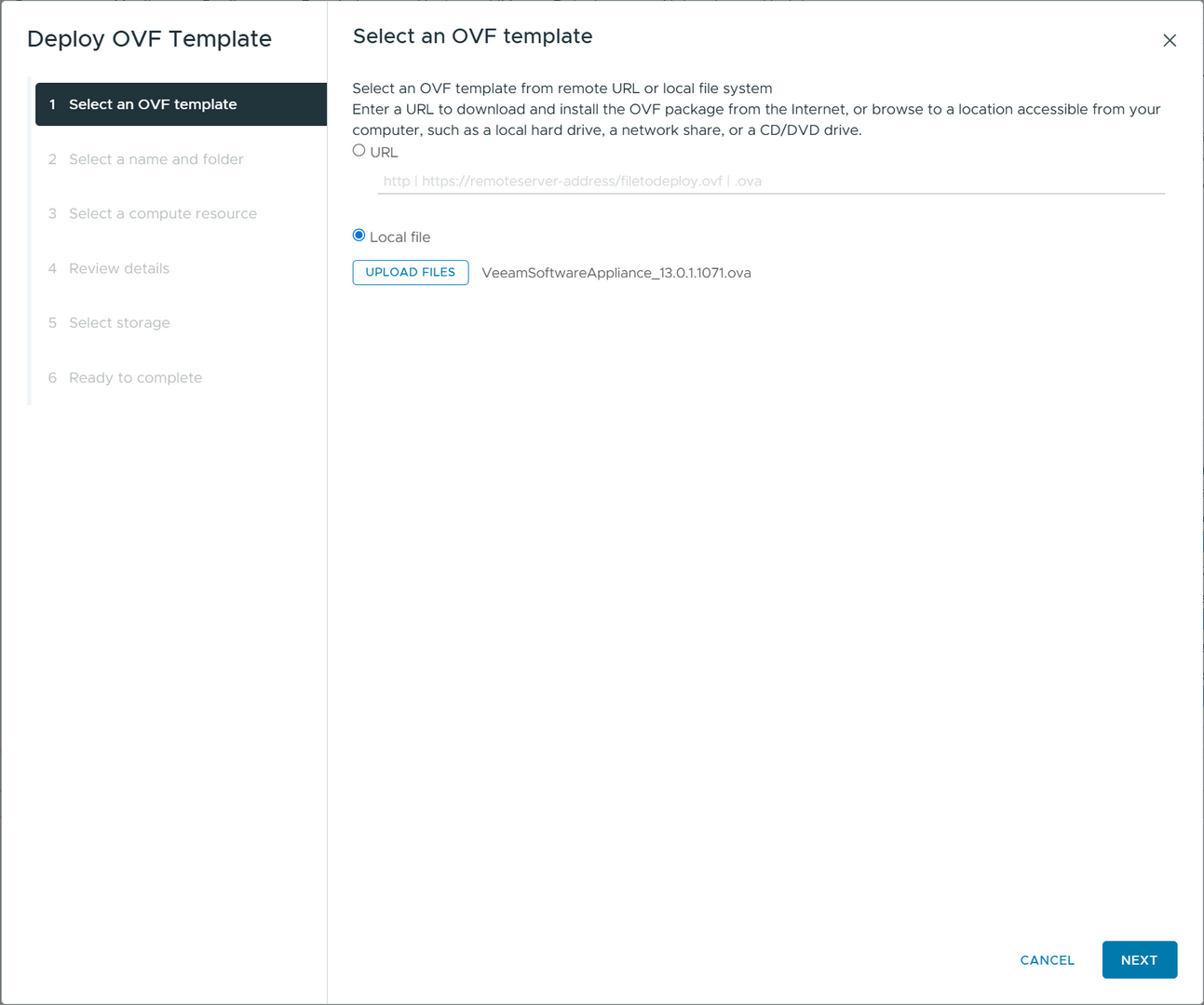
Selecting the name and folder location.

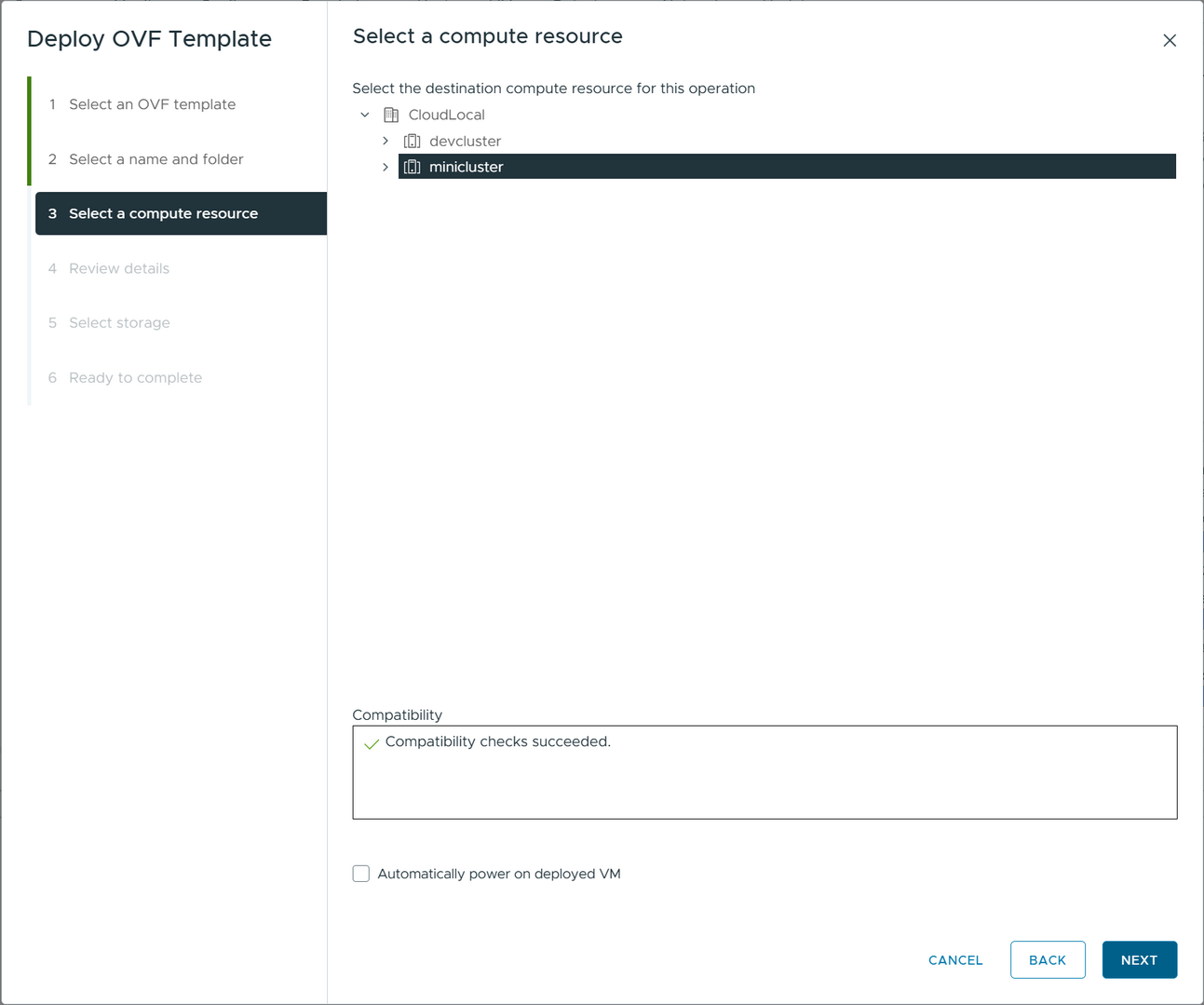
Select a compute resource where you want the OVA to be deployed.
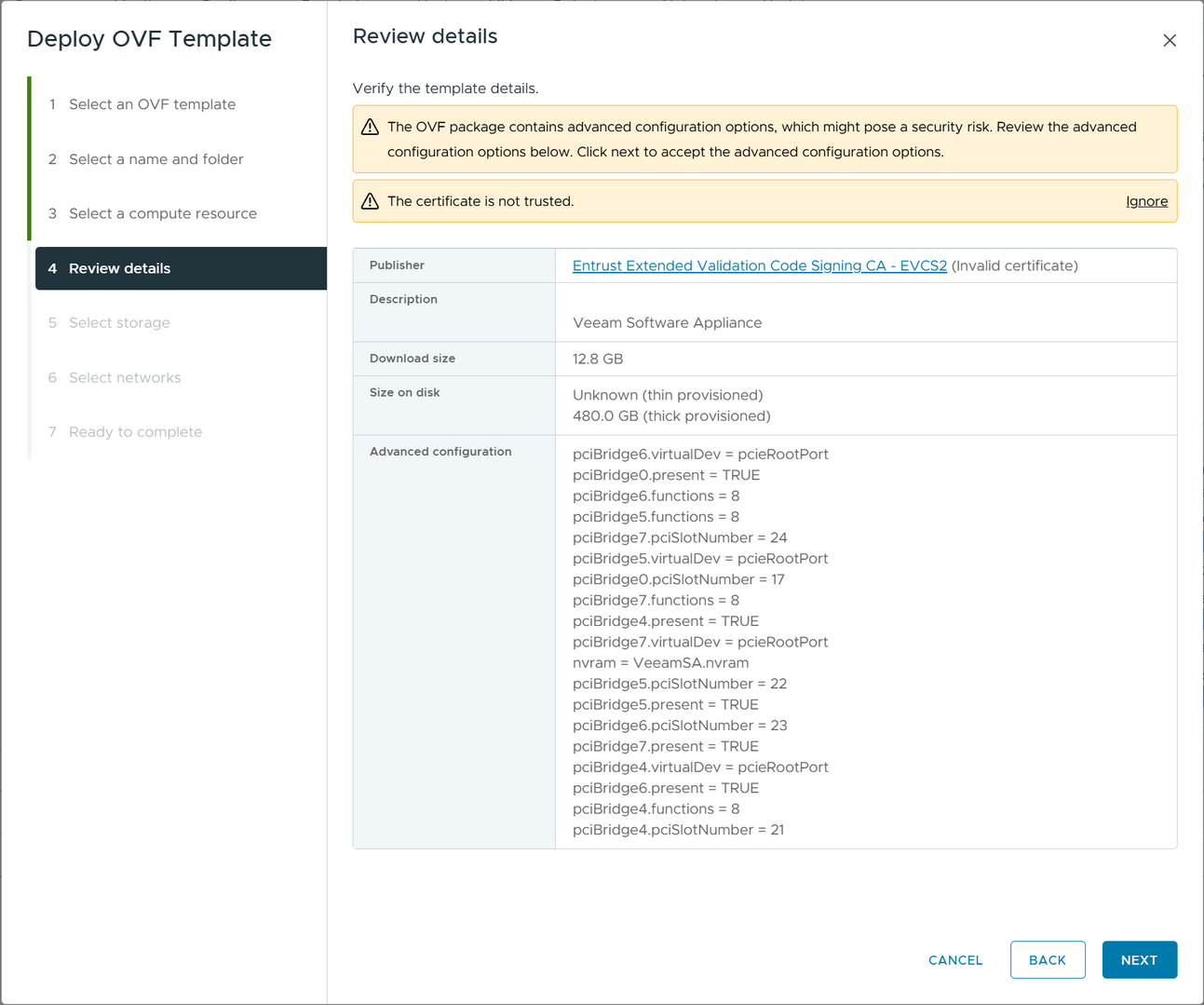
Review the initial details that it shows in the OVA wizard.
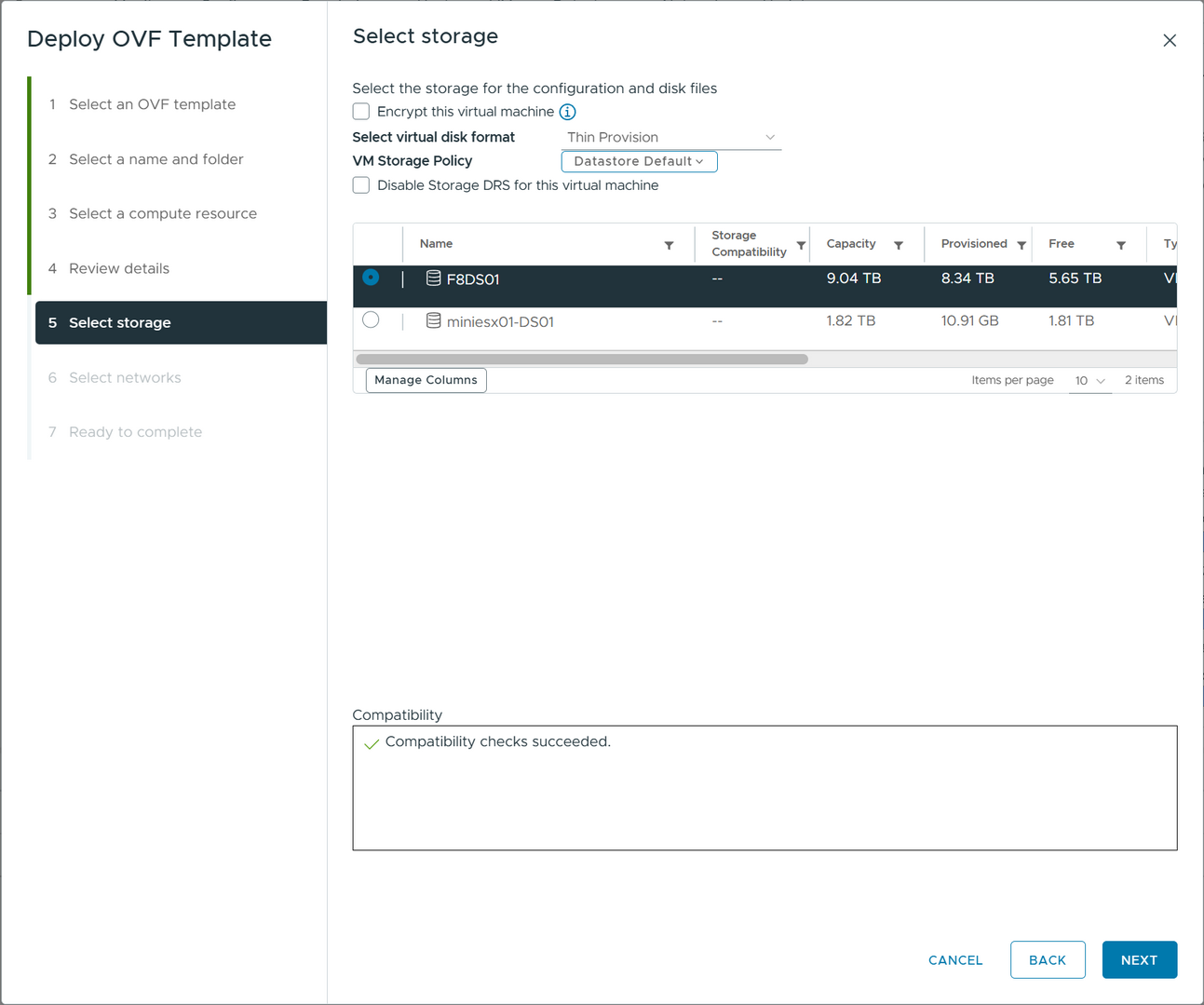
Select the target storage for the OVA appliance deployment.
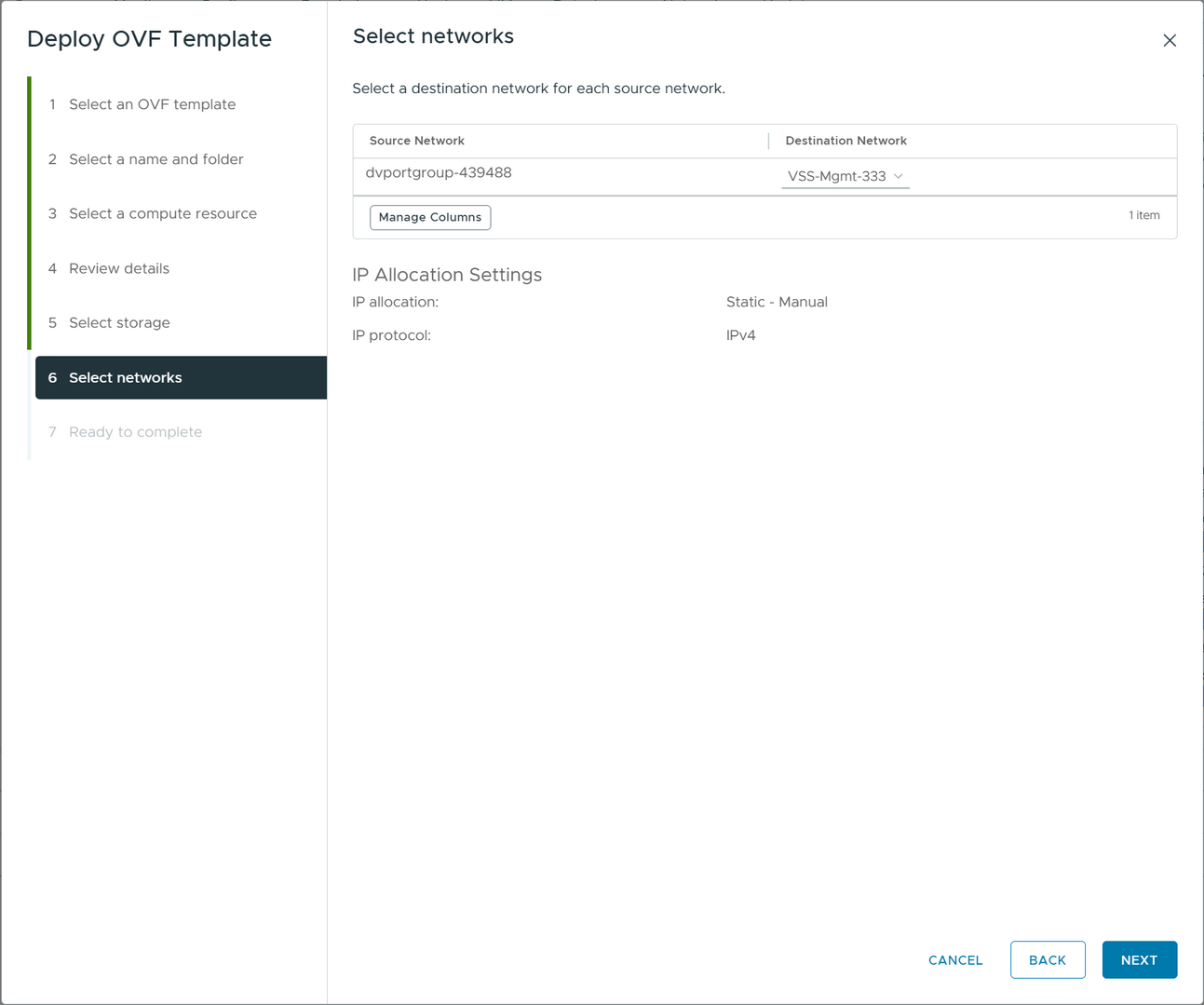
Select the virtual network where you want to attach it.
Ready to complete the OVA deployment wizard.

Starting the appliance and initial configuration wizard
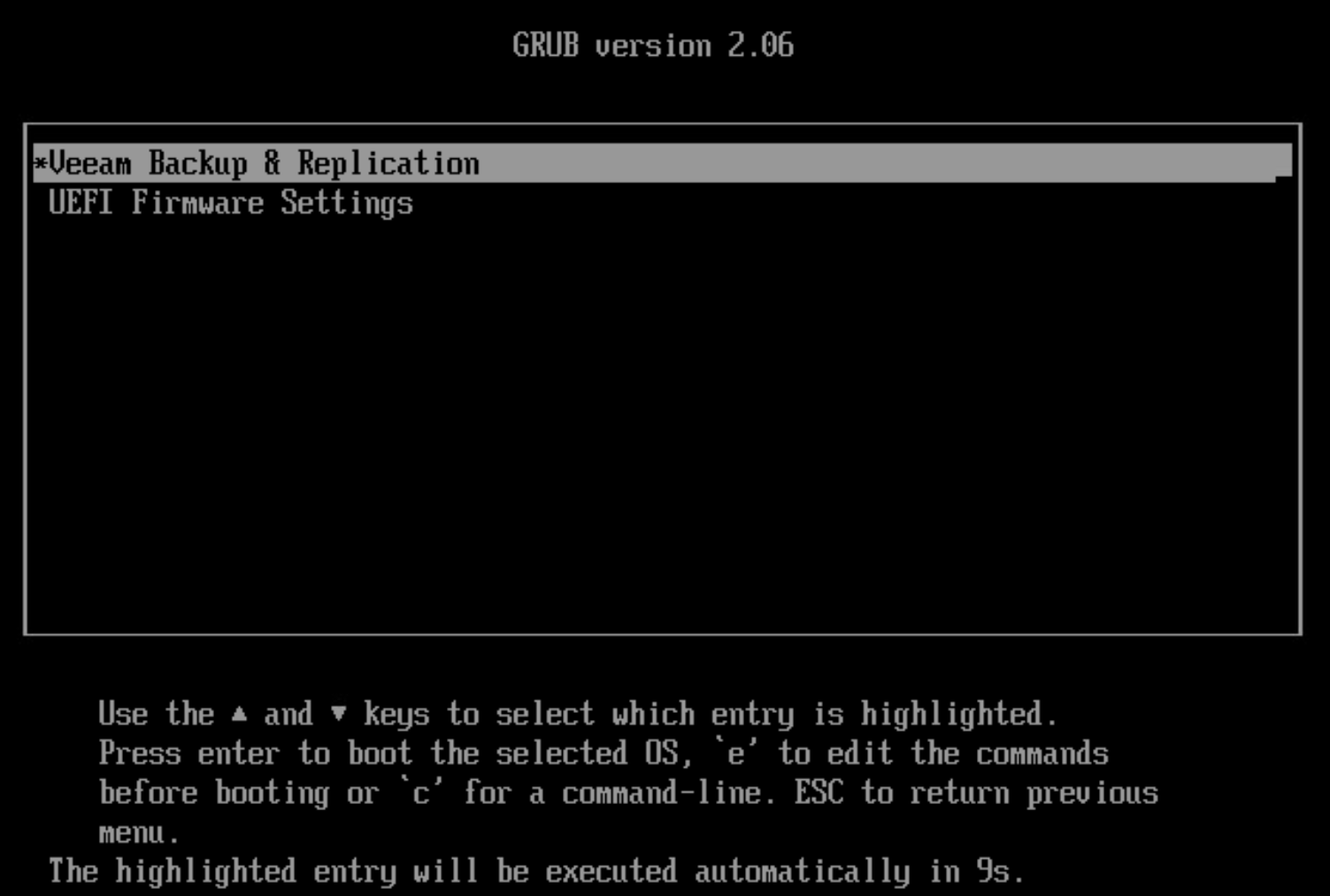
Once the appliance is deployed, power it up. You will see the appliance boot as below.
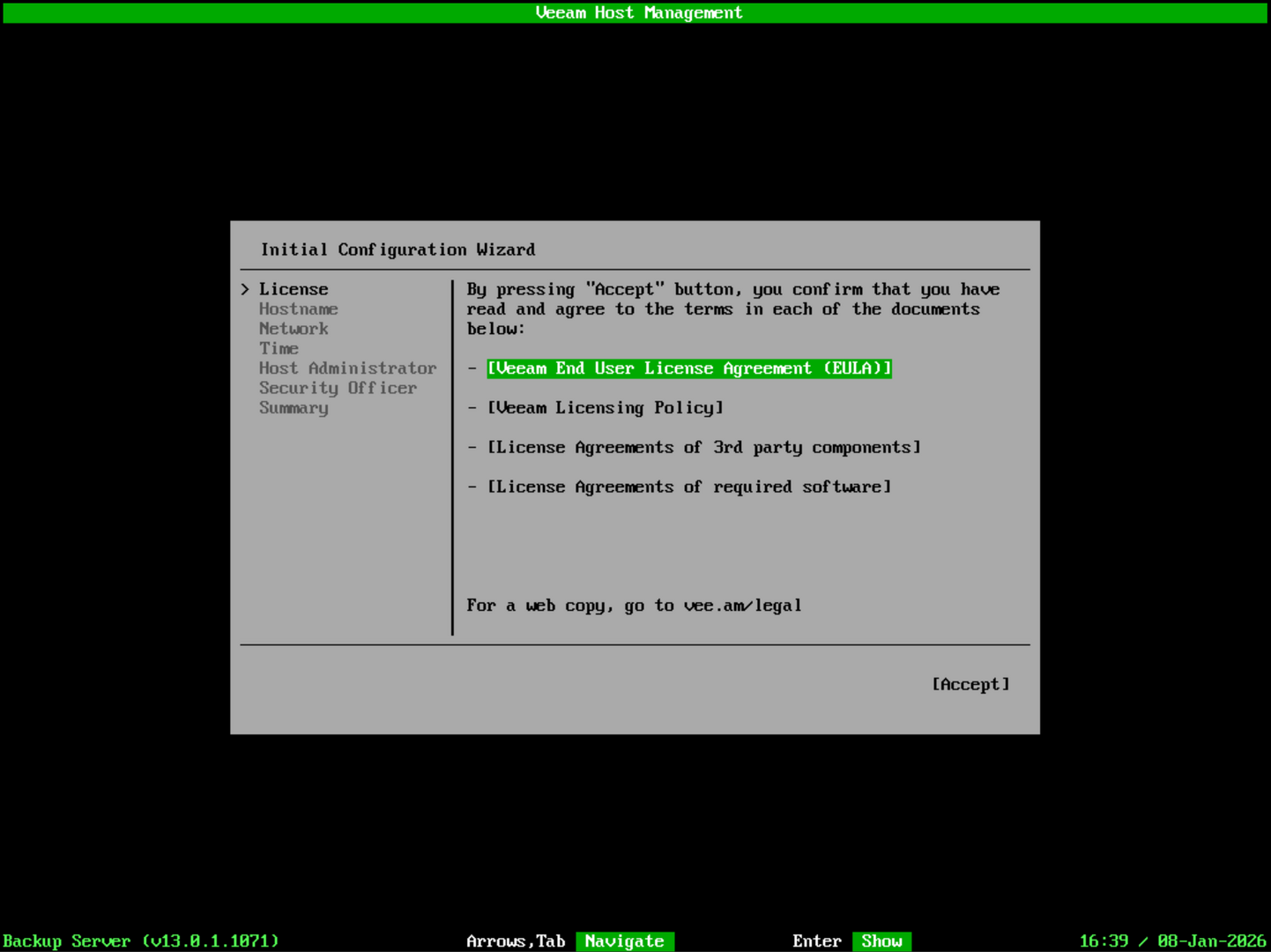
It will then kick off an initial configuration wizard for Veeam. First, accept the EULA.
Next, set the hostname for the appliance.
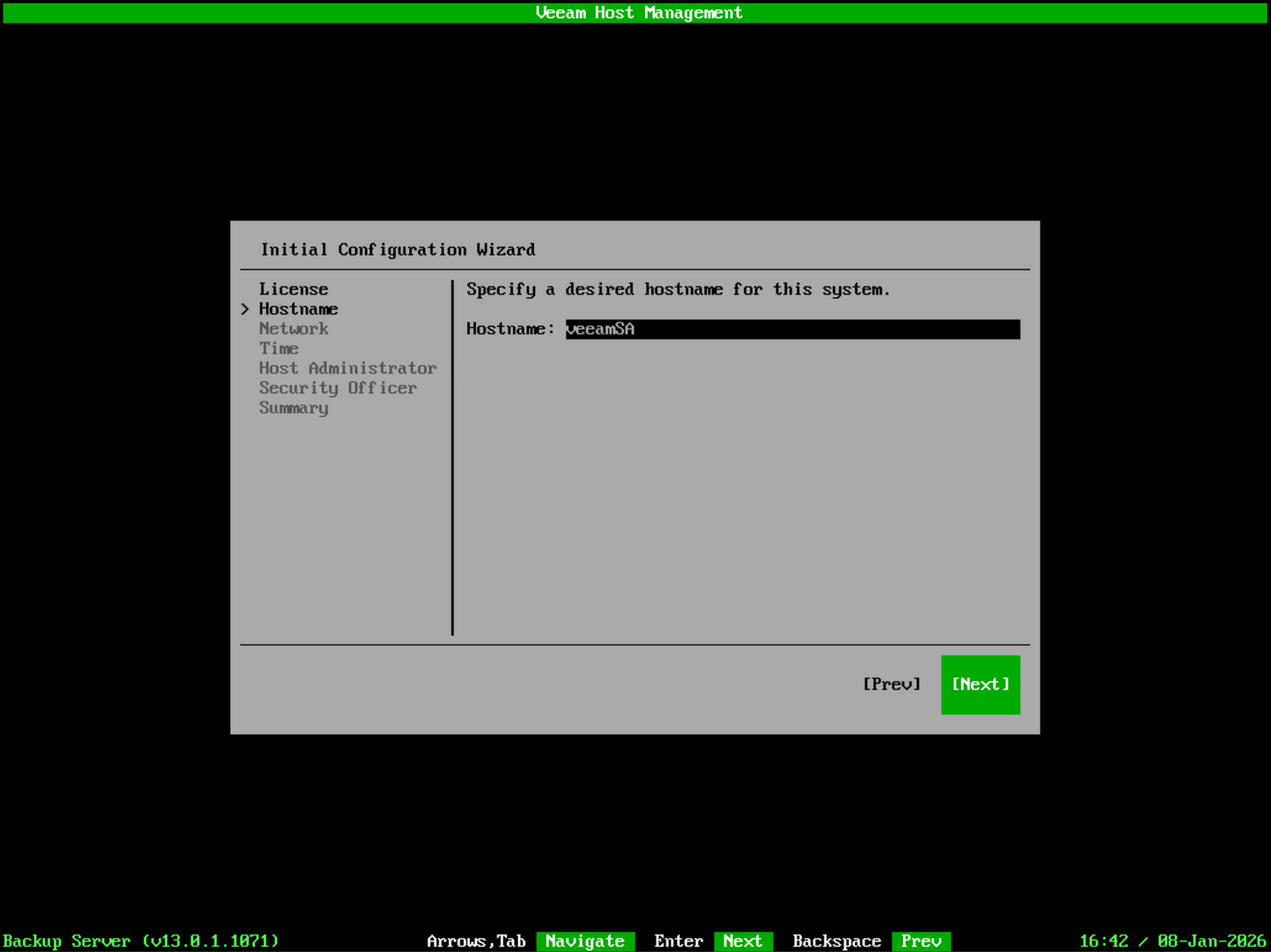
Next, configure your network settings.
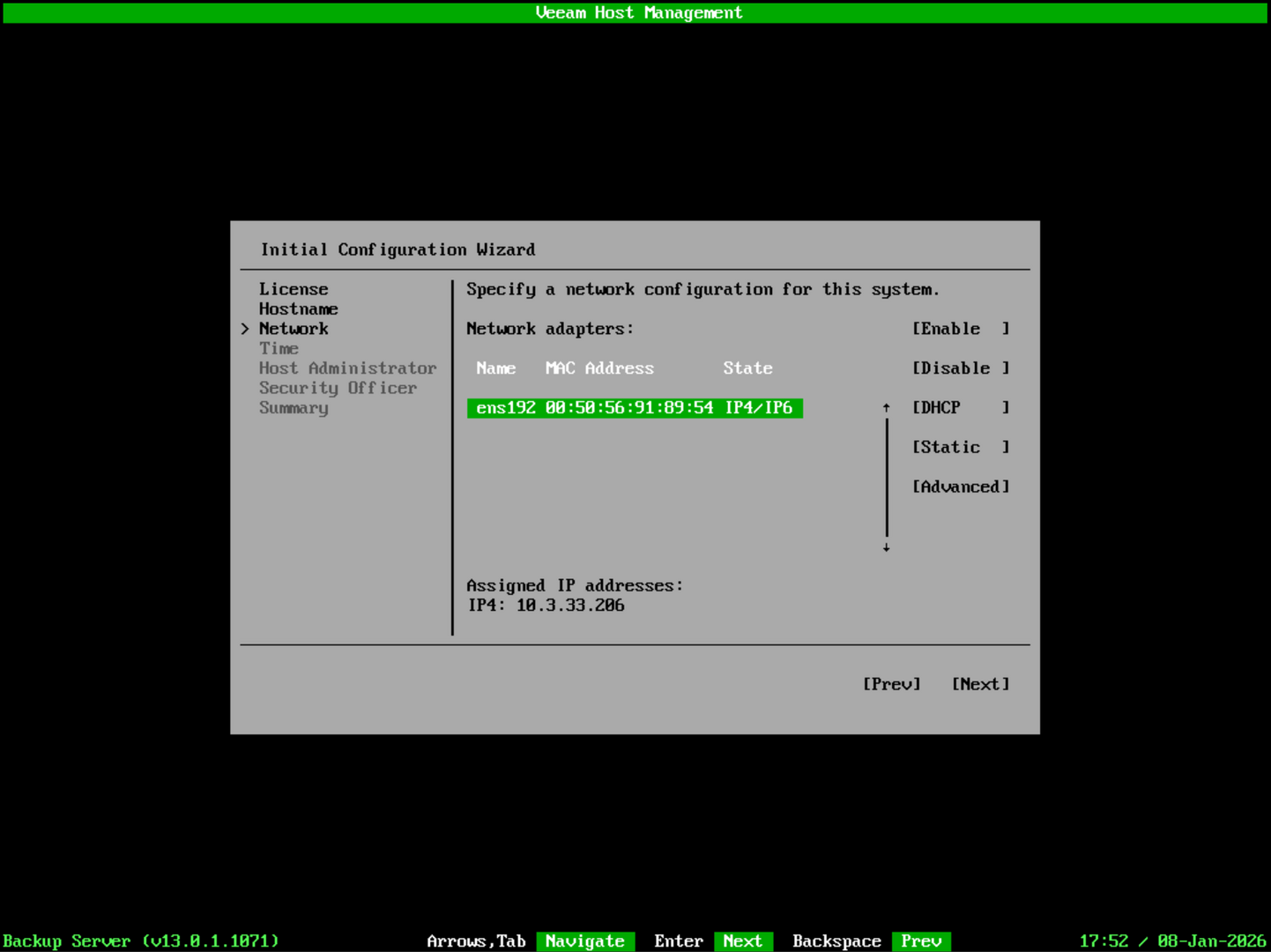
On the next step, you will be able to configure your NTP setup.
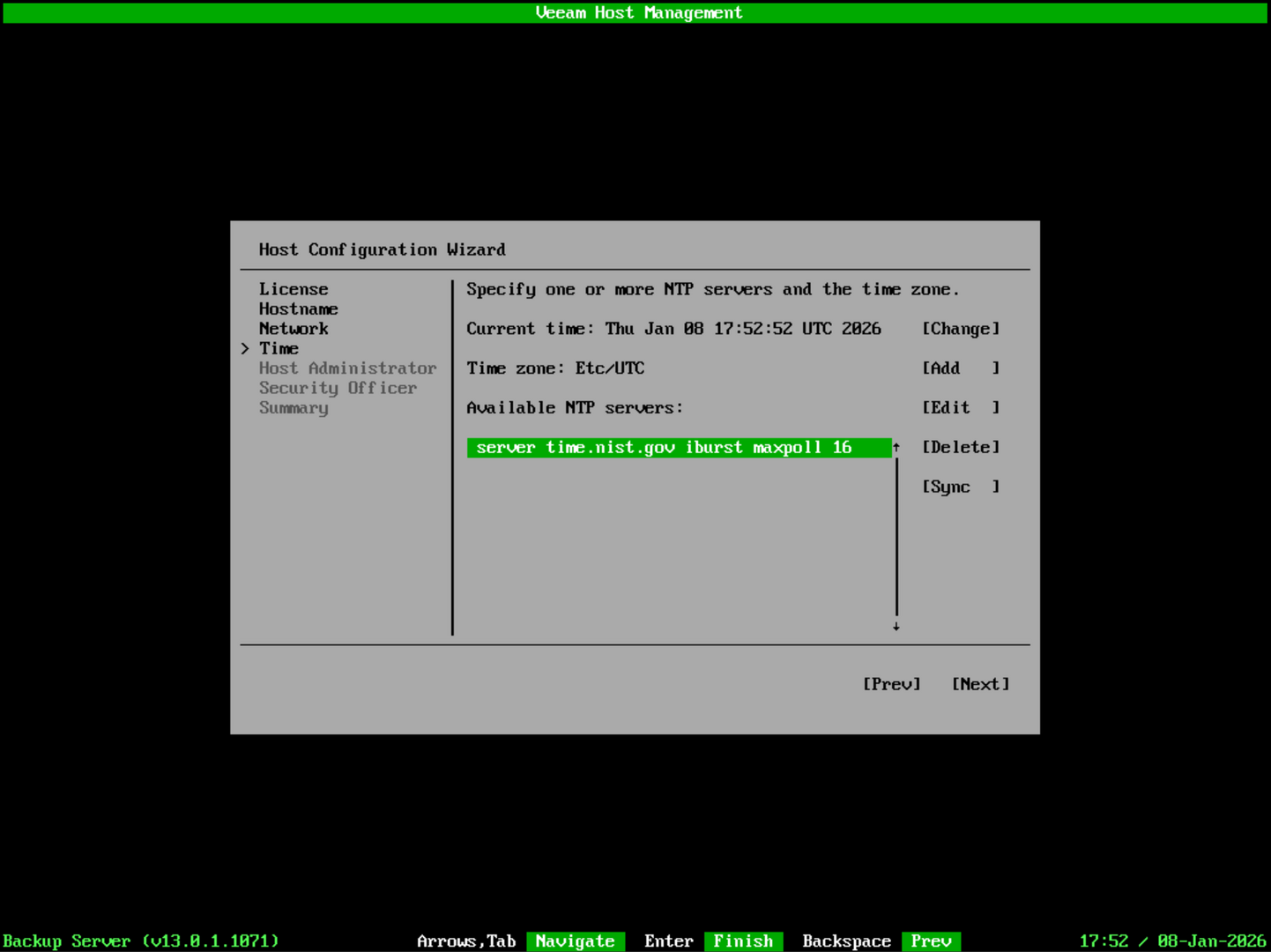
Next, set your veeamadmin password.
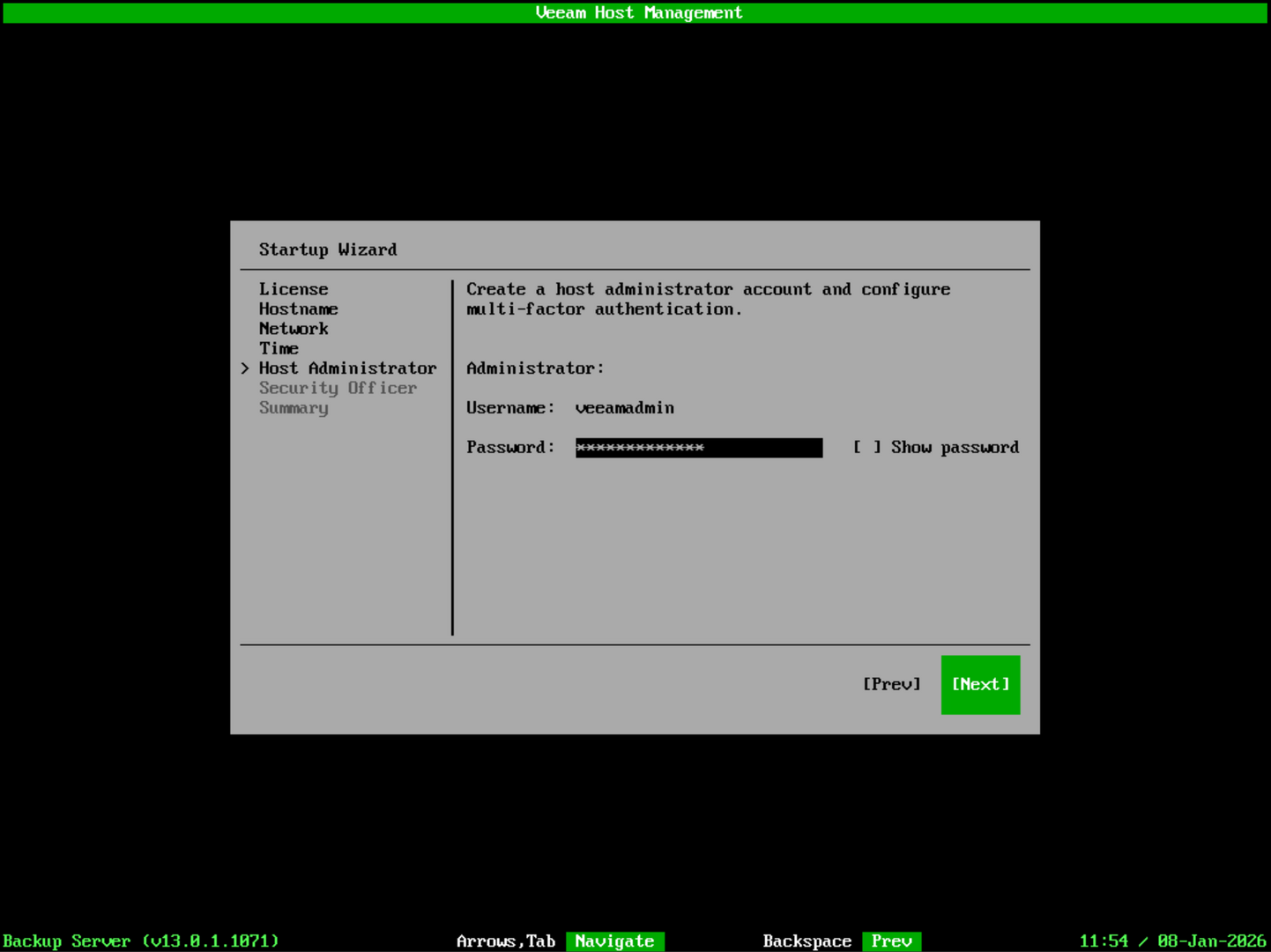
Be sure to set something that is super complex, it will only allow 3 characters of the same type in a row.

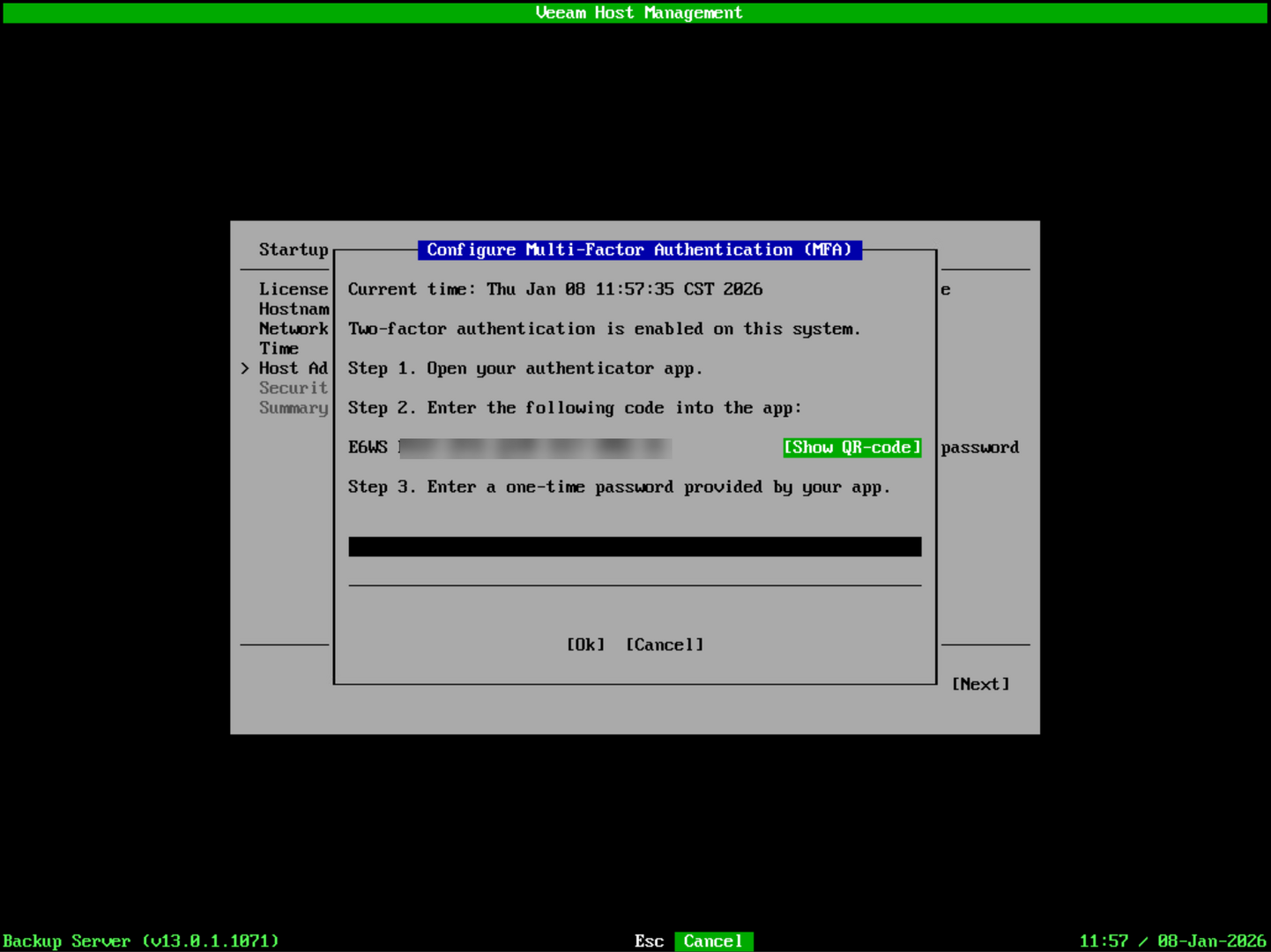
Setup MFA for your user account.
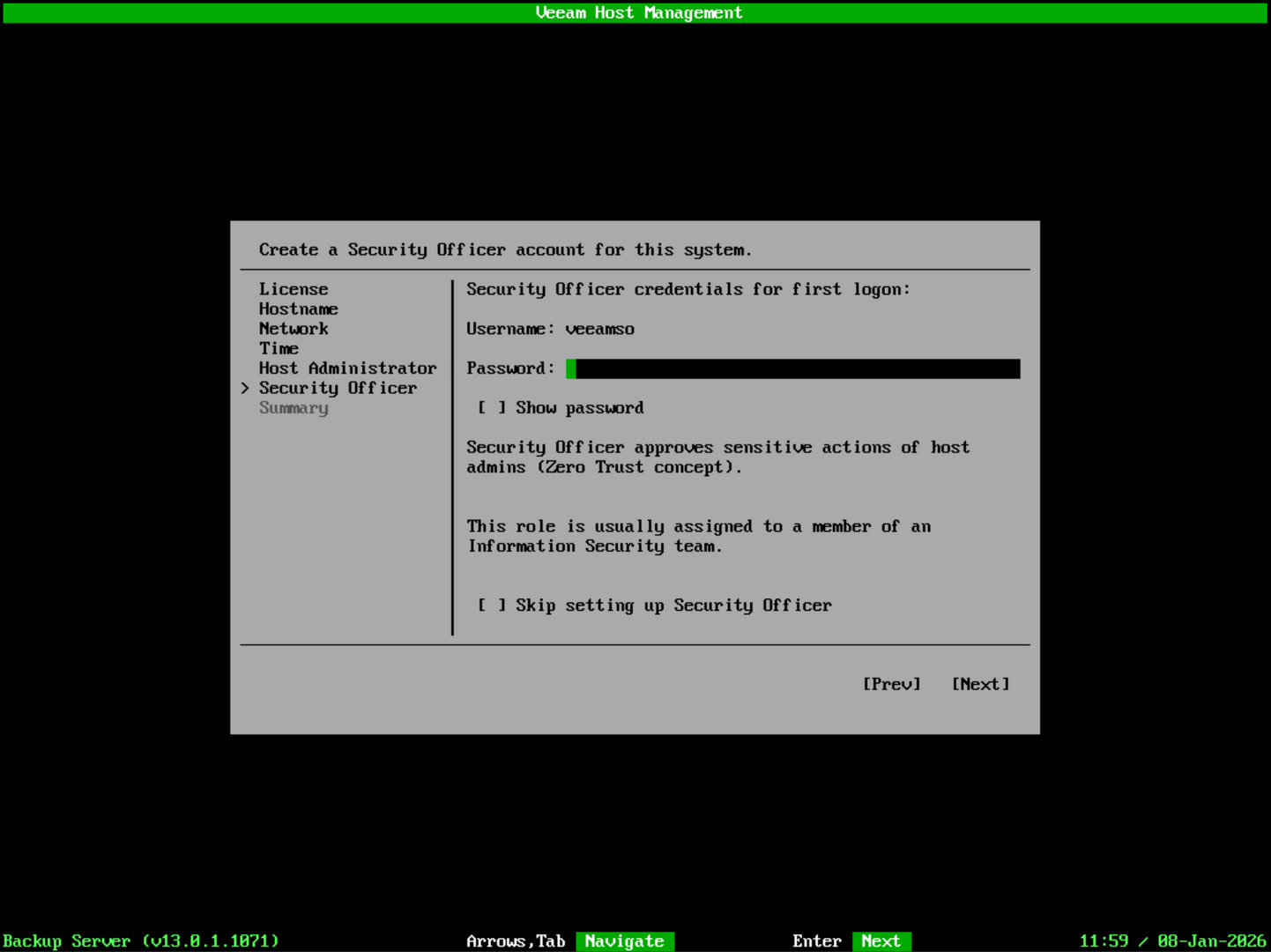
Configure a security officer account. This is optional and you can check the box to skip this part if you want.
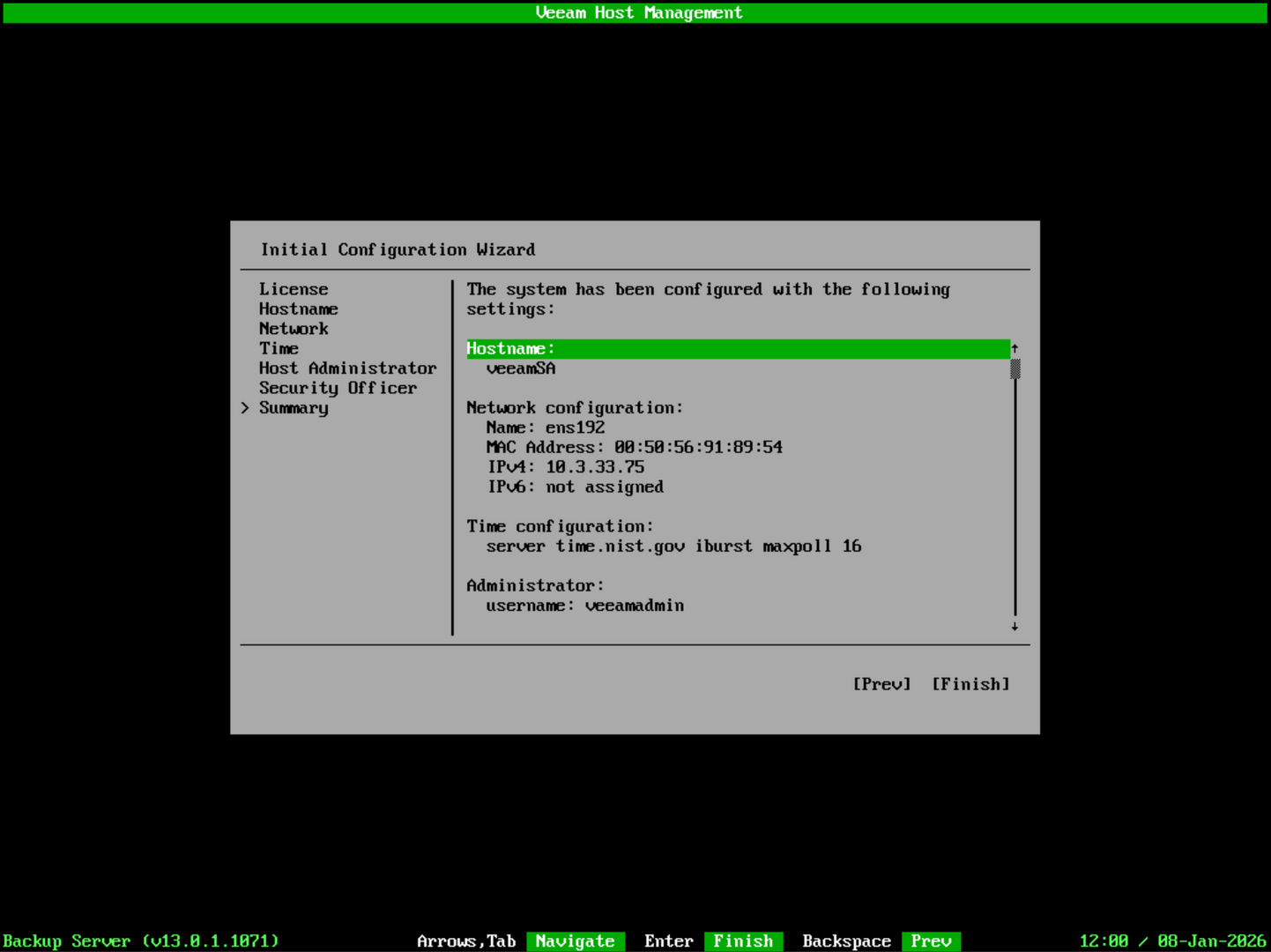
Summary screen of the initial configuration settings.
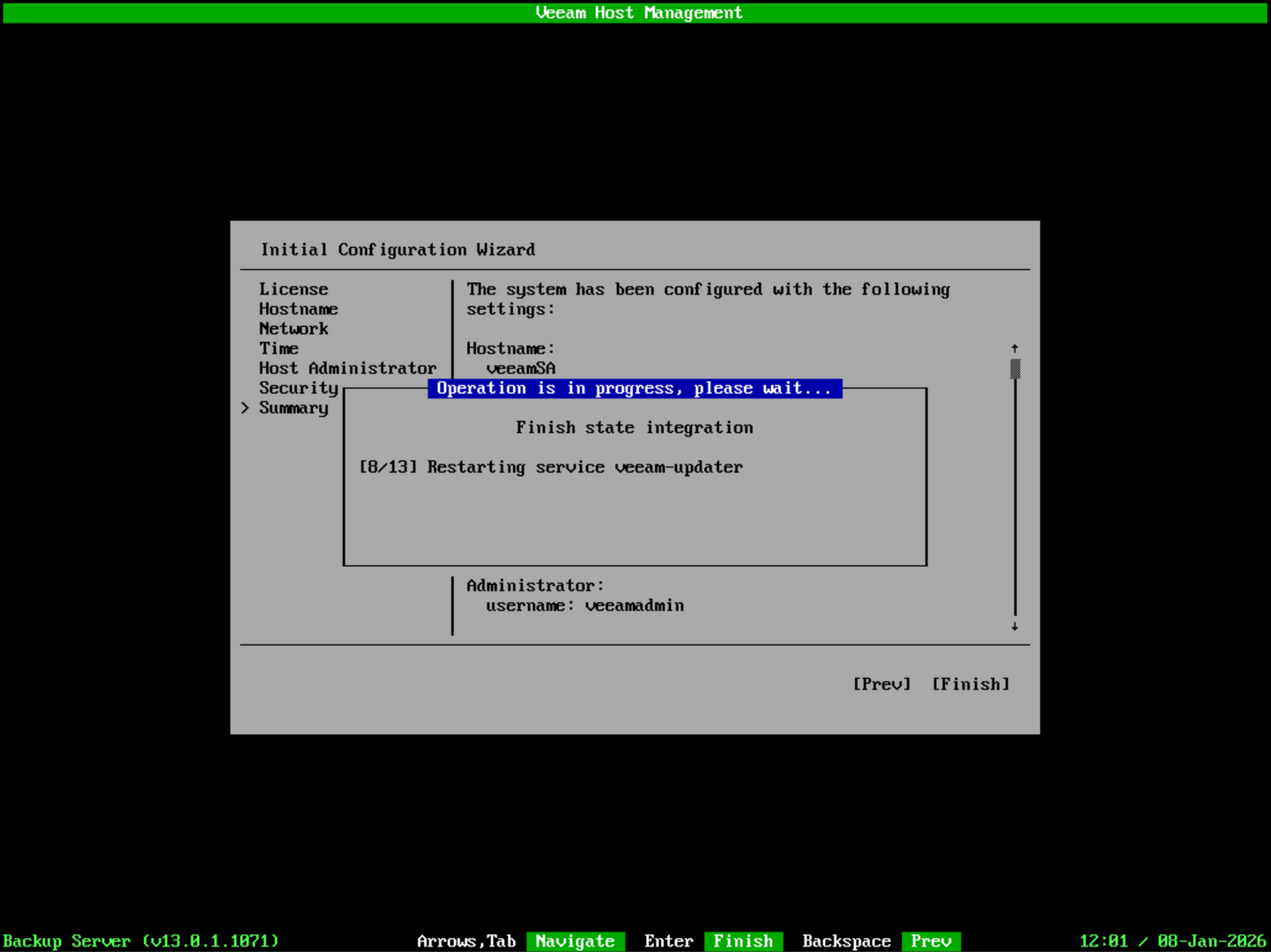
It will apply the configuration settings and restart all the services.
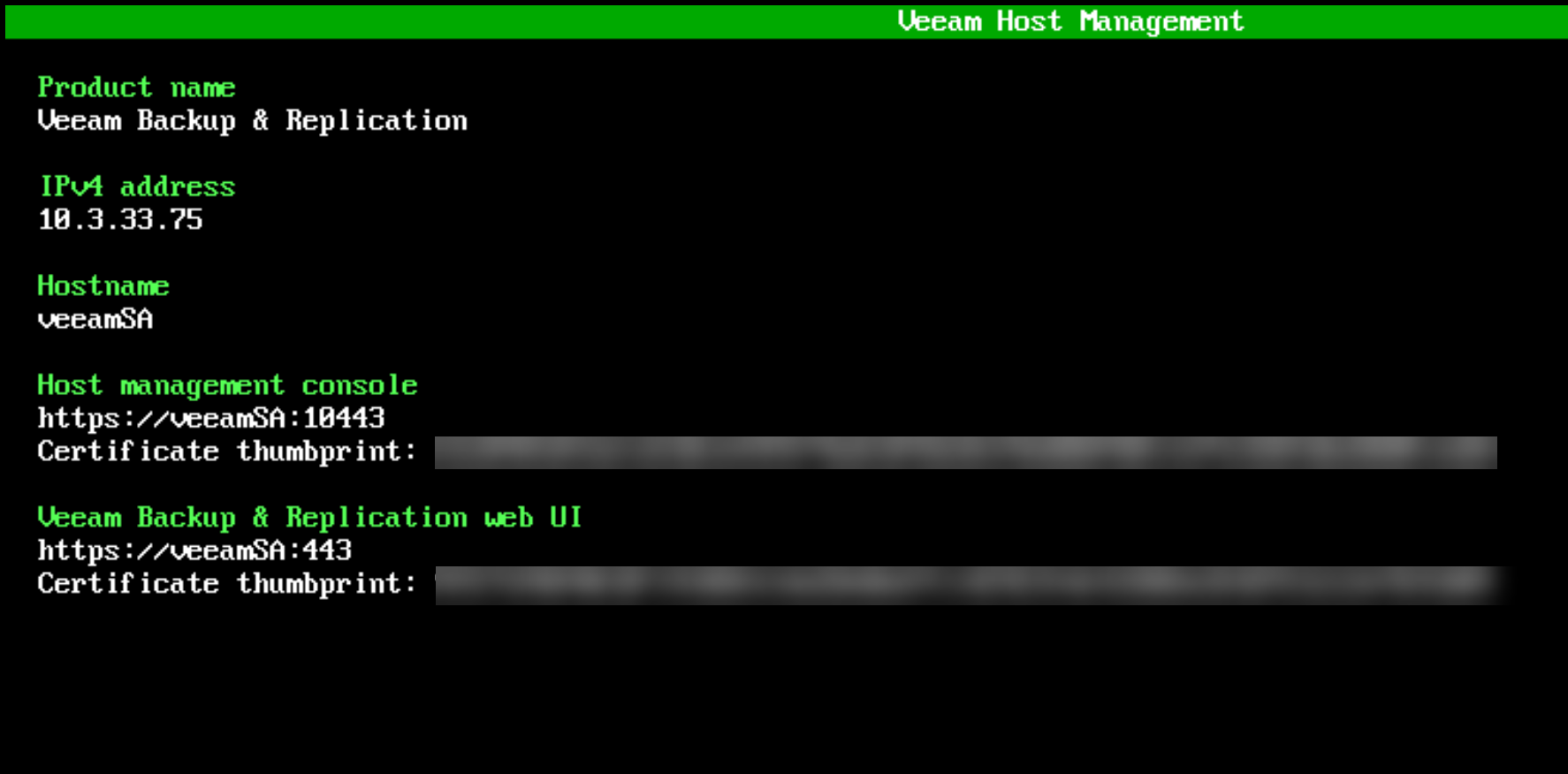
The appliance will reboot and you will see something similar to the below on the console. This allows you to see how you connect to the appliance.
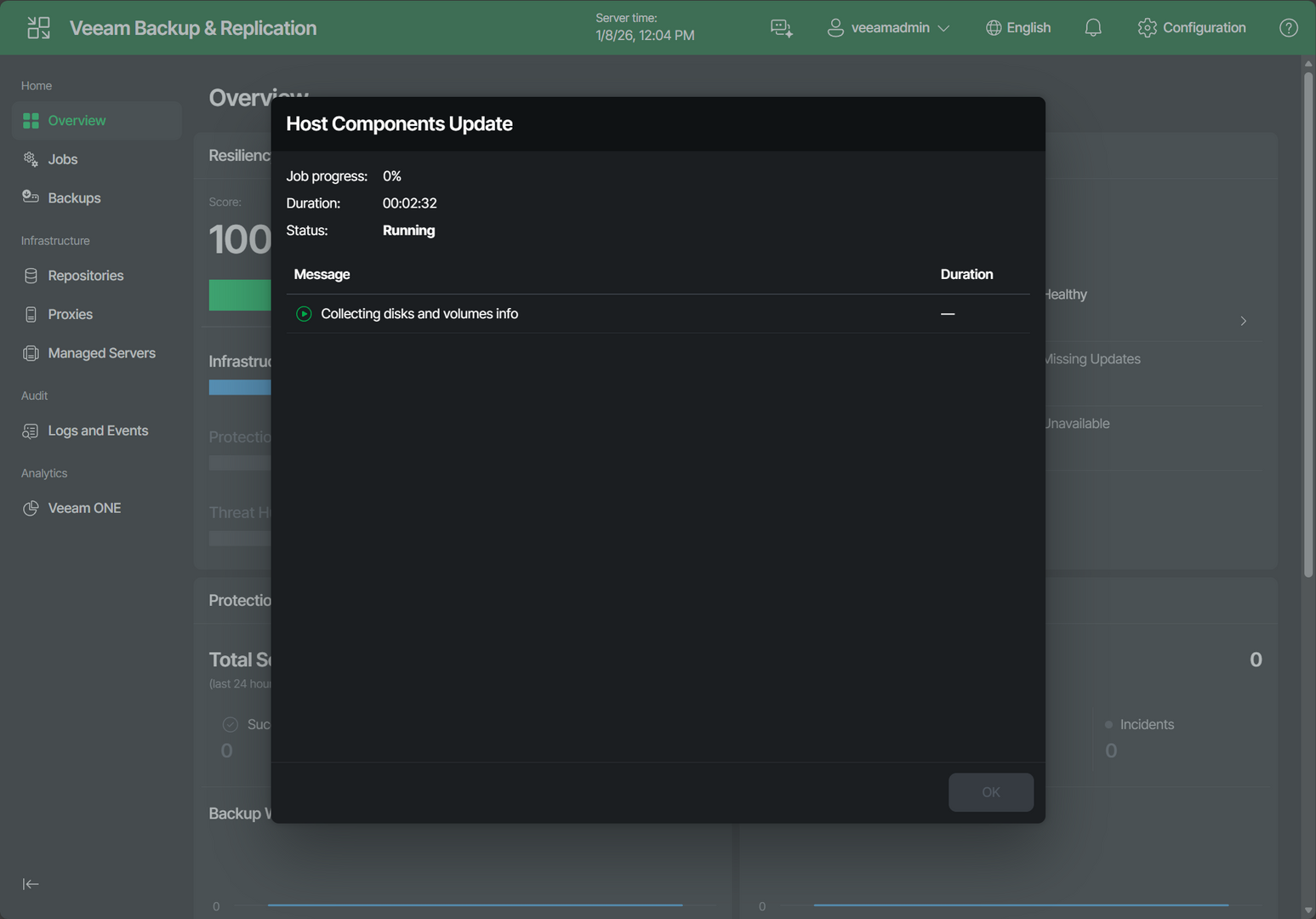
When logging in, the first thing it will do is update the host components and apply updates.
Hopefully, this walkthrough of how to install the Veeam hardened linux appliance using the OVA appliance in a VMware vSphere environment works. The process is straightforward and intuitive in classic Veeam fashion. Enjoy!